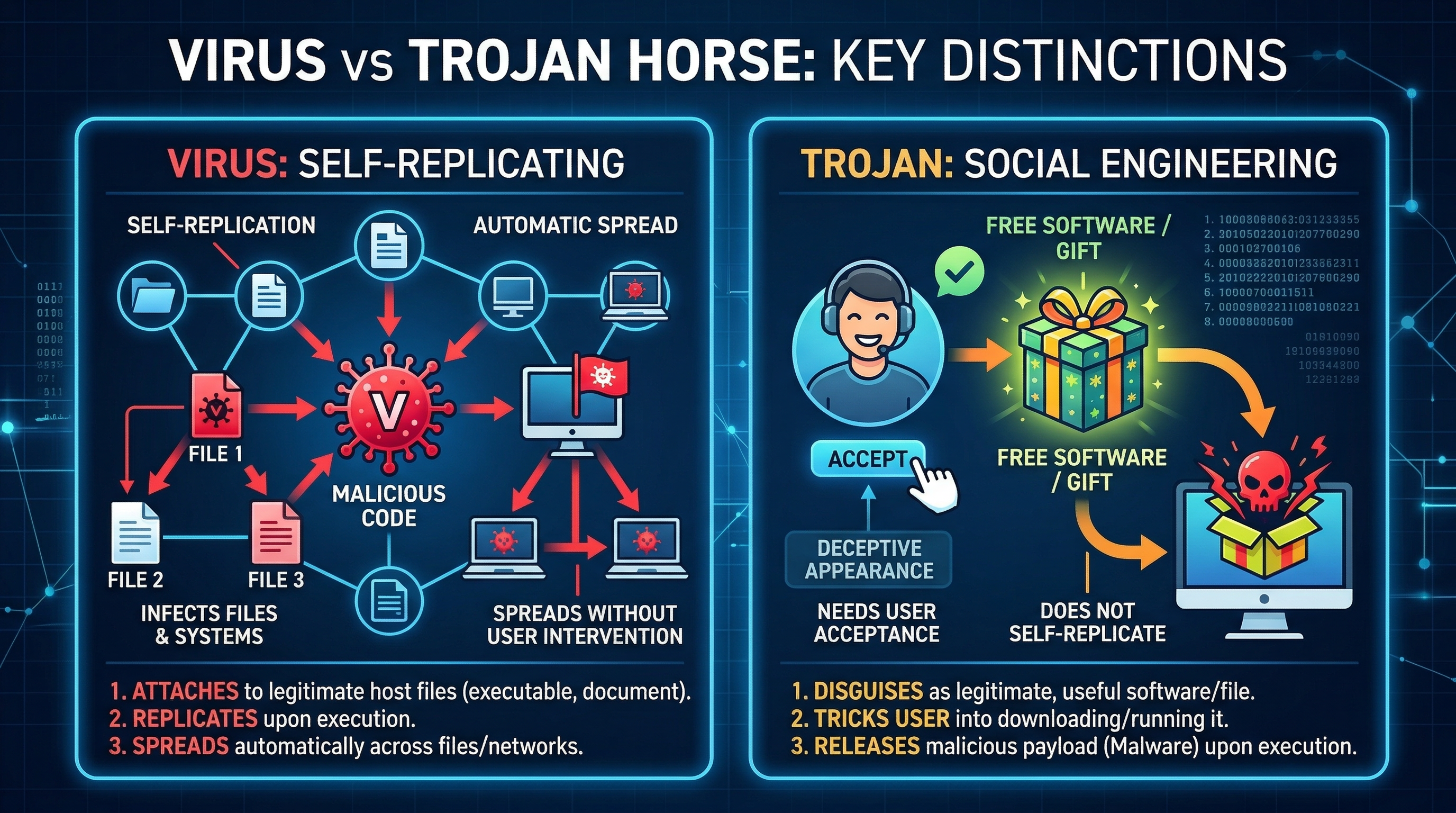
Executive Summary: Trojan viruses represent one of the most dangerous and deceptive categories of malware threatening PC users today. Unlike self-replicating viruses, Trojans disguise themselves as legitimate software, silently infiltrating systems to steal data, grant remote access to attackers, or deploy ransomware. This comprehensive guide explains exactly how Trojans operate, walks you through the critical warning signs of infection, provides a step-by-step removal and recovery framework, and outlines a proactive, layered defense strategy—including how purpose-built security solutions like 360 Total Security can protect your Windows or macOS PC against even the most evasive Trojan threats.
What Makes Trojan Viruses So Dangerous and How Do They Operate?
To defend against Trojans effectively, you must first understand what sets them apart from other malware. Their power lies not in technical sophistication alone, but in the art of deception—exploiting human trust rather than software vulnerabilities. Unlike traditional viruses that spread autonomously, Trojans require a willing—if unwitting—participant: the user.
The Deceptive Nature of Trojan Malware
A Trojan horse (or Trojan virus) is, by definition, malware that disguises itself as legitimate, desirable software. The name references the ancient Greek myth for good reason: just as the wooden horse appeared to be a gift, a Trojan appears to be a useful application—a free game, a video codec, a software update, or a productivity tool. Once the user installs it, the malicious payload activates.
This is the fundamental distinction between a Trojan and a traditional virus or worm:
- Viruses self-replicate by attaching to other files and spreading without explicit user action.
- Worms propagate across networks autonomously, exploiting security vulnerabilities.
- Trojans do neither. They rely entirely on social engineering—manipulating users into voluntarily installing them. This makes them exceptionally difficult to detect before execution, because from the operating system’s perspective, the user authorized the installation.
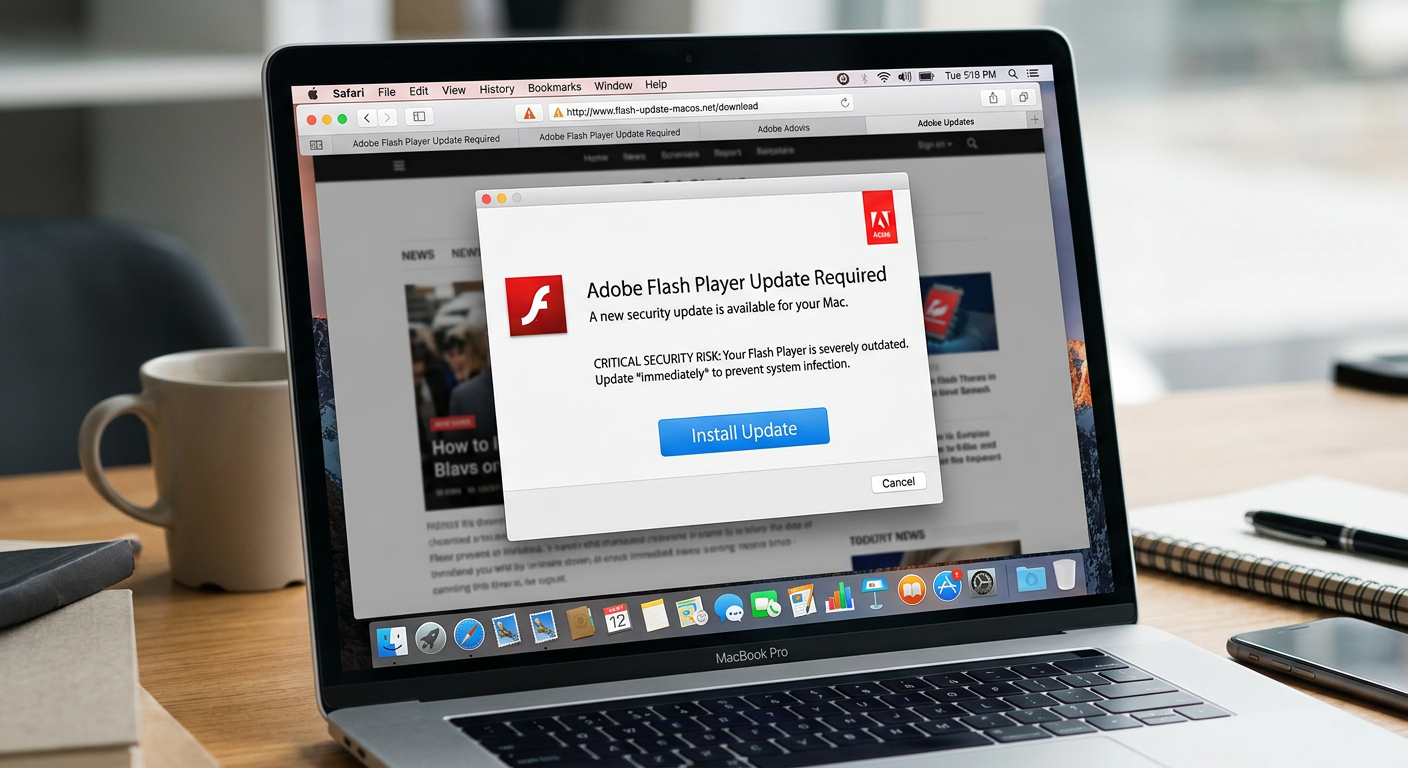
Common disguises include fake software update prompts, pirated media players, cracked versions of premium applications, and fraudulent security tools that claim to remove malware while actually installing it.
Common Trojan Attack Vectors and Delivery Methods
Understanding how Trojans reach your system is the first step toward blocking them. Cybersecurity researchers consistently identify the following as the primary delivery mechanisms:
- Phishing Emails: Carefully crafted emails impersonate banks, government agencies, delivery companies, or colleagues. They contain malicious attachments (disguised as invoices, shipping notices, or documents) or links to infected websites that trigger drive-by downloads. According to a 2025 Verizon Data Breach Investigations Report, phishing remains the leading initial attack vector in confirmed breaches.
- Drive-By Downloads: Simply visiting a compromised or malicious website can silently download and execute a Trojan, exploiting unpatched vulnerabilities in browsers, browser plugins (Java, Flash), or the operating system itself—no user interaction beyond the page visit required.
- Pirated Software, Games, and Cracks: This is one of the most prevalent and underestimated vectors. A 2026 cybersecurity industry report from Kaspersky highlighted that a significant proportion of Trojan infections on consumer PCs originate from software piracy ecosystems—cracked applications, key generators (keygens), and torrent downloads from unverified sources. Threat actors deliberately seed these platforms with Trojan-laced files, knowing users are already bypassing their security instincts.
- Malicious Advertising (Malvertising): Infected advertisements served through legitimate ad networks can redirect users to exploit kit landing pages, even on reputable websites.
- Instant Messaging and Social Media: Links shared via messaging platforms or social media, sometimes from compromised accounts of people you trust, can lead to Trojan download pages.
The End Goals: What Happens After a Trojan Infests Your PC?
Once a Trojan successfully installs itself, its behavior depends on its specific type and the attacker’s objectives. The consequences range from financial theft to complete system takeover:
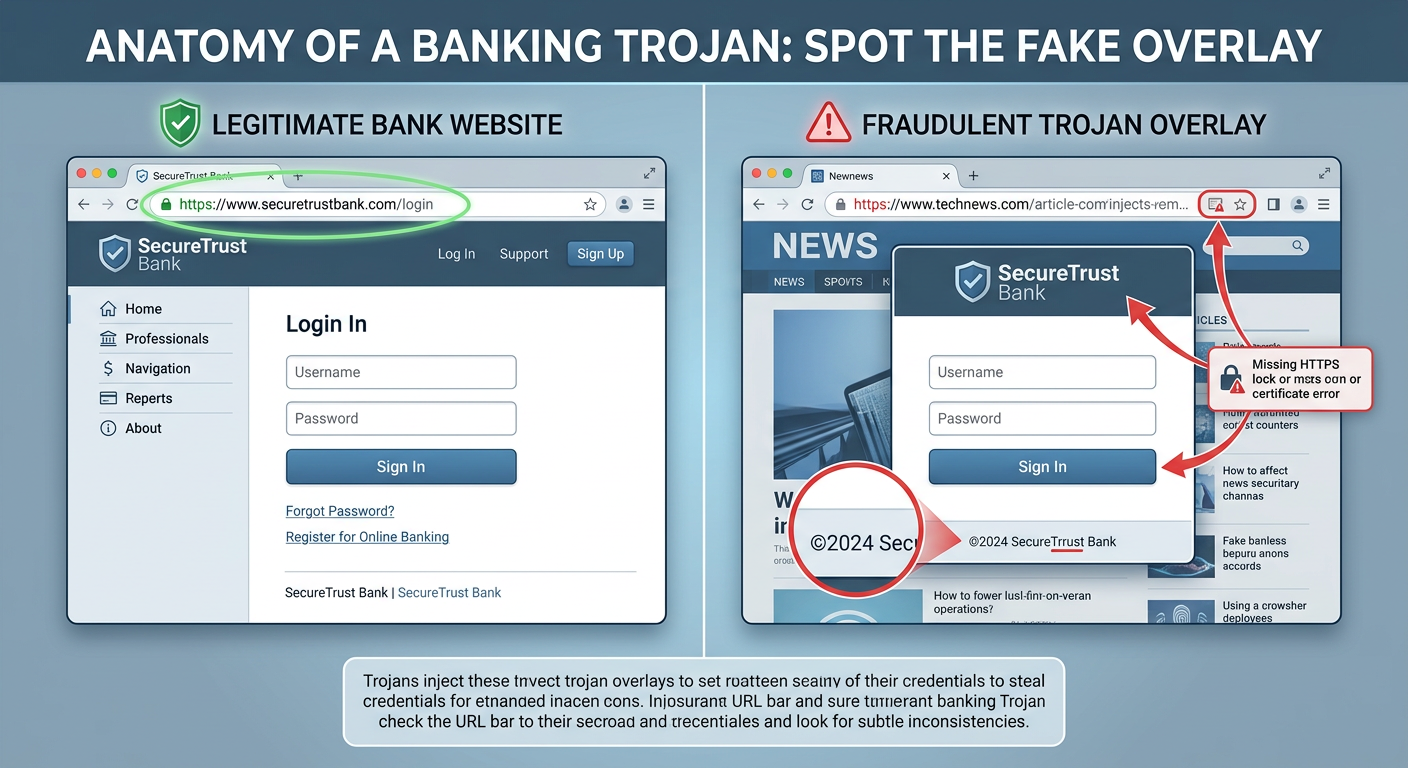
- Data Theft via Keyloggers and Banking Trojans: Keylogger Trojans silently record every keystroke, capturing passwords, credit card numbers, and personal messages. Banking Trojans (like the notorious Zeus or Emotet families) are specifically engineered to intercept online banking sessions, manipulate transaction data in real-time, and siphon funds directly from accounts. They often use man-in-the-browser attacks that are invisible to the victim.
- Remote Access Trojans (RATs): RATs grant attackers complete, covert remote control over your system. They can activate your webcam and microphone for surveillance, browse your files, take screenshots, log keystrokes, and even enlist your PC into a botnet—a network of compromised machines used to launch Distributed Denial of Service (DDoS) attacks or distribute spam campaigns.
- System Sabotage and Ransomware Delivery: Many Trojans function as initial-access brokers—their primary role is to establish a foothold and then download additional, more destructive malware. This includes ransomware that encrypts all your files and demands payment for decryption, spyware, or tools that disable your existing security software, leaving the system completely exposed.
How Can You Detect a Trojan Infection on Your Computer?
Trojans are engineered to remain hidden for as long as possible, maximizing the attacker’s window of opportunity. However, their malicious activities inevitably leave traces. Knowing what subtle—and not-so-subtle—warning signs to look for can be the difference between catching an infection early and suffering a catastrophic data breach.
Performance and Behavioral Red Flags
Your computer’s behavior is often the first indicator that something is wrong. Pay close attention to the following anomalies:
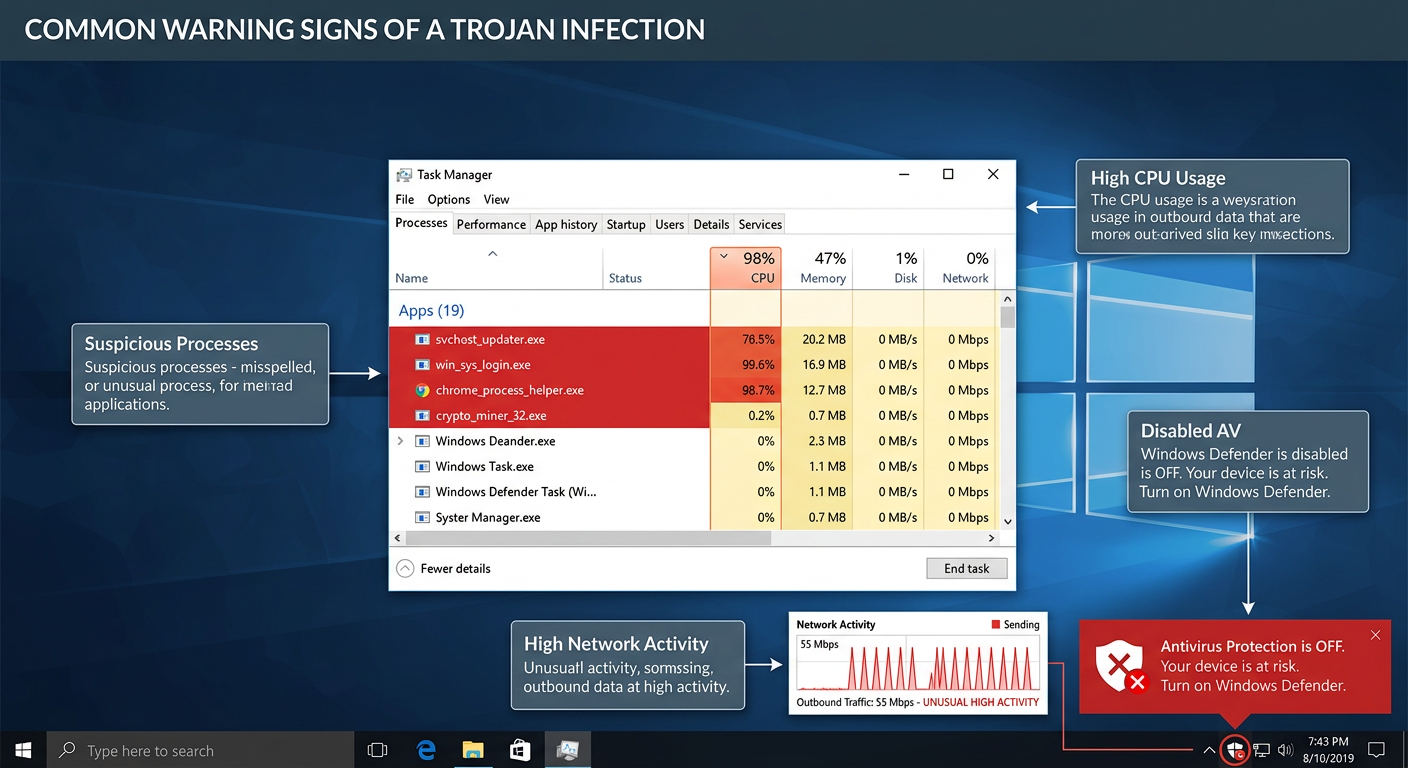
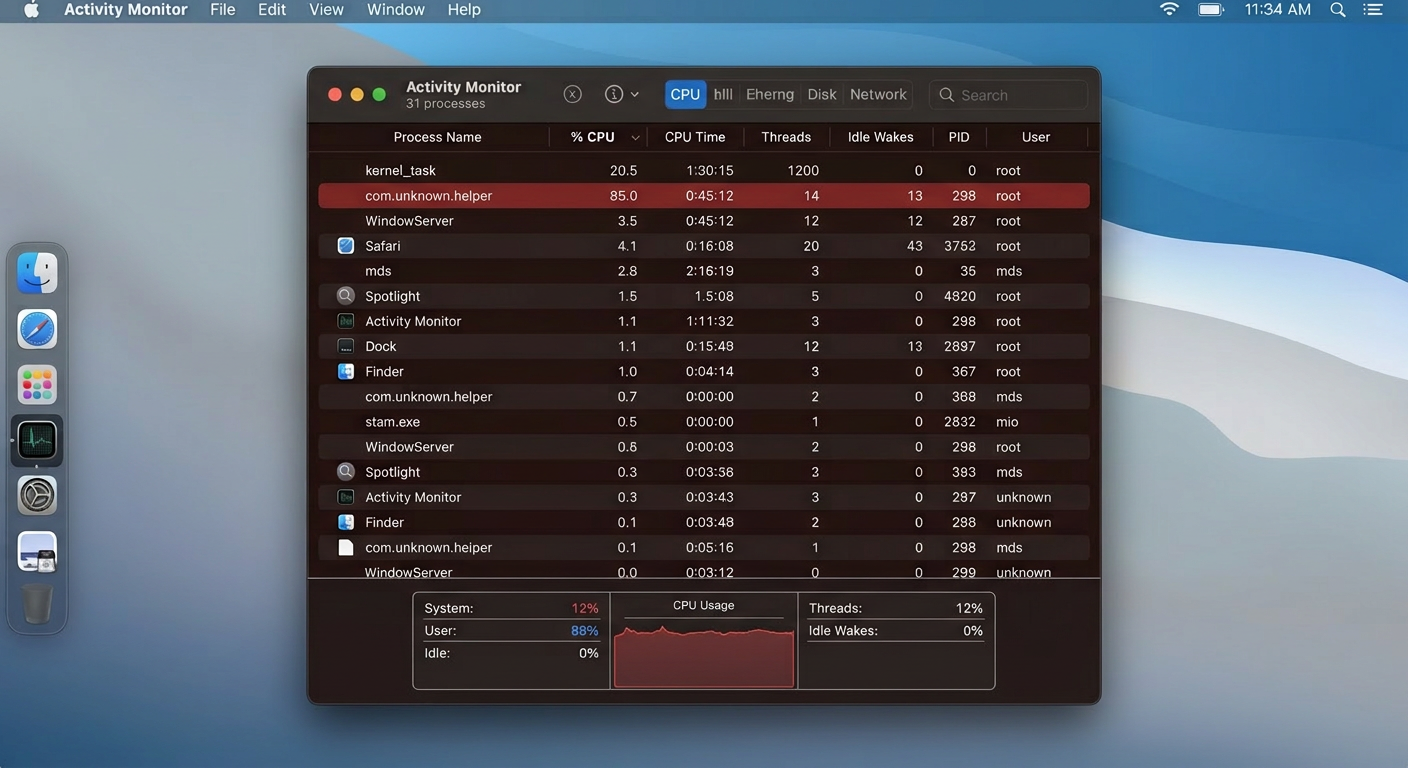
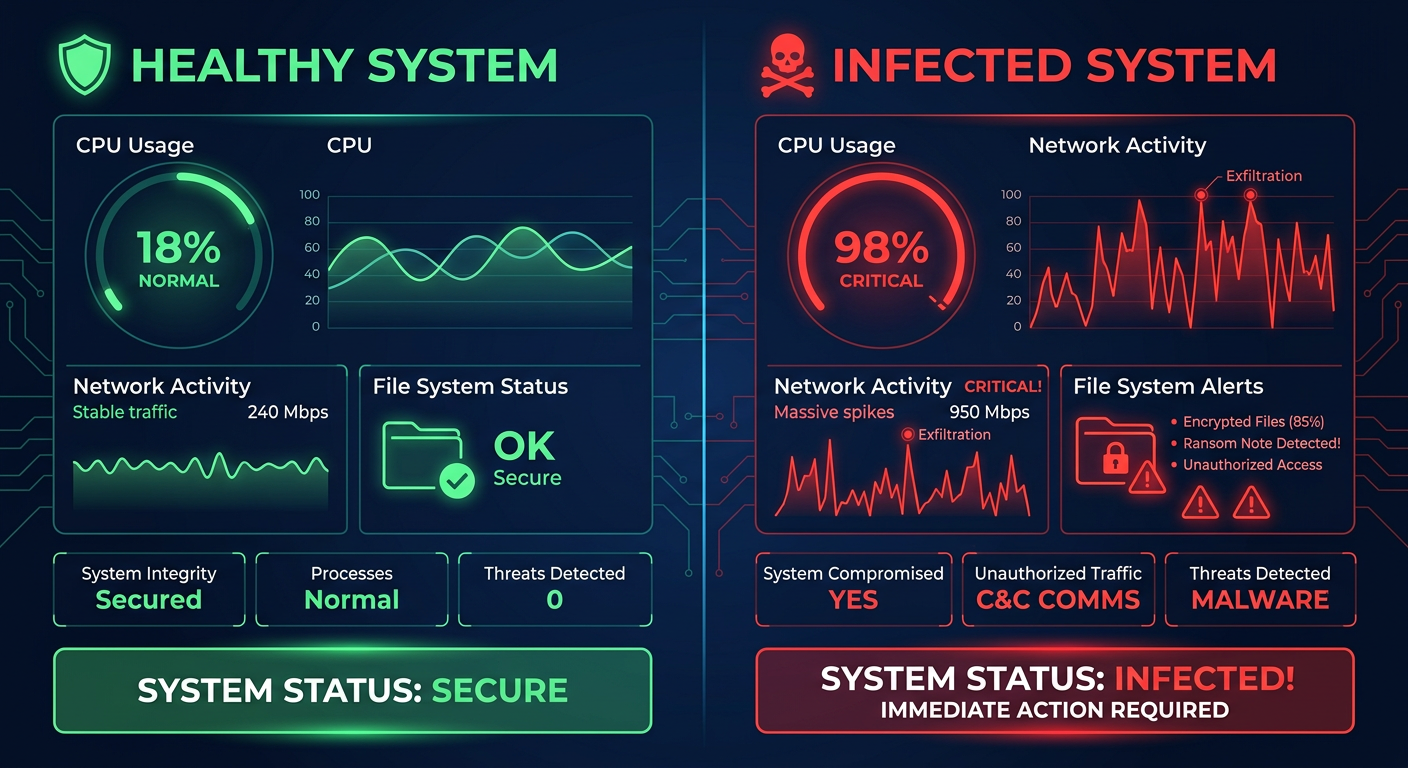
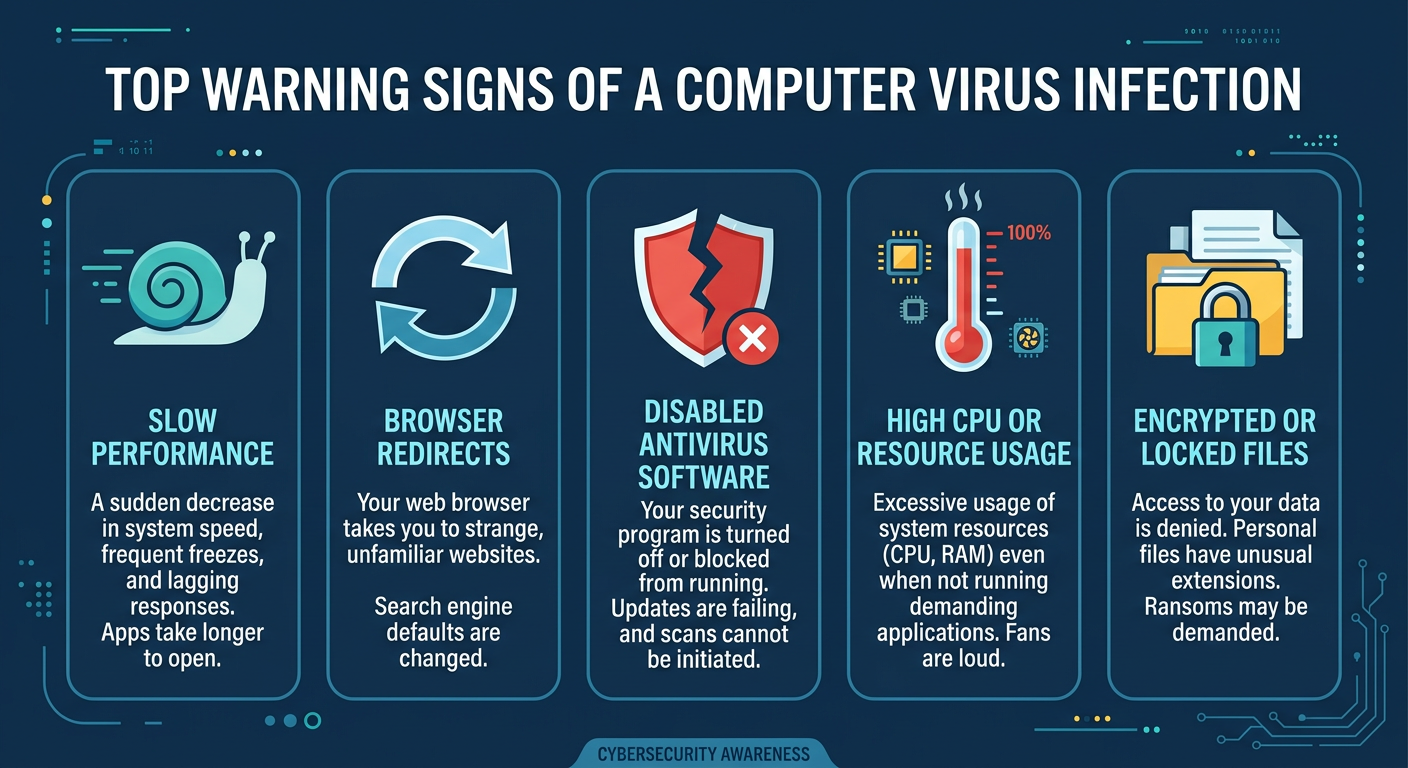
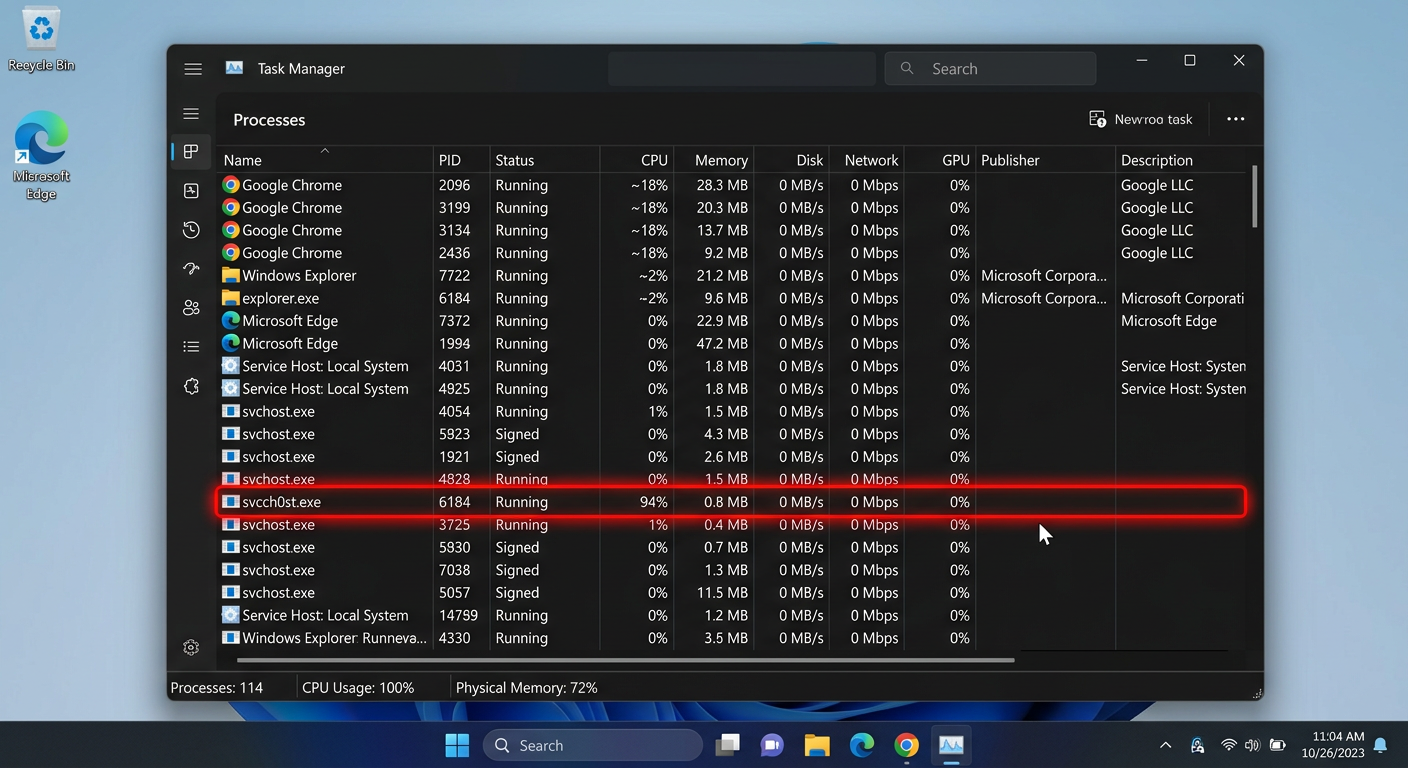
- Unexplained System Slowdown: A Trojan running in the background—whether logging keystrokes, uploading stolen data, or participating in a botnet attack—consumes CPU, RAM, and disk resources. If your PC becomes noticeably sluggish, especially when it should be idle, this warrants immediate investigation. Open Task Manager and check which processes are consuming the most resources.
- Programs Launching or Closing Autonomously: If applications open or close without your input, or if system settings (like your homepage, default search engine, or wallpaper) change on their own, a RAT or other Trojan variant may be actively controlling your system.
- Disabled Security Software: This is one of the most alarming signs. Many sophisticated Trojans specifically target and disable antivirus software, Windows Firewall, or Windows Defender as a first priority. If you find your security tools are turned off and you cannot re-enable them, or if you are blocked from visiting security vendor websites (a common Trojan tactic), treat this as a strong indicator of active infection.
- Frequent and Unexplained Crashes: System instability, Blue Screens of Death (BSODs), or application crashes that were not occurring before can indicate malicious processes interfering with system operations.
Network and Security Anomalies
Trojans must communicate—with their command-and-control (C2) servers to receive instructions, or to exfiltrate stolen data. This network activity can be detected:
- Unusual Network Activity: Open Task Manager (Ctrl+Shift+Esc), navigate to the Performance tab, and click Open Resource Monitor. In the Network tab, review which processes are sending and receiving data. Consistent, unexplained data uploads when you are not actively using the internet—especially from unknown processes—is a serious red flag. A Trojan uploading your stolen files or participating in a botnet will show sustained outbound traffic.
- Fake Security Pop-Ups (Scareware): If you are suddenly bombarded with alarming pop-up warnings claiming your PC is severely infected and demanding you call a phone number or purchase a specific (fake) security product, this is a classic Trojan-delivered scareware tactic. Legitimate security software does not use such aggressive, fear-inducing tactics.
- Unauthorized Account Activity: Friends and contacts reporting that they received strange messages, spam emails, or unusual links from your email address or social media accounts is a strong indicator that a Trojan has harvested your credentials and is either using your accounts or has sold them to other criminals.
Proactive Manual Checks You Can Perform
Beyond watching for symptoms, you can actively inspect your system for signs of compromise:
- Review Startup Programs: Many Trojans establish persistence by adding themselves to the system startup. Open Task Manager, click the Startup tab, and carefully review every entry. Research any program you don’t recognize. You can also use Autoruns (a free Microsoft Sysinternals tool) for a far more comprehensive view of all auto-starting locations.
- Inspect Running Processes: In Task Manager, click More details and navigate to the Details tab for a complete list of running processes. Right-click on any suspicious process and select Open file location to see where it is running from. Trojans often masquerade as legitimate Windows processes (e.g.,
svchost.exe,csrss.exe) but run from unusual directories like%AppData%or%Temp%instead ofC:\Windows\System32. - Check for Suspicious Registry Run Keys: Trojans frequently add entries to Windows Registry run keys to ensure they launch at startup:
HKEY_CURRENT_USER\Software\Microsoft\Windows\CurrentVersion\Run
HKEY_LOCAL_MACHINE\SOFTWARE\Microsoft\Windows\CurrentVersion\Run
Open the Registry Editor (press Win+R, type
regedit, press Enter) and navigate to these locations. Any unfamiliar entry pointing to an executable in a suspicious location should be investigated.
The following type of tutorial is highly relevant for learning this process hands-on:
[Video: Search YouTube for “how to find malware in Windows Task Manager” to find screen-recorded tutorials from reputable cybersecurity channels demonstrating how to identify suspicious processes and startup items.]
What Are the Most Effective Steps for Trojan Removal and System Recovery?
Discovering a Trojan infection demands a calm, methodical response. Acting hastily—or worse, ignoring the signs—can allow the attacker to deepen their access, exfiltrate more data, or deploy additional malware. Follow this structured, multi-layered removal protocol.
Immediate First Response: Isolation and Scanning
Your first priority is to contain the infection and prevent further damage:
- Disconnect from the Internet Immediately: Physically unplug your Ethernet cable or disable your Wi-Fi adapter. This severs the Trojan’s communication channel with its command-and-control server, preventing it from receiving new instructions, exfiltrating additional data, or downloading secondary malware payloads. This is the single most impactful immediate action you can take.
- Boot into Safe Mode with Networking: Restart your PC and boot into Safe Mode with Networking (press F8 during startup on older Windows versions, or hold Shift while clicking Restart on Windows 10/11, then navigate to Troubleshoot > Advanced Options > Startup Settings > Restart > press F5). Safe Mode loads only essential Windows components, preventing most Trojans from loading with the system, which makes them far easier to detect and remove.
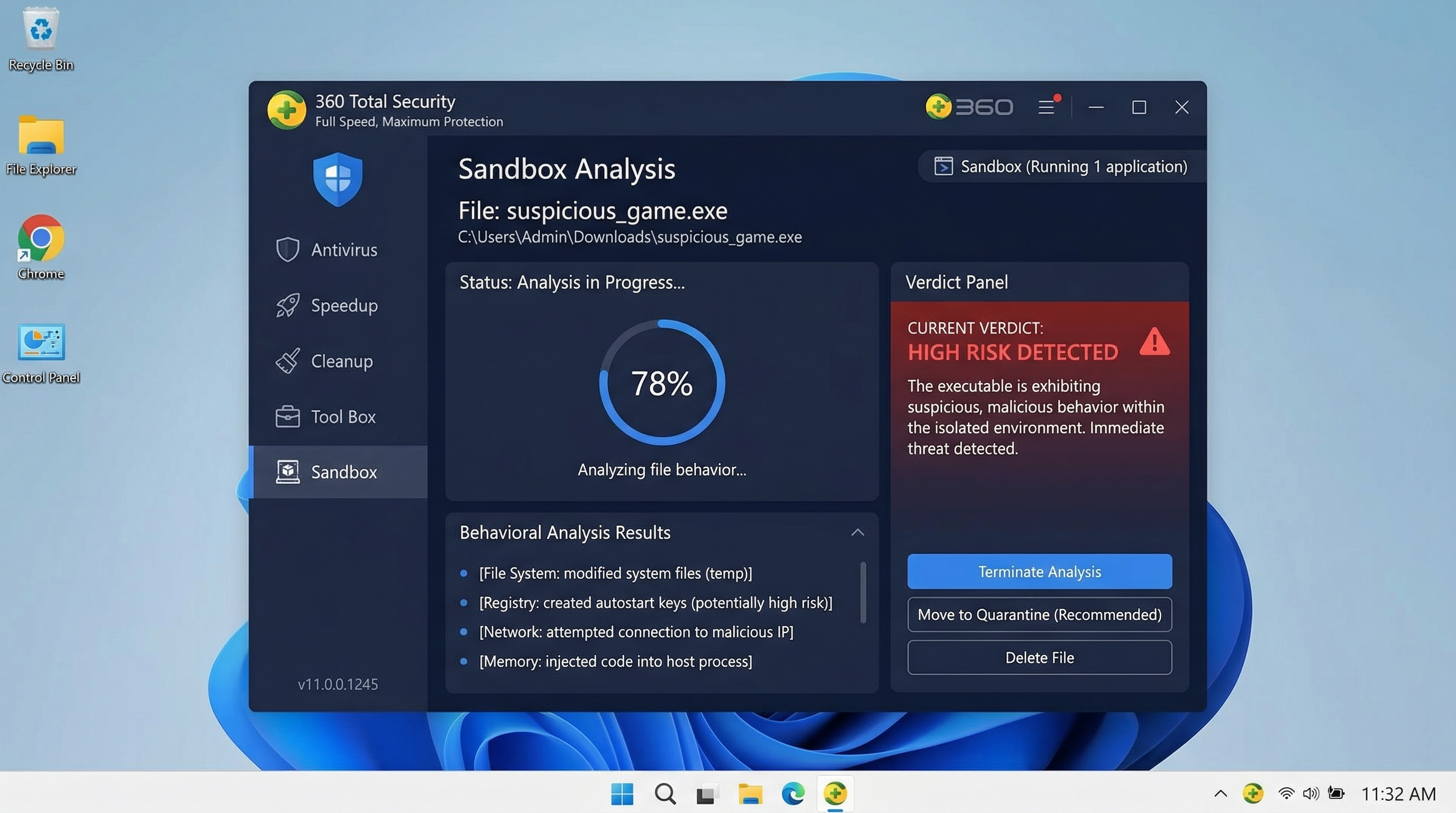
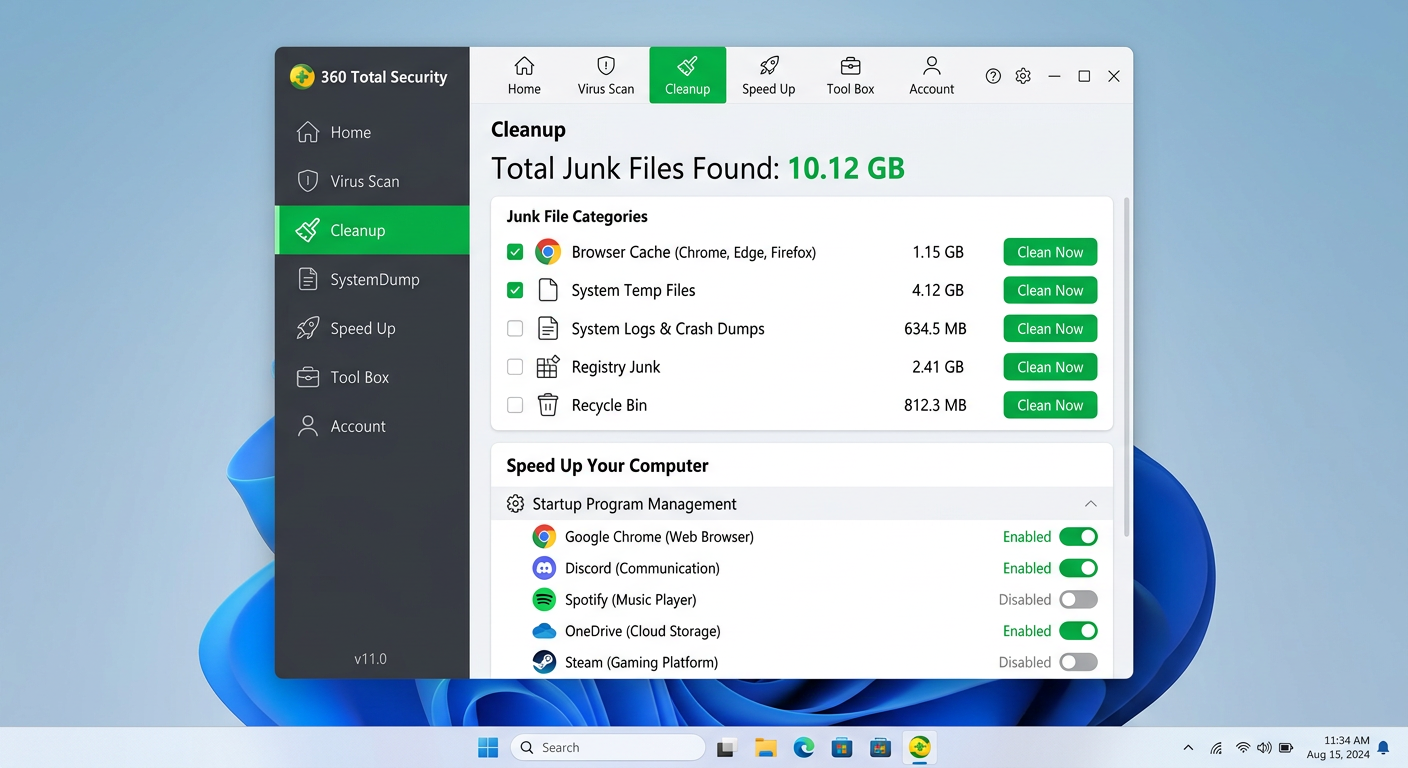
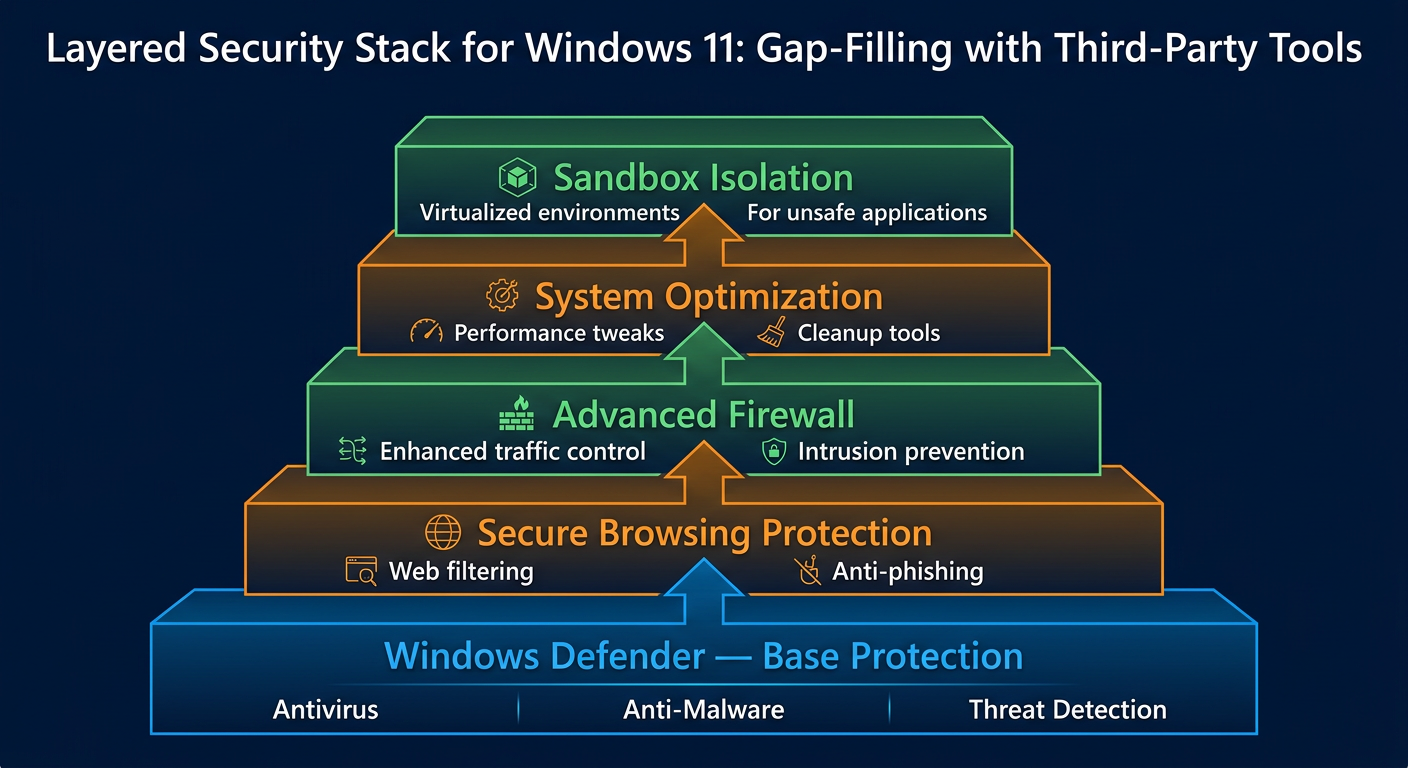
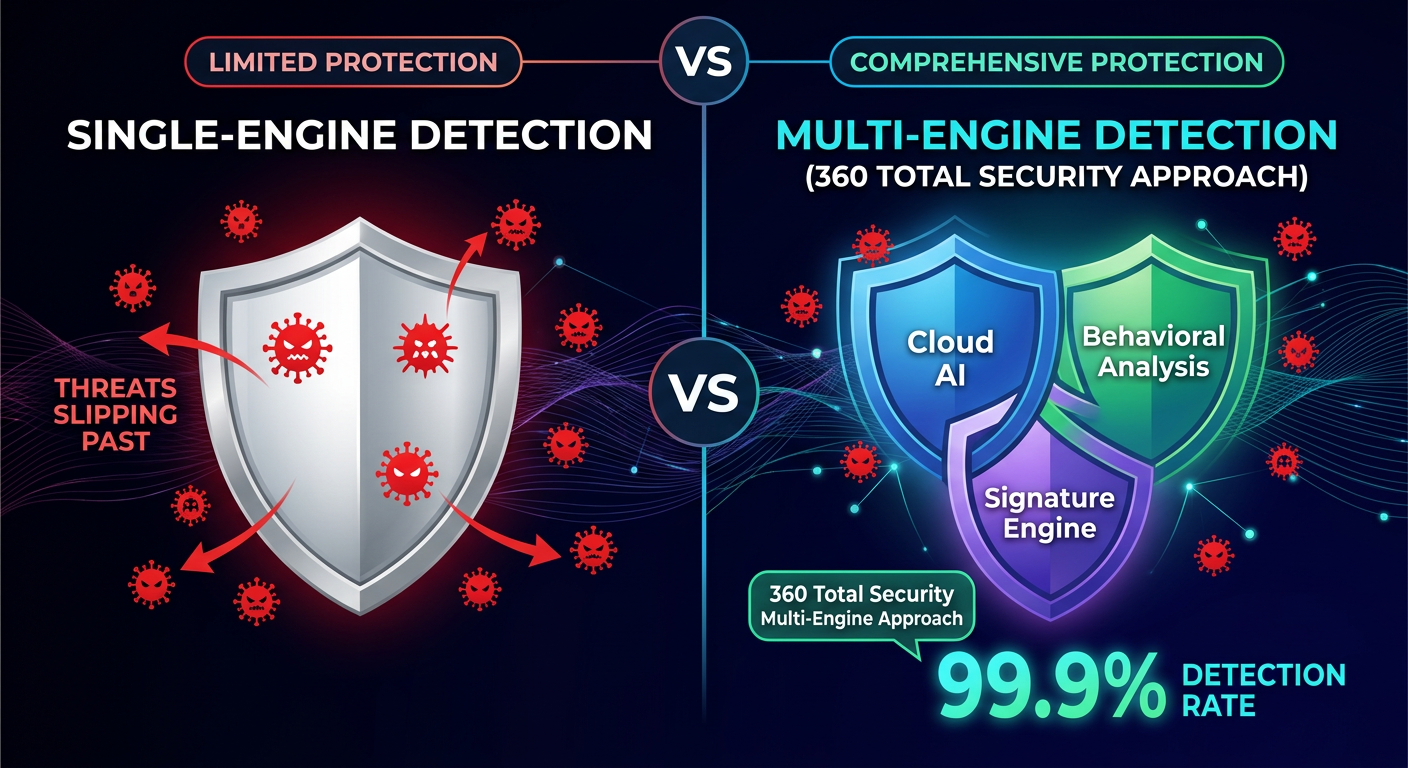
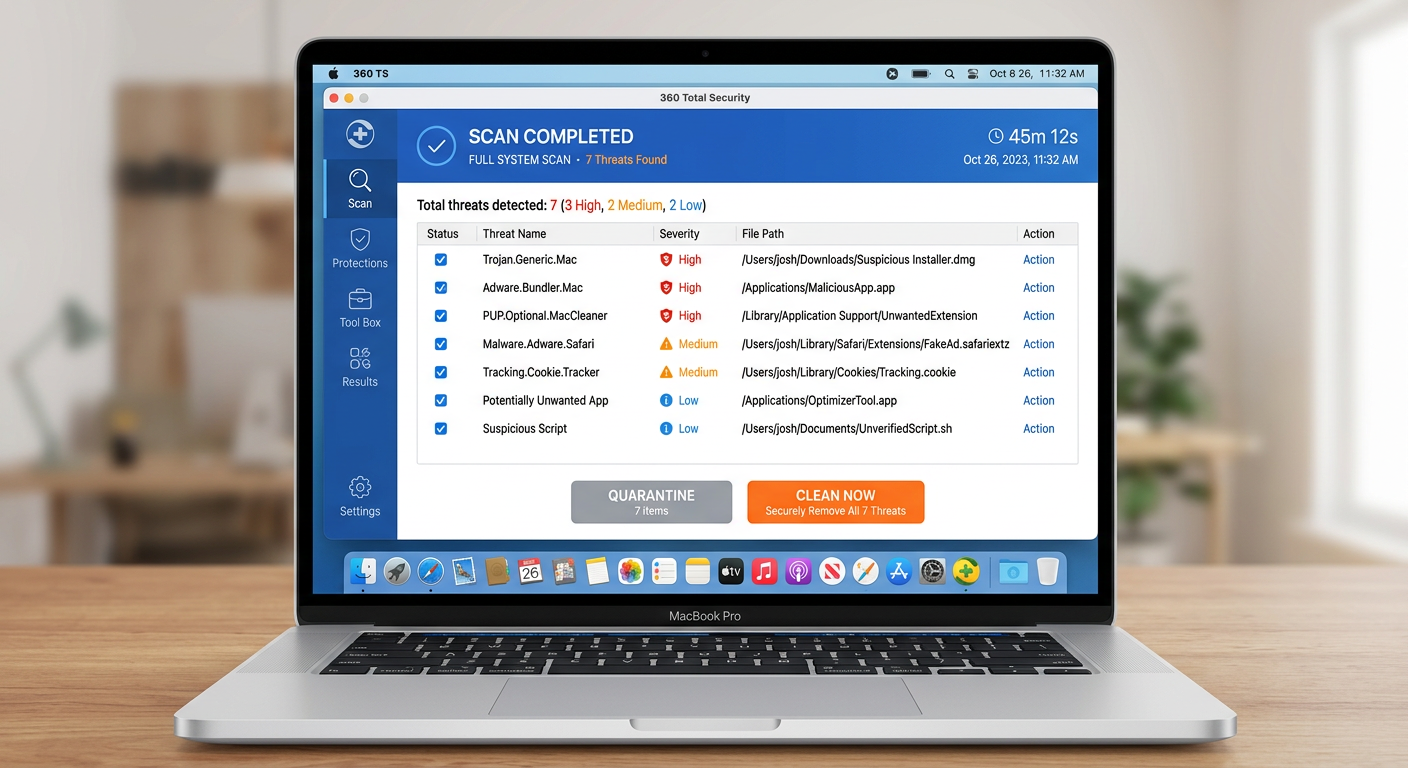
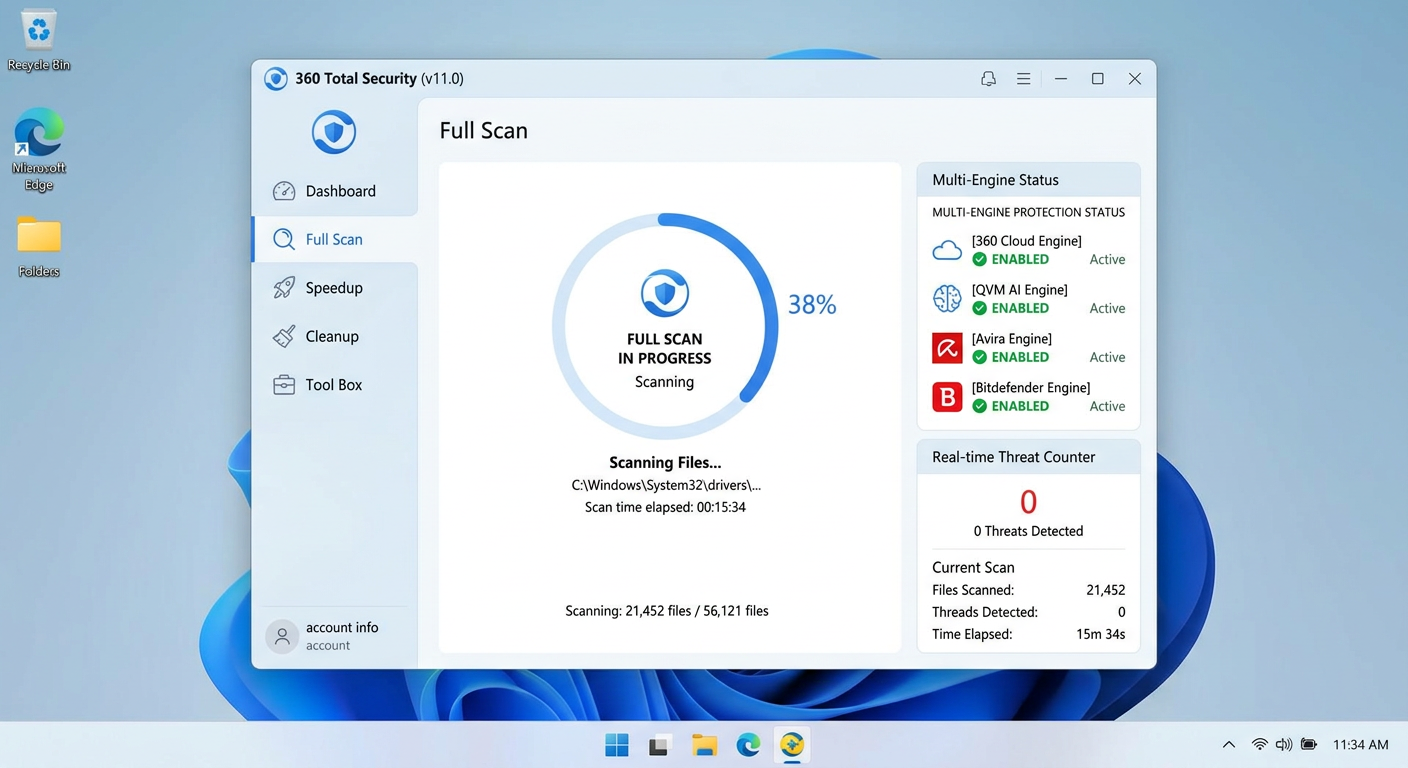
- Run a Full System Scan with a Reputable Security Suite: This is the critical step. While Windows Defender provides a baseline level of protection, it may not be sufficient for complex, evasive Trojans or rootkits that have been specifically engineered to evade Microsoft’s built-in defenses. Dedicated security suites like 360 Total Security employ heuristic-based and behavioral detection engines specifically tuned to identify Trojan behavior patterns that signature-based scanning alone would miss. Independent lab evaluations from organizations like AV-Comparatives and AV-TEST consistently demonstrate that multi-engine security suites achieve higher detection rates against complex threats compared to single-engine solutions. Ensure your security software’s definitions are updated before running the full scan.
Employing Specialized Removal Tools and Techniques
A single scan is rarely sufficient for thorough remediation. A layered removal approach is strongly recommended:
- Second-Opinion Anti-Malware Scanner: No single security tool catches everything. After your primary antivirus scan, run a second scan with a complementary anti-malware tool such as Malwarebytes Free. Different engines use different detection methods and signature databases, so a second tool may catch threats the first one missed. This is especially important for adware and PUPs (Potentially Unwanted Programs) that often accompany Trojan infections.
- Bootable Rescue Disk or USB Scanner: If the system is too severely compromised to boot normally, or if you suspect a rootkit that hides itself from the running OS, a bootable rescue disk is invaluable. Security vendors like Kaspersky, ESET, and others offer free bootable rescue disk ISO images that you can burn to a CD or write to a USB drive. Because these tools scan the hard drive from outside the infected operating system, they can detect and remove threats that are completely invisible when Windows is running.
- Manual Registry and File Cleanup (Advanced Users): After automated tools have completed their work, advanced users may need to manually clean up residual registry entries or files that were identified but not fully removed. Always back up the registry before making any manual changes:
# Open Registry Editor
regedit

# Navigate to common persistence locations:
HKEY_CURRENT_USER\Software\Microsoft\Windows\CurrentVersion\Run
HKEY_LOCAL_MACHINE\SOFTWARE\Microsoft\Windows\CurrentVersion\Run
HKEY_LOCAL_MACHINE\SOFTWARE\Microsoft\Windows NT\CurrentVersion\Winlogon

# Also check scheduled tasks:
schtasks /query /fo LIST /v | more
Delete any entries that security software identified as malicious and that point to known malicious file paths.
Post-Removal Recovery and Validation
Removing the Trojan is not the end of the process. You must assume that sensitive data was compromised and take steps to secure your accounts and restore system integrity:
- Change ALL Passwords from a Clean Device: This is non-negotiable. Assume that every password stored in your browser or typed on the infected machine has been captured by a keylogger. Using a completely separate, trusted device (a clean smartphone or another PC), immediately change passwords for your email accounts (highest priority), online banking and financial services, social media accounts, and any other accounts with sensitive data. Enable two-factor authentication (2FA) wherever possible.
- Clear Browser Data and Audit Extensions: Trojans frequently install malicious browser extensions that persist even after the main malware is removed. Open your browser’s extension/add-on manager and remove anything you don’t recognize. Clear all browsing data, including cache, cookies, saved passwords (since these may have been compromised), and browsing history.
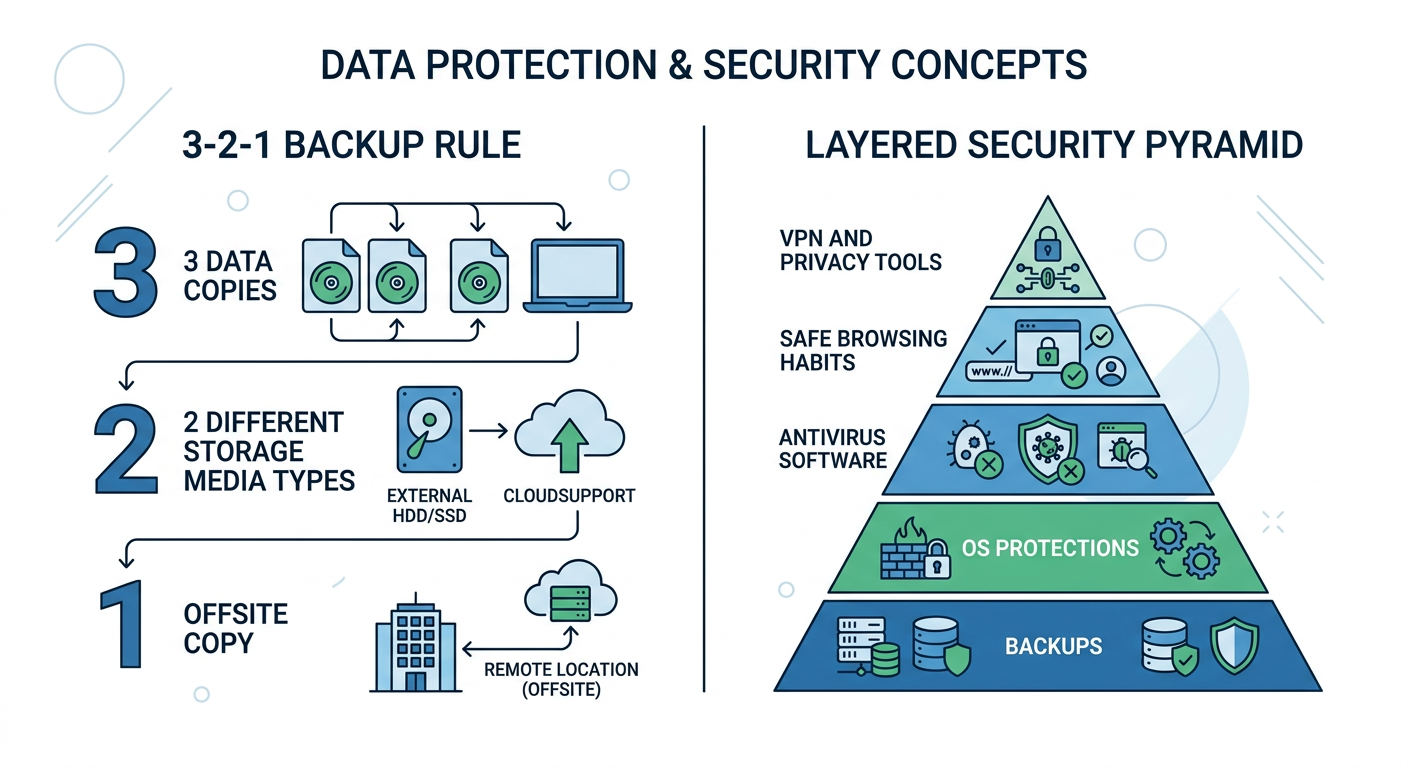
- Restore from a Clean Backup: If you maintain regular system backups (using Windows Backup, File History, or a dedicated backup solution), restore important files from a backup that was created before the infection occurred. Verify the integrity of restored files. If no clean backup exists, this incident should serve as the catalyst to implement a proper 3-2-1 backup strategy going forward: three copies of data, on two different media types, with one copy stored offsite or in the cloud.
- Consider a Clean OS Reinstall for Severe Infections: For severe infections—particularly those involving rootkits or where the system remains unstable after removal—a clean reinstallation of the operating system is the only way to guarantee complete remediation. While time-consuming, it provides absolute certainty that no malicious remnants remain.
How to Build a Proactive Defense Against Future Trojan Attacks?
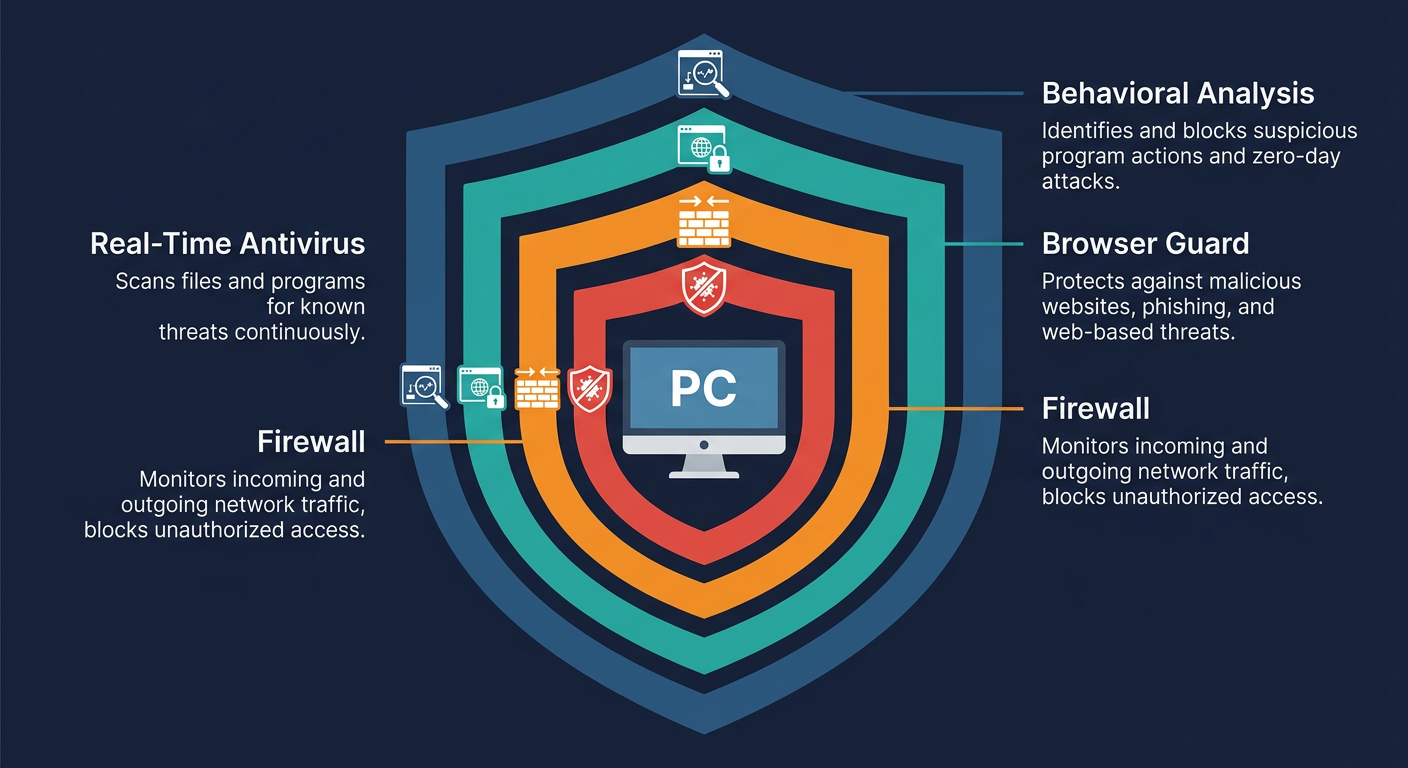
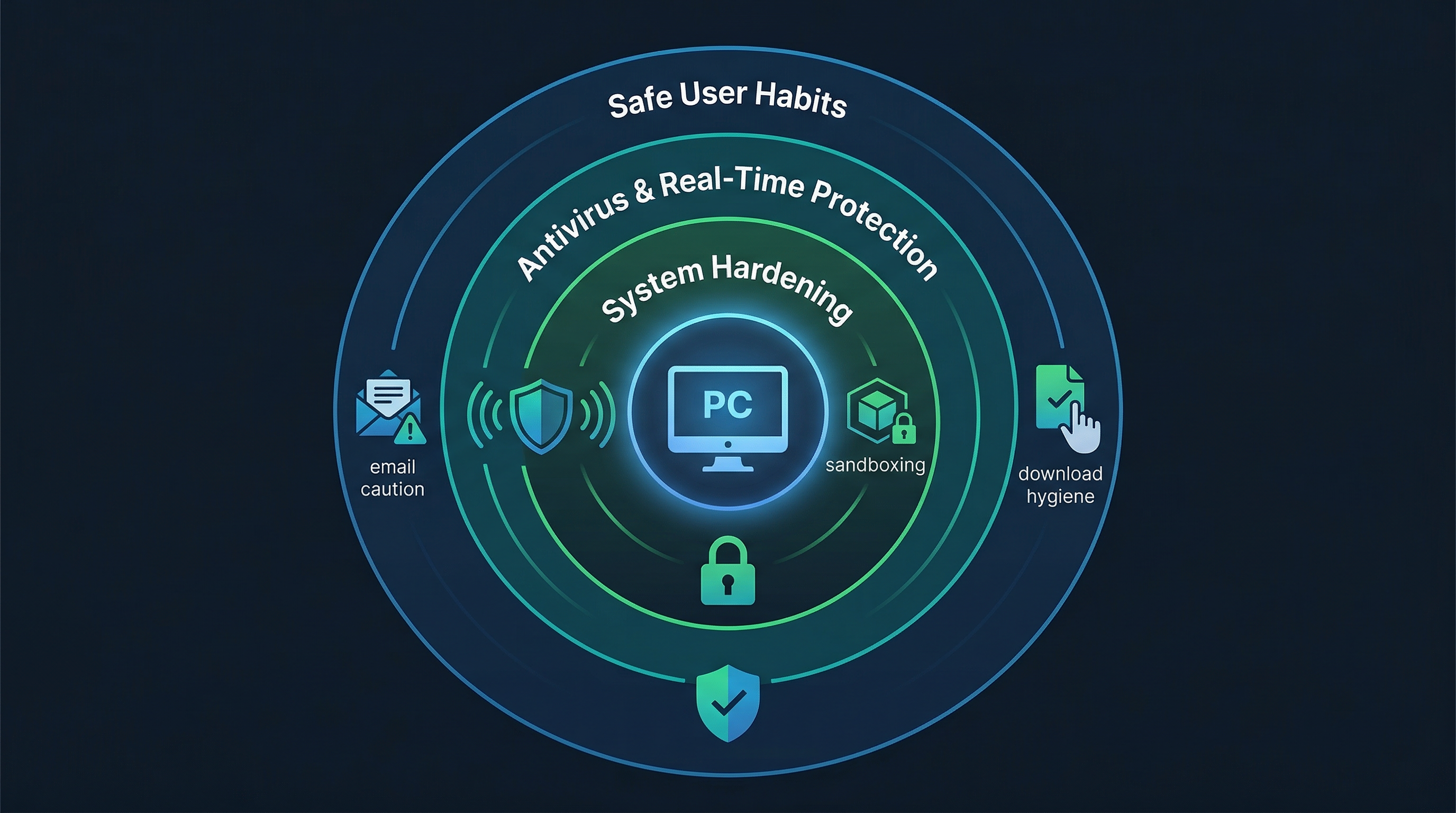
Reactive malware removal is costly, stressful, and never fully guaranteed. The most effective strategy is to make your PC an inhospitable environment for Trojans in the first place. This requires a combination of reliable security software, disciplined user behavior, and systematic system hardening—what security professionals call a defense-in-depth approach.
The Essential Role of Comprehensive Security Software
Your security software is your most critical technical defense layer, but not all solutions are created equal when it comes to Trojan protection:
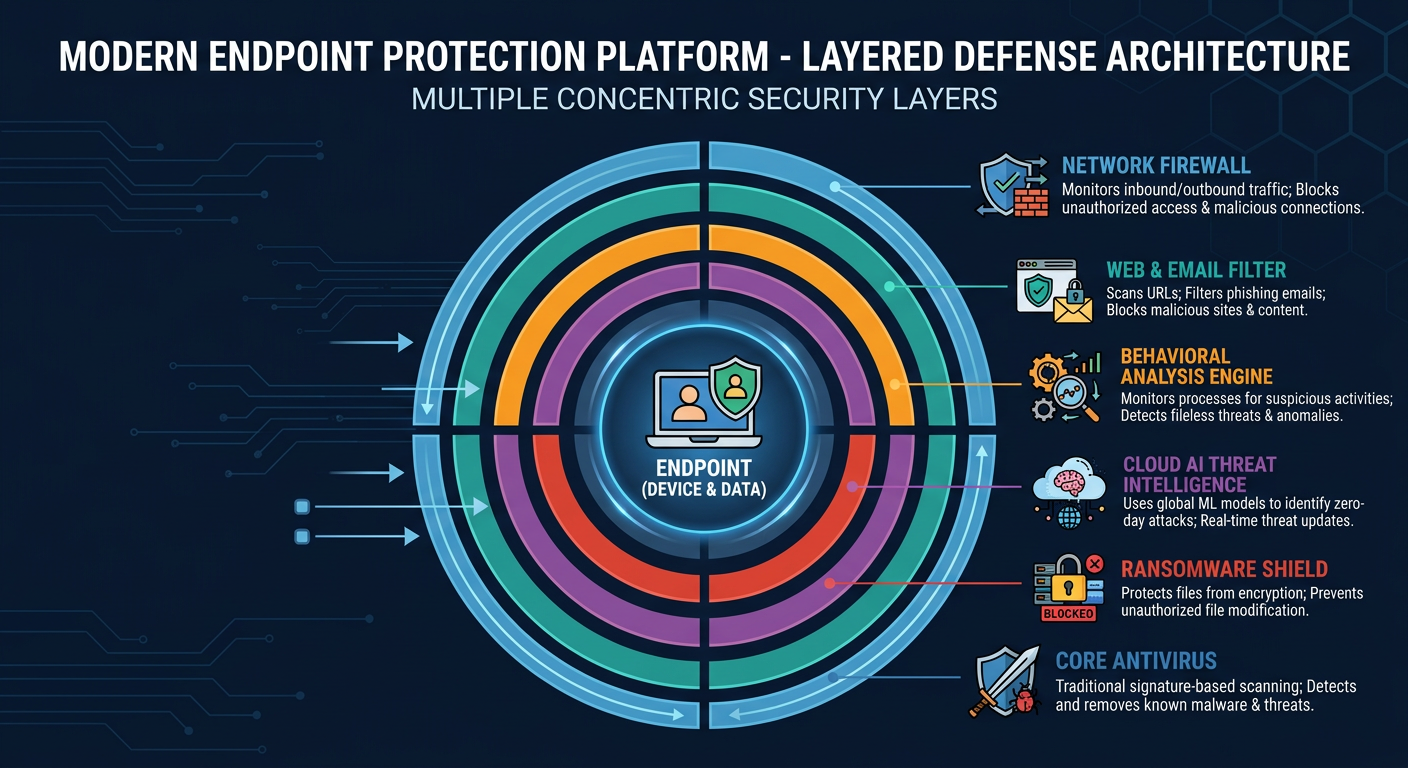
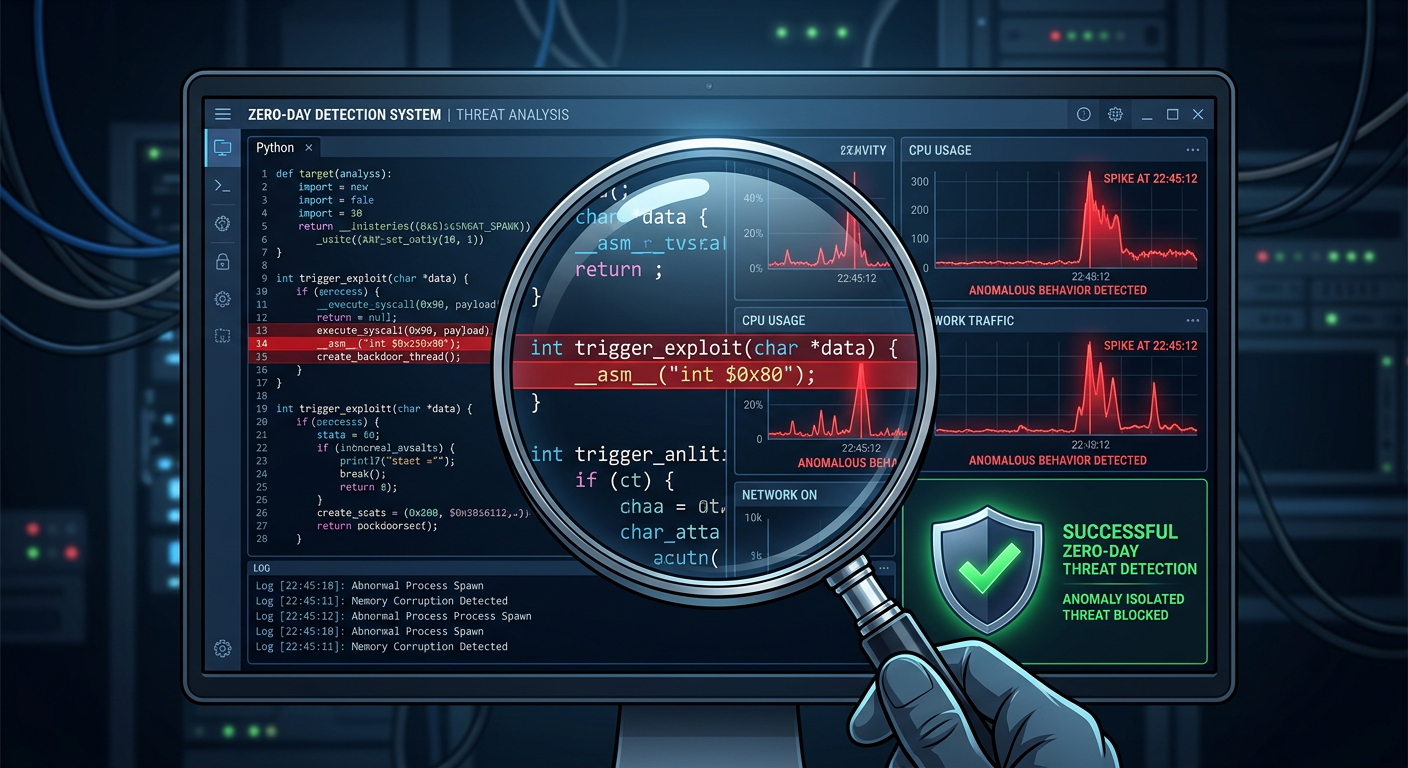
- Prioritize Behavioral Analysis Over Signature-Only Detection: Traditional signature-based antivirus is increasingly ineffective against modern Trojans, which are routinely repackaged (crypted or packed) to evade known signatures. A security solution with real-time behavioral monitoring watches what programs actually do—not just what they look like—and blocks suspicious actions such as unauthorized registry modifications, attempts to disable security software, or unexpected network connections. 360 Total Security employs a powerful multi-engine approach, combining its own 360 Cloud Engine with the QVM II AI Engine, enabling it to detect unknown and evasive Trojans based on behavioral patterns rather than relying solely on known signatures. This provides robust protection even against zero-day threats that have never been seen before.
- Keep Security Software and Definitions Automatically Updated: The threat landscape evolves daily. New Trojan variants and delivery methods emerge constantly. Your security software is only as effective as its latest update. Enable automatic updates for both the application itself and its virus definition database to ensure you are always protected against the latest known threats.
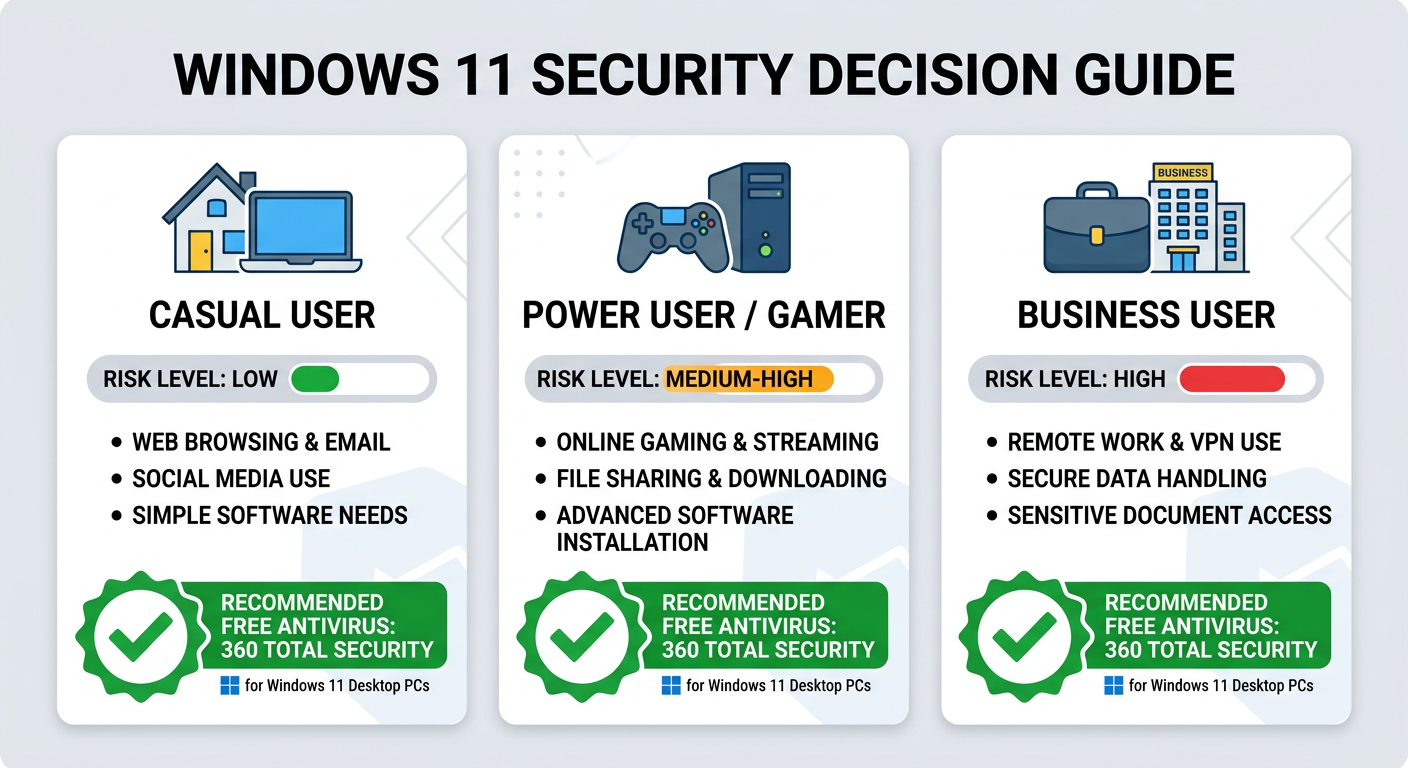
The following table compares key Trojan protection features across popular free security solutions to help you make an informed choice:
| Feature | 360 Total Security (Free) | Avast Free Antivirus | AVG AntiVirus Free |
|---|---|---|---|
| Real-Time Behavioral Shield | ✅ Yes (QVM II AI Engine) | ✅ Yes | ✅ Yes |
| Multi-Engine Detection | ✅ Yes (5 engines including Bitdefender & Avira) | ❌ Single engine | ❌ Single engine |
| Built-In Firewall | ✅ Yes | ⚠️ Limited (Free tier) | ❌ No (Paid only) |
| Sandbox for Suspicious Files | ✅ Yes | ❌ No (Paid only) | ❌ No |
| Anti-Ransomware Protection | ✅ Yes | ✅ Yes | ✅ Yes |
| System Optimization Tools | ✅ Yes (Integrated) | ⚠️ Limited | ⚠️ Limited |
| Cloud-Based AI Analysis | ✅ Yes (360 Cloud Engine) | ✅ Yes | ✅ Yes |