Executive Summary: Every competitive gamer knows that milliseconds matter — but what many overlook is how their antivirus software can silently sabotage frame rates, trigger lag spikes, and even block legitimate game files. This comprehensive guide explores why standard antivirus solutions conflict with high-performance gaming, what features define a truly gaming-friendly antivirus, and how to build a complete security configuration that protects your PC without costing you a single frame. From free lightweight champions like 360 Total Security to premium suites like Bitdefender and ESET, we break down every option with benchmarking methodology, comparison tables, and a step-by-step setup checklist — so your gaming rig stays fast, clean, and secure in 2025 and beyond.
Why Gamers Need Specialized Antivirus Solutions?
Standard antivirus software was engineered for general-purpose computing — not for environments where every CPU cycle and millisecond of I/O latency translates directly into gameplay performance. For gamers, running a conventional antivirus in the background is not a neutral act. It is an active competitor for the same system resources your game engine demands. Understanding this conflict is the first step toward building a security setup that protects without punishing your performance.
The Performance Conflict: Scanning vs. Framerate
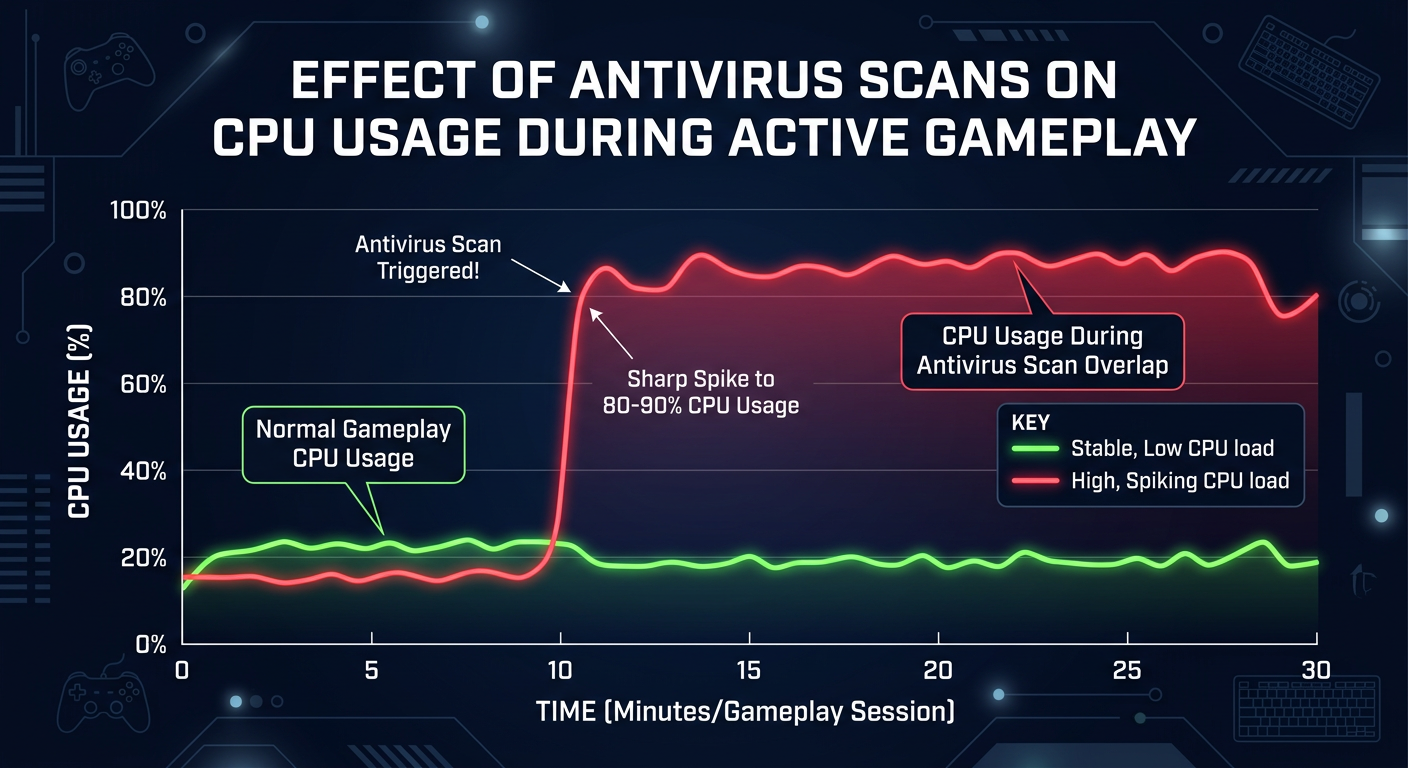
When a game is running, it continuously reads and writes data — loading textures, streaming audio, processing physics, and syncing network states. A real-time file scanner intercepts these I/O operations to inspect each file access for threats. On a system without a dedicated gaming mode, this creates direct resource contention.
- CPU Spikes: Real-time scanning threads compete with game engine threads for CPU time. On mid-range processors, this can cause sudden CPU usage jumps of 15–30%, directly translating to frame drops and stuttering — particularly in CPU-bound titles like strategy games, open-world RPGs, and simulation games.
- Background Update Processes: Many antivirus programs schedule signature database updates and engine patches automatically. If these trigger during an active gaming session, the combination of download bandwidth consumption and installation I/O can cause severe stuttering. According to findings aggregated from PC hardware communities like Reddit’s r/buildapc and Tom’s Hardware forums in 2025, background antivirus updates are among the top three causes of unexpected in-game lag spikes on otherwise well-optimized rigs.
- Scheduled Full Scans: Default scan schedules are often set to run at fixed times — and if that time overlaps with your gaming window, the results can be catastrophic. A full system scan on a 2TB game library can saturate disk I/O for 20–40 minutes, turning smooth gameplay into a slideshow.
False Positives and Game Integrity Issues
Beyond raw performance, antivirus software poses a subtler but equally damaging threat to gamers: false positive detections. Game files, especially those from indie developers, modding communities, and custom launchers, frequently use code patterns that resemble malware heuristically — not because they are malicious, but because they share structural similarities with known threat signatures.
- Blocked Game Files and Mods: Anti-cheat engines (like EasyAntiCheat or BattlEye), game trainers, memory editors used for single-player modding, and custom .exe launchers are routinely quarantined by overzealous antivirus engines. This can render a game unlaunchable until the user manually restores the quarantined file — assuming they even know where to look.
- Multiplayer Interference: Some antivirus products intercept and inspect network packets for threat analysis. This deep packet inspection can interfere with game client authentication handshakes, UDP packet timing, and even trigger false flags in anti-cheat systems that monitor for network-level anomalies. In extreme cases, this has resulted in temporary account suspensions.
- Real Community Impact: A well-documented example occurred within the Elden Ring community in 2025, where a popular antivirus vendor’s updated heuristic engine began flagging the game’s launcher and a widely-used mod manager as potentially unwanted programs (PUPs). Thousands of players reported sudden game launch failures until the vendor issued a corrected definition update — a process that took over 48 hours, leaving players locked out of their game libraries.
The Essential Gaming Antivirus Criteria
Given these conflicts, a gaming-suitable antivirus must meet three non-negotiable criteria:
- Silent/Gaming Mode: The antivirus must be capable of automatically detecting when a full-screen application or known game process is active, and immediately suspending scans, update downloads, and all non-critical notifications. This mode should activate without any manual intervention from the user.
- Minimal Background Footprint: The software’s idle resource consumption should be negligible — ideally under 100MB of RAM usage and near-zero CPU overhead when not actively scanning. A bloated security suite that runs dozens of background services defeats the purpose entirely.
- Game File Trust and Whitelisting: The antivirus should ship with pre-configured trust rules for major gaming platforms — Steam, Epic Games Store, GOG, Xbox App, and Battle.net — and their associated file directories. It should also provide easy-to-use exclusion controls so users can whitelist additional directories without navigating complex settings menus.
How to Choose an Antivirus That Won’t Ruin Your Gameplay
Selecting the right antivirus for your gaming PC is not simply about picking the product with the highest malware detection rate. It requires a deliberate evaluation of how the software behaves under gaming conditions — specifically, how it manages resources, handles game files, and responds when you launch your favorite title. The right choice balances robust protection with a design philosophy that treats gaming performance as a first-class priority.
Must-Have Features for Any Gaming Antivirus
When evaluating any antivirus product for gaming use, these three features are non-negotiable:
- Automatic Gaming Mode: This is the single most important feature. The antivirus must detect game launches — either by monitoring for full-screen DirectX/OpenGL applications or by referencing a list of known game executables — and automatically suspend all scans, postpone update downloads, and silence all pop-up notifications. Manual gaming modes that require the user to toggle a switch before every session are acceptable but inferior to fully automatic detection.
- Resource-Friendly Design: Test the antivirus’s idle resource consumption using Task Manager or Process Explorer before committing. Look for products that consume less than 150MB of RAM at idle and demonstrate CPU usage below 1% when not actively scanning. Products built on efficient, modern scanning engines (rather than legacy codebases) typically perform significantly better here.
- Game File Whitelisting: Verify that the antivirus ships with pre-configured exclusions or trust rules for the default installation directories of Steam (
C:\Program Files (x86)\Steam\steamapps), Epic Games (C:\Program Files\Epic Games), and the Xbox App (C:\XboxGames). The ability to easily add custom exclusion paths is equally important for users with non-standard installation locations.
Testing Methodology: Benchmarking With & Without Antivirus
Do not rely solely on marketing claims — measure the actual impact of any antivirus on your specific system. Here is a reliable testing methodology:
- Tools Required: Use MSI Afterburner with RivaTuner Statistics Server (RTSS) to overlay real-time FPS, CPU usage, GPU usage, and RAM consumption directly on your game screen. For structured benchmarks, use built-in benchmark modes available in titles like Shadow of the Tomb Raider, Horizon Zero Dawn, or F1 2024.
- Metrics to Record: Capture Average FPS, 1% Low FPS (which reveals stuttering), CPU usage percentage, and RAM consumption. The 1% Low FPS metric is particularly revealing — a product that drops your average FPS by only 2 but cuts your 1% Low FPS by 30% is causing significant stutter that average metrics would hide.
- Test Scenarios: Run benchmarks in at least three scenarios: (1) Antivirus completely disabled as a baseline, (2) Antivirus running in standard mode without Gaming Mode active, and (3) Antivirus running with Gaming Mode enabled. Test during both low-intensity moments (loading screens, menus) and high-intensity gameplay (large open-world areas, competitive multiplayer matches). Repeat each test three times and average the results to eliminate variance.
Free vs. Paid: Evaluating Value for Gamers
The free-versus-paid debate is particularly nuanced for gamers:
- Free Solutions — Trade-offs: Free antivirus products may monetize through promotional notifications, bundled software offers during installation, or upsell prompts — all of which can interrupt gameplay if not properly silenced. Some free products also offer less granular control over gaming mode behavior, relying on simpler full-screen detection rather than sophisticated process-level awareness.
- Paid Solutions — Added Value: Premium antivirus suites typically offer more sophisticated gaming mode implementations, granular scheduling controls, dedicated system optimization modules, and priority customer support. For competitive gamers who cannot afford any unexpected interruptions, the added control of a paid suite can be worth the investment.
- The Exception — 360 Total Security: 360 Total Security stands as a compelling exception to the free-solution trade-off narrative. Its core architecture was designed with performance efficiency as a primary goal, resulting in an exceptionally lightweight background footprint. Its dedicated Game Mode automatically silences all pop-ups and pauses resource-intensive scanning the moment a game is detected — delivering a user experience that rivals many paid competitors, at zero cost. For budget-conscious gamers and those building performance-focused rigs, it represents one of the strongest value propositions in the free antivirus category.
Top Antivirus Options Tailored for Gaming Performance
The antivirus market in 2025 offers several strong options for gamers, ranging from free lightweight solutions to premium security suites with advanced gaming-specific features. Each product occupies a distinct position in the market, and the best choice depends on your budget, hardware tier, and gaming habits. Here is a detailed breakdown of the leading options.
360 Total Security: The Lightweight Free Champion
360 Total Security has earned a strong reputation among performance-conscious PC users, and its appeal to gamers is particularly well-founded:
- Key Gaming Advantage — Game Mode: 360 Total Security’s Game Mode is its standout feature for gamers. When activated — either manually or automatically upon detecting a full-screen game launch — it silences all pop-up notifications, pauses scheduled scans, and suspends non-critical background processes. The result is an antivirus that essentially becomes invisible during gameplay, contributing zero perceptible overhead to your gaming session.
- Additional Benefit — Integrated Optimization: Beyond antivirus protection, 360 Total Security includes integrated system cleanup and optimization tools. These features allow gamers to clear junk files, manage startup programs, and free up disk space — all from a single, unified interface. For users maintaining a gaming PC on a tight budget, this eliminates the need for separate optimization utilities.
- Honest Consideration: As a free solution, 360 Total Security focuses on delivering core protection and system optimization rather than the advanced threat intelligence features found in premium enterprise-grade suites. For the vast majority of home gamers facing common threats — malware, phishing, adware, and ransomware — its protection level is entirely adequate. As noted in multiple 2025 gaming PC build guides targeting budget and mid-range builds, 360 Total Security is consistently highlighted as the recommended free antivirus for users prioritizing performance and system cleanliness over advanced threat analytics.
Premium Powerhouses: Bitdefender & ESET
For gamers willing to invest in a premium solution, Bitdefender and ESET represent the gold standard in balancing security depth with gaming performance:
- Bitdefender’s Gaming Profile: Bitdefender’s Autopilot mode uses machine learning to detect when the system is under gaming load and automatically optimizes resource allocation. Its scanning engine is consistently rated among the most efficient in independent AV-TEST and AV-Comparatives evaluations, and its impact on gaming frame rates is measurably lower than many competitors. Bitdefender also offers an explicit Game Profile within its Total Security suite that users can configure with granular control.
- ESET’s Gaming Mode: ESET NOD32 and ESET Internet Security feature a dedicated Gaming Mode toggle that, when activated, delays all updates, postpones scheduled scans, and suppresses all notifications. ESET’s scanning engine has a long-standing reputation for being one of the most resource-efficient in the industry — a reputation it has maintained through 2025. Its low RAM footprint makes it an excellent choice for systems where memory is at a premium.
- Advanced Protection for Online Gaming: Both Bitdefender and ESET offer sophisticated network protection modules that guard against threats specific to online gaming environments — including DDoS protection, network intrusion detection, and secure DNS features that can protect against DNS hijacking attacks targeting game accounts.
The Specialist: Gaming-Focused Security Bundles
Some vendors market security products specifically positioned for gamers, often bundling antivirus protection with performance tuning utilities, VPN services, and hardware monitoring tools:
- What They Offer: These specialist bundles typically include a core antivirus engine (often licensed from a major provider), a game booster utility, a system optimizer, and sometimes a limited VPN subscription. The marketing emphasis is on the complete gaming performance package rather than raw security capability.
- Evaluating Real Value: In practice, the bundled utilities in these specialist packages often duplicate functionality available for free elsewhere — or even built into Windows 11. The game booster features, in particular, frequently offer no meaningful advantage over the gaming modes built into mainstream antivirus products. The core antivirus engine’s quality and the gaming mode’s actual performance impact matter far more than the peripheral utilities bundled alongside it.
The table below provides a direct comparison of the key gaming-relevant features across the leading options:
| Feature | 360 Total Security | Bitdefender Total Security | ESET Internet Security | Specialist Gaming Bundle |
|---|---|---|---|---|
| Gaming Mode | ✅ Automatic + Manual | ✅ Autopilot + Game Profile | ✅ Manual Toggle | ✅ Varies by Product |
| Lightweight Score | ⭐⭐⭐⭐⭐ (Excellent) | ⭐⭐⭐⭐ (Very Good) | ⭐⭐⭐⭐⭐ (Excellent) | ⭐⭐⭐ (Moderate) |
| False Positive Handling | Good — Game Mode suppresses alerts | Excellent — Smart whitelist engine | Very Good — Low false positive rate | Variable — Depends on base engine |
| System Optimization Tools | ✅ Built-in Cleanup & Optimizer | ✅ OneClick Optimizer | ❌ Limited | ✅ Bundled Booster |
| Price (Annual) | Free (Premium available) | ~$40–$60/year | ~$40–$50/year | ~$50–$80/year |
Beyond Antivirus: Optimizing Your Gaming PC for Security & Speed
Installing a gaming-friendly antivirus is a critical first step — but it is only one component of a truly optimized gaming PC. Maximum performance and security are achieved through a holistic approach that combines smart software choices with disciplined system habits, targeted Windows configuration, and the strategic use of complementary optimization tools. Think of your antivirus as the foundation, not the entire structure.
Windows Settings & Habits for a Smooth Experience
Your operating system configuration has a profound impact on gaming performance, independent of any third-party security software:
- Avoiding Windows Defender Conflicts: If you are running a third-party antivirus alongside Windows Defender, ensure that Defender’s real-time protection is properly disabled (most reputable antivirus products handle this automatically upon installation). Running two real-time scanners simultaneously creates redundant I/O interception that can significantly degrade performance. If you use Defender as your primary protection, configure its scheduled scan times carefully and add your game library folders as exclusions.
- Startup Program Management: Use Windows Task Manager’s Startup tab (or a dedicated tool like Autoruns) to audit and disable non-essential programs that launch at boot. Discord, Steam, browser extensions, and update managers for various software suites all consume RAM and CPU cycles before your game even launches. A lean startup environment means more resources are available the moment you enter a game.
- Safe Downloading Habits: The most effective security measure is behavioral. Download games exclusively through official platforms (Steam, Epic Games Store, GOG, Xbox App). When downloading mods, use established, community-vetted repositories like Nexus Mods rather than random third-party sites. Verify file hashes when provided by mod authors. This proactive approach dramatically reduces the threat surface your antivirus needs to defend against.
Using System Optimization Tools Effectively
System optimization tools complement your antivirus by addressing performance degradation that security software alone cannot resolve:
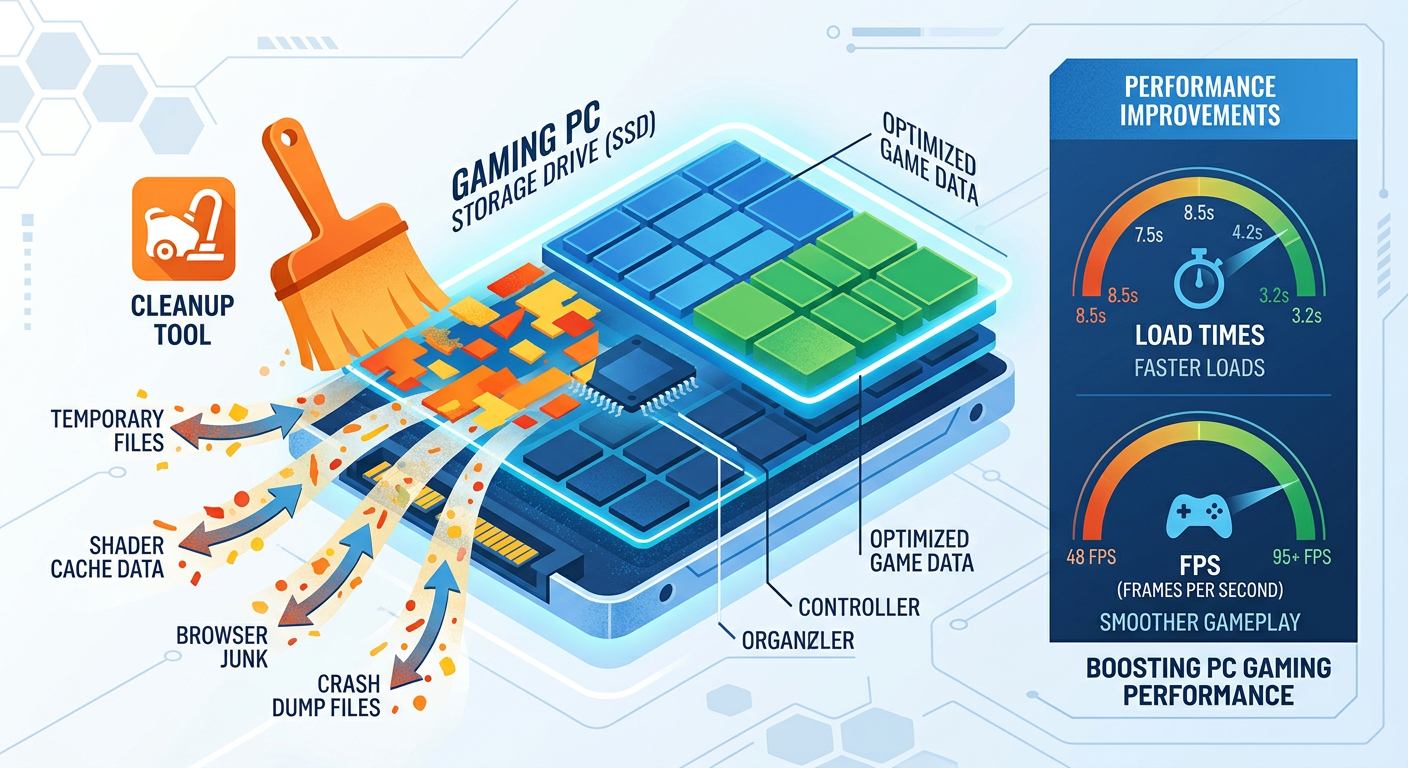
- Cleanup Tools: Over time, gaming PCs accumulate significant volumes of temporary files, shader caches, crash dumps, and residual installation files. Tools like 360 Total Security’s built-in Cleanup module or CCleaner can safely remove these files, recovering disk space and reducing the I/O overhead that can contribute to loading time slowdowns. Regular cleanup sessions — monthly at minimum — are a simple but effective performance maintenance habit.
- Driver Updaters — Use With Caution: GPU driver updates from NVIDIA and AMD frequently include performance optimizations for newly released titles and can meaningfully impact frame rates. However, use only official sources — NVIDIA GeForce Experience, AMD Adrenalin Software, or direct manufacturer websites — for driver downloads. Third-party driver updater utilities introduce security risk by downloading executables from unverified sources, and their convenience rarely justifies this exposure.
The Myth and Reality of “Game Boosters” & VPNs
Two categories of tools are frequently marketed to gamers as performance enhancers — game booster applications and VPN services. Both deserve a clear-eyed evaluation:
- Game Boosters — Largely Redundant: The core function of most standalone game booster applications is to identify and terminate non-essential background processes before launching a game. This is a legitimate optimization — but it is one that Windows Task Manager, a configured antivirus Gaming Mode, and disciplined startup management can accomplish without installing additional software. Many game booster apps also display advertisements, request broad system permissions, and add their own background services — potentially creating more overhead than they eliminate. If your antivirus’s gaming mode already suspends non-critical processes, a separate game booster offers minimal additional value.
- VPNs for Gaming — Latency Trade-offs: A VPN encrypts your network traffic and routes it through an intermediary server, which inherently adds latency (ping). For most gaming scenarios, a VPN will increase your ping rather than reduce it. However, VPNs offer legitimate security benefits in specific contexts: protecting against DDoS attacks targeting your home IP, accessing region-locked game servers, and securing connections on public Wi-Fi. If you choose to use a VPN for gaming, select a provider with dedicated gaming-optimized servers, WireGuard protocol support, and server locations geographically close to your target game servers.
For users who want maximum control over background processes without installing a game booster, here is a simple batch script approach:
@echo off
REM =====================================================
REM Gaming Pre-Launch Process Killer
REM Run as Administrator before launching your game
REM Customize the list below with processes you want to stop
REM =====================================================

echo Stopping non-essential background processes...

REM Example: Stop OneDrive sync
taskkill /F /IM OneDrive.exe /T 2>nul
echo OneDrive stopped.

REM Example: Stop Windows Update orchestrator
taskkill /F /IM WaasMedicSvc.exe /T 2>nul

REM Example: Stop browser background processes
taskkill /F /IM chrome.exe /T 2>nul
taskkill /F /IM msedge.exe /T 2>nul
echo Browser processes stopped.

REM Example: Stop Spotify
taskkill /F /IM Spotify.exe /T 2>nul
echo Spotify stopped.

REM Add additional processes as needed:
REM taskkill /F /IM [ProcessName.exe] /T 2>nul

echo.
echo All targeted processes stopped. Ready to game!
echo =====================================================
pause
Usage Note: Save this file as gaming_boost.bat, right-click and select Run as Administrator before launching your game. Customize the process list to match your specific background applications. Be cautious not to terminate system-critical processes.
Final Setup Guide: Building Your Gaming PC Security Configuration
The optimal gaming PC security setup is not a single product — it is a thoughtfully configured ecosystem where your chosen antivirus, Windows settings, optimization routines, and user habits work in harmony. This final section provides concrete, actionable configurations tailored to different gamer profiles, a step-by-step installation checklist, and a maintenance routine to keep your system performing at its peak over the long term.
Recommended Security Stack for Different Gamer Profiles
Different gaming lifestyles demand different security configurations. Here are three evidence-based recommended stacks:
- For the Budget/Performance-Focused Gamer: Install 360 Total Security as your primary antivirus and system optimizer. Enable its Game Mode and configure exclusions for your game library directories. Use Windows Task Manager to manually audit and disable non-essential startup programs. Configure Windows Defender for periodic offline scans only (real-time protection should be handled by 360 Total Security). This stack delivers comprehensive protection and meaningful system optimization at zero cost, with minimal performance overhead.
- For the High-End/Online Competitive Gamer: Invest in a premium antivirus with a proven gaming mode — Bitdefender Total Security or ESET Internet Security are both strong choices. Add a gaming-optimized VPN (if you compete in regions with unstable routing or face DDoS risk) with WireGuard protocol enabled. Maintain a strict driver update schedule using official NVIDIA or AMD tools. This stack prioritizes both security depth and the network-level protection that competitive online gaming demands.
- For the Modding/Emulation Enthusiast: Choose an antivirus with robust, granular exclusion and whitelisting controls — 360 Total Security or ESET both excel here. Supplement with a sandboxing tool (such as Sandboxie-Plus) for testing unknown mods, ROM files, or patches in an isolated environment before running them on your main system. Maintain heightened awareness of download sources and verify file integrity checksums when provided by mod authors. This stack acknowledges the elevated risk profile of the modding ecosystem while providing practical tools to manage it safely.
Step-by-Step Installation & Configuration Checklist
Follow this checklist when setting up your gaming PC security configuration from scratch:
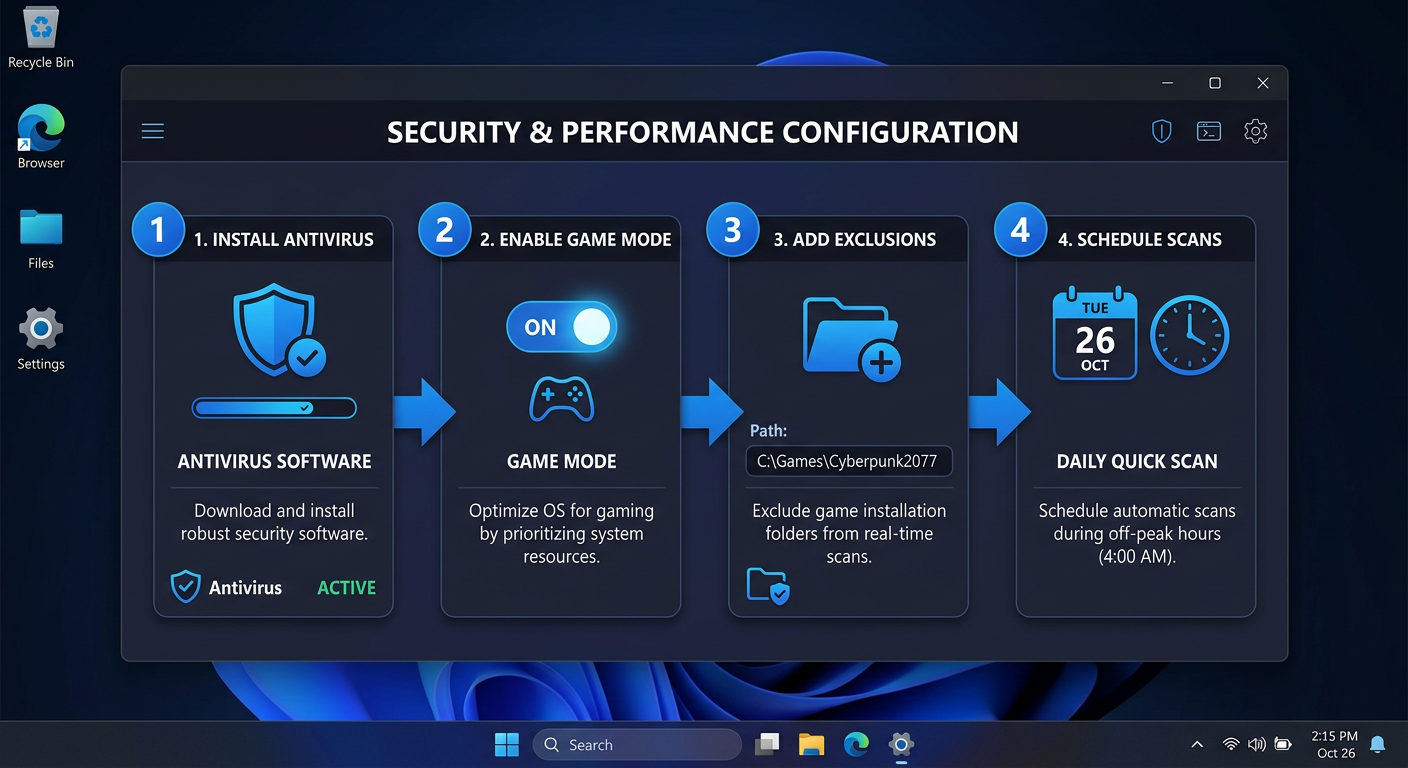
- Step 1 — Install Your Antivirus: Download your chosen antivirus directly from the official vendor website. For 360 Total Security, visit 360totalsecurity.com. During installation, decline any optional bundled software offers. Allow the initial full system scan to complete before proceeding.
- Step 2 — Locate and Enable Gaming Mode: Immediately after installation, navigate to the antivirus settings and locate its Gaming Mode, Game Profile, or equivalent feature. Enable automatic activation if available. Test it by launching a full-screen game and verifying that no scan notifications appear.
- Step 3 — Add Game Library Exclusions: Navigate to the exclusions or whitelist settings. Add the root directories for all your game platforms:
Steam: C:\Program Files (x86)\Steam\steamapps\ Epic Games: C:\Program Files\Epic Games\ Xbox App: C:\XboxGames\ GOG: C:\GOG Games\ Battle.net: C:\Program Files (x86)\Battle.net\ Custom: [Your custom game installation path] - Step 4 — Schedule Scans Strategically: Set your full system scan schedule to run during times you are definitively not gaming — early morning (e.g., 4:00 AM) or during work hours. Schedule antivirus definition updates for the same off-peak window to prevent update downloads from competing with game streaming bandwidth.
- Step 5 — Audit Startup Programs: Open Task Manager → Startup tab. Disable all non-essential startup programs. Keep your antivirus and any hardware monitoring tools (e.g., MSI Afterburner) enabled. Everything else should be evaluated for necessity.
- Step 6 — Verify No Conflicts: If Windows Defender is present, confirm that its real-time protection has been properly superseded by your new antivirus. Open Windows Security → Virus & threat protection and verify that it shows your third-party antivirus as the active provider.
Maintenance Routine: Keeping Performance High
A security configuration is not a set-and-forget system. Regular maintenance ensures both protection effectiveness and sustained gaming performance:
- Monthly Maintenance: Run a full system scan during your scheduled off-peak window and review the results. Execute a deep cleanup using 360 Total Security’s Cleanup module or your preferred optimizer to remove temporary files, browser caches, and residual installation data. Review your exclusion list — remove entries for games you have uninstalled and add entries for any new game directories.
- Before Major Game Releases or Updates: Manually check for GPU driver updates from NVIDIA GeForce Experience or AMD Adrenalin Software before major game launches, as day-one driver optimizations can significantly impact performance. When installing large game updates, consider temporarily pausing real-time scanning for the duration of the installation to prevent the antivirus from scanning every incoming file as it is written — then resume protection immediately after installation completes.
- Ongoing Vigilance: Stay informed about antivirus false positive incidents affecting popular games. Follow game community forums, Reddit communities (r/pcgaming, game-specific subreddits), and your antivirus vendor’s status page. When a false positive is identified, the resolution typically involves adding a specific file exclusion or waiting for a definition update — knowing this in advance prevents hours of troubleshooting when it inevitably affects a title you play.
Frequently Asked Questions
Q1: Does antivirus software really cause FPS drops in games?
Yes, particularly during active scanning events. Standard antivirus software performing real-time file scanning can cause CPU usage spikes of 15–30% and significant disk I/O contention during gameplay. The impact is most noticeable during game loading sequences and in CPU-bound titles. A gaming-specific antivirus with an automatic Gaming Mode mitigates this by pausing scans and suppressing background activity when a game is detected running.
Q2: Is 360 Total Security good for gaming PCs?
360 Total Security is an excellent choice for gaming PCs, particularly for budget-conscious and performance-focused users. Its extremely lightweight architecture means minimal background resource consumption, and its dedicated Game Mode automatically silences all notifications and pauses scans during gameplay. The integrated system cleanup and optimization tools also help maintain overall gaming PC performance. It provides comprehensive protection against common threats at no cost, making it a strong value proposition for home gamers.
Q3: Should I disable my antivirus while gaming?
No — completely disabling your antivirus while gaming leaves your system vulnerable during the very period when you may be downloading game updates, browsing gaming forums, or interacting with other players online. The correct approach is to use an antivirus with a proper Gaming Mode that suspends performance-intensive operations while maintaining core real-time protection. This gives you the performance benefits of a disabled scanner without the security risk.
Q4: Why is my antivirus flagging my game files as viruses?
This is a false positive — a legitimate file incorrectly identified as a threat. It commonly affects game anti-cheat executables, memory editors used for single-player modding, custom game launchers, and files from indie developers whose code patterns superficially resemble known malware signatures. The solution is to add the affected file or its parent directory to your antivirus’s exclusion/whitelist list. If you are uncertain whether a detection is a false positive, verify the file’s legitimacy through the game’s official community channels before restoring it from quarantine.
Q5: Can I run 360 Total Security alongside Windows Defender?
When you install 360 Total Security (or any reputable third-party antivirus), Windows will automatically recognize it as your active security provider and disable Windows Defender’s real-time protection to prevent conflicts. You can verify this in Windows Security settings. It is generally not recommended to run two real-time antivirus scanners simultaneously, as this creates redundant I/O interception that degrades performance. However, you can configure Windows Defender for periodic offline scans as a supplementary check while 360 Total Security handles real-time protection — this is actually a recommended configuration for thorough coverage.
Author Bio: This article was authored by a Senior Technical Writer specializing in PC security, system performance optimization, and gaming hardware. With over a decade of experience evaluating cybersecurity software for consumer and enthusiast audiences, the author has contributed to multiple leading technology publications and PC hardware review platforms. Their work focuses on translating complex security concepts into actionable guidance for everyday users, with a particular emphasis on the intersection of performance computing and digital safety.
发表回复