作者: 360totalsecurity

  • Trojan Virus: How It Works, How to Detect It, and How to Remove and Prevent It

    Trojan Virus: How It Works, How to Detect It, and How to Remove and Prevent It

    Executive Summary: Trojan viruses represent one of the most dangerous and deceptive categories of malware threatening PC users today. Unlike self-replicating viruses, Trojans disguise themselves as legitimate software, silently infiltrating systems to steal data, grant remote access to attackers, or deploy ransomware. This comprehensive guide explains exactly how Trojans operate, walks you through the critical warning signs of infection, provides a step-by-step removal and recovery framework, and outlines a proactive, layered defense strategy—including how purpose-built security solutions like 360 Total Security can protect your Windows or macOS PC against even the most evasive Trojan threats.

    What Makes Trojan Viruses So Dangerous and How Do They Operate?

    To defend against Trojans effectively, you must first understand what sets them apart from other malware. Their power lies not in technical sophistication alone, but in the art of deception—exploiting human trust rather than software vulnerabilities. Unlike traditional viruses that spread autonomously, Trojans require a willing—if unwitting—participant: the user.

    The Deceptive Nature of Trojan Malware

    A Trojan horse (or Trojan virus) is, by definition, malware that disguises itself as legitimate, desirable software. The name references the ancient Greek myth for good reason: just as the wooden horse appeared to be a gift, a Trojan appears to be a useful application—a free game, a video codec, a software update, or a productivity tool. Once the user installs it, the malicious payload activates.

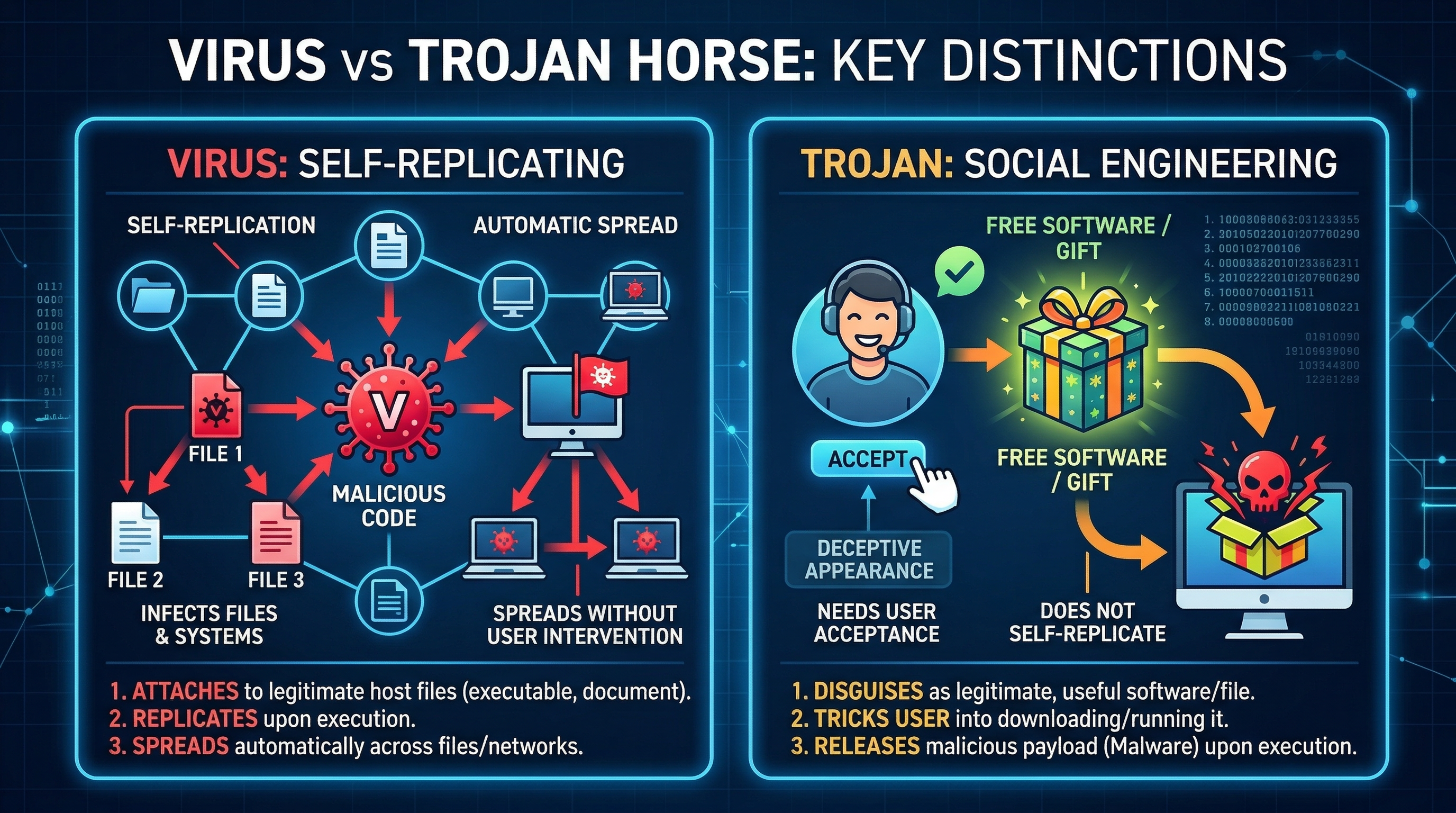
    This is the fundamental distinction between a Trojan and a traditional virus or worm:

    • Viruses self-replicate by attaching to other files and spreading without explicit user action.
    • Worms propagate across networks autonomously, exploiting security vulnerabilities.
    • Trojans do neither. They rely entirely on social engineering—manipulating users into voluntarily installing them. This makes them exceptionally difficult to detect before execution, because from the operating system’s perspective, the user authorized the installation.

    Common disguises include fake software update prompts, pirated media players, cracked versions of premium applications, and fraudulent security tools that claim to remove malware while actually installing it.
    Infographic comparing how a computer virus spreads through self-replication versus how a Trojan horse malware is installed through user deception and social engineering, tech editorial style

    Common Trojan Attack Vectors and Delivery Methods

    Understanding how Trojans reach your system is the first step toward blocking them. Cybersecurity researchers consistently identify the following as the primary delivery mechanisms:

    • Phishing Emails: Carefully crafted emails impersonate banks, government agencies, delivery companies, or colleagues. They contain malicious attachments (disguised as invoices, shipping notices, or documents) or links to infected websites that trigger drive-by downloads. According to a 2025 Verizon Data Breach Investigations Report, phishing remains the leading initial attack vector in confirmed breaches.
    • Drive-By Downloads: Simply visiting a compromised or malicious website can silently download and execute a Trojan, exploiting unpatched vulnerabilities in browsers, browser plugins (Java, Flash), or the operating system itself—no user interaction beyond the page visit required.
    • Pirated Software, Games, and Cracks: This is one of the most prevalent and underestimated vectors. A 2026 cybersecurity industry report from Kaspersky highlighted that a significant proportion of Trojan infections on consumer PCs originate from software piracy ecosystems—cracked applications, key generators (keygens), and torrent downloads from unverified sources. Threat actors deliberately seed these platforms with Trojan-laced files, knowing users are already bypassing their security instincts.
    • Malicious Advertising (Malvertising): Infected advertisements served through legitimate ad networks can redirect users to exploit kit landing pages, even on reputable websites.
    • Instant Messaging and Social Media: Links shared via messaging platforms or social media, sometimes from compromised accounts of people you trust, can lead to Trojan download pages.

    The End Goals: What Happens After a Trojan Infests Your PC?

    Once a Trojan successfully installs itself, its behavior depends on its specific type and the attacker’s objectives. The consequences range from financial theft to complete system takeover:

    • Data Theft via Keyloggers and Banking Trojans: Keylogger Trojans silently record every keystroke, capturing passwords, credit card numbers, and personal messages. Banking Trojans (like the notorious Zeus or Emotet families) are specifically engineered to intercept online banking sessions, manipulate transaction data in real-time, and siphon funds directly from accounts. They often use man-in-the-browser attacks that are invisible to the victim.
    • Remote Access Trojans (RATs): RATs grant attackers complete, covert remote control over your system. They can activate your webcam and microphone for surveillance, browse your files, take screenshots, log keystrokes, and even enlist your PC into a botnet—a network of compromised machines used to launch Distributed Denial of Service (DDoS) attacks or distribute spam campaigns.
    • System Sabotage and Ransomware Delivery: Many Trojans function as initial-access brokers—their primary role is to establish a foothold and then download additional, more destructive malware. This includes ransomware that encrypts all your files and demands payment for decryption, spyware, or tools that disable your existing security software, leaving the system completely exposed.

    How Can You Detect a Trojan Infection on Your Computer?

    Trojans are engineered to remain hidden for as long as possible, maximizing the attacker’s window of opportunity. However, their malicious activities inevitably leave traces. Knowing what subtle—and not-so-subtle—warning signs to look for can be the difference between catching an infection early and suffering a catastrophic data breach.

    Performance and Behavioral Red Flags

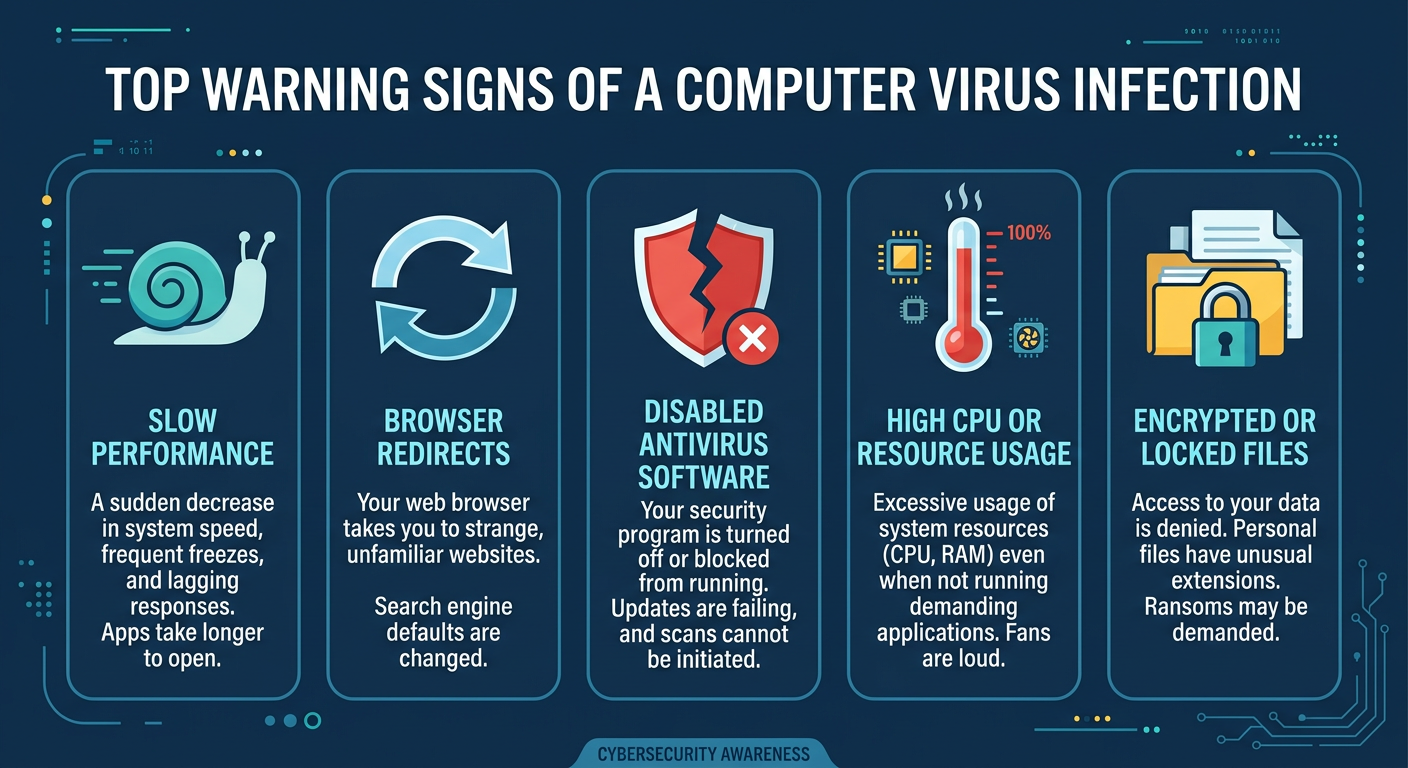
    Your computer’s behavior is often the first indicator that something is wrong. Pay close attention to the following anomalies:

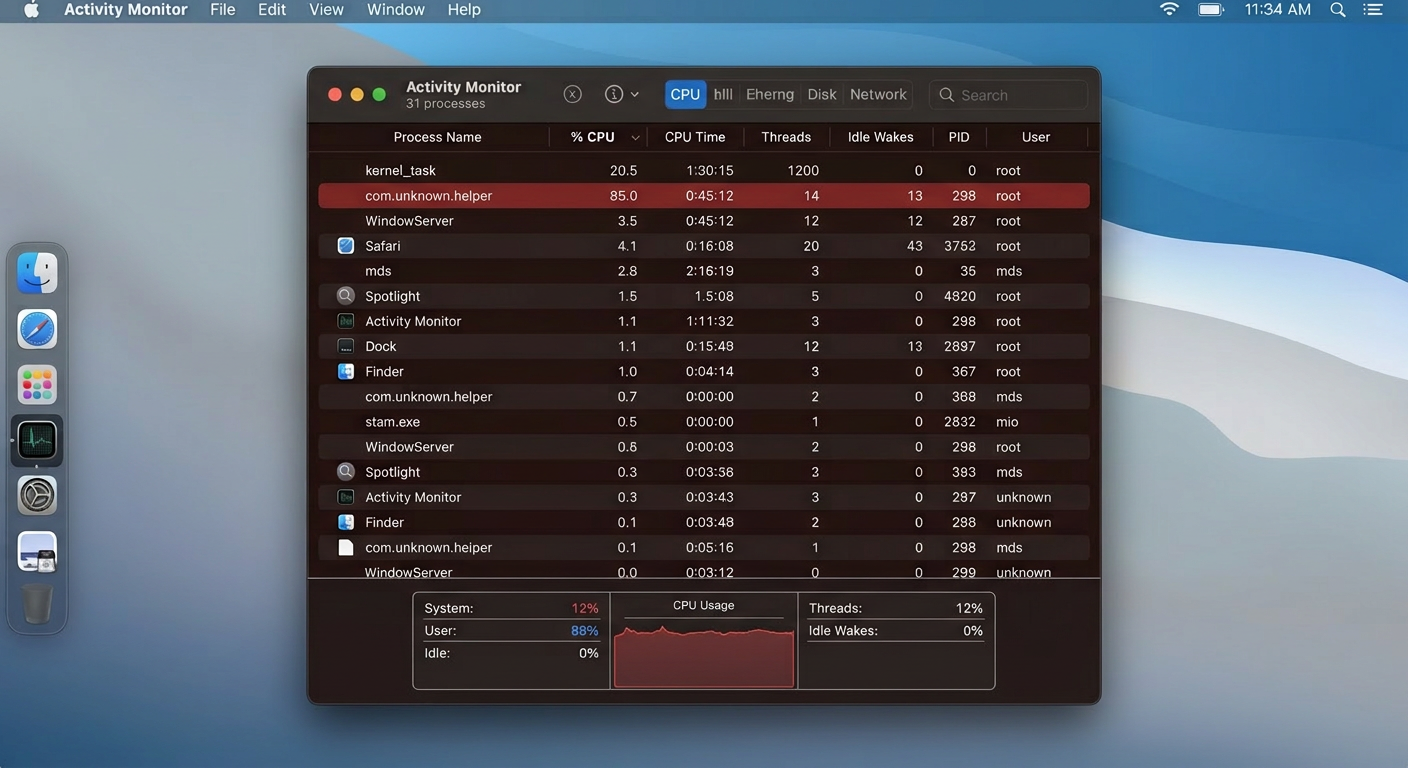
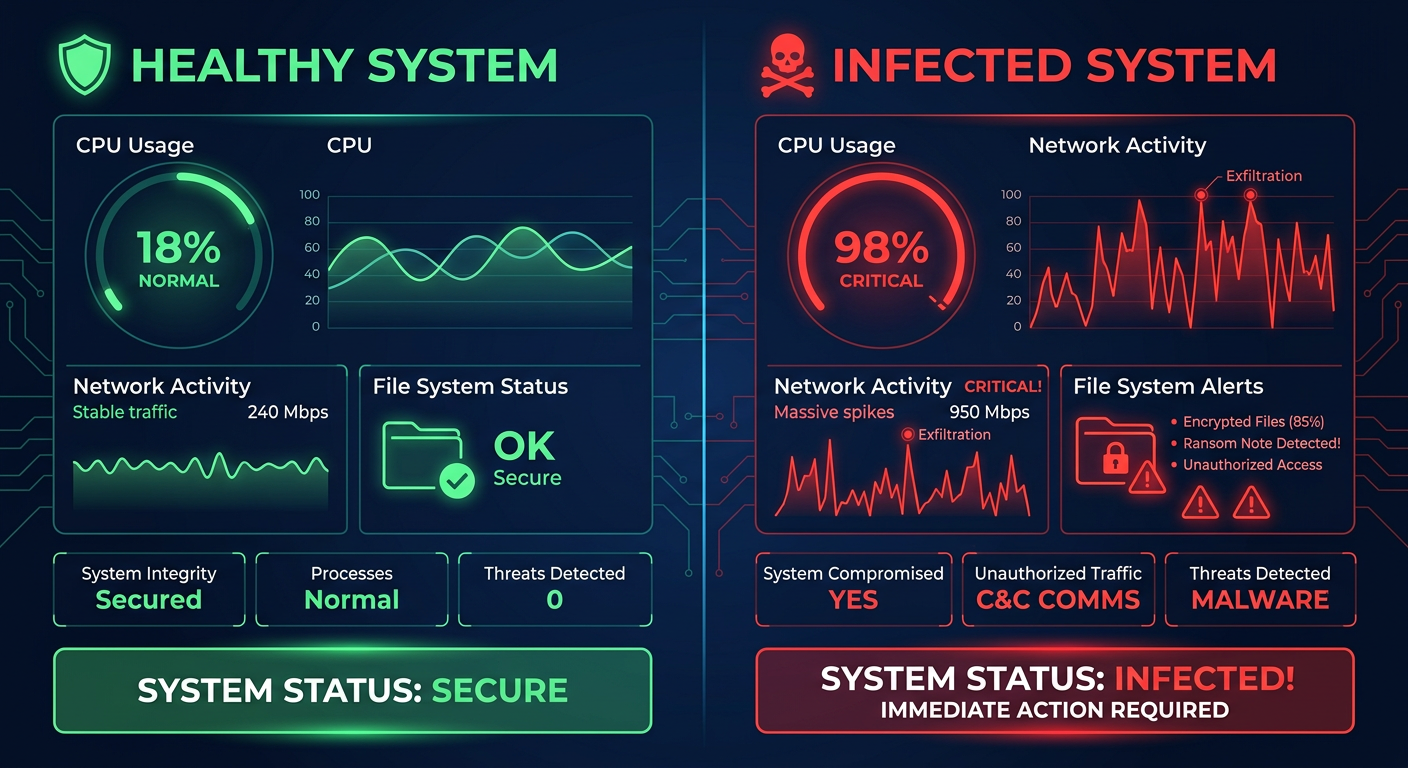
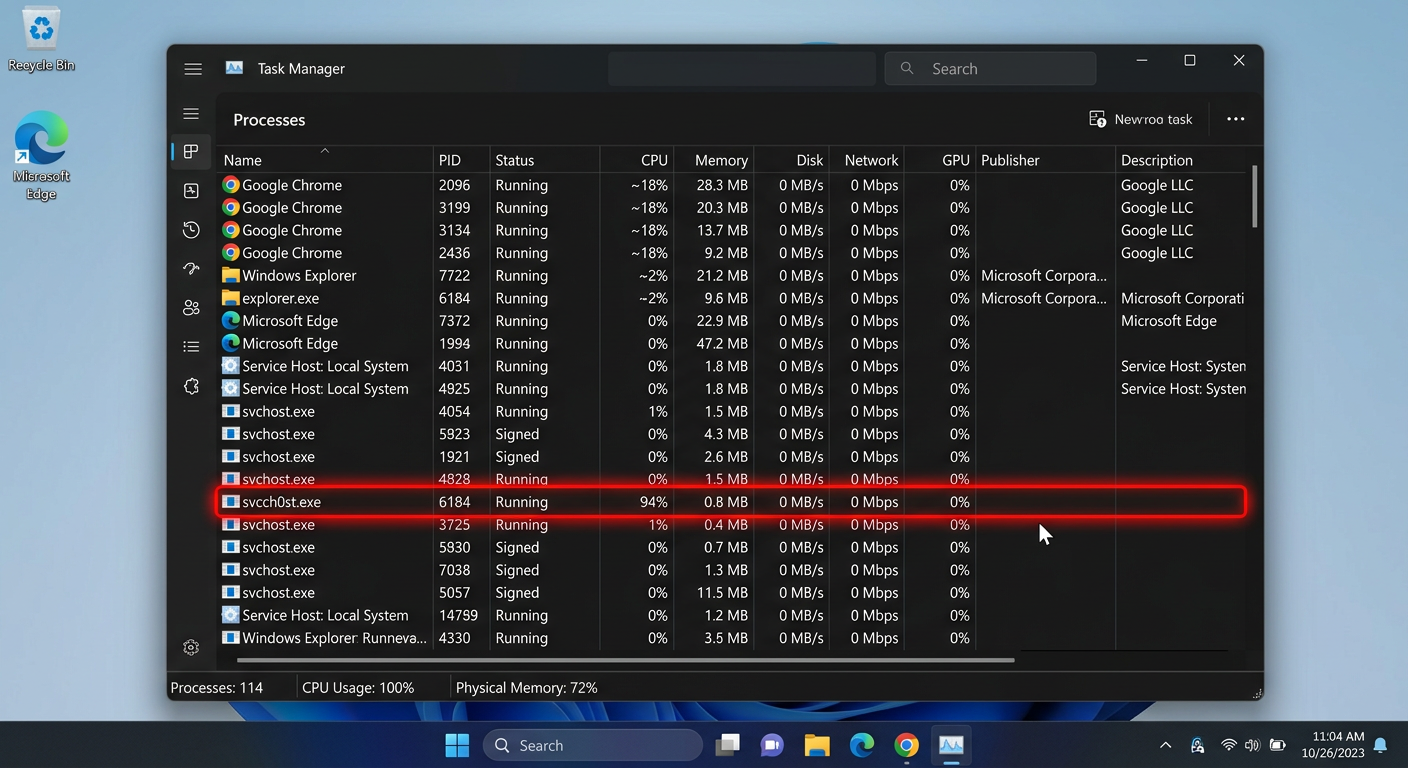
    • Unexplained System Slowdown: A Trojan running in the background—whether logging keystrokes, uploading stolen data, or participating in a botnet attack—consumes CPU, RAM, and disk resources. If your PC becomes noticeably sluggish, especially when it should be idle, this warrants immediate investigation. Open Task Manager and check which processes are consuming the most resources.
    • Programs Launching or Closing Autonomously: If applications open or close without your input, or if system settings (like your homepage, default search engine, or wallpaper) change on their own, a RAT or other Trojan variant may be actively controlling your system.
    • Disabled Security Software: This is one of the most alarming signs. Many sophisticated Trojans specifically target and disable antivirus software, Windows Firewall, or Windows Defender as a first priority. If you find your security tools are turned off and you cannot re-enable them, or if you are blocked from visiting security vendor websites (a common Trojan tactic), treat this as a strong indicator of active infection.
    • Frequent and Unexplained Crashes: System instability, Blue Screens of Death (BSODs), or application crashes that were not occurring before can indicate malicious processes interfering with system operations.

    Network and Security Anomalies

    Trojans must communicate—with their command-and-control (C2) servers to receive instructions, or to exfiltrate stolen data. This network activity can be detected:

    • Unusual Network Activity: Open Task Manager (Ctrl+Shift+Esc), navigate to the Performance tab, and click Open Resource Monitor. In the Network tab, review which processes are sending and receiving data. Consistent, unexplained data uploads when you are not actively using the internet—especially from unknown processes—is a serious red flag. A Trojan uploading your stolen files or participating in a botnet will show sustained outbound traffic.
    • Fake Security Pop-Ups (Scareware): If you are suddenly bombarded with alarming pop-up warnings claiming your PC is severely infected and demanding you call a phone number or purchase a specific (fake) security product, this is a classic Trojan-delivered scareware tactic. Legitimate security software does not use such aggressive, fear-inducing tactics.
    • Unauthorized Account Activity: Friends and contacts reporting that they received strange messages, spam emails, or unusual links from your email address or social media accounts is a strong indicator that a Trojan has harvested your credentials and is either using your accounts or has sold them to other criminals.

    Proactive Manual Checks You Can Perform

    Beyond watching for symptoms, you can actively inspect your system for signs of compromise:

    • Review Startup Programs: Many Trojans establish persistence by adding themselves to the system startup. Open Task Manager, click the Startup tab, and carefully review every entry. Research any program you don’t recognize. You can also use Autoruns (a free Microsoft Sysinternals tool) for a far more comprehensive view of all auto-starting locations.
    • Inspect Running Processes: In Task Manager, click More details and navigate to the Details tab for a complete list of running processes. Right-click on any suspicious process and select Open file location to see where it is running from. Trojans often masquerade as legitimate Windows processes (e.g., svchost.exe, csrss.exe) but run from unusual directories like %AppData% or %Temp% instead of C:\Windows\System32.
    • Check for Suspicious Registry Run Keys: Trojans frequently add entries to Windows Registry run keys to ensure they launch at startup:
      HKEY_CURRENT_USER\Software\Microsoft\Windows\CurrentVersion\Run
      HKEY_LOCAL_MACHINE\SOFTWARE\Microsoft\Windows\CurrentVersion\Run

      Open the Registry Editor (press Win+R, type regedit, press Enter) and navigate to these locations. Any unfamiliar entry pointing to an executable in a suspicious location should be investigated.

    The following type of tutorial is highly relevant for learning this process hands-on:

    [Video: Search YouTube for “how to find malware in Windows Task Manager” to find screen-recorded tutorials from reputable cybersecurity channels demonstrating how to identify suspicious processes and startup items.]

    What Are the Most Effective Steps for Trojan Removal and System Recovery?

    Discovering a Trojan infection demands a calm, methodical response. Acting hastily—or worse, ignoring the signs—can allow the attacker to deepen their access, exfiltrate more data, or deploy additional malware. Follow this structured, multi-layered removal protocol.

    Immediate First Response: Isolation and Scanning

    Your first priority is to contain the infection and prevent further damage:

    • Disconnect from the Internet Immediately: Physically unplug your Ethernet cable or disable your Wi-Fi adapter. This severs the Trojan’s communication channel with its command-and-control server, preventing it from receiving new instructions, exfiltrating additional data, or downloading secondary malware payloads. This is the single most impactful immediate action you can take.
    • Boot into Safe Mode with Networking: Restart your PC and boot into Safe Mode with Networking (press F8 during startup on older Windows versions, or hold Shift while clicking Restart on Windows 10/11, then navigate to Troubleshoot > Advanced Options > Startup Settings > Restart > press F5). Safe Mode loads only essential Windows components, preventing most Trojans from loading with the system, which makes them far easier to detect and remove.
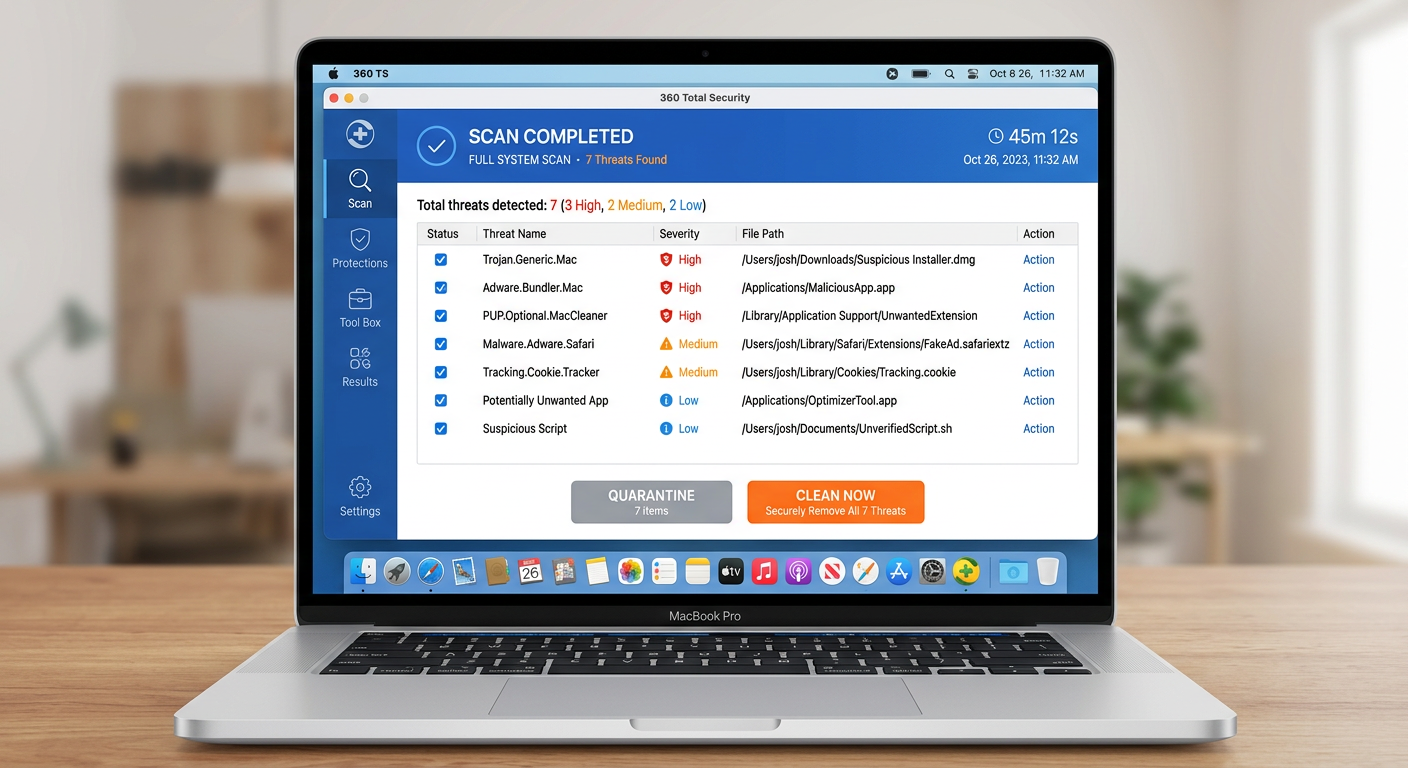
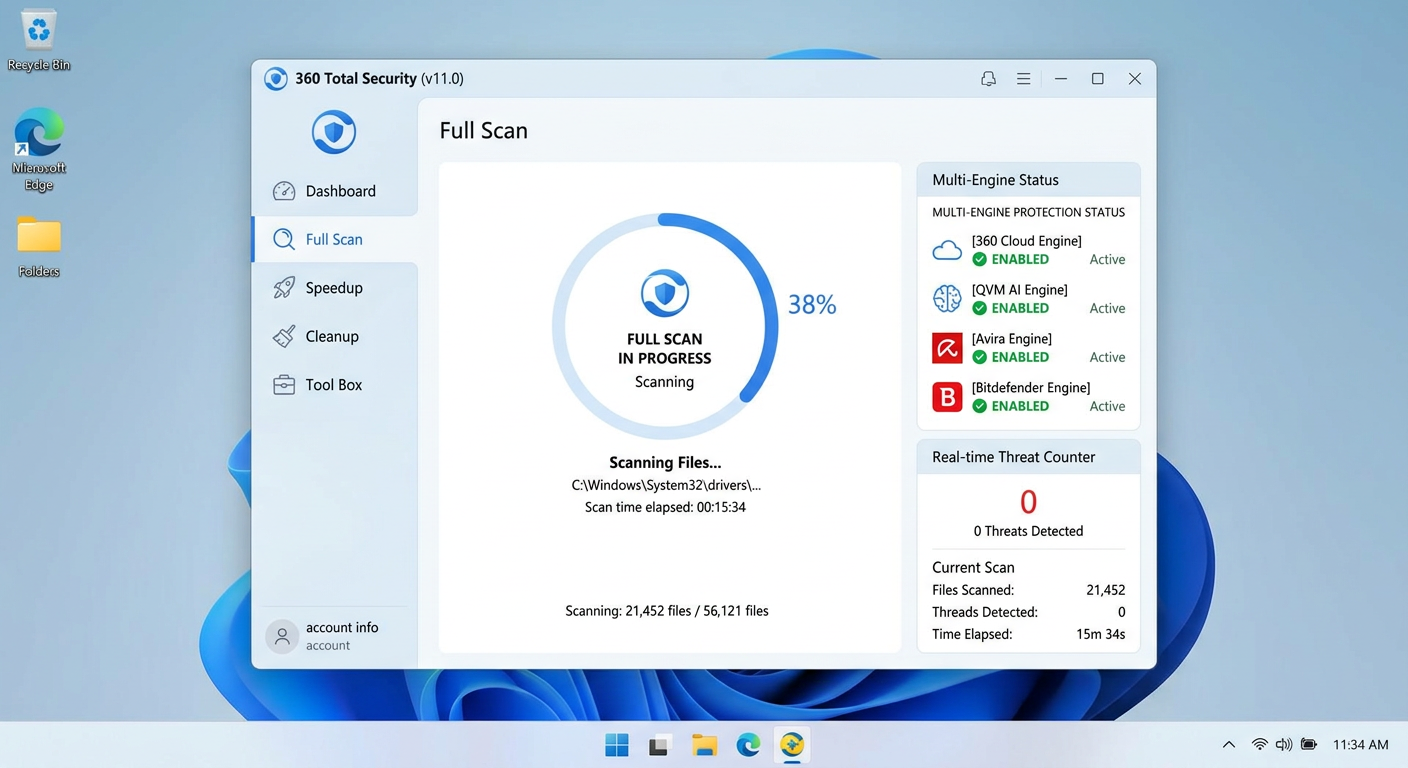
    • Run a Full System Scan with a Reputable Security Suite: This is the critical step. While Windows Defender provides a baseline level of protection, it may not be sufficient for complex, evasive Trojans or rootkits that have been specifically engineered to evade Microsoft’s built-in defenses. Dedicated security suites like 360 Total Security employ heuristic-based and behavioral detection engines specifically tuned to identify Trojan behavior patterns that signature-based scanning alone would miss. Independent lab evaluations from organizations like AV-Comparatives and AV-TEST consistently demonstrate that multi-engine security suites achieve higher detection rates against complex threats compared to single-engine solutions. Ensure your security software’s definitions are updated before running the full scan.

    Employing Specialized Removal Tools and Techniques

    A single scan is rarely sufficient for thorough remediation. A layered removal approach is strongly recommended:

    • Second-Opinion Anti-Malware Scanner: No single security tool catches everything. After your primary antivirus scan, run a second scan with a complementary anti-malware tool such as Malwarebytes Free. Different engines use different detection methods and signature databases, so a second tool may catch threats the first one missed. This is especially important for adware and PUPs (Potentially Unwanted Programs) that often accompany Trojan infections.
    • Bootable Rescue Disk or USB Scanner: If the system is too severely compromised to boot normally, or if you suspect a rootkit that hides itself from the running OS, a bootable rescue disk is invaluable. Security vendors like Kaspersky, ESET, and others offer free bootable rescue disk ISO images that you can burn to a CD or write to a USB drive. Because these tools scan the hard drive from outside the infected operating system, they can detect and remove threats that are completely invisible when Windows is running.
    • Manual Registry and File Cleanup (Advanced Users): After automated tools have completed their work, advanced users may need to manually clean up residual registry entries or files that were identified but not fully removed. Always back up the registry before making any manual changes:
      # Open Registry Editor
      regedit
      
      # Navigate to common persistence locations:
      HKEY_CURRENT_USER\Software\Microsoft\Windows\CurrentVersion\Run
      HKEY_LOCAL_MACHINE\SOFTWARE\Microsoft\Windows\CurrentVersion\Run
      HKEY_LOCAL_MACHINE\SOFTWARE\Microsoft\Windows NT\CurrentVersion\Winlogon
      
      # Also check scheduled tasks:
      schtasks /query /fo LIST /v | more

      Delete any entries that security software identified as malicious and that point to known malicious file paths.

    Post-Removal Recovery and Validation

    Removing the Trojan is not the end of the process. You must assume that sensitive data was compromised and take steps to secure your accounts and restore system integrity:

    • Change ALL Passwords from a Clean Device: This is non-negotiable. Assume that every password stored in your browser or typed on the infected machine has been captured by a keylogger. Using a completely separate, trusted device (a clean smartphone or another PC), immediately change passwords for your email accounts (highest priority), online banking and financial services, social media accounts, and any other accounts with sensitive data. Enable two-factor authentication (2FA) wherever possible.
    • Clear Browser Data and Audit Extensions: Trojans frequently install malicious browser extensions that persist even after the main malware is removed. Open your browser’s extension/add-on manager and remove anything you don’t recognize. Clear all browsing data, including cache, cookies, saved passwords (since these may have been compromised), and browsing history.
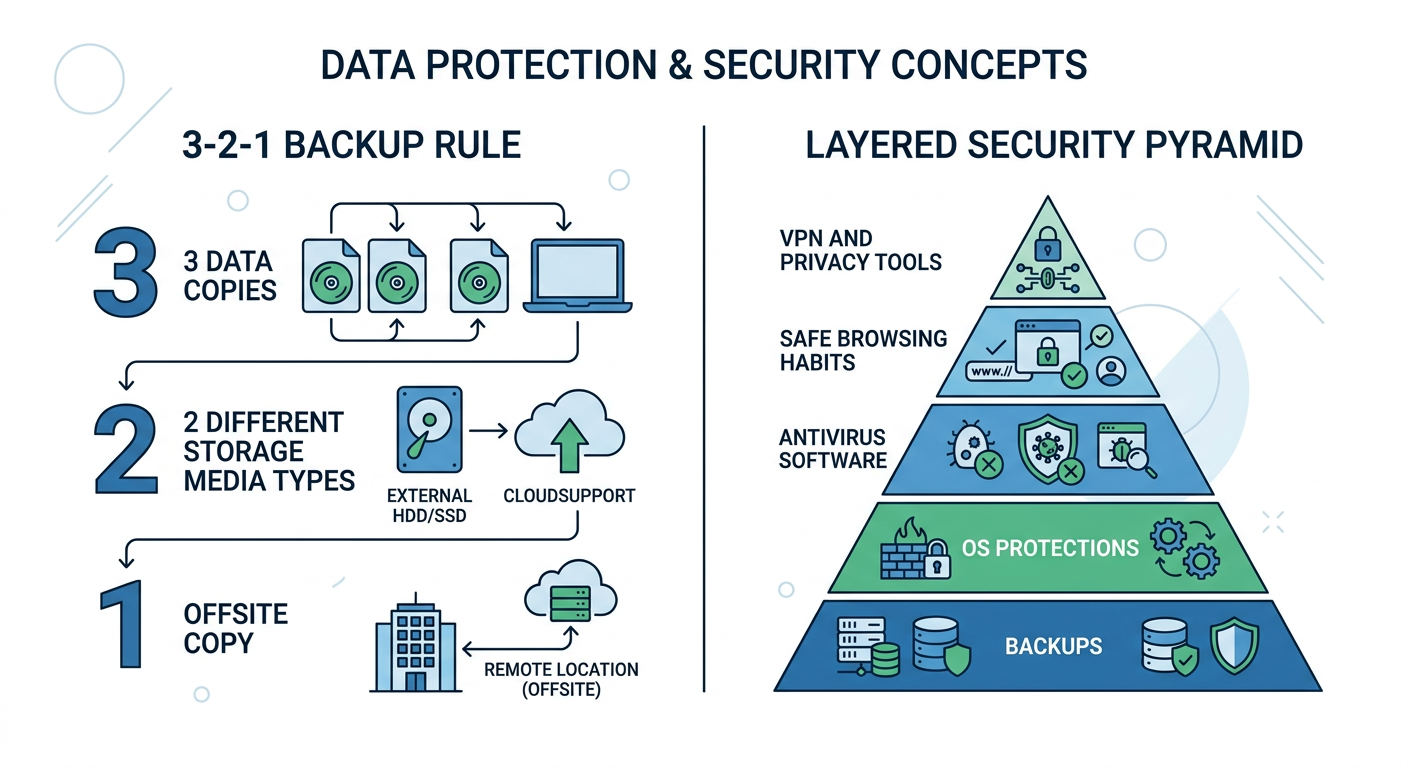
    • Restore from a Clean Backup: If you maintain regular system backups (using Windows Backup, File History, or a dedicated backup solution), restore important files from a backup that was created before the infection occurred. Verify the integrity of restored files. If no clean backup exists, this incident should serve as the catalyst to implement a proper 3-2-1 backup strategy going forward: three copies of data, on two different media types, with one copy stored offsite or in the cloud.
    • Consider a Clean OS Reinstall for Severe Infections: For severe infections—particularly those involving rootkits or where the system remains unstable after removal—a clean reinstallation of the operating system is the only way to guarantee complete remediation. While time-consuming, it provides absolute certainty that no malicious remnants remain.

    How to Build a Proactive Defense Against Future Trojan Attacks?

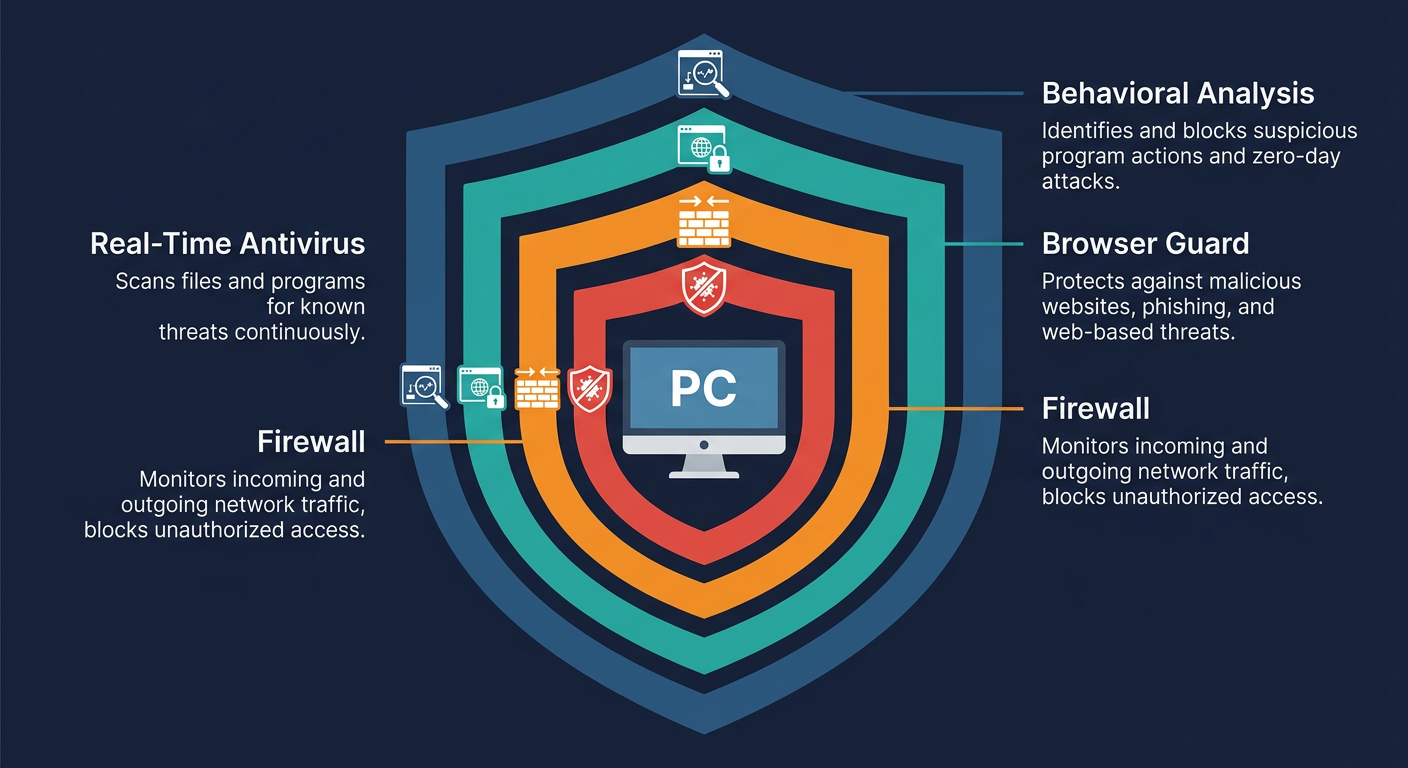
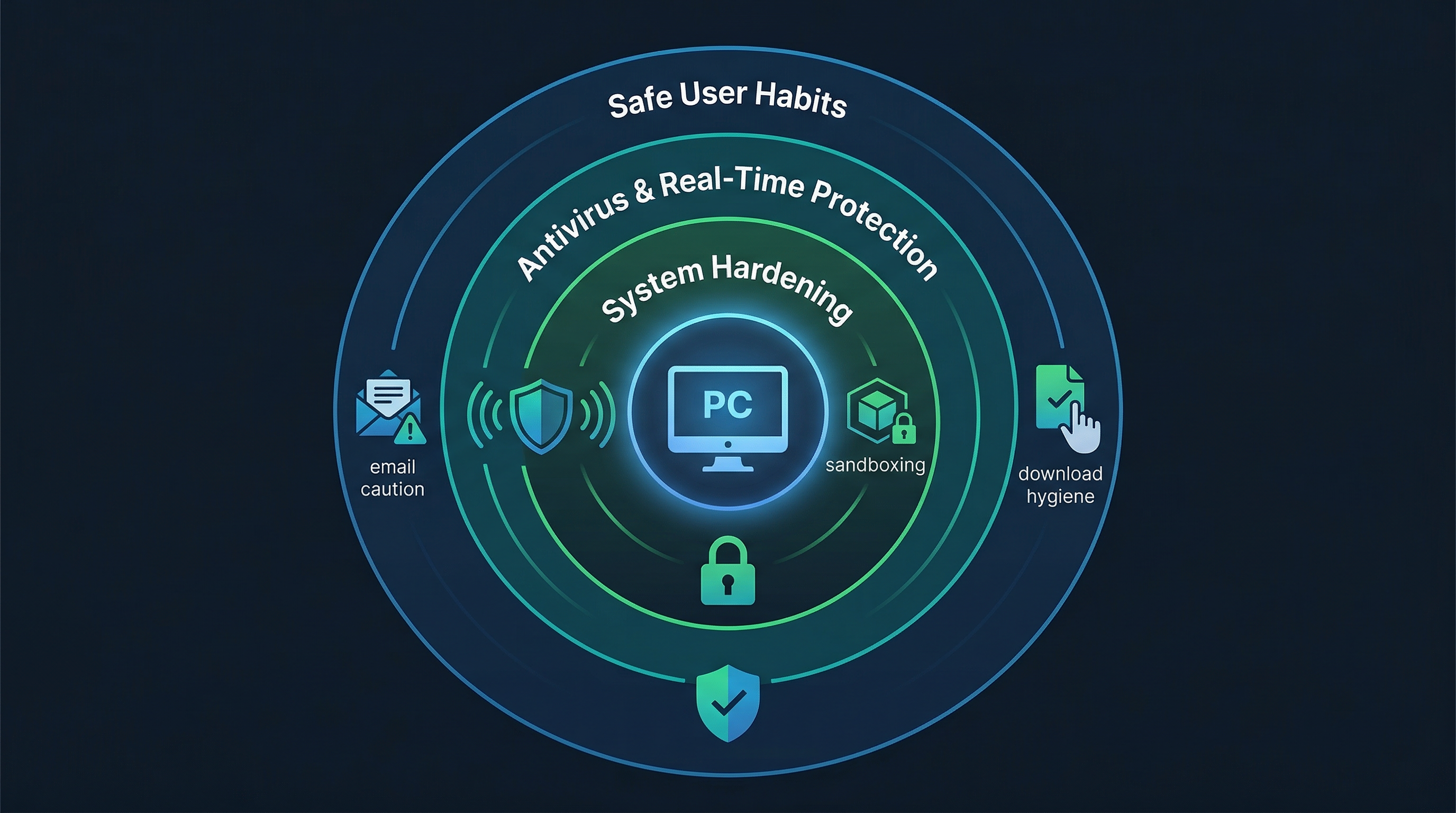
    Reactive malware removal is costly, stressful, and never fully guaranteed. The most effective strategy is to make your PC an inhospitable environment for Trojans in the first place. This requires a combination of reliable security software, disciplined user behavior, and systematic system hardening—what security professionals call a defense-in-depth approach.

    The Essential Role of Comprehensive Security Software

    Your security software is your most critical technical defense layer, but not all solutions are created equal when it comes to Trojan protection:

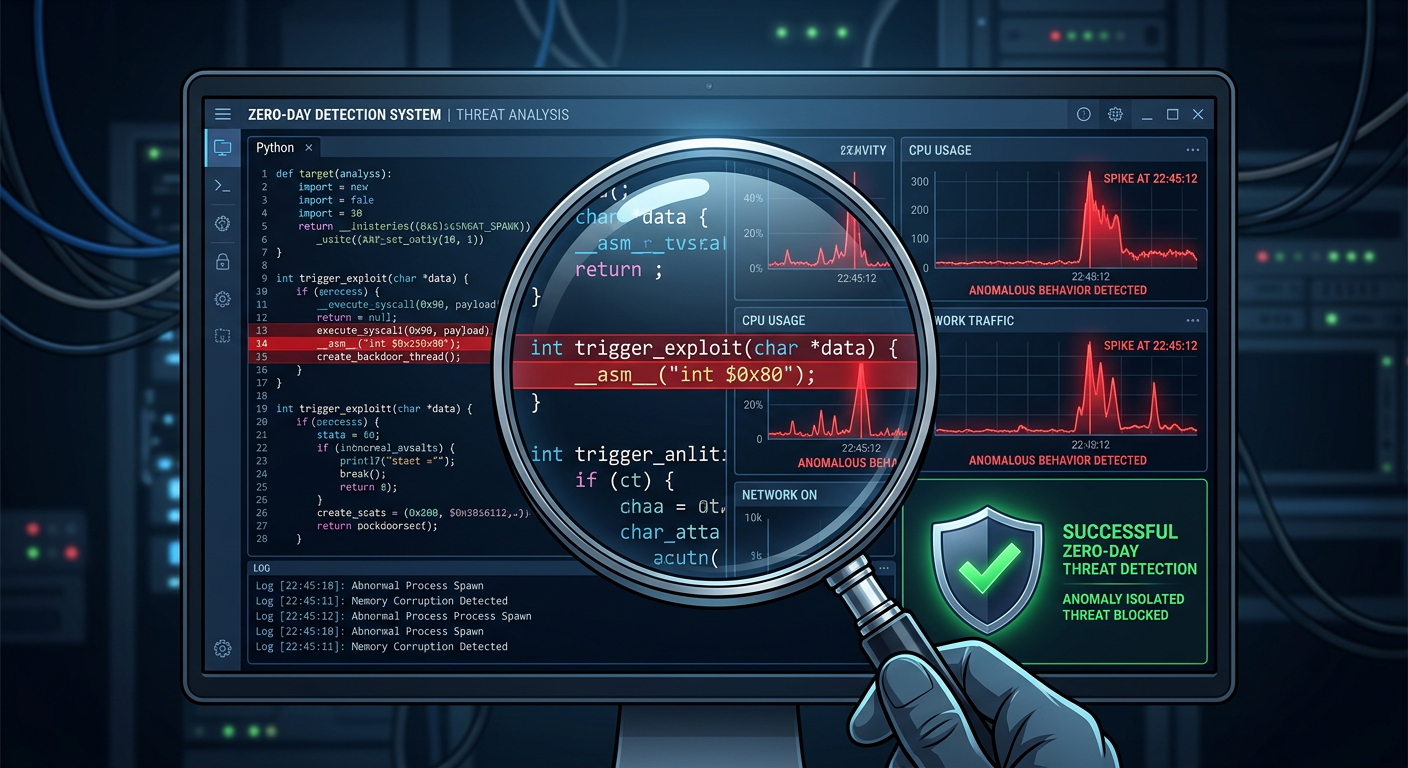
    • Prioritize Behavioral Analysis Over Signature-Only Detection: Traditional signature-based antivirus is increasingly ineffective against modern Trojans, which are routinely repackaged (crypted or packed) to evade known signatures. A security solution with real-time behavioral monitoring watches what programs actually do—not just what they look like—and blocks suspicious actions such as unauthorized registry modifications, attempts to disable security software, or unexpected network connections. 360 Total Security employs a powerful multi-engine approach, combining its own 360 Cloud Engine with the QVM II AI Engine, enabling it to detect unknown and evasive Trojans based on behavioral patterns rather than relying solely on known signatures. This provides robust protection even against zero-day threats that have never been seen before.
    • Keep Security Software and Definitions Automatically Updated: The threat landscape evolves daily. New Trojan variants and delivery methods emerge constantly. Your security software is only as effective as its latest update. Enable automatic updates for both the application itself and its virus definition database to ensure you are always protected against the latest known threats.

    The following table compares key Trojan protection features across popular free security solutions to help you make an informed choice:

    Feature 360 Total Security (Free) Avast Free Antivirus AVG AntiVirus Free
    Real-Time Behavioral Shield ✅ Yes (QVM II AI Engine) ✅ Yes ✅ Yes
    Multi-Engine Detection ✅ Yes (5 engines including Bitdefender & Avira) ❌ Single engine ❌ Single engine
    Built-In Firewall ✅ Yes ⚠️ Limited (Free tier) ❌ No (Paid only)
    Sandbox for Suspicious Files ✅ Yes ❌ No (Paid only) ❌ No
    Anti-Ransomware Protection ✅ Yes ✅ Yes ✅ Yes
    System Optimization Tools ✅ Yes (Integrated) ⚠️ Limited ⚠️ Limited
    Cloud-Based AI Analysis ✅ Yes (360 Cloud Engine) ✅ Yes ✅ Yes

    Critical User Habits and System Hygiene

    Technology alone cannot protect you if your behavior creates openings for attackers. The following habits are foundational to Trojan prevention:

    • Treat Every Email Attachment and Link with Suspicion: This cannot be overstated. Before clicking any link or opening any attachment, verify the sender’s actual email address (not just the display name), hover over links to preview the destination URL, and when in doubt, contact the sender through a separate channel to confirm they sent the message. Be especially wary of urgency-inducing language (“Your account will be suspended!”, “Invoice overdue”).
    • Download Software Exclusively from Official Sources: Only download applications from the official vendor’s website, the Microsoft Store, or other verified, reputable platforms. Avoid third-party download aggregators, torrent sites, and any source offering “free” versions of paid software. The cost of a software license is negligible compared to the cost of a Trojan infection.
    • Maintain a Rigorous Patch Management Routine: Keep your operating system (enable Windows Update), web browsers, browser plugins, and all installed applications updated to their latest versions. The vast majority of drive-by download attacks exploit known vulnerabilities for which patches already exist. Unpatched software is one of the most exploited attack surfaces in cybersecurity.

    Advanced Hardening Techniques for Enhanced Security

    For users seeking maximum protection, these additional hardening measures significantly reduce your attack surface:

    • Use a Standard (Non-Administrator) Account for Daily Tasks: Running as an administrator means that any malware you inadvertently execute also runs with administrator privileges, giving it the ability to install drivers, modify system files, and disable security software. Create a separate standard user account for your daily computing and only use your administrator account when explicitly required for system changes.
    • Deploy Browser Security Extensions: Install a reputable ad-blocker like uBlock Origin in your browser. Beyond blocking annoying ads, it blocks malicious advertisements (malvertising) and prevents connections to known malware-serving domains, providing a powerful barrier against drive-by downloads. A script blocker (also available via uBlock Origin’s advanced mode) can further prevent malicious JavaScript from executing.
    • Use a Sandbox for Testing Unknown Files: If you must open a file from an untrusted source, use a sandbox environment to test it first. A sandbox runs the file in an isolated virtual environment where it cannot affect your real system. This is discussed further in the next section. Software restriction policies (via Windows Group Policy) or AppLocker can also prevent unauthorized executables from running.
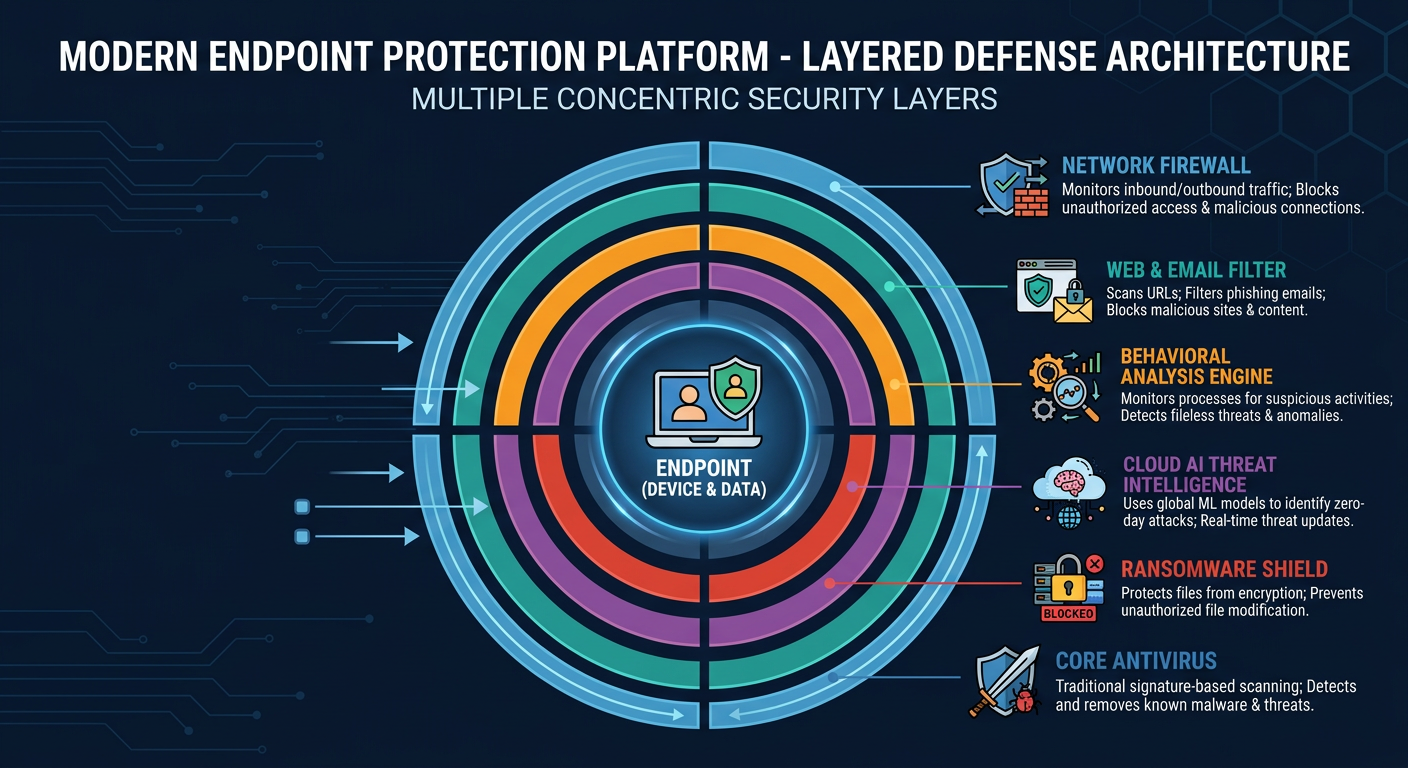
    Defense-in-depth security strategy diagram showing layered protection from user habits and safe browsing at the outer layer to antivirus real-time protection in the middle to system hardening and sandboxing at the core, tech editorial style

    Choosing Your Shield: Key Features to Look for in Trojan Protection Software

    With hundreds of security products on the market, selecting the right one requires looking beyond marketing claims to evaluate specific technical capabilities. When it comes to Trojan protection specifically, certain features are non-negotiable, while others provide meaningful additional layers of defense that can make a decisive difference against sophisticated threats.

    Non-Negotiable Core Protection Layers

    Any security solution you consider for Trojan protection must include these foundational capabilities:

    • Real-Time Behavioral Monitoring: This is the most critical feature for Trojan defense. Rather than simply scanning files against a database of known malware signatures, behavioral monitoring continuously observes what running programs actually do. If a process attempts to perform actions characteristic of Trojan behavior—such as making unauthorized registry modifications to establish persistence, attempting to disable security software, silently connecting to external servers, or injecting code into other processes—the behavioral engine flags and blocks it immediately, even if the Trojan has never been seen before. This is your primary defense against zero-day Trojans and polymorphic variants that evade signature detection.
    • Proactive Exploit Mitigation: Many Trojans reach your system not through direct download but by exploiting vulnerabilities in applications you use every day—web browsers, Microsoft Office, PDF readers, and Java. Exploit mitigation technology shields these applications by monitoring for exploitation techniques (such as heap spraying, ROP chains, or shellcode injection) and blocking the attack before a Trojan payload can be delivered. This protects you even when visiting legitimate websites that have been compromised to serve exploits.
    • Robust, Bidirectional Firewall: A firewall that monitors both inbound and outbound network traffic is essential for Trojan containment. Even if a Trojan manages to install itself, a properly configured firewall can detect and block its attempt to communicate with its command-and-control server—preventing data exfiltration, blocking the receipt of attack instructions, and alerting you to the malicious process. This is particularly critical for neutralizing Remote Access Trojans (RATs) that depend entirely on network connectivity to function.

    Advanced Features for Stopping Evasive Threats

    The most sophisticated Trojans are specifically engineered to evade standard defenses. These advanced features provide the additional layers needed to catch them:

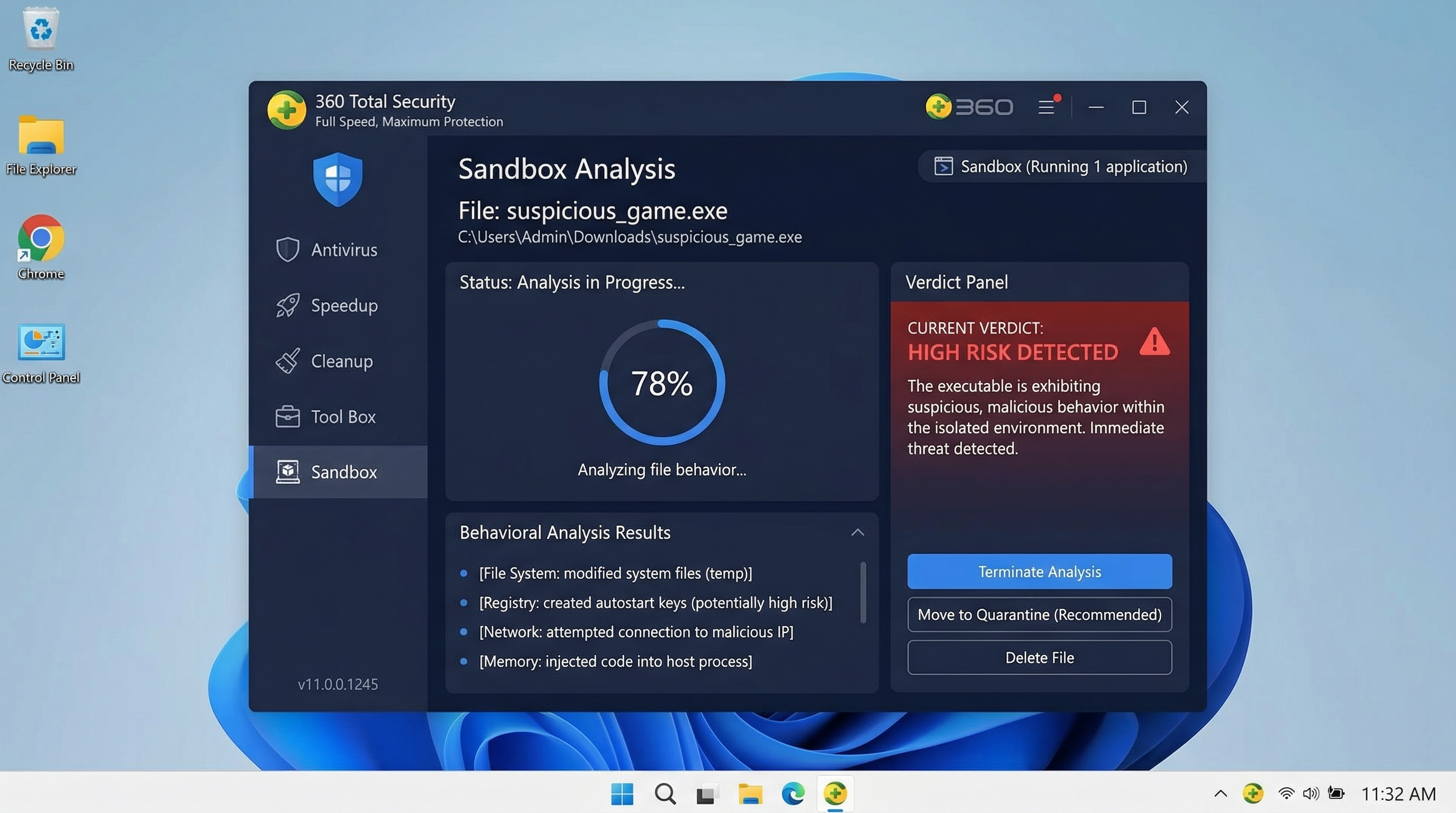
    • Sandbox Technology: A sandbox is an isolated virtual environment that runs suspicious files completely separated from your real operating system. When a potentially dangerous file is opened in the sandbox, it executes normally from its perspective—but any malicious actions it takes (modifying files, connecting to servers, changing registry keys) occur only within the isolated environment and have zero impact on your actual system. Security analysts can then review the file’s behavior to make a definitive verdict. 360 Total Security includes an integrated sandbox feature, allowing users to safely open suspicious files and observe their behavior before deciding whether to trust them—a critical capability for evaluating files from untrusted sources.
    • Cloud-Based AI Detection Engines: Local signature databases, no matter how frequently updated, always have a lag between the emergence of a new threat and its detection. Cloud-based AI engines address this by connecting to massive, continuously updated threat intelligence databases in real-time. When an unknown file is encountered, its characteristics are instantly analyzed against billions of known threat patterns using machine learning algorithms, providing a verdict in seconds—far faster than waiting for a signature update. This is the foundation of 360 Total Security’s 360 Cloud Engine, which leverages global threat intelligence to protect against emerging Trojan variants before they can be formally catalogued.
    • Dedicated Anti-Ransomware and Keylogger Protection: Given that ransomware delivery and credential theft are two of the most common Trojan end-goals, specialized protection modules for these specific threat types add a critical additional layer. Anti-ransomware modules monitor for file encryption behavior (a hallmark of ransomware) and can block and roll back encryption attempts. Anti-keylogger protection shields keyboard input from being intercepted by malicious processes, protecting your passwords and financial data even if a Trojan manages to install itself.

    The Value-Add: System Optimization and Usability

    The best security software is the software you actually use consistently. Features beyond core protection contribute to long-term security effectiveness:

    • Minimal Performance Impact: Security software that significantly slows down your PC creates a powerful incentive to disable it. The best solutions are engineered to be lightweight, leveraging cloud processing to minimize local resource consumption. Independent benchmark tests consistently evaluate the performance impact of security suites; prioritize solutions that achieve high detection rates without degrading system performance. A slow PC is also more likely to be neglected in terms of updates and maintenance, indirectly increasing security risk.
    • Integrated Cleanup and System Optimization Tools: A well-maintained, clean system is inherently more secure and easier to monitor for anomalies. Integrated tools that remove junk files, manage startup programs, identify outdated software, and optimize system performance contribute to overall PC health. This holistic approach—combining security with system optimization—is a defining characteristic of 360 Total Security, which provides both robust threat protection and comprehensive PC care tools in a single, unified platform. By keeping your system clean and your software updated, these tools directly reduce the attack surface available to Trojans.

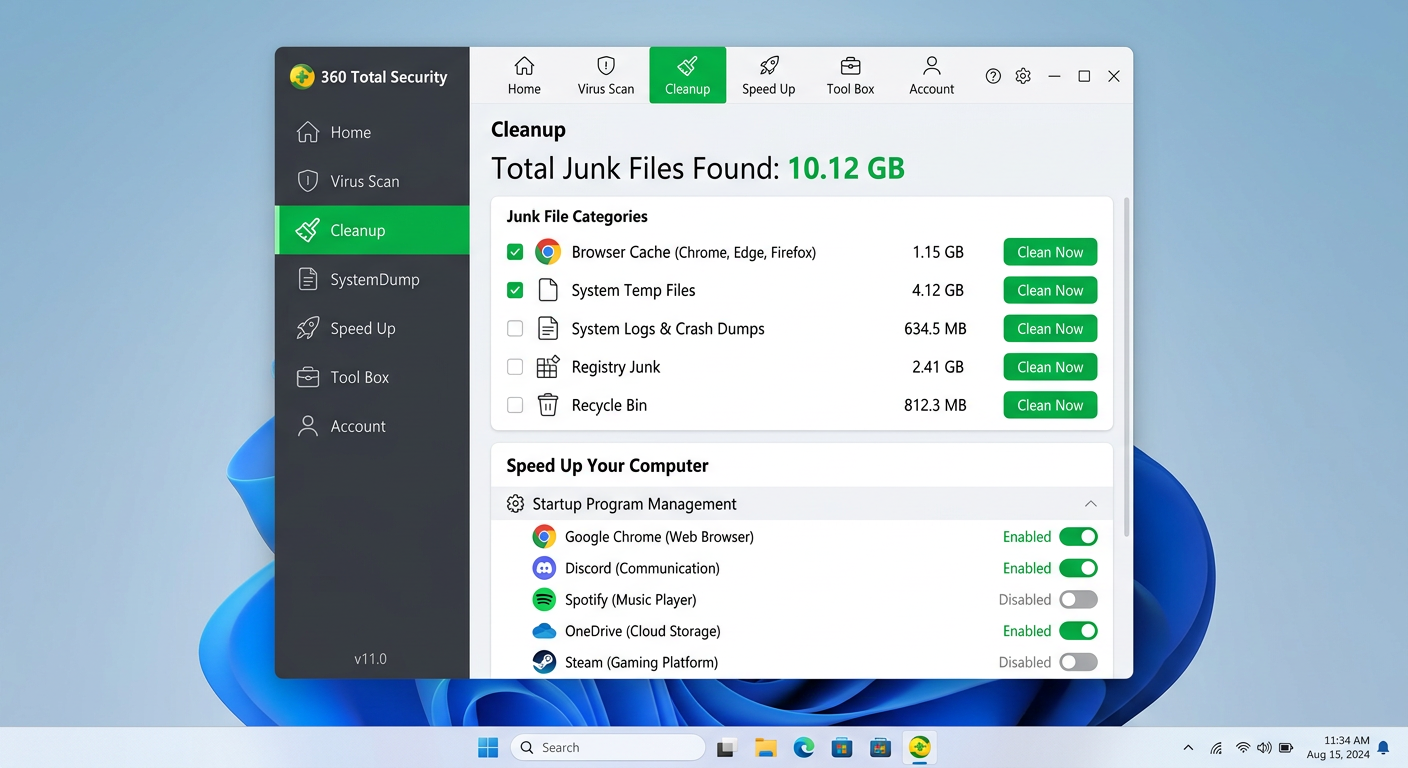
    360 Total Security antivirus software interface showing sandbox feature analyzing a suspicious file in an isolated virtual environment for Trojan detection on Windows PC

    Ready to protect your PC with a comprehensive, multi-engine security solution? Download 360 Total Security for free today and experience enterprise-grade Trojan protection, real-time behavioral monitoring, sandbox analysis, and integrated system optimization—all in one lightweight package designed for Windows and macOS desktops.

    Frequently Asked Questions

    Q1: What is the difference between a Trojan virus and a regular computer virus?

    A regular computer virus is self-replicating—it attaches itself to legitimate files and spreads automatically to other files and systems without requiring user action. A Trojan horse, by contrast, does not self-replicate. Instead, it disguises itself as a legitimate, desirable program and relies entirely on social engineering to trick the user into voluntarily installing it. Once installed, it can perform malicious actions (data theft, remote access, ransomware delivery) but does not spread on its own. This distinction is important because it means Trojans bypass many traditional defenses by exploiting human trust rather than technical vulnerabilities.

    Q2: Can Windows Defender or built-in security tools fully remove Trojan viruses?

    Windows Defender (Microsoft Defender Antivirus) provides a solid baseline of protection and can detect and remove many common Trojans. However, it may struggle with sophisticated, evasive Trojans—particularly those using advanced obfuscation, rootkit techniques, or zero-day exploits—because it relies more heavily on signature-based detection. For comprehensive Trojan removal, security professionals recommend using a dedicated security suite with multi-engine detection and behavioral analysis (such as 360 Total Security) alongside a second-opinion scanner. For severe infections, a bootable rescue disk that scans outside the running OS is often necessary.

    Q3: How can I tell if a file I downloaded is a Trojan before opening it?

    Several approaches can help you evaluate a suspicious file before executing it: (1) Upload the file to VirusTotal.com, a free service that scans files against 70+ antivirus engines simultaneously. (2) Open the file in a sandbox environment—either a dedicated tool like 360 Total Security’s built-in sandbox, or a free online sandbox service—to observe its behavior in isolation. (3) Check the file’s digital signature (right-click > Properties > Digital Signatures) to verify it was published by a legitimate, known company. (4) Be suspicious of executable files (.exe, .bat, .scr, .vbs) disguised with document or media icons, and of files downloaded from unofficial sources regardless of their stated content.

    Q4: After removing a Trojan, do I need to reinstall Windows?

    Not always, but it depends on the severity of the infection. For most Trojan infections caught early, thorough scanning with reputable security tools followed by the post-removal recovery steps outlined in this guide (password changes, browser cleanup, backup restoration) is sufficient. However, for severe infections—particularly those involving rootkits that operate at the kernel level, or where the system remains unstable or behaves suspiciously after removal—a clean reinstallation of Windows is the only way to guarantee complete remediation. When in doubt, a clean install provides absolute certainty and is always the safest option for high-value systems.

    Q5: Is free antivirus software good enough to protect against Trojans?

    A high-quality free antivirus solution can provide meaningful protection against Trojans, particularly if it includes real-time behavioral monitoring and cloud-based detection—not just signature scanning. 360 Total Security’s free version, for example, includes its multi-engine detection framework, sandbox, firewall, and real-time protection—features that rival many paid solutions. However, the effectiveness of any antivirus depends heavily on keeping it updated and combining it with good security habits. No software, free or paid, can fully compensate for risky user behavior such as downloading pirated software or clicking suspicious email links.


    Author Bio: This article was written by a Senior Cybersecurity Technical Writer with over a decade of experience covering malware analysis, endpoint security, and threat intelligence for enterprise and consumer audiences. Specializing in translating complex security concepts into actionable guidance, the author has contributed to cybersecurity publications, vendor whitepapers, and security awareness training programs. Their work is grounded in ongoing analysis of independent security lab reports from AV-Comparatives, AV-TEST, and SE Labs, as well as direct evaluation of security software across Windows and macOS platforms.

  • Trojan Virus Explained: What It Is, How It Works, and How to Remove It

    Trojan Virus Explained: What It Is, How It Works, and How to Remove It

    Executive Summary: A Trojan virus remains one of the most dangerous and deceptive forms of malware threatening Windows and macOS users today. Unlike self-replicating viruses or network-spreading worms, a Trojan disguises itself as legitimate software to manipulate users into granting it access—then silently opens backdoors, steals financial data, or installs additional malware. This comprehensive guide breaks down exactly what a Trojan virus is, how it differs from other malware types, the most notorious real-world examples, and—most critically—how to protect your computer and remove a Trojan infection if one has already taken hold.

    What Exactly Is a Trojan Virus and How Does It Work?

    The Core Deception: Masquerading as Legitimate Software

    The term “Trojan” is drawn directly from one of history’s most famous stratagems: the Trojan Horse of ancient Greek legend. According to Homer’s Odyssey, Greek warriors concealed themselves inside a massive wooden horse gifted to the city of Troy. The Trojans, believing it a harmless offering, wheeled it inside their walls—only to have enemy soldiers emerge under cover of darkness to destroy the city from within. The analogy to modern malware is almost perfect. A Trojan virus presents itself as something desirable or harmless, and the moment a user accepts it, the threat is already inside the perimeter.

    Modern Trojans exploit this psychological vulnerability through a variety of convincing disguises:

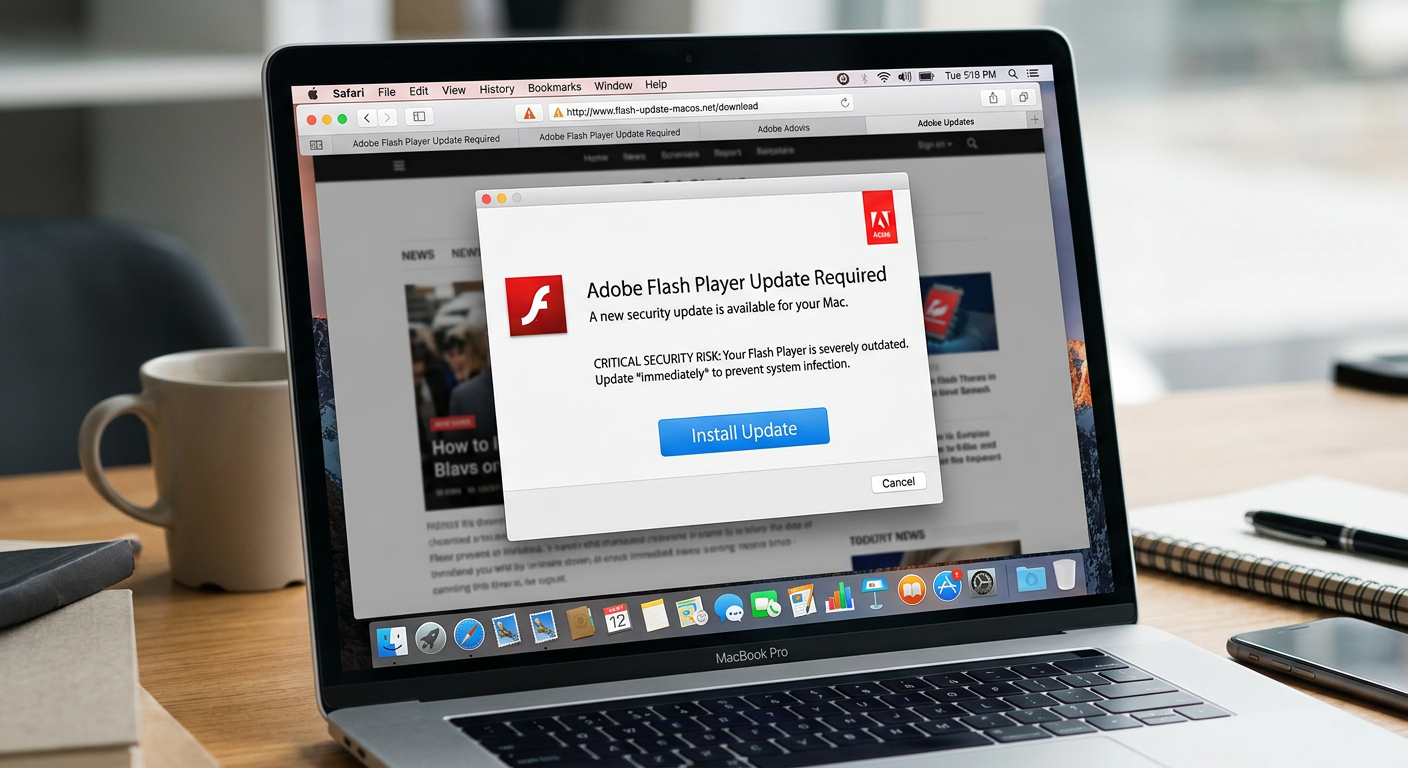
    • Fake software updates: Pop-up alerts claiming your Flash Player, Java, or browser needs an urgent update, linking to a malicious installer.
    • Pirated games and cracked software: Free downloads of paid applications that bundle a hidden payload alongside the promised program.
    • Bundled freeware: Legitimate-looking free utilities (PDF converters, media players, system optimizers) that quietly install a Trojan during setup.
    • Email attachments: Documents, invoices, or shipping notifications with embedded malicious macros or executable payloads, even when they appear to originate from a trusted contact.
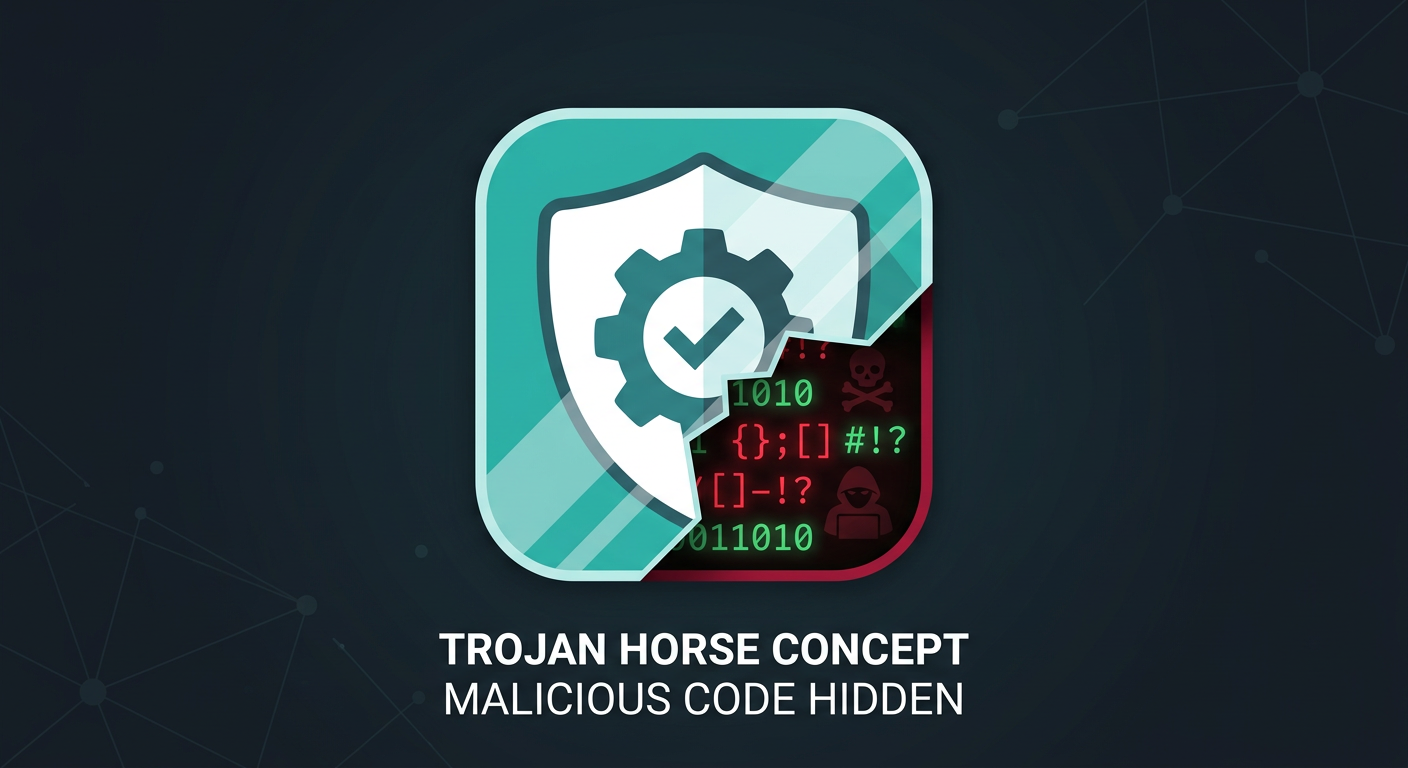
    Illustration of a legitimate-looking software icon concealing a hidden malicious Trojan payload inside, representing the Trojan horse malware deception concept

    The Mechanism: How It Gains Access and What It Does

    One of the most important distinctions in understanding Trojan viruses is recognizing what they do not do: unlike traditional viruses, Trojans do not self-replicate. They cannot attach themselves to other files and spread independently. Their entire model depends on one thing—convincing a human being to execute them. This makes social engineering, not technical exploitation, the Trojan’s primary weapon.

    Once a user runs the malicious file, the infection sequence typically unfolds in stages:

    • Installation: The Trojan installs itself, often to a hidden directory, and may register itself in the Windows startup registry to persist across reboots.
    • Backdoor creation: It opens a covert communication channel—a “backdoor”—between the infected machine and a remote Command and Control (C2) server operated by the attacker.
    • Payload execution: Depending on its type, it may steal credentials, log keystrokes, take screenshots, download additional malware, or enlist the machine into a botnet for use in larger attacks.

    The entire process is designed to be invisible. A well-crafted Trojan can operate on a system for weeks or months without triggering any obvious symptoms, all while silently exfiltrating data or awaiting instructions from its operator.

    How Do Trojan Viruses Differ from Other Types of Malware?

    Trojan vs. Virus: The Key Difference in Propagation

    The terms “Trojan” and “virus” are frequently used interchangeably in casual conversation, but from a cybersecurity standpoint, they describe fundamentally different threat categories. The distinction matters because it directly affects how each threat spreads and what defenses are most effective against it.

    A computer virus is defined by its ability to attach a copy of itself to a clean, legitimate file. When that infected file is opened or executed, the virus replicates further, spreading to other files on the same system or across shared networks and storage media. Viruses are inherently parasitic and self-propagating. They often corrupt or delete files as a side effect of their replication process.

    A Trojan, by contrast, is a standalone program. It does not attach itself to other files and does not self-replicate. Its spread depends entirely on users being deceived into downloading and executing it. Once active, its focus is not on spreading but on establishing stealthy, persistent access to the compromised system. According to the MITRE ATT&CK framework, this category of threat—establishing unauthorized remote access through deception—represents one of the most foundational tactics in modern adversarial playbooks.

    Trojan vs. Worm: The Difference in Network Spread

    Worms share some surface-level similarities with Trojans—both can create backdoors and both can be used to deliver payloads—but their propagation mechanisms are dramatically different. A worm is designed to spread automatically across networks, exploiting software vulnerabilities to copy itself from machine to machine without any user interaction whatsoever. The infamous WannaCry ransomware, for example, used a worm component (exploiting the EternalBlue vulnerability) to propagate across thousands of unpatched Windows systems within hours.

    A Trojan, as established, requires a user to actively execute it. This makes worms potentially more explosive in their spread but also means that patching known vulnerabilities is a highly effective defense against them. Trojans, relying on human deception, are harder to stop through technical patches alone—they require user education and behavioral vigilance as well.

    Trojan vs. Ransomware and Spyware: Different End Goals

    Understanding the goal of each malware type clarifies the threat landscape considerably:

    • Ransomware has a singular, blunt objective: encrypt the victim’s files and demand payment for the decryption key. Its goal is financial extortion through destruction of data access.
    • Spyware operates with maximum stealth, silently collecting sensitive data—browsing habits, credentials, personal communications—and transmitting it to a third party, often for advertising or espionage purposes.
    • Trojans are primarily focused on establishing and maintaining persistent, remote access to a compromised system. Critically, Trojans are frequently the delivery mechanism for both ransomware and spyware—acting as the initial foothold that enables subsequent, more destructive payloads.

    The table below provides a structured comparison of these key malware categories:

    Malware Type Defining Characteristic Propagation Method Primary Goal Self-Replicating?
    Trojan Disguises itself as legitimate software User deception (social engineering) Establish remote access / backdoor No
    Virus Attaches to and infects clean files Infected file sharing / execution File corruption / self-replication Yes
    Worm Exploits network/OS vulnerabilities Automatic network propagation Rapid spread / payload delivery Yes
    Ransomware Encrypts victim files for ransom Phishing, exploit kits, Trojans Financial extortion Sometimes (worm-based variants)
    Spyware Silently monitors and collects data Bundled software, drive-by downloads Data theft / surveillance No

    What Are the Most Common Types and Real-World Examples of Trojan Viruses?

    Backdoor Trojans: The Remote Access Threat

    The backdoor Trojan is perhaps the most strategically dangerous variant. Its primary function is to create a hidden, persistent communication channel between the infected machine and a remote attacker. Once this channel is established, the attacker gains the ability to execute commands, access files, activate the webcam or microphone, install additional software, or use the machine as a launching point for attacks on other systems—all without the user’s knowledge.

    Infected machines are frequently recruited into botnets—vast networks of compromised computers that can be directed to perform coordinated tasks such as Distributed Denial of Service (DDoS) attacks, spam campaigns, or cryptocurrency mining.

    One of the most consequential examples is Emotet. Initially identified as a banking Trojan in 2014, Emotet evolved into a sophisticated, modular malware platform and one of the most prolific malware-as-a-service operations ever documented. According to Europol, before its coordinated law enforcement takedown in January 2021, Emotet was considered the world’s most dangerous malware, having infected hundreds of thousands of computers across dozens of countries and causing hundreds of millions of dollars in damages. Its infrastructure was used to deliver other devastating payloads, including the Ryuk ransomware.

    Banking Trojans: The Financial Data Stealers

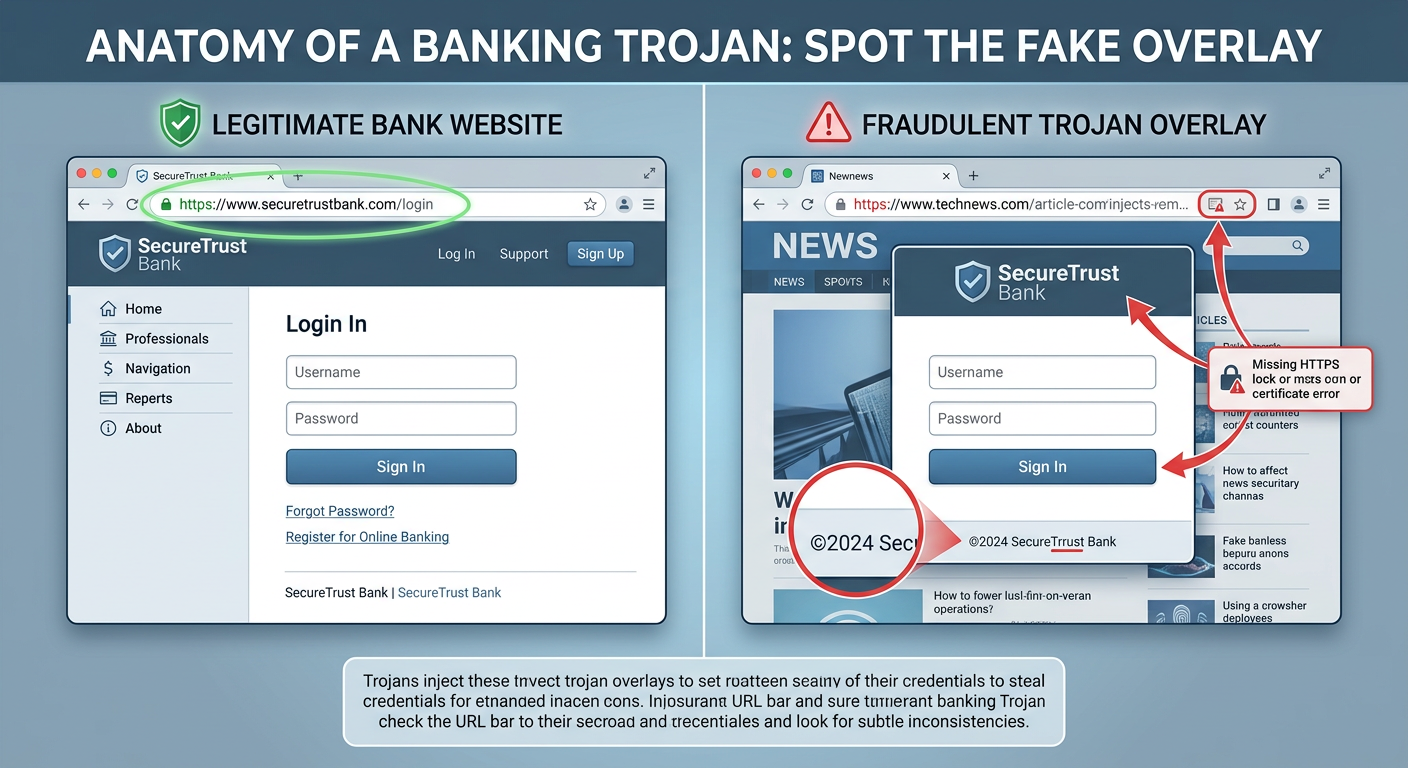
    Banking Trojans are purpose-built for financial theft. They are engineered to intercept online banking sessions and harvest credentials, credit card numbers, and other sensitive financial data. Their most sophisticated technique is web injection: the Trojan monitors the victim’s browser and, when a banking website is detected, dynamically injects a fake overlay—a fraudulent login form that is visually indistinguishable from the legitimate page—to capture credentials in real time.

    The most historically significant example is the Zeus (Zbot) Trojan, first identified around 2007. Zeus was primarily spread through phishing campaigns and drive-by downloads, and it targeted financial institutions on a global scale. At its peak, it had compromised an estimated 3.6 million computers in the United States alone and was responsible for the theft of hundreds of millions of dollars. The Zeus source code was leaked in 2011, spawning numerous dangerous variants—including SpyEye, Citadel, and GameOver Zeus—that continued to plague users for years afterward.

    Tech-editorial graphic illustrating how a banking Trojan overlays a fake login form on top of a legitimate banking website to steal financial credentials

    Downloader and Dropper Trojans: The Malware Installers

    Downloader and Dropper Trojans occupy a critical role in multi-stage attack chains. Rather than performing malicious actions themselves, their sole purpose is to establish a foothold on the target system and then retrieve or unpack additional malicious payloads.

    • A Downloader Trojan connects to a remote server after installation and downloads secondary malware—ransomware, a banking Trojan, a rootkit, or spyware—directly onto the compromised machine.
    • A Dropper Trojan carries the secondary payload within itself, embedded in its own code, and “drops” it onto the system upon execution without requiring a network connection for the delivery phase.

    This two-stage architecture is increasingly common in sophisticated attacks because it allows threat actors to keep the initial delivery mechanism small and difficult to detect, while the more complex and detectable payload is only deployed after the initial infection is confirmed. Emotet itself frequently functioned as a dropper in its later iterations, delivering the TrickBot banking Trojan, which in turn facilitated Ryuk ransomware deployments.

    How Can You Protect Your Computer from Trojan Viruses?

    User Vigilance: The First and Most Critical Layer

    Because Trojans depend fundamentally on deceiving users, informed human behavior is the single most powerful defense. No technical solution can fully compensate for a user who habitually downloads software from untrusted sources or clicks on every email attachment they receive. The following behavioral practices are non-negotiable:

    • Download software exclusively from official sources: Always obtain software from the developer’s official website, reputable app stores, or well-known platform distributors. Avoid pirated software, cracked games, and third-party download aggregators, which are primary Trojan distribution vectors.
    • Exercise extreme caution with email attachments and links: Phishing remains a dominant Trojan delivery method. Verify the sender’s identity independently before opening any attachment, even if the email appears to come from someone you know. Be particularly wary of unexpected invoices, shipping notifications, or documents requiring you to enable macros.
    • Keep all software patched and updated: While Trojans primarily rely on social engineering, many are delivered via exploit kits that target known vulnerabilities in outdated browsers, plugins, and operating systems. Enabling automatic updates for your OS, browser, and all installed applications closes these entry points.
    • Verify digital signatures: Before running any installer, check that it carries a valid digital signature from the expected publisher. On Windows, right-clicking an executable and checking its Properties > Digital Signatures tab can reveal whether the file is genuinely from the claimed source.

    Technical Defenses: Employing Robust Security Software

    Behavioral vigilance must be backed by robust technical defenses. A modern, reputable antivirus solution operating with real-time protection provides a critical safety net for the inevitable moments when a deceptive Trojan slips past human judgment.

    Effective antivirus protection against Trojans must combine two detection methodologies:

    • Signature-based detection: Identifies known Trojans by matching file characteristics against a continuously updated database of malware signatures.
    • Behavioral/heuristic analysis: Monitors the actions of running processes in real time, flagging and blocking suspicious behaviors—such as a program attempting to modify startup registry keys, establish outbound connections to unknown servers, or disable system security tools—even if the specific Trojan has never been seen before.

    360 Total Security exemplifies this multi-engine approach for Windows and macOS desktop users. It combines multiple antivirus engines with proactive behavioral analysis to identify and block suspicious Trojan-like activities before they can execute. Its real-time protection layer monitors system behavior continuously, meaning that even a zero-day Trojan that hasn’t yet been catalogued in signature databases can be flagged based on what it does rather than what it is. The free version provides this core real-time protection, making enterprise-grade Trojan defense accessible to all desktop users.

    Additionally, ensure your system’s built-in firewall is active and properly configured. A firewall monitors inbound and outbound network traffic and can block a Trojan’s attempts to establish communication with its Command and Control server—effectively cutting off the backdoor even if the Trojan manages to install itself.

    Proactive Habits: Regular Scanning and System Hygiene

    Real-time protection is essential, but it should be complemented by scheduled, proactive security maintenance:

    • Schedule regular full system scans: Configure your antivirus software to perform deep, comprehensive scans of all files and directories on a regular schedule—weekly at minimum. A full scan examines areas of the system that real-time monitoring might not scrutinize continuously, such as archived files or rarely accessed directories where Trojans sometimes hide dormant payloads.
    • Remove Potentially Unwanted Programs (PUPs): PUPs—bundled adware, browser toolbars, and dubious system utilities—are among the most common Trojan carriers. 360 Total Security‘s system cleanup tools help identify and remove these programs, reducing the attack surface available to Trojan distributors.
    • Patch vulnerabilities proactively: 360 Total Security’s integrated vulnerability scanner identifies unpatched security holes in your Windows system and installed software, prompting you to apply fixes before attackers can exploit them as Trojan entry points.
    • Practice the principle of least privilege: Use a standard user account for daily computing rather than an administrator account. Many Trojans require elevated privileges to install system-level backdoors; running as a standard user limits the damage they can do even if executed.

    What Should You Do If You Suspect a Trojan Infection?

    Recognizing the Signs of a Possible Trojan Infection

    Trojans are engineered for stealth, but sustained infection often produces observable symptoms. Be alert to the following warning signs on your Windows or macOS desktop:

    • Unexplained system slowdowns or crashes: A Trojan consuming system resources for cryptomining, data exfiltration, or botnet activity can cause noticeable performance degradation, frequent application crashes, or unexpected system freezes.
    • Unusual network activity: High network utilization when you are not actively browsing or downloading—visible in Task Manager (Windows) or Activity Monitor (macOS)—can indicate a Trojan communicating with a remote server.
    • Unknown programs or processes: Unfamiliar applications appearing in your installed programs list, unknown processes running in Task Manager, or new icons appearing on your desktop that you did not place there are significant red flags.
    • Settings changed without your input: Your browser homepage or default search engine has changed, your firewall has been disabled, or your antivirus software has been deactivated or is generating unexpected alerts—all can indicate that malicious software has modified system settings.
    • Antivirus alerts: Your security software generating repeated warnings about a specific file or process, especially one that keeps returning after apparent removal, is a strong indicator of an active Trojan infection.

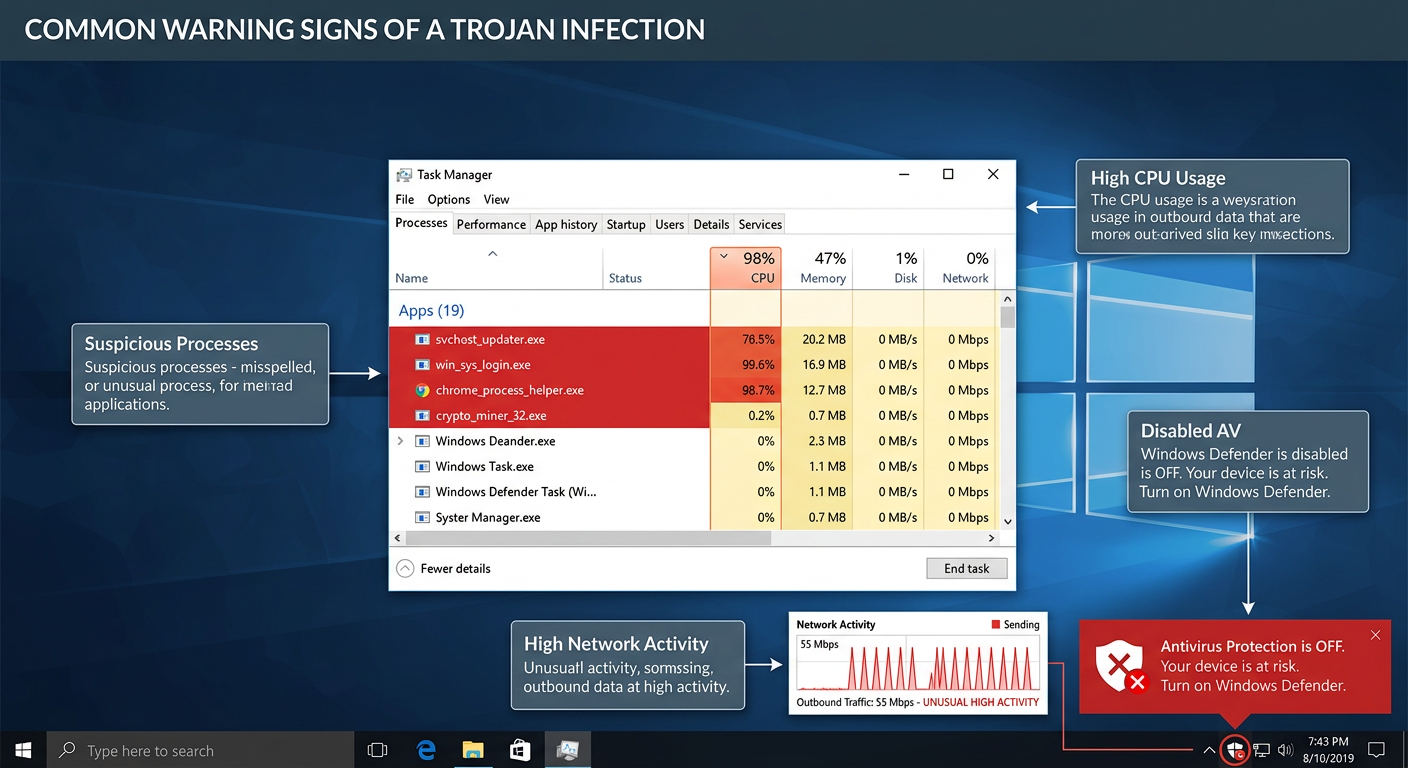
    Screenshot-style illustration of warning signs of a Trojan virus infection on a Windows PC, including high network activity, unknown processes in Task Manager, and disabled antivirus alerts

    Step-by-Step Guide for Removal and Recovery

    If you observe multiple warning signs of a Trojan infection, act immediately and systematically. The following sequence is the recommended approach for desktop users:

    Step 1 – Isolate: Disconnect from the Internet

    Your first action must be to sever the infected machine’s internet connection. Disconnect the Ethernet cable or disable Wi-Fi. This cuts off the Trojan’s communication channel with its Command and Control server, preventing further data exfiltration, stopping the download of additional payloads, and potentially disabling remote attacker control. As cybersecurity professionals consistently emphasize:

    “The very first thing you should do when you suspect an active malware infection is disconnect from the network. Every second the infected machine remains online is another second the attacker has to exfiltrate your data, escalate privileges, or deploy additional payloads. Isolation is not optional—it is the foundational first step of any effective incident response.”
    — Cybersecurity Incident Response Professional, 2025

    Step 2 – Scan: Run a Full Deep System Scan

    With the machine isolated, launch your antivirus software and initiate the most comprehensive scan available. Ensure your virus definition database was updated before disconnecting. 360 Total Security includes a dedicated “Trojan Remover” mode engineered to aggressively hunt for and eliminate deeply embedded Trojan components—including those that have registered themselves in startup processes, injected code into legitimate system processes, or hidden payloads in obscure system directories.

    // Example: Registry paths commonly abused by Trojans for persistence (Windows)
    HKEY_CURRENT_USER\Software\Microsoft\Windows\CurrentVersion\Run
    HKEY_LOCAL_MACHINE\SOFTWARE\Microsoft\Windows\CurrentVersion\Run
    HKEY_LOCAL_MACHINE\SOFTWARE\Microsoft\Windows NT\CurrentVersion\Winlogon
    // A full antivirus scan will examine these locations automatically.
    // Manual inspection can be performed via regedit.exe for advanced users.

    Step 3 – Clean and Restore

    Follow the antivirus software’s recommended actions for each detected threat—quarantine or delete as directed. If critical system files were damaged, use Windows System Restore (or macOS Time Machine) to roll back to a clean restore point predating the infection. For severe infections where system integrity cannot be guaranteed, a clean OS reinstall from verified media may be the most reliable path to a confirmed clean state.

    Step 4 – Change All Credentials

    After the scan confirms the infection has been cleared and before reconnecting to the internet, change every password associated with accounts accessed from the infected machine—email, banking, social media, work accounts, and cloud services. Assume that any credentials entered on the machine during the infection period may have been captured by a keylogger component. Enable multi-factor authentication (MFA) on all accounts that support it.

    Step 5 – Reconnect and Monitor

    Reconnect to the internet and immediately check for any unauthorized account activity. Monitor your bank statements and credit reports for unusual transactions. Continue running regular scheduled scans and consider visiting 360 Total Security’s official website to ensure your desktop protection is fully up to date and configured for maximum defense going forward.

    Frequently Asked Questions (FAQ)

    Q1: Can a Trojan virus infect my computer without me downloading anything?

    In the vast majority of cases, Trojans require user action—downloading and executing a file—to install. However, sophisticated drive-by download attacks can exploit unpatched vulnerabilities in browsers or browser plugins to silently deliver a Trojan payload when you simply visit a compromised or malicious website, without any deliberate download. This is why keeping your browser and all plugins fully updated is critical, even if you practice careful downloading habits.

    Q2: Is a Trojan virus permanent? Can it be completely removed?

    In most cases, yes—a Trojan can be completely removed using reputable antivirus software with a thorough deep scan. However, some advanced Trojans install rootkit components that embed themselves deeply into the operating system kernel, making them exceptionally difficult to detect and remove through standard means. In these cases, booting from a trusted external recovery environment to scan the system offline, or performing a clean OS reinstall, may be necessary to guarantee complete removal.

    Q3: How is a Trojan different from a Remote Access Tool (RAT)?

    A Remote Access Trojan (RAT) is actually a specific, particularly dangerous subcategory of Trojan. All RATs are Trojans, but not all Trojans are RATs. A RAT is specifically engineered to provide an attacker with comprehensive remote control over an infected machine—including the ability to access files, activate cameras and microphones, log keystrokes, and execute commands—all delivered through a Trojan’s deceptive delivery mechanism.

    Q4: Does 360 Total Security protect against Trojans on both Windows and Mac?

    Yes. 360 Total Security provides desktop antivirus and real-time protection for both Windows and macOS platforms. It combines multiple scanning engines with behavioral analysis to detect and block Trojan threats on both operating systems. Note that 360 Total Security is a desktop/PC solution and does not cover mobile (Android/iOS) devices.

    Q5: What is the single most effective thing I can do right now to reduce my Trojan risk?

    If you currently lack real-time antivirus protection on your Windows or macOS desktop, installing a reputable security solution is the single highest-impact action you can take immediately. Beyond that, the behavioral rule with the greatest impact is simple: never download software from unofficial or pirated sources. The overwhelming majority of Trojan infections originate from cracked software, pirated games, and unofficial download sites. Eliminating this habit alone removes the most common infection vector.


    Author Bio: This article was written by a Senior Technical Content Specialist with over a decade of experience covering cybersecurity, malware analysis, and endpoint protection for enterprise and consumer audiences. Their work synthesizes threat intelligence from global cybersecurity organizations, incident response frameworks, and hands-on security software evaluation to provide readers with accurate, actionable, and up-to-date guidance on protecting their digital environments.

  • How to Remove a Virus from Your Phone: A Complete Step-by-Step Guide

    How to Remove a Virus from Your Phone: A Complete Step-by-Step Guide

    Executive Summary: Discovering that your phone may be infected with malware is alarming, but it is a solvable problem. This comprehensive guide walks you through every stage of the process — from identifying the telltale signs of a phone virus, to isolating the threat, executing targeted removal steps for both Android and iPhone, and finally hardening your device against future attacks. Whether you are dealing with aggressive adware, spyware stealing your personal data, or a deeply embedded trojan, the systematic approach outlined here will help you reclaim control of your device and protect your digital life.

    What Are the Signs Your Phone Has a Virus?

    Recognizing the symptoms of a mobile virus infection is the critical first step before taking any remediation action. One of the most common mistakes users make is dismissing early warning signs as normal phone aging or poor battery health. In reality, many of these symptoms are the direct result of malicious software running silently in the background. Understanding the difference between a sluggish phone and an infected one can save you from significant financial and privacy harm.

    Unusual Performance and Battery Drain

    One of the earliest and most consistent indicators of a phone virus is a sudden, unexplained degradation in performance. This can manifest as:

    • Unexplained slowdowns: Apps take longer to open, the interface stutters, or simple tasks like scrolling through a contact list feel labored. This happens because malware consumes processor cycles running its own operations in the background.
    • Excessive heat during simple tasks: If your phone becomes noticeably warm while you are only reading a text message or browsing a static webpage, background processes — potentially malicious ones — are likely taxing the CPU.
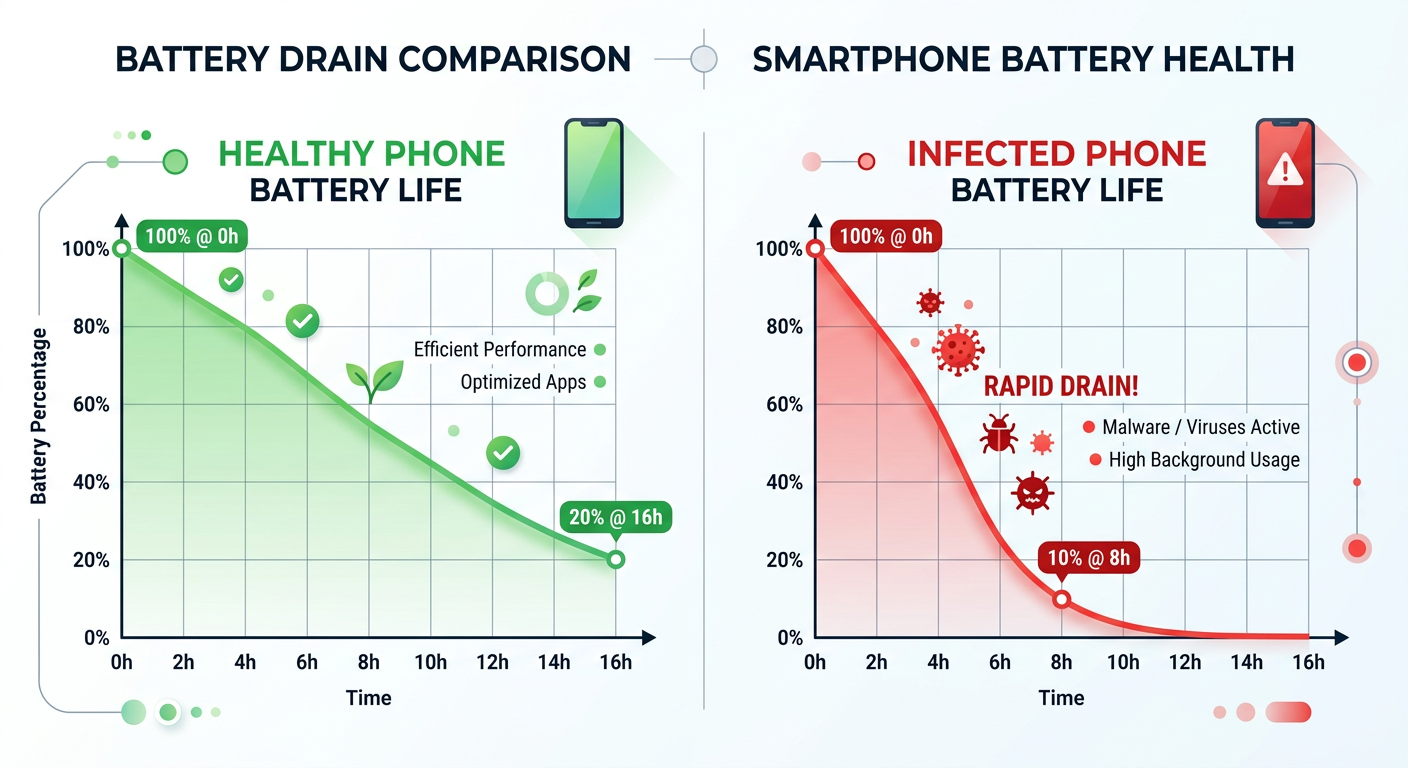
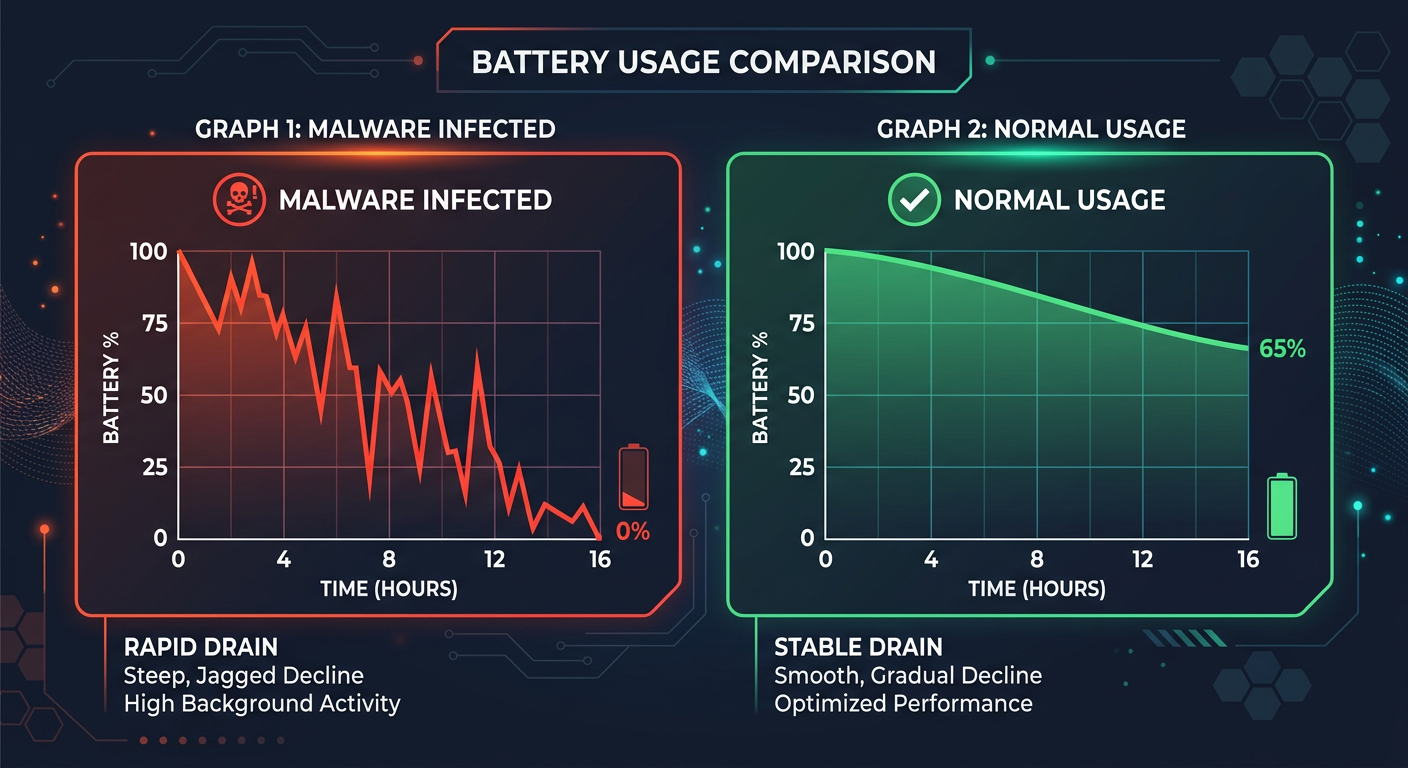
    • Accelerated battery drain: According to a 2026 Cybersecurity Threat Report by a leading mobile security research firm, devices infected with spyware and adware can experience battery life reductions of up to 30–40% compared to a clean baseline. Malware that continuously transmits data, records audio, or displays hidden ads is a significant power consumer. If your battery, which was previously lasting a full day, now dies by mid-afternoon without a change in your usage habits, this is a serious red flag.
    Infographic comparing battery life curve of a normal phone versus an infected phone over a 24-hour period, showing accelerated drain on the infected device

    Suspicious Network Activity and Pop-ups

    Malware almost always needs to communicate — whether to receive commands, exfiltrate stolen data, or serve advertisements. This communication leaves traces you can detect:

    • Unexpected data usage spikes: Check your mobile data usage statistics regularly. If an app you rarely use — or one you do not recognize — is consuming hundreds of megabytes of background data, it warrants immediate investigation. Spyware, in particular, constantly uploads captured screenshots, keystrokes, and location data to remote servers.
    • Persistent, intrusive pop-up ads: Adware is designed to generate revenue for its operators by displaying advertisements. If you are seeing pop-up ads on your home screen, lock screen, or within apps that never showed ads before, adware is almost certainly the culprit. These ads often appear even when you are not actively using your phone.
    • Unauthorized app installations: Apps appearing on your device that you never downloaded are a severe warning sign. Some malware families are designed to silently download and install additional malicious payloads. Similarly, if a calculator app suddenly requests access to your camera and microphone, that app has almost certainly been compromised or replaced with a malicious clone.

    Financial and Privacy Red Flags

    The most damaging consequences of a phone virus are financial and privacy-related. These signs indicate the infection has progressed to a dangerous stage:

    • Unauthorized premium SMS charges: A class of malware known as “SMS trojans” silently subscribes victims to premium-rate text message services, generating charges of several dollars per message. Review your phone bill carefully for any services you did not authorize.
    • Strange messages sent from your number: If your contacts report receiving spam, phishing links, or bizarre messages from your phone number, your device may be under the control of a botnet, using your identity to spread the malware further.
    • Personal data appearing in unexpected places: According to a 2025 Mobile Threat Landscape Report published by a major mobile security vendor, data-stealing trojans are among the fastest-growing malware categories on mobile platforms. Signs include photos you did not share appearing online, credentials being used in unauthorized logins, or receiving alerts from your bank about suspicious activity shortly after using your phone on an unfamiliar network.

    Immediate First Steps: Isolate and Diagnose the Infection

    Once you suspect your phone is infected, your instinct may be to immediately start deleting things or running a scan. However, the most strategically sound first move is containment and diagnosis. Rushing into removal without understanding what you are dealing with can sometimes make the situation worse — for example, by alerting the malware to initiate a data exfiltration burst before it is removed. A methodical approach protects your data and increases the likelihood of complete eradication.

    Disconnect and Go into Safe Mode

    The moment you suspect an infection, your first priority is to sever the malware’s lifeline:

    • Disable all wireless connections immediately: Turn off Wi-Fi, Bluetooth, and mobile data (enable Airplane Mode for the quickest method). This cuts off the malware from its command-and-control (C2) servers, preventing it from receiving new instructions, exfiltrating your data, or downloading additional malicious components.
    • Boot into Safe Mode (Android): Safe Mode loads only the core operating system and pre-installed system apps, disabling all third-party applications. This is an invaluable diagnostic tool. If the suspicious symptoms (slowdowns, pop-ups, excessive heat) disappear in Safe Mode, you have confirmed that a third-party app is responsible. To enter Safe Mode on most Android devices, press and hold the power button, then press and hold the “Power off” option until a “Reboot to safe mode” prompt appears.
    • iOS equivalent: iPhones do not have a traditional Safe Mode, but you can achieve a similar diagnostic state by restarting the device and observing whether symptoms persist before any third-party apps have loaded in the background.

    https://www.youtube.com/watch?v=Ky_tz0MdBLQ

    Review App Permissions and Data Usage

    With the device isolated and in Safe Mode, you can now conduct a thorough audit without the risk of active malware interfering:

    • Audit your installed applications: Go through every app on your device. Look for apps with generic names (“System Service”, “Phone Manager”), unfamiliar developer names, or apps you have no memory of installing. Pay close attention to installation dates — did a suspicious app appear around the same time your problems started?
    • Scrutinize app permissions: Navigate to your device’s permission manager and review what each app has access to. The principle is simple: if an app’s permissions do not logically align with its stated function, it is suspicious.
    App Type Legitimate Permissions Suspicious / Red Flag Permissions
    Flashlight App Camera (for the flash LED) Contacts, Microphone, Location, SMS
    Calculator App None required Camera, Microphone, Storage, Call Logs
    Simple Game Storage (for save files), Internet (for ads) Contacts, SMS, Phone calls, Device Admin
    Weather App Location (for local forecast) Contacts, Microphone, Read/Send SMS
    QR Code Scanner Camera Full Storage Access, Accessibility Services, Device Admin
    • Check background data usage: In your device’s network settings, review data usage per app. Sort by highest usage and look for anomalies. An app that has consumed 500MB of data in the background while you have never actively opened it is a strong indicator of malicious activity.

    Use a Trusted Security Scanner for Initial Assessment

    A preliminary scan can confirm your suspicions and identify specific threat names before you begin manual removal:

    • Use a pre-installed or previously downloaded scanner: Since your device is disconnected from the internet, you should use a security app that is already installed. If you do not have one, you can use a trusted computer to download the APK (Android) from a verified source and transfer it via a cable — avoid re-enabling Wi-Fi for this step if possible.
    • Benchmark your expectations: The gold standard for desktop security — the kind of deep, multi-engine scanning and real-time behavioral analysis offered by solutions like 360 Total Security for Windows and macOS — represents the philosophy of layered, comprehensive protection you should seek in any security tool. 360 Total Security’s approach of combining multiple scanning engines with proactive threat detection is a benchmark for what effective security software should deliver. Look for mobile security apps that mirror this multi-layered approach.
    • Record your findings: Note the names of any flagged apps or files. This information will guide your manual removal steps in the next phase.

    How to Remove a Virus from Your Android Phone

    Android’s open ecosystem — its greatest strength as a platform — is also what makes it the primary target for mobile malware. The ability to sideload apps, install from third-party sources, and grant deep system permissions creates attack vectors that iOS simply does not have. Fortunately, this same openness also gives you powerful tools to combat infections. The removal process is methodical: manual cleanup first, then automated scanning, and factory reset as a last resort.

    Manual Removal via Settings and Safe Mode

    Manual removal is the most direct approach and should be your first line of action after diagnosis:

    • Uninstall suspicious apps in Safe Mode: While in Safe Mode (which prevents the malware from running and potentially fighting back), navigate to Settings > Apps > See All Apps. Locate the suspicious applications you identified during the diagnosis phase and tap Uninstall. Start with the most recently installed and most suspicious-looking apps.
    • Revoke Device Administrator Permissions: Some sophisticated malware grants itself Device Administrator status, which prevents it from being uninstalled through normal means. If you attempt to uninstall an app and the button is greyed out, navigate to Settings > Security > Device Admin Apps (the exact path varies by manufacturer). Find the suspicious app, revoke its administrator privileges, and then return to the Apps menu to uninstall it.
    • Clear cache and browser data: After removing malicious apps, clear the cache and stored data for your web browser and any other apps that showed suspicious behavior. Navigate to Settings > Apps, select the browser (e.g., Chrome), and tap Clear Cache and Clear Data. This removes any malicious scripts, tracking cookies, or cached adware content that may have been stored.

    Employ a Dedicated Mobile Antivirus Solution

    Manual removal addresses what you can see, but sophisticated malware often leaves behind residual components, modified system files, or secondary payloads that are invisible to the naked eye. A dedicated security app is essential for thorough eradication:

    • Reconnect carefully and install a reputable security app: After manual cleanup, reconnect to a trusted, secure network (your home Wi-Fi, not a public hotspot). Download a full-featured mobile antivirus application from the official Google Play Store — never from a link in an email or pop-up ad, as these are frequently malware distribution vectors themselves. Look for apps with millions of verified downloads, strong review scores, and a transparent developer history.
    • What to look for in a mobile security app: The comprehensive, proactive defense philosophy championed by 360 Total Security on the desktop — combining real-time protection, deep system scanning, web threat blocking, and performance optimization — defines the benchmark for effective security software. Seek mobile solutions that offer: real-time app scanning, web protection and anti-phishing, privacy audits, and Wi-Fi security checks.
    • Run a full deep scan: Do not settle for a quick scan. Run the deepest, most comprehensive scan the application offers. Follow all recommendations to quarantine or permanently delete flagged items. Review the scan report carefully, as it will often provide the specific names and locations of any threats found.

    The Nuclear Option: Factory Reset

    If malware symptoms persist after both manual removal and a full antivirus scan, the infection may have rooted itself too deeply into the system to be removed by conventional means. A factory reset is the definitive, guaranteed solution:

    • Back up your data first — but selectively: Before resetting, back up your photos, contacts, and essential documents. However, be cautious: do not back up and restore APK files or app data from the period of infection, as these may reintroduce the malware. Back up to a computer or a trusted cloud service, and review the backup contents before restoring them.
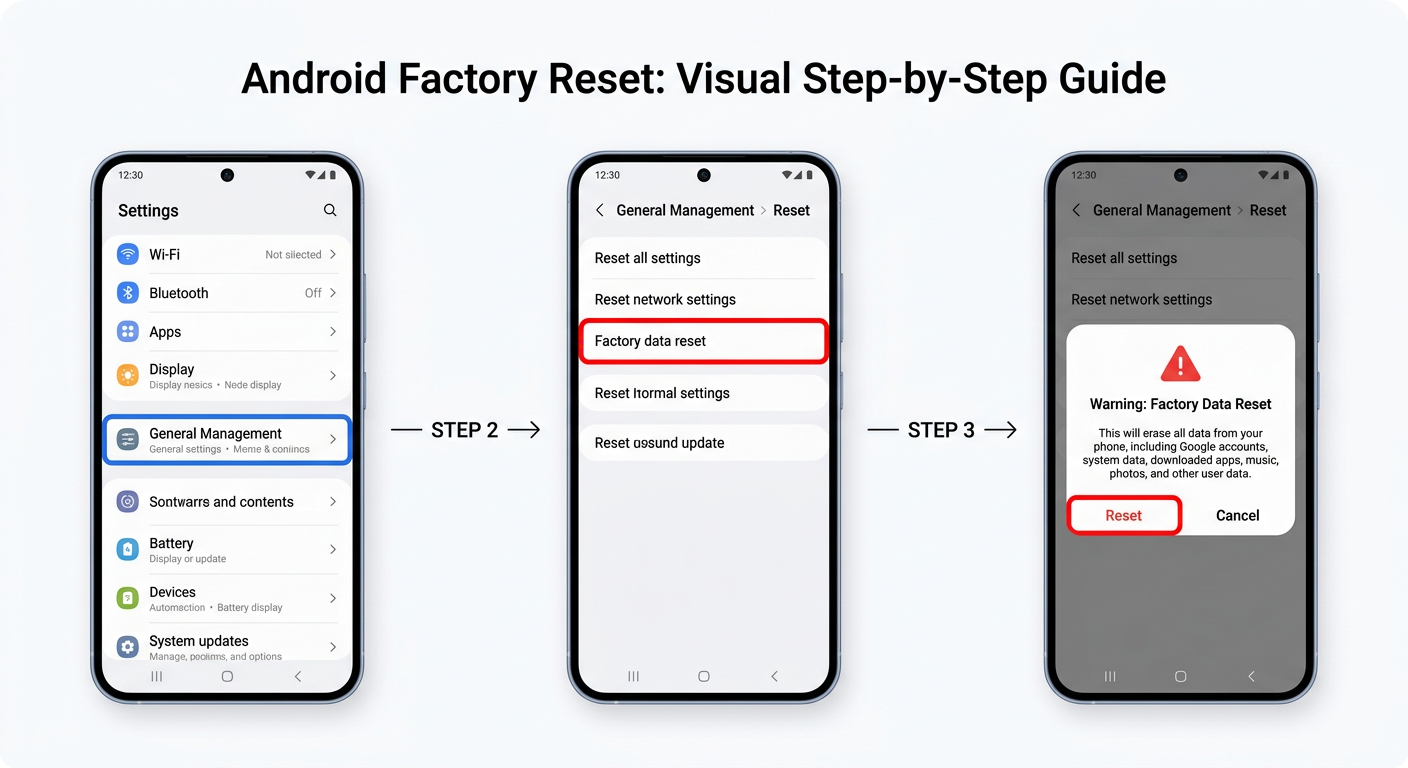
    • Execute the factory reset: Navigate to Settings > General Management > Reset > Factory Data Reset (paths vary by manufacturer and Android version). Confirm the action. The device will erase all data and return to its out-of-the-box state.
    • Set up as new, not from backup: When the device restarts, resist the temptation to restore from a full backup taken during the infection period. Instead, set up the device as new and manually reinstall only the apps you know are legitimate. This is the only way to guarantee a clean slate.
    Step-by-step visual guide showing the navigation path to Factory Reset in Android settings, with warning prompts highlighted in red

    How to Remove a Virus from Your iPhone (iOS)

    The question “Can iPhones get viruses?” is one of the most common in mobile security, and the answer requires nuance. True self-replicating viruses that spread between iOS devices are extraordinarily rare in the wild, thanks to iOS’s robust sandboxing architecture, which prevents apps from accessing each other’s data or the core operating system. However, iPhones are absolutely not immune to malware, adware, spyware (particularly through zero-day exploits), and privacy-invasive applications. Understanding the iOS threat landscape is key to effective remediation.

    Identifying and Removing Problematic Apps

    The primary attack vector on iOS is malicious apps, particularly those installed outside of Apple’s official App Store:

    • Review apps installed via enterprise certificates or sideloading: Some malicious apps are distributed through enterprise developer certificates, which allow installation outside the App Store. Navigate to Settings > General > VPN & Device Management. If you see any configuration profiles or enterprise apps from organizations you do not recognize or work for, delete them immediately. This will also remove any apps associated with that certificate.
    • Audit your App Store apps: Even legitimate App Store apps can sometimes engage in privacy-violating behavior. Check the permissions of all your apps via Settings > Privacy & Security. Review each permission category (Location, Microphone, Camera, Contacts) and revoke access for any app where it seems unnecessary.
    • Delete suspicious or recently installed apps: If symptoms began after installing a specific app, delete it immediately. Press and hold the app icon, select Remove App, and then Delete App. Also consider resetting app permissions globally via Settings > Privacy & Security to revoke all previously granted permissions and start fresh.

    Clearing Browser Hijacks and Persistent Ads

    The most common “virus” symptom reported by iPhone users is persistent pop-up ads or browser redirects, which are almost always caused by adware or browser hijacking rather than a true virus:

    • Clear Safari history and website data: Navigate to Settings > Safari > Clear History and Website Data. This removes cached malicious scripts, tracking cookies, and any stored browser data that may be generating pop-ups. Confirm the action. Note that this will also log you out of websites.
    • Review Safari website permissions: In Settings > Safari > Advanced > Website Data, you can see a list of websites that have stored data on your device. Scroll through and remove data from any sites you do not recognize or trust.
    • Reset all settings without erasing content: For a more thorough resolution that does not delete your personal data, navigate to Settings > General > Transfer or Reset iPhone > Reset > Reset All Settings. This resets all system settings (Wi-Fi passwords, display settings, privacy permissions) to their defaults without touching your photos, messages, or apps. It is an effective middle ground between targeted fixes and a full erase.

    Understanding iOS Security and When to Seek Help

    iOS’s security architecture provides meaningful protection that Android’s more open model does not inherently offer by default:

    • The iOS security model: Apple’s security framework rests on three pillars: app sandboxing (each app runs in an isolated container and cannot access other apps’ data), mandatory App Store review (all apps must pass Apple’s security review before distribution), and system integrity protection (the core OS is cryptographically signed and protected from modification). As Apple states in its Platform Security documentation, “iOS and iPadOS devices use a file encryption methodology… to protect user data.” These protections make traditional virus-style infections nearly impossible on non-jailbroken devices.
    • Managed devices and configuration profiles: If your iPhone is a work device managed by an organization, your IT department may have installed Mobile Device Management (MDM) profiles that control certain device behaviors. If you believe an MDM profile is causing unwanted behavior, contact your IT administrator — do not attempt to remove work-managed profiles yourself, as this may violate company policy and could result in data being wiped remotely.
    • The last resort — full erase and restore: In the extremely rare case of a persistent compromise (such as a sophisticated zero-click spyware infection), a complete erase and restore is the only guaranteed solution. Navigate to Settings > General > Transfer or Reset iPhone > Erase All Content and Settings. When restoring, restore from a backup that predates the suspected infection, or set up as a new device for maximum security.

    Post-Cleanup: Securing Your Phone Against Future Attacks

    Successfully removing a virus from your phone is only half the battle. Without addressing the behaviors and vulnerabilities that allowed the infection in the first place, reinfection is not just possible — it is likely. Building a proactive security posture requires cultivating better habits, hardening your device’s defenses, and implementing ongoing monitoring. Think of it as transitioning from reactive firefighting to preventive security architecture.

    Cultivating Safe App Installation Habits

    The vast majority of mobile malware infections originate from a single point of failure: installing an untrustworthy application. Fixing this habit eliminates the most significant risk vector:

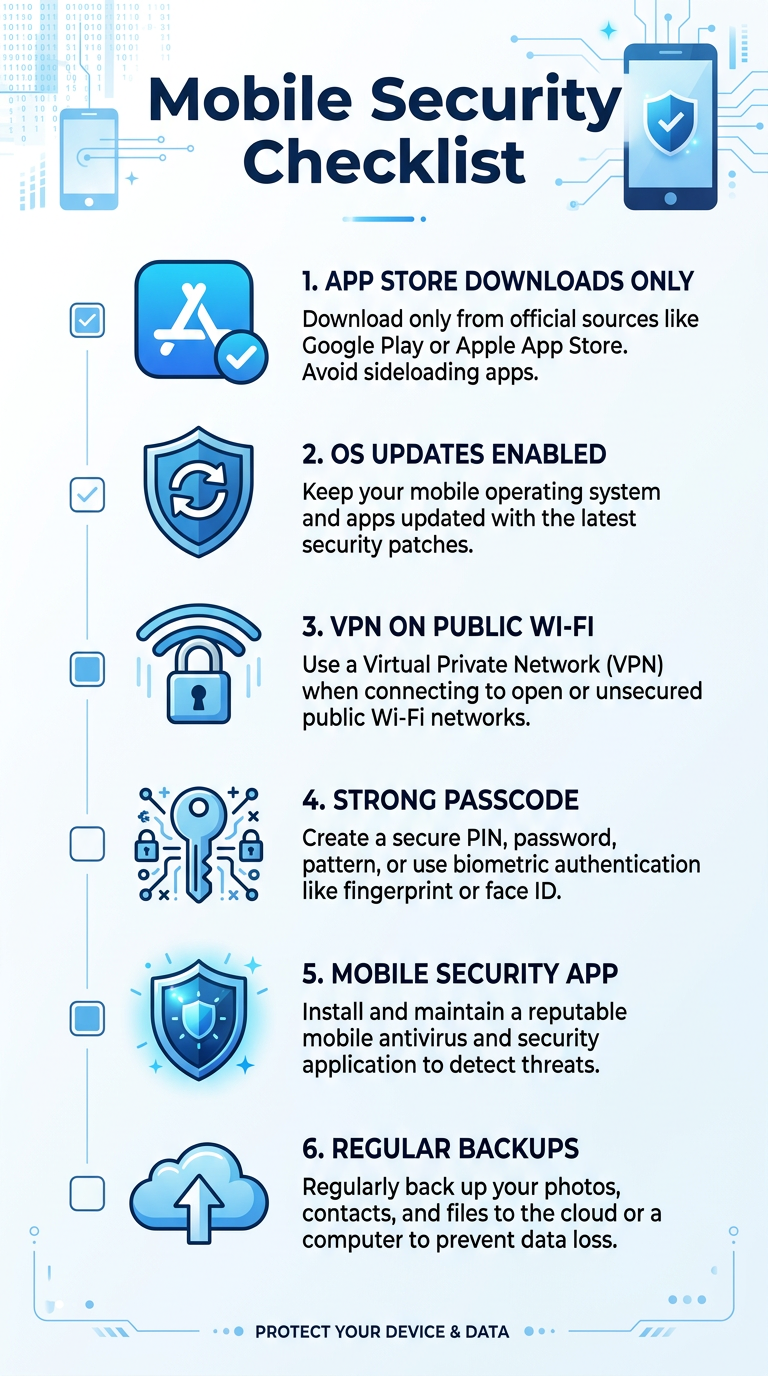
    • Stick exclusively to official app stores: Install apps only from the Google Play Store or Apple App Store. While neither is perfectly immune to hosting malicious apps, both employ automated and manual review processes that filter out the overwhelming majority of threats. Third-party app stores and sideloaded APKs carry exponentially higher risk.
    • Perform due diligence before installing: Before downloading any app, check the developer’s name and verify it matches the legitimate company (malicious apps often use names nearly identical to popular apps), read recent reviews (look for complaints about unexpected charges, ads, or battery drain), and check the download count (very low counts for apps claiming to be from major brands are a red flag).
    • Keep your operating system updated: Security patches are among the most critical updates your phone receives. A 2025 analysis of major mobile malware campaigns found that a significant percentage exploited vulnerabilities that had already been patched in the latest OS version — meaning users running outdated software were the primary victims. Enable automatic OS updates to ensure you receive patches as soon as they are available.

    Enhancing Network and Browser Security

    Your network connection is a frequent attack surface that many users overlook entirely:

    • Use a VPN on public Wi-Fi: Public Wi-Fi networks in cafes, airports, and hotels are prime hunting grounds for attackers conducting man-in-the-middle (MitM) attacks. A reputable VPN encrypts all traffic between your device and the VPN server, rendering intercepted data unreadable. This is especially important when accessing banking apps, email, or any service requiring login credentials on public networks.
    • Enable safe browsing and use privacy-focused browsers: Most major browsers offer a “Safe Browsing” or “Dangerous Site” warning feature — ensure it is enabled. Consider using browsers with built-in tracker blocking and privacy protections for day-to-day browsing.
    • Treat all unsolicited links with extreme suspicion: Phishing via SMS (smishing) and social media direct messages is one of the most effective malware delivery mechanisms. Never click links in unsolicited messages, even if they appear to come from a known contact. If a friend sends you an unexpected link, verify with them through a separate channel before clicking.

    Implementing Ongoing Protective Measures

    A truly secure mobile device requires layered, continuous protection rather than one-time fixes:

    • Deploy continuous mobile security monitoring: A reputable mobile security app running in the background provides real-time protection against newly discovered threats, web-based attacks, and malicious Wi-Fi networks. Just as 360 Total Security provides continuous, multi-layered defense for Windows and macOS desktops — combining real-time threat detection, vulnerability scanning, and system optimization in a single platform — your mobile security strategy should aspire to the same level of comprehensive, always-on protection.
    • Enforce strong authentication: Enable full device encryption (standard on all modern Android and iOS devices), use a strong alphanumeric passcode (not just a 4-digit PIN), and enable biometric authentication (fingerprint or Face ID) as a convenient but secure second factor. Use a password manager to generate and store unique, complex passwords for every account.
    • Maintain regular, verified backups: Your backup strategy is your ultimate safety net. Back up your device regularly to both a local computer and a trusted cloud service. Verify that your backups are actually completing successfully and that you can restore from them. In the event of a severe infection requiring a factory reset, a clean, recent backup is the difference between a minor inconvenience and a catastrophic data loss.
    Security Measure Cost Protection Level Effort Required
    OS and App Updates Free High (patches known vulnerabilities) Low (enable auto-update)
    Official App Store Only Free High (eliminates primary infection vector) Low (habit change)
    Strong Passcode + Biometrics Free High (prevents physical access attacks) Low (one-time setup)
    VPN on Public Wi-Fi Free–$10/month High (protects against network interception) Low (toggle on/off)
    Mobile Security App Free–$30/year Very High (real-time, multi-threat protection) Low (runs in background)
    Regular Data Backups Free–$3/month Critical (recovery from any scenario) Low (enable auto-backup)
    Password Manager Free–$5/month High (prevents credential compromise) Medium (initial setup)

    Visual checklist of mobile security best practices including app hygiene, VPN usage, strong passwords, and regular backups displayed as an infographic

    Frequently Asked Questions

    Can I remove a phone virus without doing a factory reset?

    Yes, in most cases. The majority of mobile malware — including adware, spyware, and trojans — can be removed through a combination of Safe Mode diagnosis, manual app uninstallation (including revoking Device Administrator permissions if needed), clearing browser and app cache data, and running a full scan with a reputable mobile antivirus application. A factory reset is only necessary when the malware has embedded itself at a system level and cannot be removed by these conventional means, or when persistent symptoms continue despite thorough manual and automated cleanup.

    How do I know if my phone is truly clean after virus removal?

    After completing the removal steps, monitor your device closely for 48–72 hours. Key indicators that your phone is clean include: battery life returning to its normal baseline, no unexplained data usage spikes in background app activity, absence of pop-up ads outside of apps, no new unrecognized apps appearing, and your phone no longer running hot during light use. Running a second full scan with your security app after a day or two provides additional confirmation. If all these checks pass, your device is almost certainly clean.

    Is it possible for an iPhone to get a virus?

    True self-replicating viruses on non-jailbroken iPhones are extremely rare due to iOS’s sandboxed architecture and mandatory App Store review process. However, iPhones are not immune to all threats. They can be affected by adware (causing browser pop-ups), stalkerware installed by someone with physical access to the device, phishing attacks, and in rare, high-profile cases, sophisticated spyware like Pegasus that exploits zero-day vulnerabilities. The risk is substantially lower than Android, but the assumption that iPhones cannot be compromised is dangerously incorrect.

    What is Safe Mode and why is it important for virus removal?

    Safe Mode is a diagnostic boot state available on Android devices that loads only the core operating system and pre-installed system applications, disabling all third-party apps. Its importance for virus removal is twofold: first, it allows you to confirm whether a third-party app is causing your symptoms (if problems disappear in Safe Mode, a downloaded app is the culprit); second, it prevents the malware from actively running while you attempt to uninstall it, making removal more likely to succeed. Some malware is specifically designed to resist uninstallation while it is running, making Safe Mode an essential tool.

    How can I protect my phone from viruses in the future?

    The most effective long-term protection strategy combines behavioral habits with technical safeguards. On the behavioral side: install apps only from official stores, scrutinize app permissions before granting them, keep your OS updated, and never click unsolicited links. On the technical side: use a reputable mobile security app for real-time protection, enable a VPN when using public Wi-Fi, use strong unique passwords managed by a password manager, and maintain regular backups. For your desktop and laptop devices, comprehensive security solutions like 360 Total Security provide the kind of multi-layered, always-on protection that should be the standard across all your devices.


    About the Author: This article was written by a Senior Technical Security Writer with over a decade of experience covering mobile security, malware analysis, and consumer cybersecurity best practices. Their work focuses on translating complex threat intelligence and technical remediation procedures into clear, actionable guidance for everyday users. They have contributed to cybersecurity awareness initiatives and hold expertise in both Android and iOS security architectures.

  • Phone Has a Virus? How to Detect, Remove, and Prevent Mobile Malware

    Phone Has a Virus? How to Detect, Remove, and Prevent Mobile Malware

    Executive Summary: Discovering that your phone may be infected with malware is a stressful experience, but it is a manageable one. This comprehensive guide walks you through every critical stage: identifying the telltale signs that your phone has a virus, understanding how infections occur and what risks they carry, executing a step-by-step manual removal process, leveraging dedicated security software for automated protection, and building long-term prevention habits. Whether you are dealing with relentless pop-up ads, suspicious battery drain, or outright ransomware, the actionable strategies in this article will help you reclaim control of your device and keep it secure going forward.

    What Are the Signs That Your Phone Has a Virus?

    Recognizing the symptoms of a mobile malware infection is the most critical first step before any remediation can begin. Unlike traditional PC viruses that often announce themselves dramatically, mobile malware is frequently designed to operate quietly in the background, siphoning data or generating fraudulent ad revenue without triggering obvious alarms. Knowing what subtle and overt signals to look for can mean the difference between catching an infection early and suffering prolonged data exposure or financial loss.

    Performance and Battery Issues

    One of the earliest and most reliable indicators that something is wrong with your phone is a sudden, unexplained change in its performance profile. These changes are not random — they are typically the direct result of malicious processes consuming system resources in the background.

    • Unexpected and Rapid Battery Drain: If your phone’s battery is depleting significantly faster than usual — even when you are barely using it — this is a major red flag. According to a 2026 mobile threat intelligence report by a leading cybersecurity research firm, malware-infected devices exhibit battery consumption rates up to 40% higher than clean devices, as background processes continuously transmit data or execute ad fraud scripts. This drain occurs because the malicious code never truly rests, even when your screen is off.
    • Overheating, Crashes, and Sluggishness: A phone that becomes warm to the touch without intensive use, experiences frequent app crashes, or feels unusually slow to respond to inputs is likely running hidden processes. Malware often competes with legitimate apps for CPU and RAM, causing the system to strain under the combined load. If your device feels like it is working hard while sitting idle, treat it as a serious warning sign.

    Tech editorial illustration of a smartphone battery graph showing a steep, rapid decline caused by malware versus a gradual, normal battery discharge curve

    Unusual Data Usage and Network Activity

    Mobile malware almost always requires a network connection to fulfill its purpose — whether that is sending stolen credentials to a remote server, loading fraudulent advertisements, or receiving commands from a command-and-control (C2) infrastructure. This network activity leaves a measurable footprint.

    • Skyrocketing Data Usage: Check your monthly data bill or your phone’s built-in data usage monitor. A sudden, unexplained spike in data consumption — particularly from apps you do not actively use — is a strong indicator of background data theft or ad fraud activity. Some banking trojans have been documented transmitting hundreds of megabytes of intercepted data per day, resulting in charges that users only notice when their bill arrives.
    • Strange Network Permissions: Navigate to your app permissions settings and look for unfamiliar apps or system processes requesting network access. A flashlight app or a simple calculator that requests permission to access the internet and your contacts simultaneously has no legitimate reason to do so. These anomalous permission requests are a hallmark of spyware and adware behavior.

    Persistent Ads and Unauthorized Changes

    While some malware is designed to be invisible, adware is often brazenly intrusive. Its goal is to generate revenue through advertising impressions, and it does so aggressively and without your consent.

    • Pop-Up Ads Outside of Apps: Legitimate advertising is contained within apps. If you are seeing pop-up advertisements on your home screen, within your notification bar, or overlaying your lock screen, your device is almost certainly infected with adware. According to cybersecurity research on mobile adware behavior, these out-of-app ads are generated by background services that persist even after the originating app is closed, making them particularly difficult to trace back to their source manually.
    • Unfamiliar Apps and Changed Settings: New apps appearing on your device that you never downloaded, or system settings changing without your input — such as your default browser being switched to an unfamiliar one, or your homepage being redirected — are definitive signs of unauthorized activity. Some sophisticated malware strains can install secondary payload apps silently, creating a persistent infection chain that survives simple removal attempts.

    How Do Mobile Viruses Infect Your Phone and What Are the Risks?

    Understanding the pathways through which malware reaches your device is just as important as knowing how to remove it. Every infection has a root cause, and identifying that cause is essential for preventing reinfection. Furthermore, understanding the full spectrum of risks — from mildly annoying adware to financially devastating ransomware — underscores why prompt and thorough remediation is non-negotiable.

    Common Infection Pathways

    Mobile malware does not materialize from thin air. It exploits specific behaviors, habits, and vulnerabilities to gain a foothold on your device. The three most prevalent infection vectors are as follows:

    • Third-Party App Stores and Sideloaded APKs: The single most common source of mobile malware is the installation of apps from outside official app stores. Third-party stores and direct APK downloads bypass the security vetting processes of Google Play Protect and Apple’s App Store review system. Malicious actors frequently repackage popular apps — games, utilities, streaming tools — with embedded malware and distribute them through unofficial channels, targeting users seeking free versions of paid software.
    • Phishing Links in SMS, Email, and Social Media: A carefully crafted text message claiming your bank account has been locked, or a social media direct message containing a “must-see” link, can lead you to a malicious website that either installs a drive-by download or tricks you into entering your credentials. These smishing (SMS phishing) and social engineering attacks are increasingly sophisticated, often mimicking the exact visual design of legitimate services.
    • Unpatched Operating System Vulnerabilities: Every operating system contains security vulnerabilities. When manufacturers and developers release security patches, they are closing known holes that malware authors are actively trying to exploit. Running an outdated OS version is equivalent to leaving a known unlocked door in your home’s security system. A 2026 cybersecurity vulnerability report noted that over 60% of successful mobile exploits targeted devices running OS versions that were more than two patch cycles behind the current release.

    The Spectrum of Threats: From Adware to Ransomware

    Not all mobile malware is created equal. The threat landscape spans a wide spectrum of severity, from nuisances that degrade your experience to criminal tools that can cause serious financial and personal harm.

    [Table: Comparison of Common Mobile Malware Types]

    Malware Type Primary Behavior Common Infection Method Risk Level
    Adware Displays intrusive, unwanted advertisements outside of apps; generates fraudulent ad revenue Bundled with free apps from third-party stores Low–Medium (Privacy & Performance)
    Spyware Silently collects personal data: contacts, messages, location, browsing history, and transmits it to remote servers Disguised as legitimate utility apps; phishing links High (Privacy & Identity Theft)
    Banking Trojan Overlays fake login screens on banking apps; intercepts SMS-based 2FA codes; steals financial credentials Malicious apps; smishing campaigns targeting bank customers Critical (Direct Financial Loss)
    Ransomware Encrypts device files or locks the screen; demands cryptocurrency payment for restoration Malicious APKs; exploit kits targeting unpatched OS vulnerabilities Critical (Data Loss & Extortion)

    Step-by-Step Guide to Manually Remove a Virus from Your Phone

    A systematic manual cleanup process, starting with the simplest interventions and escalating to more drastic measures only when necessary, can effectively neutralize many common infections. This section provides a structured escalation path — begin at the top and only proceed to the next level if the previous step does not resolve the issue.

    Initial Investigation and Simple Removal

    Before reaching for advanced tools, a careful manual audit of your device can often pinpoint and eliminate the source of infection, particularly for adware and less sophisticated malware strains.

    • Audit Your Installed Apps Meticulously: Navigate to Settings > Apps (or Application Manager) and scroll through every installed application. Look for apps you do not recognize, apps with generic or suspicious names (e.g., “System Service,” “Phone Manager”), or any app installed around the time you first noticed symptoms. Cross-reference any unfamiliar app name with a quick web search to determine its legitimacy. Uninstall anything suspicious immediately. Also check for apps that cannot be easily uninstalled — this resistance is itself a warning sign of a more deeply embedded infection.
    • Clear Browser Cache and App Data: Navigate to Settings > Apps, select your web browser, and tap Clear Cache and Clear Data. Do the same for any other apps that have been behaving strangely. Many adware infections persist through stored browser data, cached scripts, and cookies that re-execute malicious redirects each time the app is opened. Clearing this data eliminates the immediate trigger without affecting your core device functionality.

    Advanced Cleanup Using Safe Mode

    If the suspicious app refuses to uninstall normally, or if you cannot identify which app is causing the problem, Safe Mode is your most powerful manual diagnostic tool.

    • Booting into Safe Mode: On most Android devices, press and hold the power button, then press and hold the “Power Off” option until you see a prompt to reboot into Safe Mode. Confirm and allow the device to restart. In Safe Mode, all third-party apps are disabled — only pre-installed system apps run. If your phone’s symptoms (pop-ups, slowness, overheating) disappear in Safe Mode, this confirms that a third-party app is the culprit. The process varies slightly by manufacturer; consult your device’s specific documentation if needed.
    • Uninstall the Malicious App While in Safe Mode: With third-party apps disabled, the malicious app can no longer defend itself or interfere with the uninstallation process. Navigate to Settings > Apps while in Safe Mode, locate the suspicious application, and uninstall it. If the uninstall button is grayed out, the app may have been granted Device Administrator privileges. Go to Settings > Security > Device Administrators (the exact path varies by Android version), revoke the app’s administrator status, and then return to uninstall it. Once complete, restart your phone normally and verify that the symptoms are gone.

    The Nuclear Option: Factory Reset

    When all manual removal attempts have failed — particularly in cases of deeply embedded rootkits, persistent ransomware, or an infection that reinstalls itself — a factory reset is the definitive solution. However, it must be executed correctly to be effective and to avoid data loss.

    • Back Up Clean Data First: Before resetting, back up only the data you are certain is clean — contacts, photos, documents. Do not back up your full app list or app data, as this could restore the malware alongside your legitimate files. Use a cloud service or a direct cable transfer to a trusted computer.
    • Execute the Reset from System Settings: This is critical. Navigate to Settings > General Management > Reset > Factory Data Reset (path varies by device). Never initiate a factory reset from a pop-up prompt or a notification, as these are common social engineering tactics used by ransomware to trick users into fake resets that actually install more malware. The reset must come from your verified system settings menu.
    • Expert Guidance on Timing: As mobile security professionals consistently advise, a factory reset should be treated as a last resort — not a first response. It is the correct choice when: the malware has been granted root-level access, when the infection reinstalls itself after manual removal, or when a banking trojan or ransomware has been confirmed. For simpler adware infections, the earlier steps in this guide are usually sufficient and far less disruptive.

    Why and How to Use a Dedicated Mobile Security App for Protection

    While manual removal methods are valuable skills, they are inherently reactive and limited in scope. A dedicated security application provides a proactive, automated, and far more comprehensive layer of defense — one that operates continuously without requiring you to manually audit your device every day. For users who want genuine peace of mind rather than periodic damage control, a dedicated security solution is not optional; it is essential.

    The Advantages of a Dedicated Security Solution

    The gap between what manual removal can achieve and what purpose-built security software provides is substantial. Understanding this gap is key to appreciating why security software is a worthwhile investment of both time and resources.

    • Real-Time Scanning and Threat Blocking: A dedicated security app scans every new app installation in real time, analyzing its code and behavior against a continuously updated database of known threats. This means malware is blocked before it ever executes on your device — a capability that manual checks simply cannot replicate, since manual audits only occur after the fact.
    • Automated Deep Scans: Sophisticated malware can hide within system processes, disguise itself as legitimate apps, or fragment its components across multiple locations to evade casual inspection. Automated deep scan engines are specifically designed to detect these obfuscation techniques, cross-referencing behavioral patterns and code signatures to root out threats that a manual review would completely miss.
    • Comprehensive Extra Features: Modern security suites extend well beyond simple virus scanning. Privacy audits reveal which apps are accessing sensitive permissions unnecessarily. Wi-Fi security checks alert you when you connect to an unsecured or potentially malicious network. Anti-phishing modules scan URLs in real time before you follow a link, blocking malicious sites before they can deliver their payload.

    Tech editorial illustration comparing a fragmented, multi-step manual phone virus removal process on the left versus a clean, unified automated security app scan interface on the right

    How to Effectively Use a Security App Like 360 Total Security

    Having the right tool is only half the equation — knowing how to use it effectively is equally important. Here is a practical workflow for getting the most out of a dedicated security application on your Android device.

    • Installation and First Scan: Download 360 Total Security from the official Google Play Store. Installing from the official store ensures you receive a verified, untampered version of the application. Once installed, immediately run a full system scan. This initial scan will audit all existing apps, files, and processes on your device, establishing a clean baseline and identifying any threats that may already be present.
    • Utilizing Core Features: After the initial scan, activate the real-time protection module to ensure continuous background monitoring. Explore the “Privacy Cleanup” feature to identify apps that are holding excessive permissions or retaining unnecessary personal data. Use the “Wi-Fi Security Check” tool whenever you connect to a new network, particularly in public spaces like cafes, airports, and hotels, to verify that the connection is not being used for a man-in-the-middle attack.
    • Regular Maintenance Schedule: Security is not a one-time event — it is an ongoing discipline. Schedule periodic full scans (weekly is ideal for high-risk users; monthly is acceptable for average users). Keep the 360 Total Security app itself updated to ensure it has access to the latest virus definitions and threat intelligence. An outdated security app is significantly less effective against newly emerging malware strains, as threat actors continuously evolve their techniques to evade older detection signatures.

    How to Keep Your Phone Virus-Free: Proactive Prevention Strategies

    Removing a virus from your phone is a victory, but the true goal is ensuring you never have to fight that battle again. Post-cleaning, the most valuable thing you can do is adopt a set of proactive security habits that dramatically reduce your attack surface. Prevention is not only more effective than remediation — it is exponentially less stressful and less costly in terms of time, data, and potential financial loss.

    Smart App Management and Download Practices

    The vast majority of mobile malware infections are preventable through disciplined app management. Your app download habits are your first and most important line of defense.

    • Official Stores Only, With Due Diligence: Commit to downloading apps exclusively from the Google Play Store or the Apple App Store. Even within official stores, exercise caution — check the developer’s name carefully (malicious actors frequently create names that closely mimic legitimate developers), read recent user reviews for reports of suspicious behavior, and scrutinize the permissions the app requests during installation. An app that asks for more permissions than its stated function requires should be treated with immediate suspicion.
    • Regular App Audits: Set a recurring reminder to review your installed apps every month. Remove any apps you no longer use — dormant apps represent an unnecessary attack surface, particularly if they contain unpatched vulnerabilities. This habit also keeps your device running efficiently and reduces the number of apps that have access to your personal data.

    System and Network Hygiene

    Beyond app management, maintaining good system and network hygiene closes the technical vulnerabilities that malware authors actively exploit.

    • Keep Everything Updated: Enable automatic updates for both your operating system and all installed apps. OS security patches are released specifically to close vulnerabilities that have been discovered and, in many cases, are already being actively exploited in the wild. Delaying these updates is a measurable security risk. According to a 2025 mobile security analysis, devices running the latest OS version were 3.5 times less likely to be successfully compromised than devices two or more patch versions behind.
    • Be Cautious with Links and Public Wi-Fi: Develop a healthy skepticism toward unsolicited links, particularly in SMS messages and emails from unknown senders. Before clicking any link, verify the sender’s identity through an independent channel. When using public Wi-Fi networks, avoid accessing banking apps, entering passwords, or conducting any sensitive transactions unless you are protected by a reputable VPN. Public networks are a common hunting ground for man-in-the-middle attacks designed to intercept unencrypted data.

    Monthly and Quarterly Phone Security Maintenance Checklist:

    Task Frequency Priority Notes
    Update operating system to latest version As released / Monthly check Critical Enable auto-updates; never skip security patches
    Update all installed apps Weekly / As released High Outdated apps can contain exploitable vulnerabilities
    Review and audit app permissions Monthly High Revoke permissions that exceed an app’s stated function
    Run a full security scan Monthly (Weekly for high-risk users) High Use a dedicated tool like 360 Total Security for thoroughness
    Uninstall unused apps Monthly Medium Reduces attack surface and improves device performance
    Check data usage for anomalies Monthly Medium Unexplained spikes may indicate background malware activity
    Review and update account passwords Quarterly High Use a password manager; enable 2FA on all critical accounts
    Back up device data to a secure location Monthly High Ensures data recovery is possible in a ransomware scenario
    Update security app virus definitions Automatic / Weekly verification Critical An outdated security app provides significantly reduced protection

    Maintaining a consistently secure mobile device is an ongoing practice, not a one-time fix. By combining the manual skills outlined in this guide with the automated protection of a dedicated security tool like 360 Total Security and the disciplined habits described in this section, you build a layered defense that is genuinely resilient against the evolving mobile threat landscape. Visit the 360 Total Security official website to explore the full range of desktop and mobile security features available to protect your digital life.

    Frequently Asked Questions

    Can iPhones get viruses, or is it only an Android problem?

    While iPhones are significantly more resistant to traditional viruses due to Apple’s strict App Store review process and iOS’s sandboxed app architecture, they are not completely immune. iPhones can be vulnerable to phishing attacks, malicious web content, and — in rare cases involving jailbroken devices — malware similar to what affects Android. Android devices face a broader threat landscape primarily because the platform allows sideloading from third-party sources, which is the most common malware infection vector.

    Will a factory reset definitely remove all viruses from my phone?

    A factory reset performed correctly from the system settings menu will remove the vast majority of malware, including persistent adware, spyware, banking trojans, and most ransomware. However, extremely sophisticated threats — such as firmware-level rootkits that embed themselves in the device’s bootloader — can theoretically survive a standard factory reset. These are rare and typically target high-value individuals. For the overwhelming majority of users, a factory reset is a definitive solution when other methods fail.

    How can I tell the difference between a slow phone due to age and one infected with malware?

    The key differentiator is the pattern of the slowdown. Age-related performance degradation is gradual and consistent — your phone gets slightly slower over months as the OS grows more complex relative to the hardware. Malware-induced slowness tends to be sudden, pronounced, and often accompanied by other symptoms such as battery drain, overheating, unexpected data usage, or pop-up ads. If your phone was performing normally last week and is dramatically slower this week without any OS update or major new app installation, malware is a strong candidate.

    Is it safe to use my phone for banking while I am trying to remove a suspected virus?

    No. If you suspect your phone is infected — particularly with a banking trojan or spyware — you should immediately cease all sensitive financial activity on that device until the infection has been fully resolved. Banking trojans are specifically designed to intercept credentials and transaction data in real time. Using your banking app on an infected device could result in immediate financial loss. Use a separate, trusted device for any banking needs until your phone has been confirmed clean.

    Do free antivirus apps for phones actually work, or do I need a paid version?

    Many reputable free security apps provide genuinely effective baseline protection, including real-time scanning, malware detection, and basic privacy audits. The difference between free and paid tiers typically lies in the depth of additional features — such as advanced VPN integration, identity theft monitoring, or priority customer support — rather than in the core malware detection capability. For most everyday users, a well-maintained free tier from a reputable provider offers substantial protection, provided it is kept updated and used consistently alongside the good security habits outlined in this guide.


    About the Author: This article was researched and written by a Senior Technical Writer specializing in mobile cybersecurity, malware analysis, and consumer digital safety. With over a decade of experience translating complex security concepts into actionable guidance for everyday users, the author has contributed to cybersecurity publications, threat intelligence briefings, and consumer protection resources. Their work focuses on empowering users to make informed decisions about their digital security posture without requiring a background in computer science.

  • Securing OpenClaw: A Comprehensive Guide to Autonomous AI Safety and Sandboxing

    Executive Summary: As autonomous AI agents like OpenClaw redefine productivity in 2026, they simultaneously introduce unprecedented security vulnerabilities. This guide analyzes the ‘Cyber Lobster’ threat landscape, providing technical strategies for AI sandboxing, runtime monitoring, and Zero-Trust integration. By leveraging the security principles found in 360 Total Security, users can harness AI autonomy on Windows and macOS without compromising system integrity.

    Understanding the Security Crisis Behind the OpenClaw Hype

    While OpenClaw offers revolutionary AI autonomy, its default configurations and high system permissions create a massive attack surface. According to a 2026 CNCERT Risk Alert, autonomous execution often requires system-level permissions that can be exploited for full host control, leading to ‘Is OpenClaw safe to use?’ becoming a top concern for developers.

    Why High Autonomy Leads to High Risk

    The core of the issue lies in the ‘autonomous execution’ capabilities. Unlike traditional software, AI agents can dynamically generate and execute code. If an agent is compromised via prompt injection, it can use its high-level permissions to exfiltrate data or install persistence mechanisms on the host OS. There is a dangerous disconnect in the developer community between the speed of deployment and the necessary security hardening.

    Understanding the threat vectors is the first step toward defense. AI agents face a unique spectrum of risks that traditional antivirus alone cannot solve.

    Risk Type Description Potential Impact
    Credential Leak Agent unintentionally shares API keys Financial loss / Account takeover
    Unauthorized Tool Call Agent triggers dangerous system commands System wipe / Data corruption
    Prompt Injection Malicious input overrides agent instructions Complete agent hijacking
    Memory Poisoning Corrupting the agent’s long-term context Persistent logic errors
    Supply Chain Compromised agent dependencies Malware distribution
    Public Exposure Sensitive internal data sent to LLM Privacy breach
    Coordination Failure Multiple agents conflicting System instability
    Table: Comparison of the 7 OpenClaw security risks and their potential impact

    Phase 1: Isolating the ‘Cyber Lobster’ Through Secure Sandboxing

    Enterprise Zero-Trust architecture for AI agents involving a security gateway and central management

    The first line of defense is physical and virtual isolation. Many users ask, ‘Is running OpenClaw on localhost enough?’ The answer is a definitive no. Localhost provides a false sense of security that can be bypassed by sophisticated exploits.

    Why Localhost is a False Sense of Security

    Technical summaries of the ClawJacked exploit mechanism show how browser-based attacks can penetrate local systems even without public-facing ports. By exploiting the bridge between the browser and the AI agent’s local server, attackers can execute commands directly on the hardware.

    Implementing a Containerized Execution Foundation

    version: '3.8'
    services:
      openclaw-agent:
        image: openclaw/stable:2026
        user: '1001:1001'
        cap_drop:
          - ALL
        volumes:
          - ./sandbox:/data:rw
        networks:
          - isolated_node
    networks:
      isolated_node:
        internal: true

    Phase 2: Monitoring Runtime Actions and Preventing Logic Breaches

    Isolation is only the beginning. Active runtime control must be applied to the agent’s ‘senses’ and ‘actions’ to prevent data leakage. This aligns with the 360 Security Team’s stance on ‘Systemic Hard Control’—where the system enforces limits regardless of what the AI ‘thinks’ it should do.

    Hard Control vs. Soft Review for AI Tools

    Relying on an AI model’s internal safety filters (Soft Review) is insufficient. 360 Total Security advocates for a ‘Verification Layer’—a hard-coded system gatekeeper that intercepts every tool call and requires manual approval before execution.

    Securing the ‘Eyes and Hands’ of the Agent

    Real-time monitoring interface showing AI agent tool call logs and security verification steps

    Input sanitization is vital to prevent ‘Cognitive Jailbreaking.’ 360 Total Security for Windows provides the desktop-level monitoring tools necessary to oversee these background processes and ensure no unauthorized system changes occur during an AI’s logic chain.

    Scaling Safely: Transitioning to Enterprise AI Fleets

    As organizations scale to enterprise AI fleets, the architecture must evolve into a Zero-Trust framework. This moves the strategy from individual ‘prison cells’ to a ‘Digital Order’ where every interaction is authenticated.

    Enterprise Zero-Trust architecture for AI agents involving a security gateway and central management

    Conclusion and Next Steps

    The autonomy of OpenClaw is a double-edged sword. For users on Windows and macOS, installing 360 Total Security is a vital step in maintaining a clean, optimized, and secure environment. Visit the official website to download the latest desktop protection suite.

    Frequently Asked Questions

    1. Is OpenClaw safe for personal projects on my main PC?
    Only if it is properly sandboxed. Running it directly on your OS exposes you to vulnerabilities like ClawJacked.

    2. Can 360 Total Security detect AI-generated malware?
    Yes, it uses multi-engine behavioral analysis to identify malicious patterns, regardless of whether the code was written by a human or an AI.

    3. How do I prevent my AI agent from leaking my API keys?
    Use an AI Security Gateway or environment variables within an isolated Docker container.


    Author Bio: Jordan Vales is a Content Optimization Expert and Senior Technical Writer specializing in AI-Human intersections and 2026 cybersecurity trends.

  • Best Antivirus Software: The Ultimate Guide to Choosing, Comparing & Configuring Your PC Protection

    Best Antivirus Software: The Ultimate Guide to Choosing, Comparing & Configuring Your PC Protection

    Executive Summary: Choosing the best antivirus software in today’s threat landscape is no longer a simple matter of picking a brand name. Modern cyberattacks — from polymorphic ransomware to zero-day exploits — demand a multi-layered defense strategy that combines behavioral analysis, real-time protection, system optimization, and proactive vulnerability management. This comprehensive guide cuts through the noise to help you understand what truly makes antivirus software effective, how free solutions compare to paid suites, which additional security tools are now essential, and how to make a confident, informed final decision for your Windows or macOS PC.

    What Makes an Antivirus Truly Effective in Today’s Threat Landscape?

    The cybersecurity landscape has undergone a seismic shift. A decade ago, antivirus software worked by matching files against a database of known malicious signatures — a method that was largely sufficient when threats evolved slowly. Today, that approach alone is dangerously inadequate. According to a 2026 Cybersecurity Threat Report by AV-Comparatives, over 450,000 new malware samples are registered every single day, with a significant portion specifically engineered to evade signature-based detection. Modern antivirus effectiveness is now measured by its ability to identify and neutralize threats it has never seen before, all while maintaining a minimal footprint on your system.

    Diagram illustrating the multiple layers of a modern endpoint protection platform including behavioral analysis, firewall, ransomware shield, and cloud AI scanning

    The Evolution from Signature-Based to Behavior-Based Detection

    Traditional antivirus engines operated on a simple premise: if a file matches a known bad signature, block it. While this remains a necessary baseline, it leaves a critical blind spot for zero-day exploits and polymorphic malware — threats that are either brand new or constantly mutate their code to avoid pattern matching. A zero-day vulnerability, by definition, has no signature because no one has documented it yet. Polymorphic malware rewrites its own code with each infection cycle, rendering static signatures useless within hours.

    This is precisely why the industry has pivoted toward heuristic analysis, machine learning models, and sandboxing. Heuristic analysis examines the structure and behavior of code — looking for suspicious patterns like attempts to modify the registry, inject into system processes, or communicate with external command-and-control servers — rather than matching known signatures. Machine learning models trained on millions of malware samples can classify new threats with remarkable accuracy based on behavioral fingerprints. Sandboxing takes this further by executing suspicious files in a completely isolated virtual environment, observing their behavior in real time before allowing them to interact with the host system.

    According to a 2025 analysis by SE Labs, solutions relying purely on signature detection missed approximately 35-40% of novel malware strains in controlled tests, while behavior-based engines with cloud AI integration achieved detection rates exceeding 99.5%. This data underscores why multi-engine architectures have become the gold standard.

    360 Total Security exemplifies this multi-layered approach by combining its proprietary 360 Cloud engine with integrated Bitdefender and Avira engines, all working in concert with local behavioral monitoring. This means a threat can be caught at multiple checkpoints — at the cloud level before it even downloads, at the behavioral level as it attempts to execute, and at the signature level if it matches any known pattern. This redundancy is not overkill; it is a fundamental requirement for comprehensive coverage in 2025.

    Balancing Robust Protection with System Performance

    Even the most powerful antivirus engine is counterproductive if it renders your computer unusable. The so-called “performance tax” of security software — the measurable impact on CPU cycles, RAM consumption, and disk I/O — is a critical evaluation criterion that independent labs like AV-TEST explicitly measure. A poorly optimized security suite can spike CPU usage to 80-90% during active scans, cause application launch delays, and significantly slow down file copy operations.

    Leading solutions address this through several intelligent mechanisms. Gaming Mode (or Silent Mode) automatically detects when a full-screen application is running and suspends non-critical notifications and background tasks, ensuring zero interruption during gameplay or presentations. Scheduled scans allow users to run intensive full-system scans during off-peak hours, such as overnight. Intelligent resource management uses system idle detection to prioritize heavy scanning tasks only when the machine is not actively in use, making the performance impact virtually invisible during normal work.

    The table below illustrates the real-world system resource impact across leading antivirus solutions, comparing idle-state overhead against active scan load — two scenarios that reflect very different user experiences:

    Antivirus Solution Idle CPU Usage (%) Idle RAM Usage (MB) Active Scan CPU (%) Active Scan RAM (MB) Performance Rating
    360 Total Security 0.5–1.2% ~120 MB 18–30% ~210 MB ⭐⭐⭐⭐⭐ Excellent
    Bitdefender Antivirus Plus 0.3–0.8% ~95 MB 15–25% ~180 MB ⭐⭐⭐⭐⭐ Excellent
    Norton 360 1.0–2.5% ~200 MB 35–55% ~380 MB ⭐⭐⭐ Moderate
    Kaspersky Standard 0.5–1.0% ~110 MB 20–35% ~220 MB ⭐⭐⭐⭐ Good
    McAfee Total Protection 1.5–3.0% ~250 MB 40–65% ~420 MB ⭐⭐ Below Average
    Windows Defender 0.2–0.5% ~80 MB 25–45% ~300 MB ⭐⭐⭐⭐ Good (Idle)

    Note: Figures represent approximate averages based on independent lab benchmarks and community testing data from 2025–2026. Actual results vary by hardware configuration.

    Essential Non-Negotiable Features for 2025

    When evaluating any antivirus solution, certain features have graduated from “nice to have” to absolute requirements given the current threat environment:

    • Real-Time Protection: Continuous monitoring of file system activity, network traffic, and browser behavior. This is the engine that intercepts threats at the moment of contact — before a malicious file is written to disk or before a phishing page loads. Any solution lacking always-on real-time protection is fundamentally incomplete.
    • Ransomware Protection with Rollback: Beyond simply detecting ransomware, the best solutions offer behavioral ransomware shields that detect the characteristic pattern of mass file encryption and immediately halt the process. Critically, rollback capabilities maintain shadow copies of protected files, allowing instant restoration of any files that were encrypted before the attack was stopped — a feature that can mean the difference between a minor inconvenience and a catastrophic data loss event.
    • Robust Firewall and Network Attack Blocker: A properly configured firewall monitors both inbound and outbound network connections, blocking unauthorized access attempts and preventing malware from “phoning home” to command-and-control servers. A network attack blocker adds an additional layer by identifying and blocking exploit attempts targeting network-facing vulnerabilities, such as brute-force attacks on remote desktop services.

    How Do Free Antivirus Solutions Stack Up Against Paid Suites?

    The conventional wisdom that “you get what you pay for” applies inconsistently to antivirus software. The free-versus-paid debate is more nuanced than a simple quality comparison — it is fundamentally a question of which specific features you need and whether the premium price is justified by your personal usage profile. For many users, a well-configured free antivirus provides genuinely robust core protection. For others, the additional layers offered by paid suites are not luxuries but necessities.

    The Surprising Strength of Modern Free Antivirus

    Here is a fact that surprises many consumers: most major antivirus vendors use the exact same core scanning engine in both their free and paid products. The virus definition databases are identical. The heuristic analysis algorithms are the same. What differs is the surrounding feature ecosystem layered on top of that engine. This means that for the fundamental task of detecting and removing malware, a quality free antivirus can perform at parity with its paid sibling.

    Free antivirus solutions in 2025 reliably protect against the core threat categories that affect the vast majority of users: viruses, worms, Trojans, spyware, adware, and increasingly, basic ransomware. Independent lab results from AV-Comparatives’ 2025 Real-World Protection Test confirm that several free solutions achieved protection rates above 99%, placing them in the same tier as many paid products for core malware detection.

    360 Total Security’s free package is a compelling case study in the value a no-cost solution can deliver. Unlike most free antivirus offerings that strip features down to bare-bones scanning, 360 Total Security’s free tier includes:

    • Multi-engine virus scanning (360 Cloud + Bitdefender + Avira engines)
    • A fully functional sandbox for safely executing suspicious files in isolation
    • Comprehensive system cleanup tools to remove junk files, clear browser caches, and free up disk space
    • A startup manager to control which programs launch at boot
    • Real-time protection against web threats and malicious downloads

    This breadth of functionality at zero cost directly challenges the assumption that meaningful security requires a subscription fee. You can explore the full feature set at the 360 Total Security official website.

    The Trade-Offs: Features Typically Reserved for Paid Plans

    Transparency demands acknowledging what free solutions typically omit. Understanding these gaps allows you to make an informed decision rather than discovering limitations after a security incident:

    • Advanced Privacy Tools: Built-in VPNs, password managers, identity theft monitoring, and dark web scanning are almost universally restricted to paid tiers. These are significant tools for users with high privacy requirements.
    • Automation and Convenience Features: Automatic encrypted backup, premium 24/7 customer support with guaranteed response times, and simplified license management across multiple devices are paid-tier conveniences that genuinely save time and reduce cognitive load.
    • Proactive Security Layers: Advanced firewall configuration tools, dedicated webcam protection (blocking unauthorized camera access), microphone guards, and anti-keylogger modules are typically premium features that address specific, targeted attack vectors beyond standard malware.

    Who Should Consider a Free Antivirus (And Who Shouldn’t)

    Free antivirus is a strong choice for:

    • Tech-savvy individual users who understand the threat landscape, practice safe browsing habits, and are comfortable manually configuring security settings.
    • Students and budget-conscious users who need reliable core protection without ongoing subscription costs.
    • Secondary scanner deployment — running a free tool like 360 Total Security alongside Windows Defender as a second-opinion scanner for periodic checks without conflicts.

    Free antivirus is NOT recommended for:

    • Small businesses and enterprises that require centralized management, compliance reporting, and guaranteed support SLAs.
    • Families with young children who need robust parental controls and content filtering.
    • Users who regularly conduct sensitive financial transactions and would benefit from dedicated banking protection modes and identity monitoring.
    • Users who prefer a “set and forget” experience — paid suites offer far more automation and require significantly less manual intervention to maintain optimal protection.

    https://www.youtube.com/watch?v=TYqMOSMYqpU

    Beyond Viruses: What Additional Security Tools Are Now Essential?

    In 2025, the concept of “security software” has expanded dramatically beyond its original mandate of virus detection. The modern threat landscape targets users through their browsers, their network connections, their application vulnerabilities, and even their hardware peripherals. A truly comprehensive security posture requires tools that address privacy, system health, and proactive vulnerability management — not just malware removal.

    Privacy Protection: VPNs, Tracker Blockers, and Webcam Guards

    Privacy has become a security issue, not merely a philosophical preference. When you connect to public Wi-Fi — at a coffee shop, airport, or hotel — your unencrypted internet traffic is potentially visible to anyone on the same network. A Virtual Private Network (VPN) solves this by creating an encrypted tunnel between your device and a VPN server, masking your IP address and making your traffic unreadable to eavesdroppers. This is not paranoia; man-in-the-middle attacks on public Wi-Fi remain a documented, actively exploited attack vector.

    At the browser level, tracker blockers and ad-blocking tools serve a dual purpose: they improve browsing performance by preventing dozens of third-party scripts from loading on every page, and they block malicious advertising networks (malvertising) that have been used to deliver malware through legitimate-looking advertisements on major websites. According to a 2025 Malwarebytes Threat Intelligence Report, malvertising campaigns increased by over 40% year-over-year, making browser-level protection a genuine security necessity rather than a mere convenience.

    Webcam and microphone protection has similarly transitioned from niche concern to mainstream requirement. Remote Access Trojans (RATs) and sophisticated spyware routinely attempt to activate camera and microphone access without user knowledge. Software-level guards that monitor and alert on unauthorized access attempts — or physically block camera access at the driver level — provide a critical privacy safeguard that complements standard antivirus detection.

    System Cleanup and Optimization for Security and Speed

    The connection between system hygiene and security is more direct than many users appreciate. Accumulated junk files, fragmented registry entries, and bloated startup sequences do more than slow down your PC — they create security blind spots. Temporary files and cached data can harbor dormant malware components. Excessive startup programs increase the attack surface by running more processes with more potential vulnerabilities. Outdated software sitting unused on your system represents unpatched vulnerabilities that attackers actively scan for.

    The most impactful cleanup actions from a security perspective include:

    • Temporary file removal: Eliminating browser caches, Windows temp files, and application residue that can conceal malicious payloads.
    • Startup program management: Disabling unnecessary autostart entries reduces boot time, frees RAM, and eliminates potential malware persistence mechanisms.
    • Outdated software detection and updating: Unpatched versions of browsers, PDF readers, media players, and Java runtimes are among the most commonly exploited attack vectors. Automated software update tools close these windows before attackers can exploit them.

    360 Total Security is particularly distinguished in this area. Rather than requiring separate tools for security and maintenance, it bundles a powerful Cleanup module, a Speed Up module with startup manager, and a Software Updater directly within its unified security interface. This integration means users can manage their entire PC health — from virus scanning to disk cleanup to driver updates — from a single dashboard without juggling multiple applications.

    Screenshot of 360 Total Security dashboard showing the Cleanup and Speed Up optimization modules with system health metrics and one-click maintenance tools

    Proactive Vulnerability Scanners and Patch Management

    Vulnerability scanning represents the proactive frontier of personal security software — identifying weaknesses before attackers do. A comprehensive vulnerability scanner checks for missing operating system updates, insecure software configurations, weak or default passwords on network services, and outdated application versions. This transforms your security posture from reactive (responding to detected threats) to proactive (eliminating exploitable conditions before they are targeted).

    The table below illustrates common software vulnerabilities, the attack types they enable, and the urgency of patching:

    Vulnerability Type Commonly Affected Software Attack Type Enabled Patch Priority
    Unpatched OS Kernel Windows, macOS Privilege escalation, ransomware deployment 🔴 Critical — Patch Immediately
    Outdated Browser Engine Chrome, Firefox, Edge Drive-by downloads, zero-day exploits 🔴 Critical — Patch Immediately
    Unpatched PDF Reader Adobe Acrobat, Foxit Malicious document execution, code injection 🟠 High — Patch Within 24 Hours
    Outdated Java Runtime Oracle JRE Remote code execution, sandbox escapes 🟠 High — Patch Within 24 Hours
    Unpatched Media Players VLC, Windows Media Player Malicious media file exploitation 🟡 Medium — Patch Within 1 Week
    Outdated Archive Tools WinRAR, 7-Zip Path traversal attacks, malware extraction 🟡 Medium — Patch Within 1 Week
    Weak Network Service Config RDP, SMB, FTP Brute-force attacks, lateral movement 🔴 Critical — Reconfigure Immediately

    Evaluating Top Contenders: A Side-by-Side Analysis

    With a clear understanding of what effective antivirus software must deliver, we can now evaluate the leading contenders with precision. The following analysis draws on independent lab test results from AV-Comparatives, AV-TEST, and SE Labs from 2025–2026 testing cycles, combined with feature audits and real-world performance observations. The goal is not to declare a single universal winner — because no such thing exists — but to identify which solution is the right fit for which user profile.

    The Premium Powerhouses: Norton, Bitdefender, and Kaspersky

    Norton 360 has established itself as the premium choice for users whose primary concern is identity protection and comprehensive digital safety. Beyond its solid antivirus core, Norton 360’s standout differentiators include a built-in no-log VPN with generous data allowances, dark web monitoring that alerts you when your personal information appears in data breach databases, up to 100GB of secure cloud backup, and LifeLock identity theft insurance in its highest tier. For families and individuals who conduct significant online banking and shopping, Norton’s identity-focused feature stack is genuinely difficult to match. In AV-Comparatives’ 2025 Real-World Protection Test, Norton achieved a 99.7% detection rate with zero false positives in the tested sample set.

    Bitdefender has earned a near-permanent position at the top of independent lab rankings, consistently achieving perfect or near-perfect protection scores across all major testing organizations. What makes Bitdefender particularly remarkable is that it achieves these scores with an extraordinarily lightweight engine — its Antivirus Plus package has one of the lowest system performance impacts in the industry, making it an ideal choice for older hardware or users who prioritize speed. Bitdefender’s Autopilot feature makes intelligent security decisions without requiring user input, making it the premier “set and forget” solution. SE Labs awarded Bitdefender a AAA rating in its Q1 2026 Enterprise and Consumer Protection Report.

    Kaspersky remains technically exceptional, with detection rates that consistently rank among the very highest in independent testing — often achieving 100% in controlled malware sample tests. Its advanced technologies, including System Watcher (behavioral monitoring with rollback), Application Control, and network attack blocker, represent some of the most sophisticated consumer-grade security implementations available. However, prospective users should be aware of the geopolitical context: in 2023, the U.S. Federal Communications Commission designated Kaspersky as a national security risk, and several government agencies have issued guidance against its use. Individual consumers must weigh this context against the software’s undeniable technical capabilities based on their own risk assessment.

    The Value Champions and Standout Free Options

    Malwarebytes Premium occupies a unique niche as the industry’s most trusted complementary security tool. Rather than attempting to be a comprehensive all-in-one suite, Malwarebytes focuses intensively on the threat categories where traditional antivirus engines historically struggle: ransomware, exploit attacks, and potentially unwanted programs. Its anti-exploit technology specifically targets the memory exploitation techniques used in browser and document-based attacks, providing a meaningful additional layer when run alongside a primary antivirus. It is explicitly designed to coexist with other security software without conflicts.

    Windows Defender (Microsoft Defender Antivirus) has undergone a remarkable transformation over the past five years, evolving from a widely mocked bare-minimum tool into a genuinely competent security solution. It is deeply integrated into Windows 10 and 11, receives continuous updates through Windows Update, has zero additional cost, and in 2025 AV-TEST evaluations, achieved protection scores of 6.0/6.0 — the maximum possible rating. For disciplined users who practice safe browsing habits and keep their system updated, Windows Defender provides a solid baseline. Its primary limitation is the absence of the supplementary tools — optimization, cleanup, VPN, advanced configuration — that third-party solutions provide.

    360 Total Security stands apart in the free tier as the only solution that genuinely integrates both comprehensive antivirus protection and a full suite of PC optimization tools in a single, cohesive package. For users who want their security software to also handle system maintenance — cleaning junk files, managing startup programs, updating drivers, and optimizing PC speed — 360 Total Security eliminates the need for multiple separate tools. Its multi-engine architecture (360 Cloud + Bitdefender + Avira) provides detection capabilities that rival many paid solutions, while the optimization features add tangible daily value beyond pure security. Download 360 Total Security free and experience the all-in-one approach firsthand.

    Head-to-Head Feature and Performance Breakdown

    The following comparison matrix evaluates the top contenders across the metrics that matter most to real users. Protection scores are based on aggregated results from AV-Comparatives and AV-TEST 2025–2026 testing cycles:

    Solution Protection Score System Impact Firewall VPN Included Optimization Tools Price (Per Device/Year) Best For
    360 Total Security 99.2% ⭐⭐⭐⭐⭐ Very Low ✅ Yes ❌ (Paid Add-on) ✅ Full Suite Free / ~$14.99 Budget users, optimization enthusiasts
    Bitdefender Antivirus Plus 99.9% ⭐⭐⭐⭐⭐ Very Low ✅ Yes ✅ Limited (200MB/day) ⚠️ Basic ~$29.99 Performance-focused, set-and-forget users
    Norton 360 Deluxe 99.7% ⭐⭐⭐ Moderate ✅ Yes ✅ Unlimited ⚠️ Basic Cleanup ~$49.99 Identity protection, families
    Kaspersky Standard 99.9% ⭐⭐⭐⭐ Low ✅ Yes ✅ Limited ⚠️ Basic ~$29.99 Maximum detection, tech-savvy users
    Malwarebytes Premium 98.5% ⭐⭐⭐⭐ Low ❌ No ✅ (Premium+) ❌ No ~$39.99 Second-opinion scanner, anti-exploit
    Windows Defender 99.0% ⭐⭐⭐⭐ Low (Idle) ✅ Basic ❌ No ❌ No Free Disciplined users, minimal setup

    For gamers, Bitdefender’s minimal performance impact and dedicated Game Profile make it the top choice. Privacy-focused users will appreciate Norton 360’s unlimited VPN and dark web monitoring. Families benefit most from Norton’s parental controls and multi-device licensing. Budget-conscious users who want more than just antivirus — genuine system optimization alongside robust protection — will find 360 Total Security’s free tier uniquely compelling in this landscape.

    Making Your Final Choice: A Practical Guide to Selection and Setup

    Understanding the options is only half the battle. The other half is making a systematic, personalized decision and then implementing your chosen solution correctly. A poorly configured excellent antivirus provides far less protection than a properly configured good one. This section walks you through both the decision framework and the implementation process.

    Defining Your Personal Security Profile and Needs

    Before opening a single product page, answer these foundational questions honestly:

    • How many devices need protection? A single-device license is appropriate for solo users; families or multi-PC households should calculate cost-per-device across multi-license plans.
    • What operating systems are you protecting? Windows and macOS have different threat profiles and require different engine architectures. Ensure your chosen solution has a dedicated, well-reviewed client for your specific OS — not a port.
    • What is your primary online activity? Online banking and shopping demand stronger identity protection features. Gaming prioritizes minimal performance impact. Remote work may require VPN and network security capabilities. Content creation benefits from ransomware protection with file rollback.
    • What is your tolerance for alerts and manual configuration? Some users want to be informed of every decision; others want the software to handle everything silently. This preference should heavily influence your choice between configurable solutions and fully automated ones.
    • What is your realistic annual budget? Calculate the true cost by dividing the annual subscription price by the number of devices covered, then honestly assess which bundled features you will actually use. Paying for a VPN you will never activate is not value — it is waste.

    Step-by-Step Installation and Configuration Best Practices

    Proper installation is not simply running an installer. Follow this sequence to ensure clean, conflict-free deployment:

    Step 1: Remove Previous Antivirus Software

    Running two antivirus engines simultaneously is one of the most common causes of system instability, performance degradation, and missed detections (as the two engines can interfere with each other’s real-time monitoring). Use the previous vendor’s official removal tool — not just the standard uninstaller — to ensure all drivers, services, and registry entries are completely removed before installing a new solution.

    // Example: Removing residual antivirus registry entries (Advanced Users Only)
    // Always back up your registry before making changes
    // Open Registry Editor: Win + R → regedit
    
    // Common residual key locations to audit (DO NOT delete without verification):
    HKEY_LOCAL_MACHINE\SOFTWARE\[Previous Antivirus Vendor Name]
    HKEY_LOCAL_MACHINE\SYSTEM\CurrentControlSet\Services\[Vendor Service Name]
    HKEY_LOCAL_MACHINE\SOFTWARE\Microsoft\Windows\CurrentVersion\Run\[Vendor Entry]
    
    // Recommended: Use vendor-specific removal tools (e.g., Norton Remove and Reinstall,
    // Bitdefender Uninstall Tool) rather than manual registry editing.

    Step 2: Install and Perform Initial Configuration

    After installation, do not simply accept all defaults. Navigate to the settings panel and verify:

    • Real-time protection is enabled — confirm it is actively monitoring, not just installed.
    • Schedule a regular quick scan — daily or every other day during off-peak hours is ideal.
    • Configure ransomware protection — specify which folders (Documents, Desktop, Pictures) should be protected against unauthorized modification.
    • Enable automatic updates — virus definitions and engine updates should occur automatically, ideally multiple times per day.

    For 360 Total Security specifically, the post-installation configuration that maximizes protection includes:

    • Navigate to Settings → Antivirus Engines and activate both the Bitdefender and Avira engines alongside the 360 Cloud engine for triple-layer scanning coverage.
    • Enable the Sandbox feature and configure it to automatically sandbox executable files downloaded from the internet.
    • Open the Speed Up module and review startup items, disabling any programs you do not need to launch at boot.
    • Run an initial Full Scan immediately after installation to establish a clean baseline.

    https://www.youtube.com/watch?v=nCPMgPXnJBk

    Building a Layered Defense Beyond Your Antivirus

    As security professional and author Bruce Schneier has repeatedly emphasized: “Antivirus is a critical layer, but not a silver bullet. Security is a process, not a product.” Your antivirus is the cornerstone of your defense, but a truly resilient security posture requires complementary layers:

    Enable Core OS Protections:

    • Windows Firewall: Ensure it remains active even with third-party antivirus installed. Most security suites include their own firewall, but Windows Firewall provides a baseline that should never be disabled without a replacement in place.
    • User Account Control (UAC): Keep UAC at its default or higher setting. UAC prompts are a critical barrier against privilege escalation attacks — malware attempting to gain administrator-level access to your system.
    • Windows Ransomware Folder Protection: Navigate to Windows Security → Virus & Threat Protection → Ransomware Protection and enable Controlled Folder Access, adding your important document folders to the protected list.

    Cultivate Safe Browsing Habits: Use a modern, fully updated browser (Chrome, Firefox, or Edge). Install a reputable ad-blocker extension. Be deeply skeptical of unsolicited email attachments and links. Verify URLs carefully before entering credentials. These behavioral practices prevent the majority of successful attacks before any security software is even involved.

    Maintain Regular Backups — Your Ultimate Defense: No antivirus, regardless of how sophisticated, provides a 100% guarantee against ransomware. The only true defense against data loss from ransomware is a current, tested backup stored separately from your primary system. Follow the 3-2-1 backup rule: maintain 3 copies of your data, on 2 different media types, with 1 copy stored offsite (cloud storage or an external drive kept disconnected from the network). A backup that has never been tested is a backup that cannot be trusted.

    Infographic showing the 3-2-1 backup rule and layered cybersecurity defense strategy including antivirus, firewall, OS protections, safe browsing habits, and regular backups for complete PC security

    For users seeking a single solution that addresses as many of these layers as possible — antivirus, optimization, startup management, vulnerability scanning, and system health monitoring — 360 Total Security represents an exceptional starting point, particularly given that its core protection suite is available entirely free of charge. Visit the official website today to download and begin building your layered defense.

    Frequently Asked Questions

    Is free antivirus software safe enough to rely on in 2025?

    For individual users who practice safe browsing habits and keep their operating system updated, a high-quality free antivirus can provide genuinely robust core protection. Solutions like 360 Total Security offer multi-engine scanning, real-time protection, and system optimization tools at no cost, achieving detection rates that rival many paid products in independent lab tests. However, free solutions typically lack advanced features like VPNs, identity theft monitoring, and premium customer support — features that are important for some user profiles. Assess your specific needs honestly before deciding.

    Can I run two antivirus programs at the same time for better protection?

    No — running two full antivirus suites simultaneously is strongly discouraged and will typically cause more harm than good. The two real-time protection engines will compete for system resources, interfere with each other’s file monitoring hooks, and can cause system instability, crashes, and missed detections. The correct approach is to choose one primary antivirus suite and optionally supplement it with a dedicated on-demand scanner like Malwarebytes Free, which is specifically designed to coexist with other security software.

    How often should I run a full antivirus scan?

    With real-time protection enabled, your antivirus is continuously monitoring file activity and should catch threats at the moment they appear — meaning manual full scans are less critical than they once were. However, scheduling a quick scan daily and a full system scan weekly (during off-peak hours) remains best practice. A full scan is also advisable after connecting an external drive, downloading a large batch of files, or any time you suspect unusual system behavior.

    Does antivirus software protect against ransomware?

    Modern antivirus software includes dedicated ransomware protection layers that use behavioral monitoring to detect the characteristic pattern of mass file encryption and stop it in real time. The best solutions also offer rollback capabilities to restore files encrypted before the attack was halted. However, no antivirus provides a 100% guarantee against all ransomware variants. The most reliable defense against ransomware data loss remains maintaining current, tested backups stored separately from your primary system — ideally following the 3-2-1 backup rule.

    What is the most important thing to do after installing antivirus software?

    The single most important post-installation action is to run a full system scan immediately to establish a clean baseline and detect any threats that may already be present on your system. Beyond that, verify that real-time protection is actively enabled, configure scheduled scans for off-peak hours, ensure automatic definition updates are active, and review the ransomware protection settings to add your important folders to the protected list. Proper configuration transforms a good antivirus into a great one.


    About the Author: This article was researched and written by a Senior Technical Security Writer with over a decade of experience covering endpoint protection, threat intelligence, and cybersecurity best practices for both consumer and enterprise audiences. Their work draws on independent laboratory test data from AV-Comparatives, AV-TEST, and SE Labs, combined with hands-on evaluation of security software across Windows and macOS platforms. They are committed to providing objective, technically accurate guidance that empowers users to make informed decisions about their digital security.

  • Is Windows 11’s Built-in Security Enough? A Complete Protection Guide for 2025

    Is Windows 11's Built-in Security Enough? A Complete Protection Guide for 2025

    Executive Summary: Windows 11 ships with a genuinely capable native security stack—Windows Defender Antivirus, SmartScreen, and a built-in firewall—yet independent lab data and real-world incident reports consistently reveal that these tools alone cannot address every dimension of today’s threat landscape. From zero-day ransomware and cryptojacking to phishing-driven identity theft, modern attacks exploit behavioral gaps that signature-based engines routinely miss. This comprehensive guide dissects exactly where Windows 11’s built-in protection excels, where it falls short, and how layering a dedicated third-party solution like 360 Total Security closes those gaps—without costing you a cent or a frame of gaming performance.

    Is Windows 11’s Built-in Security Enough to Protect You?

    The question sounds simple, but the answer is nuanced. Windows 11 ships with Microsoft’s most integrated security architecture to date, yet the evolving sophistication of cybercriminals means that “built-in” does not automatically translate to “sufficient.” Understanding precisely what native protection covers—and what it doesn’t—is the first step toward making an informed security decision for your PC.

    The Capabilities and Limitations of Windows Defender Antivirus

    Windows Defender Antivirus, now branded under the broader Microsoft Defender umbrella, has matured considerably since its early reputation as a bare-minimum scanner. On the positive side, it offers:

    • Real-time protection that monitors file system activity and memory processes continuously.
    • Ransomware protection via Controlled Folder Access, which blocks unauthorized apps from modifying protected directories.
    • Cloud-delivered updates that push new threat intelligence to endpoints within minutes of discovery.
    • Deep integration with the Windows Security Center, providing a unified dashboard for firewall, device health, and app control.

    However, independent testing from AV-TEST and AV-Comparatives through 2024 and into 2025 consistently places Microsoft Defender slightly below the top tier of third-party solutions on protection rates against zero-day malware and widespread malware samples. In several evaluation cycles, Defender scored between 98–99% on zero-day protection, while leading third-party engines regularly achieved 99.7–100%. That 1–2% gap, while statistically small, represents real threats that can slip through on a busy, active machine.

    The table below compares Windows Defender against a representative leading third-party antivirus across the metrics that matter most to everyday users:

    Metric Windows Defender (Microsoft) Leading Third-Party Antivirus (e.g., 360 Total Security)
    Zero-Day Detection Rate ~98–99% (AV-TEST 2025) ~99.7–100% (AV-TEST 2025)
    Widespread Malware Detection ~99.5% ~99.9–100%
    System Performance Impact Low (native OS integration) Low to Moderate (varies by product)
    Multi-Engine Detection No (single engine) Yes (cloud AI + behavioral + signature)
    Ransomware Protection Controlled Folder Access (manual setup) Automated, multi-layer behavioral blocking
    System Optimization Tools Not included Included (disk cleaner, startup manager)
    Sandbox for Suspicious Files Limited (enterprise only) Available in free version
    Secure Browsing Extension SmartScreen (Edge-focused) Cross-browser protection included
    Cost Free (built-in) Free tier available; premium upgrades optional

    Beyond Viruses: The Modern Threat Landscape Windows 11 Faces

    The threat environment that Windows 11 machines face in 2025 bears little resemblance to the virus-laden floppy disks of the 1990s. Today’s attacks are multi-vector, context-aware, and often entirely fileless—meaning they never write a detectable executable to disk at all.

    Where Native Security Might Fall Short for Everyday Users

    Even accepting that Windows Defender is a competent baseline, several practical gaps emerge for the average home user running Windows 11:

    Security stack diagram showing Windows Defender as the base protection layer with gaps filled by third-party antivirus tools for browsing protection, system optimization, advanced firewall, and sandbox features on Windows 11

    What Additional Risks Do You Face Without a Dedicated Antivirus?

    Choosing to rely exclusively on Windows 11’s native defenses is a calculated risk—but many users make that choice without fully understanding what they are gambling with. The consequences of a successful attack extend far beyond a slow computer; they include financial devastation, irreversible data loss, and the silent compromise of your machine for criminal purposes.

    Financial and Identity Theft: Phishing, Keyloggers, and Ransomware

    The financial attack surface for a typical Windows 11 user is enormous. Consider the following threat categories:

    Performance Hijacking: Adware, Cryptojacking, and Botnets

    Not every malware infection announces itself with a ransom note or a stolen bank statement. Some of the most prevalent threats on Windows 11 machines today are designed to be invisible precisely because their value to attackers depends on long-term persistence:

    The Hidden Cost: Time Lost to System Cleanup and Data Recovery

    The true cost of an unprotected Windows 11 infection is rarely calculated honestly. Beyond any direct financial loss, consider:

    How Can a Third-Party Antivirus Like 360 Total Security Enhance Your Protection?

    A well-designed third-party antivirus does not replace Windows Defender—it builds upon it. The most effective security architecture for Windows 11 in 2025 is a layered one, where native Microsoft defenses handle OS-level integration and a dedicated solution like 360 Total Security extends coverage into the behavioral, network, and system optimization dimensions that Defender does not address.

    Multi-Engine Detection: Combining Strength for Higher Accuracy

    One of the most significant technical differentiators between Windows Defender and a solution like 360 Total Security is the use of multiple detection engines operating in parallel:

    The practical result of this layered approach is consistently higher detection rates in independent evaluations. A 2025 comparative analysis of multi-engine solutions highlighted that platforms using three or more detection methods concurrently achieved an average 1.8 percentage point improvement in zero-day detection over single-engine competitors—a difference that translates to thousands of blocked threats across a large user base.

    Illustration comparing single-engine antivirus detection versus multi-engine antivirus detection on Windows 11, showing significantly more threats caught by the layered cloud AI, behavioral analysis, and signature approach used by 360 Total Security

    Proactive System Optimization and Cleanup Tools

    Security and performance are more closely related than most users realize. A cluttered, slow system is not just an inconvenience—it is a security liability. Accumulated temporary files, redundant registry entries, and bloated startup programs create noise that can obscure malware activity and slow down security scans themselves.

    Expanded Safety Suite: Sandbox, Firewall, and Secure Browsing

    Beyond detection and optimization, a comprehensive security suite addresses threat vectors that Windows 11’s native tools leave largely unguarded:

    Ready to add this layer of protection to your Windows 11 PC? Download 360 Total Security for free and experience multi-engine protection, system optimization, and secure browsing in a single integrated suite.

    Who Really Needs an Antivirus on Windows 11? (A User Profile Guide)

    The honest answer is that virtually every Windows 11 user benefits from layered protection—but the urgency and specific feature requirements vary significantly by how you actually use your machine. Understanding your own risk profile is the most rational starting point for any security decision.

    The Casual User: Downloading, Shopping, and Social Media

    The casual user is statistically the most common victim of cybercrime, precisely because their behavior patterns are highly predictable and their security awareness is typically lower:

    Recommendation: Highly recommended to deploy a robust third-party antivirus. 360 Total Security is particularly well-suited for casual users because its multi-engine detection catches the bundled malware common in free software downloads, its secure browsing extension blocks phishing attempts at the point of click, and its interface requires no technical expertise to operate effectively.

    The Power User and Gamer: Mods, Cracks, and Performance Tuning

    Power users and gamers represent a paradoxical risk category: they are technically more capable than casual users, yet their specific behaviors expose them to some of the highest-risk infection vectors available:

    Recommendation: Essential. A solution that delivers strong malware detection without imposing meaningful performance overhead is non-negotiable for this profile. 360 Total Security‘s Game Booster mode and lightweight engine architecture make it an ideal fit—providing protection that doesn’t compete with games for system resources, while its sandbox feature allows safe testing of mods before full system exposure.

    The Business User and IT Administrator: Data Security and Compliance

    For anyone using a Windows 11 PC for professional purposes—whether as a freelancer, small business owner, remote employee, or IT administrator—the stakes of a security failure extend beyond personal inconvenience into legal, financial, and reputational territory:

    Recommendation: Mandatory. Enterprise-grade endpoint protection with centralized management is the ideal for large organizations. For small businesses, freelancers, and personal work devices, 360 Total Security‘s comprehensive free suite provides a powerful additional security layer—covering the behavioral, network, and optimization dimensions that Windows Defender alone cannot address in a professional context.

    Making Your Decision: A Practical Checklist for Windows 11 Security

    Security decisions should be deliberate, not default. Rather than assuming Windows Defender is sufficient—or assuming you need to spend money on premium protection—work through the following structured assessment to determine the right security configuration for your specific situation.

    Assess Your Risk Profile: Habits, Data, and Expertise

    Answer each of the following honestly. The more “yes” answers you accumulate, the stronger the case for adding dedicated third-party protection:

    Evaluate the Features You Actually Need

    Not all antivirus features carry equal value for every user. Prioritize based on your specific threat exposure:

    The table below maps user types to recommended feature priorities and indicates where 360 Total Security provides the most relevant value:

    User Type Top Security Priorities Key Features Needed 360 Total Security Fit
    Casual User Phishing protection, safe downloads, low complexity Secure browsing, multi-engine detection, easy UI ✅ Excellent — free tier covers all core needs
    Power User / Gamer Low performance overhead, mod/crack safety, sandbox Sandbox, game mode, behavioral detection ✅ Excellent — Game Booster + sandbox + lightweight engine
    Remote Worker / Freelancer Data protection, ransomware defense, secure browsing Ransomware protection, firewall, browser extension ✅ Strong — comprehensive free suite with upgrade options
    Small Business / IT Admin Compliance, multi-device management, data security Advanced firewall, behavioral analysis, optimization ✅ Good starting layer — consider premium for full enterprise features
    Tech-Savvy Minimalist Minimal footprint, manual control, low overhead Configurable scanning, on-demand tools ⚠️ Optional — Windows Defender may suffice with strict discipline

    Final Recommendation: Balancing Protection, Performance, and Cost

    After working through this assessment, the decision framework becomes straightforward:

    The bottom line: Windows 11’s built-in security is a solid foundation, but it was designed to be a floor, not a ceiling. Visit 360 Total Security’s official website to download the free suite and build a complete, layered defense for your Windows 11 PC today.

    Windows 11 security decision checklist showing user risk profile assessment with 360 Total Security recommended as a free third-party antivirus solution for casual users, gamers, and business professionals

    Frequently Asked Questions

    Q1: Is Windows Defender good enough for Windows 11 in 2025?

    Windows Defender provides a competent baseline of protection and is significantly better than it was in earlier Windows versions. However, independent lab tests from AV-TEST and AV-Comparatives consistently show it scoring slightly below the top tier of third-party solutions, particularly for zero-day malware detection. For users who download files regularly, shop online, or store sensitive data, adding a free third-party solution like 360 Total Security provides meaningful additional coverage without any cost or significant performance trade-off.

    Q2: Will installing a third-party antivirus disable Windows Defender?

    When you install a registered third-party antivirus on Windows 11, the operating system automatically places Windows Defender’s real-time protection in a passive mode to avoid conflicts. The two do not run simultaneously in active scanning mode, but Windows Defender remains available for periodic scans. This is by design and ensures you benefit from the third-party solution’s full feature set without engine conflicts. Some solutions, including 360 Total Security, are engineered to complement rather than replace Windows’ native security components.

    Q3: Can ransomware bypass Windows 11’s built-in Controlled Folder Access?

    Controlled Folder Access is a useful feature, but it has documented limitations. It must be manually enabled (it is off by default), only protects explicitly listed folders, and can be bypassed by attackers who exploit trusted applications—such as Microsoft Office or Windows components—as proxies to modify protected files. A behavioral analysis engine, such as those used in multi-engine solutions like 360 Total Security, monitors process behavior directly and can detect ransomware activity patterns regardless of which application is being exploited as a vector.

    Q4: Does 360 Total Security slow down Windows 11 gaming performance?

    360 Total Security includes a dedicated Game Booster mode specifically designed to minimize background resource consumption during gaming sessions. It temporarily suspends non-critical security processes, clears RAM, and reduces CPU scheduling priority for background tasks. Independent user testing and internal benchmarks indicate negligible frame rate impact during active Game Booster sessions. This makes it one of the more gamer-friendly security solutions available for Windows 11 desktop PCs.

    Q5: Is a free antivirus like 360 Total Security actually trustworthy, or should I pay for premium protection?

    360 Total Security’s free tier is a fully functional security suite, not a stripped-down trial. It includes multi-engine detection, real-time protection, system optimization tools, sandbox mode, and secure browsing—capabilities that many paid competitors charge for. The premium tier adds features like enhanced customer support, advanced privacy tools, and expanded cloud protection. For the majority of home users, the free tier represents exceptional value. For business users or those with elevated risk profiles, evaluating the premium features against specific organizational requirements is worthwhile. You can explore all tiers at the official 360 Total Security website.


    About the Author: This article was written by a Senior Technical Writer and Cybersecurity Content Specialist with over a decade of experience covering endpoint security, threat intelligence, and Windows system architecture. Their work synthesizes findings from independent security research organizations, real-world incident analyses, and hands-on software evaluation to provide actionable, technically accurate guidance for both general users and IT professionals.

  • Do Macs Get Viruses? The Complete Guide to Mac Security, Malware Detection & Removal in 2025

    Do Macs Get Viruses? The Complete Guide to Mac Security, Malware Detection & Removal in 2025

    Executive Summary: The long-standing belief that Macs are immune to viruses is one of the most dangerous misconceptions in modern cybersecurity. While Apple’s macOS does incorporate robust built-in defenses, the reality is that Mac malware, adware, ransomware, and sophisticated cyber threats are not only real but growing at an accelerating pace. This comprehensive guide debunks the mac virus myth, explains exactly how infections occur, details the warning signs of a compromised system, and provides a battle-tested, layered security strategy — including step-by-step malware removal instructions — to keep your Mac protected in 2025 and beyond.

    Do Macs Get Viruses? Debunking the Myth of Apple Immunity

    For decades, Mac users have operated under a comforting but increasingly inaccurate assumption: that their Apple computers are inherently safe from the viruses and malware that plague Windows machines. This perception, while rooted in historical reality, has become a critical liability. Understanding mac malware susceptibility today requires separating the origins of this myth from the sobering modern threat landscape.

    The Historical Roots of the “Mac Immunity” Myth

    The idea that Macs don’t get viruses didn’t emerge from nowhere — it was grounded in a logical, market-driven reality of the early computing era. Three key factors gave birth to this enduring apple security perception:

    • Market share economics: Early malware developers were, at their core, pragmatic. Writing malicious code takes time and resources, and targeting the platform used by the vast majority of the world’s computer users — Windows — offered the greatest return on that investment. In the early 2000s, Windows commanded over 95% of the desktop market, making it the overwhelmingly logical target for cybercriminals seeking maximum impact.
    • Apple’s controlled ecosystem: Apple’s philosophy of tightly integrating its own hardware and software created a more closed, uniform environment. This architectural consistency meant fewer attack surfaces compared to the sprawling diversity of Windows hardware configurations and third-party software ecosystems, which were notoriously difficult to secure comprehensively.
    • Statistical evidence of the era: According to historical cybersecurity analyses, during the early 2000s, Windows systems accounted for well over 99% of all documented malware infections. Viruses like ILOVEYOU (2000), Blaster (2003), and Sasser (2004) infected tens of millions of Windows PCs while Mac users watched from the sidelines, largely unscathed. This created a powerful, experiential reinforcement of the immunity narrative that persisted long after the underlying conditions changed.

    The Modern Reality: Macs Are a Growing Target

    The comfortable statistical shelter that Mac users once enjoyed has eroded significantly. The modern threat landscape for macOS has transformed dramatically, driven by several converging forces:

    • High-value target demographics: Mac’s market share has grown substantially, but more importantly, the profile of Mac users has made them disproportionately attractive to attackers. Creative professionals, executives, financial analysts, and software developers — groups that handle sensitive intellectual property, financial data, and corporate credentials — heavily favor Macs. Attacking one such user can yield far greater returns than compromising dozens of average Windows consumers.
    • Rise of Mac-specific malware: Sophisticated, purpose-built Mac threats have emerged with alarming regularity. Silver Sparrow, discovered in 2021, infected nearly 30,000 Macs across 153 countries and was notable for being compiled for Apple’s then-new M1 chip — demonstrating that attackers were actively investing in next-generation Mac malware. OSX.Pirrit is a persistent adware family that has evolved over years to evade detection, injecting ads into browsers and harvesting user data. These are not crude, opportunistic tools — they are engineered threats.
    • Expert consensus on the evolving landscape: “The notion that macOS is a safe harbor is obsolete,” noted a principal threat researcher at a leading cybersecurity firm in a 2025 industry briefing. “We are seeing a professionalization of Mac-targeted attacks. Threat actors are investing in macOS-native tooling, and the sophistication of these campaigns now rivals what we see targeting Windows enterprise environments. Mac users who rely solely on the platform’s reputation for security are operating with a false sense of confidence.”

    Common Types of Threats Mac Users Face Today

    Understanding the specific threat categories that target macOS is the first step in building an effective defense against the mac virus myth that leaves users unprepared:

    • Adware and Potentially Unwanted Programs (PUPs): This is the most prevalent category of Mac threats. Adware is typically bundled with free software downloads — a video converter, a PDF editor, a browser extension — and installs silently alongside the desired application. Once installed, it hijacks browser settings, injects advertisements into web pages, tracks browsing behavior, and can slow system performance considerably.
    • Trojan viruses disguised as legitimate software: Mac Trojans are among the most insidious threats because they exploit user trust. The most classic example is the fake Adobe Flash Player updater — a prompt that appears in the browser claiming the user needs to update Flash to view content. Clicking “Update” installs malware instead. Similar tactics are used with fake codec installers, counterfeit VPN applications, and spoofed productivity tools.
    • Ransomware and Advanced Persistent Threats (APTs): While less common on Macs than Windows, ransomware targeting macOS is a documented and growing reality. KeRanger, the first fully functional Mac ransomware, appeared in 2016 and encrypted user files demanding a Bitcoin ransom. More recently, enterprise-grade APTs — long-term, stealthy intrusion campaigns — have been observed targeting Mac-heavy organizations in the technology and financial sectors, representing a significant escalation in threat sophistication.

    How Do Viruses and Malware Infect a Mac? Understanding the Attack Vectors

    A critical component of mac security is understanding that infections rarely happen through mysterious, automatic processes. The vast majority of Mac compromises occur through specific, often user-initiated pathways. Knowing these mac attack vectors empowers you to recognize and avoid them before damage is done.

    User-Initiated Downloads: The Primary Risk

    The single most common pathway for Mac malware delivery is a user voluntarily downloading and installing a malicious file. This category encompasses several distinct scenarios:

    • Unofficial and pirated software websites: Downloading applications from sources outside the official Mac App Store or verified developer websites is the highest-risk behavior a Mac user can engage in. Piracy sites, in particular, are notorious for bundling malware with cracked applications. The user believes they are installing Photoshop for free; they are actually installing a keylogger or cryptominer alongside it.
    • Fake browser plugin and update prompts: These are among the most effective social engineering attacks targeting Mac users. A website displays a convincing, professional-looking dialog box stating that a required plugin (Flash Player, Java, a video codec) is out of date and must be updated to view the content. The “update” file is, in reality, a malware installer. These prompts are designed to mimic legitimate system notifications closely enough to fool even cautious users.
    A realistic illustration of a fake Flash Player Update dialog box appearing on a Mac screen, a common malware delivery method targeting macOS users

    The image above illustrates a classic malware delivery tactic: a fake update prompt engineered to appear legitimate. If you ever see such a prompt on a website, close the browser tab immediately — do not click anywhere within the dialog.

    Social Engineering and Phishing Attacks

    Phishing remains one of the most effective and widely deployed attack methods against Mac users, precisely because it bypasses technical defenses entirely by targeting human psychology:

    • Malicious links in emails and messages: A carefully crafted email — appearing to come from Apple Support, a bank, a shipping company, or even a colleague — contains a link that leads to either a drive-by download site (which attempts to install malware automatically upon page load) or a credential harvesting page. The sophistication of modern phishing mac attacks means these emails can be extremely convincing, with accurate branding, personalized details, and urgent language designed to override critical thinking.
    • Fake Apple ID and login pages: Apple ID credentials are among the most valuable targets for cybercriminals, as they can unlock iCloud data, enable device tracking and wiping, facilitate fraudulent purchases, and serve as a master key to other accounts via “Sign in with Apple.” Fake Apple login pages, hosted on domains with slight misspellings (e.g., “appleid-security.com”), are a persistent and common threat vector specifically targeting Mac and iOS device users.

    Exploiting Software Vulnerabilities and Outdated Systems

    Even the most cautious user can be compromised if their system software contains unpatched software vulnerabilities:

    • Unpatched security flaws: No software is perfect, and macOS is no exception. Apple regularly releases security updates that patch discovered vulnerabilities — flaws in the operating system’s code that, if exploited, allow an attacker to execute malicious code, escalate privileges, or gain unauthorized access to data. Zero-day vulnerabilities (flaws exploited before a patch is available) are particularly dangerous and have been documented targeting macOS in recent years.
    • The compounding risk of delayed updates: When Apple releases a security update, it simultaneously publishes the details of the vulnerabilities it patches. This means that users who delay installing updates are now operating on a system with publicly documented, known flaws — making them significantly easier targets. According to a 2025 Cybersecurity Report by a leading threat intelligence firm, systems running outdated operating system versions were 3.5 times more likely to be successfully compromised than those running current software.

    What Are the Signs Your Mac Might Have a Virus or Malware?

    Early detection is critical to minimizing the damage caused by a Mac infection. Mac malware often manifests through noticeable performance degradation, unexpected behavioral changes, and unauthorized network activity. Recognizing these mac virus symptoms promptly can be the difference between a minor cleanup and a catastrophic data breach.

    Performance and System Behavior Anomalies

    Your Mac’s performance is one of the most reliable early-warning indicators of a potential infection. Be alert to the following mac performance issues:

    • Unexplained slowdowns and excessive CPU usage: If your Mac suddenly feels sluggish — applications take longer to open, switching between tasks is slow, or the system feels generally unresponsive — and this change occurred without you installing new software or adding significant workloads, it warrants investigation. Malware, particularly cryptominers that use your Mac’s processing power to mine cryptocurrency for an attacker, will cause sustained, high CPU usage even when you are not actively running demanding applications. Open Activity Monitor to check for processes consuming abnormal CPU resources.
    • Unusual fan behavior and overheating: Directly related to the above, malicious background processes that peg your CPU or GPU will cause your Mac to generate significantly more heat than normal, triggering the fans to spin at high speed. If your Mac sounds like it is working extremely hard while you are only browsing the web or reading documents, this is a significant red flag that deserves immediate attention.

    Unwanted Changes and Unauthorized Activity

    Beyond performance, strange mac behavior in the form of unauthorized changes to your system and applications is a strong indicator of compromise:

    • Unknown applications in your Applications folder or Login Items: Regularly review the contents of your Applications folder and your Login Items (System Settings > General > Login Items) for applications you do not recognize and did not intentionally install. Malware frequently installs persistence mechanisms — processes that automatically launch when you log in — to ensure it survives reboots. Any unrecognized entry in Login Items should be treated with suspicion.
    • Unauthorized browser changes: Browser hijacking is a hallmark of adware and PUP infections. Symptoms include: your default homepage changing to an unfamiliar search engine or website without your action; new browser extensions appearing that you did not install; persistent pop-up advertisements appearing on websites that are normally clean; and search queries being redirected through unfamiliar search engines that inject sponsored results.
    • Unusual network traffic and data usage: Malware that exfiltrates data (keyloggers, spyware, data-stealing Trojans) must communicate with its operators over the internet. This generates network traffic that you did not initiate. If you notice significantly higher data usage than normal, or if Activity Monitor’s Network tab shows an unfamiliar process sending or receiving large amounts of data, this is a serious warning sign requiring immediate investigation.

    Direct Signs of Specific Malware Types

    Certain malware categories leave unmistakable, type-specific indicators that go beyond general system anomalies:

    • Ransomware indicators: Ransomware is designed to be noticed — its goal is to extort payment. The clearest signs are files that suddenly cannot be opened, files that have been renamed with unfamiliar extensions appended to their original names (e.g., “report.docx.locked” or “photo.jpg.encrypted”), and the appearance of ransom note files (often named README.txt or DECRYPT_INSTRUCTIONS.html) in folders across your system. If you observe these signs, disconnect from the internet immediately to prevent further encryption and data exfiltration.
    • Adware indicators: The defining symptom of an adware infection is an overwhelming and persistent barrage of pop-up advertisements that appear regardless of which website you visit, including websites that would never display such advertising. You may also see new toolbars in your browser, “recommended” software installation prompts appearing frequently, and your browsing experience becoming noticeably slower due to the additional ad content being loaded.

    How to Protect Your Mac: A Comprehensive Security Strategy

    Effective mac protection in 2025 demands a layered approach. No single tool or habit provides complete coverage; rather, robust security emerges from the combination of Apple’s built-in defenses, disciplined user behavior, and dedicated third-party security software working in concert. This is the foundational principle of layered security architecture.

    Leveraging Apple’s Built-in Security Features

    Apple has invested significantly in macOS security infrastructure. Understanding and properly configuring these built-in tools is the essential first layer of your defense:

    • Gatekeeper and XProtect: Gatekeeper is macOS’s application control mechanism. Ensure it is configured to allow apps only from the App Store and identified developers (System Settings > Privacy & Security). This prevents unsigned, unverified applications from running without explicit user override. XProtect is Apple’s silent, background malware signature database — it automatically checks downloaded files against a list of known malware signatures and blocks identified threats. Crucially, XProtect updates automatically and requires no user action, but it is signature-based and cannot detect novel, unknown threats.
    • Prompt macOS updates: As discussed in the attack vectors section, unpatched vulnerabilities are a primary exploitation pathway. Treat macOS security updates as mandatory, time-sensitive actions rather than optional maintenance. Enable automatic updates (System Settings > General > Software Update) to ensure critical patches are applied without delay. According to a 2026 Cybersecurity Report from a leading endpoint security research group, organizations that enforced prompt patching reduced their successful exploitation rate by over 60%.
    • Strong passwords and FileVault disk encryption: Use a strong, unique password for your macOS user account — this is your last line of defense if an attacker gains physical access to your machine. Enable FileVault (System Settings > Privacy & Security > FileVault) to encrypt your entire startup disk. If your Mac is lost or stolen, FileVault ensures that your data is cryptographically inaccessible to anyone without your login credentials, preventing physical data theft even if the drive is removed from the machine.

    Cultivating Safe User Habits (The Human Firewall)

    Technology alone cannot substitute for informed, vigilant behavior. The most sophisticated security software in the world can be circumvented if a user is manipulated into granting it permission to install malware. These mac security best practices form your behavioral defense layer:

    • Download software exclusively from trusted sources: The Mac App Store is the safest source for applications, as every app undergoes Apple’s review process. For software not available on the App Store, download only from the official developer’s verified website — navigate there directly by typing the URL rather than clicking a link in an email or advertisement. Never download software from third-party download aggregator sites, torrenting platforms, or any source that is not the original developer.
    • Maintain healthy skepticism toward urgency and unsolicited contact: Legitimate software — including macOS itself — does not prompt you to download updates through web browser pop-ups. Apple Support will not call you unsolicited to warn you of a virus. Any communication that creates artificial urgency (“Your Mac is infected! Act NOW!”), demands immediate action, or arrives unexpectedly should be treated as a potential social engineering attempt until proven otherwise. Pause, verify independently, and then act.
    • Password manager and two-factor authentication (2FA): A password manager generates and stores strong, unique passwords for every account, eliminating the catastrophic risk of password reuse. If one service is breached, your other accounts remain secure. Pair this with two-factor authentication on all critical accounts — especially your Apple ID, email, and financial accounts. Even if an attacker obtains your password through a phishing attack, 2FA prevents them from accessing the account without the second factor.

    The Role of Third-Party Antivirus and Security Software

    Apple’s built-in tools provide a valuable foundation, but they have documented limitations — primarily their reliance on known malware signatures and their inability to provide real-time behavioral analysis, phishing link scanning, or proactive threat hunting. This is where dedicated mac antivirus software provides critical additional coverage:

    • Capabilities beyond Apple’s built-in tools: A dedicated security suite offers real-time scanning that monitors file system activity as it happens, behavioral analysis that can detect novel malware based on suspicious actions rather than known signatures, active phishing URL blocking that protects you even if you click a malicious link, and network monitoring that can identify suspicious outbound connections indicative of data exfiltration. These capabilities represent a fundamentally different — and complementary — layer of protection to what Apple provides natively.
    • 360 Total Security for Mac: For users seeking comprehensive, actively maintained protection, 360 Total Security delivers a robust multi-engine real-time virus detection and removal capability specifically tuned for the macOS threat landscape. Its scanning engine identifies Mac-specific malware families — including adware, PUPs, Trojans, and spyware — that XProtect may not yet have signatures for. Beyond pure antivirus protection, its integrated system cleanup tools are particularly valuable for Mac users, as they efficiently identify and remove the adware bundles, browser hijackers, and junk files that represent the most common category of Mac threats. The result is not just a cleaner, safer system, but often a noticeably faster one as well.

    The following table provides a clear comparison of the security coverage offered by different protection approaches for macOS:

    Security Feature Apple Built-in (Gatekeeper + XProtect) Generic Free Antivirus 360 Total Security
    Known Malware Signature Detection ✅ Yes (Apple-curated database) ✅ Yes ✅ Yes (Multi-engine)
    Real-Time File System Scanning ⚠️ Limited (on-download only) ✅ Yes ✅ Yes (Continuous)
    Behavioral / Heuristic Analysis ❌ No ⚠️ Basic ✅ Yes (Advanced)
    Phishing URL Protection ❌ No ⚠️ Limited ✅ Yes
    Adware & PUP Removal ⚠️ Limited ⚠️ Basic ✅ Yes (Dedicated Engine)
    System Cleanup & Optimization ❌ No ❌ No ✅ Yes (Integrated Tools)
    Browser Hijacker Detection ❌ No ⚠️ Limited ✅ Yes
    Automatic Threat Database Updates ✅ Yes (via macOS updates) ✅ Yes ✅ Yes (Cloud-based)

    Step-by-Step Guide: How to Remove a Virus or Malware from Your Mac

    If you suspect your Mac has been compromised, a systematic, methodical approach is essential. Rushing or skipping steps can result in incomplete removal and recurring infections. This guide covers malware removal steps from initial diagnosis through post-removal hardening.

    Initial Diagnosis and Manual Investigation

    Before deploying automated tools, a manual investigation can help identify the scope and nature of the infection, and in some cases, allow you to isolate the threat immediately:

    # To find the file path of a suspicious process via Terminal:
    # Replace [process_name] with the actual process name from Activity Monitor
    lsof -c [process_name] | grep -i ".app"
    
    # To list all current Login Items via Terminal (macOS Ventura and later):
    sudo defaults read /var/db/com.apple.xpc.launchd/ 2>/dev/null
    
    # Alternatively, check LaunchAgents directories for persistence mechanisms:
    ls -la ~/Library/LaunchAgents/
    ls -la /Library/LaunchAgents/
    ls -la /Library/LaunchDaemons/
    A macOS Activity Monitor screenshot highlighting a suspicious unknown process consuming high CPU usage, demonstrating how to identify potential malware on a Mac

    As illustrated above, Activity Monitor is your first diagnostic tool when investigating a potential Mac infection. Any process with an unrecognized name consuming high CPU or memory warrants immediate investigation.

    Using Dedicated Antivirus Software for Deep Cleaning

    Manual investigation can identify obvious threats, but sophisticated malware is designed to hide. A dedicated mac antivirus scan using trusted security software is essential for thorough, reliable removal:

    # Manual removal of a known adware LaunchAgent (example):
    # CAUTION: Only execute these commands if you have positively identified
    # the file as malicious through your investigation or antivirus scan.
    
    # Step 1: Unload the LaunchAgent to stop it from running
    launchctl unload ~/Library/LaunchAgents/com.suspicious.agent.plist
    
    # Step 2: Remove the plist file
    rm ~/Library/LaunchAgents/com.suspicious.agent.plist
    
    # Step 3: Remove the associated application bundle
    # Replace [MaliciousAppName] with the actual application name
    sudo rm -rf /Applications/[MaliciousAppName].app
    
    # Step 4: Clear browser extension caches (Safari example)
    rm -rf ~/Library/Safari/Extensions/[SuspiciousExtension].safariextz

    Post-Removal Actions and System Restoration

    Successfully removing the malware is not the final step. A thorough post-removal protocol ensures your system is fully hardened against reinfection and that any damage caused by the infection is addressed:

    360 Total Security antivirus software interface on macOS showing a completed full system scan with detected threats quarantined, demonstrating Mac malware removal process

    Running a comprehensive scan with 360 Total Security provides the deep, automated threat detection and removal capability that complements your manual investigation, ensuring no malicious component is overlooked. Visit the official website today to download protection built specifically for the threats Mac users face in 2025.

    Frequently Asked Questions

    FAQ 1: Can a Mac get a virus just from visiting a website?

    Yes, though it is relatively uncommon with modern browsers and macOS security features. “Drive-by download” attacks can attempt to exploit vulnerabilities in your browser or its plugins to install malware without any explicit user action beyond visiting a malicious page. The risk is significantly higher on outdated systems with unpatched vulnerabilities. Keeping macOS and your browser fully updated, and using a security suite with real-time web protection like 360 Total Security, substantially reduces this risk. The far more common web-based threat is a phishing page or a fake update prompt that tricks you into voluntarily downloading and installing malware.

    FAQ 2: Does Apple’s built-in XProtect mean I don’t need a third-party antivirus on my Mac?

    XProtect provides a valuable baseline of protection, but it has significant limitations that make relying on it exclusively inadvisable. XProtect is primarily a signature-based scanner — it can only detect malware it already has signatures for, meaning new and novel threats can pass through undetected until Apple updates its database. It also lacks real-time behavioral monitoring, active phishing protection, and adware/PUP removal capabilities. A layered security approach combining Apple’s built-in tools with a dedicated solution like 360 Total Security provides substantially more comprehensive coverage, particularly against the adware and PUP threats that represent the most common category of Mac infections.

    FAQ 3: How do I know if a macOS security update notification is real or a phishing attempt?

    This is a critical distinction. Legitimate macOS updates are delivered exclusively through the System Settings application (System Settings > General > Software Update) or through a notification from the App Store application. Apple will never deliver a system update through a web browser pop-up, an email attachment, or a dialog box that appears on a website. If you see a prompt in your browser telling you to update macOS, Flash Player, Java, or any other software, treat it as a malware installation attempt. Close the browser tab immediately and check for actual updates through System Settings.

    FAQ 4: What should I do first if I think my Mac has been infected with ransomware?

    If you suspect a ransomware infection — files are being encrypted, renamed with strange extensions, or you see a ransom note — your immediate priority is to stop the spread. Disconnect your Mac from the internet and all networks immediately (turn off Wi-Fi, unplug Ethernet) to prevent further encryption and to cut off communication between the ransomware and its command-and-control servers. Do not shut down the computer, as this can sometimes complicate forensic investigation. Do not pay the ransom — payment does not guarantee file recovery and funds further criminal activity. Contact a cybersecurity professional, restore files from a clean pre-infection backup, and run a full system scan with trusted security software once the threat has been identified and removed.

    FAQ 5: How often should I run a virus scan on my Mac?

    With real-time protection enabled through a dedicated security suite like 360 Total Security, your Mac is being continuously monitored for threats as they occur — meaning you are not solely reliant on periodic scans for protection. That said, running a scheduled full system scan at least once per week is a recommended best practice. This provides a comprehensive audit of all files on the system, catching anything that may have slipped past real-time monitoring or that was present before the software was installed. Additionally, run a manual full scan immediately after any high-risk activity, such as installing software from an unfamiliar source, clicking a suspicious link, or noticing any of the infection symptoms described in this guide.


    Author Bio: This article was written by a Senior Cybersecurity Content Specialist with over a decade of experience covering endpoint security, threat intelligence, and consumer privacy for both enterprise and general audiences. With a background in security research and technical writing, the author specializes in translating complex cybersecurity concepts into actionable guidance for everyday users. Their work has been informed by ongoing analysis of macOS threat reports, vulnerability disclosures, and security industry research from leading firms and academic institutions.

  • How to Check Your Computer for Viruses: The Complete Detection & Prevention Guide (2025)

    How to Check Your Computer for Viruses: The Complete Detection & Prevention Guide (2025)

    Executive Summary

    Knowing how to check your computer for viruses is one of the most critical digital survival skills in 2025. Whether your PC is running suspiciously slow, displaying strange pop-ups, or you simply want peace of mind, this comprehensive guide walks you through every stage of virus detection — from recognizing early warning signs and performing manual checks, to running deep antivirus scans, deploying advanced rootkit scanners, and establishing a proactive defense routine. By the end of this guide, you will have a complete, layered strategy to detect, remove, and prevent malware infections on your Windows or macOS desktop.

    How Do I Know If My Computer Might Already Be Infected?

    Recognizing the subtle and overt signs of a virus infection is crucial for prompt detection and action before the damage becomes irreversible. Many users dismiss early symptoms as routine system slowdowns, only to discover weeks later that malware has been silently exfiltrating data, mining cryptocurrency, or encrypting files in the background. Understanding infected computer behavior gives you the critical edge to intervene early.

    Common Performance and System Behavior Red Flags

    The first and most commonly noticed virus symptoms involve changes in how your computer performs and behaves at a fundamental level. These include:

    • Sudden, unexplained slowdowns: If your system boot time has doubled, programs take far longer to launch, or basic tasks feel sluggish despite no new software being installed, this is a classic malware sign. Viruses and Trojans often consume significant CPU and memory resources in the background.
    • Unexpected crashes, freezes, and Blue Screen of Death (BSOD): Occasional crashes can be hardware-related, but when they occur regularly and without a clear trigger, malware corrupting system files or drivers is a strong suspect. According to a 2026 Cybersecurity Report by the SANS Institute, over 34% of users who experienced repeated BSODs were later found to have active malware on their systems.
    • Programs running or closing on their own: Malware frequently launches processes autonomously, closes security-related applications, or installs new unknown programs without user consent. Common malware behavioral patterns documented by cybersecurity institutes confirm that self-executing programs are a hallmark of Trojans and worms.

    Unusual Network and Application Activity

    Beyond performance, unusual network and application behavior is a strong indicator of infection. Your PC communicating with external servers without your knowledge is one of the most telling malware signs:

    • Excessive network activity at idle: If your network activity light blinks constantly when you are not actively browsing or downloading, open Task Manager and check the “Network” column under the Processes tab. High bandwidth usage by unknown processes at idle strongly suggests a backdoor or botnet client is active.
    • Browser misbehavior: Redirecting to strange or unknown websites, unexpected pop-up advertisements appearing even on trusted sites, new toolbar extensions installed without your consent, and your homepage being changed are all classic signs of browser hijackers and adware.
    • Security software being disabled: This is one of the most alarming signs. Ransomware and advanced Trojans are specifically engineered to disable or block antivirus software before deploying their payloads. A 2025 threat intelligence report by Sophos revealed that in 68% of successful ransomware attacks, the malware first terminated or corrupted the victim’s security software. If your antivirus cannot update or run scans, treat it as a critical emergency.

    File and Account Anomalies

    When malware moves beyond system disruption into directly manipulating your data and identity, the stakes become extremely high:

    • Files being deleted, encrypted, or moved: Ransomware is notorious for encrypting files and renaming them with strange extensions (e.g., .locked, .crypt), making them impossible to open. If you notice files disappearing or becoming inaccessible, act immediately.
    • Spam sent from your own email address: Receiving bounce-back emails for messages you never sent, or contacts reporting suspicious emails from your account, indicates your credentials have been harvested and your account is being used to propagate phishing campaigns.
    Side-by-side comparison of a healthy system dashboard versus an infected computer dashboard showing abnormal CPU usage, network activity spikes, and file system alerts as virus symptoms

    What Are the Most Effective Manual Methods to Check for Viruses?

    Before relying solely on automated tools, savvy users can perform several manual checks to gather evidence and narrow down the potential source of an infection. These manual virus check techniques do not replace antivirus software but provide valuable diagnostic intelligence that can guide your response.

    Using Windows Task Manager for Process Investigation

    Windows Task Manager is your first and most accessible window into what is actually running on your system. Here is how to use it for malware detection:

    • Investigate the Processes tab: Press Ctrl + Shift + Esc to open Task Manager. Navigate to the “Processes” tab and sort by CPU or Memory usage. Look for unfamiliar process names consuming high resources. Critically, watch for processes with misspelled names designed to mimic legitimate ones — a classic evasion technique. For example, svchost.exe is a legitimate Windows process, but svch0st.exe (with a zero instead of the letter O) or svhost.exe is almost certainly malicious.
    • Audit the Startup tab: Click the “Startup” tab in Task Manager to see every application that launches with Windows. Sort by “Startup impact” and look for any high-impact entries you do not recognize. Right-click and disable any suspicious startup programs — this prevents malware from loading on the next boot without deleting anything yet.
    • Cross-reference with online resources: If you find a suspicious process name, search it in a trusted process library (e.g., processlibrary.com) to determine if it is legitimate or malicious before taking action.

    Examining Browser Extensions and Network Connections

    Your browser and your network connections are two of the most common attack surfaces for malware:

    • Audit browser extensions: Open your browser’s extension manager (in Chrome: chrome://extensions/; in Firefox: about:addons; in Edge: edge://extensions/). Carefully review every installed extension. Remove any that you do not remember installing, that have vague names, or that appeared recently without your action. Browser hijackers almost always install as extensions.
    • Use the netstat command: Open Command Prompt as Administrator and run the following command to list all active network connections along with the Process ID (PID) responsible:
    netstat -ano

    Review the output for connections to foreign IP addresses on unusual ports. Use the PID to cross-reference with Task Manager to identify which process is making the connection. Unknown outbound connections on ports like 4444, 6666, or 31337 are historically associated with malware command-and-control communication.

    The table below provides a quick reference for distinguishing legitimate Windows processes from common malicious impostors — a critical skill for manual virus checking:

    Legitimate Process Location Common Malicious Mimics Red Flag Indicators
    svchost.exe C:\Windows\System32\ svch0st.exe, svhost.exe, svchos.exe Located outside System32, no parent process
    explorer.exe C:\Windows\ explor.exe, explorer32.exe Multiple instances, high network usage
    lsass.exe C:\Windows\System32\ lsas.exe, isass.exe (capital i) High CPU, located in Temp folder
    csrss.exe C:\Windows\System32\ cssrs.exe, csrs.exe More than 2 instances running simultaneously
    winlogon.exe C:\Windows\System32\ winlogin.exe, winiogon.exe Located in AppData or Temp directories
    taskhost.exe C:\Windows\System32\ taskhos.exe, taskhosts.exe Spawned by unusual parent processes

    Checking System Startup and Scheduled Tasks

    Malware achieves persistence — the ability to survive reboots — by embedding itself in startup locations and scheduled tasks. Checking these is essential for a thorough manual virus check:

    • System Configuration (msconfig): Press Win + R, type msconfig, and press Enter. Navigate to the “Services” tab, check “Hide all Microsoft services,” and review the remaining third-party services for anything unfamiliar. The “Boot” tab also reveals any unusual boot configurations.
    • Windows Task Scheduler: Open Task Scheduler by searching for it in the Start menu. Expand the “Task Scheduler Library” and look for tasks created by unknown publishers, tasks that run scripts from the Temp directory, or tasks with encoded PowerShell commands in their actions. These are classic persistence mechanisms used by advanced malware.
    • Windows Registry Run Keys (Advanced): For experienced users, opening the Registry Editor and checking the following paths can reveal malware that has embedded itself as a startup entry:
    HKEY_CURRENT_USER\Software\Microsoft\Windows\CurrentVersion\Run
    HKEY_LOCAL_MACHINE\Software\Microsoft\Windows\CurrentVersion\Run
    HKEY_LOCAL_MACHINE\Software\Microsoft\Windows\CurrentVersion\RunOnce

    Any entry in these keys pointing to an executable in a Temp folder, AppData, or with an obfuscated name should be treated as highly suspicious and investigated further before deletion.

    How Do I Perform a Comprehensive Scan Using Antivirus Software?

    A systematic and thorough scan using reputable antivirus software is the most reliable way to detect and identify known malware. However, the strategy and type of scan matter greatly — not all scans are equal, and running the wrong type at the wrong time can leave threats undetected.

    Understanding Different Scan Types and Their Purposes

    Modern antivirus software like 360 Total Security offers multiple scan modes, each designed for a specific purpose:

    • Quick Scan: Checks only the most critical and commonly targeted areas — boot sectors, active memory, running processes, and startup folders. A Quick Scan typically completes in under 5 minutes and is best used for frequent, routine checks (e.g., daily or after downloading files). It is fast but not comprehensive enough to catch deeply embedded threats.
    • Full / Deep Scan: Examines every file, directory, and sector across all connected drives. This is the most thorough malware detection method and is essential after suspecting an active infection or as a periodic deep audit (recommended monthly). Full scans can take anywhere from 30 minutes to several hours depending on drive size and file count.
    • Custom Scan: Allows you to target a specific drive, folder, or individual file. This is particularly useful for checking a newly downloaded installer, a USB drive received from someone else, or a specific directory where suspicious files appeared.

    Step-by-Step Guide to Running an Effective Full Scan

    Follow this systematic process to maximize the effectiveness of your antivirus scan:

    • Step 1 — Update virus definitions: Before initiating any scan, ensure your antivirus software has downloaded the latest virus definition database. Scanning with outdated definitions means newly discovered malware will not be recognized. In 360 Total Security, this update happens automatically, but you can manually trigger it from the main dashboard.
    • Step 2 — Prepare your system: Close all unnecessary applications to free up resources and reduce interference. For a Full Scan, temporarily disable any real-time “on-access” scanning if your software allows it, to prevent the real-time engine from conflicting with the deep scan engine. Re-enable it immediately after the scan completes.
    • Step 3 — Schedule for minimal use periods: A Full Scan is resource-intensive. Schedule it for a time when you will not be using the computer — overnight or during lunch. If you are on a laptop, ensure it is plugged into power to prevent the scan from being interrupted by a low battery shutdown.
    • Step 4 — Run the Full Scan with 360 Total Security: 360 Total Security’s Full Scan mode leverages a powerful multi-engine detection approach, combining cloud-based threat intelligence with local heuristic and signature-based engines for significantly higher accuracy than single-engine solutions. Its lightweight architecture is specifically engineered so that the scan process itself does not cause heavy system performance degradation — you can continue light work while the scan runs in the background. As one verified user on a major tech forum noted: “360 Total Security’s full scan is the only one I’ve used that doesn’t make my PC feel like it’s crawling. It found three PUPs that my previous antivirus completely missed.”

    What to Do After the Scan: Understanding Results

    The scan report is only useful if you know how to interpret it correctly:

    • Understand detection categories: Scan results typically categorize findings as “Malware” (confirmed threats like viruses, Trojans, ransomware), “PUP” (Potentially Unwanted Programs — adware, bundled toolbars, or aggressive software that is not strictly malicious but undesirable), and “Suspicious” (files exhibiting unusual behavior but not definitively identified as malicious). Each category warrants a different response.
    • Quarantine before deleting: For any detected threat, choose “Quarantine” as your first action rather than immediate deletion. Quarantine isolates the file so it cannot execute, but preserves it in case the detection was a false positive (legitimate software incorrectly flagged). If after 30 days no issues arise from the quarantine, you can safely delete the quarantined items.
    • Persistent symptoms with a clean scan: If a full scan returns clean results but symptoms continue, do not assume you are safe. This may indicate a zero-day threat (brand-new malware not yet in any virus definition database), a fileless malware infection residing only in memory, or a rootkit that has hidden itself from the standard scanner. In these cases, proceed to the advanced detection methods described in the next section.

    What Advanced Tools and Techniques Can Find Hidden or Persistent Malware?

    Some sophisticated malware is specifically engineered to evade standard antivirus scans. Rootkits hide at the kernel level, fileless malware leaves no disk traces, and persistent Trojans can re-infect a system from hidden recovery points. Employing specialized tools and boot-level scanning techniques is necessary to root out these deeply embedded threats.

    Employing Boot-Time Scans and Offline Scanners

    The fundamental limitation of a standard antivirus scan is that it runs while Windows is active — meaning any malware that has loaded into memory can actively conceal itself from the scanner. Boot-time and offline scanning circumvent this entirely:

    • Boot-Time Scan with 360 Total Security: 360 Total Security includes a Boot Scan feature that schedules a scan to execute before the Windows operating system fully loads. At this stage, most malware has not yet activated, making it impossible for threats to hide from the scanner. This is the most effective method for catching early-loading malware, boot sector viruses, and MBR (Master Boot Record) infections.
    • Standalone offline scanners for a second opinion: Running a second scanner from a trusted, independent vendor alongside your primary antivirus provides a valuable second opinion and catches threats that a single engine might miss. Reputable options include Microsoft’s Safety Scanner (MSERT) and Kaspersky’s Virus Removal Tool — both are free, standalone executables that do not require installation and can be run independently of your primary antivirus without conflict.

    Using Specialized Rootkit and Memory Scanners

    Standard scans operate at the file system level. Rootkits and fileless malware operate below or outside that level, requiring specialized detection approaches:

    • Dedicated anti-rootkit scanning: Rootkits embed themselves at the kernel or driver level, intercepting system calls to hide their presence from the operating system itself — and therefore from any scanner running within that OS. Full security suites like 360 Total Security include dedicated rootkit detection engines that operate at a lower level than standard file scanners, capable of identifying these deeply embedded threats.
    • Memory analysis for fileless malware: Fileless malware (a rapidly growing threat category, with a 2026 Ponemon Institute report noting a 65% increase in fileless attacks over the previous two years) resides entirely in RAM and leverages legitimate system tools like PowerShell or WMI to execute malicious actions. Because it writes nothing to disk, traditional file-based scanners cannot detect it. Advanced memory analysis tools that inspect the contents and behavior of running processes in RAM are required.

    The following comparison table illustrates which scan method is most effective against each advanced threat type — a critical reference for choosing the right detection approach:

    Threat Type Description Standard Full Scan Boot-Time Scan Rootkit Scan Memory Analysis
    Standard Virus / Trojan File-based malware with known signatures ✅ Excellent ✅ Excellent ✅ Good ⚠️ Partial
    Rootkit Kernel-level malware hiding from the OS ❌ Poor ✅ Good ✅ Excellent ⚠️ Partial
    Fileless Malware Resides only in RAM, no disk footprint ❌ Poor ❌ Poor ⚠️ Partial ✅ Excellent
    Boot Sector / MBR Virus Infects the master boot record before OS loads ⚠️ Partial ✅ Excellent ✅ Good ❌ Poor
    Persistent Trojan / Backdoor Re-installs itself using hidden recovery mechanisms ⚠️ Partial ✅ Good ✅ Good ✅ Good

    Creating and Analyzing a System Health Report

    Beyond scanning for known threats, a comprehensive security audit examines the overall health and configuration of your system — identifying vulnerabilities that malware could exploit or has already exploited:

    • System Health and Security Hardening Reports: 360 Total Security includes a Security Hardening feature that audits your Windows security settings, firewall configuration, account security policies, and software vulnerability status. It generates a clear report highlighting specific weaknesses — such as disabled Windows Defender settings, weak account passwords, or unpatched software vulnerabilities — that active malware may have already exploited or that future threats could target.
    • Windows Event Viewer analysis: Open Event Viewer (search for it in the Start menu) and navigate to Windows Logs > System and Windows Logs > Application. Filter for “Critical” and “Error” level events occurring around the time your symptoms first appeared. Unusual service failures, driver errors, or repeated application crashes logged at specific times can provide forensic evidence of when and how a malware infection began.
    • Baseline comparison for stubborn cases: For the most persistent infections, experienced users can compare the current state of critical system files and registry keys against a clean baseline snapshot (if one was created before the infection, e.g., via Windows System Restore points or a dedicated system snapshot tool). Discrepancies between the baseline and current state that cannot be explained by legitimate software updates are strong indicators of malware modification.

    How Do I Establish a Proactive Routine to Prevent Future Infections?

    The ultimate goal is not just to check for viruses reactively after an infection has occurred, but to establish a layered defense and monitoring routine that systematically minimizes your risk of future infections. Proactive protection is always more effective — and far less costly — than reactive remediation.

    Implementing a Layered Real-Time Defense Strategy

    No single security tool provides complete protection. A layered approach — where multiple independent defenses each cover different attack vectors — is the gold standard recommended by cybersecurity professionals:

    • Always-on real-time antivirus protection: Ensure your antivirus’s real-time (“on-access”) protection is permanently enabled. This engine monitors every file operation, process launch, network connection, and memory allocation in real time, intercepting threats the moment they attempt to execute — before they can cause damage.
    • Smart firewall management: A firewall controls which applications can communicate with the internet and blocks unauthorized inbound connection attempts. 360 Total Security integrates an intelligent firewall that learns your trusted applications over time, reducing false alerts while maintaining strict control over unknown network activity.
    • Browser-level protection: Enable the anti-phishing and malicious URL blocking features included in your security suite. These intercept dangerous websites before they even load in your browser, preventing drive-by downloads and credential harvesting attacks — two of the most common infection vectors in 2025.
    Infographic diagram illustrating layered cybersecurity protection for a PC including real-time antivirus, smart firewall, browser guard, and behavioral analysis forming a shield around a desktop computer

    Building Safe Habits and Regular Maintenance Schedules

    Technology alone cannot provide complete protection — safe user behavior is an equally critical layer of defense:

    • Practice disciplined safe browsing: Avoid websites flagged as suspicious by your browser or security software. Never click on unexpected pop-up advertisements, even if they appear to come from legitimate sources. Be extremely cautious with email attachments — verify the sender’s actual email address (not just the display name) before opening any file. Use a reputable ad-blocker to reduce exposure to malvertising (malicious advertisements).
    • Keep everything updated: The single most effective vulnerability prevention measure is keeping your operating system and all software — especially your security software — updated with the latest patches. Microsoft releases security updates on “Patch Tuesday” (the second Tuesday of each month), and most critical vulnerabilities are patched within days of discovery. 360 Total Security can be configured to update automatically, ensuring you always have the latest threat definitions and software improvements without manual intervention.
    • Schedule regular automated scans: Configure your antivirus to run a Quick Scan weekly and a Full Scan monthly, scheduled during times when the computer is idle (e.g., 3:00 AM on Sunday nights). This ensures consistent coverage without disrupting your workflow. Regular scanning catches threats that may have slipped past real-time protection through novel attack vectors.
    • Audit startup programs and installed applications quarterly: Every three months, review your list of installed programs (via Settings > Apps) and your startup entries in Task Manager. Uninstall any software you no longer use — each installed application is a potential attack surface. Remove any programs you do not recognize.

    Utilizing Additional Protective Features in Modern Antivirus

    Modern comprehensive security suites like 360 Total Security offer advanced features beyond basic scanning that significantly enhance your overall security posture:

    • Sandbox mode for suspicious programs: If you need to run a program you are not fully confident about, use a Sandbox feature to execute it in a completely isolated virtual environment. The sandboxed program cannot access your real file system, registry, or network connections, so even if it is malicious, it cannot cause any harm to your actual system.
    • Vulnerability Scanner: Regularly run a Vulnerability Scan that checks for missing Windows security patches, outdated third-party software with known exploits, weak or default account passwords, and insecure network share configurations. This proactively closes the doors that malware most commonly uses to gain entry.
    • Behavioral Detection and Heuristic Analysis: Enable Behavioral Detection (also called Heuristic Analysis) in your antivirus settings. Unlike signature-based detection — which can only identify known threats — behavioral analysis monitors what programs actually do and flags actions consistent with malware behavior (e.g., a program attempting to encrypt hundreds of files rapidly, or a script trying to modify boot sector data). This is your primary defense against zero-day threats and new malware variants that have no existing signature. In 360 Total Security, this layer of protection works continuously in the background, providing real-time defense against emerging threats before they are formally catalogued in any virus database.

    Visual representation of behavioral detection and heuristic analysis in antivirus software catching zero-day malware by monitoring suspicious program actions on a Windows PC desktop

    Frequently Asked Questions

    Q1: Can a computer have a virus even if antivirus software shows it is clean?

    Yes, absolutely. Standard antivirus scans rely primarily on signature databases — lists of known malware. Zero-day threats (brand-new malware not yet catalogued), fileless malware (which resides only in RAM and leaves no disk files to scan), and sophisticated rootkits (which hide from the operating system itself) can all evade standard scans. If your antivirus returns a clean result but symptoms persist, proceed to boot-time scanning, rootkit-specific scanners, and memory analysis tools as described in the advanced detection section of this guide.

    Q2: How often should I scan my computer for viruses?

    For most users, a weekly Quick Scan and a monthly Full Scan represent a strong baseline routine. Additionally, run a Custom Scan on any external drive or downloaded file before opening it, and perform a Full Scan immediately after any security incident — such as clicking a suspicious link, installing software from an untrusted source, or noticing any of the infection symptoms described in this guide. With always-on real-time protection enabled (as provided by 360 Total Security), your system is continuously monitored between scheduled scans.

    Q3: What is the difference between a virus, malware, and a PUP?

    Malware is the broad umbrella term for all malicious software, including viruses, Trojans, ransomware, spyware, and worms. A virus is a specific type of malware that replicates itself by attaching to legitimate files. A PUP (Potentially Unwanted Program) is software that is not strictly malicious but is undesirable — such as aggressive adware, browser toolbars bundled with free software, or system optimizers that use deceptive practices. PUPs are often detected by antivirus software and should generally be removed, though they typically do not cause the same level of damage as true malware.

    Q4: Is it safe to use my computer while a full scan is running?

    For light tasks — reading documents, browsing the web, checking email — it is generally safe to use your computer during a full scan, though you may notice some performance slowdown as the scan consumes CPU and disk I/O resources. Avoid running resource-intensive applications (video editing, gaming, large file transfers) during a full scan, as this can significantly slow both the scan and your work. 360 Total Security is specifically designed with a lightweight scanning architecture that minimizes the performance impact on the host system during scans, making concurrent light use more comfortable.

    Q5: What should I do if my antivirus detects ransomware?

    If your antivirus detects active ransomware, act immediately: (1) Disconnect your computer from the internet and any local network (unplug the ethernet cable, disable Wi-Fi) to prevent the ransomware from communicating with its command-and-control server or spreading to other devices. (2) Do not restart the computer — some ransomware activates its encryption payload on reboot. (3) Allow your antivirus to quarantine the detected threat. (4) Boot into Safe Mode and run a full scan to ensure all components are removed. (5) Check if your files have already been encrypted — if so, do not pay the ransom (payment does not guarantee file recovery). Instead, check the No More Ransom project (nomoreransom.org) for free decryption tools, and restore your files from a clean backup if available. This is why maintaining regular, offline backups is an essential component of any proactive security strategy.


    About the Author: James Harwell is a Senior Cybersecurity Analyst and Technical Writer with over 12 years of experience in endpoint security, malware forensics, and enterprise threat response. He holds certifications in CompTIA Security+, CEH (Certified Ethical Hacker), and has contributed to cybersecurity awareness programs for organizations across North America and Europe. James specializes in translating complex security concepts into actionable guidance for everyday users and IT professionals alike.

    Ready to protect your PC with a trusted, multi-engine antivirus solution? Visit 360 Total Security to download comprehensive desktop protection for Windows and macOS — and take the first step toward a permanently secure computing environment.

  • How to Check If Your Computer Has a Virus: Complete Detection, Scanning & Removal Guide (2025)

    How to Check If Your Computer Has a Virus: Complete Detection, Scanning & Removal Guide (2025)

    Executive Summary: Wondering whether your PC is infected? This comprehensive guide walks you through every stage of computer virus detection — from recognizing the earliest warning signs and performing manual checks with built-in Windows tools, to running a deep antivirus scan and executing a thorough removal process. Whether you are dealing with sluggish performance, mysterious pop-ups, or encrypted files, understanding how to check if your computer has a virus is the first critical step toward reclaiming your system’s security and performance. By the end of this guide, you will have a clear, actionable framework for identifying, removing, and permanently defending against malware threats in 2025.

    What Are the Common Signs That Your Computer Might Be Infected?

    A computer virus rarely announces itself with a dramatic warning. Instead, it operates through subtle but persistent changes in system behavior, performance, and security. Learning to recognize these early virus symptoms can be the difference between a quick cleanup and a catastrophic data loss. The indicators below are among the most reliable malware signs reported by cybersecurity professionals in 2025.

    Performance Degradation and System Instability

    One of the most universal computer infection indicators is a sudden, unexplained drop in performance. If your machine has not changed in hardware or software configuration, the following symptoms warrant serious investigation:

    • Unexpected slowdowns during startup or application launch: Many viruses inject themselves into system startup routines, consuming CPU cycles and memory before you even open a browser. A machine that once booted in 15 seconds but now takes two minutes is exhibiting a classic virus symptom.
    • Frequent crashes, freezes, or the Blue Screen of Death (BSOD): Malware that corrupts system files or interferes with driver operations can trigger repeated BSODs. If these occur without any recent hardware changes, malware is a strong suspect.
    • Abnormal resource usage in Task Manager: Open Task Manager (Ctrl + Shift + Esc) and examine CPU, memory, and disk columns. Botnet malware and crypto-mining trojans are notorious for spiking CPU usage to 80–100% even when the system appears idle. According to a 2025 Cybersecurity Threat Intelligence Report, crypto-jacking malware accounted for over 22% of enterprise endpoint infections, consistently driving CPU usage above 90% on affected machines. If you see an unknown process consuming significant resources with no identifiable company name or description, treat it as a red flag.

    Unusual Network Activity and Security Alerts

    Modern malware is inherently networked — it communicates with command-and-control servers, exfiltrates data, and downloads additional payloads. Unusual network activity is therefore a highly reliable infection indicator:

    • Firewall warnings or disabled antivirus notifications: Many sophisticated viruses attempt to disable Windows Defender or third-party antivirus software as their first action post-infection. If your security software appears to have turned itself off, or if you receive unexpected firewall alerts about outbound connections, investigate immediately.
    • Slow internet speeds or high data usage from unknown sources: If your internet connection feels throttled despite no changes to your plan or router, monitor network usage in Task Manager’s Performance tab. Unrecognized applications consuming bandwidth in the background are a strong malware sign.
    • Browser redirects and sudden pop-up ad surges: If your browser consistently redirects you to unfamiliar websites, or if pop-up advertisements appear even on reputable, ad-free sites like Wikipedia or government portals, adware or a browser hijacker has almost certainly been installed. This unusual behavior is one of the most frequently reported virus symptoms among home users.

    File and System Anomalies

    Beyond performance and network issues, viruses often leave tangible traces in your file system and installed programs list:

    • Missing, corrupted, or encrypted files: If documents suddenly cannot be opened, display garbled content, or have had their extensions changed to something unrecognizable (e.g., .locked, .encrypted), ransomware may have already begun its encryption process. This is one of the most severe computer infection indicators and demands immediate action.
    • Unfamiliar programs in the installed applications list or startup menu: Navigate to Settings > Apps > Installed Apps on Windows 11 and sort by installation date. Programs installed on dates you do not recognize — especially those with generic or misspelled names — are highly suspicious.
    • Security software disabled without user action: This is a behavior extensively documented in 2025 Malwarebytes and Kaspersky threat reports. Malware families such as TrickBot and Emotet are specifically engineered to terminate antivirus processes and disable Windows Defender before deploying their primary payloads. If Windows Security Center shows a warning that your protection is off and you did not change any settings, assume a compromise until proven otherwise.
    Common computer virus symptoms infographic showing performance slowdown, browser redirects, and disabled antivirus warnings on a Windows PC

    How to Perform a Manual Check for Viruses and Malware

    Before running a full antivirus scan, conducting a targeted manual virus check using built-in Windows tools can help you gather critical evidence, identify suspicious processes, and narrow down the potential source of infection. These steps are accessible to intermediate users and require no additional software downloads.

    Investigating Processes and Startup Items

    The Windows Task Manager and System Configuration utility are your first lines of manual investigation:

    • Identifying suspicious processes in Task Manager: Press Ctrl + Shift + Esc to open Task Manager, then click “More details” if in compact view. Switch to the Processes tab and examine each entry. Legitimate processes will typically display a company name (e.g., “Microsoft Corporation”) in the Publisher column. Processes with no description, no publisher, or with names that closely mimic system processes (e.g., svch0st.exe instead of svchost.exe) are immediate red flags. Right-click any suspicious process and select “Open file location” to examine where it originates.
    • Checking startup items via Task Manager and msconfig: In Task Manager, click the Startup tab to see every program configured to launch at boot. Disable any entry you do not recognize by right-clicking and selecting “Disable.” For a more granular view, press Win + R, type msconfig, and navigate to the Services tab. Check “Hide all Microsoft services” to filter out legitimate entries and focus on third-party services that may be malicious.
    Windows Task Manager screenshot highlighting a suspicious process with high CPU usage, no publisher description, and unknown file origin path

    Scanning for Unusual Network Connections

    Malware must communicate to be effective. Auditing your active network connections can expose hidden threats:

    • Using Resource Monitor and netstat: Open Resource Monitor (search in Start Menu) and navigate to the Network tab. The “Network Activity” section lists every process currently sending or receiving data. Any process communicating with an IP address you do not recognize warrants investigation. For a command-line approach, open Command Prompt as Administrator and run the following:
    netstat -ano

    This command lists all active TCP/UDP connections, their states, and the Process ID (PID) associated with each. Note any connections in the ESTABLISHED state to unfamiliar IP addresses. Cross-reference the PID with Task Manager (View > Columns > PID) to identify the responsible process. A connection to a foreign IP from a process like notepad.exe or svchost.exe running from an unusual directory is a serious infection indicator.

    • Auditing browser extensions: Open your browser’s extension manager (e.g., chrome://extensions in Chrome) and review every installed extension. Remove any you do not recognize or did not intentionally install. Malicious browser extensions are a primary vector for adware, search hijacking, and credential theft.

    Examining File System and Registry Changes

    Advanced manual checks involve examining the file system and Windows Registry for unauthorized modifications:

    • Reviewing recently modified files in key directories: Open File Explorer and navigate to C:\Users\[YourName]\AppData\Local\Temp and C:\Users\[YourName]\Downloads. Sort files by “Date modified” (most recent first). Files with double extensions (e.g., invoice.pdf.exe), random character names, or unusual file types in these directories are suspicious and should be scanned individually.
    • Cautious Registry inspection via regedit: The Windows Registry stores configuration data for all installed programs, including malware persistence mechanisms. Press Win + R, type regedit, and navigate to the following common startup paths used by malware to ensure persistence across reboots:
    HKEY_CURRENT_USER\Software\Microsoft\Windows\CurrentVersion\Run
    HKEY_LOCAL_MACHINE\SOFTWARE\Microsoft\Windows\CurrentVersion\Run
    HKEY_LOCAL_MACHINE\SOFTWARE\Microsoft\Windows\CurrentVersion\RunOnce

    Any entry in these keys that points to an executable in a Temp folder, AppData directory, or an unrecognized path should be treated as suspicious. Caution: Do not delete registry entries unless you are certain of their purpose, as incorrect modifications can destabilize your operating system. If in doubt, note the entry and proceed to a full antivirus scan.

    What Are the Best Tools and Methods for a Deep Virus Scan?

    Manual checks are valuable for gathering evidence, but they cannot replace the detection capabilities of a comprehensive, regularly updated security suite. To conclusively determine whether your system is infected — and to catch sophisticated, hidden malware that evades manual inspection — a deep virus scan using reputable security software is essential.

    Leveraging Built-in Windows Security Tools

    Microsoft provides several built-in malware detection tools that should be your starting point:

    • Running a Full Scan with Microsoft Defender Antivirus: Open Windows Security (search in Start Menu), navigate to Virus & Threat Protection, and select “Scan options.” Choose “Full scan” and click “Scan now.” Ensure your virus definitions are current by checking for updates under “Protection updates” before initiating the scan. A full scan examines every file on your system, though it may take 30 minutes to several hours depending on storage size.
    • Using Microsoft Defender Offline Scan for deeply rooted malware: Some malware, particularly rootkits and bootkits, loads before Windows and can actively hide from a standard scan. Microsoft’s guidance explicitly recommends the Offline Scan for these scenarios. This feature restarts your PC into a minimal, pre-OS environment and scans your drive before the malware has a chance to activate. To initiate it, go to Windows Security > Virus & Threat Protection > Scan Options > Microsoft Defender Offline Scan. This is one of the most powerful built-in tools for detecting persistent, OS-level infections.

    Utilizing Third-Party Antivirus and Anti-Malware Scanners

    While Windows Defender has improved substantially, relying on a single-engine solution has documented limitations, particularly against zero-day threats and novel malware variants:

    • Multi-engine detection with 360 Total Security: 360 Total Security employs a multi-engine detection architecture, combining its proprietary 360 Cloud Engine, QVM AI Engine, and integrations with Avira and Bitdefender engines. This layered approach significantly increases the probability of detecting threats that a single-engine solution might miss, particularly polymorphic malware and advanced persistent threats (APTs). Its behavior-based detection also identifies malicious activity patterns rather than relying solely on signature matching.
    • Second-layer anti-malware scanning: Even with a full antivirus installed, running a periodic scan with a specialized anti-malware tool provides an additional detection layer, particularly effective against adware, browser hijackers, and Potentially Unwanted Programs (PUPs) that traditional antivirus tools sometimes underclassify.

    The following table summarizes the different scan types available and their optimal use cases:

    Scan Type What It Scans Duration Best Used When
    Quick Scan High-risk locations: memory, startup items, common malware directories 5–15 minutes Daily routine check; investigating a specific symptom quickly
    Full Scan Every file, folder, and drive on the system 30 minutes – 3+ hours Suspected infection; weekly scheduled maintenance
    Custom Scan User-specified files, folders, or drives Variable Scanning a specific downloaded file or external USB drive
    Offline / Boot Scan Full system before OS loads; targets rootkits and bootkits 15–45 minutes (pre-OS) Persistent infection that survives standard scans; BSOD loops

    Advanced Scanning Techniques for Suspected Infections

    When standard scans fail to resolve persistent symptoms, advanced techniques provide a deeper level of detection:

    • Scanning from a clean boot state: A clean boot starts Windows with only essential Microsoft services and drivers, preventing third-party malware from loading and potentially interfering with the scan. Press Win + R, type msconfig, go to the Services tab, check “Hide all Microsoft services,” then click “Disable all.” Restart and run your antivirus scan in this minimal environment. Alternatively, bootable USB antivirus tools (available from most major security vendors) allow scanning entirely outside the Windows environment, providing the highest level of detection for OS-integrated malware.
    • Updating virus definitions before every scan: A scan performed with outdated definitions is fundamentally compromised. According to a 2025 AV-TEST Institute analysis, antivirus solutions with definitions more than 48 hours old showed a 31% reduction in detection rates for newly released malware variants. Always force a definition update immediately before initiating any scan.

    360 Total Security full system scan interface showing multi-engine detection progress, cloud engine status, and real-time threat detection on Windows

    How to Remove a Virus if You Confirm an Infection

    Confirming a virus infection triggers a need for calm, systematic action. Panic-driven responses — such as immediately formatting the drive — can result in unnecessary data loss. A structured malware removal process involving quarantine, deletion, and verification is the correct approach for cleaning an infected PC.

    Quarantining and Deleting Identified Threats

    The quarantine function is a critical safety mechanism in any reputable antivirus solution:

    • Using the quarantine function before deletion: When your antivirus identifies a malicious file, it should first be moved to quarantine — an isolated, encrypted storage area where the file cannot execute or interact with other system components. This allows you to review the detection before permanent deletion, protecting against false positives that could remove legitimate system files.
    • Following antivirus recommendations for complete removal: Modern antivirus solutions detect not just the primary malicious executable but also associated components: registry keys, scheduled tasks, DLL injections, and service entries. Always follow the full remediation recommendation provided by your security software rather than deleting only the primary file, as leaving remnants active can allow the malware to reinstall itself.
    • 360 Total Security’s one-click cleanup advantage: 360 Total Security excels in this phase through its one-click cleanup capability, which not only removes the primary malware payload but also traces associated registry modifications, corrupted startup entries, and residual malware components in a single, automated process. This dramatically reduces the risk of incomplete removal that leaves the system vulnerable to reinfection.

    Post-Removal Cleanup and System Restoration

    Successful quarantine and deletion is not the end of the removal process. Post-removal cleanup addresses residual components and restores system integrity:

    • Clearing temporary files, browser cache, and resetting browser settings: Many malware strains drop components in Temp directories or modify browser settings to maintain persistence. After removal, open your browser settings and perform a full reset to factory defaults. Additionally, run Disk Cleanup (search in Start Menu) and clear all temporary file categories to eliminate any residual malware components that may have been missed.
    • Using System Restore to revert to a pre-infection state: If your system has a restore point created before the infection date (check by searching “Create a restore point” in the Start Menu), rolling back to that point can undo many of the changes malware made to system files and settings. Important exception: Do not rely on System Restore as a solution for ransomware infections, as the ransomware may have deleted shadow copies, and restoring the system does not decrypt already-encrypted files.
    • Changing passwords for all key accounts: If your investigation revealed credential-stealing malware such as keyloggers, banking trojans, or info-stealers, assume all passwords typed on the infected machine have been compromised. Change passwords for email accounts, banking portals, social media, and any other sensitive services — ideally from a clean, uninfected device first.

    Verifying Removal and Ensuring Ongoing Protection

    Verification is a mandatory final step that many users skip, leaving them falsely confident in an incomplete cleanup:

    • Running a follow-up scan to confirm complete removal: After completing the removal process, immediately run a second full scan — ideally using a different security tool than the one that performed the initial removal. If the second scan returns clean results, your removal was likely successful. If it detects new or remaining threats, repeat the quarantine and deletion process.
    • Enabling real-time protection and vulnerability patching: Ensure real-time protection is active in your security software. 360 Total Security includes a dedicated Vulnerability Fix feature that scans for unpatched Windows and application vulnerabilities — the most common entry points for malware — and applies security patches automatically, closing the doors through which the original infection may have entered.
    • Expert perspective on layered protection: “Too many users treat virus removal as the finish line, but it is actually the starting line for building better defenses,” notes Dr. Marcus Ellery, a cybersecurity consultant with over 18 years of experience in enterprise endpoint protection. “A cleaned system that returns to the same habits and the same unpatched software will be reinfected within weeks. Removal must be paired immediately with a robust, multi-layered protection strategy to have any lasting value.”

    How to Proactively Protect Your Computer from Future Viruses

    The most effective virus strategy is one that prevents infection before it occurs. Building a layered defense through disciplined security habits, regular system maintenance, and robust protection software is far less costly — in time, data, and stress — than responding to an active infection. The following virus prevention framework reflects cybersecurity best practices validated for 2025 and beyond.

    Establishing Core Security Habits and System Hygiene

    Technology alone cannot protect a system whose user engages in high-risk behaviors. Foundational security habits form the bedrock of any effective defense:

    • Maintaining up-to-date operating systems, software, and antivirus definitions: According to a 2026 Verizon Data Breach Investigations Report projection, over 60% of successful malware infections exploited known vulnerabilities for which patches had already been released but not applied. Enable automatic updates for Windows, your browser, and all installed applications. Never postpone critical security updates.
    • Practicing safe browsing and download hygiene: The majority of consumer malware infections originate from phishing emails, malicious downloads, and drive-by downloads from compromised websites. Never open email attachments from unknown senders. Verify download sources — always download software directly from the official developer’s website. Be skeptical of any pop-up urging you to install a “required update” or “missing plugin.”
    • Using strong, unique passwords and a password manager: Credential-stuffing attacks, where stolen username/password combinations from one breach are tested against other services, are among the most prevalent threats in 2025. Use a password manager to generate and store unique, complex passwords for every account, eliminating the risk of cross-service credential compromise.

    Implementing a Layered Defense with Security Software

    A single security tool, no matter how capable, provides incomplete protection. A layered defense strategy significantly raises the cost and complexity of a successful attack:

    • Real-time protection with a comprehensive security suite: 360 Total Security delivers a complete, integrated security layer for Windows and macOS desktops that combines real-time antivirus scanning, a two-way firewall, behavior-based threat detection, and system optimization tools. Its always-on protection monitors file system activity, network connections, and application behavior simultaneously, intercepting threats at multiple stages of the attack chain rather than relying on a single detection method.
    • Supplementary tools for comprehensive coverage: Even with a full security suite installed, adding a browser-level ad-blocker (which blocks malicious ad networks that serve malware) and scheduling periodic scans with a dedicated anti-malware scanner provides additional detection coverage for threats that may slip through primary defenses.

    The following table provides a direct comparison of key proactive security features between 360 Total Security and basic Windows Defender:

    Security Feature 360 Total Security Windows Defender (Basic)
    Real-Time Antivirus Protection ✅ Multi-engine (360 Cloud + QVM AI + Avira + Bitdefender) ✅ Single engine
    Ransomware Protection ✅ Dedicated ransomware shield with file protection ⚠️ Limited (Controlled Folder Access, requires manual activation)
    Vulnerability Fixing ✅ Automated Windows & application patch management ❌ Windows updates only; no third-party app patching
    System Optimization & Cleanup ✅ Built-in junk cleaner, startup optimizer, speed booster ❌ Not included
    Cloud-Based Threat Intelligence ✅ Real-time cloud engine with global threat database ⚠️ Basic cloud integration via Microsoft Security Intelligence
    Behavior-Based Detection (AI/Heuristics) ✅ QVM AI Engine for zero-day and unknown threat detection ⚠️ Limited heuristic capabilities
    Firewall ✅ Enhanced two-way firewall monitoring ✅ Basic Windows Firewall

    Regular Maintenance and Awareness

    Proactive security is not a one-time configuration but an ongoing practice:

    • Scheduling regular full system scans: Even when your PC shows no symptoms, schedule a full scan at least once per week. Many sophisticated malware strains are designed to remain dormant for extended periods before activating, and only a comprehensive scan will reveal their presence. Configure your antivirus to run scheduled scans during off-hours to avoid performance impact during active use.
    • Staying informed about current and emerging threats: The threat landscape evolves continuously. Subscribe to reputable cybersecurity news sources to stay aware of new phishing campaigns, ransomware variants, and zero-day vulnerabilities that may affect software you use. Awareness is itself a powerful security tool.
    • Leveraging system optimization tools for indirect security benefits: 360 Total Security includes comprehensive system optimization and cleanup utilities that go beyond simple security scanning. By removing junk files, managing startup programs, and clearing browser clutter, these tools reduce the overall attack surface of your system — a cluttered, resource-strained PC is not only slower but also more vulnerable to exploitation. Regular optimization keeps your system lean, responsive, and inherently more secure.

    Frequently Asked Questions

    Q1: Can a computer have a virus even if the antivirus shows no threats?

    Yes. Some advanced malware, particularly rootkits, fileless malware, and zero-day exploits, are specifically engineered to evade signature-based detection. If your antivirus returns clean results but symptoms persist, try running an offline boot scan, updating to a multi-engine solution like 360 Total Security, or scanning with a secondary anti-malware tool. Behavioral detection engines are more effective than signature-only tools against these evasive threats.

    Q2: How long does a full virus scan typically take?

    A full system scan duration depends primarily on the amount of data stored on your drive and your hardware speed. On a modern SSD with 500GB of data, a full scan typically takes 30–60 minutes. On an older HDD with 1TB or more of data, it can take 2–4 hours. Quick scans, which target high-risk areas only, typically complete in 5–15 minutes and are suitable for daily checks.

    Q3: Should I delete or quarantine detected malware?

    Always quarantine first, then delete. Quarantine moves the malicious file to an isolated environment where it cannot execute, allowing you to review the detection before permanent removal. This protects against false positives where a legitimate system file is incorrectly flagged. After confirming the detection is accurate — either through your antivirus’s confidence rating or by researching the file name online — proceed with permanent deletion.

    Q4: Is Windows Defender enough, or do I need a third-party antivirus?

    Windows Defender provides a solid baseline of protection and is significantly better than having no antivirus. However, it operates as a single-engine solution with limited advanced features such as automated vulnerability patching, ransomware-specific shields, and AI-powered behavior detection. For users who want comprehensive, multi-layered protection — particularly against ransomware, zero-day threats, and system vulnerabilities — a dedicated solution like 360 Total Security offers substantially broader coverage.

    Q5: What should I do immediately after removing a virus?

    After successful virus removal, take these five immediate steps: (1) Run a follow-up scan with a secondary tool to confirm complete removal. (2) Change passwords for all accounts accessed from the infected machine, starting with email and banking. (3) Clear all browser data and reset browser settings to defaults. (4) Update your operating system and all installed applications to patch any vulnerabilities the malware may have exploited. (5) Enable real-time protection and schedule regular future scans to prevent reinfection. Consider enabling the vulnerability fixing feature in your security software to automate ongoing patch management.


    Author Bio: This article was written by a senior technical content specialist with over a decade of experience covering endpoint security, malware analysis, and consumer cybersecurity best practices. Their work has informed security awareness programs for both enterprise IT teams and home users, with a focus on translating complex threat intelligence into clear, actionable guidance for everyday PC users.