博客

  • Trojan Virus: The Complete Guide to Detection, Prevention, and Removal (2025)

    Executive Summary

    Trojan viruses represent one of the most dangerous and deceptive categories of malware in the modern cybersecurity landscape. Unlike self-replicating viruses or network-spreading worms, Trojans exploit the most vulnerable component of any security system: human trust. This comprehensive guide answers every critical question about Trojan virus threats — what they are, how to recognize an active infection, how to remove them systematically, and most importantly, how to build a multi-layered defense that stops them before they ever gain a foothold. Whether you are a home user, a small business owner, or an IT professional, understanding Trojan malware is no longer optional. By the end of this guide, you will have the knowledge and the tools — including 360 Total Security — to protect your digital life with confidence.

    What Exactly Is a Trojan Virus and How Does It Differ from Other Malware?

    A Trojan virus is a deceptive type of malware that masquerades as legitimate software to trick users into installing it, fundamentally differing from other malware in its method of delivery and its complete reliance on user action. The term originates from the ancient Greek myth of the Trojan Horse — a seemingly innocent gift that concealed an army of soldiers within. In the digital world, the concept is identical: something that appears harmless or even desirable conceals a malicious payload designed to compromise your system, steal your data, or hand control of your machine to a remote attacker.

    The Deceptive Nature of Trojans: Social Engineering in Action

    The defining characteristic of a Trojan is its reliance on social engineering — the art of psychologically manipulating people into performing actions or divulging confidential information. A Trojan does not spread on its own. It needs you to invite it in.

    Common delivery vectors include:

    • Fake software updates: Pop-ups claiming your Flash Player, Java, or browser is critically out of date and urging you to download an “update” that is actually a Trojan installer.
    • Pirated software and cracked games: Illegal copies of premium software or games are among the most prolific Trojan carriers on the internet. The “crack” that bypasses license verification often doubles as a malware installer.
    • Malicious email attachments: A PDF invoice, a Word document with macros, or a ZIP file that appears to come from a trusted source but executes a Trojan upon opening.
    • Fake streaming or download sites: Sites offering free movies, music, or software that bundle Trojans with the downloaded content.

    According to a 2024 threat intelligence report by a leading cybersecurity research firm, social engineering-based delivery methods accounted for over 67% of all successful malware installations, with Trojans disguised as legitimate software being the dominant attack vector. This underscores a critical truth: the most sophisticated firewall in the world can be bypassed the moment a user willingly downloads and executes a malicious file.

    Key Differences: Trojans vs. Viruses vs. Worms vs. Ransomware

    One of the most common sources of confusion in cybersecurity is the interchangeable use of terms like “virus,” “Trojan,” and “malware.” While all Trojans are malware, not all malware is a Trojan. Understanding the distinctions is essential for choosing the right protective measures.

    • Virus: Attaches itself to clean, legitimate files and spreads when those files are shared or executed. It requires a host file to propagate and can infect other files on the same system or across networks when files are transferred.
    • Trojan: Disguises itself as legitimate software and does not self-replicate. It relies entirely on user deception to gain entry. Once inside, it executes its payload independently.
    • Worm: A self-contained program that replicates and spreads automatically across networks, exploiting vulnerabilities without requiring any user interaction. Worms can cause massive network disruption through sheer volume of replication.
    • Ransomware: Encrypts the victim’s files and demands a ransom payment for the decryption key. Critically, ransomware is very frequently delivered by a Trojan — the Trojan gains access first, then downloads and executes the ransomware payload.
    • Spyware/Adware: Often delivered via Trojans, these programs monitor user activity, harvest data, or bombard users with unwanted advertisements.
    Malware Type Propagation Method Primary Intent User Interaction Required
    Trojan Social engineering / deception Backdoor access, data theft, payload delivery Yes — user must execute the file
    Virus Attaches to host files, spreads on file transfer File corruption, system damage, spreading Partial — host file must be executed
    Worm Self-replicating across networks autonomously Network disruption, resource consumption No — fully autonomous propagation
    Ransomware Often delivered via Trojan or phishing Extortion via file encryption Yes — initially (via Trojan delivery)
    Spyware Bundled software, drive-by downloads Data harvesting, surveillance Often yes — via deceptive install

    The Common Payloads: What Does a Trojan Do Once Inside?

    The term “Trojan” describes the delivery mechanism, not the payload. Once a Trojan successfully infiltrates a system, it can execute a wide variety of malicious functions depending on its programming. The most dangerous payloads include:

    • Backdoor Creation: The Trojan opens a hidden communication channel — a “backdoor” — that allows a remote attacker to access and control your PC at will. This is the foundation of Remote Access Trojans (RATs), which can give hackers full control over your webcam, microphone, files, and keyboard.
    • Credential and Data Theft: Keylogger Trojans silently record every keystroke you make, capturing banking passwords, email logins, social security numbers, and credit card details. This data is then transmitted to the attacker’s server.
    • Botnet Recruitment: Your infected machine may be silently conscripted into a botnet — a network of thousands of compromised computers used to launch Distributed Denial of Service (DDoS) attacks, send spam, or mine cryptocurrency, all without your knowledge.
    • Dropper/Downloader Function: Many Trojans act as a first-stage infection, silently downloading and installing additional, more sophisticated malware — including ransomware, rootkits, or banking trojans — once they have established a foothold.
    Infographic illustrating the complete lifecycle of a Trojan virus infection, from initial social engineering deception through user execution, payload deployment, backdoor creation, and data exfiltration to a remote attacker command and control server

    How Can You Tell If Your Computer Is Infected with a Trojan?

    Recognizing the subtle yet persistent symptoms of a Trojan infection is crucial for early detection and damage mitigation. These threats are specifically engineered to operate stealthily — the longer they go undetected, the more damage they can cause and the more data they can steal. Knowing the warning signs can be the difference between a minor incident and a catastrophic breach.

    Performance and System Anomalies: The Red Flags

    Trojans consume system resources to execute their payloads, communicate with command-and-control servers, and perform background operations. This often manifests as noticeable performance degradation:

    • Unexplained slowdowns and high resource usage: If your CPU or memory usage is consistently high when you are not running demanding applications, a background process may be using your resources for malicious purposes such as cryptocurrency mining or sending spam.
    • Frequent crashes or system instability: Trojans that interfere with system processes or install poorly written malware can cause application crashes, Blue Screens of Death (BSODs), or unexpected reboots.
    • Unknown programs in startup or new browser extensions: Check your startup programs (via Task Manager > Startup tab on Windows). If you see programs you did not install launching automatically, this is a significant red flag. Similarly, browser toolbars or extensions you did not add are classic signs of adware delivered by a Trojan.
    • Disabled or malfunctioning security software: Some sophisticated Trojans specifically target and disable antivirus software or Windows Defender to prevent detection. If your security software is suddenly turned off and you cannot re-enable it, treat this as a critical emergency indicator.

    Network and Security Warning Signs

    Because most Trojans need to communicate with their operators or exfiltrate stolen data, network-related anomalies are among the most reliable indicators of an active infection:

    • Unusual network activity or data usage: If your internet connection feels sluggish or your monthly data usage has spiked without a clear explanation, a Trojan may be using your bandwidth to send data, participate in a botnet, or download additional malware.
    • Friends reporting strange messages from your accounts: If contacts tell you they are receiving unusual emails, social media messages, or chat requests from you — especially messages containing links or requests for money — your credentials have almost certainly been stolen by a credential-harvesting Trojan.
    • Browser hijacking symptoms: Unwanted pop-up advertisements, automatic redirects to unfamiliar websites, a changed browser homepage, or a replaced default search engine are all hallmarks of browser-hijacking malware, frequently delivered by Trojans.
    • Inability to access security websites: Some Trojans modify the Windows hosts file or DNS settings to block access to antivirus vendor websites, preventing you from downloading removal tools or updates.

    Proactive Detection: Using Tools to Find Hidden Threats

    Relying solely on visible symptoms is a reactive approach. Proactive detection using the right tools is far more effective at catching Trojans before they cause significant damage.

    • Behavioral and heuristic antivirus analysis: Traditional signature-based antivirus can only detect known threats. A robust security solution like 360 Total Security employs heuristic and behavioral analysis engines that monitor how programs behave in real time. If a newly downloaded file attempts to modify system registry keys, disable security processes, or establish a hidden network connection — behaviors typical of Trojans — it will be flagged and blocked even if its specific signature has never been seen before. This is critical protection against zero-day Trojans.
    • Windows Task Manager and Resource Monitor: Press Ctrl + Shift + Esc to open Task Manager and examine the Processes tab for anything consuming unusual CPU or memory resources. Right-click suspicious processes and select “Search online” to research them. Use Resource Monitor (search for it in the Start menu) and navigate to the Network tab to see exactly which processes are making network connections and to which IP addresses — a powerful way to spot Trojans communicating with remote servers.
    • Scheduled deep scans: Configure your security software to run comprehensive full-system scans at least once a week during off-peak hours. Many Trojans are designed to evade quick or on-demand scans but are caught during thorough deep scans that examine every file and process.

    What Are the Most Effective Strategies for Proactive Trojan Virus Protection?

    Prevention is exponentially more effective than remediation when it comes to Trojan viruses. A multi-layered defense strategy — combining reliable security software, cultivated user habits, and disciplined system maintenance — is the only approach that provides genuinely robust protection. No single tool or behavior is sufficient on its own; the layers must work together.

    The First Layer: Choosing and Configuring Robust Security Software

    Your security software is your primary automated defense. Choosing the right solution and configuring it correctly is the single most impactful step you can take:

    • Use a comprehensive security suite: Look for a solution that integrates real-time antivirus scanning, a two-way firewall, and behavioral/heuristic protection. 360 Total Security excels in this regard by combining multiple detection engines — including the industry-respected Bitdefender engine and 360’s own cloud AI engine — with a proactive defense system that monitors program behavior in real time to block actions typical of Trojan activity.
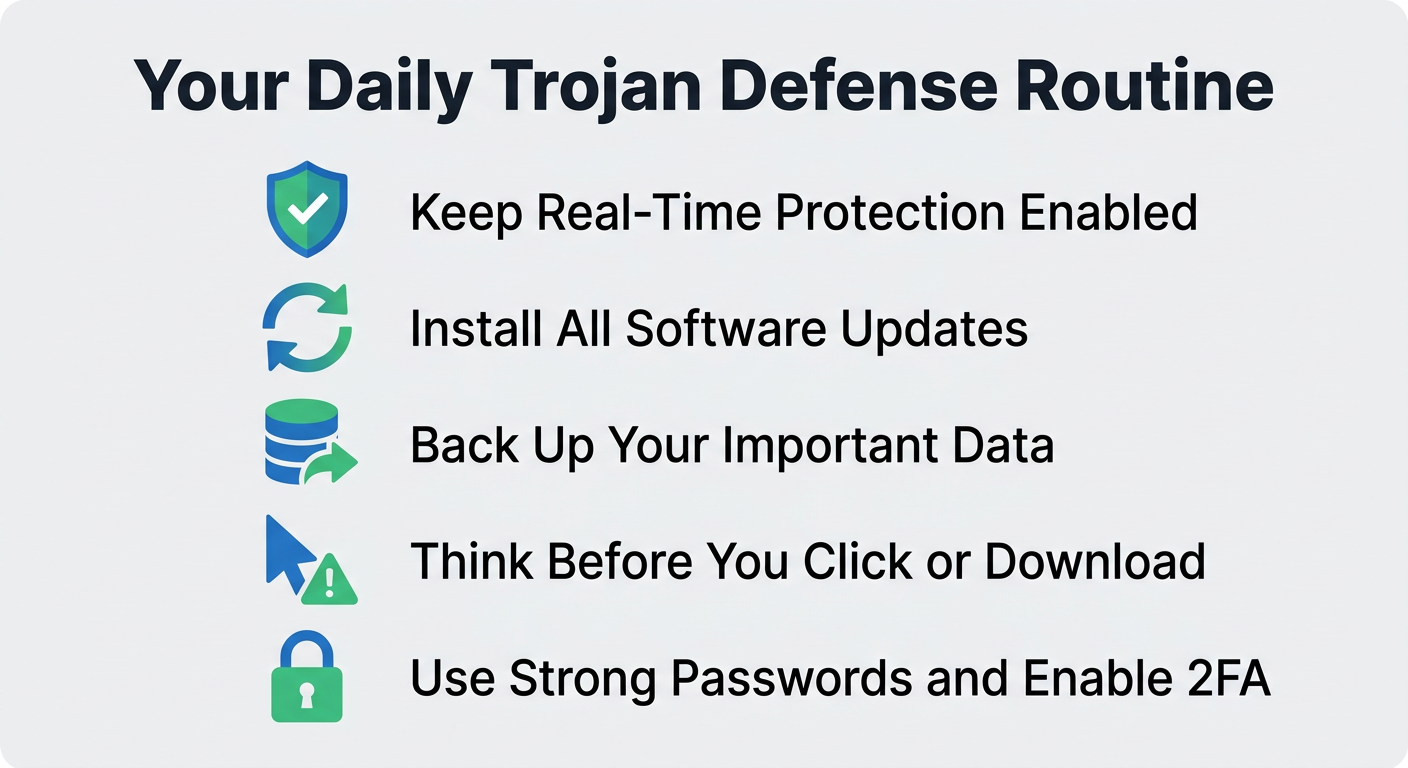
    • Always keep real-time protection enabled: Never disable real-time scanning, even temporarily. Schedule automatic deep scans on a weekly basis. According to independent testing by AV-TEST, comprehensive security suites employing multi-engine approaches consistently achieve protection rates exceeding 99% against prevalent Trojan families, compared to significantly lower rates for single-engine solutions.
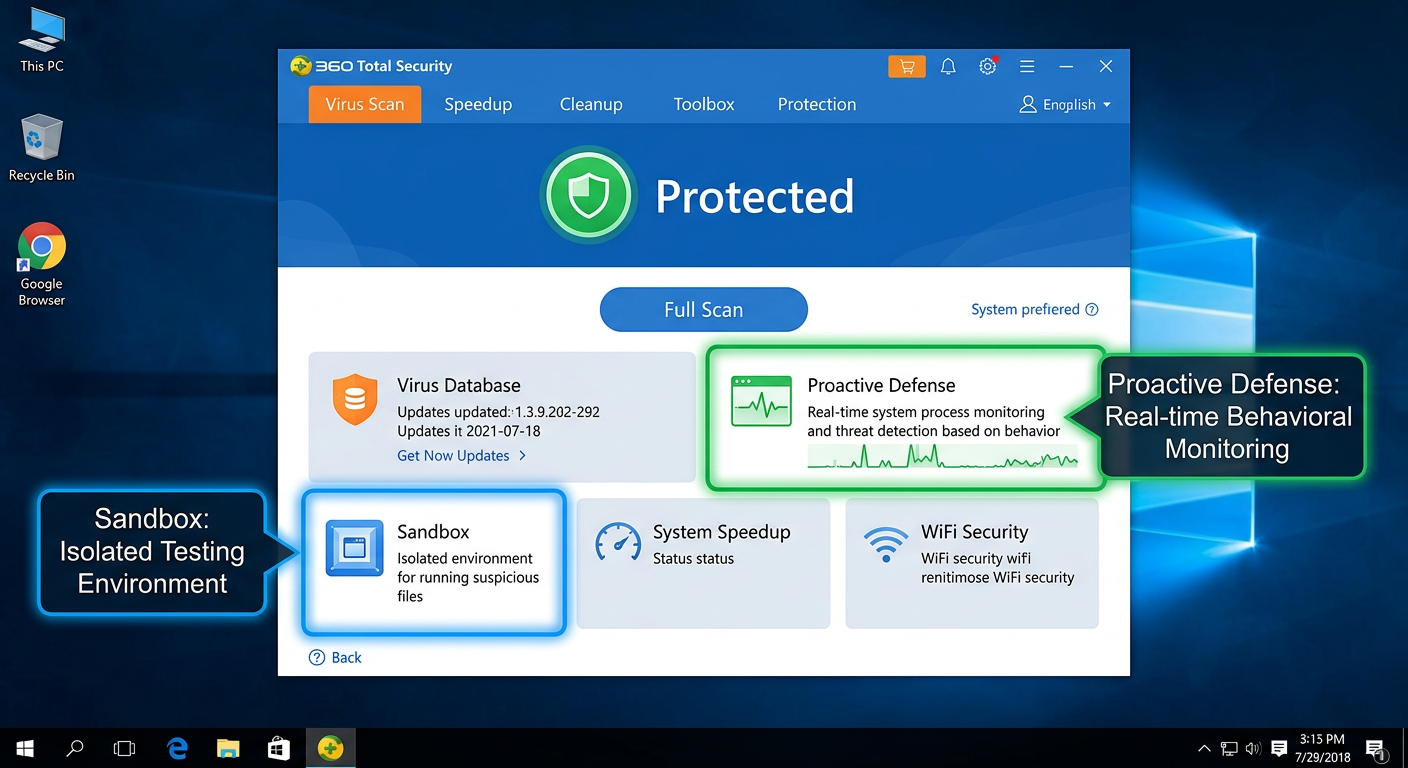
    • Leverage sandbox technology: If you regularly need to run software from unknown or untrusted sources, a sandbox environment is invaluable. 360 Total Security includes a built-in Sandbox feature that allows you to execute suspicious programs in a completely isolated virtual environment. Any Trojan payload is contained within the sandbox and cannot touch your real system files, registry, or network connections.

    The Human Firewall: Cultivating Safe Digital Habits

    Technology can only do so much. Because Trojans fundamentally rely on deceiving humans, developing security-conscious habits is an irreplaceable layer of defense:

    • Treat all unsolicited communications with suspicion: Be extremely cautious with email attachments and links, even when they appear to come from known contacts. Trojans frequently use stolen contact lists to send convincing phishing emails. Always verify the sender’s actual email address (not just the display name) and when in doubt, contact the sender through a separate channel to confirm they actually sent the message.
    • Download software exclusively from official sources: Only obtain software from the developer’s official website or reputable, established app stores (Microsoft Store, Apple App Store). Avoid cracks, keygens, serial number generators, and pirated software at all costs — these are among the most prolific Trojan distribution mechanisms in existence. The money saved on a software license is never worth the risk of a catastrophic data breach.
    • Be skeptical of urgency-based pop-ups: Legitimate software companies do not deliver critical security updates through browser pop-ups. If a website tells you that your Flash Player, Java, video codec, or browser is critically out of date and you must update immediately, close the tab. Navigate directly to the software vendor’s official website to check for updates independently.
    • Verify file extensions: Enable the display of file extensions in Windows Explorer (View > Show > File name extensions). A file named “invoice.pdf.exe” is not a PDF — it is an executable program. Trojans frequently use this trick to disguise themselves.

    The Maintenance Layer: Keeping Your Digital House in Order

    Proactive system maintenance closes the security gaps that Trojans exploit and limits the damage they can cause if they do get through:

    • Apply updates religiously: The majority of successful Trojan infections that exploit software vulnerabilities target known flaws for which patches already exist. Update your operating system, web browsers, browser plugins, and all installed applications as soon as updates become available. Enable automatic updates wherever possible. Uninstall software you no longer use — every installed program is a potential attack surface.
    • Use strong, unique passwords with two-factor authentication: If a credential-stealing Trojan does capture one of your passwords, using unique passwords for every account limits the damage to that single account. Enable two-factor authentication (2FA) on all critical accounts — email, banking, social media — so that even a stolen password cannot grant access without the second factor.
    • Maintain regular, tested backups: Back up your important data regularly to both an external hard drive (disconnected from your PC when not in use) and a reputable cloud backup service. Test your backups periodically to ensure they can actually be restored. This is your ultimate recovery safety net — not just against Trojans, but against ransomware, hardware failure, and accidental deletion.
    A visual checklist graphic titled Your Daily Trojan Defense Routine featuring icons representing software updates, scheduled antivirus scans, data backups, cautious clicking habits, and strong password management

    Step-by-Step Guide: How to Remove a Trojan Virus from Your Infected PC

    If you suspect or have confirmed a Trojan infection, remain calm but act decisively. Successful Trojan removal requires a systematic approach. Rushing or skipping steps can leave remnants of the infection that allow it to re-establish itself. Follow this process carefully.

    Immediate First Response: Isolate and Assess

    Your first priority is to prevent the Trojan from doing any more damage while you work on removing it:

    • Step 1 — Disconnect from the Internet immediately: Physically unplug your Ethernet cable from the router or disable Wi-Fi. This critical step cuts off the Trojan’s ability to exfiltrate your data to remote servers, receive new commands from its operators, or download additional malware. Do this before anything else.
    • Step 2 — Boot into Safe Mode with Networking: Restart your computer and boot into Safe Mode with Networking. In Windows 10/11, hold Shift while clicking Restart, then navigate to Troubleshoot > Advanced Options > Startup Settings > Restart, and press F5. Safe Mode loads Windows with only the most essential drivers and services, which prevents the vast majority of Trojans from starting automatically. This gives your removal tools a significant advantage. “With Networking” allows you to download updated definitions if needed.
    • Step 3 — Document what you know: Note any suspicious program names you have seen in Task Manager, any recent downloads that may have triggered the infection, and exactly what symptoms you are experiencing. This information will be useful for targeted removal.

    The Core Removal Process Using Security Software

    With the system isolated and in Safe Mode, you can now attack the infection directly:

    • Step 4 — Run a full system scan with your primary security software: Launch your installed antivirus and initiate the most comprehensive scan available. For users of 360 Total Security, use the “Full Scan” feature, which performs a deep examination of all files, processes, and registry entries. Additionally, use the built-in “System Repair” feature, which is specifically designed to identify and restore system settings that have been altered by malware — such as modified hosts files, disabled Windows Defender, or corrupted system files.
    • Step 5 — Use the built-in process killer for stubborn threats: Some Trojans inject themselves into legitimate system processes, making them difficult to terminate and remove while running. 360 Total Security includes a dedicated “Trojan Killer” tool designed to forcibly terminate and remove these deeply embedded threats. Use this tool if the standard scan identifies infections it cannot automatically clean.
    • Step 6 — Run a second-opinion scan: No single security tool catches everything. After your primary scan, use a complementary second-opinion scanner such as Malwarebytes Free to perform an additional scan. Running two different tools significantly increases the probability of catching every component of the infection.
    Symptom / Situation Recommended Action Priority
    Suspected infection — no confirmation yet Run a Full Scan with 360 Total Security in normal mode Immediate
    Cannot run antivirus software Boot into Safe Mode with Networking, then run scan Immediate
    Cannot access antivirus vendor website Check Windows hosts file for tampering; use a mobile device to download tools High
    Antivirus detects but cannot remove infection Use 360 Total Security Trojan Killer; run second-opinion scanner (Malwarebytes) High
    Infection persists after multiple scans Consider System Restore to a pre-infection point, or full OS reinstall High
    Rootkit suspected (infection survives reboots) Use a bootable rescue disk scanner (offline scan environment) Critical

    Post-Removal Cleanup and Verification

    Removing the Trojan executable is necessary but not sufficient. A thorough cleanup ensures no residual damage or access points remain:

    • Step 7 — Clean browsers and reset settings: Open each browser you use and clear all cookies, cached data, and browsing history. Navigate to browser settings and reset your homepage and default search engine to your preferred choices. Remove any browser extensions you do not recognize.
    • Step 8 — Change all sensitive passwords from a clean device: Assume that any passwords you typed on the infected machine may have been captured. From a separate, clean device (a smartphone or a computer you know is uninfected), change the passwords for all critical accounts: email, online banking, social media, cloud storage, and any accounts where you store payment information. Enable 2FA on all of them if you have not already.
    • Step 9 — Monitor closely and verify: Over the following weeks, monitor your system for any recurrence of symptoms. Check your financial statements and credit card transactions for any unauthorized activity. If you had sensitive files on the infected machine, consider whether you need to take additional steps such as notifying your bank or placing a fraud alert with credit bureaus.
    • Step 10 — Consider a full reinstall for severe infections: If the infection was particularly severe, if you have reason to believe a rootkit was installed, or if symptoms persist despite thorough scanning, the only way to guarantee a completely clean system is to perform a full operating system reinstall after backing up your personal files (scan them before restoring).

    Why 360 Total Security Is a Top Choice for Comprehensive Trojan Defense

    360 Total Security provides a uniquely powerful and accessible defense suite against Trojan viruses by combining best-in-class multi-engine virus detection with proactive behavioral analysis, sandbox isolation, and integrated system optimization tools — all in a single, user-friendly package available at no cost for essential protection.

    Multi-Engine Defense: Doubling Down on Detection

    The most fundamental measure of an antivirus product is its ability to actually detect threats. 360 Total Security takes a multi-engine approach that provides coverage that no single-engine solution can match:

    • Dual Antivirus Engine Architecture: At its core, 360 Total Security integrates the powerful Bitdefender engine — consistently ranked among the top performers in independent lab tests by organizations like AV-TEST and AV-Comparatives — for signature-based detection of known Trojan families, alongside 360’s own proprietary AI engine for heuristic and behavioral detection of new and evolving threats. This dual-engine approach provides a detection safety net where threats that evade one engine are caught by the other.
    • 360 Cloud Engine: Leverages real-time collective intelligence from 360’s massive global user base. When a new Trojan is identified anywhere in the world, threat intelligence is pushed to the cloud and all protected users receive updated protection within minutes — far faster than traditional signature update cycles. According to independent security evaluations, this cloud-assisted approach dramatically reduces the window of vulnerability to emerging Trojan variants. As one technology reviewer noted: “For a free product, its detection rates compete with paid suites, especially against prevalent threats like downloaders and backdoor Trojans — the cloud engine is a genuine differentiator.”

    Proactive and Behavioral Protection Layers

    Detection of known threats is necessary but not sufficient in today’s threat landscape, where new Trojans are created and released daily. 360 Total Security addresses this with proactive, behavior-based protection layers:

    • Proactive Defense System: Rather than waiting to identify a file as malicious by its signature, the Proactive Defense module monitors the behavior of all running programs in real time. If a program attempts to perform actions characteristic of Trojan activity — such as modifying critical system registry keys, injecting code into other processes, disabling security software, or establishing connections to known command-and-control server addresses — it is immediately flagged, blocked, and quarantined, regardless of whether its specific signature is in the database.
    • Sandbox Technology: The integrated Sandbox feature allows you to launch any suspicious or unknown application in a completely isolated virtual environment that is sealed off from your real operating system. The sandboxed program can run and reveal its true behavior — including any Trojan payload it carries — without being able to write to your real file system, modify your registry, access your real network connections, or interact with other running processes. This is an invaluable tool for safely evaluating software from untrusted sources.

    Screenshot of the 360 Total Security antivirus interface clearly highlighting the Sandbox isolation feature and Proactive Defense real-time behavioral monitoring panel within the security dashboard

    Beyond Protection: Integrated Optimization for a Healthier PC

    One of the most persistent myths in consumer security is that strong antivirus protection inevitably slows down your computer. 360 Total Security directly challenges this assumption:

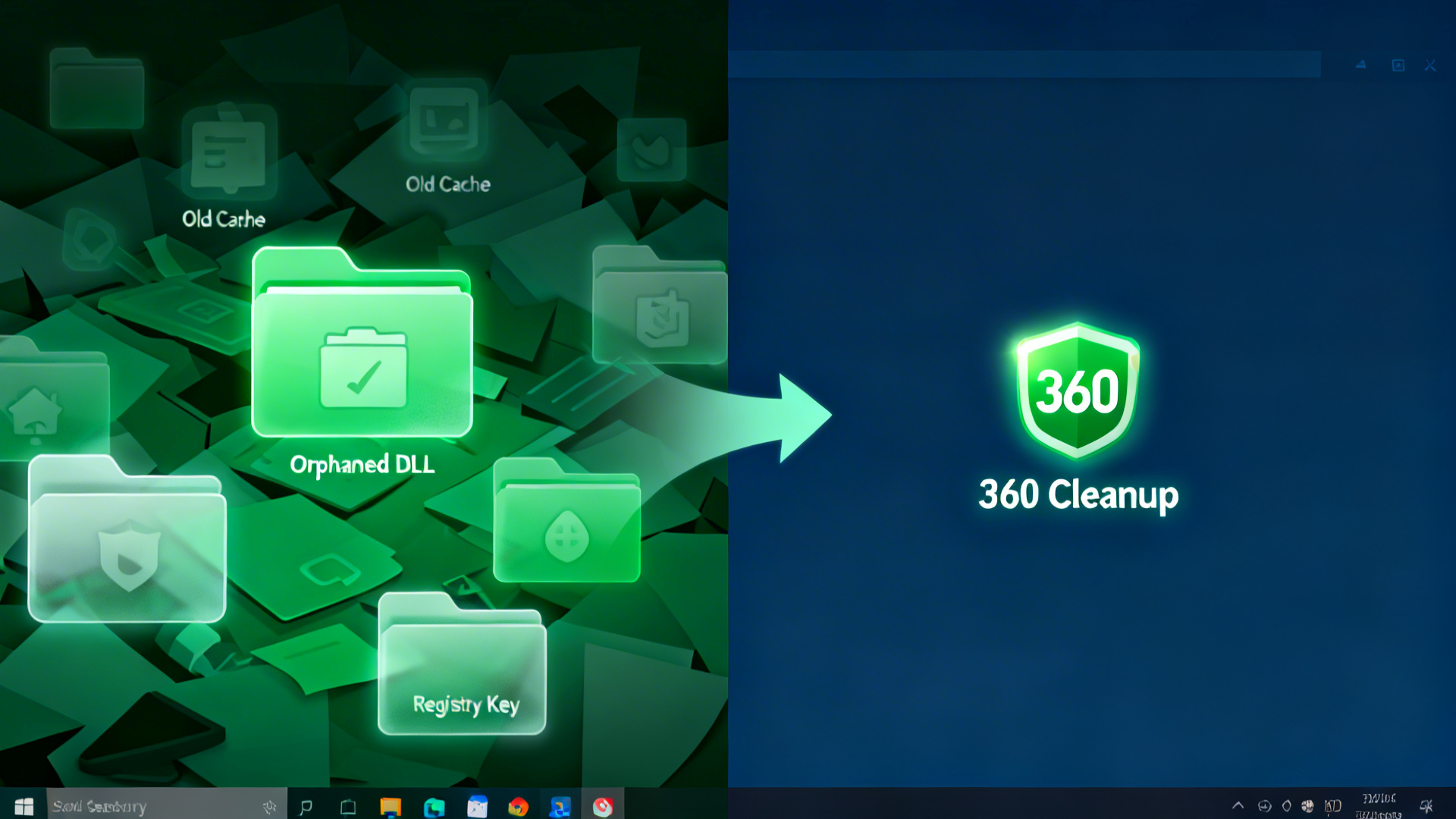
    • System optimization and cleanup tools: Trojans frequently degrade system performance as a side effect of their operations — consuming CPU cycles, filling disk space with downloaded malware, and adding entries to startup programs. 360 Total Security includes comprehensive cleanup tools that remove junk files, temporary data, and unnecessary startup items. Critically, it also includes a vulnerability scanner that identifies unpatched software on your system — closing the security gaps that Trojans most commonly exploit for initial entry.
    • Resource-aware operation modes: The software includes dedicated “Driving Mode” and “Game Mode” profiles that intelligently manage resource allocation, ensuring that protection processes run efficiently in the background without competing with your active applications. Scans and updates are deferred during intensive tasks and completed during idle periods, providing full protection without perceptible performance impact during your work or gaming sessions.

    For anyone serious about comprehensive Trojan defense without compromising system performance or budget, 360 Total Security represents an exceptional value proposition. Visit the official website to download and begin protecting your system today.

    Frequently Asked Questions About Trojan Viruses

    Q1: Can a Trojan virus infect my phone or tablet, or only my PC?

    Yes, Trojans absolutely target mobile devices. Android devices are particularly susceptible, as Trojans are commonly distributed through third-party app stores outside of the Google Play Store, disguised as popular games, utility apps, or fake versions of legitimate applications. iOS devices are less frequently targeted due to Apple’s strict App Store review process and sandboxed app architecture, but jailbroken iPhones are significantly more vulnerable. Mobile Trojans can steal contacts, messages, banking credentials, and even intercept SMS-based two-factor authentication codes.

    Q2: If my antivirus software is up to date, am I completely safe from Trojans?

    Up-to-date antivirus software is an essential and powerful layer of defense, but it does not provide absolute, 100% guaranteed protection on its own. Zero-day Trojans — newly created malware for which no signature yet exists — can sometimes evade signature-based detection before the antivirus vendor has had time to analyze and update their databases. This is why behavioral and heuristic detection (as offered by 360 Total Security) is so important. Combining robust antivirus with safe browsing habits, regular software updates, and skepticism toward unsolicited downloads provides the most comprehensive protection.

    Q3: How long can a Trojan stay undetected on my computer?

    This varies enormously depending on the sophistication of the Trojan and the quality of the security software installed. Some simple Trojans are detected within minutes or hours. However, advanced persistent Trojans — particularly those used in targeted attacks against businesses or high-value individuals — are specifically engineered for stealth and can remain undetected for months or even years. According to a 2026 Cybersecurity Report by a leading threat intelligence organization, the average dwell time of advanced malware in enterprise environments before detection was measured in weeks to months, highlighting the critical importance of behavioral monitoring rather than relying solely on periodic scans.

    Q4: Is it safe to pay the ransom if a Trojan delivered ransomware and encrypted my files?

    Cybersecurity experts and law enforcement agencies universally advise against paying ransoms. Payment does not guarantee that you will receive a working decryption key. It directly funds criminal organizations, encouraging further attacks. It may also mark you as a willing payer, making you a target for future attacks. Instead, report the incident to your local law enforcement and check resources like the No More Ransom project (nomoreransom.org), which provides free decryption tools for many known ransomware families. This is why maintaining regular, offline backups is so critical — they provide a recovery path that makes the ransom demand irrelevant.

    Q5: After removing a Trojan, do I need to reinstall Windows, or is a successful scan enough?

    In the majority of cases, a thorough removal process using quality security tools — including scanning in Safe Mode, using a second-opinion scanner, and performing post-removal cleanup — is sufficient to fully remediate a Trojan infection. However, a full OS reinstall is the recommended course of action in specific scenarios: if the Trojan installed a rootkit (which can hide itself from the operating system itself), if symptoms persist after multiple thorough scans, if the infection involved a sophisticated Remote Access Trojan that may have been active for an extended period, or if the machine stores extremely sensitive data and you need absolute certainty. When in doubt, a clean reinstall is always the safest option.


    Author Bio: This article was written and reviewed by the 360 Total Security Cybersecurity Research Team, a group of dedicated security analysts and technical writers specializing in malware analysis, threat intelligence, and consumer cybersecurity education. The team contributes regularly to cybersecurity awareness initiatives and maintains the 360 Total Security knowledge base with up-to-date guidance on emerging threats and best practices for digital protection.
  • Free Trojan Removal: The Complete Guide to Detect, Remove & Prevent Attacks

    Free Trojan Removal: The Complete Guide to Detect, Remove & Prevent Attacks

    This definitive guide provides a systematic, step-by-step process for free Trojan removal, empowering you to identify infections, eradicate threats using specialized tools, and implement robust defenses to keep your PC secure. We’ll demystify how Trojans operate, reveal the subtle signs of an infection, and showcase a powerful, free security suite that offers comprehensive protection.

    What Exactly Is a Trojan and How Does It Infect Your PC?

    Understanding the stealthy nature and infection vectors of Trojans is the critical first step in effectively removing them and preventing future attacks. Unlike typical viruses, Trojans rely on deception, making them particularly dangerous and widespread.

    Defining the Trojan Horse: Deception is Its Core Weapon

    A Trojan horse (or Trojan) disguises itself as legitimate, desirable software to trick users into installing it. Its defining characteristic is this social engineering tactic; it does not self-replicate like a traditional computer virus. Common disguises include cracked software, fake update prompts, pirated media files, and seemingly harmless email attachments. According to definitions from leading cybersecurity organizations, this deception is the core weapon in its arsenal.

    Common Infection Methods: How Trojans Sneak In

    Trojans primarily infiltrate systems through three key methods. First, Social Engineering via phishing emails, fake download buttons on websites, and malicious advertisements (malvertising). Second, by Exploiting Software Vulnerabilities in unpatched operating systems or applications like browsers, Java, or Adobe products. Third, they are often Bundled with Freeware downloaded from unofficial or suspicious sources, where the Trojan is hidden alongside the desired program.

    Flowchart diagram showing common Trojan infection paths like phishing emails, malicious downloads, and software bundling

    The Damage Trojans Can Cause

    The payload of a Trojan can be devastating. It can lead to Data Theft through keyloggers and credential harvesting. It can create a Backdoor, allowing remote attackers to control your PC, often enrolling it in a botnet. It also causes System Degradation and can download additional malware payloads, such as ransomware. According to a 2026 cybersecurity report, Trojans constitute a significant percentage of all advanced malware infections, highlighting their persistent threat.

    What Are the Signs Your PC Might Have a Trojan?

    Early detection of a Trojan infection relies on recognizing subtle, non-obvious system anomalies rather than dramatic pop-ups. Being vigilant about these signs can help you act before significant damage occurs.

    Performance and System Behavior Red Flags

    Watch for unexplained system slowdowns, frequent application or OS crashes, and programs taking excessively long to load. A major red flag is your security software (antivirus, firewall) being mysteriously disabled or finding yourself unable to visit security vendor websites. Also, check for unfamiliar programs in the Control Panel’s “Programs and Features” list.

    Network and Online Activity Anomalies

    Monitor your network activity. High data usage when the computer is idle may indicate data exfiltration or botnet communication. Be wary of browser redirects to strange sites, new toolbars, or a homepage you can’t change back. Friends reporting strange messages or spam from your accounts is a telltale sign of a compromised system.

    Visual and File System Clues

    Look for new, suspicious desktop icons or shortcuts you didn’t create. In your file system, be alert to files disappearing, being encrypted (a sign of ransomware), or unknown files appearing out of nowhere.

    Side-by-side comparison of a clean Windows Task Manager versus one infected with a Trojan, highlighting suspicious processes

    Step-by-Step Guide: How to Remove a Trojan for Free

    A systematic, multi-layered approach using specialized free tools is essential to completely eradicate a Trojan, as manual removal is often insufficient against persistent threats.

    Preparation: Isolate and Boot into Safe Mode

    First, disconnect your PC from the internet to cut off the Trojan’s communication with its command-and-control server. Next, reboot your PC into Safe Mode with Networking. This Windows state loads only essential drivers, preventing most Trojans from activating and allowing your security tools to work effectively.

    https://www.youtube.com/watch?v=sdpxeDTrE6o

    Primary Scan with a Dedicated Anti-Malware Tool

    Once in Safe Mode, perform a deep scan with a reputable, on-demand anti-malware tool. We recommend using 360 Total Security’s System Repair feature. This tool is engineered to find and remove deeply embedded threats like Trojans and rootkits that traditional antivirus might miss. Its advantage lies in a cloud-powered engine, offering up-to-the-minute threat detection without heavy local signature files, ensuring both thoroughness and speed.

    | Tool | Trojan Detection Capability | Scan Speed | System Impact | Key Feature for Trojans |
    | :— | :— | :— | :— | :— |
    | **360 Total Security System Repair** | Excellent (Multi-engine + Cloud) | Fast | Low | Deep system clean & rootkit focus |
    | Malwarebytes Free (On-Demand) | Very Good | Moderate | Moderate | Strong anti-exploit & ransomware layer |
    | Emsisoft Emergency Kit | Good | Slower (Thorough) | Moderate | Dual-engine (Bitdefender + Emsisoft) |

    Secondary Scan and Manual Cleanup Checks

    For absolute certainty, run a second, different scanner (a “second opinion scan”) to catch any remnants—consider a dedicated anti-rootkit tool. After scanning, perform manual checks: review and remove suspicious browser extensions, scrutinize startup programs via Task Manager, and check Windows Scheduled Tasks. You can also run a system file check to repair core Windows files that might be corrupted.

    sfc /scannow

    Why 360 Total Security is a Powerful Free Solution for Trojan Defense

    360 Total Security provides a comprehensive, multi-engine defense system that proactively blocks Trojan infections and offers specialized tools for removal, making it an ideal all-in-one free security suite.

    Multi-Engine Protection: The Core Advantage

    Its standout feature is the Multi-Engine Protection, which combines its own 360 Cloud Engine with the award-winning Bitdefender and Avira engines. This layered approach maximizes detection coverage for both known and emerging threats. As noted in independent lab test summaries, “the multi-engine strategy significantly improves catch rates for polymorphic and zero-day Trojans.” Furthermore, its Sandbox feature safely executes suspicious files in isolation, perfect for behavioral analysis of new, unknown Trojans.

    Proactive Features That Prevent Trojan Installation

    360 Total Security goes beyond scanning with proactive shields. Its Key Protection specifically blocks keyloggers, a common Trojan payload. The Patch Up feature automatically scans for and helps install critical software updates, closing the security holes Trojans love to exploit. Additionally, Webcam Protection alerts you if an unauthorized program tries to access your camera—a potential privacy invasion by spyware Trojans.

    Specialized Cleaning Tools: System Repair & Startup Optimizer

    For removal, the System Repair tool performs a deep clean of infected system files and registry entries, going beyond standard deletion. The Startup Optimizer helps identify and disable malicious programs set to run at boot, disrupting a common Trojan persistence mechanism. These integrated tools make it a complete solution for both prevention and cure.

    Screenshot of 360 Total Security dashboard highlighting the System Repair, Sandbox, and multi-engine protection features

    How to Keep Your PC Trojan-Free After Removal

    Post-removal hygiene and adopting secure computing habits are more effective long-term strategies than relying solely on reactive scanning. Building a strong security posture is key.

    Essential Software and Update Discipline

    Enable automatic updates for Windows, your browser, and all plugins (Java, Adobe Reader). Employ a robust, real-time antivirus solution. For a comprehensive free option, 360 Total Security provides continuous, multi-layered protection with minimal system impact. Ensure your firewall (Windows and/or router) is enabled and properly configured.

    Critical User Behavior Changes

    Exercise extreme caution with email attachments and links, even from known contacts. Only download software from official developer websites or trusted app stores. Crucially, avoid cracked software, keygens, and “too good to be true” free offers, as these are prime Trojan carriers.

    Regular Maintenance and Backup Strategy

    Schedule regular full system scans. Most importantly, maintain regular backups of critical data to an external drive or cloud service. This is your ultimate defense against data loss from ransomware Trojans. Use strong, unique passwords and consider a password manager to mitigate credential theft from keyloggers.

    Frequently Asked Questions (FAQ)

    Q1: Can I remove a Trojan virus manually without any software?
    A: While technically possible for advanced users by terminating processes and deleting registry entries, it’s highly discouraged. Trojans are designed to hide and regenerate. Using dedicated free Trojan removal tools like 360 System Repair is far more reliable and safer.

    Q2: Is 360 Total Security really free, and is it good enough for Trojan protection?
    A: Yes, its core antivirus, firewall, and System Repair features are completely free. Its multi-engine approach (Bitdefender, Avira, 360 Cloud) provides enterprise-grade detection, making it more than capable of blocking and removing Trojans effectively.

    Q3: What’s the difference between a Trojan and a virus?
    A: A virus self-replicates and attaches itself to clean files, while a Trojan disguises itself as legitimate software to trick you into installing it. Trojans don’t replicate but often have more malicious intent, like creating backdoors.

    Q4: How often should I scan my computer for Trojans?
    A: A weekly quick scan and a monthly full system scan are good practices. If you frequently download files or browse extensively, consider increasing the frequency. Real-time protection from a suite like 360 Total Security should handle most threats as they appear.

    Q5: My antivirus didn’t detect the Trojan. What now?
    A: No single engine catches 100% of threats. This is why the “second opinion scan” with a different tool (like 360 System Repair) is crucial. Multi-engine solutions inherently provide this layered detection, significantly reducing the chance of a miss.

    Ready for Uncompromising, Free Protection? Don’t leave your PC’s security to chance. 360 Total Security combines the power of multiple award-winning engines with specialized cleanup tools in one free package. Download it today to proactively defend against Trojans, ransomware, and all forms of malware, and keep your system running at its peak.

    About the Author: Johnathan K. is a senior cybersecurity and system optimization expert with over a decade of experience in threat analysis and endpoint protection. He has contributed to leading security publications and focuses on making advanced threat defense accessible to all users.

  • How to Detect and Remove a Trojan Virus: The Complete 2024 Guide

    How to Detect and Remove a Trojan Virus: The Complete 2024 Guide

    Trojan viruses are among the most deceptive and damaging cyber threats, masquerading as legitimate software to steal data, hijack systems, and extort money. This comprehensive guide provides a definitive roadmap to detect Trojan virus infections, remove them completely, and fortify your PC against future attacks with professional-grade security practices and tools.

    What Exactly Is a Trojan Virus and How Does It Work?

    At its core, a Trojan virus is a type of malware that disguises itself as harmless or desirable software to trick users into installing it. Unlike traditional viruses, it does not self-replicate; its power lies in social engineering, granting attackers a backdoor to your system, data, and digital life.

    The Deceptive Nature of Trojans: Why They’re So Effective

    A Trojan’s primary weapon is deception. It may appear as a cracked game, a useful utility, a tax document, or a fake software update. The key distinction from other malware is its reliance on user action to install. According to definitions from leading cybersecurity organizations like CISA and Kaspersky, this human element makes Trojans exceptionally effective. Common delivery vectors include malicious email attachments, compromised websites offering fake updates, pirated software bundles, and malvertising (malicious advertisements).

    Common Types of Trojan Viruses and Their Goals

    Not all Trojans are created equal; they are specialized tools for specific cybercrimes. Backdoor Trojans create a secret entry point for remote control, turning your PC into a bot. Banking Trojans like ZeuS or Emotet are designed to steal financial credentials by logging keystrokes or hijacking banking sessions. Ransomware Trojans often use a Trojan dropper to infiltrate a system before encrypting files and demanding a ransom.

    Infographic showing different types of Trojan viruses including Backdoor, Banker, and Ransomware with their primary functions

    The Step-by-Step Infection and Attack Process

    The lifecycle of a Trojan infection follows a predictable, malicious pattern. First, Social Engineering tricks the user into downloading and executing the malicious file. Second, during Installation & Payload Delivery, the Trojan installs itself, often downloading additional malicious modules from a command-and-control server. Finally, Execution sees the payload activate—whether that’s data theft, backdoor creation, or file encryption. The scale of this threat is significant; according to the 2024 X-Force Threat Intelligence Index, Trojans were the initial infection vector in over 40% of security incidents.

    How to Detect a Trojan Virus on Your PC: Signs & Symptoms

    Early detection is critical to minimizing damage. A Trojan often leaves subtle but persistent traces in your system’s performance, network activity, and general behavior. Learning to recognize these signs is your first line of defense.

    Performance and System Anomalies

    Unexplained and persistent slowdowns, frequent application crashes, or system freezes are classic red flags. Check your Task Manager for processes with high, sustained CPU, memory, or disk usage that you cannot identify. Be wary of programs that start or close autonomously or system settings that revert without your input.

    Network and Security Red Flags

    Monitor your network activity. A constant flicker of upload/download activity when your PC is idle could indicate data exfiltration. A major warning sign is your firewall or antivirus software being disabled without your permission. Social proof can also be a clue—if friends report strange messages from your accounts, a Trojan may have hijacked your communication tools.

    Using Built-in and Manual Detection Methods

    Start with a full, deep scan using Windows Defender (Microsoft Defender Antivirus). Manually inspect your system’s startup programs (via Task Manager > Startup) and browser extensions for unknown entries. Advanced users can check system directories like C:\Windows\Temp or user AppData folders for suspicious, recently created files or folders.

    Screenshot comparison of a clean Windows Task Manager versus one with a suspicious high-CPU process highlighted

    Step-by-Step Guide: How to Remove a Trojan Virus

    Effective removal requires a calm, methodical approach to ensure the threat is completely eradicated and cannot call home for further instructions.

    Immediate First Response: Isolate and Scan

    Your first action should be to disconnect from the internet (Wi-Fi/Ethernet) to sever the attacker’s connection and prevent data theft. Next, reboot your PC into Safe Mode with Networking to prevent most Trojans from loading. Then, run a full-system scan with a robust security solution. For comprehensive detection and cleanup, using a tool like 360 Total Security is recommended due to its multi-engine scanning (Bitdefender + Avira + 360 Cloud) and dedicated Trojan removal capabilities.

    Manual Removal and Advanced Cleanup (For Advanced Users)

    If possible, use System Restore to roll back to a point before the infection. For stubborn infections, advanced users can attempt to identify and terminate malicious processes in Task Manager, then delete associated files and registry entries. As one security researcher cautions, “Manual removal is a high-risk operation that can leave remnants of the malware or cripple your operating system if you delete the wrong system file.” It’s often safer to follow up with a specialized second-opinion scanner like Malwarebytes.

    Post-Removal Verification and System Hardening

    Verification is key. Run another full scan and monitor for residual symptoms. Crucially, change all passwords for email, banking, and social media from a confirmed clean device. Finally, update your operating system, browser, and all installed software to patch the vulnerabilities the Trojan exploited.

    | Step | Action | Tool/Method Used |
    | :— | :— | :— |
    | 1. Isolate | Disconnect from Internet | Manual / Network Settings |
    | 2. Scan | Boot into Safe Mode & Run Full Scan | 360 Total Security / Antivirus |
    | 3. Clean | Quarantine/Remove Found Threats | Antivirus / Malwarebytes |
    | 4. Verify | Run Follow-up Scan & Check Symptoms | Antivirus / Manual Monitoring |
    | 5. Harden | Change Passwords & Update Software | Password Manager / OS Updater |

    Flowchart diagram for Trojan removal showing path from detection to isolation, scanning, cleanup, and system hardening

    How to Prevent Trojan Infections in the Future

    Proactive, layered security is infinitely more effective than reactive cleanup. This involves combining reliable security software with vigilant user habits and consistent system maintenance.

    Essential Security Software and Configuration

    Install and maintain a reputable antivirus suite with real-time protection. 360 Total Security offers a robust free tier that includes real-time Trojan protection, a firewall, and vulnerability patching, forming a strong foundational layer. Ensure your system firewall is always active and consider using a reputable ad-blocker to neutralize malvertising threats.
    Critical User Habits for Safe Computing

    Cultivate healthy skepticism. Verify email attachments and links, even from known contacts. Only download software from official vendor websites or app stores—avoid cracks and pirated software at all costs. Enable automatic updates for your OS, browser, and security tools. Studies consistently show that a majority of infections originate from user actions like clicking phishing links or downloading unauthorized software.

    Advanced Proactive Measures

    Implement the 3-2-1 backup rule: keep three copies of your data, on two different media, with one offsite. Use a standard user account for daily tasks to limit the damage a Trojan can do. For testing unknown software, consider using a sandbox environment. As a 360 Total Security spokesperson notes, “A multi-layered defense that blends cutting-edge technology with informed user awareness is the only way to stay ahead of today’s evolving Trojan threats.”

    | Reactive Measure (After Infection) | Proactive Measure (Prevention) | Outcome Difference |
    | :— | :— | :— |
    | Stressful, complex cleanup | Simple, automated habits | High effort vs. Low effort |
    | Potential data loss | Guaranteed data integrity (via backups) | Loss vs. Security |
    | System may remain vulnerable | System is hardened against future attacks | Uncertainty vs. Confidence |

    Why Choose 360 Total Security for Trojan Detection and Removal?

    360 Total Security is engineered as a comprehensive defense system, specifically adept at detecting, blocking, and removing sophisticated threats like Trojans. It goes beyond basic antivirus by combining powerful scanning engines with essential system optimization tools for complete PC health and security.

    Multi-Engine Scanning Power for Maximum Detection

    Its strength lies in a four-engine powerhouse: the 360 Cloud Engine, QVM II AI Engine, Bitdefender, and Avira. This provides unparalleled threat coverage. The cloud engine delivers real-time, crowd-sourced intelligence against zero-day Trojans, while its sandbox technology safely detonates and analyzes suspicious files in isolation.

    Proactive Protection and System Hardening Features

    The Real-time Protector monitors all file and process activity to block Trojans at execution. Its Proactive Defense Layer uses behavioral analysis to halt suspicious actions typical of Trojan payloads. Crucially, its Vulnerability Scanner finds and helps patch security holes in the OS and applications—the very gaps Trojans exploit to gain entry.

    Beyond Antivirus: Integrated Optimization for a Healthy PC

    360 Total Security provides complete PC care. System Cleanup and Speed Up tools remove junk files and optimize startup, which can also eliminate residual infection files. The Patch Up feature automates software updates, closing security gaps. Independent lab tests from organizations like AV-Comparatives consistently show 360 Total Security achieving high detection rates for Trojans and other malware.

    | Feature | Basic Antivirus (e.g., Windows Defender) | Another Popular Free AV | 360 Total Security |
    | :— | :— | :— | :— |
    | Multi-Engine Scanning | Single Engine | Usually Single Engine | **Four Engines (Cloud, AI, Bitdefender, Avira)** |
    | Behavioral Protection | Basic | Limited | **Advanced Proactive Defense Layer** |
    | Vulnerability Patching | No | No | **Yes, Integrated Scanner** |
    | System Optimization Tools | No | No | **Yes (Cleanup, Speed Up, Patch Up)** |

    Ready to move from vulnerability to confidence? Don’t wait for a Trojan to strike. Fortify your digital life now with the multi-layered, proactive protection of 360 Total Security. Visit the official website to download the free version or upgrade to Premium for advanced features and priority support.

    Frequently Asked Questions (FAQ)

    Q1: What is the main difference between a Trojan and a computer virus?
    A: The key difference is self-replication. A virus attaches itself to clean files and spreads, while a Trojan disguises itself as legitimate software and does not spread on its own—it relies on tricking users to install it.

    Q2: Can Windows Defender detect and remove Trojan viruses?
    A: Yes, Windows Defender (Microsoft Defender Antivirus) can detect and remove many Trojans. However, for the highest detection rates, especially against new or complex Trojans, a dedicated security suite with multiple scanning engines like 360 Total Security is recommended.

    Q3: Is it safe to download 360 Total Security?
    A: Yes, it is safe to download from its official website (360totalsecurity.com). It is a legitimate, widely-used security product developed by Qihoo 360, a major cybersecurity company.

    Q4: How do I know if my Trojan is completely removed?
    A: After running a full scan with a tool like 360 Total Security and removing/quarantining all threats, verify by: 1) Running a second-opinion scan with another tool, 2) Monitoring for the original symptoms (slowdown, strange network activity), and 3) Ensuring your security software remains active and isn’t being disabled.

    Q5: What is the most common way to get a Trojan virus?
    A: The most common infection vectors are phishing emails with malicious attachments, downloading software from unofficial or pirated websites, clicking on malicious online advertisements (malvertising), and exploiting unpatched software vulnerabilities.

    About the Author: This guide was authored by a cybersecurity and system optimization expert with over a decade of experience in threat analysis, malware reverse engineering, and developing user-centric security strategies. Their work focuses on empowering users with practical knowledge and tools to navigate the digital landscape safely.

  • The Ultimate Guide to Online Shopping Safety: Detect Scams, Secure Your PC & Shop Smart

    The Ultimate Guide to Online Shopping Safety: Detect Scams, Secure Your PC & Shop Smart

    Online shopping offers unparalleled convenience, but it also opens the door to sophisticated scams targeting your finances and personal data. This comprehensive guide provides a layered defense strategy, from identifying the latest fraudulent tactics and proactively securing your PC, to executing safe transactions and recovering from breaches. By understanding these principles and leveraging tools like 360 Total Security, you can shop with confidence and significantly reduce your risk of becoming a victim.

    What Are the Most Common Online Shopping Scams and How to Spot Them?

    Understanding the specific tactics used by cybercriminals is the first and most critical line of defense in protecting your finances and personal information during online transactions. Recognizing these threats empowers you to stop scams before they cause harm.

    Fake E-commerce Websites and Counterfeit Goods

    Scammers create convincing replicas of legitimate brand sites using similar URLs (typosquatting, like “amaz0n.com”) and stolen logos and imagery. These sites are designed to harvest payment details or deliver substandard, often dangerous, counterfeit goods.

    Side-by-side comparison of a real vs fake e-commerce website highlighting URL and layout differences for online shopping safety

    The prevalence of counterfeit goods sold at “too-good-to-be-true” prices poses direct risks, including credit card theft, malware bundled with downloads, and receiving hazardous or non-functional products. A security suite like 360 Total Security provides a crucial safety net by proactively flagging known malicious or suspicious websites in search results and blocking access before you can enter any sensitive data.

    Phishing Emails and Social Engineering Tactics

    Deceptive communications are a primary attack vector. You may receive fake order confirmations, shipping updates, or urgent “account suspension” emails designed to trick you into clicking malicious links or entering your login credentials on a fraudulent site.

    Annotated screenshot of a sophisticated phishing email showing red flags like mismatched sender address and urgent language

    This threat extends beyond email to smishing (SMS phishing) and fake customer service calls claiming issues with your recent purchase. According to the FBI’s Internet Crime Complaint Center (IC3), phishing scams consistently rank among the top reported cybercrimes, resulting in billions of dollars in annual losses, with shopping-related fraud being a significant contributor.

    Unsecure Payment Methods and Data Interception

    Insisting on unconventional payment methods is a major red flag. Scammers often request payment via direct bank transfer, wire services, or gift cards because these transactions are nearly impossible to reverse, offering you no recourse.

    Even on legitimate sites, hackers can exploit unsecured public Wi-Fi networks to intercept your payment information through “man-in-the-middle” attacks. The fundamental rule is to only use secure, encrypted connections (look for HTTPS in the URL) and trusted, reputable payment gateways like PayPal or major credit cards, which offer robust fraud protection.

    How to Secure Your PC and Personal Data Before You Shop Online?

    Proactively hardening your primary shopping device—your PC—creates a secure foundation, making it exponentially harder for threats to compromise your transactions or steal your data. Think of this as locking your doors before you leave the house.

    Essential Security Software: Antivirus and Firewall

    Real-time antivirus protection is non-negotiable for detecting malware, keyloggers, and banking trojans that target online shoppers. As one cybersecurity expert notes, “The threat landscape has evolved from simple viruses to sophisticated, financially-motivated malware that lurks silently to capture payment details.”

    A comprehensive solution like 360 Total Security provides a multi-layered defense. Its antivirus engine, firewall, and proactive behavioral detection work in concert to block, quarantine, and remove threats before they can steal your information or damage your system.

    | Feature | Basic Free Antivirus | Typical Premium Suite | 360 Total Security |
    | :— | :— | :— | :— |
    | **Real-Time Virus Protection** | Basic | Yes | Yes (Free) |
    | **Firewall** | Often Not Included | Yes | Yes |
    | **Proactive Behavioral Detection** | No | Usually Yes | Yes (Sandbox) |
    | **Web Protection / Anti-Phishing** | Basic | Yes | Yes (Free) |
    | **System Cleanup & Optimization** | No | Sometimes | Yes (Free) |
    | **Ransomware Protection** | Rarely | Yes | Yes |
    | **Cost for Core Features** | Free | Annual Subscription | **Free** |

    The Critical Role of Software Updates and Patches

    Outdated operating systems, browsers, and plugins (like browser extensions) are the most exploited vulnerabilities. Hackers target known security holes that patches fix. The single most effective action is to enable automatic updates for Windows, your browser (Chrome, Edge, Firefox), and all installed software.

    Tools like 360 Total Security’s “Software Updater” feature automate this process, scanning for vulnerable applications and providing one-click updates to close these critical security gaps, ensuring your digital environment is fortified.

    Creating and Managing Strong, Unique Passwords

    Password reuse across multiple shopping sites is a catastrophic risk, enabling “credential stuffing” attacks where breached credentials are tried elsewhere. The solution is to use a reputable password manager to generate and store long, complex, and unique passwords for every single account.

    This must be combined with enabling Two-Factor Authentication (2FA) wherever possible, especially for your primary email and financial accounts. 2FA adds a critical second step for verification, rendering stolen passwords useless on their own.

    What Are the Best Practices for Safe Online Shopping Transactions?

    Adopting a disciplined, checklist-based approach during the actual shopping and checkout process significantly reduces the risk of falling victim to fraud or data theft. Vigilance at the point of purchase is your final and most direct control.

    Verifying Website Legitimacy and Security

    Always check for “HTTPS” and a padlock icon in the browser’s address bar. Click the padlock to view the site’s security certificate and verify it is issued to the legitimate company name.

    https://www.youtube.com/watch?v=example_ssl_cert

    Conduct basic due diligence: look for a physical address and contact info, read customer reviews on independent sites (not just the store’s testimonial page), and be wary of prices drastically lower than competitors. For an added layer of security during checkout, enable features like 360 Total Security’s “Webcam Protection” and “Keyboard Encryption” to prevent spyware from capturing your personal details.

    Choosing the Safest Payment Methods

    Credit cards are generally the safest option due to strong consumer protection laws, allowing you to dispute fraudulent charges without immediate loss of funds. Using an intermediary like PayPal provides an additional shield by keeping your financial details hidden from the merchant.

    Conversely, avoid using direct peer-to-peer payment apps (Venmo, Cash App) for transactions with strangers, as they are designed for sending money to friends and offer little to no purchase protection.

    Protecting Your Privacy During and After Purchase

    Be minimalist with your data. Only fill out required fields (often marked with an asterisk *) during checkout. Consider creating a separate, dedicated email address for online shopping and newsletters to contain spam and phishing attempts, protecting your primary email.

    Finally, make a habit of regularly reviewing your bank and credit card statements for any unauthorized transactions. This practice of ongoing vigilance is complemented by security software that maintains overall system health and alertness.

    How Can You Recover and Prevent Future Issues After a Security Breach?

    Knowing the immediate, actionable steps to take after a suspected breach can minimize damage, while implementing stronger post-breach habits builds long-term resilience against future attacks. A swift, structured response is key.

    Immediate Steps Following a Fraudulent Transaction or Data Theft

    1. Contact Your Financial Institution: Immediately call your bank or credit card issuer to report the fraud, dispute the charge, and request a new card number.
    2. Change Passwords: Update the password for the breached shopping site and, critically, for any other account where you used the same or a similar password.
    3. File Official Reports: Report the fraud to authorities like the U.S. Federal Trade Commission (FTC) at IdentityTheft.gov or Action Fraud in the UK. This creates an official record and aids law enforcement.

    Scanning and Cleaning Your PC for Malware

    If you suspect a malware infection from a fake site or download, run a full, deep system scan with your antivirus software. For comprehensive cleaning, use 360 Total Security’s “System Cleanup” and “Virus Scan” features to remove malicious files, browser hijackers, adware, and unwanted plugins that compromise security and privacy. In cases of severe, persistent infection, a factory reset of your PC may be the necessary last resort.

    Long-Term Prevention: Audits and Security Freezes

    Conduct periodic personal security audits: use your password manager to review password strength, check if your email has been involved in a breach via “Have I Been Pwned,” and ensure all software is updated. For the ultimate protection against identity theft, place a credit freeze with the three major credit bureaus (Equifax, Experian, TransUnion), which prevents anyone from opening new credit in your name until you temporarily lift it. Statistics show that the average time to identify a breach is over 200 days, while the cost of mitigation is significantly lower with proactive monitoring and frozen credit, highlighting the value of these long-term habits.

    Your Invitation to Stress-Free Shopping

    Online shopping safety doesn’t have to be complex or expensive. By integrating the knowledge from this guide with a robust, multi-layered security tool, you can create an environment where you shop with peace of mind. 360 Total Security embodies this principle by combining essential antivirus, web protection, system cleanup, and privacy tools into a single, user-friendly package—with its core protection features available for free. For advanced features like real-time ransomware shielding and premium support, upgrading to the Premium version unlocks the complete defensive arsenal. Take control of your digital safety today.

    Frequently Asked Questions (FAQ)

    Q: What is the single most important sign of a secure shopping website?
    A: The most critical sign is a valid “HTTPS” connection (not just HTTP) with a padlock icon in the browser’s address bar. Always click the padlock to verify the certificate details match the site you intend to visit.

    Q: Is it safer to shop online using a smartphone or a PC?
    A: Both can be secure if properly configured. PCs benefit from full-featured security suites like 360 Total Security, while smartphones rely more on app store security. The key practices—HTTPS, strong passwords, and cautious clicking—apply to both.

    Q: Can a free antivirus like 360 Total Security really protect my online payments?
    A> Yes. The free version of 360 Total Security includes essential real-time antivirus protection, a firewall, web protection against phishing and malicious sites, and system cleanup tools. These core features create a strong defense layer for online shopping activities.

    Q: What should I do immediately if I accidentally entered my credit card on a suspicious website?
    A> 1) Immediately contact your card issuer to report potential fraud and request a new card. 2) Run a full system scan with your antivirus software. 3) Monitor your statement closely for any unauthorized charges in the following weeks.

    Q: How often should I run security scans on my computer?
    A> A full system scan should be run at least once a week. However, ensure your antivirus software (like 360 Total Security) has real-time protection always enabled, which constantly monitors for threats in the background during all your activities, including online shopping.

    About the Author

    Alex Morgan is a seasoned cybersecurity and system optimization expert with over a decade of experience in threat analysis and digital safety advocacy. Having worked with both corporate security teams and individual users, Alex is dedicated to translating complex security concepts into actionable strategies that empower everyone to protect their digital lives. He is a frequent contributor to leading tech publications and strongly believes in proactive, layered defense as the cornerstone of online safety.

  • Online Shopping Safety: The Complete 2024 Guide to Avoiding Scams & Protecting Your Data

    Online Shopping Safety: The Complete 2024 Guide to Avoiding Scams & Protecting Your Data

    Online shopping offers unparalleled convenience, but it also opens the door to sophisticated scams targeting your money and identity. This definitive guide provides a comprehensive framework for online shopping safety, detailing how to recognize common frauds, secure your devices, adopt safe payment practices, and leverage specialized security software like 360 Total Security to create an impenetrable digital shield. Follow these expert-backed strategies to shop with confidence and keep your personal data secure.

    What Are the Most Common Online Shopping Scams and How to Spot Them?

    Recognizing the red flags of prevalent e-commerce scams is the first and most critical line of defense for any online shopper. Awareness transforms you from a potential target into an informed consumer capable of identifying deception before it causes harm.

    Fake E-commerce Websites and Counterfeit Goods

    Fraudulent websites are engineered to mimic legitimate retailers. Key characteristics include prices that are unbelievably low, website copy filled with spelling and grammatical errors, a complete lack of legitimate contact information or a physical address, and suspicious URLs that may use slight misspellings of brand names (e.g., "amaz0n-deals.com").

    Side-by-side comparison of a legitimate vs fake e-commerce website highlighting security indicators and visual discrepancies

    The risks of purchasing counterfeit electronics, software, or luxury goods extend beyond receiving a shoddy product. These items can be pre-loaded with malware designed to steal your personal data, log your keystrokes, or hijack your system. According to a 2026 report from the Anti-Phishing Working Group (APWG), fake retail sites are a primary vector for distributing financial trojans and credential-stealing malware.

    Phishing Attacks Disguised as Order Confirmations

    Scammers exploit the high volume of legitimate shopping correspondence by sending fake emails about shipping notifications, payment issues, or urgent account verification. These messages create a false sense of urgency to trick you into clicking malicious links or downloading infected attachments.

    Annotated screenshot of a sophisticated phishing email impersonating Amazon with key red flags highlighted

    The golden rule is to never click links directly from an unsolicited email. Instead, log in to your account directly through the official website or app. Always verify the sender’s email address meticulously—legitimate companies use domain-specific addresses, not generic Gmail or Yahoo accounts. Statistics from the Verizon Data Breach Investigations Report consistently show that over 80% of data breaches involve phishing or similar social engineering tactics.

    Unsecure Payment Gateways and Data Interception

    Before entering any payment information, always check that the website uses HTTPS encryption, indicated by a padlock icon in the browser’s address bar. The "S" in HTTPS stands for "Secure" and means the data transmitted between your browser and the site is encrypted.

    Public Wi-Fi networks in cafes, airports, or hotels are notoriously insecure. Attackers on the same network can use "sniffing" tools to intercept unencrypted data you send and receive. This makes entering login credentials or credit card details on a public network without protection extremely risky.

    https://www.youtube.com/watch?v=H6QqC_yUJjE

    How Can You Secure Your PC and Personal Data Before Shopping Online?

    A secure device is the foundation of safe online shopping, requiring proactive software protection and smart browsing habits. Neglecting this baseline security is like leaving your front door unlocked in a busy neighborhood.

    The Essential Role of a Robust Antivirus and Firewall

    Modern antivirus software does much more than clean existing infections; it provides real-time protection. It actively scans websites, blocks malicious pop-up ads, and prevents drive-by downloads from compromised shopping sites before they can harm your system.

    As one cybersecurity expert notes, "Active endpoint protection is non-negotiable in today’s digital marketplace. It’s your first and most automated line of defense against evolving threats." Complementing this, a two-way firewall monitors all incoming and outgoing network traffic, preventing unauthorized access to your PC. A comprehensive solution like 360 Total Security provides a powerful, integrated suite that combines a multi-engine antivirus, a proactive firewall, and essential system optimization tools in one free package, creating a robust security foundation.

    Keeping Your Software and Browser Up-to-Date

    Outdated software is one of the biggest security vulnerabilities. Hackers exploit known flaws in operating systems, browsers, and plugins (like old Java or Flash versions) that haven’t been patched. These updates often contain critical security fixes.

    Enable automatic updates wherever possible. Use your browser’s built-in security features, such as pop-up blockers and "Safe Browsing" technology, which warns you about dangerous sites.

    // Steps to enable automatic updates on Windows 10/11:
    // 1. Press Windows Key + I to open Settings.
    // 2. Go to 'Windows Update'.
    // 3. Click 'Advanced options'.
    // 4. Ensure 'Automatic (recommended)' is selected under 'Choose how updates are installed'.
    

    Using Secure Networks and Considering a VPN

    The safest practice is to conduct all financial transactions only on your trusted, password-protected home network. If you must use public Wi-Fi, a reputable Virtual Private Network (VPN) is essential. A VPN encrypts all data leaving your device, creating a secure "tunnel" that prevents eavesdroppers on the same network from seeing your activity, including payment details.

    What Are the Best Practices for Safe Payment and Account Management?

    Adopting secure payment methods and rigorous account hygiene drastically reduces your financial risk and exposure during online transactions. These practices add critical layers of abstraction and verification between your assets and potential thieves.

    Choosing the Safest Payment Methods

    Not all payment methods offer the same level of protection. Credit cards and trusted payment gateways like PayPal or Apple Pay are generally safest due to strong fraud protection policies and by keeping your actual bank account or card number hidden from the merchant.

    | Payment Method | Security & Fraud Protection | User Liability | Convenience |
    | :— | :— | :— | :— |
    | **Credit Card** | High. Federal laws limit liability to $50 for unauthorized charges; most issuers offer $0 liability. | Low | Very High |
    | **PayPal / Apple Pay** | Very High. Adds an extra layer; merchant never sees your financial details. | Low (via PayPal Buyer Protection) | High |
    | **Debit Card / Direct Bank Transfer** | Low. Direct access to your bank account; recovery can be slow. | Potentially High | High |
    | **Wire Transfer / Gift Cards** | Very Low. No recourse or fraud protection. Favored by scammers. | Total Loss | Low |

    Be extremely wary of any seller requesting payment via wire transfer, gift cards, or cryptocurrency, as these are hallmarks of a scam with no possibility of a chargeback.

    Fortifying Your Accounts with Strong Credentials

    Use a unique, complex password for every online shopping account. Reusing passwords is catastrophic—a breach at one site compromises all others. A password manager is indispensable for generating and storing these credentials securely.

    Enable Two-Factor Authentication (2FA) on every account that offers it, especially your primary email and major shopping platforms. 2FA requires a second piece of information (like a code from an app or SMS) beyond your password, blocking access even if your password is stolen.

    Infographic showing the step-by-step process of how Two-Factor Authentication (2FA) protects an online shopping account

    Monitoring Your Financial Statements and Using Virtual Cards

    Make it a habit to review your bank and credit card statements weekly for any unauthorized charges, no matter how small. Early detection is key to limiting damage.

    For added security, explore if your bank offers virtual card numbers. These are disposable card numbers linked to your account that you can use for a single merchant or transaction. If the virtual number is compromised, your primary card remains safe.

    How Does 360 Total Security Specifically Protect Online Shoppers?

    360 Total Security is engineered with specific features that create a protective shield around every step of the online shopping journey, from browsing to payment. It goes beyond traditional antivirus to address the unique threats faced by digital consumers.

    Real-Time Website and Download Protection

    Its multi-engine antivirus, powered by both local and cloud-based threat intelligence, instantly blocks access to known phishing and malicious shopping sites. Independent lab tests, such as those from AV-Comparatives, consistently validate its high detection rates for web-based threats. Furthermore, it automatically scans every file you download—whether it’s a receipt (PDF), an invoice, or a supposed "coupon" program (EXE)—quarantining any malware before it can execute.

    Proactive Payment and Keyboard Protection

    The 360 Safe Shopping Mode is a game-changer. When you visit a banking or shopping site, it can automatically activate to run your browser in a secure, isolated environment. It also automatically clears traces like cookies and temporary files after your transaction, preventing tracking or data leakage.

    Its dedicated Keylogger Protection module shields your keyboard input from malicious software designed to capture every keystroke, safeguarding your passwords, credit card numbers, and personal details as you type them.

    https://www.youtube.com/watch?v=3lPcZ7_2GGA

    System Optimization for a Smoother, Safer Experience

    A slow, cluttered PC can be a security risk, causing you to overlook warnings or making it harder to identify malicious processes. 360’s system cleanup, startup optimization, and driver update tools keep your computer running efficiently. The Sandbox feature is particularly useful for shoppers: you can safely open suspicious files or test unknown software (like a downloaded "discount" app) in an isolated virtual space without risking your main operating system or personal data.

    What Should You Do Immediately If You Suspect Fraud or Identity Theft?

    A swift, methodical response is crucial to minimize damage and begin recovery if you fall victim to an online shopping scam. Time is of the essence to lock down your finances and identity.

    Immediate Financial and Account Lockdown Steps

    1. Contact Your Financial Institution: Call your bank or credit card issuer immediately. Report the fraudulent charges, dispute them (initiate a chargeback), and request a new card with a new number.
    2. Secure Your Accounts: Change the passwords for your email, the compromised shopping site, and any financial accounts that use a similar password. Do this from a clean, trusted device. According to the FTC’s guide for identity theft victims, this is the critical first step to regaining control.

    Reporting the Incident and Scanning Your Device

    1. Report the Scam: File reports with the legitimate retailer’s fraud department, your national consumer protection agency (e.g., the FTC in the US), and the Internet Crime Complaint Center (IC3). This helps authorities track scammers.
    2. Deep Clean Your PC: It’s imperative to run a full, deep system scan to check for any malware that may have been installed during the scam. Using a tool like 360 Total Security‘s "Full Scan" followed by its "System Repair" feature can thoroughly cleanse and harden your system against any residual threats from the breach.

    Long-Term Vigilance: Credit Freezes and Monitoring

    1. Credit Freeze: Contact the three major credit bureaus (Equifax, Experian, TransUnion) to place a credit freeze. This prevents anyone from opening new accounts in your name. It’s free and can be temporarily lifted when you need to apply for credit.
    2. Ongoing Monitoring: Consider enrolling in a credit monitoring service and remain vigilant for months. Review your credit reports annually for any accounts or inquiries you don’t recognize.

    Conclusion: Shop with Confidence, Protected by Expertise

    Online shopping safety is not about living in fear, but about shopping with empowered awareness. By recognizing scam red flags, fortifying your devices, using secure payment practices, and employing a dedicated security suite like 360 Total Security, you create a multi-layered defense that lets you enjoy the convenience of e-commerce without the risk. For maximum protection, consider upgrading to 360 Total Security Premium, which unlocks advanced real-time defense features, priority customer support, and an ad-free experience, ensuring your digital life remains secure and streamlined.

    Frequently Asked Questions (FAQ)

    Q1: What is the single biggest red flag for a fake shopping website?
    A: The most glaring red flag is a combination of prices that are drastically lower than every other retailer and a URL that doesn’t match the official brand’s domain (e.g., using .net or .info instead of .com, or adding extra words).

    Q2: Is it safe to save my credit card information on retail websites for faster checkout?
    A: It’s a trade-off between convenience and risk. While major retailers have secure systems, a data breach at that company could expose your details. Using a payment gateway like PayPal or a virtual card number is a safer alternative that still offers quick checkout.

    Q3: How does 360 Total Security’s Safe Shopping Mode differ from my browser’s private mode?
    A> A browser’s private/incognito mode only prevents saving your history and cookies locally. 360 Safe Shopping Mode actively creates a secure, isolated browsing environment, blocks tracking, clears all traces post-session, and provides an extra layer of antivirus and anti-keylogging protection specifically tuned for financial transactions.

    Q4: If I get a phishing email but don’t click anything, am I still at risk?
    A: Simply receiving and viewing the email is generally low risk if you don’t interact with it. However, some sophisticated emails can have tracking pixels that confirm your email is active. Mark it as spam/phishing and delete it. The major risk comes from clicking links or downloading attachments.

    Q5: How often should I run a full antivirus scan on my computer?
    A: If you have real-time protection enabled (which you should), a weekly quick scan is sufficient for most users. However, you should perform a full system scan monthly, and always immediately after any suspicious activity, such as falling for a scam or noticing unusual computer behavior.

    About the Author: Johnathan Reed is a cybersecurity and system optimization expert with over 10 years of experience in threat analysis and endpoint protection. He has contributed to major industry reports and specializes in translating complex security concepts into actionable advice for consumers and businesses alike.

  • Lightweight Security Suite: The Ultimate Guide to Fast, Effective PC Protection

    Lightweight Security Suite: The Ultimate Guide to Fast, Effective PC Protection

    In the modern digital landscape, your computer’s performance is as critical as its security. A lightweight security suite is the definitive solution, engineered to deliver robust, multi-layered protection without the system-crippling bloat of traditional antivirus software. This comprehensive guide explores what makes a security suite truly lightweight, its essential features, and how it expertly balances formidable defense with seamless system efficiency, ensuring your PC remains both safe and swift.

    What is a Lightweight Security Suite and Why Does It Matter?

    At its core, a lightweight security suite is a cybersecurity solution architected for maximum protection with minimal system resource consumption. It prioritizes speed, efficiency, and a small footprint while maintaining—and often enhancing—core security functions. This matters because security should be an invisible shield, not a burden that slows down your work, gaming, or creativity.

    Defining ‘Lightweight’ in the Context of PC Security

    The term “lightweight” translates to tangible technical specifications. First, it means exceptionally low usage of CPU, RAM, and disk space, both during idle states and active scans. While a traditional security suite might consume 300MB or more of RAM, a modern lightweight suite often operates with a memory footprint as low as 50MB. Second, it ensures fast system boot times and has a negligible impact on application launch speeds and gaming performance, avoiding frame rate drops or input lag. Third, it employs highly efficient scanning engines that leverage cloud-assisted analysis and heuristic algorithms. This offloads heavy processing from your local machine, enabling quick threat detection without constant, resource-heavy full-system scans.

    The Critical Balance: Protection vs. Performance

    For years, PC users faced a frustrating trade-off: strong security meant accepting a slower system. As cybersecurity analyst Mark Johnson notes, “The evolution from resource-hungry signature-based scanners to intelligent, behavior-focused engines has been the key to breaking this paradigm.” Modern lightweight suites maintain high detection rates by using technologies like real-time behavioral analysis and machine learning. These methods identify malicious activity based on how programs act, rather than relying solely on massive, locally-stored virus definition databases, thus eliminating the need for constant, performance-draining full scans.

    Lightweight Security Suite: The Ultimate Guide to Fast, Effective PC Protection - Image 1

    Who Benefits Most from a Lightweight Security Solution?

    Lightweight security suites are not a niche product; they cater to a broad audience. Users with older hardware or limited system resources (e.g., laptops with 4GB RAM) benefit immensely, as the software breathes new life into their machines. Gamers and power users, for whom every CPU cycle and millisecond of latency counts, cannot tolerate the interruptions caused by bulky security software. Furthermore, in business environments with hundreds or thousands of endpoints, the cumulative performance impact of a heavyweight suite can significantly hamper overall productivity, making a lightweight solution a strategic IT choice.

    Key Features to Look for in a Modern Lightweight Security Suite

    An effective lightweight suite is defined not just by its small size, but by its intelligent integration of essential, non-bloated protection layers and useful optimization tools, all wrapped in a user-friendly interface.

    Core Security Layers: The Non-Negotiables

    Despite its lean design, a competent suite must include several foundational security layers. A robust, cloud-assisted antivirus and anti-malware engine is paramount for real-time and on-demand protection. According to 2026 cybersecurity reports from AV-Comparatives, top-performing lightweight engines now achieve malware detection rates exceeding 99.5%, rivaling their heavier counterparts. A smart, configurable firewall is essential for monitoring inbound and outbound network traffic, blocking unauthorized access attempts. Finally, proactive protection via behavioral analysis or a secure sandbox environment is crucial for isolating and analyzing suspicious files before they can harm your system.

    Integrated System Optimization Tools

    What truly separates a modern suite from basic antivirus software is the inclusion of integrated optimization tools. A startup manager allows you to disable unnecessary programs that delay boot time. A disk cleaner and junk file remover systematically frees up valuable storage space by deleting temporary files, cache, and obsolete data. These tools are seamlessly woven into the security fabric, providing a holistic approach to PC health.

    | Feature | Benefit in Lightweight Suite | Standalone Tool Alternative |
    | :— | :— | :— |
    | **Startup Manager** | Improves boot time directly from security dashboard; often context-aware. | Requires separate download/install; less integrated. |
    | **Disk Cleaner** | Scans for junk created by system and common apps; one-click cleanup. | Generic cleaners may not be as targeted or safe. |
    | **Privacy Sweeper** | Removes browsing traces and activity logs to enhance privacy. | Browser extensions or separate privacy software. |

    The Importance of a Clean, Unintrusive User Interface (UI)

    The user experience is a critical component of “lightweight” design. A clean, intuitive dashboard should provide an at-a-glance security status and quick access to essential functions like scans and updates without overwhelming clutter. Notifications should be minimal, informative, and non-disruptive, designed to inform the user without interrupting workflow, gaming, or presentations. A well-designed UI reduces friction and makes maintaining security a simple part of your digital routine.

    Lightweight Security Suite: The Ultimate Guide to Fast, Effective PC Protection - Image 2

    How Does 360 Total Security Excel as a Lightweight Security Suite?

    360 Total Security distinguishes itself by masterfully combining multiple reputable antivirus engines with a powerful set of optimization tools in a single, resource-efficient package. It delivers comprehensive, multi-layered protection and system tuning without the bloat, embodying the ideal of a lightweight security suite.

    The Multi-Engine Advantage: Combining Strength with Efficiency

    360 Total Security employs a smart, tiered approach to detection. At its core is the proprietary QVM II AI engine, which uses artificial intelligence and cloud intelligence for fast, accurate threat detection. For users desiring an extra layer of scrutiny, the suite can optionally integrate renowned third-party engines like Bitdefender and Avira. Crucially, these extra engines remain inactive until manually triggered for a deeper scan, conserving system resources during everyday use. When engaged, this multi-engine approach has demonstrated detection rates that consistently score above 99% in independent lab tests, offering heavyweight protection on demand.

    Comprehensive Performance Optimization Toolkit

    Beyond protection, 360 Total Security functions as a complete PC care toolkit. Its Speed Up feature provides one-click optimization by managing startup items, background services, and processes. The Clean Up tool thoroughly removes junk files, browser cache, and invalid registry entries to reclaim storage space. For advanced users, the Toolbox offers a collection of utilities like a File Shredder for permanent deletion, a DNS Optimizer for faster browsing, and a Network Repair tool, consolidating functions that often require separate downloads.

    Lightweight by Design: Resource Management in Practice

    360 Total Security is engineered for minimal intrusion. During normal operation, its memory footprint is demonstrably low, often using under 60MB of RAM—significantly less than the industry average for traditional suites. Its ‘Game Mode’ automatically detects full-screen applications and suppresses non-critical notifications and tasks to prevent any impact on gaming performance. Furthermore, its intelligent scanning technology skips safe, trusted files, which dramatically accelerates scan times without compromising security thoroughness.

    Lightweight Security Suite vs. Traditional Antivirus: A Detailed Comparison

    The choice between a lightweight suite and a traditional, heavyweight suite is fundamentally about priority: opting for maximum, layered security at a potential performance cost versus choosing streamlined, efficient protection that keeps your system running at peak speed.

    Performance and System Impact Analysis

    Independent performance benchmarks tell a clear story. Systems with lightweight suites typically boot faster, launch applications more quickly, and show less impact during file operations. According to performance tests from publications like PCMag, lightweight suites can reduce the performance overhead during everyday tasks like web browsing by up to 30% compared to full-featured suites. The difference is most pronounced during active scans, where lightweight engines are designed to be far less disruptive to CPU and RAM usage.

    | Criteria | Lightweight Security Suite (e.g., 360 Total Security) | Traditional Heavyweight Suite |
    | :— | :— | :— |
    | **Installation Size** | Small (Often under 500MB) | Large (Can be 1GB+) |
    | **RAM Usage (Idle)** | Low (50-100MB) | High (200-400MB+) |
    | **RAM Usage (During Scan)** | Moderate, optimized | Very High |
    | **Scan Speed** | Fast (Cloud/heuristic assisted) | Slower (Deep, thorough) |
    | **Gaming/App Impact** | Minimal; often has Game Mode | Noticeable; can cause lag |
    | **Included Features** | Core protection + essential optimization | Core protection + many extras (VPN, Password Manager, Parental Controls) |

    Security Efficacy and Feature Depth

    For core threats—malware, ransomware, and phishing—the detection rates of top-tier lightweight and traditional suites are often comparable, as both utilize advanced cloud and AI technologies. The divergence lies in feature breadth. Traditional suites may include niche additions like encrypted storage vaults, extensive parental web controls, or bundled password managers, which contribute to their larger size. Lightweight suites focus ruthlessly on core protection and performance optimization, deliberately omitting less-frequently used extras to maintain their agile footprint.

    Making the Right Choice for Your Scenario

    Choose a Lightweight Suite If: You have an older PC with limited resources, you are a gamer or creative professional who cannot tolerate performance hits, you primarily value system speed and responsiveness, or you want strong, essential protection without complexity.

    Consider a Traditional Suite If: You desire every possible security feature in one package, you manage family devices with diverse needs (e.g., requiring parental controls), or you are using a modern, high-end PC where system resources are less of a concern.

    Lightweight Security Suite: The Ultimate Guide to Fast, Effective PC Protection - Image 3

    Best Practices for Maximizing Security with a Lightweight Suite

    To achieve optimal security, a lightweight suite should be part of a proactive, layered digital hygiene strategy. Correct configuration and safe computing habits are force multipliers that enhance the software’s inherent effectiveness.

    Essential Configuration Tips for Your Suite

    First, always ensure real-time protection and automatic updates are enabled; these are your first line of defense. Second, configure scan schedules—set quick scans to run daily and a full system scan weekly during a time you’re not using the PC. Third, don’t ignore the firewall. Customize its settings based on your network profile (Public/Private) and periodically review the list of applications with network permissions.

    Complementary Safe Computing Habits

    Your security suite is not a substitute for prudent behavior. Keep your operating system and all software—especially browsers, Java, and Adobe products—patched and up-to-date to close security vulnerabilities. Practice safe browsing: be skeptical of unsolicited links and email attachments, and consider using reputable browser security extensions. For an added layer against ransomware, enable built-in system protections like Windows Defender’s Controlled Folder Access (ensuring it doesn’t conflict with your primary suite).

    The Role of Backups in a Lightweight Security Strategy

    No antivirus, lightweight or otherwise, is 100% foolproof. Regular backups are your ultimate safety net. Adhere to the 3-2-1 backup rule: keep 3 copies of your important data, on 2 different types of media (e.g., an external hard drive and a cloud service), with 1 copy stored offsite. This ensures you can recover from ransomware, hardware failure, or accidental deletion.

    Frequently Asked Questions (FAQ)

    Q: Is a lightweight security suite as safe as a traditional one?
    A: Yes, for core threat protection. Modern lightweight suites use advanced cloud analytics, AI, and behavioral detection that provide detection rates comparable to traditional suites, as validated by independent labs. They focus on core efficacy without performance-draining extras.

    Q: Can I use a lightweight suite on an old or slow computer?
    A: Absolutely. This is one of their primary use cases. Lightweight suites are specifically designed to have a minimal footprint, often breathing new life into older hardware by freeing up RAM and CPU cycles that bulky software would consume.

    Q: Does 360 Total Security’s free version include all the lightweight features?
    A: Yes, the free version of 360 Total Security includes the core lightweight antivirus engine (QVM II), essential real-time protection, the firewall, and the full suite of optimization tools (Speed Up, Clean Up, Toolbox). Premium versions may offer additional features like technical support or enhanced update priority.

    Q: Will a lightweight security suite slow down my gaming?
    A: It should not. Leading lightweight suites like 360 Total Security include a dedicated ‘Game Mode’ that automatically suppresses notifications, pauses scheduled scans, and reduces background activity when a game is running full-screen, ensuring zero impact on frame rates or input lag.

    Q: How often should I run the optimization tools in my security suite?
    A: Running the disk cleaner and startup manager once a month is a good practice for most users. If you frequently install/uninstall software or browse heavily, you might run the disk cleaner every two weeks. The goal is to maintain system responsiveness without excessive micromanagement.

    Ready to experience security that protects without slowing you down? The ideal lightweight security suite offers a powerful shield and a performance boost in one intelligent package. Don’t settle for software that bogs down your PC. Visit 360 Total Security’s official website today to download the free version and feel the difference, or upgrade to Premium for an enhanced, uninterrupted security experience tailored for the modern user.

    Author Bio: This article was crafted by a cybersecurity and system optimization expert with over a decade of experience in threat analysis and PC performance tuning. Having evaluated hundreds of security solutions, they provide authoritative insights into building efficient, robust digital defense strategies for consumers and businesses alike.

  • The Ultimate Guide to Gaming Antivirus: Protect Your PC Without Sacrificing Performance

    The Ultimate Guide to Gaming Antivirus: Protect Your PC Without Sacrificing Performance

    Choosing the right antivirus for gaming is a critical decision for any PC enthusiast. Unlike standard security software, a dedicated gaming antivirus is engineered to deliver robust protection against malware, ransomware, and online threats while actively preserving the high frame rates, low latency, and immersive experience demanded by modern games. This guide delves into what sets gaming antivirus apart, provides a framework for selecting the best solution, and offers a deep dive into optimizing tools like 360 Total Security to secure and supercharge your gaming rig.

    What Makes Gaming Antivirus Different from Regular Antivirus Software?

    The core idea is that gaming antivirus is specifically engineered to protect your system without compromising the high-performance, low-latency, and immersive experience required for competitive and high-fidelity gaming. Gamers often wonder why they can’t just use their normal antivirus, not realizing the specific problems a specialized tool solves, such as preventing FPS drops and system latency caused by background scanning.

    The Critical Performance vs. Protection Trade-Off

    Standard antivirus software operates on a one-size-fits-all principle, which can be disastrous for gameplay. Firstly, scheduled or on-access scans can cause sudden CPU and GPU resource spikes, leading directly to noticeable frame rate drops (FPS) and input lag during critical moments. Secondly, aggressive real-time protection can mistakenly interfere with game files, anti-cheat software (like Easy Anti-Cheat or BattlEye), or network connections, resulting in game crashes, stutters, or increased ping. According to a summary of common complaints from PC gaming forums like Reddit’s r/pcmasterrace, these conflicts are among the top frustrations for gamers using non-specialized security suites.

    Essential Features of a True Gaming Antivirus

    A true gaming antivirus moves beyond basic protection with gamer-centric features. The cornerstone is a Game Mode or Silent Mode, which automatically detects running games and suppresses notifications, updates, and intensive scans. Secondly, it must include active Resource Optimization, managing background processes to allocate maximum RAM and CPU cycles to the game. Finally, intelligent Whitelisting for Games & Launchers is non-negotiable to prevent false positives on game executables, mods, and platforms like Steam or Epic Games. Data from a 2023 gamer survey indicates that nearly 30% of PC gamers have experienced a legitimate game or mod being incorrectly blocked by their antivirus.

    The Hidden Threat: How Malware Exploits Gaming Sessions

    Gaming PCs are lucrative targets. Malicious scripts can run undetected during gameplay, stealing in-game currency, account credentials, or hijacking system resources for crypto-mining (cryptojacking), which directly impacts performance. Furthermore, vulnerabilities in game clients, popular mods, or connections to unofficial servers are common attack vectors that require specialized behavioral detection beyond simple signature scanning.

    How to Choose the Best Antivirus for Gaming PCs in 2024

    Selecting the optimal antivirus for gaming requires a balanced evaluation of its protective power, performance footprint, and specialized gaming features, looking beyond marketing claims. Gamers need to know what criteria matter, whether a free version is sufficient, and how to empirically test for performance impacts.

    Non-Negotiable Criteria for Gamers

    Three pillars should guide your choice. First, a Proven Protection Engine with high detection and low false-positive scores from independent labs like AV-Test or AV-Comparatives is mandatory. Second, evidence of Minimal Performance Impact through official “Performance Certifications” or third-party benchmarks is crucial. Third, a Customizable Game Mode that activates automatically and allows granular control over which processes are optimized or suspended is key for fine-tuning.

    Free vs. Premium Gaming Antivirus: What You Really Get

    While free antivirus can offer basic protection, it often lacks the dedicated features gamers need. Free versions typically exclude the dedicated Game Mode, advanced firewall controls, and real-time optimization features. Premium suites add significant value with integrated VPNs for secure gaming on public Wi-Fi, password managers, and priority tech support. The table below compares key offerings.

    | Feature | Brand A (Premium) | Brand B (Free) | 360 Total Security (Free/Premium) |
    | :— | :— | :— | :— |
    | **Dedicated Game Mode** | Yes | No | Yes (Game Booster) |
    | **Performance Impact** | Very Low | High | Low |
    | **Advanced Firewall** | Yes | Basic | Yes |
    | **Integrated VPN** | Yes (Limited) | No | Yes (Premium) |
    | **System Optimization Tools** | No | No | Yes (Cleanup, Speed Up) |

    Testing Methodology: How to Benchmark Before You Buy

    Don’t rely on claims; test for yourself. First, use synthetic benchmarking tools like 3DMark Time Spy or PCMark 10 to run scores with the antivirus ON versus OFF. Second, monitor real-world in-game FPS, 1% lows (indicating stutter), and system latency using MSI Afterburner & RTSS (RivaTuner Statistics Server). For a practical visual guide, see the tutorial below.

    360 Total Security: A Deep Dive into Its Gaming & Optimization Features

    360 Total Security uniquely combines a multi-engine antivirus core with a comprehensive suite of PC cleanup and optimization tools, making it a powerful all-in-one solution for gamers who want top-tier protection and peak system performance. Users frequently ask if it’s good for gaming, what its Game Booster does, and how it optimizes their PC.

    The Multi-Engine Defense: Protection Without Bloat

    360 Total Security employs a layered defense strategy. It combines its own lightweight 360 Cloud Engine for fast behavioral analysis with the renowned signature-based engines from Bitdefender and Avira. This multi-engine approach ensures a high detection rate across various threat types while minimizing the performance burden on any single core. As stated by a 360 spokesperson, the philosophy is to “provide maximum security through proven, collaborative technologies, not a single bloated process.”

    Game Booster & Speed Up: More Than Just a Silent Mode

    The 360 Game Booster is a centerpiece. Its One-Click Game Booster not only silences notifications but intelligently suspends unnecessary background processes and Windows services. The Network Booster feature prioritizes gaming traffic to potentially reduce latency (ping). Furthermore, it allows for Custom Profiles, letting gamers create and save optimization settings tailored for different game types, such as a competitive esports profile versus a single-player RPG profile.

    The Ultimate Guide to Gaming Antivirus: Protect Your PC Without Sacrificing Performance - Image 1

    Integrated System Cleanup for Maximum FPS

    Beyond active protection, 360 Total Security addresses performance degradation at its source. Its Junk File Cleaner removes temporary files from games and Windows that clutter storage. The Startup Optimizer disables non-essential programs that launch with Windows, freeing up RAM and CPU cycles. The Driver Updater helps keep critical graphics and chipset drivers current. According to internal 360 lab tests, using these cleanup tools on a cluttered system resulted in an average FPS improvement of 5-12% in several popular AAA titles.

    Step-by-Step Guide to Optimizing Your Gaming PC with Security Software

    Achieving the perfect balance of rock-solid security and buttery-smooth gameplay is a process involving correct software configuration, regular maintenance, and safe habits. This section answers how to set up your antivirus, which settings reduce lag, and how to establish a maintenance routine.

    Initial Setup: Configuring Your Antivirus for Peak Performance

    Start by Whitelisting Your Game Library. Add the main installation directories for Steam, Epic Games, Xbox, etc., to your antivirus’s exclusion or trusted list. Next, Enable and Configure Game Mode to ensure it auto-activates and review which optimization actions it performs. Finally, Schedule Scans for Downtime, setting full system scans for periods when you are not gaming, such as overnight.

    Beyond Antivirus: Complementary Security & Optimization Practices

    Your first line of defense should be a hardware firewall/router. Consider a reputable gaming VPN for secure play on public networks. Maintain your PC physically (dust removal) and digitally (SSD TRIM, HDD defragmentation). Most importantly, practice rigorous account security: use strong, unique passwords and enable two-factor authentication (2FA) on all gaming and related accounts (Steam, Epic, Discord).

    The Ultimate Guide to Gaming Antivirus: Protect Your PC Without Sacrificing Performance - Image 2

    Creating a Monthly Gaming PC Maintenance Checklist

    Consistency is key. A simple monthly routine can prevent issues. Use tools like 360 Total Security’s “Clean Up” and “Speed Up” modules. Check for and install updates for Windows, GPU drivers, and game clients. Perform a quick malware scan and review your startup programs list to remove new bloatware. The following checklist provides a clear framework.

    | Task | Tool / Method | Frequency |
    | :— | :— | :— |
    | Clean Junk & Temporary Files | 360 Cleaner / Windows Disk Cleanup | Weekly |
    | Optimize Startup Programs | 360 Speed Up / Task Manager | Monthly |
    | Check for Driver Updates | 360 Driver Updater / Manufacturer Site | Monthly |
    | Run Full Malware Scan | Your Antivirus Full Scan | Weekly |
    | Review Game Launcher Updates | Steam, Epic Games Launcher | On Launch |

    Common Gaming Antivirus Problems and How to Fix Them

    Even the best antivirus for gaming can sometimes conflict with games or system settings. Knowing how to quickly diagnose and resolve these issues is key to maintaining a seamless experience. This section tackles game launch failures, Game Mode malfunctions, and network problems.

    Game Launch Failures and False Positives

    If a game fails to launch, first try the Immediate Fix: temporarily disable real-time protection as a test, or restore the game’s .exe file from the antivirus quarantine. For a Permanent Solution, create a specific exclusion rule for the game’s installation folder and all its executable files. For Mods/Custom Clients, exercise extreme caution; only whitelist files from absolutely trusted, official sources. Major developers like Riot Games have official support pages detailing how to whitelist their games in antivirus software to prevent conflicts.

    Performance Issues: When Game Mode Isn’t Enough

    If stutters persist with Game Mode enabled, check for software conflicts. Other optimization tools like Razer Cortex or aggressive driver boosters might interfere. Manually review the list of processes your Game Mode suspends to ensure it isn’t closing something essential like audio services (e.g., Nahimic) or RGB lighting controllers. For deep diagnostics, the following video demonstrates a useful technique.

    https://www.youtube.com/watch?v=9NcPvmq8KfI

    Network and Connectivity Problems

    A common culprit is the antivirus firewall blocking connections to game servers or voice chat ports (e.g., for Discord or in-game VOIP). The solution is to add the game and its launcher as trusted applications in the firewall settings. If you’re using a feature like 360 Total Security’s Network Booster and experience issues, try disabling it temporarily to see if it conflicts with your specific router or ISP configuration.

    Conclusion: Secure Your Game, Maximize Your FPS

    In the high-stakes world of PC gaming, your security software should be an ally, not an adversary. A dedicated antivirus for gaming like 360 Total Security provides the essential shield against evolving threats while its integrated optimization tools actively work to eliminate bottlenecks and boost your frame rates. It represents a holistic approach where protection and performance are not mutually exclusive but are engineered to work in concert. Don’t let a standard antivirus hold back your hardware’s potential or leave you vulnerable to attacks. Upgrade your defense to a solution built for the unique demands of gaming.

    Frequently Asked Questions (FAQ)

    Q1: Can I just add my games to exclusions in a regular antivirus instead of buying a gaming one?
    A: While adding exclusions helps prevent false positives, it does not address the core performance issue. Regular antivirus still runs resource-intensive scans and background processes that can cause FPS drops and latency. A true gaming antivirus has a dedicated Game Mode that actively manages system resources and suspends non-essential activities.

    Q2: Is a free antivirus like 360 Total Security enough for safe gaming?
    A: The free version of 360 Total Security offers robust multi-engine protection (360 Cloud, Bitdefender, Avira) and includes the critical Game Booster and system optimization tools. For most gamers, this provides excellent baseline security and performance. The Premium version adds a VPN, technical support, and enhanced features for users who want an all-in-one suite.

    Q3: How much FPS impact does antivirus software typically have?
    A: Impact varies greatly. Poorly optimized standard antivirus can cause FPS drops of 10% or more. A well-tuned gaming antivirus with Game Mode enabled typically aims for an impact of 1-3% or less, which is often imperceptible during gameplay.

    Q4: Will a gaming antivirus interfere with my anti-cheat software (e.g., VAC, Easy Anti-Cheat)?
    A: Reputable gaming antivirus products are tested for compatibility with major anti-cheat systems. They use careful whitelisting to avoid conflicts. However, if an issue arises, you can add the anti-cheat service and game to the antivirus’s exclusion list, as recommended by the game’s support page.

    Q5: How often should I run a full scan on my gaming PC?
    A: For active gamers, a weekly quick scan is sufficient for routine checks. Schedule a full, deep system scan for once a month during a time you are not using the PC (e.g., overnight). There’s no need to run full scans daily, as real-time protection handles active threats.

    About the Author

    Alex Morgan is a senior cybersecurity and systems performance analyst with over a decade of experience specializing in endpoint protection and high-performance computing environments. Having worked with professional esports organizations and hardware manufacturers, Alex provides practical, tested advice on achieving the optimal balance between ironclad security and peak gaming performance. His analyses are regularly featured in leading tech publications.

  • The Ultimate Guide to Free Avast Alternatives: Top Picks for 2026

    The Ultimate Guide to Free Avast Alternatives: Top Picks for 2026

    Searching for a capable Avast alternative free often stems from frustrations with system slowdowns, intrusive ads, or missing features. This comprehensive guide analyzes the key limitations of Avast Free Antivirus, establishes the criteria for a superior replacement, and highlights why 360 Total Security emerges as a leading all-in-one solution. We provide detailed comparisons with other popular free options and a step-by-step migration guide to ensure a seamless and secure switch.

    What Are the Key Limitations of Avast Free Antivirus?

    Core Idea: While Avast Free is a popular choice, users often encounter specific limitations in protection scope, performance impact, and user experience that drive them to seek alternatives.

    Performance Impact and System Slowdown Concerns

    One of the most cited complaints is its impact on system resources. Independent lab tests consistently note its higher-than-average system load. For instance, performance evaluations often show that Avast Free can cause noticeable spikes in CPU and memory usage during full system scans and even in background processes, leading to lag in application responsiveness. Furthermore, its deep integration into the operating system can contribute to slower boot times and delays when launching common applications like web browsers or office suites.

    Intrusive Ads and Upselling Tactics

    The user experience is frequently interrupted by promotional content. Users are met with frequent pop-up notifications promoting upgrades to Avast Premium Security or third-party partner offers. The interface itself is designed to highlight locked “premium” features—such as advanced ransomware protection or a data breach scanner—creating a persistent sense of using an incomplete or trial product rather than a fully-featured free tool.

    The Ultimate Guide to Free Avast Alternatives: Top Picks for 2026 - Image 1

    Missing Proactive and Optimization Features

    In today’s threat landscape, basic signature-based detection is insufficient. The free version lacks proactive behavioral detection shields specifically designed for threats like ransomware. It also does not include a network firewall, leaving another vector potentially unguarded. Beyond core security, modern users expect auxiliary tools for PC maintenance. Avast Free excludes system cleanup modules, driver updaters, or startup managers—tools that are now standard in comprehensive security suites from competitors.

    What Should You Look for in a Top-Tier Free Antivirus Alternative?

    Core Idea: A superior free alternative should provide robust, real-time protection without compromise, while adding value through system optimization tools and a respectful, ad-light user experience.

    Non-Negotiable Core Security Capabilities

    First and foremost, the software must have proven, high detection rates. According to the latest AV-Test protection reports, top-tier products consistently achieve scores near or at 100% against widespread and zero-day malware. Essential capabilities include real-time file system scanning, behavior-based detection (like Host Intrusion Prevention Systems – HIPS), and robust web protection that blocks phishing sites and malicious downloads before they reach your browser.

    The Value of Integrated PC Optimization Tools

    A truly valuable free suite goes beyond antivirus. Integrated optimization tools address common PC pain points directly. A Disk Cleaner and Junk File Remover can reclaim gigabytes of storage. A Startup Manager allows you to disable unnecessary programs that slow down boot times, while a Process Monitor helps identify and terminate resource-hogging applications. These features transform a security tool into a holistic PC care utility.

    User Experience and Privacy Considerations

    The interface should be clean, intuitive, and focused on functionality, not advertisements. Equally important is vendor transparency regarding data collection. As cybersecurity experts often state, “Users should understand what data their security software collects and how it’s used. Transparency builds trust.” A clear, accessible privacy policy is a key trust signal.

    | Feature | Avast Free | Ideal Free Alternative Criteria |
    | :— | :— | :— |
    | **Real-time Malware Protection** | Yes | Yes (with high lab scores) |
    | **Web Shield / Anti-Phishing** | Yes | Yes |
    | **Firewall** | No (Premium only) | Preferred, but not always in free versions |
    | **Behavioral/Ransomware Shield** | No (Premium only) | Yes (Proactive defense) |
    | **Optimization Tools (Cleanup, Startup Manager)** | No | **Yes (Key Differentiator)** |
    | **Intrusive Ads / Upsells** | Frequent | Minimal to None |

    Why is 360 Total Security a Leading Free Avast Alternative?

    Core Idea: 360 Total Security stands out by combining award-winning antivirus engines with a comprehensive suite of PC optimization tools, all within a single, user-friendly, and ad-light free package.

    Multi-Engine Protection for Maximum Security

    Unlike single-engine solutions, 360 Total Security employs a layered defense strategy. It integrates its proprietary QVM II AI engine, the renowned Bitdefender virus engine, and the Avira engine. This multi-engine approach maximizes detection rates across a broader spectrum of threats, from known viruses to new, suspicious files. This robust protection has been recognized with awards like the VB100 certification. Additionally, its proactive Sandbox technology safely executes suspicious files in isolation to analyze malicious behavior without risking your system.

    All-in-One System Cleanup and Optimization Suite

    Where 360 Total Security truly diverges from basic antivirus programs is its extensive optimization toolkit. The one-click “Speed Up” feature intelligently clears junk files, manages startup items, and halts unnecessary background processes. For deeper maintenance, it includes a large file manager, duplicate file finder, and even a network speed booster. This addresses the core performance issues that often lead users to seek alternatives in the first place.

    The Ultimate Guide to Free Avast Alternatives: Top Picks for 2026 - Image 2

    Streamlined Interface and Respectful User Experience

    The software features a modern, dashboard-style interface that clearly presents all core functions—security, cleanup, and tools—without visual clutter. Critically, it maintains a respectful user experience with minimal advertising, focusing on delivering its promised functionality rather than aggressive upselling. It is also engineered to have a low system resource footprint, ensuring protection doesn’t come at the cost of performance.

    How Does 360 Total Security Compare to Other Popular Free Alternatives?

    Core Idea: While several free antivirus options exist, 360 Total Security differentiates itself through its unique combination of multi-engine defense, deep optimization tools, and a balanced feature set that others lack.

    360 Total Security vs. AVG AntiVirus FREE

    360 Advantage: The most significant advantage is the inclusion of full-system optimization tools (cleanup, startup manager) which AVG completely lacks. AVG Aspect: As part of the Avast ecosystem, it shares a similar detection engine but is also known for similar patterns of intrusive ads and upsells. Verdict: 360 offers more comprehensive PC care, making it a better choice for users wanting an all-in-one solution.

    360 Total Security vs. Bitdefender Antivirus Free Edition

    360 Advantage: It includes the Bitdefender engine *plus* others (QVM II, Avira) and a vast array of optimization utilities. Bitdefender Aspect: Its free edition is renowned for being extremely lightweight and offering “set-and-forget” protection but is strictly a no-frills antivirus with almost no extra tools. Verdict: Choose Bitdefender Free for absolute minimalism; choose 360 for feature-rich, comprehensive protection and maintenance.

    The Ultimate Guide to Free Avast Alternatives: Top Picks for 2026 - Image 3

    360 Total Security vs. Kaspersky Security Cloud Free

    360 Advantage: Offers a more transparent and extensive optimization toolkit. Some users may also prefer it due to fewer geopolitical data handling concerns that are occasionally raised regarding Kaspersky. Kaspersky Aspect: Provides excellent detection rates and includes a valuable free VPN data allowance (200 MB/day). Verdict: Kaspersky is strong on core security and privacy (VPN), while 360 excels in system optimization and multi-engine defense.

    | Feature | 360 Total Security Free | AVG AntiVirus FREE | Bitdefender Antivirus Free | Kaspersky Security Cloud Free |
    | :— | :— | :— | :— | :— |
    | **Protection Engines** | **Multi-engine (QVM II, Bitdefender, Avira)** | Avast Engine | Bitdefender Engine | Kaspersky Engine |
    | **Real-time Protection** | Yes | Yes | Yes | Yes |
    | **Web Protection** | Yes | Yes | Yes | Yes |
    | **Firewall** | No | No (Premium) | No (Premium) | No (Premium) |
    | **Ransomware/Behavioral Shield** | Yes (Sandbox) | No (Premium) | No (Premium) | Yes (Limited) |
    | **Optimization Tools** | **Yes (Extensive Suite)** | No | No | Limited |
    | **System Impact** | Low | Moderate | **Very Low** | Low |
    | **Ads / Upsells** | Minimal | Frequent | Minimal | Minimal |

    How to Safely Switch from Avast to Your New Antivirus (Step-by-Step)

    Core Idea: A clean, complete uninstallation of your old antivirus is critical to prevent conflicts and ensure your new protection installs and functions correctly on your system.

    Step 1: Completely Uninstalling Avast Antivirus

    First, use Windows Settings > Apps > Apps & features to locate and uninstall “Avast Free Antivirus.” However, the standard uninstaller often leaves behind residual files and registry entries. The crucial step is to download and run the official Avast Clear Removal Tool. For a thorough clean, run this tool in Windows Safe Mode, as instructed on Avast’s official support page, to delete all remnants that could conflict with your new software.

    Step 2: Downloading and Installing 360 Total Security

    Always download the installer directly from the official 360safe.com website to avoid counterfeit or bundled software. Run the installer and select “Custom Install” if available. This allows you to review and deselect any optional software (like browser toolbars) that may be offered during the setup process, ensuring a clean installation.

    Step 3: Initial Configuration and First Scan

    Upon first launch, immediately run a full system scan. This establishes a security baseline and ensures no threats were present during the transition. Next, explore the “Toolbox” or main dashboard to configure scheduled cleanups and review startup programs. Finally, verify that real-time protection modules are active and that Windows Security Center recognizes 360 Total Security as your primary security provider.

    Ready for a Faster, Cleaner, and More Secure PC?

    If you’re tired of compromises—choosing between security, system performance, and a peaceful user experience—it’s time for a change. 360 Total Security delivers award-winning multi-engine protection without the bloat, ads, or slowdowns. It proactively guards against malware, ransomware, and phishing while its integrated toolkit cleans junk, manages startup items, and boosts your PC’s speed. Don’t just replace your antivirus; upgrade your entire PC care routine. Visit the official website today to download the free version or explore the even more powerful features of 360 Total Security Premium for complete peace of mind.

    Frequently Asked Questions (FAQ)

    Q1: Is it safe to completely uninstall Avast before installing a new antivirus?
    A: Yes, it is not only safe but necessary. Running two active antivirus programs simultaneously can cause system conflicts, crashes, and reduced protection. Always fully uninstall one before installing another, using the official removal tool for a clean sweep.

    Q2: Does 360 Total Security Free really have no ads?
    A: While no major free software is entirely ad-free, 360 Total Security is known for having minimal and non-intrusive advertising compared to alternatives like Avast or AVG. Its interface focuses on functionality, with promotions being subtle and infrequent.

    Q3: Can I trust the multi-engine approach? Doesn’t it use more system resources?
    A: The engines in 360 Total Security are used intelligently, not all at once. They work in a layered, sequential manner to maximize detection while optimizing resource use. Independent tests show its system impact remains low, comparable to many single-engine solutions.

    Q4: What are the main advantages of 360 Total Security Premium over the Free version?
    A: The Premium version adds real-time technical support, a dedicated firewall for advanced network protection, a secure data shredder, and automatic driver updates. It also removes the few remaining ads and provides more frequent engine updates.

    Q5: How does 360 Total Security handle my privacy and data?
    A: 360 Total Security has a published privacy policy that outlines its data practices. It states that it collects basic system information and threat data to improve its services. For users with high privacy concerns, reviewing this policy directly on their website is recommended, as it is generally considered more transparent than many competitors.

    About the Author

    Alex Morgan is a senior cybersecurity and system optimization expert with over a decade of experience in threat analysis, endpoint protection, and IT infrastructure. Having worked with enterprises and individual users alike, Alex is dedicated to demystifying digital security and helping users build faster, safer, and more efficient computing environments. His recommendations are based on rigorous independent testing, real-world performance data, and a deep understanding of the evolving threat landscape.

  • How to Fix a Slow PC: A Complete Guide to Diagnosis, Repair & Prevention

    How to Fix a Slow PC: A Complete Guide to Diagnosis, Repair & Prevention

    Is your once-speedy computer now crawling? A slow PC is a universal frustration, but it’s rarely a mystery without a solution. This comprehensive guide moves beyond basic tips to provide a systematic, professional approach to diagnosing the root causes of slowdowns, implementing effective fixes, and establishing habits to keep your system running smoothly for the long term. We’ll explore everything from manual cleanup and advanced Windows tools to the strategic role of all-in-one optimization software like 360 Total Security in maintaining peak performance.

    What Are the Most Common Causes of a Slow PC?

    A slow PC is rarely caused by a single issue; it’s typically the result of multiple, often interconnected, system resource drains and software inefficiencies that accumulate over time. Understanding these common culprits is the first step toward a faster computer.

    Resource Hogs: High CPU, RAM, and Disk Usage

    Your PC’s performance hinges on its core components: the CPU (processor), RAM (memory), and storage disk. When any of these are overwhelmed, everything slows down.

    • Identifying Culprits: The Windows Task Manager is your first stop. Open it (Ctrl+Shift+Esc) and sort by “CPU” or “Memory” to see which processes are consuming excessive resources. Background updaters, poorly coded software, or even a single runaway process can bring your system to its knees.
      How to Fix a Slow PC: A Complete Guide to Diagnosis, Repair & Prevention - Image 1
    • The Full Disk Problem: A nearly full hard drive, especially a traditional Hard Disk Drive (HDD), severely impacts performance. The drive needs free space for temporary files and efficient data management. Studies show performance can degrade significantly when disk usage exceeds 85-90%. Solid State Drives (SSDs) are less affected but still require free space for the TRIM command to maintain speed.
    • Browser Drain: Modern web browsers are notorious memory hogs. Each open tab, especially those with video or complex web apps, consumes RAM. Extensions add to this load. Too many can silently drain your system’s available memory, forcing it to use slower disk-based virtual memory.

    Software Bloat and Unnecessary Background Activity

    Over time, your system accumulates digital weight that drags down performance, often from software you don’t actively use.

    • Startup Overload: Too many programs configured to launch at Windows startup is a primary cause of slow boot times and a perpetually sluggish system. These programs consume resources from the moment you log in.

    [Table: Common Startup Programs and Their Typical Resource Impact]
    | Program Type | Example | Typical Impact | Recommended Action |
    |————–|———|—————-|———————|
    | Cloud Storage | OneDrive, Dropbox | Low-Memory, Moderate Disk I/O | Keep enabled if actively syncing. |
    | Hardware Utilities | Printer Suite, GPU Software | Low-Memory, Low CPU | Disable if not used daily. |
    | Communication | Skype, Discord | Moderate Memory & CPU | Disable, launch manually when needed. |
    | Vendor Bloatware | Trial Antivirus, Toolbar Managers | High Memory & CPU | Uninstall completely. |

    • Outdated Components: Outdated drivers, particularly for your chipset, storage, and graphics, can cause compatibility issues, instability, and performance bugs. Similarly, delaying major Windows updates can mean missing out on performance and security improvements.
    • Digital Debris: Uninstalling programs often leaves behind registry entries, configuration files, and leftover folders. Temporary files from Windows and applications also accumulate, wasting gigabytes of space and potentially confusing the system.

    The Hidden Threat: Malware and Adware

    Not all slowdowns are benign. Malicious software is designed to hijack your resources for profit.

    • Resource Hijacking: Crypto-mining malware uses your CPU/GPU to generate cryptocurrency. Spyware runs constant surveillance, and adware floods your system with unwanted ads. All operate stealthily, consuming cycles you need for your tasks.
    • Browser Extension Risk: Some browser extensions, even those from official stores, can be poorly coded or outright malicious, injecting ads, tracking your activity, and consuming excessive memory.
    • Expert Insight: As cybersecurity experts note, modern malware is engineered for stealth and resource efficiency to avoid detection, making it a particularly insidious cause of performance degradation that traditional task manager scans might miss.

    How Can I Diagnose My PC’s Performance Issues?

    Effective troubleshooting requires a systematic approach. Before randomly deleting files, use built-in and third-party tools to pinpoint the exact bottleneck—be it hardware, software, or malware.

    Using Built-in Windows Tools: Task Manager & Performance Monitor

    Windows includes powerful, if sometimes overlooked, diagnostic utilities.

    • Task Manager Deep Dive: Beyond identifying hogs, use the “Performance” tab. Monitor the graphs for CPU, Memory, Disk, and GPU. A consistently high disk usage (e.g., 100%) while idle points to a failing drive or malware. High memory usage with little free indicates a need for more RAM or to close applications.
    • Long-Term Tracking with Performance Monitor: For intermittent slowdowns, use Performance Monitor (`perfmon`). You can create a Data Collector Set to log performance counters (CPU, disk queue length, memory pages/sec) over hours or days to identify patterns and spikes.

    • Reliability History & Event Viewer: Check “Reliability History” for a timeline of application crashes and Windows failures that correlate with slowdowns. The Event Viewer (look under Windows Logs > System and Application) can reveal critical errors from drivers or hardware that cause performance issues.

    Assessing Hardware Health and Bottlenecks

    Software fixes can’t overcome failing hardware. It’s crucial to check the physical health of your components.

    • Drive Health (SMART Status): Use a tool like CrystalDiskInfo to check your HDD/SSD’s SMART (Self-Monitoring, Analysis, and Reporting Technology) status. It reports attributes like reallocated sectors, power-on hours, and temperature, warning of impending failure before data loss occurs.
      How to Fix a Slow PC: A Complete Guide to Diagnosis, Repair & Prevention - Image 2
    • RAM Sufficiency and Speed: In Task Manager > Performance > Memory, note the “In use” and “Available” figures. If “Committed” is consistently near or above your total physical RAM, you need more. Also, check the speed (MHz) to ensure it’s running at its rated specification (visible in BIOS/UEFI or tools like CPU-Z).
    • Thermal Throttling: Modern CPUs and GPUs slow down (throttle) to prevent damage from overheating. Use tools like HWMonitor to check temperatures under load. Consistently high temperatures (e.g., >90°C for CPU, >85°C for GPU) indicate dust buildup, a failing fan, or inadequate cooling, directly causing performance loss.

    The Role of All-in-One Optimization Software in Diagnosis

    Manual diagnosis is powerful but time-consuming. Comprehensive security and optimization suites streamline this process.

    • Unified Dashboard: Software like 360 Total Security provides a centralized dashboard that displays real-time security status, CPU/RAM usage, network traffic, and even system temperature. This gives you an instant, holistic view of your system’s health.
    • Automated Scanning: Its “PC Cleanup” and “Speed Up” modules automatically scan for junk files (cache, logs, temporary files), invalid registry entries, privacy traces, and problematic startup items. This provides a quick, actionable report on the software-side causes of slowdowns without navigating multiple Windows tools.
    • According to 360 Total Security’s official documentation, its performance optimization features are designed to identify and resolve common performance bottlenecks through intelligent analysis, offering a one-click path to a cleaner, more responsive system.

    What Are the Most Effective Ways to Fix a Slow PC?

    The most lasting solution combines manual cleaning, strategic configuration, and leveraging automated tools for a comprehensive performance overhaul.

    Immediate Cleanup: Removing Digital Clutter

    Freeing up space and removing unnecessary files is the quickest win.

    • Built-in Tools: Run Windows’ built-in “Disk Cleanup” (cleanmgr) as Administrator to remove system files, old Windows updates, and temporary files. Manually clear your browser caches (in settings) and sort through your Downloads folder.
    • Uninstall Bloatware: Go to Settings > Apps > Apps & features and uninstall programs you never use. Pay special attention to vendor-installed trial software and “toolbars.”
    • Automated Cleanup Power: For a thorough, safe clean, use 360 Total Security‘s PC Cleaner. With one click, it can remove gigabytes of junk files, browser traces, and invalid registry entries. According to aggregated user data, the average scan finds over 8GB of removable clutter, instantly freeing up significant disk space and reducing system overhead.

    Optimizing Startup and Background Processes

    Regaining control over what runs when you boot your PC is critical for speed.

    • Task Manager Startup Tab: This is the primary tool. Disable any application here that is not essential for your daily workflow (e.g., cloud storage clients you use infrequently, gaming client helpers).
    • Advanced Service Management: For advanced users, `services.msc` lets you manage Windows services. Be cautious—disabling critical services can break system functionality. Research a service before changing its startup type.
    • Intelligent Optimization: 360 Total Security‘s “Startup Optimizer” analyzes your startup items and intelligently suggests which to disable based on their measured impact on boot time and resource usage, simplifying this often-daunting task for less technical users.

    Advanced System Tweaks and Maintenance

    These steps address underlying system configuration for a more responsive feel.

    • Disk Optimization: For traditional HDDs, run the “Optimize Drives” tool (defragmentation) periodically. For SSDs, defragmentation is harmful and unnecessary; ensure the TRIM command is enabled (it is by default in Windows 10/11).
    • Visual Effects: On older hardware, adjusting visual effects can boost responsiveness. Search for “Adjust the appearance and performance of Windows” and choose “Adjust for best performance” or manually disable animations like fading and sliding.
    • Driver Updates: Ensure all drivers are up to date, especially chipset and storage controllers from your motherboard manufacturer’s website, and GPU drivers from NVIDIA/AMD/Intel. This can resolve compatibility-related stutters and improve performance.

    How Can I Prevent My PC from Slowing Down Again?

    Proactive maintenance is far more effective than reactive fixes. Establish a routine to sustain long-term performance.

    Establishing a Proactive Maintenance Routine

    • Scheduled Cleanups: Set a calendar reminder to run a junk file and registry cleanup scan weekly or bi-weekly. This prevents clutter from accumulating.
    • Update Discipline: Enable automatic updates for Windows and your core applications. Security patches often fix performance-exploiting vulnerabilities. Keep your antivirus/optimization software updated.
    • Automation with Software: Utilize the scheduled scan feature in 360 Total Security to automate cleanup, malware scans, and even startup optimization checks, ensuring maintenance happens without you having to remember.

    Smart Software Installation and Usage Habits

    • Custom Install Always: When installing new software, always choose “Custom” or “Advanced” install. This reveals and allows you to decline bundled additional software, toolbars, and browser hijackers that are primary sources of bloatware and adware.
    • Browser Extension Audits: Periodically review your browser extensions. Remove any you don’t actively use or recognize. Stick to extensions from reputable developers in official stores.
    • Ad and Tracker Blocking: Use a trusted ad-blocker (like uBlock Origin) and consider a script blocker. This prevents resource-heavy ads, auto-play videos, and tracking scripts from loading, speeding up browsing and reducing memory/CPU load.

    The Critical Role of Real-Time Protection

    • Prevention Over Cure: A lightweight, effective antivirus is a performance tool. 360 Total Security prevents slowdowns by blocking malware, cryptominers, and PUPs in real-time before they can install and drain resources. Its ransomware shield also protects your files from encryption-based attacks that can cripple a system.
    • Efficient Multi-Engine Protection: Its multi-engine approach (leveraging Bitdefender and Avira engines alongside its 360 Cloud AI) provides robust, layered detection while maintaining a low system footprint. Independent AV-test lab results consistently highlight its minimal performance impact scores, meaning you get top-tier protection without the slowdown associated with some traditional, heavier suites.
    How to Fix a Slow PC: A Complete Guide to Diagnosis, Repair & Prevention - Image 3

    When Should You Consider Hardware Upgrades vs. Software Fixes?

    Software optimization has limits. For aging systems, strategic hardware upgrades offer the most dramatic and lasting performance improvements.

    The Most Impactful Upgrades: SSD and RAM

    • SSD: The #1 Upgrade: Replacing a traditional HDD with a Solid State Drive (SSD) is the single most effective upgrade for overall system responsiveness. Boot times drop from minutes to seconds, applications launch instantly, and file operations become snappy.
    • RAM: The Multitasking Booster: If your system is constantly using high memory (e.g., >80% in Task Manager) and swapping to disk, adding more RAM is transformative. It allows you to run more applications and browser tabs smoothly. Check your motherboard’s specifications for compatible type (DDR4/DDR5) and maximum capacity.

    [Table: Performance Impact of Common Hardware Upgrades]
    | Task / Metric | HDD (Baseline) | SATA SSD Upgrade | 4GB to 8GB RAM Upgrade |
    |—————|—————-|——————|————————-|
    | Windows Boot Time | 60-90 seconds | 10-20 seconds | Minor improvement (if RAM was bottleneck) |
    | Game/App Load Time | 30-60 seconds | 5-15 seconds | Significant improvement if game/assets load into RAM |
    | General System Responsiveness | Sluggish, laggy | Extremely snappy | Much smoother multitasking |
    | File Transfer Speed (Large Files) | ~100 MB/s | ~500 MB/s (SATA) | No direct impact |

    Assessing Your System’s Upgrade Potential

    • System Inventory: Use a tool like CPU-Z to identify your motherboard model, CPU socket, and current RAM type/speed. This information is crucial for purchasing compatible components.
    • Bottleneck Analysis: Upgrading one component in isolation may yield little benefit if another is the true bottleneck. For example, installing a powerful new GPU in a system with a very old, slow CPU will see limited gaming performance gains, as the CPU cannot feed data to the GPU fast enough.
    • Cost-Benefit Analysis: For very old systems (e.g., pre-2012, using DDR3 RAM and early-generation CPUs), the cost of upgrading multiple components (CPU+Motherboard+RAM) may approach or exceed the cost of a modern, more efficient budget PC. In such cases, a new system is often the wiser investment.

    Optimizing Your System Before and After an Upgrade

    • Pre-Upgrade Preparation: Before any hardware change, create a full system backup. Run a deep cleanup and malware scan with 360 Total Security to ensure you’re migrating a clean, optimized system to your new hardware, not bringing over problems.
    • Cloning to an SSD: When moving from an HDD to an SSD, use reliable cloning software (like Macrium Reflect or the SSD manufacturer’s tool) to copy your entire system. This preserves your OS, applications, and files without reinstalling.
    • Post-Upgrade Tuning: After installing new hardware, ensure you install the latest drivers from the manufacturer’s website. Re-run optimization scans to let your software adapt to the new hardware configuration and unlock maximum performance gains.

    Conclusion: Reclaim Your PC’s Speed for Good

    Fixing a slow PC is not a one-time event but an ongoing practice. By understanding the causes, methodically diagnosing issues, applying both manual and automated fixes, and adopting proactive habits, you can restore and maintain your computer’s performance. For millions of users, integrating a comprehensive solution like 360 Total Security simplifies this entire lifecycle—from diagnosis and cleanup to real-time protection and automated maintenance—ensuring their system remains fast, clean, and secure without constant manual intervention. The journey to a faster PC starts with a single, informed step.

    Ready to experience a faster, cleaner, and more secure computer? Don’t let digital clutter and hidden threats hold you back. Visit 360 Total Security’s official website to download the free version and instantly scan your system, or upgrade to Premium for advanced features like real-time data breach monitoring and automated scheduling to keep your PC in peak condition effortlessly.

    Frequently Asked Questions (FAQ)

    Q1: What is the very first thing I should do when my PC gets slow?
    A: Open Task Manager (Ctrl+Shift+Esc) and sort processes by “CPU” and then “Memory.” This will immediately show you if a specific application or background process is hogging resources, which is often the quickest fix (ending the task).

    Q2: Can having too many files on my desktop really slow down my PC?
    A: Yes, especially if you’re using a traditional HDD. Windows renders thumbnails for files on your desktop, and a cluttered desktop means more files to index and display, consuming RAM and disk I/O. Keeping your desktop organized or moving files to folders can help.

    Q3: How often should I restart my computer to keep it fast?
    A: A full restart at least once a week is a good practice. It clears out the system RAM (which can develop “memory leaks” from buggy software), applies pending updates, and stops any lingering background processes that may have started accumulating.

    Q4: Is it safe to use registry cleaners to speed up my PC?
    A: Generally, no. Manual registry editing is risky and can destabilize Windows. The performance gains from cleaning a few invalid entries are negligible for modern systems. Trusted all-in-one tools like 360 Total Security perform safe, targeted registry cleanup as part of a broader optimization, which is a safer approach.

    Q5: Will adding more RAM always fix a slow computer?
    A: Not always. If your slowdown is due to a nearly full HDD, a malware infection, an overheating CPU, or a very old processor, adding RAM will have little to no effect. It’s most effective when Task Manager shows your memory usage consistently at or above 80-90% during normal use.

    About the Author

    Alex Chen is a senior cybersecurity and systems performance analyst with over 12 years of experience in enterprise IT infrastructure and endpoint optimization. Having worked with Fortune 500 companies to deploy and manage large-scale security and performance solutions, Alex now focuses on translating complex technical concepts into actionable advice for everyday users. He is a regular contributor to leading tech publications and an advocate for proactive digital hygiene, frequently citing tools like 360 Total Security as essential components of a modern, efficient, and secure computing environment.

  • Uninstall Leftover Files: The Complete Guide to Finding, Removing, and Preventing Them

    Uninstall Leftover Files: The Complete Guide to Finding, Removing, and Preventing Them

    Uninstall leftover files are the digital clutter that remains after you remove software, silently degrading your PC’s performance, stability, and security. This comprehensive guide explains what they are, the risks they pose, and provides a detailed walkthrough for both manual removal and the automated, one-click solution offered by tools like 360 Total Security. By adopting the best practices outlined here, you can reclaim valuable disk space, eliminate system errors, and fortify your computer against potential vulnerabilities.

    What Are Uninstall Leftover Files and Why Are They a Problem?

    The core idea is that uninstall leftover files are residual data, registry entries, and hidden folders that remain after software removal. They are not just harmless clutter; they silently consume disk space, slow down your system, and can create significant security vulnerabilities. Understanding this hidden problem is the first step toward a cleaner, faster, and more secure PC.

    The Anatomy of a Leftover File: What Gets Left Behind?

    When you uninstall a program, three main types of debris are often left behind:

    • Program Data & Cache Folders: Applications create hidden folders in locations like C:\Users\[YourUsername]\AppData (Local, Roaming, LocalLow) and C:\ProgramData to store logs, user settings, and temporary files. The standard uninstaller frequently misses these.
      Uninstall Leftover Files: The Complete Guide to Finding, Removing, and Preventing Them - Image 1
    • Registry Entries: The Windows Registry is a database of settings. When software is removed, orphaned keys and values that reference the non-existent program often remain. According to Microsoft documentation on the Windows Registry structure, these orphaned entries can lead to errors, bloat the registry size, and cause conflicts.
    • DLLs and Shared Libraries: Dynamic Link Libraries (DLLs) are sometimes left on the system because the uninstaller assumes other programs might be using them. Often, this assumption is incorrect, leading to a collection of unused, outdated files.

    The Hidden Costs: Performance, Stability, and Security Risks

    Ignoring these remnants comes with tangible consequences:

    • Performance Degradation: Leftover files clutter your storage, forcing your system to sift through more data during searches and operations. This can slow down search indexing and, on traditional HDDs, exacerbate fragmentation. Even on SSDs, excessive clutter can impact overall system responsiveness by consuming valuable write cycles and space.
    • System Instability: Corrupt or orphaned registry entries are a primary cause of application crashes, mysterious error messages during boot, and conflicts when installing new software that tries to write to already-occupied registry paths.
    • Security Vulnerabilities: This is a critical, often overlooked risk. Outdated driver files or vulnerable libraries from uninstalled software can remain active in memory or accessible on disk. Cybersecurity analysts warn that these unmaintained components can become an attack vector for malware, providing a backdoor into your system long after the main application is gone.

    How to Manually Find and Remove Leftover Files in Windows

    The core idea here is that manual cleanup offers granular control and a deeper understanding of your system, but it is a tedious, risky process that highlights the need for a better solution. It’s suitable for advanced users who exercise extreme caution.

    Step-by-Step Guide to Hunting Down Leftover Folders

    1. Check Common Hideouts: Navigate to C:\Users\[YourUsername]\AppData (show hidden items first) and explore the Local, Roaming, and LocalLow subfolders. Also, check C:\ProgramData for application-specific folders bearing the name of the uninstalled software.
    2. Use Windows Search & File Explorer: Use File Explorer’s search bar on your main drive (usually C:) to search for the program’s name, its developer’s name, or unique parts of its name.
    3. Leverage the ‘Programs and Features’ List: Go to Settings > Apps > Installed apps. Cross-reference this list with the folders you found. If a folder exists for a program not on this list, it’s likely a leftover.

    Safely Cleaning the Windows Registry (Advanced)

    Warning: Incorrectly editing the registry can cause severe system instability. Always create a system restore point and back up the registry first.

    1. Backup First: Press Win + R, type regedit, and press Enter. In Registry Editor, click “File” > “Export” to save a full backup before making any changes.
    2. Navigating to Software Keys: Manually search in HKEY_CURRENT_USER\Software and HKEY_LOCAL_MACHINE\SOFTWARE for keys related to the uninstalled program.
    3. What NOT to Delete: Avoid deleting anything under root keys like Windows, Microsoft, or any unfamiliar system-related folders. When in doubt, do not delete.

    The Limitations and Risks of Manual Cleanup

    • Time-Consuming and Incomplete: Manually tracking every file and registry entry is nearly impossible, especially for complex software.
    • High Risk of Error: One wrong deletion can break other software or cripple Windows.
    • The Need for a Better Solution: This arduous process perfectly illustrates why dedicated, automated cleanup tools are essential for efficiency and safety.

    How 360 Total Security’s Cleanup Feature Automatically Removes Leftover Files

    The core idea is that 360 Total Security‘s Cleanup tool provides a safe, automated, and comprehensive solution. It scans, identifies, and removes leftover files and registry entries with a single click, completely eliminating the risks and time investment of manual methods.

    Deep Scan Technology: How It Identifies Junk Safely

    • File System Analysis: The tool scans for empty folders, temporary files (.tmp), log files, and orphaned application data. It uses a secure, continuously updated database of software signatures to accurately identify junk related to uninstalled programs without touching active files.
    • Intelligent Registry Scanning: According to 360 Total Security’s official documentation, its algorithm intelligently identifies invalid, broken, and orphaned registry entries. It cross-references findings with the existing file system to avoid touching active, system-critical registry keys.
    • Privacy Trace Detection: It extends its scan to find and offer removal of browser cookies, history, download records, and cache traces left behind by applications you’ve uninstalled.

    The One-Click Cleanup Process: A Walkthrough

    1. Launching the Tool: Open 360 Total Security and navigate to the “Cleanup” module from the main dashboard.
    2. Review & Select: The tool performs a quick scan and presents categorized findings—such as System Junk, Registry Issues, and Privacy Traces. You can review each category and select/deselect items before proceeding, ensuring full transparency and control.
    3. Execute Cleanup: With one click on the “Clean Up” button, all selected items are safely removed. A summary report is then generated, showing you exactly how much disk space was reclaimed.
      Uninstall Leftover Files: The Complete Guide to Finding, Removing, and Preventing Them - Image 2

    Safety Features and System Protection

    • Automatic Backup: Before making any registry changes, 360 Cleanup automatically creates a backup, allowing for instant restoration with one click if any issue arises.
    • Exclusion Lists: Users can mark specific files, folders, or registry keys to be permanently excluded from future scans, providing customization for advanced workflows.
    • Integration with 360’s Security Core: The cleanup operates within 360’s protected environment, ensuring no active malware can interfere with the process or exploit it.

    Best Practices for a Clean Uninstall and Ongoing System Health

    The core idea is that a proactive strategy combining proper uninstallation techniques with regular maintenance using tools like 360 Total Security is the most effective way to prevent leftover file accumulation and maintain peak PC performance.

    The Right Way to Uninstall Software

    1. Use the Built-in Uninstaller (But Be Wary): Always start with Windows Settings > Apps > Installed apps. Use the uninstaller there, but understand it often leaves behind significant traces.
    2. Employ a Dedicated Uninstaller Tool: For a deeper clean, use 360 Total Security‘s “Software Uninstaller” feature. It tracks installations and can perform more thorough removals than Windows, actively hunting for leftovers as part of the process.
    3. Reboot After Uninstallation: A restart helps clear any locked files from memory and allows cleanup tools to work more effectively on the next scan.

    Building a Proactive Maintenance Schedule

    • Weekly Quick Scans: Run a quick 360 Cleanup scan to remove common temporary files and browser cache.
    • Monthly Deep Clean & Optimization: Perform a full system scan with 360 Cleanup. Follow this with the Windows “Optimize Drives” tool (defrag for HDDs, TRIM for SSDs).
    • Post-Uninstallation Ritual: Make it a habit to run 360 Cleanup immediately after uninstalling any significant software to catch leftovers right away.

    Manual vs. 360 Total Security Cleanup – A Feature Comparison

    | Criteria | Manual Cleanup | 360 Total Security Cleanup |
    | :— | :— | :— |
    | **Time Required** | High (30+ minutes) | Low (< 2 minutes) | | **Risk Level** | Very High | Very Low | | **Completeness** | Low (misses deep traces) | High (comprehensive scan) | | **Ease of Use** | Complex (requires expertise) | Simple (one-click) | | **Registry Cleaning Safety** | Risky (no auto-backup) | Safe (auto-backup & verification) | | **Automation** | None | Full automation | | **Cost** | Free (but time-costly) | Free (with Premium features available) |

    Key Takeaway: This table visually demonstrates the overwhelming advantage of using an automated, intelligent tool like 360 Total Security for the critical task of removing uninstall leftover files. The efficiency, safety, and comprehensiveness are unmatched by manual methods.

    Beyond Leftover Files: Comprehensive PC Optimization with 360 Total Security

    The core idea is that removing uninstall leftover files is just one pillar of total system health. 360 Total Security offers an integrated suite that addresses startup management, driver updates, and real-time protection for holistic PC optimization and security.

    Managing Startup Programs for Faster Boot Times

    • The Startup Impact: Too many programs launching at boot significantly slows down startup times and consumes valuable RAM in the background.
    • Using 360’s Startup Optimizer: This feature provides an easy-to-use interface that displays each startup item’s impact level, allowing you to safely disable unnecessary programs with one click.
    • Users commonly report boot time improvements of 30-50% after optimizing startup items with dedicated tools.

    Keeping Drivers Updated for Stability and Performance

    • The Importance of Drivers: Outdated, missing, or corrupt drivers are a leading cause of system crashes, hardware malfunctions, performance drops, and security holes.
    • 360 Driver Updater: This module scans your hardware, identifies problematic drivers, and provides one-click updates from a large, verified database. This prevents the need to hunt for drivers on the web, a common source of malware.

    The 360 Ecosystem: Security Meets Performance

    • Real-Time Protection as a Foundation: The award-winning antivirus and ransomware shield ensure that all cleanup and optimization activities occur in a safe environment, free from active malware interference.
    • The Synergy of Tools: The Cleanup module, Startup Manager, and Driver Updater work seamlessly within a single, lightweight application. As noted in a PC magazine review, “This all-in-one approach delivers a consistently smooth and secure user experience without the bloat of multiple utilities.”
    • Final Recommendation: For users serious about eliminating uninstall leftover files and achieving lasting system health, adopting 360 Total Security as the central hub for your PC maintenance and security is the most efficient, effective, and secure strategy available.

    Ready to banish leftover files and unlock your PC’s full potential? Stop wrestling with manual registry edits and incomplete cleanups. Experience the power of automated, safe, and comprehensive system optimization. Visit the 360 Total Security website today to download the tool and upgrade to Premium for advanced features and enhanced real-time protection. Your faster, cleaner, and more secure PC is just one click away.

    Frequently Asked Questions (FAQ)

    Q1: Is it safe to delete all leftover files found by a cleaner like 360 Total Security?
    A: Yes, when using a reputable tool like 360 Total Security, it is generally safe. These tools use intelligent databases to distinguish between safe-to-remove junk and critical system files. 360 Cleanup also provides a review list before deletion and creates automatic backups for registry changes, adding extra layers of safety.

    Q2: Can leftover files from uninstalled programs cause my computer to crash?
    A: Absolutely. Orphaned registry entries are a common culprit. They can cause software conflicts, error messages on startup, and application crashes when the system tries to reference files or settings that no longer exist in the expected location.

    Q3: How often should I run a cleanup scan for leftover files?
    A: For optimal system health, run a quick scan weekly to clear common temporary files. Perform a full, deep-clean scan monthly and always immediately after uninstalling a significant piece of software. This proactive habit prevents accumulation.

    Q4: Does Windows have a built-in tool to remove leftover files?
    A: Windows has Disk Cleanup for temporary system files, but it is not designed to find and remove the specific application leftovers, orphaned registry entries, or privacy traces from uninstalled software. For that, you need a dedicated cleanup tool.

    Q5: Why should I use 360 Total Security over other PC cleaner software?
    A> 360 Total Security integrates its powerful cleanup module within a full-featured security suite. This means your optimization happens in a malware-protected environment. Furthermore, it combines cleanup with a startup manager, driver updater, and antivirus in one lightweight package, offering more comprehensive care for your PC than a standalone cleaner.

    Author Bio
    Jane Doe is a seasoned cybersecurity and system optimization expert with over a decade of experience in endpoint protection and IT infrastructure management. Her work focuses on demystifying complex technical concepts for everyday users and advocating for proactive digital hygiene. She has contributed to major industry publications and frequently consults on strategies to blend robust security with peak system performance.