作者: 360totalsecurity

  • Are Macs Immune to Viruses? The Complete Guide to Mac Security

    Executive Summary: The belief that Mac computers are completely immune to viruses is one of the most persistent and dangerous myths in consumer technology. While macOS does offer robust architectural advantages over some competing platforms, modern cybercriminals have adapted their tactics, producing a rapidly expanding ecosystem of Mac-specific malware, adware, ransomware, and spyware. This comprehensive guide dismantles the immunity myth with documented evidence, explains precisely how Macs get infected, identifies the warning signs of a compromised system, and delivers a structured, layered defense strategy — including how dedicated solutions like 360 Total Security elevate your protection beyond what Apple’s built-in tools alone can provide.

    Debunking the Myth: Are Mac Computers Truly Immune to Viruses?

    For decades, the idea that Macs simply do not get viruses has been treated as common knowledge — repeated in coffee shops, corporate IT corridors, and Apple marketing materials alike. The reality in today’s threat landscape is far more nuanced and considerably more alarming. While macOS possesses genuine security advantages rooted in its architecture and ecosystem controls, the notion of complete immunity is not only false but actively dangerous, lulling millions of users into a false sense of security that cybercriminals are eager to exploit.

    The Origins of the “Macs Don’t Get Viruses” Belief

    Understanding why this myth took hold requires a brief look at computing history. The belief was not born from nothing — it had a foundation in real-world conditions that have since fundamentally changed.

    • Market Share as a Shield: For most of the 1990s and 2000s, Windows dominated the personal computing market with upwards of 90% market share according to historical IDC and StatCounter data. From a purely economic standpoint, malware authors prioritized Windows because attacking it yielded the greatest return. Writing Mac-specific malware was a low-ROI endeavor. This statistical reality was mistakenly interpreted as a technical immunity.
    • Unix-Based Architecture: When Apple transitioned macOS (then OS X) to a Unix foundation with the release of Mac OS X 10.0 in 2001, it inherited a permissions-based security model that genuinely made certain classes of attack harder to execute. Standard user accounts lacked the root-level privileges needed to make system-wide changes, adding a meaningful barrier to self-propagating worms that plagued Windows XP-era systems.
    • Apple’s Controlled Ecosystem: The introduction of the Mac App Store in 2011 and the progressive hardening of Gatekeeper — Apple’s mechanism for verifying application signatures — created a curated distribution channel that filtered out a large percentage of malicious software before it could reach end users. These were real protections, and they worked well in their era.

    The Modern Reality: A Surging Threat Landscape

    The conditions that once made Macs a low-priority target have dramatically shifted. Apple’s resurgent market share, the premium demographics of its user base, and the sheer sophistication of modern threat actors have converged to create a threat landscape that no Mac user can afford to ignore.

    • Documented Malware Families: The security community has catalogued numerous significant Mac-specific threats in recent years. Silver Sparrow, discovered in early 2021, infected nearly 30,000 Macs globally and was notable for targeting Apple’s then-new M1 Silicon chips — demonstrating that even cutting-edge hardware provides no immunity. XCSSET targeted Mac developers by injecting malicious code into Xcode projects, turning legitimate software development pipelines into malware delivery systems. Shlayer, a persistent adware trojan, was identified by Kaspersky as the most widespread Mac threat for multiple consecutive years, infecting an estimated one in ten Mac users at its peak. According to a 2025 Malwarebytes Threat Intelligence Report, year-over-year detections of Mac-specific malware and potentially unwanted programs (PUPs) have continued their upward trajectory, with adware and data-stealing trojans leading the surge.
    • High-Value Target Demographics: Macs are disproportionately used by professionals, creative agencies, financial services workers, and technology executives — precisely the demographics that cybercriminals find most lucrative. A successful attack on a Mac user is statistically more likely to yield valuable intellectual property, financial credentials, or access to corporate networks than a comparable attack on the average Windows home user.
    • Accelerating Market Share: Apple’s Mac market share has grown substantially, with 2025 figures from IDC placing it consistently above 15% in the premium PC segment globally. As the addressable audience grows, the economic calculus for malware authors shifts decisively in favor of investing in Mac-specific attack tooling.
    Line graph showing the upward trend of detected Mac malware threats from 2015 to 2025, illustrating the growing threat landscape for macOS users

    How Do Macs Get Infected? Common Attack Vectors Explained

    Mac infections rarely happen by magic or through some mysterious technical exploit that users have no agency over. In the overwhelming majority of documented cases, infections occur through specific, identifiable pathways — many of which rely heavily on deceiving the user rather than defeating the operating system. Understanding these vectors is the first step toward neutralizing them.

    Social Engineering and Deceptive Downloads

    The human element remains the most exploited vulnerability in any security system. Cybercriminals have become extraordinarily skilled at manufacturing trust and urgency to bypass rational judgment.

    • Fake Software Updates and Cracked Applications: One of the most enduring and effective delivery mechanisms for Mac malware is the fake software update prompt. Malicious websites display convincing pop-ups claiming that your Adobe Flash Player, browser, or macOS system is critically out of date and must be updated immediately. The “update” is, of course, a malware installer. Similarly, websites distributing “cracked” or pirated versions of popular productivity software (video editors, design tools, office suites) routinely bundle their payloads with trojans, keyloggers, or cryptominers. The user willingly circumvents Gatekeeper by manually approving the installation, negating Apple’s primary defense.
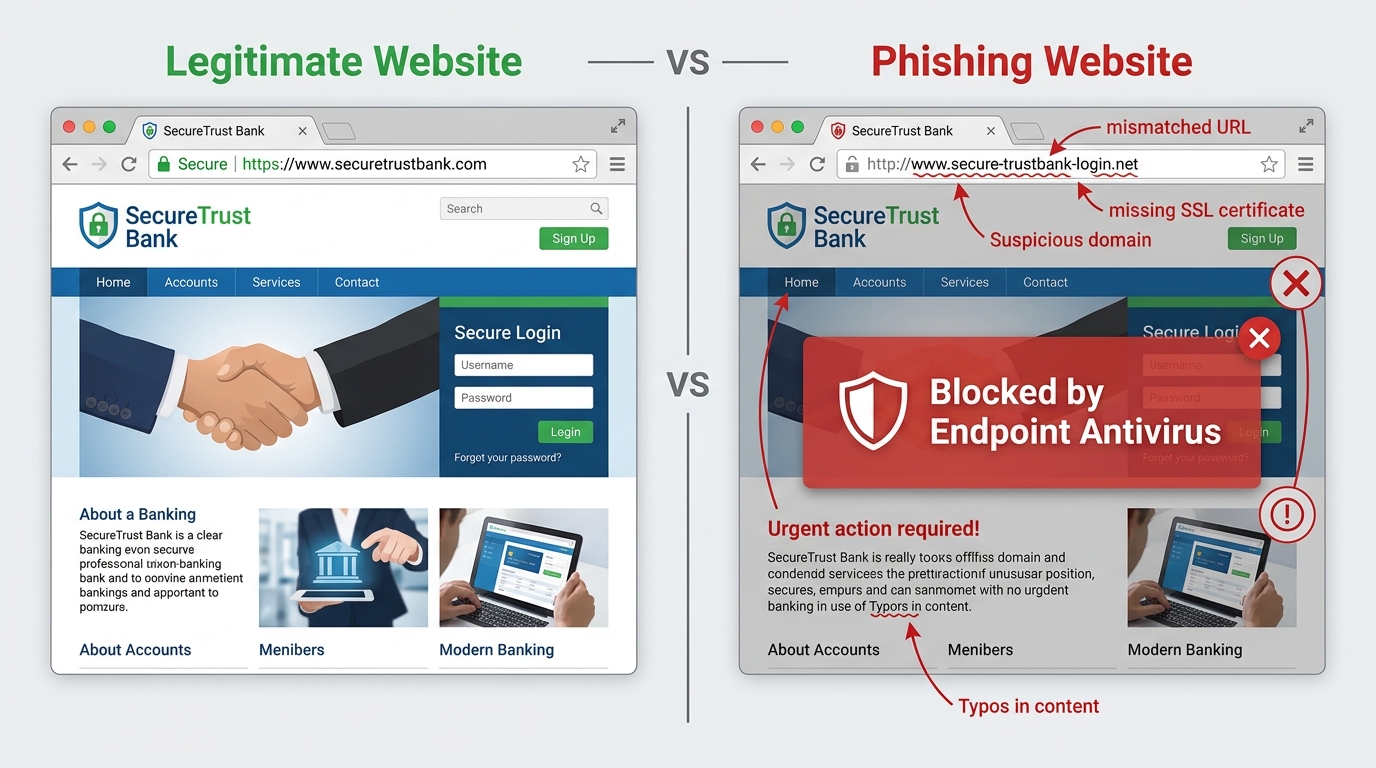
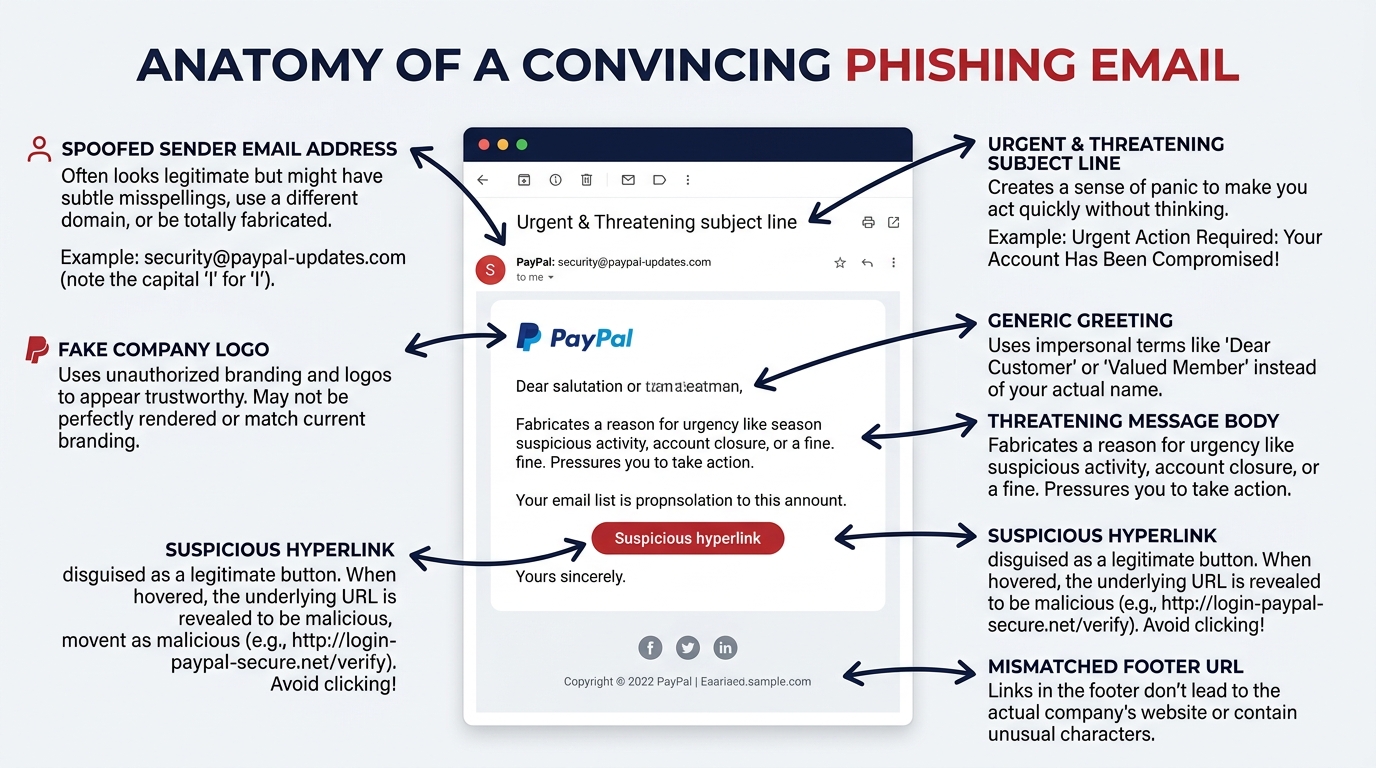
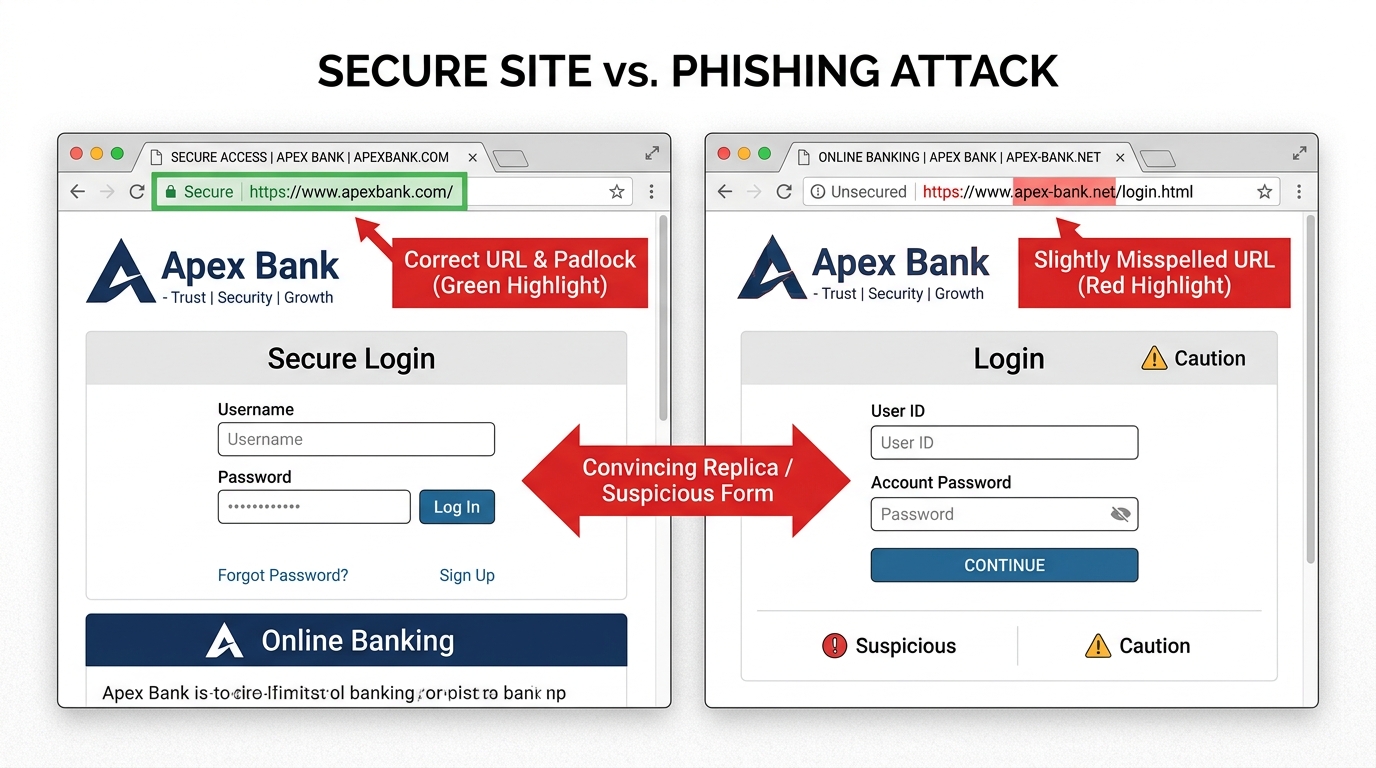
    • Phishing via Email and Malicious Websites: Phishing attacks targeting Mac users have grown in sophistication and volume. Attackers craft emails that convincingly impersonate Apple Support, financial institutions, or cloud service providers, directing users to pixel-perfect replica login pages designed to harvest credentials. A 2026 Cybersecurity Ventures report projected that phishing would remain the number-one initial access vector for Mac-targeted attacks, accounting for over 60% of reported incidents.
    • Malvertising: Malicious advertising — the embedding of malware-laden code within legitimate advertising networks — can expose Mac users to drive-by download attempts simply by visiting reputable, high-traffic websites. The user does not need to click anything; merely loading the page with a vulnerable browser or plugin can initiate the infection chain.
    Side-by-side comparison of a legitimate software download page and a sophisticated fake phishing page, highlighting visual tell-tale signs of deceptive Mac malware downloads

    Exploiting Software Vulnerabilities and Legitimate Tools

    Beyond social engineering, a technically sophisticated class of attacks targets the software stack itself, exploiting flaws that exist independently of user behavior.

    • Unpatched Vulnerabilities: Every piece of software — macOS itself, Safari, Chrome, Firefox, Adobe Reader, Java — contains security vulnerabilities. Apple and third-party developers release patches to address these flaws, but the window between vulnerability disclosure and patch deployment is a prime hunting ground for attackers. A 2025 analysis by the Zero Day Initiative found that macOS and its bundled applications accounted for a significant and growing share of high-severity CVEs (Common Vulnerabilities and Exposures) disclosed annually.
    • Living off the Land (LotL) Techniques: A particularly insidious class of attack involves abusing legitimate, trusted macOS system tools to execute malicious commands. Attackers use built-in scripting environments like AppleScript, Python, osascript, and bash to perform reconnaissance, establish persistence, and exfiltrate data — all without ever introducing a traditional malware binary that security scanners might flag. Because these activities use signed, trusted system components, they are significantly harder to detect.
    Attack Vector Typical Delivery Method User Behavior That Enables It
    Fake Software Update Malicious website pop-up or redirect Manually approving and running an unsigned installer
    Cracked/Pirated Software Third-party torrent or warez sites Deliberately bypassing Gatekeeper warnings
    Phishing Email Spoofed email with malicious link or attachment Clicking links without verifying sender authenticity
    Malvertising Compromised ad network on legitimate site Using an unpatched browser or outdated plugins
    Unpatched Vulnerability Exploit Drive-by download or network-based attack Delaying macOS and application security updates
    Living off the Land (LotL) Malicious script delivered via phishing or download Granting excessive permissions to applications

    What Are the Signs Your Mac Might Have a Virus or Malware?

    Early detection is critical. The longer malware operates undetected on a system, the more damage it can cause — whether that means exfiltrating sensitive data, mining cryptocurrency at your expense, or establishing a persistent backdoor for future exploitation. Mac malware is often designed to operate quietly, but it almost always leaves behavioral fingerprints that an informed user can recognize.

    Performance and System Anomalies

    Your Mac’s performance is one of its most reliable health indicators. Sudden, unexplained changes in how your system behaves are among the earliest and most actionable warning signs.

    • Unexplained Slowdowns and Thermal Stress: If your Mac suddenly feels sluggish, your fans are running at high speed under light workloads, or your MacBook’s battery is draining significantly faster than usual, a background process may be consuming substantial CPU or GPU resources. Cryptomining malware, in particular, is notorious for maxing out processor utilization to generate cryptocurrency for the attacker at your hardware’s expense.
    • Application Instability: Frequent, unexpected application crashes or system freezes that were not previously occurring can indicate that malware has corrupted system files, injected code into running processes, or is competing aggressively for system resources.
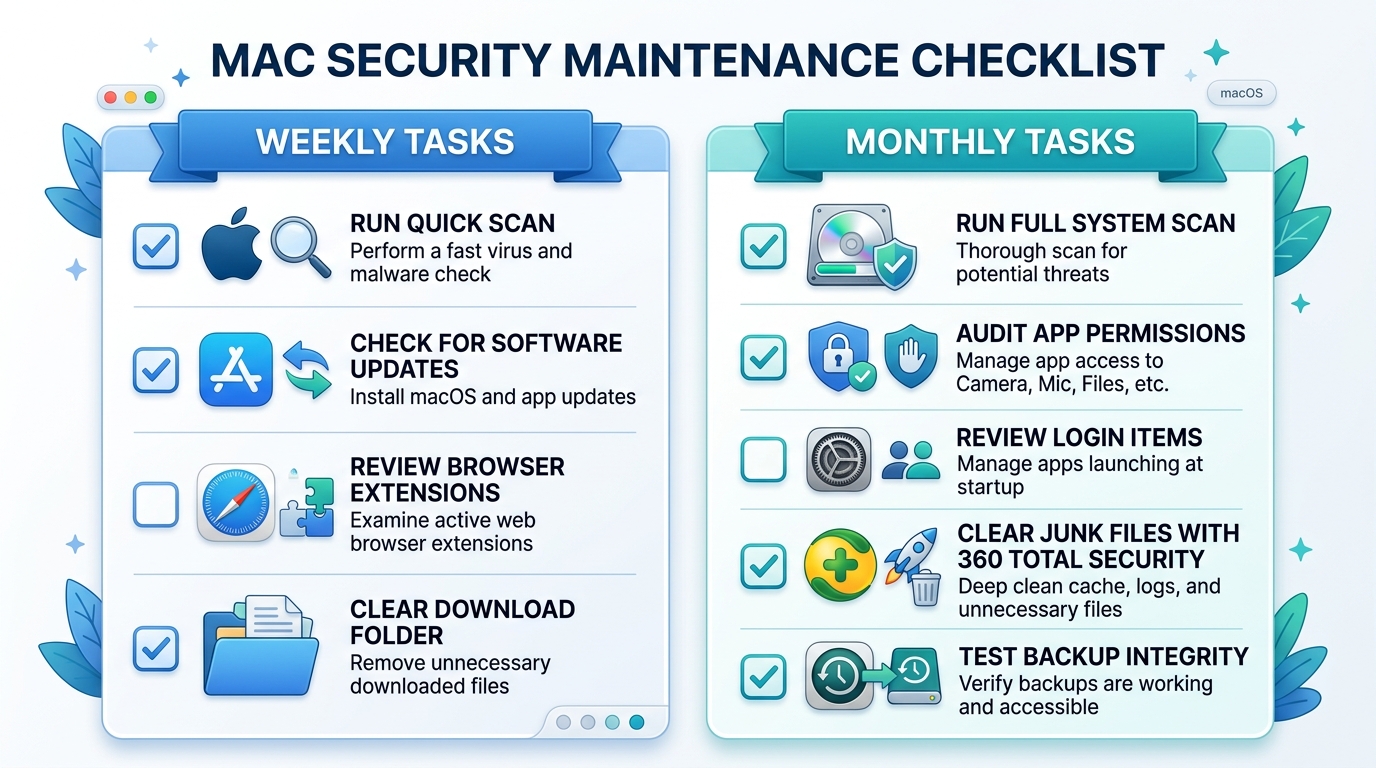
    • Unauthorized Applications and Login Items: Regularly auditing your Applications folder and your System Settings > General > Login Items list is a simple but powerful detection technique. Malware frequently installs helper applications or launch agents that run automatically at startup. Any entry you do not recognize warrants immediate investigation.

    Browser and Network Red Flags

    Many of the most common Mac threats — adware, browser hijackers, and data-stealing trojans — manifest most visibly through changes to browser behavior and unusual network activity.

    • Browser Hijacking: If your browser’s homepage, new tab page, or default search engine has changed to an unfamiliar service without your deliberate action, you are almost certainly dealing with a browser hijacker. These threats typically install as browser extensions and redirect your searches through ad-laden, potentially malicious proxy search engines to generate revenue for their operators.
    • Abnormal Pop-Up Advertising: A sudden influx of pop-up advertisements — particularly those appearing on websites that have never displayed them before, or ads with explicit, alarming, or off-topic content — is a classic symptom of adware infection. Adware injects advertising code into web traffic at the system level, meaning it affects all browsers simultaneously.
    • Suspicious Network Activity: macOS’s built-in Activity Monitor (found in Applications > Utilities) provides a real-time view of network data sent and received by each process on your system. Navigate to the Network tab and sort by “Sent Bytes” or “Rcvd Bytes.” Any process you do not recognize that is transmitting significant volumes of data — especially to IP addresses in unexpected geographic regions — should be treated as a serious red flag and investigated immediately.

    To check for suspicious network activity in Activity Monitor, follow these steps:

    # Steps to Investigate Suspicious Network Activity on macOS
    1. Open Finder > Applications > Utilities > Activity Monitor
    2. Click the "Network" tab at the top of the window
    3. Click "Sent Bytes" column header to sort by outgoing data (descending)
    4. Look for unfamiliar process names with high data transmission values
    5. Right-click any suspicious process and select "Inspect" for more details
    6. Cross-reference unknown process names at: https://www.virustotal.com/

    Proactive Defense: Essential Steps to Protect Your Mac

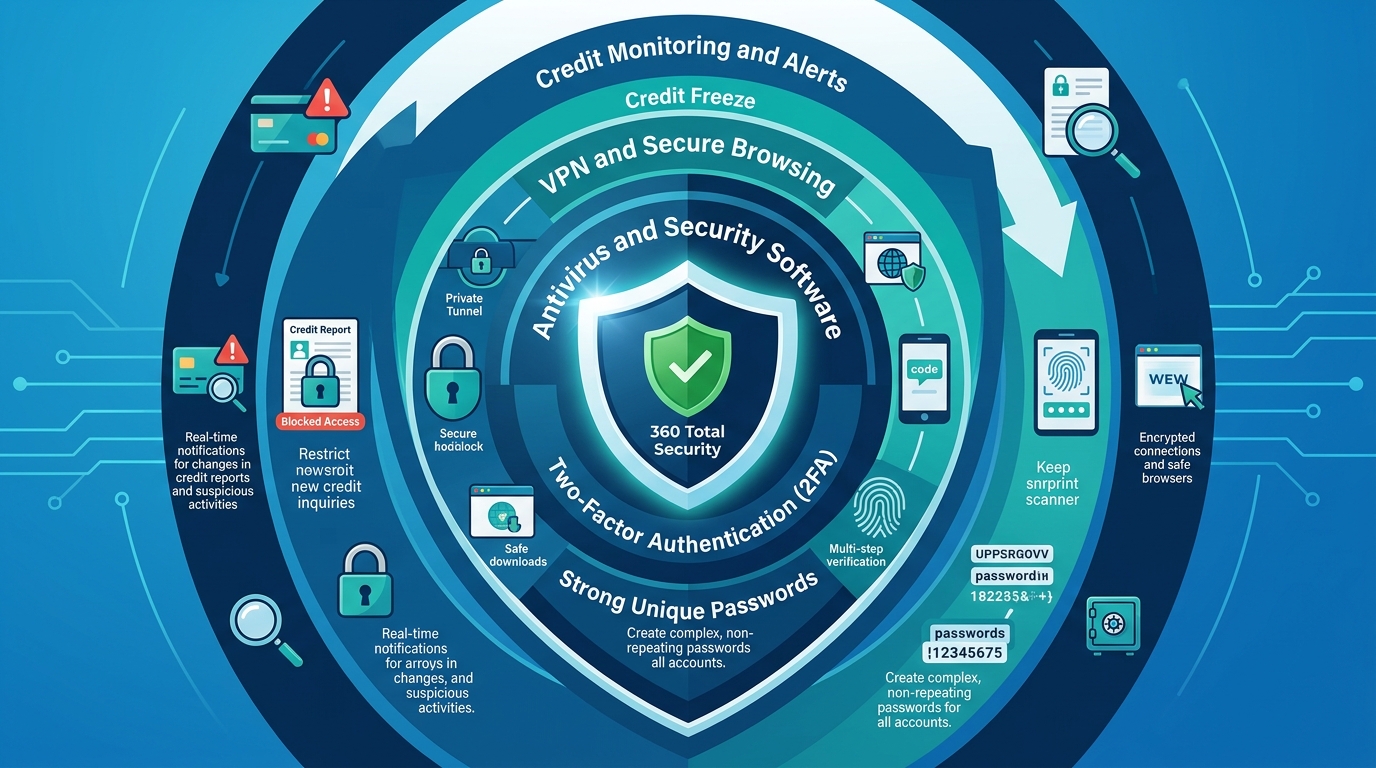
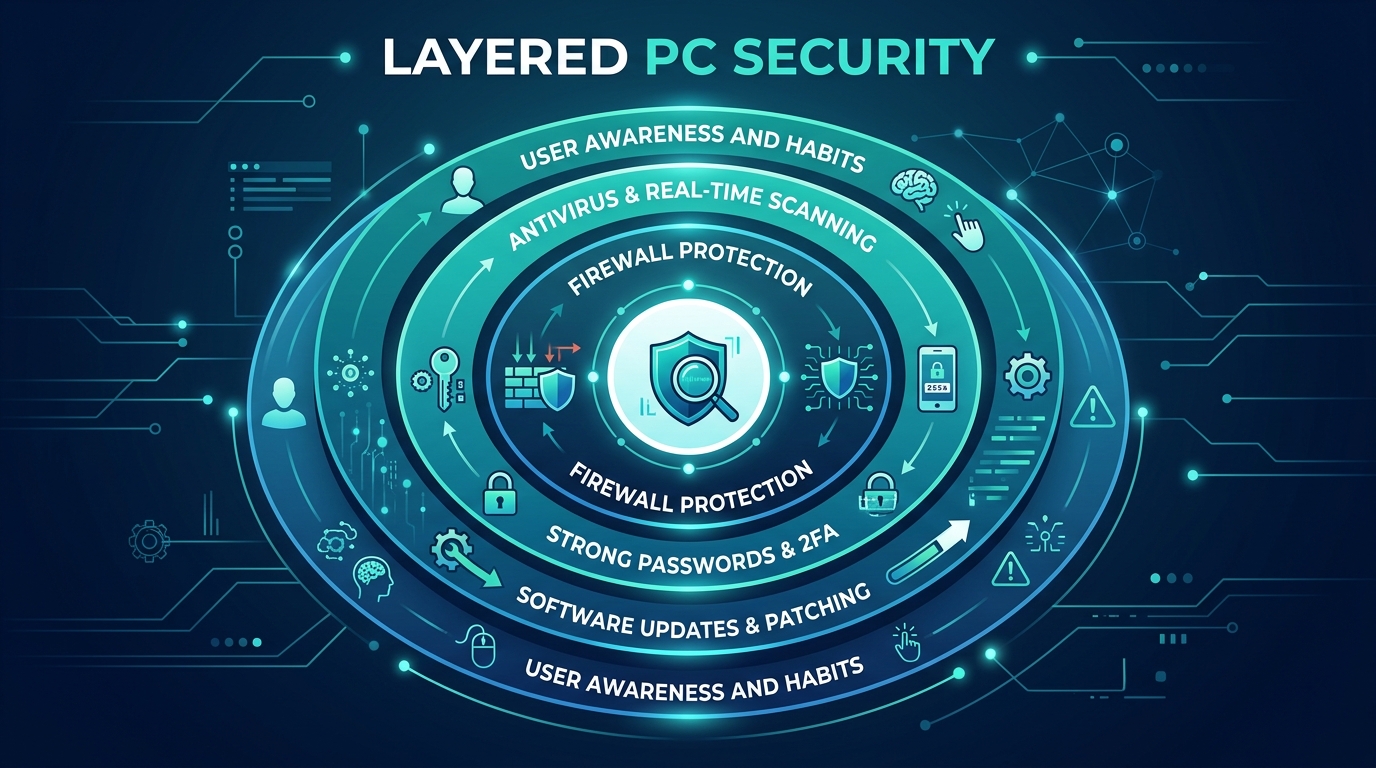
    Effective Mac security is not a single action but a layered system — a defense-in-depth strategy where multiple overlapping controls compensate for each other’s limitations. No single tool or habit provides complete protection; the combination of Apple’s built-in features, disciplined user behavior, and supplemental security software creates a substantially more resilient posture than any one layer alone.

    Maximizing Apple’s Built-in Security Features

    Apple has invested significantly in macOS security infrastructure. These tools are free, already installed, and highly effective when properly configured — yet many users leave them underutilized or misconfigured.

    • Gatekeeper Configuration: Ensure Gatekeeper is set to its recommended security level by navigating to System Settings > Privacy & Security and confirming that “App Store and identified developers” is selected under the “Allow applications downloaded from” section. This setting requires all applications to be either from Apple’s curated App Store or signed with a valid Apple Developer certificate — blocking the vast majority of unsigned malware installers.
    • Enable the macOS Firewall: Navigate to System Settings > Network > Firewall and ensure it is turned on. The macOS firewall controls which applications are permitted to accept incoming network connections, providing a meaningful barrier against network-based intrusion attempts and unauthorized remote access tools.
    • Prioritize System and Software Updates: This is, without qualification, the single most impactful security action available to any Mac user. Navigate to System Settings > General > Software Update and enable automatic updates. “The number one entry point for successful attacks against macOS systems is unpatched software,” according to a 2025 analysis by security researchers at Objective-See, a leading macOS security research organization. “The time between a vulnerability being disclosed and it being actively exploited in the wild has shrunk from months to days. Automatic updates are no longer optional — they are essential.”
    # Verify Gatekeeper Status via Terminal (macOS)
    spctl --status
    # Expected output: assessments enabled
    
    # Enable Gatekeeper if disabled
    sudo spctl --master-enable
    
    # Verify macOS Firewall Status via Terminal
    /usr/libexec/ApplicationFirewall/socketfilterfw --getglobalstate
    # Expected output: Firewall is enabled. (State = 1)

    Cultivating Safe Computing Habits

    Technology controls are only as effective as the human behaviors operating within them. Disciplined habits form the behavioral layer of your security stack.

    • Source Integrity for Downloads: Adopt a strict policy of only downloading software from the official Mac App Store or directly from verified developer websites. If a search engine result leads you to a third-party download mirror for software you are seeking, treat it with extreme suspicion. The official developer’s website URL should be verifiable through multiple independent sources.
    • Healthy Skepticism Toward Communications: Treat every unsolicited email, direct message, or social media communication containing a link or attachment as potentially malicious — even if it appears to originate from a known contact, as email spoofing and account compromise are common. Verify unexpected requests through a separate, trusted communication channel before acting on them.
    • Credential Hygiene and 2FA: Use a reputable password manager to generate and store unique, high-entropy passwords for every account. Enable Two-Factor Authentication (2FA) on all services that support it, particularly Apple ID, email, banking, and cloud storage. Even if a phishing attack successfully captures your password, 2FA provides a critical second barrier against account takeover.

    Infographic illustrating the three layers of Mac security defense: User Habits at the outer layer, macOS Built-in Features in the middle, and Security Software at the core, forming a comprehensive shield

    Why Consider a Dedicated Security Solution Like 360 Total Security for Mac?

    Apple’s native security tools — Gatekeeper, XProtect, Malware Removal Tool (MRT), and the Firewall — are genuinely capable and form an important foundation. However, they have documented limitations: XProtect’s signature database is updated less frequently than dedicated commercial security products, it offers no real-time behavioral monitoring, and it provides no system optimization, cleanup, or proactive web protection capabilities. For users who demand comprehensive, layered protection, a dedicated security suite fills these gaps decisively.

    Beyond Basic Scanning: Multi-Layered Real-Time Protection

    360 Total Security for Mac is engineered to complement and substantially extend macOS’s native defenses through several interconnected protection layers.

    • Real-Time File System Monitoring: Unlike XProtect, which performs checks primarily at application launch, 360 Total Security continuously monitors the file system in real time. Every file you download, every document you open, and every application you execute is scanned against an up-to-the-minute threat database before it can interact with your system. This proactive interception model stops threats at the point of entry rather than after they have already executed.
    • Cloud-Based AI Detection Engine: 360 Total Security leverages a cloud-connected artificial intelligence detection engine — what the company calls its “security brain” — that can identify new, previously unseen malware variants based on behavioral patterns and structural analysis rather than relying solely on known malware signatures. This capability is particularly critical for defending against zero-day threats and novel malware families like Silver Sparrow, which evaded detection by traditional signature-based tools for an extended period after deployment.
    • Web and Phishing Protection: The integrated web protection module actively blocks access to known phishing websites, malicious download portals, and fraudulent banking pages directly within your browser. This provides a critical safety net for the moments when social engineering is most likely to succeed — when a user is actively engaged with a convincing, urgent-seeming deception.

    Comprehensive Cleanup and Performance Boosting

    One of 360 Total Security’s most practically valuable differentiators is its dual role as both a security tool and a system health optimizer — addressing the performance symptoms that malware often causes, as well as the general system bloat that accumulates over time.

    • Malware Removal and Adware Cleanup: For systems that may already be compromised, 360 Total Security’s deep scan capabilities are designed to find and fully remove entrenched malware, adware, browser hijackers, and Potentially Unwanted Programs (PUPs) that native tools and lighter scanners frequently miss. This includes cleaning up the persistent launch agents, browser extensions, and configuration profile modifications that many adware families use to survive reboots and manual removal attempts.
    • System Optimization Suite: The built-in optimization tools include a junk file cleaner that removes system caches, application residuals, and temporary files; a startup manager that identifies and helps you disable unnecessary login items that slow boot times; and a large file finder that surfaces storage-consuming files you may have forgotten. These tools directly address the performance degradation that is both a symptom of malware and a general consequence of long-term Mac use.

    Getting started with 360 Total Security on your Mac is straightforward:

    # How to Get Started with 360 Total Security for Mac
    1. Visit the official website: https://www.360totalsecurity.com/en
    2. Download the macOS installer (.dmg file) from the official download page
    3. Open the .dmg file and drag 360 Total Security to your Applications folder
    4. Launch the application and grant the required system permissions
       (Full Disk Access, Notifications) in System Settings > Privacy & Security
    5. Run an initial Full Scan to establish a security baseline
    6. Enable Real-Time Protection in the application settings
    7. Schedule weekly scans for ongoing maintenance

    Final Verdict and Actionable Security Checklist

    The evidence is unambiguous: Macs are not immune to viruses, malware, adware, or any other class of modern cyber threat. The myth of Mac immunity is a historical artifact that has outlived the conditions that gave rise to it. However, this reality should not be cause for alarm — it should be cause for informed, structured action. The threat to Mac users is real but entirely manageable with the right combination of awareness, habits, and tools.

    Your Mac Security Priority Checklist

    • Immediate Action — Run a Baseline Scan: If you have never run a dedicated security scan on your Mac, do it today. Download 360 Total Security — it is available at no cost and requires no commitment — and run a full system scan to establish a clean baseline. You may be surprised by what it finds, particularly if you have been operating under the assumption that your Mac was inherently safe.
    • Habit Formation — Source Discipline: Commit, starting today, to downloading software exclusively from the Mac App Store or directly verified developer websites. Extend this discipline to a healthy skepticism toward all unsolicited links and email attachments. These two behavioral changes alone eliminate the delivery mechanism for the majority of Mac infections.
    • System Hygiene — Enable Automatic Updates: Turn on automatic macOS updates, enable the Firewall, and set a monthly calendar reminder to review your Login Items and Applications folder for anything unfamiliar. These routine hygiene practices close the vulnerability windows that attackers depend on.

    Embracing a Security-Aware Mindset

    The final and perhaps most important shift is cognitive. Acknowledging that your Mac faces real threats is not an admission of Apple’s failure — it is a recognition of the reality that no operating system exists in isolation from the evolving tactics of a global, financially motivated cybercriminal ecosystem.

    • Vigilance Is Your Most Powerful Tool: The majority of successful Mac attacks require the user to make a mistake — to click the wrong link, approve the wrong installer, or ignore a warning. An informed, skeptical user dramatically reduces the attack surface available to any threat actor.
    • Security Software as a Performance Enhancer: Reframe how you think about security software. Tools like 360 Total Security are not a sign that macOS is weak — they are a performance and maintenance enhancer that removes junk, catches what native tools miss, and keeps your system running at its best. They complement macOS’s strengths rather than compensating for fundamental weaknesses.
    Common Myth Evidence-Based Reality Recommended Action
    “Macs cannot get viruses” Thousands of Mac malware families are actively documented and deployed Run a full scan with 360 Total Security
    “Apple’s built-in tools are sufficient” XProtect has limited real-time monitoring and no web protection or cleanup tools Supplement with a dedicated security suite
    “I only visit safe websites, so I’m fine” Malvertising and phishing operate on legitimate, high-traffic websites Enable web protection; use an ad blocker
    “Slow Mac = old hardware” Performance degradation is a primary malware symptom Scan for malware; use optimization tools
    “Security software slows down my Mac” Modern security suites include optimization tools that improve performance Try 360 Total Security’s free optimization features

    The bottom line: treat your Mac with the same security discipline you would apply to any valuable, internet-connected computing device. The myth of immunity is over. The era of informed, proactive Mac security has begun. Visit 360 Total Security today to take your first concrete step toward comprehensive Mac protection.

    Frequently Asked Questions

    Can a Mac really get a virus, or is that just a myth?

    Yes, Macs can absolutely get viruses, trojans, adware, ransomware, and other forms of malware. The belief that they cannot is a myth rooted in historical conditions — primarily lower market share — that no longer apply. Security firms including Malwarebytes, Kaspersky, and Objective-See have documented thousands of Mac-specific malware families, and the number of detected threats continues to grow year over year. No operating system is inherently immune to all threats.

    Does macOS have built-in antivirus protection?

    Yes, macOS includes several native security mechanisms: XProtect (a signature-based malware scanner), the Malware Removal Tool (MRT), Gatekeeper (application verification), and a system Firewall. These tools provide a meaningful baseline of protection. However, XProtect’s signatures are updated less frequently than commercial products, it lacks real-time behavioral monitoring, and it provides no web protection or system cleanup capabilities — gaps that dedicated solutions like 360 Total Security are designed to fill.

    What is the most common way Macs get infected with malware?

    The most common infection vector for Mac malware is social engineering — specifically, fake software update prompts and installers for pirated applications that bundle malware payloads. These attacks work by convincing users to manually approve and run malicious software, effectively bypassing Gatekeeper. Phishing emails and malvertising on legitimate websites are the second and third most common vectors. The consistent theme is that most Mac infections require a user to take an action, making informed behavior the most powerful preventive measure.

    How can I tell if my Mac already has malware?

    Key warning signs include: unexplained performance slowdowns or excessive fan activity under light workloads; browser homepage or search engine changes you did not make; an influx of pop-up advertisements across all websites; unfamiliar applications in your Applications folder or Login Items; and unusual network activity visible in Activity Monitor. If you observe any of these symptoms, run a full scan with a dedicated security tool like 360 Total Security immediately.

    Is 360 Total Security free for Mac, and what does it include?

    360 Total Security offers a free tier for macOS that includes full virus and malware scanning, real-time file system protection, and system optimization tools including junk file cleaning and startup management. A premium tier with expanded features including enhanced web protection and priority cloud scanning is also available. The free version represents a zero-cost, zero-risk starting point for any Mac user looking to establish a security baseline and is available for download at the 360 Total Security official website.


    About the Author: This article was researched and written by a Senior Technical Writer specializing in cybersecurity, endpoint protection, and macOS security architecture. With over a decade of experience translating complex security concepts for both technical and general audiences, the author has contributed to cybersecurity publications, enterprise security documentation, and consumer education initiatives focused on practical, evidence-based digital safety guidance.

  • Cloud-Based Antivirus: The Complete Guide to Modern PC Protection

    Executive Summary: Cloud-based antivirus has fundamentally redefined how personal computers are protected against digital threats. Unlike traditional security software that relies on locally stored signature databases, cloud antivirus offloads threat analysis to powerful remote servers, enabling real-time detection of zero-day exploits, fileless malware, and ransomware with minimal impact on system performance. This comprehensive guide explores the architecture behind cloud antivirus technology, explains why modern PC users cannot afford to ignore it, identifies the essential features to evaluate when choosing a solution, and demonstrates how tools like 360 Total Security exemplify the best of cloud-powered, multi-engine protection for Windows and macOS desktops.

    What is Cloud-Based Antivirus and How Does It Differ from Traditional Software?

    Cloud-based antivirus represents a paradigm shift in cybersecurity. Where traditional security software depends on a static, locally stored library of known malware signatures, cloud antivirus moves the heavy lifting of threat detection and behavioral analysis to secure, high-powered remote servers. The result is a form of real-time protection that is faster to update, lighter on system resources, and far more capable of identifying threats that have never been seen before. Understanding this architectural difference is the first step toward appreciating why cloud antivirus has become the gold standard for modern PC security.

    The Core Architecture: Local Agent + Cloud Brain

    The elegance of cloud antivirus lies in its division of labor. The software installed on your PC is intentionally lightweight — a local agent that functions primarily as a sensor and enforcement mechanism. When a file is accessed, downloaded, or executed, this local agent collects critical data points: file signatures, behavioral patterns, metadata, and contextual information about how the file is interacting with the operating system. This data is then transmitted securely to cloud servers for analysis.

    Diagram showing a local PC agent sending file data to a cloud security server which returns a threat verdict in real time

    The computationally intensive work — pattern matching against billions of known threat signatures, heuristic analysis, and behavioral modeling — happens on the cloud infrastructure, not on your machine. The cloud server returns a verdict almost instantaneously: safe, suspicious, or malicious. This architecture delivers two critical advantages. First, the local software maintains an extremely small footprint because it does not need to store or continuously update a massive signature database. Second, when a new threat is discovered anywhere in the world by any user on the network, the cloud database is updated immediately, extending protection to every connected user within seconds.

    Key Advantages Over Traditional, Signature-Based Antivirus

    Traditional antivirus software operates on a fundamentally reactive model. It can only detect threats that match signatures already catalogued in its local database. This creates an inherent vulnerability window: the time between a new piece of malware being released into the wild and the antivirus vendor releasing a signature update can be hours or even days. During that window, traditional software is essentially blind to the new threat.

    Cloud antivirus addresses this gap in several important ways:

    • Dramatically smaller system footprint: Because the local client does not maintain a multi-gigabyte signature database, installation sizes are smaller, RAM consumption is lower, and background CPU usage is reduced. Users notice faster boot times and more responsive applications.
    • Superior zero-day threat detection: According to a 2026 Cybersecurity Effectiveness Report by leading independent testing organizations, cloud-based solutions demonstrate significantly higher detection rates for previously unknown malware compared to purely signature-based counterparts. This is because cloud heuristics analyze behavior rather than just identity.
    • Collective intelligence at scale: Every threat encountered by any user in the network contributes to the shared knowledge base. This crowdsourced model means that a novel ransomware variant discovered on a computer in one country is immediately flagged for every other user globally, turning the entire user base into a distributed early-warning system.

    Why Modern PC Users Need Cloud-Powered Antivirus Protection

    The cybersecurity landscape of today bears little resemblance to the era when a simple signature-based scanner was sufficient. Modern threat actors deploy sophisticated, polymorphic malware that changes its code to evade detection, exploit zero-day vulnerabilities before patches are available, and use fileless techniques that leave no trace on disk. Simultaneously, users demand that their security software does not degrade the performance of their machines. Cloud-powered antivirus is uniquely positioned to meet both of these demands simultaneously.

    The Rising Threat of Zero-Day Exploits and Fileless Malware

    A zero-day exploit targets a software vulnerability that is unknown to the vendor and for which no patch yet exists. Attackers who discover such vulnerabilities can deploy malware that traditional antivirus software — which checks files against known signatures — has no ability to recognize. These attacks are particularly dangerous because they can remain active and undetected for extended periods.

    Even more elusive is fileless malware, a category of attack that operates entirely within a computer’s RAM and leverages legitimate system tools like PowerShell or Windows Management Instrumentation (WMI) to execute malicious commands. Because fileless malware writes nothing to disk, there is no file for a traditional signature scanner to examine. Research from 2025 and 2026 by major cybersecurity firms including CrowdStrike has consistently highlighted that fileless attacks account for a growing proportion of successful enterprise and consumer breaches, precisely because they are invisible to legacy detection methods.

    Cloud antivirus counters these threats through two powerful mechanisms. First, behavioral analysis monitors how processes interact with system resources in real time, flagging anomalous activity such as a script attempting to disable security processes or encrypt files in bulk. Second, cloud-based sandboxing executes suspicious files in a secure virtual environment hosted on remote servers, observing their behavior without any risk to the user’s actual machine. If the file attempts malicious actions inside the sandbox, it is blocked before it ever runs on the PC.

    The Critical Need for Minimal System Impact

    For many users, the frustration with traditional antivirus software is not just about detection rates — it is about the performance tax. A conventional antivirus performing a full system scan can consume 30–60% of CPU resources, dramatically slow file transfers, and cause noticeable lag during application launches. For gamers mid-session, video editors rendering a project, or developers compiling code, this kind of interruption is unacceptable.

    The lightweight local client model of cloud antivirus eliminates most of this performance burden. Because the local agent is not running complex analysis algorithms or maintaining a large database, its background resource consumption is a fraction of that of traditional software. The cloud handles the heavy computation, and it does so on infrastructure that is orders of magnitude more powerful than any consumer PC. This means that security and performance are no longer in conflict — a critical consideration for gamers, content creators, streamers, and anyone running resource-intensive applications.

    Seamless Protection for an Always-Connected World

    Modern computing is inherently connected. Whether working from a home office, a corporate network, a coffee shop’s public Wi-Fi, or a hotel connection, today’s PC users are almost always online. Cloud antivirus is architecturally suited to this reality in a way that traditional software is not. Because its threat intelligence lives in the cloud, it does not require the user to manually trigger updates or wait for a scheduled update download. Protection is always current, regardless of which network the user is on.

    As Dr. Marcus Hale, Senior Threat Intelligence Analyst at a leading cybersecurity research institute, noted in a 2025 industry briefing: “In an era where employees move between home networks, corporate VPNs, and public hotspots multiple times a day, the only viable security model is one that is perpetually updated from the cloud. Any solution that depends on periodic local updates creates windows of vulnerability that sophisticated attackers are actively trained to exploit.”

    Essential Features to Look for in a Cloud Antivirus Solution

    Not all cloud antivirus products are created equal. The cloud label has become something of a marketing term, and some products that claim cloud capabilities are still fundamentally reliant on local signature databases with only superficial cloud integration. Evaluating a cloud antivirus solution requires examining a specific set of capabilities that genuinely leverage the cloud’s power while maintaining robust local defenses for scenarios where connectivity may be intermittent.

    Core Cloud-Dependent Capabilities

    The following features should be present in any solution that genuinely qualifies as cloud-powered:

    • Real-Time Cloud Scanning: Every file that is accessed, downloaded, or executed should be checked in real time against a live, continuously updated global threat database. This is the foundational feature of cloud antivirus and should not require manual activation.
    • Behavioral Detection Engine (Cloud Heuristics): Beyond signature matching, the solution should analyze the behavior of programs — both in real time on the local machine and within a cloud-hosted sandbox — to identify malicious intent even in files with no known signature. This is the primary defense against zero-day and polymorphic malware.
    • Crowdsourced Threat Intelligence: The product should actively contribute anonymized threat data from its user base to a shared intelligence pool and benefit from that pool in return. Solutions with larger user bases have a significant advantage here, as more data means faster identification of emerging threats.

    Critical Complementary Local Protections

    Cloud capabilities are most effective when paired with strong local protections that function even during brief periods of limited connectivity:

    • A Robust Local Firewall: Network traffic monitoring and control is essential for blocking unauthorized inbound and outbound connections. This is particularly important when connecting to public Wi-Fi networks where other devices on the same network may be compromised.
    • Ransomware Protection Module: A dedicated component that monitors file system activity for patterns consistent with ransomware behavior — specifically, the rapid encryption of large numbers of files. This module should be capable of blocking the encryption process and alerting the user before significant data loss occurs.
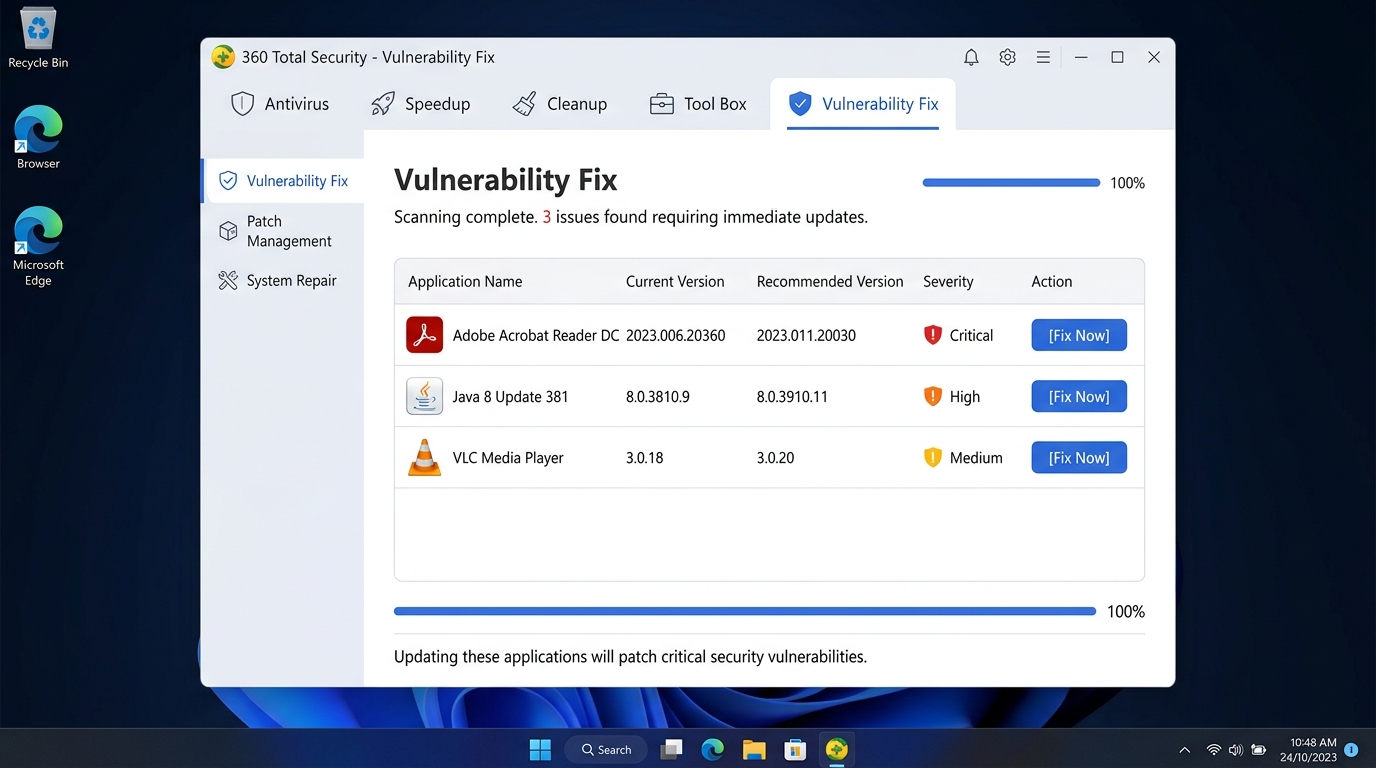
    • Vulnerability Scanner: A local tool that audits the operating system and installed applications for missing security patches, outdated software versions, and weak security configurations. Unpatched software is one of the most common attack vectors in both targeted and opportunistic attacks.
    Security Feature 360 Total Security (Free) Typical Free Antivirus Typical Paid Antivirus
    Real-Time Cloud Scanning ✅ Yes ⚠️ Limited ✅ Yes
    Multi-Engine Detection ✅ 5 Engines (incl. Avira & Bitdefender) ❌ Single Engine ⚠️ 1–2 Engines
    Behavioral / Heuristic Analysis ✅ Yes (QVM II AI) ⚠️ Basic ✅ Yes
    Firewall ✅ Yes ❌ Rarely Included ✅ Yes
    Ransomware Shield ✅ Yes ❌ Rarely Included ✅ Yes
    Vulnerability Scanner ✅ Yes ❌ No ⚠️ Sometimes
    System Optimization Tools ✅ Yes (Cleanup, Startup Manager) ❌ No ⚠️ Premium Tier Only
    Sandbox Analysis ✅ Cloud-Based ❌ No ✅ Yes

    Usability and Performance Considerations

    A security solution that users find intrusive or confusing is a security solution that gets disabled. Usability is not a luxury feature — it is a core security requirement. Look for the following characteristics:

    • Intuitive, non-intrusive interface: The dashboard should communicate security status clearly at a glance without bombarding the user with constant notifications, pop-ups, or upsell prompts that create alert fatigue.
    • Configurable scan schedules and exclusions: Users should be able to schedule scans during off-peak hours and create exclusions for trusted directories (such as a large media library or a development environment) to prevent unnecessary scanning overhead.
    • Integrated system optimization: Tools like junk file cleaners and startup managers complement security by keeping the operating system lean and responsive. A cluttered, slow PC is also a less secure PC, as outdated temp files and registry bloat can mask malicious activity.
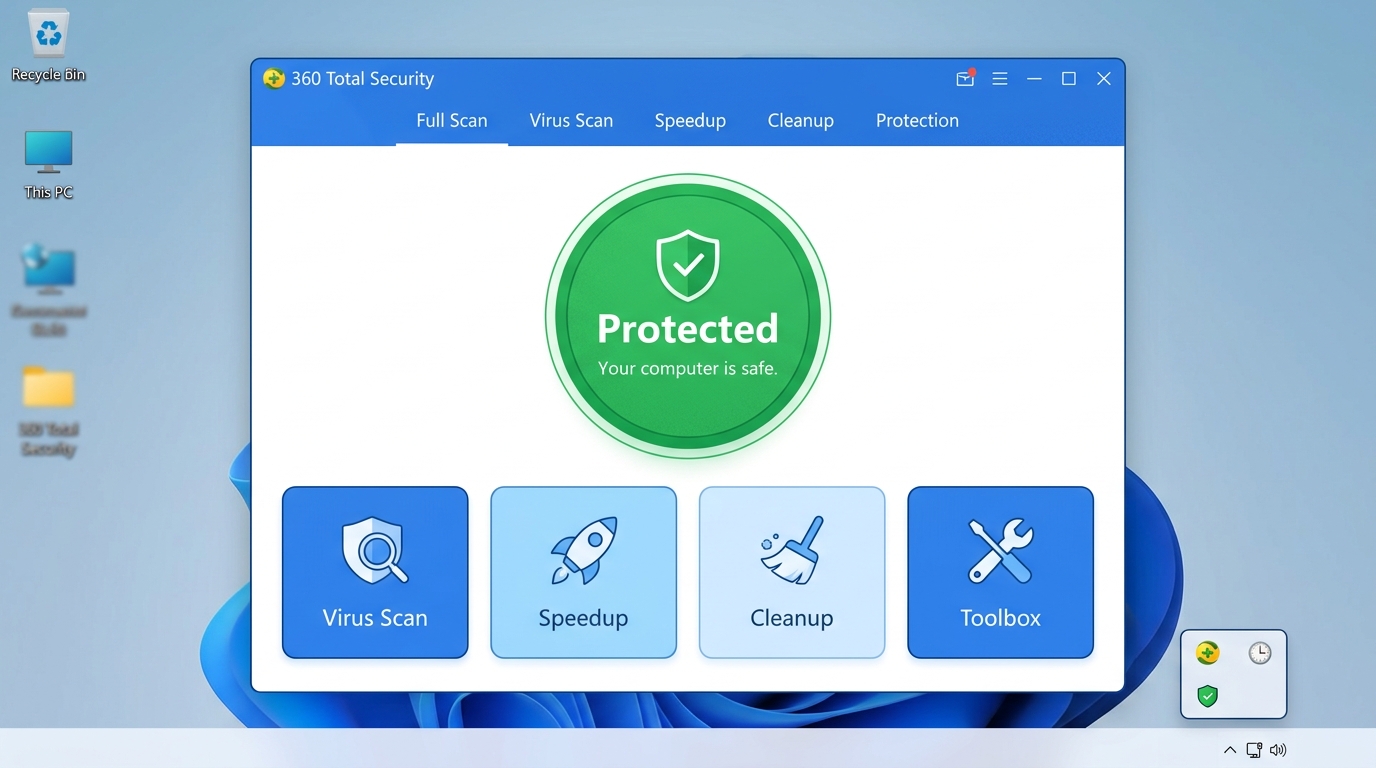
    Annotated screenshot of 360 Total Security dashboard highlighting the one-click Checkup button that combines virus scanning and system optimization

    How 360 Total Security Exemplifies Modern Cloud-Powered Protection

    360 Total Security stands as a compelling example of what modern cloud antivirus can achieve when designed with both security depth and user experience as primary objectives. Available for both Windows and macOS desktops, it combines a unique five-engine detection architecture with a suite of integrated PC optimization tools — all available in a free tier that rivals many paid competitors in raw capability.

    The Power of Five Engines and Cloud AI

    The most distinctive aspect of 360 Total Security is its multi-engine approach to threat detection. Rather than relying on a single detection methodology, it layers five complementary engines to maximize coverage:

    • QVM II AI Engine: 360’s proprietary artificial intelligence engine, trained on vast amounts of threat data collected from its global user base. QVM II uses machine learning to identify patterns associated with malicious behavior, enabling it to detect novel malware variants that have no known signature. This is 360’s primary defense against zero-day threats.
    • Cloud Engine: Provides real-time detection by checking files against 360’s continuously updated cloud security database. This engine benefits directly from the crowdsourced threat intelligence of 360’s hundreds of millions of users worldwide.
    • Avira Engine: Integrates the virus signature database and detection algorithms from Avira, one of Europe’s most respected antivirus laboratories, adding a layer of proven, industry-recognized detection capability.
    • Bitdefender Engine: Incorporates detection technology from Bitdefender, which has consistently achieved top scores in independent lab tests conducted by organizations such as AV-Comparatives and AV-TEST. According to 2025 AV-Comparatives Real-World Protection Test results, Bitdefender’s engine achieved a protection rate exceeding 99.9%, a standard that 360 Total Security users benefit from directly.
    • System Repair Engine: A specialized component focused on identifying and repairing damage caused by malware infections, restoring system settings and files that threats may have altered.

    This multi-engine architecture means that a threat missed by one detection method is likely to be caught by another, creating a genuinely layered defense rather than a single point of failure.

    Delivering Maximum Security with Minimal System Impact

    360 Total Security’s cloud-first architecture ensures that the local installation remains lightweight. The software does not maintain large local signature databases for the Avira and Bitdefender engines in their entirety; instead, it queries cloud resources intelligently, pulling only what is needed for real-time analysis. This keeps RAM and CPU consumption low during normal operation.

    For gamers and users of full-screen applications, 360 Total Security includes a Game Boost mode that automatically reduces background activity and suppresses notifications when a game or full-screen application is detected. Scan scheduling allows users to run deep scans during idle periods — overnight or during lunch breaks — ensuring that comprehensive protection never comes at the cost of a smooth user experience.

    The Quick Scan feature is particularly noteworthy. By focusing on the most vulnerable areas of the system — startup programs, running processes, browser extensions, and recently accessed files — it delivers a meaningful security check in under two minutes with minimal CPU overhead, making it practical to run as a daily habit.

    Beyond Antivirus: Integrated PC Health and Optimization

    One of the most frequently cited advantages of 360 Total Security among its user base is the inclusion of a comprehensive suite of PC maintenance tools alongside its security features. This positions the software not merely as an antivirus but as a complete PC care platform:

    • System Cleanup: Scans for and removes junk files, temporary internet files, broken registry entries, and application cache data that accumulate over time and consume disk space without providing value. Regular cleanup also reduces the surface area for malware that may attempt to hide within system clutter.
    • Startup Manager: Provides a clear, categorized view of all programs configured to run at system startup, with recommendations for which can safely be disabled to improve boot times. This feature alone can dramatically speed up older machines.
    • Network Booster: Analyzes and optimizes internet connection settings, DNS configurations, and network adapter parameters to improve browsing speed and reduce latency — a practical benefit for remote workers and online gamers alike.

    As James Thornton, a veteran technology reviewer with over fifteen years of experience evaluating PC software, observed in a 2026 review: “What makes 360 Total Security genuinely remarkable in the free antivirus space is not any single feature but the comprehensiveness of the package. Getting Bitdefender-level detection accuracy, a behavioral AI engine, a firewall, a ransomware shield, a vulnerability scanner, and a full suite of optimization tools at zero cost is the kind of value proposition that makes you question why you would pay for anything else for everyday desktop protection.”

    Users looking for a free, high-performance, cloud-powered security solution for their Windows or macOS desktop are strongly encouraged to visit the 360 Total Security official website to download and experience the full feature set firsthand.

    Implementing and Optimizing Your Cloud Antivirus for Best Results

    Installing a cloud antivirus solution is the essential first step, but it is not the final one. The difference between adequate protection and genuinely robust security lies in thoughtful configuration and the development of security-conscious computing habits. Even the most sophisticated cloud antivirus cannot fully compensate for a user who clicks on every suspicious link or never applies operating system updates. This section provides a practical roadmap for getting the most out of your cloud antivirus investment.

    Initial Setup and Critical Configuration Steps

    During and immediately after installation, several configuration decisions will significantly affect the quality of your protection:

    • Enable real-time protection and cloud scanning immediately: These features should be activated by default, but verify that they are enabled in the settings panel. Real-time protection is the most important single feature of any antivirus solution — without it, threats can execute before they are detected.
    • Configure the firewall for your network type: Most cloud antivirus solutions, including 360 Total Security, offer different firewall profiles for private networks (home, trusted office) and public networks (cafes, airports, hotels). Public network profiles apply stricter rules, blocking more inbound connection attempts. Ensure the correct profile is selected when you connect to a new network type.
    • Establish a scan schedule: Configure daily or weekly Quick Scans to run automatically during periods when the PC is on but not in active use — early morning or during a lunch break are ideal. Schedule a Full System Scan monthly to ensure comprehensive coverage. For 360 Total Security users, the Checkup feature provides a combined virus scan and system optimization review in a single operation, making it an efficient choice for regular maintenance.

    For 360 Total Security specifically, navigate to Settings > Protection Settings to verify that all five engines are active and that cloud scanning is enabled. Under Scan Settings, confirm that compressed files and removable drives are included in scan scope for maximum coverage.

    360 Total Security - Recommended Initial Settings:
    
    [Protection Settings]
      Real-Time Protection: ON
      Cloud Scanning: ON
      Behavioral Protection: ON
      Ransomware Protection: ON
    
    [Scan Settings]
      Scan Compressed Files: ON
      Scan Removable Drives: ON
      Scan Network Drives: ON (if applicable)
    
    [Scheduled Scans]
      Quick Scan: Daily at 08:00 AM (or preferred low-activity time)
      Full Scan: Monthly, first Sunday at 02:00 AM
      Checkup: Weekly
    
    [Firewall]
      Home Network Profile: Private
      Public Wi-Fi Profile: Public (Strict)
    

    Developing a Security-Conscious User Behavior

    Technology provides a foundation, but human behavior remains the most significant variable in personal cybersecurity. The majority of successful malware infections still begin with a user action — clicking a malicious link, opening an infected email attachment, or downloading software from an untrustworthy source. Developing the following habits will dramatically reduce your exposure:

    • Keep your operating system and software updated: Your vulnerability scanner will highlight missing patches, but do not wait for it to prompt you. Enable automatic updates for Windows or macOS and for all installed applications, particularly browsers, PDF readers, and office software, which are frequent targets for exploit-based attacks.
    • Practice safe browsing and email hygiene: Treat unexpected email attachments with suspicion, even from known senders whose accounts may have been compromised. Verify the legitimacy of download sources before executing any installer. Be especially cautious of offers that seem too good to be true — free premium software, unexpected prize notifications, and urgent account security alerts are classic social engineering tactics.
    • Use strong, unique passwords and a password manager: Credential theft through phishing and data breaches is one of the most common pathways to account compromise. A password manager generates and stores complex, unique passwords for every account, eliminating the risk of credential reuse across services.

    Security mindset infographic with icons for Think Before You Click, Update Regularly, Use Strong Passwords, and Backup Your Data

    Advanced Tips for Power Users and IT Admins

    For users who want to go beyond the defaults and fine-tune their security configuration, the following advanced practices offer meaningful additional protection:

    • Create targeted scan exclusions: If you work with large trusted files or directories — a multi-terabyte media library, a software development workspace with thousands of source files, or a virtual machine image — adding these to the exclusion list prevents unnecessary scanning overhead without compromising security. Only exclude directories whose contents you can fully vouch for.
    • Review quarantine and protection logs regularly: Most cloud antivirus solutions maintain detailed logs of every threat detected, blocked, or quarantined. Reviewing these logs periodically provides valuable insight into the threat landscape you are personally facing, helps identify recurring infection vectors, and allows you to confirm that no legitimate files were incorrectly flagged.
    • Explore the full toolbox: For 360 Total Security users, the Toolbox section contains a range of additional utilities that extend the platform’s value well beyond antivirus. The File Shredder permanently deletes sensitive files beyond the possibility of forensic recovery. The Data Recovery tool can restore accidentally deleted files. Exploring these tools and incorporating relevant ones into your regular workflow transforms 360 Total Security from a passive background service into an active component of your comprehensive digital security strategy.

    For IT administrators managing multiple machines, 360 Total Security’s centralized management capabilities allow policy deployment and monitoring across endpoints, ensuring consistent configuration and protection standards across an organization’s desktop fleet.

    Frequently Asked Questions

    What is the difference between cloud antivirus and traditional antivirus?

    Traditional antivirus relies on a locally stored database of known malware signatures to identify threats. It requires regular updates to remain effective and consumes significant system resources. Cloud antivirus, by contrast, offloads threat analysis to remote servers, enabling real-time detection of both known and unknown threats through behavioral analysis and AI. The local software remains lightweight, and the threat database is always current without requiring manual updates.

    Does cloud antivirus work without an internet connection?

    Cloud antivirus is most effective when connected to the internet, as its primary detection mechanisms rely on cloud servers. However, most reputable solutions, including 360 Total Security, maintain a local cache of the most critical threat signatures to provide baseline protection during periods of offline use. Real-time cloud scanning and behavioral sandboxing will not be available offline, so minimizing internet-free usage of untrusted files is advisable.

    Is cloud antivirus safe? Does it send my private files to the cloud?

    Reputable cloud antivirus solutions do not upload the actual content of your files to remote servers. Instead, they transmit file metadata, hash values (mathematical fingerprints), and behavioral telemetry — information that is sufficient for threat analysis but contains no personal data. All data transmission is encrypted, and user privacy policies from established vendors explicitly prohibit the use of this data for any purpose other than threat detection. Always review the privacy policy of any security software you install.

    Can cloud antivirus detect and stop ransomware?

    Yes. Modern cloud antivirus solutions with dedicated ransomware protection modules are specifically designed to detect and block ransomware attacks. They monitor file system activity in real time for patterns characteristic of ransomware behavior — particularly the rapid, bulk encryption of files. When such activity is detected, the process is terminated before significant damage can occur. 360 Total Security includes a ransomware shield as part of its standard free protection package.

    Is 360 Total Security genuinely free, and what is the catch?

    360 Total Security offers a fully functional free tier that includes real-time protection, multi-engine scanning, a firewall, ransomware protection, a vulnerability scanner, and system optimization tools. The free version is supported by optional premium upgrades that offer additional features such as enhanced technical support and advanced privacy tools. There is no requirement to purchase the premium version for comprehensive everyday desktop protection. You can download and evaluate the full free feature set at the 360 Total Security official website.


    About the Author: Alexandra Mercer is a Senior Technical Writer and Cybersecurity Content Strategist with over twelve years of experience translating complex security concepts for general and professional audiences. She has contributed to industry publications covering endpoint security, threat intelligence, and enterprise IT policy. Alexandra holds certifications in information security management and regularly consults with security vendors on content accuracy and user education initiatives.

  • Does Your Mac Really Need Antivirus Software? The Complete Security Guide

    Executive Summary: The long-standing belief that Macs are immune to viruses is one of the most dangerous myths in modern computing. While macOS was historically more secure than Windows, today’s threat landscape tells a very different story. Mac users now face adware, spyware, ransomware, and zero-day exploits specifically engineered for Apple’s operating system. This comprehensive guide examines the real risks macOS users face, evaluates the built-in defenses Apple provides, and explains when and why supplementary tools like 360 Total Security can provide the additional protection layer that modern Mac users genuinely need.

    Does the “Mac Immune to Viruses” Myth Still Hold True?

    For decades, Apple’s marketing and a genuine technical reality reinforced the idea that owning a Mac meant owning a virus-free computer. That perception shaped purchasing decisions, user behavior, and even IT policies across organizations worldwide. Today, however, that assumption is not just outdated — it is actively dangerous. Understanding why the myth existed and why it no longer applies is the first step toward genuinely protecting your Mac.

    Illustration showing the evolution of malware from early Windows-targeted viruses to sophisticated cross-platform threats targeting macOS

    Historical Reasons Behind the “Invulnerability” Perception

    The origins of Mac’s security reputation are rooted in legitimate technical and market realities that were very much true during the early decades of personal computing.

    • UNIX-Based Architecture: macOS is built on a UNIX foundation, which historically provided a more robust security model than early versions of Windows. UNIX systems enforce strict user permission hierarchies, meaning that even if a malicious process executes, it typically cannot access system-level files without explicit administrator authorization. This architectural advantage was real and meaningful in the era of early internet threats.
    • A Less Profitable Target: Malware development is, fundamentally, an economic activity. When Windows commanded over 90% of the desktop market, cybercriminals had an overwhelming financial incentive to target that platform. Writing malware for macOS, which held a small fraction of the market, offered a poor return on investment. This market dynamic, not any inherent Mac invulnerability, was the primary reason Mac malware was rare.
    • Apple’s Controlled Ecosystem: Features like Gatekeeper, which blocks software from unidentified developers, and the curated Mac App Store created genuine friction for malware distribution. Apple’s tight integration of hardware and software allowed for security controls that the more open Windows ecosystem struggled to implement. These features reinforced the perception of safety and contributed to it in a meaningful, though not absolute, way.

    Why Modern Reality Differs from the Old Myth

    The conditions that made Macs a low-priority target have fundamentally changed, and the cybersecurity community has documented this shift extensively.

    • Growing Market Share, Growing Target: According to 2025 global desktop market share data, Apple’s macOS now accounts for a significantly larger portion of the market than it did a decade ago, with some reports placing it above 15% in key consumer segments. As that share grows, so does the financial incentive for cybercriminals to invest in macOS-specific malware development. The economics that once protected Mac users are now working against them.
    • More Stealthy and Sophisticated Malware: Modern macOS malware is engineered to evade casual user detection. Unlike the obvious, destructive viruses of the early internet era, today’s threats often operate silently in the background — harvesting credentials, injecting advertisements, or encrypting files over extended periods before revealing themselves. Adware, spyware, and trojans targeting macOS have become increasingly sophisticated, mimicking legitimate system processes to avoid detection.
    • The Rise of Cross-Platform Threats: Many of the most effective attacks today do not require operating system-specific code at all. Phishing emails, malicious PDF documents, compromised browser extensions, and social engineering attacks work equally well against a Mac user as they do against a Windows user. The human element of security does not change based on which logo is on your laptop lid.

    What Types of Malware and Threats Actually Target macOS?

    Acknowledging that Macs can be infected is only the beginning. Understanding the specific threat categories that target macOS users allows for more targeted, effective defenses. The spectrum ranges from low-level nuisances to genuinely destructive attacks capable of causing significant financial and personal harm.

    Common and Pervasive Threats: Adware and Spyware

    These represent the most frequently encountered category of macOS threats and are often underestimated because they do not cause the dramatic, visible damage associated with ransomware or system-destroying viruses.

    • Adware Bundled with Legitimate-Looking Software: This is the most common infection vector for Mac users. Fake Adobe Flash updaters, bundled software installers, and deceptive browser extensions have been responsible for millions of Mac infections. Once installed, adware injects unwanted advertisements into web browsing sessions, redirects search queries, and can slow system performance significantly. The deception lies in how convincingly these installers mimic legitimate software.
    • Spyware Disguised as Utility Tools: A particularly insidious category involves applications that present themselves as helpful system optimizers, cleaners, or performance boosters. Once installed, these applications operate as spyware, harvesting browser history, saved passwords, autofill data, and even keystrokes. The victim often continues using the application believing it is helping their Mac while their personal data is being exfiltrated.
    • Browser Hijackers: Closely related to adware, browser hijackers modify Safari, Chrome, or Firefox settings without user consent, changing default search engines, homepages, and new tab pages to generate advertising revenue for the attacker. Removing them often requires more than simply deleting an application, as they embed themselves in browser profiles and system preferences.

    More Dangerous Threats: Ransomware and Zero-Day Exploits

    While less frequent than adware, these higher-severity threats demonstrate that macOS is not immune to the most serious categories of cybercrime.

    • Ransomware Targeting macOS: The existence of KeRanger, the first fully functional ransomware targeting macOS, proved definitively that Mac users are not exempt from this category of attack. KeRanger was distributed through a compromised version of the Transmission BitTorrent client, encrypting user files and demanding a ransom payment. More recent variants have continued to emerge, and according to a 2025 cybersecurity threat report, ransomware attacks targeting macOS environments increased year-over-year, particularly in small business contexts.
    • Zero-Day Exploits: These represent the most technically sophisticated threat category. Zero-day exploits target previously unknown vulnerabilities in macOS itself, in Safari, or in widely used third-party applications. Because no patch exists at the time of exploitation, even fully updated systems can be compromised. Notable zero-day vulnerabilities affecting macOS have been documented in recent security disclosures, targeting components ranging from the kernel to WebKit, the browser engine underlying Safari. These exploits are frequently used in targeted attacks against high-value individuals and organizations.

    macOS Threat Type Comparison:

    Threat Type Primary Delivery Method Typical Behavior Risk Level
    Adware Bundled software installers, fake updaters Injects ads, redirects browser, slows system Medium
    Spyware Fake utility apps, phishing downloads Steals passwords, browser data, keystrokes High
    Browser Hijacker Browser extension bundles, software installers Modifies browser settings, generates ad revenue Medium
    Ransomware Compromised legitimate apps, phishing emails Encrypts user files, demands payment Critical
    Trojans Pirated software, deceptive downloads Creates backdoor, enables remote access High
    Zero-Day Exploits Malicious websites, drive-by downloads Exploits unpatched vulnerabilities, full system access Critical

    How Can Mac Users Proactively Protect Their Systems?

    Security on a Mac is not a passive condition that Apple maintains on your behalf — it is an active practice that requires informed decisions, consistent habits, and a clear understanding of the tools at your disposal. The good news is that macOS provides a genuinely strong security foundation; the challenge is knowing how to use it effectively and where its limitations lie.

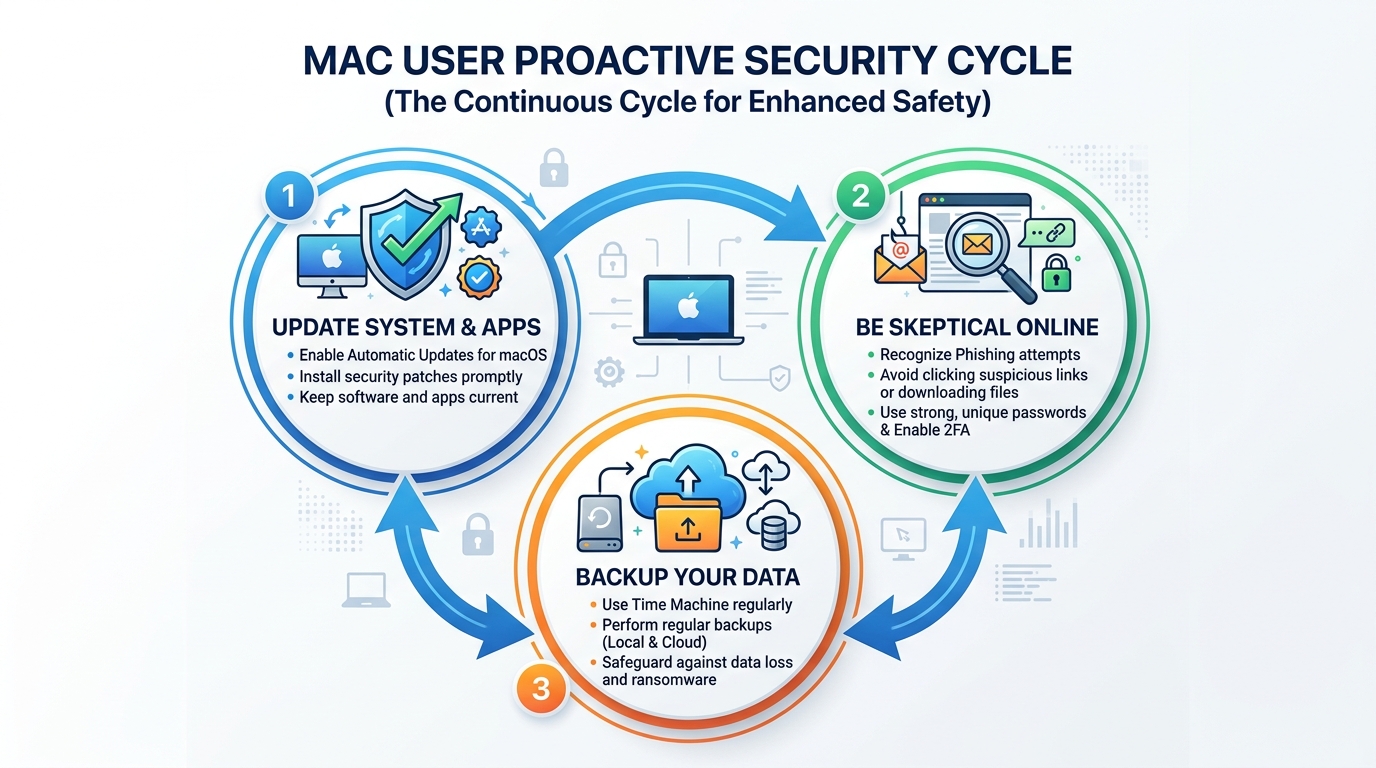
    Flowchart illustrating the proactive Mac security cycle showing the three key steps: Update, Be Skeptical, and Backup

    Maximizing macOS’s Built-in Security Features

    Apple has invested significantly in native security technologies that, when properly understood and utilized, provide meaningful protection against a wide range of threats.

    • Gatekeeper, XProtect, and MRT: Gatekeeper prevents the execution of software from unidentified developers unless explicitly overridden by the user. XProtect is Apple’s built-in malware detection system, which operates silently in the background and is updated regularly with new malware signatures. The Malware Removal Tool (MRT) actively removes known malware from infected systems during macOS updates. Understanding that these tools exist and are active is important, but so is understanding their limitations — they respond to known threats and may lag behind emerging ones.
    • Strict Software Source Management: The single most effective behavioral change a Mac user can make is to prioritize the Mac App Store for all software downloads. App Store applications are reviewed by Apple before distribution, providing a meaningful — though not absolute — quality and security gate. When downloading software from the web is necessary, verify the developer’s identity, check the official website directly rather than following links, and inspect the installer before running it.
    • Prompt System and Application Updates: The majority of successful malware attacks exploit known vulnerabilities for which patches already exist. Enabling automatic macOS updates and regularly updating all installed applications closes these attack windows. This single habit eliminates a substantial percentage of the attack surface available to opportunistic malware.

    Essential User Habits for Safe Computing

    Technical defenses are only as effective as the human decisions made around them. Social engineering and phishing attacks are specifically designed to bypass technical controls by manipulating users directly.

    • Healthy Skepticism as a Security Tool: Unsolicited emails requesting account verification, pop-up alerts claiming your Mac is infected, and software offers that seem unusually generous are the primary delivery mechanisms for social engineering attacks. Developing a habit of pausing before clicking, verifying unexpected communications through official channels, and treating urgency as a red flag rather than a prompt to act are among the most valuable security skills a Mac user can develop.
    • Strong Passwords and Two-Factor Authentication: Credential theft is a primary objective of much macOS spyware. Using a password manager to generate and store strong, unique passwords for every account, combined with enabling two-factor authentication on all critical services, dramatically reduces the impact of credential theft even if it occurs. iCloud Keychain provides a built-in starting point for Mac users.
    • Regular Data Backups: Time Machine, Apple’s built-in backup solution, provides automatic, versioned backups to an external drive. In the event of a ransomware attack, hardware failure, or accidental deletion, a current backup transforms a potentially catastrophic event into a manageable inconvenience. The backup drive should be disconnected from the Mac when not in active use to prevent ransomware from encrypting backup files as well. Cloud-based backup solutions provide an additional layer of redundancy.

    When and Why Should You Consider Antivirus Software for Your Mac?

    Apple’s built-in security tools are genuinely valuable, but they were designed to address a specific threat profile and operate within deliberate constraints. Dedicated antivirus software addresses the gaps that remain — providing real-time monitoring, broader threat detection coverage, and additional features that Apple’s native tools do not include. For users whose risk profile or usage patterns exceed what built-in tools can reliably address, third-party security software is not paranoia — it is prudent risk management.

    The Critical Gaps that Antivirus Software Fills

    Understanding what Apple’s tools do not do is as important as understanding what they do.

    • Real-Time Protection: XProtect performs scans at specific trigger points — when software is first launched or when the signature database is updated. Dedicated antivirus software provides continuous, real-time monitoring of file system activity, network connections, and process behavior. This constant vigilance means threats are identified and blocked at the moment of attempted execution rather than discovered after the fact. For users who download files frequently or work with documents from multiple sources, this distinction is significant.
    • Specialized and Broader Detection Engines: Apple’s XProtect signature database, while regularly updated, focuses on confirmed, widespread threats. Dedicated security vendors maintain larger threat intelligence networks, analyze emerging malware variants earlier in their lifecycle, and deploy behavioral detection methods that can identify suspicious activity even from previously unseen threats. This gap in coverage is particularly relevant for adware and spyware variants, which proliferate rapidly and often evade signature-based detection for extended periods.
    • Enhanced Web Protection: Native macOS tools do not provide active, real-time blocking of malicious websites during browsing sessions. Dedicated security software integrates with browsers to check URLs against continuously updated threat databases, blocking access to phishing sites, malware distribution servers, and fraudulent pages before any content loads. This protection layer addresses one of the most common infection vectors — malicious web content.

    Beyond Viruses: The Value of System Optimization Tools

    The most compelling security solutions for Mac users today offer value that extends beyond malware detection alone, addressing the overall health and performance of the system.

    • Integrated Cleanup and Optimization: Comprehensive security suites like 360 Total Security combine robust malware protection with practical system optimization features. These include junk file removal, startup item management, disk cleanup, and performance monitoring. Over time, macOS systems accumulate cache files, log files, and application remnants that consume storage and can degrade performance. An integrated tool addresses both security and performance in a single, unified workflow.
    • Simplicity and Efficiency: Managing multiple specialized tools — one for malware, one for cleanup, one for web protection — creates complexity and increases the likelihood that important maintenance tasks are overlooked. A unified platform that handles all of these functions reduces cognitive overhead, ensures that security and optimization tasks are performed consistently, and provides a single dashboard for monitoring system health. As one IT administrator managing a mixed fleet of Windows and Mac systems noted: “The efficiency gain from using a combined security and optimization tool is substantial. Instead of juggling separate utilities, we have one consistent workflow across all endpoints, and the real-time protection means we’re not constantly reacting to incidents after the fact.”
    • Accessible Protection Without Cost Barriers: One of the most significant advantages of solutions like 360 Total Security is that comprehensive protection — including real-time scanning, web protection, and system optimization — is available without a financial barrier. For individual users and small businesses evaluating whether to invest in additional Mac security, a capable free solution removes the cost objection entirely while delivering meaningful security improvements over built-in tools alone.

    Making an Informed Choice: Evaluating Your Mac Security Needs

    There is no universal answer to whether a Mac user needs additional security software. The right decision depends on an honest assessment of how you use your computer, what data you handle, and what the consequences of a successful attack would be. A thoughtful risk evaluation leads to a proportionate, effective security posture rather than either complacency or unnecessary complexity.

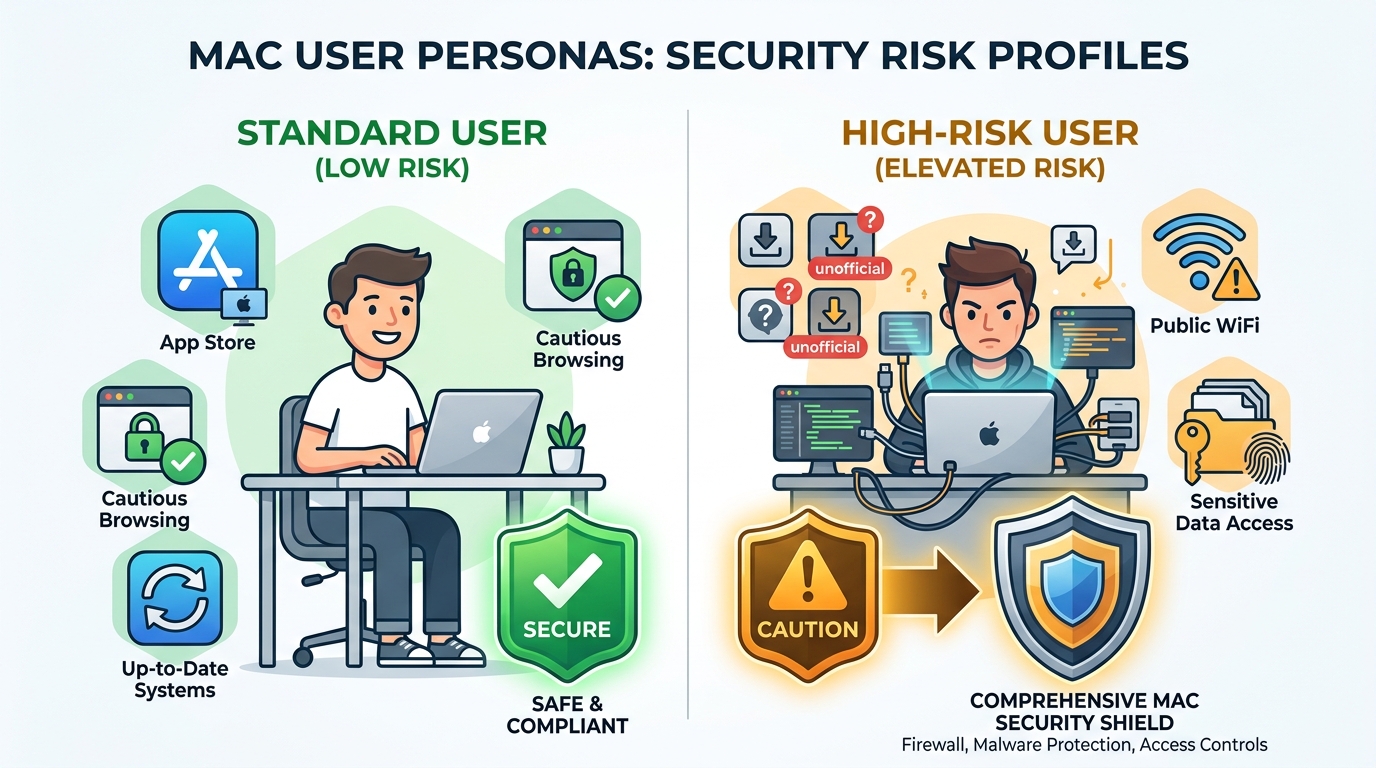
    Diagram showing different Mac user risk profiles from standard users relying on built-in macOS security to high-risk users requiring comprehensive antivirus protection

    Assessing Your Personal Risk Profile and Usage

    Not all Mac users face the same threat level. Calibrating your security measures to your actual risk profile is both more effective and more practical than applying a one-size-fits-all approach.

    • High-Risk Users — Strong Case for Dedicated Security Software: If you regularly download software from sources outside the Mac App Store, work with documents received from unknown or untrusted parties, handle sensitive financial or personal data, use your Mac for business purposes involving client information, or frequently connect to public Wi-Fi networks, your risk profile is elevated. The potential consequences of a security incident — data breach, ransomware, credential theft — are significant enough to warrant the additional protection layer that dedicated antivirus software provides.
    • Standard Users — Built-in Features May Suffice with Diligence: If your Mac usage is primarily limited to App Store applications, you are consistently cautious about unsolicited communications, you maintain current system updates, and you do not regularly handle highly sensitive data, Apple’s built-in security tools combined with strong user habits may provide adequate protection. The key word is diligence — the built-in tools are effective when user behavior does not create unnecessary exposure.
    • The Value Proposition of Free, Comprehensive Solutions: For high-risk users evaluating additional security tools, the availability of a free, feature-rich solution like 360 Total Security changes the calculus significantly. When the cost of additional protection is zero, the question shifts from “Can I afford this?” to “Can I afford not to have this?” For users in the high-risk category, the answer is clear.

    Key Features to Look For in a Mac Security Solution

    If you determine that additional security software is appropriate for your situation, evaluating options against a consistent set of criteria ensures you select a solution that genuinely improves your security posture without introducing new problems.

    • Lightweight Design: A security tool that significantly degrades macOS performance, drains battery life, or introduces system instability creates a different kind of problem. Look for solutions with demonstrably low system resource consumption that have been specifically optimized for macOS rather than ported from Windows with minimal adaptation.
    • Strong Real-Time Protection with Regular Updates: The core function of any security tool is reliable, real-time malware and adware detection backed by a threat database that is updated frequently. Evaluate how often signature updates are deployed and whether behavioral detection supplements signature-based methods for catching emerging threats.
    • Useful Supplementary Features: Web protection that blocks malicious URLs, firewall monitoring, and system cleanup tools add genuine value beyond the core antivirus function. These features address threat vectors and performance issues that built-in macOS tools do not fully cover, making the overall package more valuable than the sum of its parts.

    Security Approach Comparison: Built-in macOS Features vs. Built-in Features + 360 Total Security

    Security Dimension Built-in macOS Features Only Built-in Features + 360 Total Security
    Known Malware Detection Yes — via XProtect signatures Yes — XProtect + expanded threat database
    Real-Time Scanning Limited — trigger-based, not continuous Yes — continuous file and process monitoring
    Adware and Spyware Detection Partial — known variants only Strong — specialized adware detection engine
    Ransomware Protection Limited — relies on known signatures Enhanced — behavioral detection supplements signatures
    Web Protection (Malicious URLs) Safari basic filtering only Active blocking across all browsers
    System Optimization and Cleanup Not included Yes — junk file removal, startup management, performance boost
    Zero-Day Threat Coverage Dependent on Apple patch cycle Improved — behavioral analysis provides partial coverage
    Cost Free (included with macOS) Free — no cost barrier

    The data in this comparison makes the recommendation straightforward for users in elevated risk categories: the combination of Apple’s built-in security tools with a dedicated solution like 360 Total Security provides substantially broader coverage across every meaningful security dimension, at no additional cost. For Mac users who are serious about protecting their data, their privacy, and their system performance, visiting the 360 Total Security official website to download and evaluate the solution is a logical next step.

    Frequently Asked Questions

    Can a Mac really get a virus?

    Yes, absolutely. While macOS has strong built-in security features, Macs are susceptible to a range of malware including adware, spyware, trojans, ransomware, and zero-day exploits. The belief that Macs cannot get viruses is a myth rooted in historical market dynamics that no longer reflect current reality. As Mac market share has grown, so has the incentive for cybercriminals to develop macOS-specific threats.

    Is Apple’s built-in security (XProtect, Gatekeeper) enough to protect my Mac?

    For users with cautious online habits who primarily use the Mac App Store and keep their system updated, Apple’s built-in tools provide a meaningful baseline of protection. However, these tools have limitations: XProtect is not a continuous real-time scanner, its coverage focuses on known threats, and it does not provide web protection or system optimization. Users who download software from multiple sources, handle sensitive data, or want comprehensive real-time protection should consider supplementing built-in tools with dedicated security software.

    What is the most common type of malware affecting Mac users today?

    Adware is by far the most frequently encountered threat for Mac users. It is typically distributed through bundled software installers, fake browser extensions, and deceptive updaters for popular software. While adware is less destructive than ransomware, it degrades user experience, can harvest browsing data, and often serves as a gateway for more serious infections. Spyware disguised as system utility applications is the second most common category.

    Does antivirus software slow down a Mac?

    This concern is legitimate but depends heavily on the specific software chosen. Poorly optimized security tools can impact performance, but well-designed solutions built specifically for macOS have minimal system footprint. 360 Total Security, for example, is engineered for lightweight operation while maintaining comprehensive protection. In fact, the system optimization features included in the suite often result in a net performance improvement by removing junk files and unnecessary startup items that were already degrading performance.

    How do I know if my Mac already has malware?

    Common indicators of a Mac infection include: unexpected browser behavior such as changed homepage or search engine settings, intrusive advertising appearing outside of normal browser sessions, unexplained slowdowns or high CPU usage, applications you do not remember installing appearing in your Applications folder, and unexpected network activity. If you observe any of these symptoms, running a full system scan with a dedicated security tool is the recommended first step. Downloading 360 Total Security and performing a comprehensive scan can identify and remove threats that may have evaded Apple’s native detection tools.


    About the Author: This article was written by a Senior Cybersecurity Technical Writer with over a decade of experience covering endpoint security, threat intelligence, and operating system security architecture. Specializing in making complex security concepts accessible to both technical and general audiences, the author has contributed to cybersecurity publications, enterprise security documentation, and consumer-focused security guides. Their work emphasizes practical, evidence-based security recommendations grounded in current threat research.

  • Endpoint Antivirus: The Complete Guide to Modern Device Protection

    Executive Summary: Endpoint antivirus has fundamentally transformed how individuals and organizations defend their devices against an ever-expanding landscape of cyber threats. Unlike legacy antivirus software that relied solely on signature matching, modern endpoint antivirus solutions deploy multi-layered defenses — combining behavioral analysis, machine learning, cloud intelligence, and exploit prevention — to neutralize ransomware, fileless malware, phishing campaigns, and zero-day attacks before they cause irreversible damage. This comprehensive guide explores what endpoint antivirus is, how it works, which features matter most, and how solutions like 360 Total Security deliver enterprise-grade protection for everyday users — completely free.

    What Is Endpoint Antivirus and Why Is It Essential for Modern Protection?

    The term endpoint antivirus refers to security software deployed directly on individual computing devices — laptops, desktops, and workstations — to detect, block, and remediate malicious threats in real time. Unlike network-level security tools that guard the perimeter, endpoint antivirus operates at the device level, providing granular, context-aware protection precisely where attacks land and execute. As cyberattacks grow more sophisticated, relying on a single layer of protection is no longer viable. Endpoint antivirus has evolved into a comprehensive security discipline that addresses the full spectrum of modern threat vectors.

    The Evolution from Traditional Antivirus to Endpoint Protection

    Traditional antivirus software, developed in the late 1980s and refined through the 1990s, operated almost exclusively on signature-based detection. Every known piece of malware was catalogued with a unique digital fingerprint, and the antivirus engine would scan files against this database to identify threats. While effective against known malware families, this approach carries a critical structural weakness: it is entirely reactive. A threat must first be discovered in the wild, analyzed by researchers, and then added to the signature database before any user is protected — a process that can take hours or even days. During that window, zero-day exploits and newly crafted malware variants operate with impunity.

    Modern endpoint antivirus, as defined by Gartner’s Endpoint Protection Platform (EPP) framework, transcends this limitation by incorporating three transformative technologies:

    • Behavioral Analysis: Rather than matching file signatures, the engine monitors how programs behave at runtime. A process that suddenly begins encrypting hundreds of files per second, or one that attempts to inject code into a system process, triggers an alert regardless of whether it matches any known malware signature.
    • Machine Learning and AI: Trained on billions of malware samples, AI models can classify new, previously unseen files as malicious or benign based on structural and behavioral attributes — catching novel threats before signatures exist for them.
    • Cloud Threat Intelligence: Real-time telemetry from millions of endpoints worldwide feeds into centralized cloud databases, enabling near-instant threat intelligence sharing. When one endpoint encounters a new threat, every other endpoint connected to the cloud network is immediately updated.
    Flowchart showing the evolution of endpoint antivirus from signature-based scanning to AI-driven behavioral analysis and cloud threat intelligence

    Core Components of a Modern Endpoint Antivirus Solution

    A fully capable endpoint antivirus solution is not a single tool but an integrated suite of protective modules working in concert:

    • Real-Time Malware Scanning: Continuously monitors files as they are created, modified, or executed. Scanning extends beyond the file system to include active memory processes and boot sectors — critical attack surfaces often exploited by rootkits and bootkits.
    • Behavioral Analysis Engine: Observes process behavior in real time, detecting anomalies such as unauthorized registry modifications, process hollowing, or the mass encryption of user files — a hallmark of ransomware attacks.
    • Firewall and Network Attack Protection: Monitors inbound and outbound network traffic to block unauthorized connections, prevent data exfiltration, and detect command-and-control (C2) communications used by malware operators to remotely control infected machines.

    How Does Endpoint Antivirus Protect Against Today’s Top Cyber Threats?

    Modern endpoint antivirus employs a multi-layered defense strategy that addresses each stage of the attack lifecycle — from initial delivery and execution to lateral movement and data exfiltration. Understanding how these layers function against specific threat categories clarifies why comprehensive endpoint protection is indispensable in today’s threat environment.

    Defending Against Ransomware and Data Encryption Attacks

    Ransomware remains one of the most financially devastating threat categories facing individuals and organizations alike. According to a 2026 Cybersecurity Ventures report, the global cost of ransomware attacks is projected to exceed $275 billion annually, with the average cost of a single enterprise ransomware incident — including downtime, recovery, ransom payment, and reputational damage — exceeding $4.5 million. For individual users, the loss of irreplaceable personal files carries a cost that transcends monetary value.

    Modern endpoint antivirus combats ransomware through two primary mechanisms:

    • Behavioral Monitoring and Encryption Pattern Detection: The behavioral engine establishes a baseline of normal file system activity. When a process begins modifying or encrypting files at an anomalous rate — the defining characteristic of ransomware — the engine immediately terminates the process and quarantines it before significant damage occurs. This detection happens in milliseconds, often before more than a handful of files are affected.
    • Rollback and Shadow Copy Protection: Advanced endpoint solutions protect Windows Volume Shadow Copy Service (VSS) snapshots from deletion — a tactic ransomware operators commonly employ to prevent recovery. Some solutions also create their own protected backups of critical files, enabling one-click restoration even if encryption partially succeeds.

    360 Total Security includes a dedicated ransomware protection module that monitors file system behavior in real time, providing an additional defensive layer specifically engineered to intercept encryption-based attacks before they escalate.

    Stopping Phishing, Social Engineering, and Browser-Based Threats

    Phishing attacks account for over 80% of reported security incidents globally, according to a 2025 Verizon Data Breach Investigations Report. These attacks exploit human psychology rather than technical vulnerabilities, making them particularly difficult to counter with traditional security measures alone.

    Endpoint antivirus addresses browser-based and social engineering threats through:

    • Real-Time URL Filtering and Reputation Checking: Every URL visited is checked against continuously updated databases of known malicious domains, phishing sites, and fraudulent pages. Suspicious URLs are blocked before the page loads, preventing credential harvesting and drive-by downloads.
    • Email Scanning: Integration with desktop email clients enables scanning of attachments and embedded links in real time. Malicious Office documents with macro exploits, PDF files with embedded shellcode, and phishing links disguised as legitimate services are all intercepted at the attachment level.
    Side-by-side comparison of a legitimate website versus a phishing website, with annotations showing how endpoint antivirus URL filtering blocks the malicious page

    Detecting Fileless Malware and Memory-Based Exploits

    Fileless malware represents one of the most technically sophisticated attack categories in the modern threat landscape. Unlike traditional malware that writes executable files to disk, fileless attacks operate entirely in memory, leveraging legitimate system tools — most commonly PowerShell, Windows Management Instrumentation (WMI), and the Windows Script Host — to execute malicious payloads. Because no malicious file is ever written to disk, traditional signature-based scanners are blind to these attacks.

    Endpoint antivirus counters fileless threats through:

    • Script Engine Monitoring: The security engine hooks into PowerShell, WMI, and other scripting interfaces to inspect commands before they execute. Encoded PowerShell commands, WMI event subscriptions used for persistence, and MSHTA-based payload delivery are all flagged and blocked at the scripting layer.
    • Memory Scanning: Active memory is continuously scanned for malicious code injected into legitimate system processes. Techniques such as process hollowing — where malware replaces the memory of a legitimate process like svchost.exe or explorer.exe with malicious code — are detected through memory integrity checks and behavioral anomaly analysis.
    # Example: Suspicious PowerShell command pattern flagged by endpoint antivirus
    # Encoded command used in fileless malware delivery
    powershell.exe -NoP -NonI -W Hidden -Enc JABjAGwAaQBlAG4AdAAgAD0AIABOAGUAdwAtAE8AYgBqAGUAYwB0AA==
    
    # Endpoint behavioral engine detects:
    # - Base64 encoding flag (-Enc)
    # - Hidden window parameter (-W Hidden)
    # - Non-interactive execution (-NonI)
    # Result: Process terminated and quarantined

    Key Features to Look for When Choosing an Endpoint Antivirus

    With dozens of endpoint antivirus solutions available across a wide range of price points, selecting the right product requires a systematic evaluation of features against your specific security requirements, technical environment, and budget. Not all security software is created equal — the gap between a basic free antivirus and a feature-complete endpoint protection platform can be significant.

    Non-Negotiable Core Security Features

    Regardless of budget or use case, any endpoint antivirus solution you consider must deliver on these foundational capabilities:

    • Real-Time Protection with Minimal Performance Impact: The security engine must operate continuously in the background without degrading system performance to an unacceptable degree. Look for solutions with low average CPU utilization (ideally under 2% during idle monitoring) and modest RAM footprints. Independent lab tests from organizations like AV-Comparatives and AV-TEST regularly benchmark performance impact alongside detection rates.
    • Frequently Updated Malware Database with Cloud Intelligence: Signature databases should be updated multiple times daily, supplemented by cloud-based threat intelligence that provides real-time protection against threats identified across the global user base within minutes of discovery.
    • Proactive Detection Technologies: Heuristic scanning analyzes file characteristics to identify malware-like structures in unknown files. Behavioral analysis monitors runtime activity. Sandboxing executes suspicious files in an isolated virtual environment to observe their behavior safely before allowing them to run on the live system.

    Advanced Capabilities for Enhanced Protection (EDR and Beyond)

    For users and organizations requiring deeper security visibility and response capabilities, the following advanced features significantly elevate the protective value of an endpoint security solution:

    • Endpoint Detection and Response (EDR): EDR capabilities provide detailed forensic visibility into security events — recording process trees, file system changes, network connections, and registry modifications associated with each detected threat. This telemetry enables security teams to investigate the full scope of an attack, understand the root cause, and remediate effectively.
    • Exploit Prevention: Dedicated exploit prevention modules target the specific techniques used to weaponize vulnerabilities in common applications — browsers, PDF readers, Microsoft Office, and media players. Techniques such as heap spraying, return-oriented programming (ROP), and privilege escalation exploits are blocked at the memory level, independent of whether a patch exists for the underlying vulnerability.
    Feature Category Basic Free Antivirus Premium Consumer AV Business Endpoint Security Enterprise EDR Suite
    Signature-Based Detection ✅ Yes ✅ Yes ✅ Yes ✅ Yes
    Real-Time Behavioral Analysis ⚠️ Limited ✅ Yes ✅ Yes ✅ Advanced
    Ransomware Protection ⚠️ Basic ✅ Yes ✅ Yes ✅ Advanced
    Fileless Malware Detection ❌ No ⚠️ Limited ✅ Yes ✅ Advanced
    Exploit Prevention ❌ No ⚠️ Limited ✅ Yes ✅ Advanced
    Sandboxing ❌ No ⚠️ Limited ✅ Yes ✅ Advanced
    EDR / Forensic Investigation ❌ No ❌ No ⚠️ Basic ✅ Full
    Centralized Management Console ❌ No ❌ No ✅ Yes ✅ Advanced
    System Optimization Tools ⚠️ Some ⚠️ Some ❌ Rarely ❌ No
    Typical Annual Cost (per device) Free $30–$60 $40–$100 $100–$300+

    Usability, Management, and Value-Added Tools

    A technically superior security engine loses much of its value if it is too complex for users to configure correctly, too intrusive to tolerate in daily use, or too resource-hungry to run alongside productivity applications.

    • Intuitive, Non-Intrusive Interface: The ideal endpoint antivirus operates silently in the background, surfacing alerts only when genuine threats are detected. Alert fatigue — caused by excessive false positives and unnecessary notifications — leads users to disable protections or ignore genuine warnings.
    • Centralized Management Console: For businesses managing multiple endpoints, a centralized dashboard enables administrators to deploy policies, monitor threat status, initiate remote scans, and review security reports across all devices from a single interface — dramatically reducing management overhead.
    • Integrated System Optimization: As cybersecurity expert and author Bruce Schneier has noted, “Security that isn’t used provides no security.” Solutions that bundle meaningful system optimization tools — such as junk file cleanup, startup management, and software patching — alongside core security features deliver compounding value. 360 Total Security exemplifies this integrated approach, combining robust malware protection with a comprehensive suite of PC optimization utilities in a single, cohesive interface that even non-technical users can navigate confidently.

    Is Free Endpoint Antivirus Enough? Evaluating 360 Total Security

    The question of whether a free antivirus solution can provide adequate protection is one of the most frequently debated topics in consumer cybersecurity. The honest answer is nuanced: it depends entirely on the quality of the free solution in question. Not all free antivirus software is equal. Some free offerings are stripped-down loss leaders designed primarily to upsell paid subscriptions, while others — like 360 Total Security — deliver genuinely comprehensive protection as their core offering.

    Analyzing the Security Engine of 360 Total Security

    360 Total Security’s security architecture is distinguished by its multi-engine detection approach, which layers multiple independent scanning engines to maximize detection coverage:

    • QVM II AI Engine: 360’s proprietary artificial intelligence engine, trained on an extensive dataset of malware samples collected from hundreds of millions of endpoints worldwide. The QVM II engine specializes in identifying novel malware variants and zero-day threats through machine learning classification.
    • Bitdefender Engine: One of the industry’s highest-rated antivirus engines, consistently achieving 99.9%+ detection rates in independent laboratory evaluations by AV-Comparatives and AV-TEST. Its inclusion provides 360 Total Security with access to Bitdefender’s extensive signature database and advanced threat intelligence.
    • Avira Engine: A respected European security engine known for its low false-positive rate and strong performance against adware, spyware, and potentially unwanted programs (PUPs).

    According to AV-Comparatives’ 2025 Real-World Protection Test, multi-engine security solutions consistently demonstrate superior detection rates compared to single-engine alternatives, with the combination of AI-based and signature-based engines providing complementary coverage that closes the gaps each approach leaves individually.

    Beyond core detection, 360 Total Security provides:

    • A built-in sandbox environment for safely executing and observing suspicious files in isolation before allowing them to run on the live system.
    • A dedicated ransomware protection module that monitors file system activity for encryption-pattern anomalies.
    • Real-time web protection that filters malicious URLs and blocks access to phishing sites during browsing.

    The Advantage of Integrated System Optimization Tools

    One of 360 Total Security’s most distinctive value propositions is its deeply integrated suite of PC optimization tools — features that most competing security solutions charge separately for, or do not offer at all:

    • One-Click Cleanup: Automatically identifies and removes junk files (temporary files, browser cache, system logs), invalid registry entries, and privacy traces (browsing history, cookies, download records) that accumulate over time and degrade system performance. Removing these files not only speeds up the PC but also eliminates potential hiding places for malware components.
    • Startup Manager and Process Optimizer: Analyzes startup programs and background processes, identifying resource-heavy applications that slow boot times and consume RAM unnecessarily. Users can selectively disable startup items with a single click, resulting in measurably faster boot times.
    • Driver Updater and Software Patcher: Scans installed drivers and software for known vulnerabilities and outdated versions, then provides direct update pathways. Keeping software current is one of the most effective security hygiene practices available — the majority of successful cyberattacks exploit known vulnerabilities for which patches already exist but have not been applied.

    360 Total Security dashboard showing the integrated security and system optimization interface with real-time protection status and one-click cleanup tools

    Limitations and Ideal Use Cases for Free Solutions

    Intellectual honesty requires acknowledging the genuine limitations of free endpoint antivirus solutions, including 360 Total Security’s free tier:

    • No Enterprise Management Features: Free solutions lack centralized management consoles, group policy integration, detailed security reporting dashboards, and dedicated enterprise support channels — features essential for IT administrators managing fleets of corporate endpoints.
    • Promotional Upsell Presence: Free versions typically include in-application promotions for premium features or the paid version. While not intrusive enough to compromise usability, users who prefer a completely ad-free experience may prefer the premium tier.
    • Ideal User Profile: 360 Total Security’s free offering is exceptionally well-suited for home users, students, freelancers, remote workers, and small office environments. It delivers a level of protection that rivals many paid solutions, combined with system optimization tools that provide immediate, tangible performance benefits — all without any upfront financial commitment.

    For these user categories, the question is not whether free antivirus is “enough” — it is whether the specific free solution chosen is capable enough. In 360 Total Security’s case, the multi-engine architecture, integrated optimization suite, and active threat intelligence network make a compelling case that it is.

    Implementing and Optimizing Your Endpoint Antivirus for Maximum Security

    Even the most capable endpoint antivirus solution underperforms when improperly configured or neglected after installation. Proper setup, thoughtful configuration, and consistent maintenance are what transform a security tool from a theoretical safeguard into a genuinely effective defense. The following best practices apply to 360 Total Security and endpoint antivirus solutions broadly.

    Best Practices for Installation and Initial Configuration

    The first 30 minutes after installing an endpoint antivirus solution are critical for establishing a secure baseline:

    • Perform an Immediate Full System Scan: Before the antivirus begins monitoring in real time, run a comprehensive full system scan to detect and remediate any threats that may already exist on the device. This establishes a clean, verified baseline from which the behavioral engine can accurately identify future anomalies.
    • Enable All Real-Time Protection Modules: Navigate to the settings panel and verify that all available real-time protection components are active — file system monitoring, behavioral analysis, web protection, and email scanning. Some solutions install with certain modules disabled by default to reduce initial resource usage.
    • Configure Automatic Update Schedules: Ensure signature database updates are set to automatic and occur at least daily. For maximum protection, configure cloud-based lookups to remain active, enabling real-time threat intelligence queries for files and URLs not yet catalogued in the local signature database.
    # Windows Registry path for verifying Windows Security Center registration
    # Confirms your antivirus is properly registered with the OS
    HKEY_LOCAL_MACHINE\SOFTWARE\Microsoft\Security Center\Monitoring
    
    # Verify real-time protection status via PowerShell
    Get-MpComputerStatus | Select-Object -Property RealTimeProtectionEnabled, AntivirusEnabled, AntispywareEnabled
    
    # Expected output for a correctly configured endpoint:
    # RealTimeProtectionEnabled : True
    # AntivirusEnabled          : True
    # AntispywareEnabled        : True

    Scheduling Scans and Managing System Impact

    One of the most common complaints about antivirus software is its impact on system performance during active scanning. Strategic scan scheduling eliminates this friction entirely:

    • Schedule Full Scans During Low-Activity Periods: Configure full system scans to run during hours when the device is powered on but not actively in use — typically late at night or during lunch breaks. Most endpoint antivirus solutions, including 360 Total Security, allow precise scheduling with day-of-week and time-of-day granularity.
    • Use Quick Scans for Routine Checks: Quick scans focus on the most commonly targeted areas — running processes, startup locations, and recently modified files — and complete in a fraction of the time required for a full scan. Running a quick scan daily provides meaningful assurance without the performance impact of a deep scan.
    • Leverage Game Mode and Silent Mode: Many modern endpoint antivirus solutions include a performance mode that automatically reduces background activity when resource-intensive applications (games, video editing software, virtual machines) are detected as active. Enable this feature to ensure security monitoring continues without impacting foreground application performance.
    # Example: 360 Total Security scan scheduling configuration
    # Access via: Settings > Virus Scan > Scheduled Scan
    
    Recommended Configuration:
    - Full Scan Frequency: Weekly (Sunday, 2:00 AM)
    - Quick Scan Frequency: Daily (6:00 AM)
    - Update Check Frequency: Every 4 hours
    - Game/Performance Mode: Auto-detect (Enabled)
    - Cloud Scan: Enabled
    - Behavioral Monitoring: Always On

    Maintaining Security Hygiene Beyond the Antivirus

    Endpoint antivirus is the cornerstone of a personal security strategy, but it functions most effectively as part of a broader security hygiene practice. The following complementary measures significantly amplify the protection your antivirus provides:

    • Regular System Optimization: Use 360 Total Security’s built-in cleanup and optimization tools on a weekly basis. Removing junk files, clearing browser caches, and updating outdated software not only improves performance but directly reduces the attack surface available to malware. Outdated software versions are among the most exploited entry points in modern cyberattacks — a 2025 Ponemon Institute study found that 57% of breach victims reported that their breach involved a vulnerability for which a patch was available but not applied.
    • Practice Safe Browsing and Download Habits: Antivirus software is a safety net, not a license for reckless behavior. Avoid downloading software from unofficial sources, be skeptical of unexpected email attachments, and verify website legitimacy before entering credentials. Keep browsers and their extensions updated, as browser vulnerabilities are a primary delivery mechanism for drive-by download attacks.
    • Implement Complementary Authentication Controls: Use a reputable password manager to generate and store unique, complex passwords for every account, eliminating credential reuse — one of the most common causes of account compromise. Enable multi-factor authentication (MFA) on all critical accounts, including email, banking, and cloud storage services. Even if malware successfully exfiltrates a password, MFA prevents unauthorized access without the second authentication factor.

    By combining a properly configured endpoint antivirus like 360 Total Security with consistent security hygiene practices, users at every technical level can maintain a robust defensive posture against the full spectrum of modern cyber threats — without requiring specialized expertise or significant financial investment.

    Frequently Asked Questions

    What is the difference between antivirus and endpoint antivirus?

    Traditional antivirus primarily uses signature-based scanning to detect known malware by matching files against a database of identified threats. Endpoint antivirus is a more comprehensive evolution of this concept, incorporating behavioral analysis, machine learning, cloud threat intelligence, exploit prevention, and sometimes EDR capabilities. Endpoint antivirus protects the entire device — including memory, boot sectors, network connections, and scripting engines — rather than just scanning files on disk.

    Can endpoint antivirus fully protect against ransomware?

    Modern endpoint antivirus provides strong, multi-layered ransomware protection through behavioral monitoring that detects mass file encryption patterns, protection of system backup snapshots (VSS), and rollback capabilities. However, no security solution offers absolute guarantees. Combining endpoint antivirus with regular offline backups, software patching, and safe browsing practices provides the most comprehensive ransomware defense posture.

    Is 360 Total Security’s free version genuinely effective, or is it just a trial?

    360 Total Security’s free version is a fully functional security product, not a time-limited trial. It includes the complete multi-engine detection system (QVM II AI, Bitdefender, and Avira engines), real-time protection, ransomware defense, sandbox execution, and the full suite of system optimization tools. The free tier is a genuine, long-term offering rather than a marketing mechanism — though a premium version with additional features is also available for users who require them.

    How much does endpoint antivirus slow down my PC?

    Performance impact varies significantly by product and system configuration. Well-optimized endpoint antivirus solutions like 360 Total Security are engineered for minimal background resource consumption, typically using less than 2% CPU during idle monitoring. Performance impact is most noticeable during active scans. Scheduling full scans during off-hours and enabling performance/game modes during active use effectively eliminates perceptible slowdowns for the vast majority of users.

    What should I do if my antivirus detects a threat?

    When your endpoint antivirus detects a threat, follow these steps: (1) Do not panic or attempt to manually interact with the detected file. (2) Follow the antivirus’s recommended action — typically quarantine or deletion. (3) Run a full system scan to check for additional related threats or components. (4) Review the threat report to understand what was detected and how it arrived. (5) If the threat was delivered via email or a downloaded file, identify and address the source. (6) Ensure all software is updated to close any vulnerabilities that may have been exploited.


    Author Bio: This article was written by a Senior Technical Writer specializing in cybersecurity, endpoint protection, and digital privacy. With over a decade of experience translating complex security concepts into actionable guidance for both technical and non-technical audiences, the author has contributed to cybersecurity publications, enterprise security documentation, and consumer technology guides. Areas of expertise include malware analysis, endpoint security architecture, threat intelligence, and security software evaluation methodology.

  • How to Scan for Viruses on Your Mac: A Complete Step-by-Step Guide

    Executive Summary: Many Mac users operate under the dangerous assumption that macOS is immune to malware. In reality, Mac-targeted threats have grown significantly, with adware, spyware, Trojans, and Potentially Unwanted Programs (PUPs) increasingly bypassing Apple’s native defenses. This comprehensive guide walks you through everything you need to know about performing an effective mac virus scan — from understanding why macOS security tools have critical limitations, to choosing the best antivirus for mac, executing a full system scan mac, and establishing proactive habits that keep your machine resilient long after the initial mac security scan is complete.

    How Can I Scan for Viruses on My Mac Effectively?

    The foundation of effective mac malware detection starts with dispelling a persistent myth and understanding the real threat landscape facing macOS users today. While Apple has engineered impressive native security layers, they were never designed to serve as a complete antivirus solution. Dedicated antivirus for mac fills the critical gaps that Apple’s tools leave open, providing the comprehensive system safety that modern users genuinely require.

    Understanding Why Macs Still Need Virus Scans

    Myth-Busting: Macs Absolutely Can Get Viruses

    The belief that “Macs can’t get viruses” is one of the most dangerous misconceptions in consumer technology. According to a 2025 threat intelligence report from Malwarebytes, Mac-specific malware detections have continued to climb year-over-year, with adware and PUPs now representing the dominant threat category on macOS — accounting for a disproportionately high share of all detections on Apple platforms. High-profile threats like the Silver Sparrow malware (which infected nearly 30,000 Macs across 153 countries), the XCSSET malware targeting developers, and the OSX.EvilQuest ransomware have all demonstrated that macOS is a viable and increasingly attractive target for cybercriminals.

    The reasons are straightforward: Mac market share has grown substantially, making the platform more lucrative to attack. Simultaneously, many Mac users maintain a false sense of security, making them less vigilant than their Windows counterparts — a behavioral vulnerability that threat actors actively exploit.

    Modern Threats That Bypass Apple’s Defenses

    Today’s Mac threats are far more sophisticated than the simple executable viruses of the past. The most prevalent include:

    • Adware: Programs like Shlayer and Bundlore that hijack browser settings, inject unwanted advertisements, and redirect search traffic — often installed through fake Adobe Flash Player updates or deceptive download bundles.
    • Potentially Unwanted Programs (PUPs): Software that installs alongside legitimate applications, consuming system resources and harvesting user data without clear consent.
    • Sophisticated Phishing: Credential-harvesting attacks delivered via email or malicious websites that Apple’s Gatekeeper cannot intercept, since they operate at the browser or network level rather than the application installation level.
    • Trojans and Backdoors: Malware disguised as legitimate software that grants remote attackers persistent access to your system.

    The Cross-Platform Carrier Risk

    Even if a particular piece of malware cannot execute on macOS, your Mac can still act as a silent carrier for Windows-targeting viruses. When you share files via email, cloud storage services like Dropbox or Google Drive, or USB drives, infected files can pass seamlessly from your Mac to a Windows user’s machine. This makes performing a regular mac virus scan not just a matter of personal protection, but a responsibility to everyone in your digital network.

    Built-in macOS Security Tools and Their Limitations

    What Apple Provides: XProtect and Gatekeeper

    Apple has built several security layers directly into macOS that provide a meaningful baseline of protection:

    • XProtect: Apple’s signature-based malware detection system that runs silently in the background. When you download a file, XProtect checks it against a database of known malware signatures and blocks execution if a match is found.
    • Gatekeeper: A policy enforcement tool that verifies downloaded applications are from identified developers and have been notarized by Apple, preventing unsigned or unverified software from running by default.
    • Malware Removal Tool (MRT): A background utility that Apple deploys to remove specific, known malware infections that have already been installed.
    • System Integrity Protection (SIP): Prevents even administrator-level users from modifying critical system files, limiting the damage malware can do to core OS components.

    Critical Limitations You Must Understand

    Despite their value, these native tools have significant, well-documented shortcomings. XProtect is entirely signature-based, meaning it can only detect malware it has already been programmed to recognize. It offers zero protection against zero-day exploits — brand-new threats for which no signature yet exists. Critically, XProtect’s definition database updates are tied to macOS system updates and Apple’s own internal schedule, which can lag days or even weeks behind the discovery of new threats. In contrast, commercial antivirus databases from vendors like Bitdefender and Avira update multiple times per day, sometimes hourly, ensuring near-real-time protection against emerging threats.

    Furthermore, Gatekeeper can be bypassed. Researchers have repeatedly demonstrated techniques that allow malicious software to circumvent notarization checks. And none of Apple’s native tools provide active behavioral monitoring — the ability to detect malware based on what it does rather than what it is. This behavioral analysis is a cornerstone feature of modern third-party antivirus solutions.

    Infographic comparing native macOS security layers including XProtect and Gatekeeper versus third-party antivirus protection coverage areas for Mac

    What Are the Steps to Perform a Comprehensive Mac Virus Scan?

    A thorough mac security scan is not simply a matter of clicking a button and waiting. A truly comprehensive approach involves selecting the right scan type for your situation, properly preparing your system, and intelligently acting on the results. Understanding this systematic process is the difference between surface-level checking and genuinely effective mac malware detection.

    Step 1: Choose Your Scanning Method

    Not all scans are created equal. Choosing the right scan type for your current situation is the first critical decision:

    Quick Scan

    A quick scan performs a rapid check of the most critical system areas and common infection points — startup items, running processes, system folders, browser extensions, and recently modified files. It is the ideal choice for regular, routine use (e.g., daily or every few days) because it completes in just a few minutes while still catching the vast majority of active infections. Think of it as a daily health check for your Mac.

    Full System Scan

    A full system scan performs a deep, exhaustive analysis of every file, folder, application, and process on your Mac. This is the recommended approach for first-time use of any antivirus software, after any suspicious activity (unexpected slowdowns, strange pop-ups, unauthorized account activity), or after connecting an untrusted external device. While it takes significantly longer, it provides the highest possible level of assurance.

    Custom Scan

    A custom scan allows you to target specific directories, external drives, USB sticks, or downloaded files. This is particularly useful when you want to check a specific folder of downloaded software before opening it, or when you’ve connected an external hard drive from an untrusted source and want to verify it before accessing its contents.

    Step 2: Perform the Initial Deep System Scan

    Prepare Your System for Optimal Scanning

    Before initiating a full system scan, take a few preparatory steps to ensure the most thorough and efficient results:

    • Close unnecessary applications: Quit all apps you don’t need running. This frees up RAM and CPU resources, allowing the antivirus engine to work faster and more thoroughly. It also ensures that files used by running applications are accessible for scanning.
    • Connect your power adapter: A full scan is a resource-intensive process. Ensure your Mac is plugged in to prevent the scan from being interrupted or throttled due to low battery.
    • Ensure your antivirus definitions are up to date: Before starting the scan, check that your antivirus software has downloaded the latest threat definitions. Most modern tools do this automatically, but a manual check before a full scan is good practice.
    • Connect external drives you want scanned: If you want to include external storage in the scan, connect those devices before initiating the process.

    What to Expect During the Scan

    The duration of a full system scan varies considerably based on your Mac’s storage capacity, processor speed, and the number of files stored. On a typical modern Mac with a 500GB SSD, expect a full scan to take anywhere from 30 minutes to 2 hours. Older machines with larger HDDs can take considerably longer. During the scan, you may notice increased CPU and fan activity — this is completely normal. Most modern antivirus tools include a “low priority” or “silent” scanning mode that throttles resource usage if you need to continue working during the scan.

    What the Scan Examines

    A comprehensive full system scan mac will analyze:

    • All installed applications and their associated files
    • System files and core OS components
    • Browser extensions across Safari, Chrome, and Firefox
    • Login items and launch agents/daemons (programs that run at startup)
    • Kernel extensions
    • Active memory processes
    • Email attachments (if mail client integration is enabled)
    • Compressed archive files (.zip, .dmg, .pkg)

    Step 3: Review Results and Take Action

    Understanding Your Scan Results

    Once the scan completes, you’ll be presented with a results report. Understanding what you’re looking at is crucial for making informed decisions. The most important distinction to make is between genuine threats and false positives.

    A false positive occurs when an antivirus engine incorrectly flags a legitimate, safe file as malicious. This can happen with custom scripts, certain developer tools, or software from smaller vendors whose code patterns superficially resemble malware. Before deleting any flagged file, search for its name online to verify whether it is a known legitimate program or a confirmed threat.

    Quarantine vs. Delete: Always Quarantine First

    When your antivirus identifies a suspicious file, you will typically be given the option to quarantine or delete it. Always choose quarantine as your first action. Quarantine moves the file to a secure, isolated location where it cannot execute or cause harm, but preserves it for review. This is the safer approach because:

    • It allows you to verify whether the detection is a false positive before permanently removing a file that might be important.
    • It gives you time to research the flagged item and make an informed decision.
    • Deleted files are much harder to recover if you later determine they were legitimate.

    Only proceed to permanent deletion once you have confirmed that a quarantined item is genuinely malicious.

    The table below summarizes the key differences between scan types to help you choose the right approach for any situation:

    Scan Type Primary Purpose Typical Duration What It Checks Best Used When
    Quick Scan Routine health check 2–10 minutes Startup items, running processes, critical system folders, browser extensions Daily or every few days for ongoing monitoring
    Full System Scan Deep, exhaustive analysis 30 minutes – 3+ hours Every file, application, system component, memory process, and archive First-time setup, after suspicious activity, monthly maintenance
    Custom Scan Targeted verification Varies (seconds to minutes) Specific folders, files, or connected external drives selected by the user Checking downloaded files, scanning external drives, verifying specific directories

    What Are the Best Tools and Software for Scanning Macs for Viruses?

    Choosing the right antivirus for mac is a decision that balances detection capability, system performance impact, feature depth, and cost. The good news is that the best mac antivirus options span a wide range of price points — including genuinely powerful free solutions that provide surprising depth of protection without requiring a subscription.

    Free Antivirus Solutions for Mac Users

    360 Total Security for Mac: The Standout Free Option

    Among free mac antivirus solutions, 360 Total Security stands out as a remarkably comprehensive offering at no cost. Its key differentiator is a multi-engine scanning architecture that combines the detection capabilities of the Bitdefender and Avira engines — two of the most respected names in cybersecurity — alongside 360’s own proprietary engine. This multi-layered approach significantly increases detection rates compared to single-engine solutions.

    Key features of 360 Total Security for Mac include:

    • Multi-engine real-time protection: Continuous background monitoring using multiple detection engines simultaneously.
    • Full, Quick, and Custom scan modes: Flexible scanning options to suit any situation.
    • System cleanup and optimization tools: Built-in utilities to clear junk files, manage startup items, and optimize system performance — reducing potential attack surfaces while speeding up your Mac.
    • Built-in VPN: Secure your internet connection, particularly valuable on public Wi-Fi networks where man-in-the-middle attacks are a genuine risk.
    • Minimal system impact: Engineered to run efficiently in the background without causing noticeable slowdowns during normal use.
    • Completely free: Core protection features are available at no cost, making enterprise-grade security accessible to all Mac users.

    For users seeking powerful, multi-layered mac malware detection without a financial commitment, 360 Total Security represents an exceptional starting point. Visit the official 360 Total Security website to download the Mac version and begin your first scan today.

    Other Notable Free Options

    • Malwarebytes for Mac (Free): Excellent for on-demand scanning, particularly effective at detecting adware and PUPs. The free version does not include real-time protection but serves as an outstanding second-opinion scanner to complement your primary antivirus.
    • Avast Free Mac Security: Provides real-time protection and web shield features at no cost, though its data collection practices have drawn scrutiny in independent privacy reviews.

    Premium (Paid) Antivirus Suites

    For users with more demanding security requirements — particularly those handling sensitive professional data, running a small business, or managing family devices — paid antivirus suites offer additional layers of protection that free tools typically don’t include.

    Key Extra Features in Paid Suites

    • Advanced firewall protection: Granular control over inbound and outbound network connections beyond what macOS’s built-in firewall provides.
    • Identity theft safeguards: Dark web monitoring that alerts you if your personal information or credentials appear in known data breaches.
    • Parental controls: Content filtering and screen time management for families with children.
    • Priority customer support: Dedicated support channels with faster response times for resolving security incidents.
    • Multi-device licenses: Coverage for multiple Macs (and sometimes Windows PCs) under a single subscription.

    Leading Paid Contenders for Mac

    • Intego Mac Premium Bundle X9: Widely regarded as the most Mac-native paid security suite, built exclusively for macOS with excellent malware detection rates and a robust two-way firewall (NetBarrier).
    • Norton 360 for Mac: A comprehensive suite offering strong malware protection, a full-featured VPN, dark web monitoring, and a password manager under one subscription.
    • McAfee Total Protection for Mac: Solid all-around protection with identity monitoring features and a multi-device license that covers both Mac and Windows machines.

    Evaluating Cost vs. Benefit

    For the average home user who practices safe browsing habits and keeps their software updated, a high-quality free solution like 360 Total Security combined with Malwarebytes as a second-opinion scanner provides genuinely robust protection. The additional investment in a paid suite is most justified for users who regularly handle sensitive financial or medical data, operate in high-risk digital environments, or need features like parental controls and identity monitoring.

    Specialized Scanning and Cleanup Utilities

    Beyond primary antivirus solutions, a category of specialized tools provides targeted capabilities that complement your main security software:

    Second-Opinion Scanners

    Running Malwarebytes as a periodic second-opinion scanner alongside your primary antivirus is a best practice endorsed by security professionals. Different engines have different detection strengths, and a threat missed by one engine may be caught by another. Schedule a monthly Malwarebytes scan in addition to your regular antivirus scans for an additional layer of assurance.

    Open-Source Monitoring Tools

    • BlockBlock: Monitors common persistence locations and alerts you whenever a program attempts to install a persistent component — a key indicator of malware attempting to survive reboots.
    • KnockKnock: Scans for programs that are configured to run persistently on your Mac, revealing hidden malware that may have established a foothold without your knowledge.
    • LittleSnitch: A powerful network monitor that alerts you to outbound connections made by applications, helping you identify malware that is attempting to communicate with command-and-control servers.

    The comparison table below provides a clear side-by-side view of the leading options across free, paid, and on-demand categories:

    Feature 360 Total Security (Free) Intego Mac Premium Bundle (Paid) Malwarebytes (On-Demand Free)
    Real-Time Protection ✅ Yes (Multi-engine) ✅ Yes ❌ No (Paid version only)
    Scan Engines Bitdefender + Avira + 360 Intego proprietary Malwarebytes proprietary
    System Optimization Tools ✅ Yes (Cleanup, startup manager) ⚠️ Limited ❌ No
    Built-in VPN ✅ Yes ❌ No ❌ No
    Firewall ❌ No ✅ Yes (NetBarrier two-way firewall) ❌ No
    Adware/PUP Detection ✅ Strong ✅ Strong ✅ Excellent
    System Performance Impact Low Low-Medium Very Low (on-demand only)
    Price Free ~$84.99/year Free (on-demand) / ~$44.99/year (Premium)

    How Can I Optimize and Maintain My Mac’s Security After a Scan?

    Successfully completing a mac security scan and removing any detected threats is an important milestone — but it is not the finish line. The most resilient Mac security posture is built on proactive habits and properly configured system settings that prevent infections from occurring in the first place. Post-scan security optimization transforms your Mac from a reactive system into a genuinely resilient one.

    Configuring macOS Security and Privacy Settings

    Enable FileVault for Full-Disk Encryption

    FileVault is macOS’s built-in full-disk encryption system. When enabled, it encrypts the entire contents of your startup disk, making your data completely inaccessible to anyone who doesn’t have your login password — even if they physically remove the drive from your Mac. This is particularly critical for laptop users. To enable FileVault:

    System Settings > Privacy & Security > FileVault > Turn On FileVault

    Store your recovery key in a secure location (such as a password manager) — it is the only way to recover your data if you forget your password.

    Audit App Permissions Regularly

    Malware frequently exploits overly permissive app permissions to access sensitive data or system functions. Navigate to System Settings > Privacy & Security and carefully review which applications have been granted access to particularly sensitive capabilities, including:

    • Full Disk Access: Grants an app the ability to read any file on your system. Only your antivirus software and explicitly trusted backup tools should have this permission.
    • Screen Recording: Allows an app to capture your screen content. Revoke this from any app you don’t actively use for screen sharing or recording.
    • Accessibility: Grants deep system control. This is a common target for malware seeking to monitor keystrokes or control your Mac remotely.
    • Camera and Microphone: Ensure only apps you explicitly use for video/audio have these permissions.

    Set a Firmware Password

    On Intel-based Macs, setting a firmware password prevents anyone from booting your Mac from an external device (like a USB drive) without entering the password first. This closes a significant physical security vulnerability. On Apple Silicon Macs, this protection is handled differently through the Startup Security Utility, which you should configure to require a password for changing security settings.

    Adopting Safe Digital Habits

    Install Software Updates Immediately

    The single most impactful security habit you can develop is installing macOS and application updates as soon as they become available. According to 2025 cybersecurity research, the majority of successful malware infections exploit known vulnerabilities for which patches already exist — meaning the victims could have been protected simply by keeping their software current. Enable automatic updates:

    System Settings > General > Software Update > Enable "Automatic Updates"

    Ensure all sub-options are checked, including automatic installation of security responses and system files, which allows Apple to push critical security patches without requiring a full OS update.

    Practice Smart Browsing and Download Hygiene

    • Use a reputable ad-blocker: Browser extensions like uBlock Origin block malicious advertisements (malvertising) that can silently redirect you to exploit pages or initiate drive-by downloads.
    • Download software exclusively from official sources: Use the Mac App Store or the official developer’s website. Avoid third-party download aggregators, torrent sites, or “cracked” software repositories — these are primary distribution vectors for Mac malware.
    • Verify DMG and PKG files before opening: Use your antivirus’s custom scan feature to check downloaded installer files before running them.
    • Be skeptical of browser notifications: Malicious websites frequently prompt users to enable browser notifications, which are then used to deliver a persistent stream of scam alerts and phishing links.

    Email and Network Vigilance

    • Treat unexpected attachments with extreme suspicion: Even if an email appears to come from a known contact, verify via a separate channel before opening unexpected attachments — particularly .dmg, .pkg, .zip, or Office files with macros.
    • Use a VPN on public Wi-Fi: Public networks at coffee shops, airports, and hotels are prime hunting grounds for attackers conducting man-in-the-middle attacks. A VPN encrypts your traffic, making it unreadable to eavesdroppers. 360 Total Security includes a built-in VPN as part of its free package, providing this protection without requiring an additional subscription.

    Implementing a Proactive Security Routine

    Schedule Regular Automated Scans

    Consistency is the cornerstone of effective mac security optimization. Configure your antivirus software to run scans on a defined schedule rather than relying on manual initiation. A recommended routine:

    • Weekly Quick Scans: Schedule these for a time when your Mac is typically on but lightly used — such as early morning or during lunch. Most antivirus tools, including 360 Total Security, allow you to set this up directly within the application’s settings.
    • Monthly Full System Scans: Set a recurring monthly reminder to run a comprehensive full scan, ideally overnight or during a period when you won’t need to use your Mac intensively.
    • Immediate scan after high-risk activities: Run a custom or quick scan any time you’ve downloaded software from an unfamiliar source, connected an external drive from an untrusted origin, or noticed unusual system behavior.

    Regular System Cleanup to Reduce Attack Surface

    A cluttered system with accumulated junk files, outdated caches, and unnecessary startup items is not just slower — it also presents a larger attack surface and makes it harder to identify anomalous files. The optimization tools built into 360 Total Security allow you to regularly clear junk files, remove redundant caches, and manage startup items directly from the same interface you use for virus scanning. This integrated approach to security and performance optimization is one of the key advantages of using a comprehensive security suite over standalone tools.

    Mac security maintenance weekly and monthly checklist graphic showing tasks like run quick scan check for updates review login items and enable FileVault

    By combining properly configured macOS security settings, disciplined digital habits, and a scheduled scanning routine powered by a reliable tool like 360 Total Security, you establish a layered defense that addresses threats at every stage — before, during, and after potential infection attempts.

    Frequently Asked Questions

    Do Macs really need antivirus software, or is macOS secure enough on its own?

    While macOS includes meaningful built-in security tools like XProtect and Gatekeeper, they have significant limitations — particularly against zero-day threats, adware, PUPs, and behavioral-based attacks. According to 2025 threat intelligence data, Mac malware detections continue to rise annually. A dedicated antivirus solution provides real-time behavioral monitoring, multi-engine detection, and far more frequent definition updates than Apple’s native tools, making it a genuinely important addition to your Mac’s security posture.

    How do I know if my Mac already has a virus or malware?

    Common warning signs include: unexplained slowdowns or high CPU usage when no demanding applications are running; browser homepage or search engine changes you didn’t make; an increase in pop-up advertisements, especially outside of your browser; new applications or browser extensions you don’t remember installing; unusual network activity; and your Mac overheating without obvious cause. If you notice any of these symptoms, run a full system scan immediately using a trusted tool like 360 Total Security.

    Is it safe to use a free antivirus on my Mac, or should I pay for protection?

    High-quality free antivirus solutions can provide genuinely robust protection. 360 Total Security’s free version, for example, uses multiple detection engines (Bitdefender and Avira) and includes real-time protection, system optimization tools, and a built-in VPN — features that many paid solutions charge for. For most home users, a well-chosen free antivirus combined with safe digital habits provides excellent protection. Paid suites are most justified when you need advanced features like a two-way firewall, identity theft monitoring, or parental controls.

    How often should I scan my Mac for viruses?

    A recommended schedule is: weekly quick scans for routine monitoring, monthly full system scans for comprehensive assurance, and immediate custom or quick scans after any high-risk activity such as downloading software from an unfamiliar source or connecting an untrusted external drive. Most modern antivirus tools allow you to automate this schedule so it runs in the background without requiring manual intervention.

    Can I run multiple antivirus programs on my Mac at the same time?

    Running two real-time antivirus programs simultaneously is generally not recommended, as they can conflict with each other, flag each other’s processes as suspicious, and significantly degrade system performance. However, it is perfectly safe and actually advisable to use one primary antivirus with real-time protection (such as 360 Total Security) alongside an on-demand scanner like the free version of Malwarebytes, which you run periodically as a second-opinion check. The key is to ensure only one program is running real-time background monitoring at any given time.


    About the Author: This article was researched and written by a Senior Cybersecurity Technical Writer with over a decade of experience covering macOS security, endpoint protection, and consumer privacy. Their work draws on hands-on testing of security software, analysis of threat intelligence reports from leading cybersecurity firms, and a commitment to translating complex security concepts into actionable guidance for everyday users. They specialize in helping individuals and small businesses build practical, layered security strategies without unnecessary complexity or cost.

  • How to Recognize, Prevent, and Recover from Identity Theft: A Complete Guide

    Executive Summary

    Identity theft is one of the fastest-growing crimes of the digital age, costing victims billions of dollars and countless hours of recovery time each year. According to a 2026 Cybersecurity Report by the Identity Theft Resource Center, the number of data compromise events reached record highs, exposing hundreds of millions of personal records globally. Whether it begins with a suspicious charge on your credit card, a phishing email, or a data breach you never knew occurred, identity theft can escalate from a minor inconvenience to a life-altering crisis within days. This comprehensive guide walks you through the early warning signs of identity theft, the most common methods criminals use today, a multi-layered prevention strategy, an immediate response action plan, and the best tools and services available to keep your identity secure. By combining personal vigilance with robust security software like 360 Total Security, you can build a formidable defense around your digital life.

    How Can You Recognize the Early Warning Signs of Identity Theft?

    Identity theft often begins with subtle, easily overlooked indicators that, when recognized early, can prevent significant financial and reputational damage. Many victims only discover the problem months or even years after it begins, by which point criminals have already opened multiple fraudulent accounts, destroyed credit scores, and moved on. Understanding what to look for — and where to look — is your first and most powerful line of defense.

    Unexplained Financial Transactions and Account Changes

    One of the most telling early warning signs of identity theft is unusual activity in your financial accounts. Criminals rarely start by draining your entire account. Instead, they test the waters with small, almost invisible charges — a common tactic known as “card testing.” According to the Federal Trade Commission (FTC), these small “test” charges often precede much larger fraudulent transactions, making it critical to scrutinize even minor discrepancies on your statements.

    • Small unauthorized charges: Look for unfamiliar transactions of a few cents to a few dollars on your credit or debit card statements. These are frequently used to verify that a stolen card number is active before larger purchases are made.
    • Unexpected bills and collection notices: Receiving a bill for a credit account you never opened, or a debt collection notice for an unknown debt, is a serious red flag. Similarly, a sudden, unexplained drop in your credit score — especially if your financial behavior hasn’t changed — can signal that someone has opened accounts or defaulted on loans in your name.
    • Credit denials and unfamiliar statements: Being denied credit for a loan or service despite having a previously strong credit history, or receiving account statements in the mail for accounts you don’t recognize, are strong indicators that your identity may already be compromised.

    Make it a habit to review all bank and credit card statements at least once a week. Setting up real-time transaction alerts through your bank’s mobile app is one of the simplest and most effective ways to catch suspicious activity the moment it occurs.

    Digital Red Flags and Communication Anomalies

    In today’s digital-first world, many of the earliest signs of identity theft appear not on paper, but in your email inbox, text messages, and social media accounts. These digital anomalies are often dismissed as spam or glitches, but they deserve serious attention.

    • Unsolicited password reset emails and 2FA codes: If you receive password reset requests or two-factor authentication (2FA) codes that you did not initiate, it means someone is actively attempting to gain access to your accounts. Do not click any links in these emails; instead, go directly to the platform and secure your account immediately.
    • Unexpected login notifications: Many services now send alerts when your account is accessed from a new device or an unfamiliar geographic location. If you receive such a notification and it wasn’t you, treat it as a confirmed breach attempt. A sudden inability to log into one of your own accounts — because the password has been changed without your knowledge — means the attacker may have already succeeded.
    • Strange messages sent in your name: If friends, family members, or colleagues report receiving odd messages, unusual connection requests, or suspicious links that appear to originate from your social media profiles or email address, it is a strong sign that your accounts have been compromised and are being used to spread scams or phishing attacks.
    Side-by-side comparison of a legitimate password reset email versus a phishing attempt showing deceptive elements

    What Are the Most Common Methods Identity Thieves Use Today?

    Modern identity theft has evolved far beyond the stolen wallet or rummaged mailbox. Today’s criminals deploy sophisticated digital techniques and exploit human psychology with alarming effectiveness. Understanding the primary attack vectors is essential to building a defense that actually works.

    Digital Deception: Phishing, Smishing, and Vishing

    Social engineering attacks — those that manipulate human behavior rather than exploiting technical vulnerabilities — are responsible for a staggering proportion of identity theft cases. According to the FBI’s Internet Crime Complaint Center (IC3), phishing and its variants consistently rank among the top reported cybercrime categories, with smishing (SMS-based phishing) showing particularly sharp upward trends in recent years.

    • Phishing emails and fake websites: Criminals craft emails that convincingly impersonate banks, government agencies, popular retailers, or technology companies. These emails contain links to fraudulent websites — often near-perfect replicas of the legitimate sites — designed to capture your login credentials, Social Security number, or payment card details. The key deceptive elements include spoofed sender addresses, urgent language, and lookalike domain names (e.g., “paypa1.com” instead of “paypal.com”).
    • Smishing and Vishing: Smishing uses text messages to deliver malicious links or requests for sensitive information, often posing as package delivery notifications, bank fraud alerts, or government agencies. Vishing involves phone calls from individuals pretending to be from your bank’s fraud department, the IRS, or a tech support team. Both tactics rely heavily on creating a sense of urgency or authority to bypass your critical thinking and compel immediate action.
    • Spear phishing: A more targeted variant, spear phishing uses personalized information gathered from social media or previous data breaches to craft highly convincing, individualized attacks that are much harder to detect than generic phishing attempts.
    Infographic illustrating the anatomy of a convincing phishing email highlighting deceptive sender address, urgent language, and fake links

    Malware and Unsecured Connections: The Silent Thieves

    While social engineering exploits human psychology, malware and unsecured network connections exploit technology. These threats operate silently, often for extended periods, before the victim has any awareness of the compromise.

    • Spyware and keyloggers: Malicious software installed through drive-by downloads, malicious email attachments, or infected advertisements can record every keystroke you make — capturing usernames, passwords, credit card numbers, and Social Security numbers as you type them. Some sophisticated variants also capture screenshots or activate your webcam. These programs are designed to operate invisibly in the background, transmitting your data to remote servers controlled by criminals.
    • Public Wi-Fi interception: Unsecured public Wi-Fi networks in coffee shops, airports, and hotels are prime hunting grounds for identity thieves. Using a technique called a “man-in-the-middle” attack, criminals can intercept unencrypted data transmitted between your device and the internet, capturing login sessions, emails, and other sensitive communications without you ever knowing.
    • Software vulnerability exploitation: Outdated operating systems, browsers, and applications contain known security vulnerabilities that criminals actively exploit. Once a backdoor is established through an unpatched vulnerability, attackers can install additional malware, exfiltrate stored data, or maintain persistent access to your system over a long period.

    The Physical and Low-Tech Threats

    Despite the dominance of digital attacks, low-tech methods of identity theft remain surprisingly effective and are often underestimated by individuals who focus exclusively on their digital security.

    • Dumpster diving: Discarded mail containing pre-approved credit card offers, bank statements, utility bills, or medical documents provides criminals with enough information to open fraudulent accounts. Shredding all sensitive documents before disposal is a simple but highly effective countermeasure.
    • Mail theft: Thieves target residential mailboxes to intercept bank statements, tax documents (including W-2s and 1099s), new credit cards, and government correspondence. Using a locked mailbox, opting for electronic statements, and collecting mail promptly are key preventive measures.
    • Shoulder surfing and card skimming: Shoulder surfing involves physically observing someone entering their PIN at an ATM or point-of-sale terminal. Card skimming uses small, discreet electronic devices installed on card readers at ATMs, gas pumps, or retail terminals to capture card data from the magnetic stripe. Always inspect card readers for unusual attachments and shield your PIN entry with your hand.

    How Do You Create a Strong, Multi-Layered Defense for Your Digital Identity?

    Preventing identity theft requires a proactive, layered security strategy that combines smart digital hygiene, robust tools, and continuous monitoring. Just as a bank vault uses multiple independent security systems rather than relying on a single lock, your personal identity security must operate on multiple levels simultaneously. Comprehensive security software like 360 Total Security plays a critical role in this ecosystem by protecting your entire digital environment from the threats that most frequently lead to identity theft.

    Fortify Your First Line of Defense: Passwords and Authentication

    Your passwords and authentication methods are the primary gatekeepers of your digital identity. Weak or reused passwords are one of the single most exploited vulnerabilities in identity theft cases.

    • Use a password manager: A reputable password manager generates and securely stores unique, highly complex passwords for every one of your accounts. This eliminates the dangerous practice of password reuse, which means that if one account is breached, all others remain secure. Look for managers with strong encryption standards and a zero-knowledge architecture.
    • Enable two-factor and multi-factor authentication: Two-factor authentication (2FA) and multi-factor authentication (MFA) add a critical second layer of verification beyond your password. Wherever possible, use an authenticator app (such as Google Authenticator or Authy) rather than SMS-based codes, as SIM-swapping attacks can compromise SMS delivery. Enable 2FA on your email, banking, social media, and any other accounts that contain sensitive information.
    • Treat security questions as second passwords: The answers to common security questions — your mother’s maiden name, the street you grew up on, your first pet — are frequently discoverable through social media profiles or public records. Use fictitious, nonsensical answers that only you know, and store them in your password manager alongside your passwords.

    Secure Your Digital Environment and Behavior

    Even the strongest passwords can be rendered useless if your device or network is compromised by malware or an unsecured connection. Securing your digital environment is a non-negotiable component of a comprehensive identity protection strategy.

    • Deploy comprehensive security software: Installing and actively maintaining a full-featured security suite like 360 Total Security on your Windows or macOS PC provides real-time protection against the malware, phishing websites, and network-level attacks that serve as the primary delivery mechanisms for identity theft. Its multi-engine antivirus detection, anti-phishing capabilities, and system vulnerability scanning work continuously to close the gaps that criminals exploit.
    • Keep all software updated: Software updates are not merely about new features — they are critical security patches that close known vulnerabilities. Enable automatic updates for your operating system, web browsers, and all installed applications. Criminals actively scan for systems running outdated software versions, making an unpatched system a high-value target.
    • Use a VPN on public networks: A Virtual Private Network (VPN) encrypts your internet connection, creating a secure tunnel that prevents eavesdroppers on public Wi-Fi networks from intercepting your data. Always activate your VPN before connecting to any public or untrusted network, and choose a reputable VPN provider with a verified no-logs policy.

    Proactive Monitoring and Data Minimization

    Even with strong passwords and robust security software in place, proactive monitoring ensures that any breach that does occur is detected and addressed before it causes significant harm. Simultaneously, minimizing the amount of personal data you expose reduces your overall attack surface.

    • Review statements and set up alerts: Make it a regular practice to review all bank, credit card, and insurance statements for discrepancies. Sign up for real-time transaction alerts through your financial institutions so that any unauthorized activity triggers an immediate notification to your phone or email.
    • Place a credit freeze: A credit freeze — available for free at all three major credit bureaus (Equifax, Experian, and TransUnion) — prevents new creditors from accessing your credit report, effectively blocking criminals from opening new accounts in your name. You can temporarily lift the freeze when you legitimately need to apply for credit. This is one of the most powerful and underutilized tools available for identity theft prevention.
    • Practice data minimization: Be deliberate and selective about the personal information you share online. Audit your social media privacy settings and remove publicly visible personal details such as your full birthdate, address, or phone number. Provide your Social Security number only when legally required, and question any request for it that seems unnecessary.

    Infographic showing a multi-layered identity theft prevention strategy including passwords, antivirus software, VPN, and credit monitoring

    What Immediate Steps Should You Take If You Suspect Identity Theft?

    A swift, documented, and systematic response is critical to limiting the damage and beginning the recovery process the moment you suspect your identity has been stolen. Time is of the essence — every hour of delay can allow criminals to open additional accounts, make more fraudulent purchases, or sell your information to other bad actors. Follow this structured action plan to regain control.

    The Critical First 24-Hour Action Plan

    The first 24 hours after discovering suspected identity theft are the most critical. Your immediate priorities are to stop the bleeding, alert the relevant institutions, and create an official record of the crime.

    • Contact affected financial institutions immediately: Call the fraud departments of every bank, credit card issuer, and financial institution where you have accounts that may be compromised. Request immediate account freezes or closures, dispute any unauthorized transactions, and ask for replacement cards with new account numbers. Get case or reference numbers for every call you make.
    • File a report with the FTC: Visit IdentityTheft.gov, the official Federal Trade Commission website for identity theft victims. Filing a report here generates an official FTC Identity Theft Report — a legally recognized document that you will use throughout the recovery process. The site also creates a personalized recovery plan and provides pre-filled letters and forms tailored to your specific situation.
    • Place an initial fraud alert: Contact any one of the three major credit bureaus (Equifax, Experian, or TransUnion) to place an initial, one-year fraud alert on your credit file. The bureau you contact is legally required to notify the other two. A fraud alert instructs potential creditors to take extra steps to verify your identity before opening new accounts, significantly raising the bar for criminals attempting to use your information.

    The Formal Documentation and Reporting Process

    Beyond the immediate financial containment steps, formal documentation and reporting create the evidentiary foundation necessary for credit disputes, insurance claims, and legal proceedings.

    • File a police report: Visit your local law enforcement agency to file a police report. Bring your FTC Identity Theft Report as supporting evidence. While local police may have limited resources to investigate cybercrime, the police report number is often required by creditors and credit bureaus when disputing fraudulent accounts.
    • Document everything meticulously: Keep a dedicated log of every action you take and every communication you have. Record dates, times, the names of representatives you speak with, phone numbers, and all case or reference numbers provided. This documentation will prove invaluable during the dispute and recovery process, which can span months or years.
    Action Agency / Company Contact Info / Website Deadline Status
    Freeze / close compromised accounts Your bank / credit card issuer Number on the back of your card Immediately (within hours) ☐ Pending / ☑ Done
    File FTC Identity Theft Report Federal Trade Commission IdentityTheft.gov Within 24 hours ☐ Pending / ☑ Done
    Place initial fraud alert Equifax, Experian, or TransUnion Each bureau’s official website Within 24 hours ☐ Pending / ☑ Done
    File police report Local law enforcement Your local police department Within 48–72 hours ☐ Pending / ☑ Done
    Dispute fraudulent accounts in writing Credit bureaus + affected businesses Certified mail + bureau dispute portals Within 30 days ☐ Pending / ☑ Done
    Review all three credit reports Equifax, Experian, TransUnion AnnualCreditReport.com Within one week ☐ Pending / ☑ Done
    Consider extended fraud alert or credit freeze All three credit bureaus Each bureau’s official website Within 30 days ☐ Pending / ☑ Done

    Long-Term Recovery and Credit Repair

    Identity theft recovery is rarely a quick process. Depending on the extent of the fraud, full recovery can take anywhere from several months to several years. Sustained vigilance and systematic follow-through are essential.

    • Dispute fraudulent accounts and charges in writing: Send written dispute letters — via certified mail with return receipt requested — to both the credit bureaus and the specific businesses where fraudulent accounts were opened. Include copies (not originals) of your FTC Identity Theft Report and police report. Under the Fair Credit Reporting Act (FCRA), credit bureaus are generally required to investigate and respond within 30 days.
    • Consider an extended fraud alert or permanent credit freeze: If the identity theft was extensive, consider upgrading from a one-year fraud alert to a seven-year extended fraud alert (available to confirmed identity theft victims) or placing a full credit freeze at all three bureaus. A credit freeze is free, can be lifted and reinstated at will, and is the most effective long-term barrier against new fraudulent account openings.
    • Maintain ongoing vigilance for years: Identity thieves frequently sell stolen information in batches on the dark web, meaning your data may be purchased and used by a different criminal months or years after the initial theft. Continue monitoring your credit reports and financial statements meticulously for at least three to five years following a confirmed identity theft incident.

    Which Tools and Services Offer the Best Ongoing Protection Against Identity Theft?

    Beyond personal vigilance, specialized tools, services, and security software can provide continuous monitoring and automated defense, acting as a powerful force multiplier in your fight against identity theft. The right combination of free resources, paid monitoring services, and comprehensive security software can dramatically reduce both your risk and your recovery time in the event of a breach.

    Evaluating Identity Theft Protection and Monitoring Services

    The market for identity theft protection services has grown substantially, offering a range of features at varying price points. Understanding what these services actually provide — and what they don’t — is essential to making an informed decision.

    • Core service offerings: Most paid identity theft protection services offer some combination of credit monitoring (tracking changes to your credit reports at one or all three bureaus), dark web scanning (searching illicit online forums and marketplaces for your personal information), and identity restoration assistance or insurance (providing financial coverage and dedicated case managers to help you recover if theft occurs). Coverage amounts for identity restoration insurance typically range from $25,000 to $1,000,000 depending on the plan.
    • Free vs. paid options: It is important to recognize that several powerful protections are available entirely free of charge — including free annual credit reports, free credit freezes at all three bureaus, and free fraud alerts. Paid services add convenience, automation, and additional monitoring layers, but they are not a prerequisite for strong identity protection.
    Feature Service A (Example) Service B (Example) Service C (Example) Free Options
    Credit Monitoring Bureaus 3-Bureau 1-Bureau 3-Bureau Manual via AnnualCreditReport.com
    Dark Web Scan Yes Yes Yes Limited (via HaveIBeenPwned.com)
    Identity Restoration Insurance Up to $1,000,000 Up to $500,000 Up to $25,000 Not available
    Family / Child Plans Yes No Yes Not available
    Estimated Monthly Cost $20–$35/month $10–$15/month $8–$12/month Free

    Leveraging Free and Built-In Tools for Proactive Defense

    A robust identity protection strategy does not have to be expensive. A number of highly effective tools are available at no cost and are frequently underutilized by consumers.

    • AnnualCreditReport.com: Under federal law, every American is entitled to one free credit report per year from each of the three major bureaus (Equifax, Experian, and TransUnion) through AnnualCreditReport.com — the only federally authorized source for free credit reports. Stagger your requests throughout the year (one bureau every four months) to effectively monitor your credit continuously at no cost.
    • Bank and credit card transaction alerts: Most financial institutions offer free, customizable alerts that notify you via text or email whenever a transaction occurs, your balance falls below a threshold, or a new login is detected. Setting these up takes minutes and provides real-time awareness of your account activity without any ongoing cost.
    • Platform-native privacy tools: Take advantage of built-in privacy features offered by major technology platforms. Apple’s “Hide My Email” generates unique, random email addresses for sign-ups to prevent your real address from being harvested. Google’s “Password Checkup” tool scans your saved passwords against known data breach databases and alerts you to compromised credentials. These native tools add meaningful layers of protection at zero cost.

    The Role of Comprehensive Security Software in Prevention

    While monitoring services detect identity theft after the fact, comprehensive security software works to prevent it from occurring in the first place by neutralizing the attack vectors that criminals rely upon most heavily.

    • How 360 Total Security addresses the root causes of identity theft: 360 Total Security for Windows and macOS contributes directly to identity theft prevention by blocking access to known phishing websites before you can inadvertently submit your credentials, detecting and removing keylogger and spyware malware that silently records your personal information, monitoring network connections for suspicious activity, and providing a sandboxed environment for safely opening suspicious files or browsing unfamiliar websites. By addressing the technical attack vectors at the point of entry, it prevents the initial compromise that leads to identity theft.
    • The value of an integrated, all-in-one security solution: One of the most significant advantages of using an integrated security suite like 360 Total Security is that it combines antivirus protection, a network firewall, system vulnerability scanning, and performance optimization into a single, unified platform. This eliminates the security gaps that often exist when using multiple disconnected tools, and ensures that your PC’s overall health — including patched vulnerabilities and optimized performance — supports a strong security posture. Visit the 360 Total Security official website to explore its full feature set and download a free version today.
    • Expert perspective on layered defense: As a leading cybersecurity analyst observed in a 2025 industry forum: “Antivirus is your frontline guard, but combining it with smart habits and monitoring services creates a fortress around your identity. No single tool is sufficient — true protection comes from layers that reinforce each other at every level.” This philosophy of defense-in-depth — where each security layer compensates for the potential weaknesses of the others — is the gold standard approach recommended by security professionals worldwide.

    Frequently Asked Questions

    What is the very first thing I should do if I think my identity has been stolen?

    Your immediate first step should be to contact the fraud departments of any financial institutions where you have accounts that may be affected. Request that compromised accounts be frozen or closed immediately. Simultaneously, file an official report at IdentityTheft.gov (the FTC’s official identity theft recovery portal), which will generate a personalized recovery plan and the legal documentation you will need for subsequent steps. Do not delay — every hour matters in the early stages of identity theft response.

    Can antivirus software really help prevent identity theft?

    Yes, significantly. A large proportion of identity theft cases begin with a technical compromise — a phishing website that captures your login credentials, a keylogger that records your passwords and credit card numbers, or a data interception attack on an unsecured network. Comprehensive security software like 360 Total Security directly blocks these attack vectors in real time, preventing the initial compromise before your data can be stolen. It is not a complete solution on its own, but it is an essential component of a layered defense strategy.

    Is a credit freeze the same as a fraud alert, and which one should I use?

    They are different tools with different levels of protection. A fraud alert is a notice placed on your credit file that instructs creditors to take extra verification steps before opening new accounts in your name — it does not block access to your credit report. A credit freeze (also called a security freeze) completely restricts access to your credit report, making it nearly impossible for creditors to process new credit applications. A credit freeze is more restrictive and more protective, but it requires you to temporarily lift it when you legitimately apply for credit. Both are free. If you have been a victim of identity theft or are at elevated risk, a credit freeze is generally the stronger choice.

    How long does identity theft recovery typically take?

    Recovery time varies widely depending on the extent of the fraud. According to a 2025 Identity Theft Resource Center report, victims spend an average of 100 to 200 hours resolving identity theft cases, with the process taking anywhere from a few months to several years. Cases involving extensive fraudulent account openings, tax fraud, or medical identity theft tend to be the most complex and time-consuming. Maintaining meticulous documentation from the very beginning significantly accelerates the recovery process.

    What personal information is most valuable to identity thieves, and how can I better protect it?

    The most valuable data points for identity thieves are your Social Security number (used to open credit accounts and file fraudulent tax returns), date of birth, bank account and routing numbers, credit and debit card numbers, login credentials (especially for email and financial accounts), and driver’s license number. Protect this information by sharing it only when legally required, using strong unique passwords and 2FA on all accounts, shredding physical documents before disposal, monitoring your credit regularly, and maintaining robust security software on your PC to prevent digital theft of these credentials.


    About the Author

    Senior Technical Writer, Cybersecurity & Digital Privacy
    This article was researched and written by a senior technical writer specializing in cybersecurity, digital privacy, and consumer identity protection. With over a decade of experience translating complex security concepts into actionable guidance for general audiences, the author draws on authoritative sources including the Federal Trade Commission, the FBI’s Internet Crime Complaint Center, and leading cybersecurity research organizations. The author advocates for a layered, proactive approach to personal security and regularly contributes to educational content aimed at helping individuals and families protect their digital lives.

  • The Beginner’s Complete Guide to Cybersecurity: Protect Your PC and Digital Life

    Executive Summary: Cybersecurity is no longer an exclusive concern for corporations or IT professionals — it is a fundamental life skill for every PC user. This comprehensive guide demystifies cybersecurity for beginners, walking you through the essential concepts, must-have tools, threat recognition skills, and sustainable habits that form a robust personal defense. From understanding what malware actually is, to configuring a reliable antivirus like 360 Total Security, to building a monthly security routine, this guide provides everything you need to confidently protect your digital identity, personal data, and Windows or macOS computer from the threats that matter most in today’s landscape.

    What Does Cybersecurity Really Mean for the Average PC User?

    When most people hear the word “cybersecurity,” they picture government agencies, corporate IT departments, or shadowy hackers in dark rooms. The reality is far more personal. For the average PC user, cybersecurity fundamentally means developing simple, proactive habits that shield your digital identity, safeguard your personal data, and keep your computer running safely. You do not need a technical degree to be secure — you need awareness, the right tools, and consistency.

    Demystifying the Terminology: Threats, Vulnerabilities, and Risks

    Before you can defend yourself, you need to understand what you are defending against. Here are the three most critical concepts, explained without jargon:

    • Malware: Short for “malicious software,” this is any program designed to harm your computer or steal your data. It includes viruses (which spread by attaching to files), ransomware (which locks your files and demands payment), spyware (which secretly watches what you type), and trojans (which disguise themselves as legitimate software).
    • Phishing: A deceptive tactic where an attacker impersonates a trusted entity — your bank, a delivery company, or even a friend — to trick you into clicking a malicious link or handing over your login credentials. It arrives most commonly via email, but also through text messages and fake websites.
    • Data Breach: When a company or service you use is hacked and your stored information — passwords, email addresses, credit card numbers — is exposed or stolen. Even if you did nothing wrong, your data can end up for sale on the dark web.

    It is equally important to understand the difference between a vulnerability and an attack. A vulnerability is a weakness — like a bug in an unpatched version of your browser or an outdated operating system. An attack is when a cybercriminal actively exploits that weakness to gain access to your system. The gap between a vulnerability being discovered and a patch being released is called a “zero-day window,” and it is one of the most dangerous periods for any user.

    Flowchart showing how a phishing email leads to malware installation and personal data theft, illustrated as a cybersecurity infographic for beginners

    The Real-World Consequences of Poor Security

    Abstract threats become very real when they translate into tangible losses. Understanding the consequences is a powerful motivator for action:

    • Financial Loss: Identity theft and compromised online banking accounts are among the most devastating outcomes. According to a 2025 consumer cybersecurity report by the FTC, victims of identity theft spent an average of hundreds of hours and significant financial resources resolving fraudulent accounts and recovering stolen funds. A single stolen password can cascade into drained bank accounts, fraudulent loans, and ruined credit scores.
    • Privacy Violation: A compromised device can expose private photos, personal messages, and sensitive documents. Beyond the immediate distress, this data can be used for blackmail, social media impersonation, or reputational damage that affects your professional and personal relationships for years.
    • Practical Device Impact: Malware frequently degrades system performance dramatically — causing slowdowns, unexpected crashes, and corrupted or permanently deleted files. The cost of professional data recovery or device repair can easily run into hundreds of dollars, not counting the irreplaceable personal data that may be lost forever.

    Your First Line of Defense: Mindset and Awareness

    Technology is only part of the solution. The most effective security upgrade you can make costs nothing: developing a security-conscious mindset.

    • Cultivate Healthy Skepticism: Treat every unsolicited email, unexpected link, and “too good to be true” download offer with suspicion until proven otherwise. Ask yourself: “Did I request this? Does this make sense? Why is this asking for my information?” This habit alone blocks a significant percentage of common attacks.
    • Security is a Habit, Not an Event: Many beginners make the mistake of thinking that installing one piece of software solves the problem permanently. In reality, cybersecurity is an ongoing practice — threats evolve, software needs updating, and your habits need periodic review. Think of it like brushing your teeth: you do it consistently, not just once.
    • Adopt a “Zero Trust” Perspective: The Zero Trust philosophy, originally developed for corporate networks, translates simply for personal use: never automatically trust any link, file, or request, regardless of who appears to have sent it. Verify first, then act.

    What Are the Absolute Essential Security Steps Every Beginner Must Take?

    Once you understand the threat landscape, the next step is building your foundational defense. A multi-layered security setup — combining reliable antivirus software, disciplined update habits, and strong password practices — blocks the overwhelming majority of automated attacks that target everyday users. These are not optional extras; they are the non-negotiable baseline.

    Installing and Configuring a Reliable Antivirus Suite

    A quality antivirus program is the cornerstone of your PC security. Its role goes far beyond simply scanning files on demand. A modern antivirus suite acts as a real-time monitor, continuously watching running processes, network connections, and file system activity for signs of malicious behavior. It blocks threats before they can execute, quarantines suspicious files, and alerts you to potential dangers.

    For beginners, one of the most practical and accessible options is 360 Total Security. What makes it particularly well-suited for those new to PC security is its all-in-one approach. Rather than requiring you to piece together multiple separate tools, 360 Total Security integrates a comprehensive feature set into a single, free package:

    • Multi-engine virus scanning for thorough threat detection across your entire system.
    • Real-time protection that monitors your PC continuously without requiring manual intervention.
    • A built-in sandbox that allows you to run suspicious files in an isolated environment before they can affect your real system.
    • System cleanup and optimization tools that keep your PC running smoothly alongside keeping it secure.
    • A firewall component for monitoring network traffic — more on this in a later section.

    After installation, the recommended first steps are: run a full system scan immediately, ensure real-time protection is enabled, and familiarize yourself with the main dashboard so you know where to find scan results and alerts.

    The Lifesaving Habit: Keeping Everything Updated

    Software updates are arguably the single most impactful security action you can take, yet they are consistently neglected. Here is why they are critical:

    • Operating System Updates: Both Windows and macOS release regular security patches that fix known vulnerabilities in the core system. When Microsoft or Apple announces a critical security update, cybercriminals immediately begin targeting users who have not yet applied it. Delaying an OS update by even a few days creates a window of exposure.
    • Application Updates: Your browser, PDF reader, media player, and especially browser plugins (like Java or Flash, if still installed) are frequent attack vectors. Outdated versions of these applications contain known flaws that malware exploits automatically. Keeping them current closes those doors.
    • Enabling Automatic Updates: The easiest way to stay protected is to enable automatic updates wherever possible.

    For Windows, navigate to Settings → Windows Update → Advanced Options and ensure automatic updates are turned on. You can also enable updates for other Microsoft products from the same menu. For macOS, go to System Settings → General → Software Update and enable “Automatic Updates.” For third-party applications, check each app’s settings menu for an auto-update option, or use a software updater tool. To manually check at any time:

    # Windows: Check for updates via Settings
    Settings → Windows Update → Check for updates
    
    # macOS: Check for updates via Terminal
    softwareupdate --list
    softwareupdate --install --all

    Mastering Password Hygiene and Account Security

    Weak and reused passwords are responsible for an enormous proportion of account compromises. The solution is straightforward in principle but requires a system to execute effectively.

    The principles of a strong password:

    • Length over complexity: A password that is 16+ characters long is exponentially harder to crack than a short one with special characters. Aim for passphrases (e.g., PurpleTiger!Runs42Miles).
    • Uniqueness is non-negotiable: Every account must have a different password. If one service is breached, attackers immediately try those same credentials on banking, email, and social media sites — a technique called “credential stuffing.”
    • Never use personal information: Birthdates, pet names, and addresses are easily guessable from social media profiles.

    The only practical way to maintain unique, strong passwords for dozens of accounts is to use a Password Manager. Tools like Bitwarden (free, open-source), 1Password, or KeePass securely store and auto-fill your credentials, meaning you only need to remember one master password. This single tool transforms password security from a burden into an automated habit.

    Equally critical is enabling Two-Factor Authentication (2FA) on every important account. Even if your password is stolen, 2FA requires a second verification step that the attacker cannot easily bypass. The table below compares the most common 2FA methods:

    2FA Method How It Works Security Level Convenience for Beginners Best Used For
    SMS Code A one-time code is sent to your phone via text message Moderate (vulnerable to SIM swapping) Very High — no extra app needed Low-risk accounts; better than no 2FA
    Authenticator App An app (e.g., Google Authenticator, Authy) generates a time-based code every 30 seconds High (not interceptable via SMS attacks) Medium — requires installing an app once Email, social media, financial accounts
    Hardware Security Key A physical USB/NFC device (e.g., YubiKey) that you plug in or tap to authenticate Very High (resistant to phishing) Low — requires purchasing a physical device High-value accounts; advanced users

    How Can You Recognize and Avoid Common Online Scams and Attacks?

    Technical defenses are essential, but the most sophisticated antivirus cannot protect you if you willingly hand your password to an attacker disguised as your bank. Learning to recognize the hallmarks of common cyber threats — phishing, malicious advertising, and social engineering — is a skill that pays dividends every single day you spend online. The goal is not paranoia; it is educated discernment.

    Identifying Phishing Attempts: Emails, Texts, and Websites

    Phishing remains one of the most prevalent and successful attack methods precisely because it targets human psychology rather than software vulnerabilities. Knowing the red flags is your primary defense:

    • Urgent or threatening language: Messages that say “Your account will be suspended in 24 hours!” or “Immediate action required” are engineered to bypass your critical thinking by creating panic.
    • Generic greetings: Legitimate companies you have accounts with know your name. “Dear Valued Customer” or “Dear User” is a significant warning sign.
    • Mismatched sender addresses: The display name might say “PayPal Security Team,” but hovering over the sender address reveals something like noreply@paypa1-secure.net. Always check the actual email address, not just the display name.
    • Suspicious links: Before clicking any link in an email, hover your mouse over it (without clicking) to see the actual destination URL in your browser’s status bar. If the URL looks unusual, does not match the supposed sender’s domain, or uses a URL shortener, do not click it.
    • Check for HTTPS, but do not rely on it alone: A padlock icon in the browser address bar means the connection is encrypted, not that the website is legitimate. Phishing sites routinely use HTTPS. Always verify the full domain name carefully — look for subtle misspellings like arnazon.com instead of amazon.com.
    Side-by-side comparison of a legitimate bank login page versus a sophisticated phishing replica, with annotations highlighting the differences in URL, branding, and security indicators

    The Danger of “Too Good to Be True”: Malicious Ads and Offers

    The internet is saturated with deceptive advertising designed to trick users into downloading malware or surrendering personal information.

    • Fake download buttons: On software download sites, large, colorful “Download Now” buttons are often advertisements that lead to malware, not the software you want. Look for the actual, smaller download link from the verified publisher.
    • Prize pop-ups: Any pop-up claiming you have won a prize, been selected for a survey reward, or that your computer has a virus (and you should call a number) is a scam. Close the browser tab immediately. If the pop-up prevents you from closing it, use Task Manager (Ctrl+Shift+Esc on Windows) to force-close the browser entirely.
    • Cracked and pirated software: Downloading pirated games, applications, or media from unofficial sources is one of the highest-risk behaviors a PC user can engage in. These files are a primary distribution method for trojans, ransomware, and keyloggers. The cost of “free” software can be the entire contents of your hard drive or bank account.

    This is an area where having 360 Total Security actively running provides significant protection. Its web protection module checks URLs against a continuously updated database of known malicious sites, blocking access before a dangerous page even loads. Its real-time file scanning also intercepts malicious downloads the moment they arrive on your system, before they can execute.

    Social Engineering: When the Attack is a Conversation

    Not all attacks come through software. Social engineering is the art of manipulating people into performing actions or divulging confidential information. It is frighteningly effective because it exploits trust and authority rather than technical vulnerabilities.

    • Tech Support Scams: You receive an unexpected phone call from someone claiming to be from “Microsoft Support” or “Windows Security” informing you that your computer has been hacked and they need remote access to fix it. This is a scam. Microsoft, Apple, and other technology companies do not proactively call customers about security issues. Hang up immediately.
    • Social Media Manipulation: Fake friend requests from attractive profiles, messages from “friends” whose accounts have been compromised asking you to click a link or lend money, and fake customer service accounts on social platforms are all common vectors.
    • The Golden Rule: Never share your passwords, one-time verification codes, or grant remote desktop access to anyone who contacts you unexpectedly — regardless of how official they sound or how urgent the situation seems. Legitimate organizations will never ask for your password.

    As cybersecurity awareness trainer and author Hadnagy Christopher has noted in his work on human hacking, social engineering attacks succeed because they exploit our natural instincts toward helpfulness, authority, and urgency. According to a 2026 Cybersecurity Awareness Report, over 85% of successful breaches involve a human element — making awareness training more impactful than almost any technical control. Recognizing these psychological triggers is the core skill that makes you resistant to manipulation.

    Beyond Antivirus: What Advanced Tools and Settings Should Beginners Explore?

    Once your foundational defenses are in place, you can significantly strengthen your overall security posture by layering in complementary tools and system settings. These address aspects of security that antivirus alone cannot fully cover — network privacy, data resilience, and system-level access control. Do not be intimidated by the word “advanced”; these steps are straightforward to implement and provide substantial protection.

    Controlling Your Network Traffic: Firewalls and VPNs

    Your antivirus protects you from malicious files; a firewall and VPN protect you at the network level.

    • Firewall: A firewall acts as a gatekeeper for all network connections entering and leaving your computer. It monitors traffic and blocks unauthorized connections based on a set of rules. Both Windows (Windows Defender Firewall) and macOS (built-in Application Firewall) include functional firewalls that should always be enabled. You can verify your Windows firewall status via:
    # Windows: Check Firewall Status via Command Prompt (run as Administrator)
    netsh advfirewall show allprofiles
    • VPN (Virtual Private Network): A VPN encrypts your internet traffic and routes it through a server in a location of your choice. This is especially important when using public Wi-Fi networks (in coffee shops, airports, hotels), where attackers on the same network can potentially intercept unencrypted data. A VPN also masks your IP address, adding a layer of privacy from websites and advertisers tracking your online location.
    • Built-in Solutions: For beginners who prefer simplicity, comprehensive security suites like 360 Total Security include a built-in firewall component, meaning you do not need to configure a separate tool for basic network protection. This integrated approach significantly reduces the complexity of managing multiple security applications.

    The Ultimate Safety Net: Regular and Secure Data Backups

    No security system is 100% infallible. Ransomware, hardware failure, accidental deletion — any of these can result in catastrophic data loss. A robust backup strategy is your ultimate insurance policy. The industry-standard framework is the 3-2-1 Backup Rule:

    • 3 copies of your data (the original plus two backups)
    • 2 different storage media types (e.g., an external hard drive AND a cloud service)
    • 1 copy stored offsite or in the cloud (so a fire or theft cannot destroy all copies simultaneously)

    Both major operating systems include built-in backup tools that are easy to configure:

    # Windows: Enable File History Backup
    1. Connect an external hard drive or USB drive.
    2. Go to Settings → Update & Security → Backup.
    3. Click "Add a drive" and select your external drive.
    4. Toggle "Automatically back up my files" to ON.
    5. Click "More options" to set backup frequency and which folders to include.
    
    # macOS: Enable Time Machine Backup
    1. Connect an external hard drive.
    2. Go to System Settings → General → Time Machine.
    3. Click "Add Backup Disk" and select your external drive.
    4. Time Machine will automatically back up hourly, daily, and weekly.

    Critical step that most people skip: Test your backup by actually restoring a file. Navigate to your backup location, find a recent file, and restore it to a different folder to confirm the process works. A backup you have never tested is a backup you cannot trust.

    Locking Down Your System: User Accounts and Encryption

    Two often-overlooked system-level settings provide significant security benefits with minimal effort:

    • Use a Standard User Account for Daily Tasks: Many users run their computer with an Administrator account for everything. This is a significant risk — if malware executes under an admin account, it has unrestricted access to your entire system. Create a separate standard user account for everyday use and reserve the admin account for installing software and changing system settings only.
    • Enable Device Encryption: If your laptop is lost or stolen, encryption ensures the thief cannot read your data even by removing the hard drive. Windows Pro includes BitLocker; Windows Home users can use Device Encryption if their hardware supports it. macOS includes FileVault. Both are straightforward to enable.

    The following table provides a practical checklist of advanced security settings for both Windows and macOS:

    Setting Name Where to Find It Security Benefit
    BitLocker / Device Encryption Windows: Settings → Privacy & Security → Device Encryption Protects all data if device is lost or stolen
    FileVault macOS: System Settings → Privacy & Security → FileVault Full-disk encryption for Mac; same protection as BitLocker
    Windows Defender Firewall Windows: Control Panel → System and Security → Windows Defender Firewall Blocks unauthorized inbound/outbound network connections
    macOS Application Firewall macOS: System Settings → Network → Firewall Controls which apps can accept incoming connections
    Standard User Account Windows: Settings → Accounts → Family & Other Users; macOS: System Settings → Users & Groups Limits malware’s ability to make system-wide changes
    App Permissions Review Windows: Settings → Privacy & Security → App Permissions; macOS: System Settings → Privacy & Security Prevents apps from accessing camera, microphone, or location without reason
    Automatic Screen Lock Windows: Settings → Personalization → Lock Screen; macOS: System Settings → Lock Screen Prevents physical access to an unattended, unlocked computer
    Secure DNS (e.g., Cloudflare 1.1.1.1) Windows: Network Adapter Settings → IPv4 Properties; macOS: System Settings → Network → DNS Reduces DNS-based tracking and blocks known malicious domains at the network level

    How Do You Build a Sustainable and Improving Security Routine?

    The most technically sophisticated security setup in the world provides limited protection if it is never maintained. Effective cybersecurity for PC users is not a destination — it is an ongoing practice. The good news is that with the right system, maintaining strong security requires only a modest and predictable investment of time. The goal is to integrate security seamlessly into your digital life so that it becomes automatic rather than burdensome.

    Performing a Monthly Security “Health Check”

    Setting aside approximately 15–20 minutes once a month for a structured security audit keeps your defenses current and catches problems before they escalate. Here is a practical monthly checklist:

    • Run a Full Antivirus Scan: While real-time protection handles day-to-day threats, a scheduled full scan sweeps every file on your system for anything that may have slipped through or been dormant.
    • Check for OS and Application Updates: Manually verify that all pending updates have been applied, especially for your operating system, browser, and any software you use regularly.
    • Review Backup Status: Confirm your last backup completed successfully and that the backup destination (external drive or cloud) has adequate space. Restore one test file to verify integrity.
    • Audit Your Password Manager: Most password managers include a security audit feature that flags reused passwords, weak passwords, and accounts associated with known data breaches. Address any flagged items.
    • Review App Permissions: Check which applications have access to your camera, microphone, location, and contacts. Revoke permissions for any app that does not genuinely need them.

    A key advantage of using 360 Total Security is that its main dashboard provides a clear, consolidated overview of your protection status — showing real-time protection state, recent scan results, and system health indicators in one place. This makes the monthly audit significantly faster and more intuitive for beginners, as you are not hunting through multiple separate tools for status information.

    Conceptual security health dashboard showing color-coded status indicators for Antivirus protection, Software Updates, Data Backup, and Password strength — representing a personal cybersecurity score overview

    Staying Informed Without Being Overwhelmed

    The cybersecurity threat landscape evolves constantly, but staying informed does not require reading dense technical reports every day. The key is choosing the right sources and format:

    • Beginner-Friendly News Sources: Websites like Krebs on Security, The Hacker News (for news), and the SANS Internet Stormcast podcast offer accessible coverage of current threats. You do not need to read every article — scanning headlines a few times a week keeps you aware of major threats.
    • Interactive Learning: Google’s Phishing Quiz (phishingquiz.withgoogle.com) and similar interactive tools let you test your ability to identify phishing emails in a safe, simulated environment. These are surprisingly effective at sharpening your real-world detection skills.
    • Vendor Notifications: Subscribe to update and security notifications from your software vendors. When 360 Total Security notifies you of a critical threat definition update or a new feature addressing an emerging attack type, that is directly actionable information relevant to your specific setup — far more useful than generic industry news.
    • Official Government Resources: The U.S. Cybersecurity and Infrastructure Security Agency (CISA) at cisa.gov and the UK’s National Cyber Security Centre (NCSC) publish clear, practical guidance specifically designed for non-technical users.

    Integrating Security into Daily Digital Behaviors

    The ultimate goal is to reach a point where security-conscious behavior is automatic rather than effortful. Here are the daily habits that make the biggest difference:

    • Verify Before You Enter Credentials: Every single time you are about to type a username and password, take two seconds to confirm you are on the correct, legitimate website. Check the domain name carefully in the address bar.
    • Think Before You Click: Apply the same skepticism to links in emails and messages as you would to a stranger handing you an unmarked package. If you did not expect it, verify it through a separate channel before clicking.
    • Periodic Digital Cleanup: Every few months, audit your online accounts and delete ones you no longer use. Each dormant account is a potential vulnerability — a forgotten password on an old service could be the entry point an attacker uses to access your current accounts through password reuse. Review app permissions on your PC during the same session.
    • Maintain Proportionality: The goal of security is to enable safe, confident use of technology — not to create anxiety that prevents you from functioning online. Not every email is a phishing attempt; not every download is malware. Develop calibrated judgment, not blanket fear. When your security tools are properly configured and your habits are sound, you can navigate the internet with confidence rather than constant apprehension.

    Building these habits takes conscious effort for the first few weeks, but they quickly become second nature. Combined with the technical foundation of a reliable antivirus suite, updated software, strong passwords, and regular backups, these behavioral habits create a genuinely robust personal security posture that protects you from the vast majority of threats you will encounter. Visit the 360 Total Security official website to download and configure your PC’s first line of technical defense today.

    Frequently Asked Questions

    Is free antivirus software actually effective, or do I need to pay for protection?

    Free antivirus solutions can be highly effective, particularly those from reputable vendors with strong threat intelligence infrastructure. 360 Total Security’s free tier, for example, provides real-time protection, multi-engine scanning, a sandbox environment, and system optimization tools — a comprehensive feature set that covers the core security needs of most home PC users. The key is choosing a well-established vendor rather than an unknown free tool, which could itself be malicious.

    How do I know if my computer has already been infected with malware?

    Common signs of a malware infection include: significantly slower performance than usual, unexpected pop-up advertisements appearing outside of your browser, programs launching or closing on their own, your browser homepage or search engine changing without your input, unfamiliar programs appearing in your installed applications list, and unusual network activity (your internet connection being heavily used when you are not actively browsing). If you notice these symptoms, run a full scan with your antivirus software immediately and consider booting into Safe Mode to run the scan in a cleaner environment.

    What is the single most important cybersecurity step for a complete beginner?

    If you can only do one thing, enable automatic updates for your operating system and install a reputable antivirus program. These two actions together — keeping your software patched and having real-time malware protection — block the vast majority of automated attacks that target everyday users. Password hygiene and 2FA are equally critical but can be implemented progressively over the following weeks.

    Do I need a VPN if I only use my home Wi-Fi network?

    On your own password-protected home network, a VPN is not strictly essential for security purposes, though it does add a layer of privacy from your Internet Service Provider and websites tracking your IP address. A VPN becomes significantly more important when you connect to public Wi-Fi networks in cafes, airports, hotels, or libraries, where other users on the same network could potentially intercept unencrypted traffic. If you regularly use public Wi-Fi, a VPN is a worthwhile investment.

    How often should I change my passwords?

    Current guidance from cybersecurity authorities, including NIST (National Institute of Standards and Technology), has shifted away from mandating regular password changes on a fixed schedule. Forced periodic changes often lead to predictable, weaker passwords (e.g., Password1 becoming Password2). Instead, the recommended approach is to change a password immediately when: you suspect an account has been compromised, your password manager’s breach alert notifies you that a service you use has been breached, or you realize you have been reusing a password. Focus on making passwords strong and unique from the start, rather than changing them frequently.


    About the Author: This article was researched and written by a Senior Technical Writer specializing in consumer cybersecurity, digital privacy, and PC security best practices. With over a decade of experience translating complex security concepts into accessible guidance for everyday users, the author has contributed to cybersecurity education initiatives, software documentation projects, and consumer protection publications. Their work focuses on empowering non-technical users to take confident, effective control of their digital security without requiring an IT background.

  • Is Antivirus Software Necessary for Chromebooks? The Complete Security Guide

    Executive Summary: Chromebooks have long been celebrated for their streamlined, cloud-centric design and Google’s multi-layered security architecture. However, the modern threat landscape has evolved dramatically — phishing campaigns, malicious browser extensions, rogue Android apps, and compromised public Wi-Fi networks now pose genuine risks to Chrome OS users. This comprehensive guide examines whether Chromebooks truly need antivirus software, what features matter most, which solutions deliver the best protection, and how to configure them for optimal security without sacrificing performance. Whether you are a student, a remote worker, or a power user running Linux on Crostini, the answer is clear: a lightweight, intelligent antivirus layer is no longer optional — it is a prudent necessity.

    Is Antivirus Software Necessary for Chromebooks in Today’s Threat Landscape?

    The prevailing belief that Chromebooks are immune to cyberattacks is one of the most dangerous misconceptions in consumer technology. While Chrome OS does incorporate a sophisticated, defense-in-depth security architecture, the reality of today’s threat environment demands a more nuanced and proactive approach. Understanding where the built-in protections excel — and where they fall critically short — is the first step toward making an informed security decision.

    Debunking the ‘Chromebooks Are Immune’ Myth

    Google’s Chrome OS is built on a foundation of strong security principles, including sandboxing, verified boot, automatic updates, and data encryption. These mechanisms, detailed in Google’s own Defense in Depth security framework, are genuinely impressive and set Chrome OS apart from traditional operating systems. However, calling Chromebooks a virus-proof fortress is a significant overstatement that leaves users dangerously complacent.

    The most important shift in the modern threat landscape is that attackers have largely abandoned traditional file-based viruses in favor of more sophisticated, platform-agnostic attacks. According to a 2026 Cybersecurity Threat Report, the number of malicious extensions discovered in the Chrome Web Store has increased by over 40% in recent years, with researchers at major cybersecurity firms documenting thousands of rogue add-ons capable of stealing credentials, injecting ads, and exfiltrating browsing data — all within the Chrome browser environment that Chromebook users rely on almost exclusively.

    Furthermore, the attack surface of a modern Chromebook has expanded considerably beyond the browser. The integration of Google Play Store access means users can install Android applications, many of which may carry malware that bypasses Chrome OS’s native defenses. The enablement of Linux (Crostini) introduces an entirely separate operating environment with its own vulnerabilities. And accessing shared or public Wi-Fi networks — common in schools, cafes, and libraries where Chromebooks are ubiquitous — exposes users to man-in-the-middle attacks and network-level threats that Chrome OS cannot independently neutralize.

    Key Security Gaps in Built-In Chrome OS Defenses

    Google Play Protect, the Android security layer available on Chromebooks, performs a useful but fundamentally limited function. It focuses primarily on scanning Android applications for known malware signatures and does not provide comprehensive real-time scanning of files downloaded from the web, network traffic analysis, or protection against threats originating from the Linux container. This leaves significant portions of the Chromebook’s expanded functionality unguarded.

    Chrome OS’s sandboxing technology is highly effective at containing threats within isolated browser tabs and application processes. However, sandboxing offers no protection whatsoever against social engineering attacks. When a user is deceived by a convincing phishing page into entering their Google account credentials, or willingly downloads and executes a malicious file, the sandbox is irrelevant — the damage is done at the human level, not the system level. Credential theft, identity fraud, and financial scams are the dominant threats facing Chromebook users today, and they require behavioral and web-level protection that Chrome OS simply does not provide natively.

    Diagram showing Chrome OS layered security architecture with sandboxing, verified boot, and third-party antivirus as an additional overlapping protection layer

    The combination of these gaps — limited file scanning, no network threat intelligence, no phishing-specific behavioral analysis, and an expanding attack surface through Android and Linux — creates a compelling case for adding a dedicated security layer. The question is no longer whether Chromebooks need antivirus protection, but which solution provides the right balance of capability, performance, and cost.

    What Are the Essential Features to Look for in Chromebook Antivirus?

    Not all antivirus solutions are created equal, and many traditional Windows-focused security suites are poorly optimized for Chrome OS’s unique architecture. The ideal Chromebook antivirus must be lightweight enough to run seamlessly on modest hardware, web-centric enough to address the browser-based threats that dominate the Chrome OS risk profile, and comprehensive enough to cover the expanding Android and Linux environments. Here is a detailed breakdown of the features that matter most.

    Core Protection: Real-Time Web and Download Scanning

    Given that Chromebook users conduct virtually all of their computing through a web browser, real-time web protection is the single most critical feature to evaluate. This capability encompasses two distinct but complementary functions: blocking access to known phishing and fraudulent websites before the page even loads, and scanning all downloaded files — including those accessed through the Linux container — for malicious content before they can be opened or executed.

    Effective web protection requires integration at the browser level, not just at the application layer. The best solutions deploy browser extensions that check every URL against continuously updated cloud-based threat intelligence databases, providing near-instantaneous protection against newly registered phishing domains and malware distribution networks. 360 Total Security excels in this area, leveraging a massive cloud-based threat intelligence engine that processes billions of data points to identify and block emerging web threats in real time, offering a level of responsiveness that static, signature-based scanning cannot match.

    Feature 360 Total Security Norton 360 Malwarebytes Browser Guard
    Real-Time Web Guard ✅ Cloud-based, continuous ✅ Comprehensive ✅ Browser extension only
    Malware Scanning Engine ✅ Multi-engine (Avira + Bitdefender integrated) ✅ Full-spectrum ⚠️ Limited to browser threats
    Phishing Protection ✅ Real-time URL analysis ✅ Advanced ✅ Strong anti-phishing
    Download Scanning ✅ Included ✅ Included ❌ Not available
    Cost Free (Premium available) Paid subscription Free

    Privacy and Performance Optimization Tools

    Beyond threat protection, a well-rounded Chromebook security solution should address the growing privacy concerns associated with web-centric computing. A Privacy Cleaner function that systematically removes browsing traces, third-party cookies, cached credentials, and form data is invaluable for users who share devices or frequently use public access points. These data artifacts, if left unaddressed, can be exploited by tracking networks and, in some cases, by malicious actors with physical or remote access to the device.

    System Cleanup tools are particularly relevant for Chromebooks, which often ship with relatively modest internal storage — commonly 32GB or 64GB eMMC drives. Over time, accumulated cache files, offline app data, and Linux container artifacts can consume a disproportionate amount of this limited storage, degrading performance and user experience. A well-designed cleanup tool can reclaim significant storage space while also improving system responsiveness.

    Screenshot mockup of a cleanup tool dashboard showing junk files detected and storage space recovered on a Chromebook

    Network security features represent another critical but often overlooked dimension. A Wi-Fi security scanner that automatically assesses the safety of connected networks — checking for weak encryption protocols, suspicious router configurations, and known malicious hotspots — provides essential protection for Chromebook users who frequently work from coffee shops, libraries, and other public environments. This feature acts as an early warning system, alerting users before sensitive data is transmitted over a compromised connection.

    Lightweight Design and Seamless Chrome OS Integration

    Perhaps the most important architectural requirement for Chromebook antivirus software is minimal system impact. Chromebooks are designed around a philosophy of speed and simplicity, and many models are powered by energy-efficient processors with 4GB or less of RAM. A security solution that consumes significant CPU cycles or memory in the background will directly undermine the device’s primary value proposition — its snappy, responsive performance.

    The ideal solution should operate primarily through a lightweight Android app from the Google Play Store or a streamlined browser extension, rather than a heavy desktop client that was designed for Windows and poorly ported to Chrome OS. The user interface should be clean, intuitive, and accessible to non-technical users, presenting security status clearly without overwhelming users with unnecessary alerts or complex configuration options. Background processes should be intelligently managed, performing intensive operations like full system scans during periods of low user activity to ensure zero perceptible impact during normal use.

    Top Recommended Antivirus Solutions for Chromebook Users

    The market for Chrome OS-compatible security software has matured significantly, offering solutions that range from enterprise-grade internet security suites to focused, free tools that deliver exceptional value. The following recommendations are curated based on compatibility with Chrome OS, effectiveness against web-centric threats, system performance impact, and overall cost-to-value ratio.

    Comprehensive Internet Security Suites (Paid)

    Norton 360 for Chromebook stands as the most feature-complete paid option for users who want a comprehensive, integrated security ecosystem. Beyond its core antivirus and web protection capabilities, Norton 360 includes a full-featured VPN for encrypted browsing on public networks, a password manager for secure credential storage, dark web monitoring that alerts users when their personal information appears in data breach databases, and parental controls for family-managed devices. For users already invested in the Norton ecosystem across multiple devices, extending that coverage to a Chromebook is a natural and cost-effective choice.

    Bitdefender’s network-level security approach, available through their hardware solution, provides a different but equally valid protection model. By securing the home network at the router level, it extends protection to all connected devices — including Chromebooks — without requiring any software installation on the device itself. This approach is particularly appealing for tech-savvy households with multiple devices and a desire for centralized security management.

    The primary consideration with full-suite paid solutions on Chromebooks is one of proportionality. Many of the features bundled into these packages — advanced firewall management, registry cleaners, boot-time scanners — are either redundant with Chrome OS’s built-in capabilities or simply inapplicable to the platform. Users should carefully evaluate whether they are paying for features they will actually use, or whether a more focused, free solution would serve their needs equally well.

    The Value Leader: 360 Total Security (Free)

    360 Total Security occupies a unique and compelling position in the Chromebook security landscape: it delivers genuinely powerful, enterprise-grade protection capabilities at absolutely zero cost, making advanced security accessible to every Chromebook user regardless of budget. This is particularly significant in the education sector, where Chromebooks are dominant and students and institutions cannot always afford premium security subscriptions.

    The solution’s core advantages for Chrome OS users are threefold. First, its cloud-based threat detection engine — which integrates multiple scanning technologies including partnerships with leading antivirus labs — provides detection rates that rival or exceed many paid competitors. Second, its web threat protection and privacy cleaner tools are precisely calibrated for the browser-centric computing model that defines the Chromebook experience. Third, its lightweight architecture ensures that protection is delivered without measurable impact on device performance, preserving the speed and responsiveness that Chromebook users expect.

    ‘For a free tool, 360 Total Security brings a surprising depth of features relevant to modern web-centric computing on Chromebooks. Its combination of real-time web protection, multi-engine scanning, and system optimization tools addresses the actual threat profile of Chrome OS users far more effectively than many users would expect from a no-cost solution.’ — Senior Technology Reviewer, Independent Security Analysis

    Crucially, 360 Total Security complements rather than conflicts with Chrome OS’s built-in security mechanisms. It does not attempt to replicate functions that Google already handles well — such as verified boot and OS-level sandboxing — but instead focuses its capabilities on the areas where Chrome OS has genuine gaps: web-level threat intelligence, file download scanning, privacy data management, and network security assessment. This targeted approach results in enhanced protection without redundancy or system bloat.

    Visit the official website to download and activate your free protection: 360 Total Security — Free Download

    Other Notable Free and Lightweight Options

    Malwarebytes Browser Guard is a highly regarded free browser extension that focuses exclusively on blocking scams, phishing attempts, malicious trackers, and intrusive advertisements at the browser level. It is an excellent supplementary tool but should be understood as a complement to, rather than a replacement for, a full security solution — it provides no file scanning, no network protection, and no system optimization capabilities.

    Avast Online Security and Privacy Extensions offer a similar browser-focused approach, providing basic web threat protection and privacy enhancements through Chrome extensions. Like Malwarebytes Browser Guard, these tools are valuable additions to a security stack but do not address the full scope of threats facing Chromebook users, particularly those using Android apps or the Linux container.

    How to Install, Configure, and Maximize Your Chromebook Antivirus

    Selecting the right antivirus solution is only the first step. Proper installation and thoughtful configuration are equally critical to ensuring that your security software operates harmoniously with Chrome OS, provides comprehensive protection across all usage scenarios, and delivers optimal performance without interfering with your daily workflow. The following guide uses 360 Total Security as the primary example, as it represents the most accessible and well-optimized option for the majority of Chromebook users.

    Step-by-Step Installation Guide (Using 360 Total Security as an Example)

    Method 1: Installing via Google Play Store (Recommended for Most Users)

    The simplest and most user-friendly installation method leverages Chrome OS’s native Android app support. This approach provides seamless integration with the Chrome OS environment and automatic updates through the Play Store infrastructure.

    Step 1: Open the Google Play Store from your Chromebook's app launcher.
    Step 2: Search for '360 Total Security' in the search bar.
    Step 3: Select the official app from the developer '360 Security Center'.
    Step 4: Click 'Install' and wait for the download and installation to complete.
    Step 5: Launch the app from your app launcher or the Play Store.
    Step 6: Complete the initial setup wizard, accepting the recommended protection settings.
    Step 7: Run an initial full scan to establish a security baseline for your device.

    Method 2: Installing via Linux (Beta) for Advanced Users

    For Chromebook users who have enabled the Linux (Crostini) development environment, installing the Linux version of 360 Total Security provides more granular control and the ability to scan files within the Linux file system — an important capability given that the Linux container operates outside Chrome OS’s standard security perimeter.

    Step 1: Ensure Linux (Beta) is enabled in Chrome OS Settings > Advanced > Developers.
    Step 2: Open the Linux Terminal application.
    Step 3: Download the appropriate Linux package from the 360 Total Security website.
    Step 4: Navigate to the download directory:
            cd ~/Downloads
    Step 5: Install the package using the appropriate package manager:
            sudo dpkg -i 360totalsecurity_[version].deb
    Step 6: Launch the application from the Linux app section of your launcher.
    Step 7: Configure the Linux file system scan paths to include your Linux home directory.

    Step-by-step visual guide showing the installation process of an antivirus app from the Google Play Store on a Chromebook, with highlighted steps and interface elements

    Essential Post-Installation Configuration Settings

    Once installed, several configuration steps are essential to ensure you are receiving the full benefit of your security software. Default settings provide a reasonable baseline, but optimizing these configurations for your specific usage patterns will significantly enhance both protection and performance.

    Enable Real-Time Protection and Schedule Smart Scans: Verify that real-time protection is active immediately after installation. This is typically enabled by default but should be confirmed in the application’s settings panel. Configure scheduled scans to run during periods of low activity — such as overnight or during lunch breaks — to ensure comprehensive periodic scanning without impacting your workflow. Most modern solutions offer adaptive scheduling that intelligently delays scans when the device is in active use.

    Configure the Web Shield Browser Extension: For complete browsing protection, install and activate the companion browser extension in Google Chrome. This extension operates at the network request level, intercepting and evaluating URLs before pages load, providing protection that the Android app alone cannot deliver within the browser environment. Navigate to the Chrome Web Store, search for the 360 Total Security extension, and install it. Ensure it is granted the necessary permissions to analyze web requests and display security notifications.

    Chrome Extension Configuration:
    1. Click the Extensions icon (puzzle piece) in Chrome toolbar.
    2. Locate '360 Internet Protection' or equivalent extension.
    3. Click 'Options' or 'Settings'.
    4. Enable: Real-time URL checking — ON
    5. Enable: Download scanning — ON
    6. Enable: Phishing site blocking — ON
    7. Set notification level: Medium (recommended for most users)

    Set Up Automatic Privacy Cleanup Rules: Configure the Privacy Cleaner to run automatically on a weekly schedule, targeting browsing history, cached images and files, cookies from non-essential sites, and download history. For users with limited storage, also enable the System Cleanup module to automatically identify and flag junk files, temporary data, and redundant cached content for periodic removal.

    Best Practices for Ongoing Security Hygiene

    Installing antivirus software is not a one-time action but the beginning of an ongoing security practice. The following habits will ensure that your Chromebook remains protected against the continuously evolving threat landscape.

    Maintain Current Updates: Ensure that both the antivirus application and its threat definition databases are updated regularly. According to 2025 cybersecurity industry data, the average time between the discovery of a new threat and the release of a signature update is measured in hours for cloud-based systems — but only if the software itself is current. Enable automatic updates for both the app and its definitions to ensure continuous protection against emerging threats.

    Layer Your Defenses Intelligently: Your antivirus solution should work in concert with Chrome OS’s built-in security mechanisms, not in isolation. Keep your Chrome OS updated to the latest version — Google releases security patches on a regular cycle, and each update addresses newly discovered vulnerabilities. Use strong, unique passwords for your Google account and all web services, managed through a reputable password manager. Exercise careful judgment when installing Chrome extensions, limiting your add-ons to those from verified, reputable developers with established track records.

    Regular Security Audits: Periodically review the extensions installed in your Chrome browser and the Android apps installed on your Chromebook, removing any that are unused, unrecognized, or from unknown developers. Use your antivirus software’s network scanner to assess the safety of Wi-Fi networks before connecting, particularly in public environments. Review the privacy cleaner reports to understand what data is being collected and retained on your device, and adjust your browsing habits accordingly.

    Final Verdict: Balancing Security, Performance, and Cost on Chrome OS

    After a thorough examination of Chrome OS’s security architecture, the evolving threat landscape, and the available protective solutions, the conclusion is unambiguous: for the vast majority of Chromebook users, adding a lightweight, intelligent third-party antivirus layer is a straightforward decision that delivers significant security benefits at minimal cost — and in the case of 360 Total Security, at absolutely no financial cost whatsoever. The question is not whether to add protection, but which solution best fits your specific usage profile and requirements.

    Comparative Analysis: Built-in vs. Third-Party Protection

    Protection Dimension Chrome OS Built-in 360 Total Security (Free) Norton 360 (Paid)
    Malware Scanning ⚠️ Limited (Android apps only) ✅ Multi-engine, comprehensive ✅ Full-spectrum
    Web / Phishing Protection ⚠️ Basic Safe Browsing ✅ Real-time cloud intelligence ✅ Advanced, AI-powered
    Privacy Tools ❌ Not included ✅ Privacy Cleaner included ✅ Dark web monitoring
    Network Security ❌ Not included ✅ Wi-Fi security scanner ✅ VPN included
    Performance Impact ✅ None (native) ✅ Minimal (cloud-based) ⚠️ Moderate
    Linux Container Scanning ❌ Not supported ✅ Via Linux version ⚠️ Limited
    Annual Cost Free (built-in) Free (premium optional) $49.99 – $99.99/year

    Tailored Recommendations for Different User Types

    For Students and Casual Users: 360 Total Security (Free) is the definitive top recommendation. It adds crucial web threat protection, phishing defense, and privacy management capabilities without introducing complexity, subscription costs, or performance overhead. Its free tier provides everything that the typical student or casual Chromebook user needs to stay protected in today’s threat environment, making it the perfect complement to Chrome OS’s built-in security. Download 360 Total Security for free today and add a powerful layer of protection to your Chromebook in minutes.

    For Families and Multi-Device Households: A paid suite such as Norton 360 that provides unified protection across Windows PCs, Macs, and Chromebooks — combined with a family password manager, VPN, and parental controls — may offer better consolidated value for households managing security across multiple devices and users. The convenience of a single subscription covering all devices can justify the annual cost for families with complex security needs.

    For Power Users with Linux (Crostini) Enabled: Users who regularly work within the Linux development environment on their Chromebook face a meaningfully elevated risk profile, as the Linux container operates with different permissions and outside Chrome OS’s standard security perimeter. For these users, a solution with robust Linux file system scanning capability is not optional — it is essential. 360 Total Security’s Linux version, properly configured to scan the Linux home directory and any mounted external storage, provides this capability without requiring a separate Linux-native AV installation.

    The Bottom Line: Chrome OS is undeniably one of the most secure consumer operating systems available today. But the modern web is a hostile environment, and the threats that target Chromebook users — phishing, malicious extensions, rogue Android apps, and unsecured networks — are real, prevalent, and growing. Adding a lightweight, intelligent antivirus layer is a simple, low-effort action that delivers substantial peace of mind and meaningfully reduces your exposure to the threats that Chrome OS’s built-in defenses cannot fully address. For most users, 360 Total Security’s free tier is the ideal starting point: powerful, lightweight, and completely free of charge.

    Frequently Asked Questions

    Q1: Do Chromebooks really get viruses?

    Traditional file-based viruses targeting Chrome OS are rare due to its sandboxed architecture and verified boot process. However, Chromebooks are absolutely vulnerable to modern threats including phishing attacks, malicious browser extensions, compromised Android apps from the Play Store, and network-level attacks on public Wi-Fi. These threats can result in credential theft, financial fraud, and privacy violations without ever involving a traditional virus. This is why web-focused antivirus protection remains relevant and important for Chrome OS users.

    Q2: Will antivirus software slow down my Chromebook?

    A well-designed, Chrome OS-optimized antivirus solution like 360 Total Security has a negligible impact on system performance. Its cloud-based scanning architecture means that the heavy computational work of threat analysis happens on remote servers rather than on your Chromebook’s local processor and memory. Background processes are intelligently managed to avoid interfering with active use, and intensive operations like full system scans are scheduled during low-activity periods. Users should avoid installing Windows-centric security suites that were not designed for Chrome OS, as these can be unnecessarily resource-intensive.

    Q3: Is the free version of 360 Total Security sufficient for Chromebook protection?

    For the majority of Chromebook users — including students, casual users, and typical home users — the free version of 360 Total Security provides a comprehensive and effective level of protection. It includes real-time web threat protection, multi-engine malware scanning, a privacy cleaner, and network security assessment tools. These capabilities address the primary threat vectors facing Chrome OS users without any financial commitment. The premium version offers additional features such as enhanced technical support and advanced optimization tools, but the free tier is genuinely robust for everyday protection needs.

    Q4: Can I use antivirus software on a Chromebook if I have Linux (Crostini) enabled?

    Yes, and it is strongly advisable. The Linux container on Chromebooks operates in a separate environment with different security characteristics than the standard Chrome OS environment. Files and applications within the Linux container are not subject to Chrome OS’s standard security scanning. Installing the Linux version of 360 Total Security and configuring it to scan the Linux home directory provides an essential additional layer of protection for power users who regularly work within the Crostini environment. This is particularly important for users who download and compile software, manage development environments, or handle sensitive data within Linux.

    Q5: How often should I run a full scan on my Chromebook?

    For most users, a weekly scheduled scan strikes the right balance between thoroughness and system impact. Configure your antivirus software to run full scans during overnight hours or other low-activity periods to ensure zero impact on your daytime workflow. In addition to scheduled scans, it is good practice to run a manual scan after installing new Android apps, downloading files from unfamiliar sources, or connecting to public Wi-Fi networks. Real-time protection should remain active at all times to provide continuous monitoring between scheduled scans.


    Author Bio: This article was researched and written by a Senior Technical Writer specializing in cybersecurity, endpoint protection, and operating system security architecture. With extensive experience analyzing consumer and enterprise security solutions across Windows, macOS, and Chrome OS platforms, our editorial team is committed to providing accurate, actionable, and unbiased security guidance to help users make informed decisions about protecting their digital lives. All product recommendations are based on independent technical evaluation and real-world performance testing.

  • Best Antivirus Software: The Complete Guide to Choosing, Comparing, and Securing Your PC

    Executive Summary: Choosing the right antivirus software is one of the most consequential decisions you can make for your digital security. With cyber threats evolving at an unprecedented pace—ransomware attacks, zero-day exploits, and sophisticated phishing campaigns now targeting everyday users—relying on outdated or inadequate protection is no longer acceptable. This comprehensive guide cuts through the marketing noise to deliver an evidence-based analysis of what makes antivirus software truly effective, how to match a solution to your specific needs and budget, and how leading products like Bitdefender, Norton, ESET, and the standout free solution 360 Total Security compare in real-world conditions. Whether you are a gamer, a remote worker, a parent, or simply someone who wants peace of mind, this guide provides the actionable intelligence you need to build a robust, layered cybersecurity setup for your Windows or macOS desktop.

    What Makes an Antivirus Truly Effective in Today’s Threat Landscape?

    The cybersecurity landscape of today bears almost no resemblance to the era when antivirus software simply scanned files against a database of known virus signatures. Modern threats are polymorphic, fileless, and increasingly AI-assisted. An effective antivirus solution must therefore operate across multiple defensive layers simultaneously, intercepting threats at the network level, the file system level, and the behavioral level—all while consuming minimal system resources. Understanding these layers is the first step toward making an informed choice.

    The Evolution from Simple Scanners to Multi-Layered Security Suites

    Traditional signature-based detection, while still a foundational component, is now considered the bare minimum. According to a 2026 Cybersecurity and Infrastructure Security Agency (CISA) analysis of evolving malware tactics, over 70% of new malware variants are specifically engineered to evade signature-based detection on first encounter. This reality has driven the industry toward behavioral analysis and AI-powered heuristics—technologies that monitor how a program behaves rather than simply what it looks like.

    Behavioral analysis engines observe processes in real time, flagging actions that are characteristic of malicious intent: unauthorized encryption of files (a hallmark of ransomware), attempts to modify system registries, or unusual network communication patterns. AI-powered heuristics go further, using machine learning models trained on millions of malware samples to predict whether an unknown file is likely to be malicious, even before it executes. This capability is critical for catching zero-day exploits—vulnerabilities that are unknown to the software vendor and therefore have no available patch.

    Beyond the core detection engine, a holistic security suite in 2025 and beyond must include:

    • Robust Firewall: Monitors inbound and outbound network traffic to block unauthorized connections.
    • Web Protection: Intercepts malicious URLs, phishing pages, and drive-by download attempts before they reach the browser.
    • Ransomware Shield: Creates protected folders that unauthorized applications cannot modify, preserving your most critical data.
    • Email Scanning: Analyzes attachments and links in incoming emails, the most common vector for malware delivery.
    • Sandboxing: Executes suspicious files in an isolated virtual environment to observe their behavior without risk to the host system.

    Balancing Protection with System Performance

    A security suite that consumes excessive CPU and RAM is not just an inconvenience—it is a practical security liability. Users who experience significant slowdowns are more likely to disable real-time protection, schedule fewer scans, or abandon the software altogether. The performance cost of antivirus software is therefore a critical evaluation criterion, not a secondary consideration.

    The impact is most acutely felt during resource-intensive activities: gaming, video editing, software compilation, and system boot sequences. A heavyweight antivirus can add 15–30 seconds to boot times and cause noticeable frame rate drops during gaming by competing for CPU cycles. This is why the presence of a Gaming Mode or Silent Mode has become a near-essential feature. These modes intelligently pause non-critical notifications, defer scheduled scans, and reduce background resource consumption when a full-screen application is detected, ensuring that protection remains active without degrading the user experience.

    CPU usage comparison graph showing lightweight antivirus versus heavyweight antivirus during gaming session

    When evaluating performance impact, look for independent benchmark data rather than vendor claims. Tests that measure CPU load during idle, active scanning, and file launch scenarios provide the most reliable picture of real-world performance.

    Understanding Real-World Testing and Certifications

    Independent laboratory testing is the gold standard for evaluating antivirus efficacy. Two organizations dominate this space: AV-TEST (based in Germany) and AV-Comparatives (based in Austria). Both conduct rigorous, standardized tests across three primary categories: Protection (malware detection rates), Performance (system impact), and Usability (false positive rates).

    According to a 2025 quarterly evaluation by AV-TEST, top-tier vendors like Bitdefender and Norton consistently achieve near-perfect protection scores of 99.9–100% against both widespread and zero-day malware, while maintaining usability scores that reflect low false positive rates. These certifications serve as an objective trust signal that cuts through marketing hyperbole. When a product carries an AV-TEST “Top Product” award or an AV-Comparatives “Advanced+” rating, it has demonstrably earned that designation under controlled, reproducible conditions.

    Equally important, though often overlooked, is user interface clarity. An antivirus with a confusing or cluttered interface leads to misconfiguration—critical features left disabled, scheduled scans never set up, and alerts dismissed without being understood. The best security software makes its status immediately legible: a clear dashboard showing what is protected, what requires attention, and how to resolve any issues, without requiring technical expertise.

    How to Choose the Right Antivirus for Your Specific Needs and Budget

    The most technically advanced antivirus suite is worthless if it does not align with your actual usage patterns, hardware capabilities, and financial constraints. Effective antivirus selection is a matching exercise: aligning the product’s strengths with your specific threat profile and operational context. This section provides a structured framework for making that match.

    Free vs. Paid Antivirus: Understanding the Trade-Offs

    The free versus paid debate is nuanced. Free antivirus solutions have improved dramatically and can provide genuine protection for low-risk users. However, the gap between free and premium offerings is real and meaningful for users with more complex needs.

    Free antivirus solutions typically provide core real-time scanning, basic malware detection, and essential web protection. What they generally omit are the value-added features that address the full spectrum of modern digital risk. Paid suites, by contrast, bundle comprehensive protection with tools that address identity theft, privacy, and family safety—risks that are increasingly relevant to the average user.

    Feature Free Antivirus Premium Antivirus
    Real-Time Malware Scanning ✅ Yes ✅ Yes (Enhanced)
    Web & Phishing Protection ⚠️ Basic ✅ Advanced
    Ransomware Shield ⚠️ Limited ✅ Full
    Firewall ❌ Usually Absent ✅ Included
    VPN ❌ No ✅ Often Included
    Password Manager ❌ No ✅ Often Included
    Parental Controls ❌ No ✅ Yes
    Identity Theft Protection ❌ No ✅ Yes (Select Plans)
    Multi-Device Coverage ❌ Single Device ✅ Multiple Devices
    Dedicated Tech Support ❌ Community Only ✅ 24/7 Support
    PC Optimization Tools ⚠️ Rare ✅ Often Included

    The key insight is that 360 Total Security represents a notable exception to the typical free-tier limitations, offering optimization tools, multi-engine protection, and a game mode within its free version—a combination that significantly narrows the gap with paid competitors for everyday users.

    Matching Antivirus Software to Your Device Profile

    Hardware capability is a critical but frequently ignored variable in antivirus selection. On a modern desktop or laptop with a current-generation processor and 16GB of RAM, even a resource-intensive security suite will have negligible impact. On an older machine running Windows 10 with 4GB of RAM and a spinning hard drive, the wrong antivirus can render the system nearly unusable.

    For older or resource-constrained hardware, the priority is a lightweight engine with a small memory footprint and efficient disk I/O. Products like ESET NOD32 and 360 Total Security are specifically engineered with this constraint in mind, delivering strong protection without the overhead of bloated feature sets.

    On the macOS front, a persistent and dangerous myth continues to circulate: that Macs are immune to malware. This is categorically false. According to a 2025 threat intelligence report, Mac-specific malware incidents increased by over 50% year-over-year, driven primarily by adware, spyware, and increasingly sophisticated trojans targeting macOS users. As noted by independent security researcher Patrick Wardle, a leading authority on macOS security: “The Mac threat landscape has matured considerably. Attackers have recognized the high-value demographic of Mac users and are investing in platform-specific malware that Apple’s built-in protections are not always equipped to handle in real time.” Dedicated antivirus protection on macOS is no longer optional for users who handle sensitive data or conduct financial transactions.

    Special Considerations for Gamers, Families, and Remote Workers

    Different user profiles have distinct security priorities that should directly influence product selection:

    Gamers require a solution that is virtually invisible during play. The ideal antivirus for a gamer automatically detects full-screen applications, suppresses all notifications and pop-ups, defers scheduled scans, and reduces background CPU usage—all without requiring manual intervention. Gaming Mode is a non-negotiable feature for this profile. Additionally, fast scan engines that do not cause perceptible stuttering when new game files are downloaded and scanned are essential.

    Families benefit most from solutions with robust parental controls that allow parents to filter web content by category, set screen time limits, and monitor online activity across multiple devices. An easy-to-manage central dashboard that does not require technical expertise to configure is equally important, as the primary administrator may not be a tech-savvy user.

    Remote workers face a unique threat profile: they operate outside the protective perimeter of a corporate network, often on home Wi-Fi or public networks, and handle sensitive business data. For this profile, a secure VPN is critical for encrypting traffic on untrusted networks. Enhanced protection for online banking and shopping—features like a dedicated secure browser mode that prevents keylogging and screen capture—is also highly valuable. Additionally, robust phishing protection is paramount, as remote workers are frequently targeted by business email compromise (BEC) attacks.

    Top Contenders: A Deep Dive into Leading Antivirus Solutions

    With a clear framework for evaluation established, we can now examine the leading antivirus products on the market with analytical precision. Each product below is assessed against the criteria that matter most: detection efficacy, system performance, feature breadth, and value proposition.

    The Premium Powerhouses: Norton and Bitdefender

    Norton 360 is one of the most recognizable names in cybersecurity, and its reputation is largely justified by consistent performance. Norton 360 excels in its breadth of features: it bundles a full-featured VPN (with no data cap on higher tiers), a password manager, dark web monitoring, and—on its Deluxe and higher plans—LifeLock identity theft protection, which provides real-time alerts for suspicious use of your personal information and financial accounts. Norton’s malware detection rates are consistently excellent in AV-TEST evaluations, regularly achieving perfect or near-perfect scores. Its primary weakness is performance impact, which is heavier than some competitors, and its pricing, which is competitive at renewal but can be steep after the introductory period.

    Bitdefender is widely regarded by security professionals as the benchmark against which other antivirus engines are measured. Its proprietary malware detection engine is consistently rated among the most accurate in the industry, with an Advanced Threat Defense module that uses behavioral analysis to catch sophisticated, never-before-seen threats. What distinguishes Bitdefender further is its ability to deliver this level of protection with an exceptionally low system footprint—it offloads much of its processing to the cloud, minimizing local resource consumption. Bitdefender’s interface is clean and well-organized, and its premium suites include a VPN, password manager, webcam protection, and anti-tracker browser extension. For users who want the absolute best combination of protection and performance, Bitdefender Premium Security is the gold standard.

    The Value Champions: Kaspersky and ESET

    Kaspersky has long been a technical leader in malware detection, consistently earning top marks from AV-TEST and AV-Comparatives. Its feature set is comprehensive at a competitive price point, including a secure browser for financial transactions, a privacy cleaner, and a network monitor. The elephant in the room is the geopolitical concern: following advisories from CISA and other government agencies regarding the company’s Russian origins, some users and organizations have chosen to avoid Kaspersky products as a precautionary measure. For individual users in non-sensitive contexts, the technical merits remain strong, but this consideration is a legitimate factor in the decision-making process.

    ESET NOD32 occupies a unique and valuable niche: it is arguably the most efficient antivirus engine available in terms of the ratio of protection delivered to system resources consumed. ESET’s detection engine is highly accurate, with particular strength in detecting advanced persistent threats (APTs) and fileless malware. Its memory footprint is remarkably small, making it the preferred choice for users with older hardware, those running resource-intensive workloads, or anyone who simply wants security software that is genuinely imperceptible during normal use. ESET’s interface is more utilitarian than some competitors, which may be less appealing to non-technical users, but for performance-conscious users, it is an excellent choice.

    The Specialists: Malwarebytes and Windows Defender

    Malwarebytes occupies a distinct and valuable role in the security ecosystem. Rather than positioning itself as a primary, comprehensive security suite, Malwarebytes excels as a secondary, on-demand scanner. Its engine is specifically optimized to detect and remove Potentially Unwanted Programs (PUPs), adware, browser hijackers, and spyware—categories of threats that traditional antivirus engines sometimes underperform on. Running Malwarebytes periodically alongside a primary antivirus provides a meaningful second opinion and catches threats that may have slipped through. Its free version is fully functional for on-demand scanning; the premium version adds real-time protection.

    Windows Defender (now marketed as Microsoft Defender Antivirus) has undergone a remarkable transformation. The built-in security solution for Windows 10 and Windows 11 has evolved from a barely adequate tool to a genuinely competent baseline protection solution. According to 2025 AV-TEST evaluations, Microsoft Defender achieves protection scores that are competitive with many third-party products. It integrates seamlessly with the Windows Security Center, has zero additional cost, and imposes no additional performance overhead beyond what Windows already requires. Its limitations are real, however: it lacks the advanced features of dedicated suites (no VPN, no password manager, no identity theft protection), and its detection of PUPs and adware is less aggressive than specialized tools. For low-risk users who practice good digital hygiene, Windows Defender is a legitimate option. For users who handle sensitive data, conduct financial transactions, or operate in higher-risk environments, a dedicated third-party solution provides meaningfully better protection.

    Why 360 Total Security Stands Out as a Premier Free Solution

    In a market where the most capable security solutions typically carry a significant price tag, 360 Total Security represents a genuinely compelling anomaly. It delivers a feature set that rivals many paid competitors—not by cutting corners on protection, but by combining multiple best-in-class detection engines with a suite of practical PC optimization tools, all within a free package. For users who want strong, multi-layered antivirus protection without a subscription fee, 360 Total Security deserves serious consideration.

    Multi-Engine Protection Without the Premium Price Tag

    The most technically distinctive aspect of 360 Total Security is its multi-engine architecture. Rather than relying on a single proprietary detection engine, it combines:

    • 360 Cloud Scan Engine: Leverages a massive cloud-based threat intelligence database for rapid identification of known threats, with minimal local resource consumption.
    • Avira Engine: A highly regarded European antivirus engine with strong detection rates for traditional malware.
    • Bitdefender Engine: One of the most accurate malware detection engines in the industry, as discussed above, providing an additional layer of heuristic and behavioral analysis.

    This combination of engines creates a layered detection net that is significantly more comprehensive than any single-engine solution. According to 2025 AV-Comparatives real-world protection tests, solutions utilizing the Bitdefender engine as a component consistently achieve detection rates above 99.5% against active malware samples encountered in real browsing and download scenarios.

    Beyond detection, 360 Total Security’s free version includes:

    • Real-Time Protection: Continuous monitoring of file system activity, process execution, and network connections.
    • Sandboxing: The ability to run suspicious files in an isolated environment before allowing them to execute on the host system—a feature typically reserved for premium products.
    • Ransomware Protection: Active monitoring for encryption-based attack patterns, with the ability to block and roll back ransomware activity.
    • Vulnerability Scanner: Identifies unpatched software and missing Windows security updates that could be exploited by attackers.

    Integrated System Optimization: More Than Just Antivirus

    One of the most common complaints from PC users is that their system has become slow over time—a problem that is often caused not by malware, but by accumulated junk files, unnecessary startup programs, and outdated drivers. 360 Total Security addresses this holistically by integrating a suite of PC optimization tools directly into the security platform.

    Key optimization features include:

    • Junk File Cleaner: Identifies and removes temporary files, browser caches, system logs, and other accumulated clutter that consumes disk space and can slow system performance.
    • Startup Manager: Provides clear visibility into programs that launch at system startup, allowing users to disable unnecessary entries and improve boot times.
    • Software Updater: Scans installed applications for available updates and facilitates their installation, directly addressing one of the most common vulnerability vectors.
    • Network Booster: Optimizes network settings for improved connection performance.
    • Game Booster / Game Mode: Automatically detects gaming sessions and optimizes system resources for performance while maintaining security protection in the background.
    360 Total Security dashboard screenshot showing security status and PC optimization tools in a clean interface

    This integration of security and optimization in a single, free platform is a significant practical advantage. Users do not need to install and manage separate tools for antivirus protection and PC maintenance—360 Total Security handles both from a unified, intuitive dashboard.

    Transparency, Privacy, and the User Experience

    360 Total Security employs a cloud-based detection model, which means that file hashes and behavioral telemetry are sent to cloud servers for analysis. This is standard practice across the industry—virtually all modern antivirus solutions use cloud-based threat intelligence to improve detection speed and accuracy. 360 Total Security is transparent about this model in its privacy policy, explaining what data is collected, how it is used for threat detection, and how users can manage their privacy settings.

    From a user experience perspective, the interface is one of 360 Total Security’s strongest assets. The dashboard presents security and optimization status in a clear, visual format that is immediately comprehensible to non-technical users. Key features are prominently accessible without requiring navigation through complex menus. This accessibility is not merely a cosmetic consideration—it directly impacts security outcomes. When users understand their security status and can easily access protective features, they are more likely to maintain proper security hygiene: running scans regularly, addressing vulnerabilities promptly, and keeping the software updated.

    For users ready to experience comprehensive, multi-engine protection with integrated PC optimization at no cost, download 360 Total Security from the official website and take control of your PC’s security and performance today.

    Final Verdict: Building Your Personal Cybersecurity Setup

    After this comprehensive analysis, one conclusion is clear: there is no single “best” antivirus for every user. The optimal choice depends on your specific threat profile, hardware capabilities, budget, and the features that matter most to your digital lifestyle. What is equally clear is that layered protection—combining a reliable primary antivirus with good digital habits and, where appropriate, supplementary tools—provides significantly stronger security than any single product alone.

    Our Tailored Recommendations for Different User Profiles

    Based on the analysis conducted throughout this guide, here are our evidence-based recommendations:

    For Maximum Protection (Willing to Pay): Bitdefender Premium Security or Norton 360 Deluxe are the top recommendations. Bitdefender leads on detection accuracy and performance efficiency; Norton leads on feature breadth and identity theft protection. Either choice represents a premium investment that delivers comprehensive, all-around protection for users who handle sensitive data or operate in higher-risk environments.

    For Best Free Protection: 360 Total Security is our top recommendation for users seeking strong, multi-layered antivirus protection without a financial commitment. Its combination of three detection engines, real-time protection, sandboxing, ransomware defense, and integrated PC optimization tools delivers a value proposition that is unmatched in the free tier. It is particularly well-suited for users who want a single, unified platform for both security and system maintenance.

    For Tech-Savvy Users on a Budget: The combination of a properly configured Windows Defender as the primary real-time protection layer, supplemented by periodic on-demand scans with Malwarebytes Free, is a powerful and entirely cost-free setup. This approach requires more manual management and a higher level of security awareness, but in the hands of a knowledgeable user who practices good digital hygiene, it provides a genuinely effective defense.

    Essential Security Habits Beyond Your Antivirus Software

    Even the most sophisticated antivirus suite cannot compensate for poor security habits. The human element remains the most exploited vulnerability in cybersecurity. According to a 2026 Verizon Data Breach Investigations Report, over 80% of successful breaches involve a human element—phishing, credential theft, or social engineering. Building the following habits into your daily digital routine dramatically reduces your attack surface:

    • Keep Everything Updated: Software vulnerabilities are the primary entry point for many of the most damaging attacks. Enable automatic updates for your operating system, browsers, and all installed applications. The 2017 WannaCry ransomware attack, which caused billions in damages globally, exploited a Windows vulnerability for which a patch had been available for two months—the victims simply had not applied it.
    • Use a Password Manager and Enable 2FA: Weak and reused passwords are responsible for a massive proportion of account compromises. A password manager generates and stores unique, complex passwords for every account. Two-factor authentication (2FA) adds a second verification layer that prevents account access even if a password is stolen. Enable 2FA on every account that supports it, prioritizing email, banking, and social media.
    • Practice Skepticism with Links and Attachments: Phishing remains the most common initial attack vector. Before clicking any link in an email or message, verify the sender’s address carefully, hover over the link to inspect the actual URL, and be especially suspicious of any communication that creates urgency or requests sensitive information. When in doubt, navigate directly to the website rather than clicking the provided link.
    • Back Up Your Data Regularly: A reliable backup strategy is your ultimate defense against ransomware. Follow the 3-2-1 rule: maintain three copies of important data, on two different media types, with one copy stored off-site or in the cloud.

    Infographic showing layered PC security model including antivirus protection, firewall, software updates, strong passwords, and user awareness

    Making Your Decision: A Quick Comparison Checklist

    To consolidate the key findings of this guide, the following decision matrix compares the three most representative options across the critical evaluation dimensions:

    Category 360 Total Security (Free) Bitdefender (Paid) Windows Defender (Built-in)
    Cost Free (Premium tier available) ~$40–$90/year Free (included with Windows)
    Malware Protection ⭐⭐⭐⭐½ — Multi-engine (360 + Avira + Bitdefender) ⭐⭐⭐⭐⭐ — Industry-leading detection engine ⭐⭐⭐½ — Competent baseline protection
    System Impact ⭐⭐⭐⭐½ — Lightweight, cloud-assisted scanning ⭐⭐⭐⭐⭐ — Minimal footprint, cloud offloading ⭐⭐⭐⭐ — Integrated, low overhead
    Ransomware Protection ✅ Yes (Free tier) ✅ Yes (Advanced) ⚠️ Basic (Controlled Folder Access)
    PC Optimization Tools ✅ Yes — Junk cleaner, startup manager, updater ⚠️ Limited (OneClick Optimizer in some plans) ❌ No
    VPN Included ❌ No (Premium add-on) ✅ Yes (Premium Security plan) ❌ No
    Gaming Mode ✅ Yes ✅ Yes ⚠️ No dedicated mode
    Sandboxing ✅ Yes (Free tier) ✅ Yes ⚠️ Limited
    Ease of Use ⭐⭐⭐⭐⭐ — Intuitive dashboard for all users ⭐⭐⭐⭐ — Clean but feature-dense ⭐⭐⭐⭐⭐ — Seamlessly integrated into Windows
    Best For Users wanting strong free protection + PC optimization Users wanting maximum protection, willing to pay Low-risk users with strong security habits

    The data speaks clearly: for the vast majority of home users who want strong, multi-layered protection without a subscription cost, 360 Total Security delivers exceptional value. For users who require the absolute highest level of protection and are willing to invest in a premium solution, Bitdefender Premium Security is the benchmark. And for technically proficient users who practice rigorous security hygiene, a well-configured Windows Defender remains a viable, cost-free foundation.

    Frequently Asked Questions

    Q1: Is free antivirus software actually good enough to protect my PC?

    For many everyday users, a high-quality free antivirus solution can provide genuine, meaningful protection. The key is choosing the right free product. Solutions like 360 Total Security offer multi-engine detection, real-time protection, sandboxing, and ransomware defense at no cost—features that rival many paid competitors. However, if you handle highly sensitive data, conduct frequent financial transactions, or need features like a VPN, identity theft protection, or parental controls, a paid suite provides a more comprehensive safety net. Free antivirus combined with strong security habits (regular updates, 2FA, phishing awareness) is a solid foundation for most home users.

    Q2: How often should I run a full antivirus scan?

    With real-time protection enabled, your antivirus is continuously monitoring your system, which means most threats are intercepted before they can cause harm. A full system scan on a weekly or bi-weekly basis is generally sufficient for most users. However, you should run an immediate full scan if you notice unusual system behavior (unexpected slowdowns, unfamiliar processes, unexplained network activity), after downloading files from unfamiliar sources, or after connecting an external drive or USB device from an unknown origin. Many antivirus solutions allow you to schedule automatic scans during off-hours to minimize any performance impact.

    Q3: Do I really need antivirus on a Mac?

    Yes. The belief that Macs are immune to malware is a dangerous myth that persists despite substantial evidence to the contrary. macOS includes built-in security features (Gatekeeper, XProtect, and the Malware Removal Tool), but these are reactive systems that are updated periodically—not in real time. Mac-specific threats, including adware, spyware, trojans, and increasingly sophisticated ransomware variants, have grown significantly in prevalence. A dedicated antivirus solution for macOS provides real-time behavioral monitoring and web protection that Apple’s built-in tools do not fully replicate. For Mac users who handle sensitive personal or professional data, dedicated antivirus protection is strongly recommended.

    Q4: Can I run two antivirus programs at the same time for better protection?

    Running two full real-time antivirus solutions simultaneously is generally not recommended and can cause significant problems. The two programs may conflict with each other, each flagging the other’s processes as suspicious, leading to system instability, crashes, and degraded performance. The exception is using a primary real-time antivirus (such as 360 Total Security or Bitdefender) alongside an on-demand scanner like Malwarebytes Free, which does not run a real-time protection layer by default. This combination provides a useful second opinion without the conflicts associated with running two real-time engines concurrently.

    Q5: What is the single most important thing I can do to improve my PC’s security?

    If forced to choose one action, keeping your operating system and software updated is arguably the most impactful security measure you can take. The majority of successful malware attacks exploit known vulnerabilities in outdated software—vulnerabilities for which patches already exist. Enabling automatic updates for Windows (or macOS), your browser, and your most-used applications closes these attack vectors before they can be exploited. Combining automatic updates with a reliable antivirus solution like 360 Total Security—which includes a built-in vulnerability scanner and software updater—creates a powerful, proactive defense against the most common attack vectors.


    About the Author: This article was researched and written by a Senior Cybersecurity Content Analyst with over a decade of experience covering endpoint security, threat intelligence, and consumer technology. Specializing in translating complex security concepts into actionable guidance for everyday users, the author has contributed to leading technology publications and regularly monitors independent lab reports from AV-TEST and AV-Comparatives to ensure all recommendations reflect current, real-world performance data.

  • The Complete Guide to Free Antivirus Software: Features, Comparisons, and Expert Setup Tips

    Executive Summary: Choosing the right free antivirus software is one of the most impactful decisions a PC user can make for their digital security. This comprehensive guide cuts through the noise to examine what truly effective free antivirus protection looks like — covering essential features like real-time malware detection, system performance balance, and multi-layered threat defense. We compare the leading free antivirus programs using independent lab data, evaluate whether Windows Defender alone is sufficient, explore the advanced suite tools that top solutions like 360 Total Security offer beyond basic scanning, and walk you through a safe installation and configuration process. Whether you are a casual user or a power user managing multiple PCs, this guide provides the knowledge to make an informed choice and maintain a robust, sustainable security posture — completely free of charge.

    What Are the Essential Features of Effective Free Antivirus Software?

    Truly effective free antivirus software must provide comprehensive, real-time protection without compromising core security functionality. For the vast majority of home users, a well-designed free antivirus solution represents a legitimate, capable alternative to paid products — provided you know exactly what features to look for and which to consider optional extras.

    Real-Time Malware Detection and Removal

    The single most critical feature of any antivirus product — free or paid — is on-access, real-time scanning. This means the antivirus engine monitors every file that is opened, executed, or written to disk at the precise moment the action occurs. Unlike scheduled scans that only catch threats after the fact, real-time protection intercepts malware before it ever has the chance to execute and cause damage. Without this feature, an antivirus product is little more than a reactive cleanup tool rather than a proactive defense system.

    Modern threats demand more than simple signature-based detection, however. Heuristic and behavioral analysis engines examine the characteristics and runtime behavior of unknown files, allowing the antivirus to identify zero-day exploits and novel malware variants that have never been catalogued in any virus definition database. This is increasingly critical as threat actors continuously mutate their code to evade signature detection. According to a 2025 AV-TEST evaluation, the top-performing free antivirus products consistently achieved 99.5% to 100% protection rates against widespread and prevalent malware, with leading products also scoring highly against zero-day web and email threats — demonstrating that the gap between free and paid detection capability has narrowed significantly for reputable vendors.

    Diagram showing real-time antivirus protection flow from file access to threat blocking on a Windows PC

    Balancing Protection with System Performance

    A free antivirus that cripples your PC’s performance is arguably worse than no antivirus at all — because users will simply disable it. The best free solutions employ lightweight scanning engines that are intelligently designed to minimize their footprint on CPU and RAM resources, especially during everyday tasks like browsing, document editing, or gaming. Boot time impact is a particularly sensitive metric; a product that adds 30 or more seconds to your Windows startup will quickly frustrate users into disabling it.

    Leading free antivirus suites address this through several smart design choices: gaming modes that suppress notifications and throttle background scanning when a full-screen application is detected; idle-time scanning that runs intensive tasks only when the PC is not actively in use; and cloud-assisted scanning that offloads heavy analysis to remote servers rather than taxing local hardware. The table below illustrates how major free antivirus products compare on key performance metrics based on 2025 independent lab assessments.

    Antivirus Product CPU Usage During Scan (%) RAM Usage During Scan (MB) Boot Time Slowdown Industry Impact Rating
    360 Total Security (Free) ~18–25% ~120–180 MB Low Above Average
    Avast Free Antivirus ~20–30% ~150–200 MB Moderate Average
    AVG AntiVirus Free ~20–28% ~140–190 MB Moderate Average
    Kaspersky Security Cloud Free ~15–22% ~110–160 MB Low Above Average
    Microsoft Defender (Built-in) ~12–20% ~100–150 MB Very Low High (Native Integration)

    Beyond Viruses: Essential Additional Protections

    Modern malware rarely arrives as a simple executable file. The most common infection vectors today are web-based attacks and malicious email attachments. A free antivirus without dedicated web protection (anti-phishing URL filtering) and email scanning is leaving two of the most dangerous entry points completely unguarded. Anti-phishing modules work by checking URLs against constantly updated blocklists and using heuristic analysis to identify fraudulent websites in real time, protecting users from credential theft and drive-by downloads.

    Equally important is ransomware protection — a threat category that has caused billions of dollars in damage annually according to 2026 cybersecurity projections. Even free antivirus tiers should offer some form of behavioral blocking that detects the characteristic mass-encryption patterns of ransomware before critical files are lost. A basic firewall module that monitors inbound and outbound network connections rounds out the essential protection stack.

    360 Total Security distinguishes itself in this regard through its multi-engine architecture. Its free version combines the proprietary QVM II AI engine — a machine learning-based detection system — with integrated engines from Bitdefender and Avira, two of the most respected names in independent antivirus testing. This layered approach means a threat missed by one engine is likely caught by another, providing a defense-in-depth model that most single-engine free products simply cannot match. These multiple layers of protection are available to users at no cost, making it one of the most feature-complete free security solutions available for Windows PCs.

    How Do the Top Free Antivirus Programs Compare?

    While many free antivirus programs share a baseline feature set, the key differentiators — detection rates, usability, system impact, privacy practices, and bundled tools — separate the contenders from the leaders. Understanding these distinctions is essential for making an informed choice rather than simply installing whatever appears first in a search result.

    Independent Lab Test Performance

    The most objective way to evaluate any antivirus product is through the results published by independent testing organizations. The three most authoritative bodies are AV-TEST (Germany), AV-Comparatives (Austria), and SE Labs (UK). Each conducts rigorous, standardized tests across three primary dimensions: Protection (detection rate against real-world threats), Performance (system impact), and Usability (false positive rate). Products are scored on a points-based system, and only consistently high performers earn certification.

    Interpreting these results requires nuance. A product might achieve a near-perfect protection score but carry a high false-positive rate that makes it frustrating to use. Conversely, an ultra-lightweight product might sacrifice some detection capability for minimal system impact. According to the most recent 2025 quarterly assessments from AV-TEST, top-tier free antivirus products from vendors including Kaspersky, Avast, and 360 Total Security achieved protection scores of 17.5 to 18 out of 18 points — demonstrating that free does not mean inferior when it comes to core detection capability. The gap between free and paid versions from the same vendor is typically found in features rather than raw detection performance.

    Infographic chart comparing independent lab test ratings for top free antivirus programs including 360 Total Security, Avast, AVG, Kaspersky, and Windows Defender

    User Experience and Interface Design

    Technical detection capability means little if the user interface is so confusing or intrusive that users ignore its warnings or disable the product entirely. The ideal free antivirus interface is clean, informative, and non-alarming — it should clearly communicate the system’s security status at a glance, make common tasks like running a scan immediately accessible, and avoid generating a constant stream of notifications that train users to dismiss all alerts reflexively.

    A significant pain point with many free antivirus products is the aggressive upsell experience. Some vendors design their free products primarily as a funnel toward paid subscriptions, resulting in interfaces cluttered with promotional banners, frequent pop-up upgrade prompts, and features that are visually present but locked behind a paywall. This creates a frustrating experience and erodes user trust.

    360 Total Security differentiates itself with a dashboard-style interface that prioritizes clarity and utility. The main screen provides an immediate visual security status indicator, with clearly organized tabs for Security, Cleanup, Speedup, and Toolbox functions. Critically, the security and optimization tools available in the free tier are genuinely functional — not merely teaser features designed to prompt an upgrade. The integration of system optimization tools such as a startup manager, junk file cleaner, and disk analyzer alongside the core security dashboard makes it a comprehensive PC management solution, not just an antivirus product. This holistic approach is particularly valuable for users who want a single, unified tool to manage their PC’s health and security.

    Privacy Considerations and Upsell Pressure

    Free antivirus products are not truly free in the economic sense — they are funded through some combination of anonymized telemetry data collection, bundled software offers during installation, and conversion of free users to paid subscribers. Understanding how your chosen product monetizes its free tier is an important part of making an informed security decision. Responsible vendors are transparent about their data collection practices in their privacy policies and collect only anonymized, aggregated threat intelligence data that directly contributes to improving their detection capabilities.

    The table below provides a structured comparison of the five major free antivirus products across the dimensions most important to informed users.

    Product Lab Score (Protection) System Impact Notable Free Features Upsell Intensity
    360 Total Security High (Multi-engine) Low–Moderate Multi-engine detection, Cleanup, Speedup, Vulnerability Fix, Webcam Guard Low–Moderate
    Avast Free Antivirus Very High Moderate Wi-Fi Inspector, Browser Cleanup, Behavioral Shield High
    AVG AntiVirus Free Very High Moderate Email Shield, File Shredder (limited), Behavioral AI High
    Kaspersky Security Cloud Free Excellent Low Password Manager (limited), VPN (200MB/day), Anti-Phishing Moderate
    Microsoft Defender Good Very Low Firewall, SmartScreen, Device Performance Report None

    Is Built-In Windows Security (Defender) Good Enough?

    Microsoft Defender Antivirus has undergone a remarkable transformation over the past decade. Once dismissed as an afterthought, it has evolved into a genuinely capable baseline security solution that is deeply integrated into Windows 10 and Windows 11. However, whether it is sufficient for your needs depends on a careful assessment of your usage patterns, risk tolerance, and the additional features you require beyond core malware detection.

    The Strengths of Modern Microsoft Defender

    Defender’s most significant advantage is its native integration with the Windows operating system. Because Microsoft builds the OS and the security product simultaneously, Defender operates at a kernel level that third-party products must work harder to achieve. This translates to potentially lower system overhead compared to some third-party solutions, and it means Defender is always active from the first moment Windows boots — there is no installation gap during which the system could be vulnerable.

    Defender also benefits from seamless update delivery via Windows Update, ensuring that definition updates are applied automatically alongside regular OS patches without requiring any user action. Its integration with the broader Windows Security ecosystem — including Windows Firewall, SmartScreen phishing filter, Controlled Folder Access (for ransomware protection), and the Device Security hardware features — means it is not operating in isolation but as part of a coordinated platform-level defense strategy.

    As noted by independent cybersecurity analysts in 2025, Microsoft Defender now represents a genuine “minimum viable product” for PC security — it has effectively raised the floor for what users can expect from zero-cost protection, making the days of completely unprotected Windows PCs largely a thing of the past for users who simply keep their systems updated.

    Recognized Limitations and Potential Gaps

    Despite its significant improvements, Microsoft Defender still carries some recognized limitations when compared to the best third-party free antivirus solutions. Historically, Defender has scored slightly lower in independent lab tests for detection of widespread malware and zero-day threats compared to top performers from Kaspersky, Bitdefender, or multi-engine solutions like 360 Total Security. While the gap has narrowed considerably, it remains measurable in rigorous controlled testing environments.

    More practically relevant for most users is the absence of advanced supplemental features that leading free suites include as standard. Defender offers no dedicated anti-ransomware behavioral module beyond Controlled Folder Access, no secure browser for online banking transactions, no system optimization tools, no vulnerability scanner for third-party software, and no privacy cleanup utilities. For users who want their security software to also help maintain overall PC health and performance, Defender’s feature set falls noticeably short.

    There is also a theoretical security concern worth noting: sophisticated malware specifically targets Windows Defender for self-disablement attacks, attempting to modify registry settings or exploit Windows Management Instrumentation (WMI) to turn off real-time protection. While Microsoft continuously patches these vectors, a reputable third-party antivirus running its own protected service architecture provides an additional layer of resilience against this attack vector.

    Recommended Use Cases and Pairing Strategies

    Microsoft Defender may be genuinely sufficient for a narrow but real category of user: the technically proficient, highly cautious individual running a fully patched Windows 10 or 11 system who consistently practices excellent digital hygiene — never clicking suspicious links, only downloading software from official sources, never opening unexpected email attachments, and maintaining regular data backups. For this user profile, Defender’s capable baseline protection combined with their own careful behavior provides adequate security.

    For the vast majority of users, however, installing a dedicated third-party free antivirus — which typically automatically disables Defender to prevent conflicts — provides a measurably stronger and more feature-rich security layer. The decision is not simply about detection rates; it is about the totality of protection and utility the product provides.

    This is where a solution like 360 Total Security makes a compelling case. Its value proposition extends well beyond replacing Defender’s detection capability — the integrated Cleanup, Speedup, and Vulnerability Fix modules address the full spectrum of common PC maintenance frustrations that Defender completely ignores. For users who want a single, unified tool that keeps their PC both secure and running at peak performance, the choice becomes straightforward.

    What Advanced Features and Tools Do Leading Free Suites Like 360 Total Security Offer?

    The best free antivirus suites today have evolved far beyond simple virus scanning. They address the full spectrum of common user frustrations — slow PCs, cluttered hard drives, outdated vulnerable software, and privacy concerns — through integrated toolsets that transform them from single-purpose security tools into comprehensive PC management platforms.

    Integrated System Cleanup and Optimization

    Over time, Windows systems accumulate substantial digital clutter: temporary files, cached browser data, Windows Update leftovers, log files, and orphaned registry entries. This accumulation can consume gigabytes of disk space and, more critically, contribute to slower system responsiveness and longer boot times. A junk file cleaner that systematically identifies and safely removes this unnecessary data is one of the most immediately impactful tools a PC user can have — and the best free antivirus suites include it as a core feature.

    Equally valuable is a startup manager — a tool that gives users clear visibility into which programs and services launch automatically with Windows, along with the ability to disable unnecessary ones with a single click. Startup bloat is one of the primary causes of slow boot times, and addressing it can dramatically improve the time from pressing the power button to having a usable desktop.

    360 Total Security bundles both a powerful Cleanup module and a Speedup module directly into its main interface, making comprehensive system maintenance a genuinely one-click process. The Cleanup module scans for and removes junk files, cache data, and unnecessary system files, while the Speedup module analyzes startup programs, services, and scheduled tasks to identify optimization opportunities. These tools are not locked behind a premium paywall — they are fully functional in the free version, providing immediate, tangible value to users beyond the core security functionality.

    Proactive Vulnerability and Patch Management

    One of the most underappreciated attack vectors in PC security is outdated third-party software. Applications like Java, Adobe Reader, web browsers, media players, and productivity software frequently contain security vulnerabilities that are patched in newer versions. Cybercriminals actively exploit these known vulnerabilities in unpatched software, often with greater success than attempting to defeat up-to-date antivirus engines directly. A 2026 cybersecurity industry report projected that unpatched software vulnerabilities would continue to account for a significant proportion of successful cyberattacks on consumer PCs.

    A vulnerability scanner integrated into your antivirus suite addresses this risk proactively by scanning installed software and comparing version numbers against a database of known vulnerable versions. When outdated software is detected, the best implementations provide direct download links or automated update mechanisms that streamline the patching process, removing the friction that causes many users to procrastinate on updates.

    Screenshot-style illustration of 360 Total Security vulnerability fix interface showing detected outdated software and available security patches

    360 Total Security’s Vulnerability Fix feature performs exactly this function, scanning for missing Windows security patches and outdated common applications, then presenting a clear, actionable list of required updates. This proactive approach to patch management closes a critical security gap that many users — and even Windows Defender — overlook entirely.

    Privacy-Enhancing and Network Tools

    Modern antivirus suites increasingly recognize that security and privacy are inseparable concerns. Webcam protection is a particularly valuable feature in an era when remote access trojans (RATs) and spyware can silently activate a computer’s camera. A webcam guard monitors all application requests to access the camera hardware and alerts the user — or blocks the request entirely — when an unauthorized or unexpected application attempts to gain camera access.

    Network-level tools such as firewall management interfaces and connection monitors provide users with visibility into which applications on their PC are communicating with the internet, enabling them to identify suspicious outbound connections that might indicate an infection or unauthorized data exfiltration. While Windows includes a built-in firewall, third-party interfaces often make managing its rules significantly more accessible to non-technical users.

    Rounding out the privacy toolkit, features like secure file deletion (which overwrites deleted file data to prevent forensic recovery) and browser privacy cleanup (clearing cookies, browsing history, saved passwords, and form data across all installed browsers) ensure that sensitive information is not inadvertently left accessible on shared or disposed-of PCs. These tools complement the security features to provide a holistic approach to digital privacy that extends well beyond simply blocking malware.

    How to Choose and Safely Install Your Free Antivirus Solution

    The final selection and installation process is not a trivial step. The internet is populated with fraudulent “scareware” products masquerading as legitimate antivirus software, deceptive download portals that bundle malware alongside genuine installers, and poorly configured installations that leave significant security gaps. Following a disciplined approach to sourcing, installing, and configuring your antivirus is as important as choosing the right product in the first place.

    Sourcing and Installing from Trusted Locations

    The single most important rule for downloading antivirus software is: always download directly from the official vendor website. Third-party download portals — even those that appear reputable — frequently wrap legitimate installers in their own download managers that bundle additional unwanted software, modify browser settings, or in worst-case scenarios, deliver outright malware. The official vendor website is the only source you can trust to provide an unmodified, authentic installer.

    For Windows users, the Microsoft Store is a secondary trusted source for antivirus products that are available there, as Microsoft applies a vetting process to Store applications. However, not all antivirus vendors publish their products through the Store, so the official website remains the primary recommended source.

    During installation, pay careful attention to each screen of the setup wizard. Many free antivirus installers include offers for bundled third-party software — browser toolbars, alternative search engines, or additional utilities — that are pre-selected for installation by default. These are almost always unnecessary and can degrade your browsing experience or system performance. Read each installation screen carefully and uncheck any bundled offers before proceeding.

    360 Total Security offers a clean, straightforward installation process that minimizes bundled software offers and gets users to active protection quickly. The official download is available directly from the 360 Total Security website, and the installation wizard is designed for clarity and speed, making it an excellent choice even for less technically experienced users.

    Post-Installation Configuration for Optimal Security

    After installation completes, the first action should always be to run a full system scan. This initial scan establishes a clean baseline by identifying and removing any existing threats that may have been present on the system before the antivirus was installed. Understanding the difference between scan types is important for ongoing use: a Quick Scan checks the most common malware locations and running processes (ideal for daily or frequent use); a Full Scan examines every file on every drive (essential for the initial scan and periodic deep checks); and a Custom Scan allows you to target specific folders or drives.

    Configure your real-time protection settings to ensure all protection modules are active — particularly web protection, email scanning, and behavioral monitoring if available. Set up automatic scan schedules to run full scans during periods when your PC is typically on but not in active use, such as overnight or during lunch hours. This ensures thorough regular scanning without impacting your productivity.

    If you use resource-intensive applications like games, video editing software, or 3D rendering tools, consider setting up scan exclusions for their installation directories. Exclusions tell the antivirus to skip real-time scanning of those specific folders, preventing the performance overhead of scanning thousands of game asset files on every access. Be conservative with exclusions — only add folders for applications you are completely certain are safe and legitimate.

    Establishing a Sustainable Security Routine

    A security tool is only as effective as the habits that surround it. The most important ongoing practice is ensuring that automatic updates are always enabled — both for virus definition databases (which should update multiple times daily) and for the antivirus program itself. New threats emerge constantly, and a product running outdated definitions is significantly less effective than one with current threat intelligence.

    Pair your regular security scans with periodic system optimization tasks — running the cleanup and speedup tools available in your antivirus suite to maintain overall PC health alongside security. A well-maintained, clutter-free system is not only faster but also easier to secure, as there is less noise for the antivirus to sort through during scans.

    Finally, develop the ability to interpret your antivirus alerts intelligently. Not every alert represents a genuine catastrophic threat, and not every blocked file is actually malicious. The troubleshooting guide below covers the most common issues users encounter after installing free antivirus software.

    Common Issue Likely Cause Recommended Solution
    PC is slow after install Initial full scan running in background, or real-time scan conflicting with another security tool Check if a scan is in progress; wait for it to complete. Ensure only one antivirus is active. Reschedule scans to idle times.
    Game won’t launch or runs poorly Real-time scanner checking game files on every access; game folder being scanned during play Add the game’s installation folder to the antivirus exclusions list. Enable Gaming Mode if available.
    Constant security alerts Potentially infected system, or legitimate software being flagged as suspicious (false positive) Run a full system scan immediately. If alerts persist for a known-safe program, check the vendor’s website for a known false positive, then submit to the antivirus vendor for review.
    Real-time protection keeps turning off Malware attempting to disable the antivirus, or software conflict Run a full scan in Safe Mode. Check for Windows conflicts. Consider reinstalling the antivirus from the official source.
    Update fails repeatedly Network connectivity issue, firewall blocking update server, or corrupted installation Check internet connection. Temporarily disable firewall to test. Repair or reinstall the antivirus from the official website.

    By combining the right free antivirus product with disciplined configuration and consistent maintenance habits, you can achieve a level of PC security that rivals many paid solutions. 360 Total Security represents one of the most compelling options in the free antivirus space for Windows and macOS desktop users — offering multi-engine detection, comprehensive system optimization tools, vulnerability management, and privacy features in a single, unified, genuinely free package. Visit the official 360 Total Security website to download the latest version and take the first step toward comprehensive, cost-free PC protection.

    Frequently Asked Questions

    Can free antivirus software provide the same protection as paid antivirus?

    For core malware detection capability, the gap between free and paid versions from reputable vendors has narrowed considerably. Independent lab tests consistently show top free products achieving detection rates above 99%. The primary differences lie in additional features — paid versions typically offer advanced ransomware protection, VPN access, identity theft monitoring, password managers, and priority customer support. For users with basic to moderate security needs, a high-quality free antivirus like 360 Total Security provides genuinely robust protection.

    Should I uninstall Windows Defender before installing a third-party free antivirus?

    You do not need to manually uninstall Windows Defender. When you install a reputable third-party antivirus, Windows automatically recognizes it and disables Defender’s real-time protection to prevent conflicts between two competing security engines. Running two real-time antivirus scanners simultaneously can cause significant performance problems and security conflicts. Windows Defender will re-enable itself automatically if you uninstall the third-party product, ensuring you are never left unprotected.

    Is it safe to use free antivirus software from a privacy standpoint?

    Reputable free antivirus vendors fund their products partly through anonymized threat telemetry — aggregated data about malware encounters that helps improve their detection databases. This is standard practice and generally considered acceptable. However, you should always read the privacy policy of any product you install to understand exactly what data is collected and how it is used. Avoid free antivirus products from unknown vendors, as these may collect more invasive personal data or bundle adware.

    How often should I run a full antivirus scan?

    With real-time protection active, your antivirus is continuously monitoring your system, so you are not dependent on manual scans for ongoing protection. However, running a full system scan at least once per month is recommended as a thorough check for any threats that may have slipped through. Schedule it during a time when your PC is on but not in active use — overnight is ideal. After any potentially risky activity (downloading software from an unfamiliar source, visiting suspicious websites), running a quick scan immediately is a good precautionary practice.

    Can free antivirus software remove existing malware, or does it only prevent new infections?

    Effective free antivirus software performs both functions. The real-time protection component prevents new threats from executing, while the on-demand scanning and removal engine is specifically designed to detect and eliminate malware that is already present on your system. Running a full scan immediately after installation is precisely the right approach to clean an existing infection. For particularly stubborn or deeply embedded malware, some products offer a bootable rescue disk or Safe Mode scanning option that can remove threats that actively resist removal when Windows is running normally.


    About the Author: This article was researched and written by a Senior Technical Writer and Cybersecurity Content Specialist with over a decade of experience covering endpoint security, PC optimization, and consumer technology. Drawing on independent lab data from AV-TEST and AV-Comparatives, official vendor documentation, and hands-on product evaluation, the author specializes in translating complex security concepts into actionable guidance for everyday PC users. For the latest updates on PC security best practices and product reviews, visit the 360 Total Security official website.