Executive Summary: Android Trojan viruses represent one of the most sophisticated and financially damaging categories of mobile malware in 2026. Unlike ransomware or adware that announces its presence, a Trojan on your Android device operates silently — stealing banking credentials, intercepting SMS authentication codes, and harvesting personal data while posing as a trusted application. This comprehensive guide covers everything you need to know: why Android devices are uniquely vulnerable to Trojan attacks, how to detect the subtle warning signs of an active infection, the precise steps required for manual and tool-assisted removal, and the proactive security practices that prevent re-infection. Whether you are an individual smartphone user or an enterprise IT administrator managing a fleet of corporate devices, this guide provides actionable, technically accurate guidance backed by current cybersecurity research.
What Makes Trojan Viruses a Unique Threat to Android Devices?
Trojans occupy a uniquely dangerous position in the Android threat landscape precisely because they do not behave like conventional malware. They do not crash your device, display obvious warning messages, or demand ransom. Instead, they exploit the single most powerful vulnerability in any security system: human trust. By disguising themselves as legitimate, desirable applications, Android Trojans bypass technical defenses entirely and rely on the user to install them voluntarily. Understanding this deception is the first step toward effective defense.
The Deceptive Nature of Android Trojans
The defining characteristic of a Trojan — on any platform — is impersonation. On Android, this manifests as malicious code bundled inside apps that appear completely functional and trustworthy. Common disguises include popular gaming titles, system performance cleaners, battery optimizers, video players, and even fake antivirus applications. The malicious payload is hidden beneath a working interface that gives users no reason for suspicion.
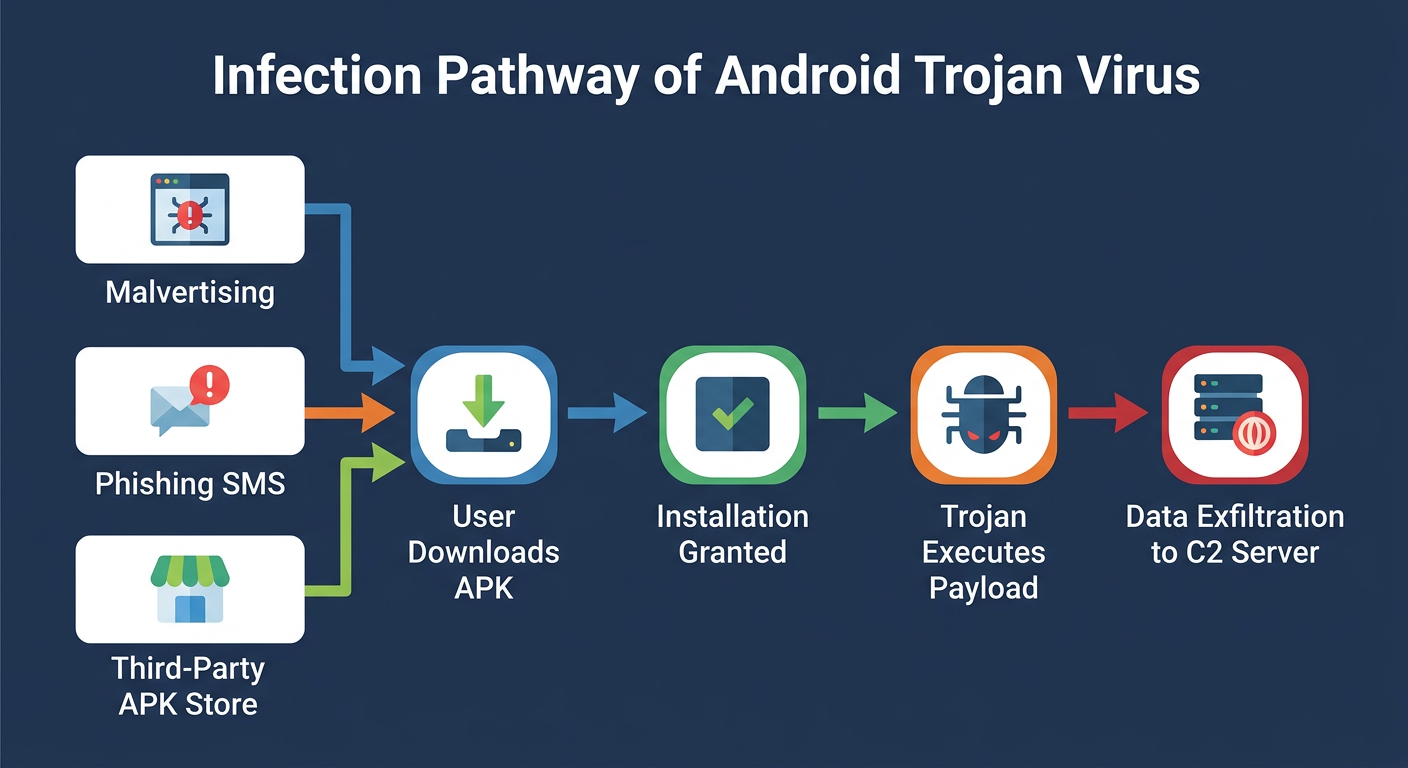
According to a 2026 Mobile Threat Intelligence Report by Kaspersky, approximately 63% of newly discovered Android malware samples are classified as Trojans, making them the dominant malware category on the platform. The same report notes that a significant portion of these threats are distributed through channels that entirely bypass Google Play’s security scanning infrastructure. Threat actors distribute Trojans through third-party app stores popular in specific regional markets, direct APK download websites promoted through search engine optimization manipulation, and phishing links embedded in SMS messages or social media posts. By operating outside Google’s ecosystem, these malicious apps face no automated review process and reach users with a false veneer of legitimacy.
Exploiting Android’s Ecosystem and User Habits
Android’s open architecture, while a strength for developers and power users, creates a structural vulnerability that Trojan authors exploit systematically. The ability to enable “Install Unknown Apps” — which allows APK files downloaded from any source to be installed — is a feature with no direct equivalent on iOS. Once a user enables this setting, even temporarily, they open a pathway that sophisticated social engineering campaigns are specifically designed to exploit.
The permission model compounds this risk significantly. A study published in the 2025 IEEE Symposium on Security and Privacy found that users approve permission requests at a rate exceeding 70% without reading the permission description, particularly when the app’s primary function appears unrelated to the requested access. A flashlight app requesting access to SMS messages and contacts should trigger immediate suspicion — but in practice, most users tap “Allow” reflexively. This behavioral pattern allows Trojans to acquire the access they need to steal financial data, intercept two-factor authentication codes, and exfiltrate contact lists within seconds of installation.
Common Delivery Methods for Android Trojans
Understanding how Trojans reach devices is essential for blocking their entry points. The primary delivery vectors in 2026 include:
- Malvertising: Malicious advertisements embedded in legitimate websites or within ad-supported free apps that trigger automatic APK downloads or redirect users to convincing fake app store pages.
- Smishing (SMS Phishing): Text messages impersonating banks, delivery services, or government agencies containing links that lead to Trojan-laden APK downloads.
- Social Media and Messaging App Links: Links shared through WhatsApp, Telegram, or Facebook Messenger, often appearing to come from compromised accounts of people the victim knows and trusts.
- Repackaged Legitimate Apps: Threat actors take a popular, legitimate APK, inject malicious code, and redistribute the modified version on third-party stores, often at a lower price or for free.
How Can You Detect a Trojan Virus on Your Android Phone?
Trojan detection on Android requires a fundamentally different mindset than detecting more overt malware. A well-crafted Trojan is engineered specifically to avoid triggering user suspicion. It will not display pop-up ads, lock your screen, or send you ransom notes. Instead, it operates in the background, consuming resources and transmitting data through channels designed to look like normal system activity. Effective detection means learning to recognize the subtle, anomalous patterns that betray a hidden process operating without your consent.
Performance and Battery Anomalies
The most immediately noticeable symptom of an active Trojan infection is abnormal device behavior. Because Trojans must execute background processes to collect data, communicate with command-and-control servers, and maintain persistence, they inevitably consume CPU cycles and battery power that have no apparent cause.
Key indicators include:
- Sudden, significant battery drain: If your device’s battery life drops by 30% or more without any change in your usage habits, a background process is likely consuming power. Navigate to Settings > Battery > Battery Usage and look for apps consuming disproportionate power relative to their apparent usage.
- Persistent overheating: A device that becomes warm during idle periods or light use (browsing, messaging) is executing intensive background processes — a strong indicator of malicious activity.
- Sluggish performance and unexplained crashes: Trojans compete with legitimate apps for RAM and CPU resources. According to a 2025 analysis by McAfee’s Mobile Research Team, devices infected with banking Trojans exhibited an average 40% increase in background CPU utilization, directly correlating with degraded foreground app performance and increased crash rates.
Network and Data Usage Red Flags
Data exfiltration is the primary objective of most Android Trojans. Whether stealing credentials, recording calls, or transmitting SMS messages to a remote server, this activity generates measurable network traffic. Android provides the tools to detect this — most users simply never look.
- Unexplained background data consumption: Go to Settings > Network & Internet > Data Usage and review the “Background data” column for each app. Any app consuming significant background data that you do not actively use is a serious red flag.
- Unknown SMS messages or calls in billing records: Premium-rate SMS Trojans generate revenue for attackers by sending messages to premium numbers billed to your account. Review your carrier’s itemized billing statement for any outgoing messages or calls you do not recognize.
Signs of Unauthorized Access and Activity
Some Trojan behaviors are visible at the application and account level, providing clear evidence of unauthorized activity:
- Unfamiliar apps in your installed apps list: Some Trojans install secondary payload apps after initial infection. Regularly review Settings > Apps and investigate any application you do not remember installing.
- Unsolicited authentication codes: Receiving 2FA codes for accounts you did not attempt to access is a critical warning sign that your credentials have been stolen and an attacker is attempting to log in to your accounts from another device.
- Changed account settings: Recovery email addresses or phone numbers changed on your accounts indicate that an attacker has already gained access using credentials harvested by a Trojan.
Use the following symptom checklist to assess your device’s current status:
| Observed Behavior | Potential Trojan-Related Cause | Urgency Level |
|---|---|---|
| Rapid battery drain (idle) | Background C2 communication or data harvesting process | High |
| Unexplained high background data usage | Exfiltration of contacts, SMS, or credential data to remote server | Critical |
| Device overheating at rest | Continuous background execution of malicious payload | High |
| Unknown apps in app list | Secondary payload installation by initial dropper Trojan | Critical |
| Unsolicited 2FA codes received | Credentials stolen and used for account takeover attempt | Critical — Act Immediately |
| Unknown SMS/calls in billing | Premium-rate SMS Trojan generating fraudulent charges | High |
| App crashes / sluggish performance | Malware consuming CPU and RAM resources | Medium |
| Changed account recovery details | Active account takeover following credential theft | Critical — Act Immediately |
What Are the Immediate Steps to Remove a Trojan from Android?
Trojan removal on Android requires a methodical, layered approach. Deleting a single suspicious app is rarely sufficient — sophisticated Trojans install secondary components, modify system settings, and acquire device administrator privileges specifically to resist removal. Effective eradication combines manual investigation of device settings with a dedicated security scanner capable of detecting disguised and deeply embedded threats.
Manual Investigation and App Removal
Begin with a systematic manual audit of your device before running any automated tools. This process identifies obvious threats and removes surface-level components that might interfere with scanner operation.
Step 1: Review Installed Applications
Navigate to Settings > Apps > See All Apps. Sort by installation date and scrutinize any app installed around the time symptoms began. Research any unfamiliar app names before uninstalling — some system components have non-intuitive names. For clearly suspicious apps, tap the app name and select Uninstall.
Step 2: Check Device Administrator Privileges
Many Trojans grant themselves Device Administrator status to prevent uninstallation. Navigate to Settings > Security > Device Admin Apps (the exact path varies by Android version and manufacturer). Any app listed here that you did not intentionally authorize should be deactivated immediately by tapping it and selecting Deactivate, after which you can uninstall it normally.
Step 3: Review Accessibility Services
Accessibility Services are a powerful Android feature that Trojans frequently abuse to overlay fake login screens, intercept keystrokes, and perform actions on your behalf. Go to Settings > Accessibility > Installed Services or Downloaded Apps and disable any service associated with an app you do not recognize or trust.
The following video tutorial demonstrates exactly how to locate and review Device Admin Apps and Accessibility Services on a standard Android device:
https://www.youtube.com/watch?v=6EFHuC2JZRE
Employing a Dedicated Security Scanner
Manual removal addresses visible components but cannot reliably detect obfuscated code, hidden payload files, or registry-equivalent modifications made by sophisticated Trojans. A dedicated mobile security scanner with Trojan-specific detection engines is essential for complete eradication.
360 Total Security provides a dedicated mobile security solution engineered specifically for the Android threat landscape. Its core capabilities for Trojan removal include:
- Deep System Scan: Scans installed APKs, cached files, and downloaded content against a continuously updated cloud threat database that identifies known Trojan signatures and behavioral patterns.
- Trojan-Specific Detection Engines: Unlike generic antivirus tools, 360 Total Security incorporates specialized heuristic engines designed to identify the obfuscation techniques and behavioral markers characteristic of disguised Trojans — including those not yet in signature databases.
- Lightweight Architecture: The scanner is engineered for minimal performance impact, ensuring that the removal process does not further degrade an already compromised device’s responsiveness.
- Residual File Cleaning: After identifying and quarantining the primary threat, 360 Total Security scans for and removes associated residual files, cached data, and secondary components left behind by the Trojan.
After installing and running 360 Total Security, follow all quarantine and deletion recommendations provided by the scan results. Do not skip or defer the removal of any flagged item.
Post-Removal Cleanup and Verification
Removing the Trojan itself is not the final step. The period during which the Trojan was active on your device must be treated as a complete compromise of all data accessible to it.
- Clear app caches: Go to Settings > Apps and clear the cache and data for any app that was associated with the infection or that the Trojan may have accessed.
- Change all critical passwords immediately: Prioritize email accounts (which can be used for password resets on all other services), banking and financial apps, social media accounts, and any service where you stored payment information. Change these passwords from a separate, trusted device if possible.
- Revoke active sessions: For Google, banking apps, and social media platforms, review active login sessions and revoke any you do not recognize.
- Enable new 2FA methods: If the Trojan had access to your SMS messages, your SMS-based 2FA codes were compromised. Switch to an authenticator app (such as Google Authenticator) for all critical accounts.
- Monitor for 5–7 days: Continue observing battery usage, data consumption, and account activity to confirm the threat has been fully eradicated.
How to Proactively Protect Your Android Device from Trojan Infections
The most effective defense against Android Trojans is prevention — hardening your device’s security posture to the point where the primary infection vectors are blocked before a Trojan can ever be installed. This requires a combination of disciplined app installation habits, rigorous permission management, and the deployment of proactive security software that identifies threats before they execute.
Smart App Installation Habits
The single most impactful behavioral change you can make is treating every app installation as a security decision that deserves deliberate scrutiny.
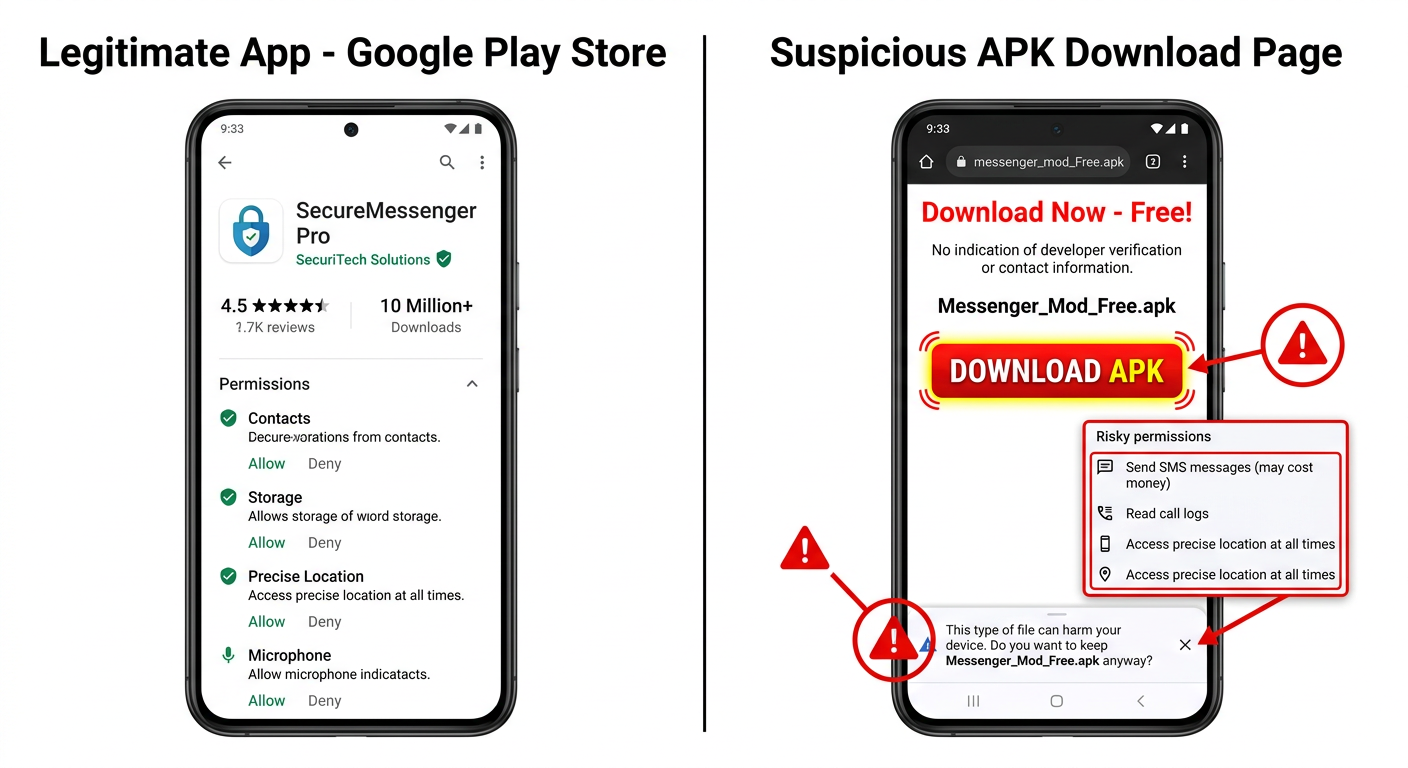
- Use the Google Play Store as your primary source: While not perfect, Google Play’s automated scanning (Google Play Protect) and manual review processes eliminate the vast majority of known Trojans before they reach users. When downloading from Play Store, verify the developer name matches the legitimate publisher, check the number of reviews and installs, and read recent negative reviews which often flag suspicious behavior.
- Never install apps from unsolicited links: No legitimate service will send you an unsolicited SMS or email asking you to download an APK directly. Treat any such message as a phishing attempt regardless of how official it appears.
- Research before installing: A 30-second web search for an app’s name plus the word “malware” or “Trojan” can reveal whether it has been flagged by the security community.
Rigorous Permission and Setting Management
Android’s permission system is a powerful security tool when used actively. Most users treat it as an obstacle to click through rather than a meaningful security checkpoint.
- Apply the principle of least privilege: Before granting any permission, ask whether the app’s core function genuinely requires that access. A calculator app has no legitimate need for microphone access. A photo editing app has no legitimate need for SMS access. Deny any permission that does not have a clear, logical justification.
- Disable “Install Unknown Apps” by default: Navigate to Settings > Apps > Special App Access > Install Unknown Apps and ensure this permission is disabled for all apps, including your browser and file manager. Only enable it temporarily when installing a specific, trusted APK from a verified source, and disable it immediately afterward.
- Conduct periodic permission audits: Go to Settings > Privacy > Permission Manager and review which apps have access to sensitive resources like Location, Microphone, Camera, and SMS. Revoke any permissions that seem inconsistent with the app’s function.
- Keep Android OS updated: System updates patch security vulnerabilities that Trojans can exploit to escalate privileges. Enable automatic updates in your device settings.
Installing a Proactive Security Solution
Behavioral discipline significantly reduces risk but cannot provide complete protection against zero-day threats, sophisticated social engineering, or compromised legitimate apps. A proactive security solution adds a critical automated layer of defense.
360 Total Security is engineered for exactly this preventive role on Android devices. Its prevention-focused capabilities include:
- Real-Time Installation Scanning: Every APK downloaded or installed is automatically scanned against 360 Total Security’s threat database before execution, blocking known Trojans at the point of entry.
- Cloud-Based Threat Intelligence: 360 Total Security’s cloud infrastructure continuously updates with newly identified Trojan variants, ensuring that even recently discovered threats are detected without requiring manual definition updates from the user.
- Vulnerability Scanning: The app actively scans system settings for security misconfigurations — such as “Install Unknown Apps” being enabled or outdated system components — and alerts users to remediate them.
- Minimal Performance Impact: The solution is architecturally optimized for mobile hardware constraints, providing enterprise-grade protection without the battery drain or performance degradation associated with poorly optimized security software.
Keeping 360 Total Security updated ensures its detection engines recognize the latest Trojan variants as they emerge. Visit the 360 Total Security official website to download the latest version and explore its full feature set for Android protection.
Advanced Tools and Practices for Enterprise IT Administrators
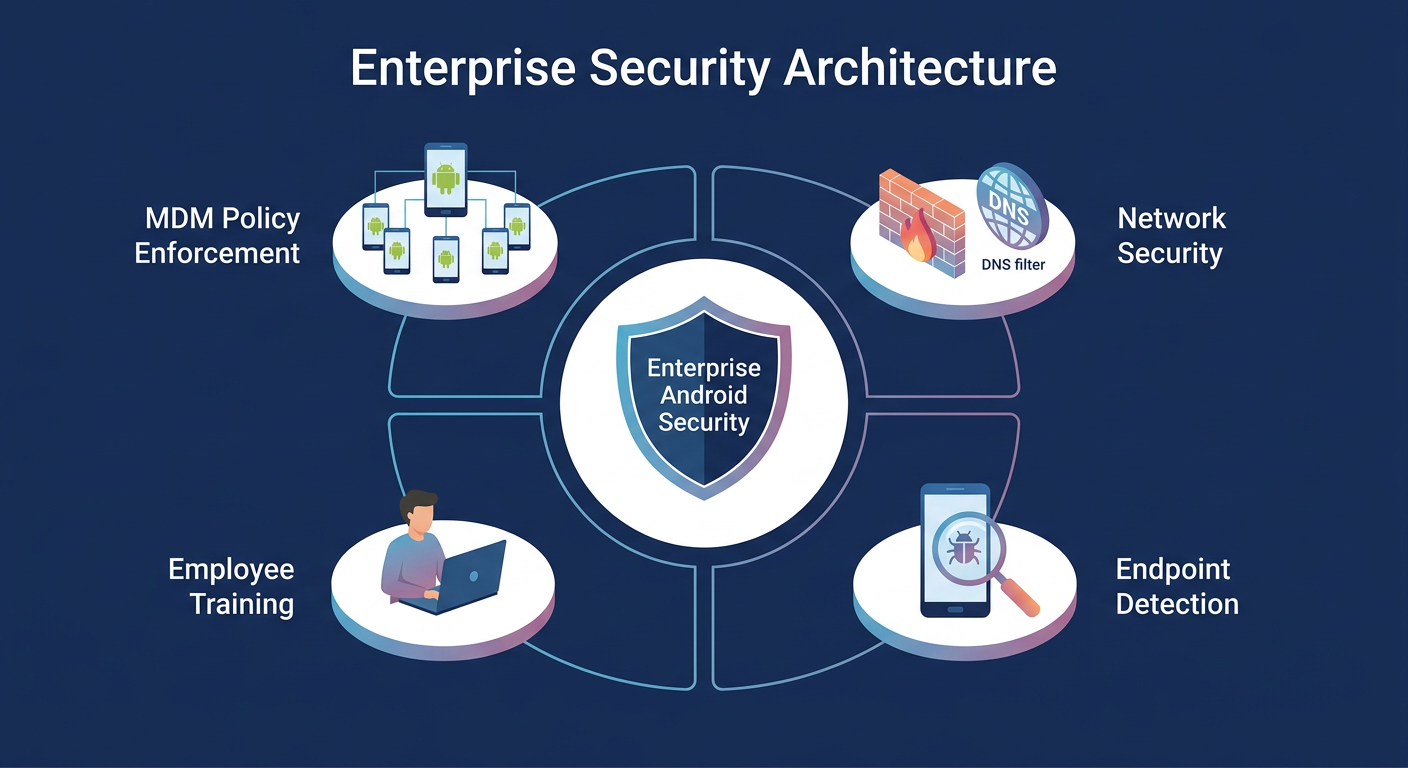
Individual device security practices, while necessary, are insufficient for organizations managing dozens, hundreds, or thousands of Android endpoints. Enterprise environments require a layered, policy-driven security architecture that combines Mobile Device Management for centralized control, network-level threat filtering, endpoint detection capabilities, and ongoing employee education. The stakes are higher in enterprise contexts: a single Trojan infection on an employee device can provide attackers with access to corporate email, internal systems, customer data, and financial accounts.
Implementing Mobile Device Management (MDM)
Mobile Device Management platforms are the foundational layer of enterprise Android security. MDM solutions allow IT administrators to enforce security policies across all managed devices from a centralized console, eliminating the reliance on individual user behavior for critical security controls.
Key MDM capabilities for Trojan prevention include:
- App Whitelisting and Blacklisting: Restrict device installations to an approved list of vetted applications, entirely preventing the installation of unauthorized APKs regardless of user action.
- Third-Party Store Blocking: Enforce policies that disable access to alternative app stores and prevent enabling of “Install Unknown Apps” at the OS policy level.
- Remote Application Management: Remotely install, update, and remove applications across the entire device fleet. This enables rapid deployment of security tools like 360 Total Security to all managed devices and immediate removal of identified malicious apps during an incident response.
- Compliance Enforcement: Automatically identify and quarantine devices that fall out of compliance (e.g., devices running outdated OS versions or with security settings disabled) until they are remediated.
As noted by James Whitfield, Senior IT Security Manager at a Fortune 500 financial services firm in a 2026 industry roundtable: “Centralized mobile security management through MDM is not optional for any organization with more than 20 mobile endpoints. The assumption that employees will consistently make correct security decisions — even after training — is statistically unsupportable. Policy enforcement at the MDM level removes human error from the equation for the most critical controls.”
Network and Endpoint Security Layers
MDM policy enforcement must be complemented by security controls that operate at the network and endpoint levels, providing defense-in-depth against Trojans that exploit network communication channels.
- DNS Filtering and Web Gateway Security: Deploy network security solutions that filter DNS requests and HTTP/HTTPS traffic, blocking access to known malicious domains used for Trojan distribution, phishing pages, and command-and-control server communication. This prevents Trojans from functioning even if they manage to be installed.
- Mobile Threat Defense (MTD) Integration: MTD solutions integrate with MDM platforms to provide real-time threat intelligence at the device level, detecting Trojan activity based on behavioral anomalies (abnormal network connections, privilege escalation attempts) rather than relying solely on signature matching.
- Endpoint Detection and Response (EDR) for Mobile: Advanced EDR tools extend behavioral monitoring to mobile endpoints, flagging anomalous process behavior, unexpected network connections to foreign IP addresses, and unauthorized access to sensitive data stores — all characteristic behaviors of active Trojans.
- VPN Enforcement: Require all managed devices to route traffic through a corporate VPN when accessing company resources, ensuring that all traffic passes through the organization’s security inspection infrastructure.
Employee Training and Incident Response
Technology controls are most effective when supported by a workforce that understands the threat landscape and responds correctly when suspicious activity is observed.
- Regular Phishing Simulation Training: Conduct quarterly simulated phishing campaigns specifically targeting mobile users, including SMS phishing (smishing) scenarios, to build practical recognition skills in a low-stakes environment.
- Clear Reporting Protocols: Establish and communicate a simple, frictionless process for employees to report suspected infections. Delayed reporting significantly increases the damage from an active Trojan infection. Employees must understand that reporting is rewarded, not penalized.
- Documented Incident Response Playbook: Maintain a current, tested incident response plan specifically for mobile Trojan infections that includes: immediate device isolation steps, forensic data preservation, credential rotation procedures, affected system notification, and regulatory reporting requirements where applicable.
The following table compares the security approaches, tools, and responsibilities applicable to individual users versus enterprise IT administrators:
| Security Dimension | Individual User | Enterprise IT Administrator |
|---|---|---|
| App Installation Control | Manual review; rely on Google Play; avoid unknown sources | MDM app whitelisting; third-party store blocking via policy |
| Threat Detection Tool | 360 Total Security mobile app (manual scan) | 360 Total Security deployed fleet-wide via MDM; MTD integration |
| Permission Management | Manual review per app; periodic permission audits | Centralized permission policies enforced at OS level via MDM |
| Network Security | Avoid public Wi-Fi; use reputable VPN | Corporate VPN enforcement; DNS filtering; web gateway security |
| Incident Response | Run security scan; change passwords; monitor behavior | MDM remote wipe/quarantine; forensic analysis; regulatory reporting |
| Training | Self-directed security awareness | Mandatory structured training; phishing simulations; reporting protocols |
| Update Management | Manual OS and app updates | Automated forced updates via MDM; compliance monitoring |
| Control Level | Behavioral (dependent on user decisions) | Technical + Behavioral (policy-enforced, independent of user decisions) |
For organizations seeking to implement comprehensive mobile endpoint protection at scale, 360 Total Security offers enterprise deployment options with centralized management capabilities. Explore the full enterprise solution portfolio on the official website to find the configuration appropriate for your organization’s size and risk profile.
Frequently Asked Questions
Q1: Can a Trojan virus infect my Android phone through a website visit alone, without me installing anything?
In most cases, a Trojan requires user action — specifically, granting permission to install an APK file — to infect an Android device. However, drive-by download attacks that exploit unpatched vulnerabilities in Android’s browser or WebView component can theoretically initiate a download and, on devices with “Install Unknown Apps” enabled for the browser, potentially install without explicit user confirmation. This underscores the importance of keeping Android OS and Chrome updated, and keeping “Install Unknown Apps” disabled for all browsers at all times.
Q2: Will a factory reset completely remove a Trojan from my Android device?
A factory reset is the most thorough removal method available and will eliminate the vast majority of Trojan infections, as it wipes all user-installed apps and data. However, extremely rare and sophisticated firmware-level Trojans (sometimes called “bootkit” Trojans) can survive a factory reset by embedding themselves in the device’s system partition. These are primarily associated with targeted attacks against high-value individuals. For typical Trojan infections, a factory reset combined with a security scan before restoring apps is highly effective. Always restore from a backup taken before the infection occurred.
Q3: How do I know if an app on the Google Play Store is safe, or could it still contain a Trojan?
Google Play Protect scans apps for known malware signatures, but it is not infallible. Sophisticated Trojans sometimes pass initial review by delaying malicious behavior until after approval, or by downloading malicious payloads from external servers after installation. To maximize safety on Google Play: verify the developer name exactly matches the legitimate publisher (watch for typosquatting), check that the number of installs and reviews is consistent with the app’s claimed age and popularity, read recent one-star reviews which often contain early malware reports, and be suspicious of apps requesting permissions inconsistent with their stated function.
Q4: My phone is showing signs of a Trojan infection, but the security scan found nothing. What should I do?
If behavioral symptoms persist after a clean scan result, consider the following steps: First, update your security app to ensure it has the latest threat definitions and rescan. Second, try a second-opinion scan using a different security tool, as no single scanner detects 100% of threats. Third, manually review Device Admin Apps and Accessibility Services for unauthorized entries (as described in the removal section above). Fourth, check your Google account’s security page for unfamiliar connected apps or active sessions. If symptoms continue without explanation, a factory reset is the most reliable resolution.
Q5: Is it safe to use public Wi-Fi on my Android phone, and can it lead to a Trojan infection?
Public Wi-Fi networks present a meaningful security risk, though the infection mechanism differs from direct APK installation. On an unsecured public network, a malicious actor can conduct a man-in-the-middle (MITM) attack that intercepts unencrypted traffic or redirects HTTP requests to pages that prompt APK downloads. The risk is significantly mitigated by using HTTPS-only connections (modern browsers enforce this by default), using a reputable VPN on public networks, and — critically — keeping “Install Unknown Apps” disabled so that any unexpected download prompt cannot result in installation. For enterprise users, VPN enforcement should be mandatory when accessing corporate resources over any non-corporate network.
Author Bio: This article was researched and written by a Senior Technical Writer specializing in mobile cybersecurity, endpoint protection, and threat intelligence. With over a decade of experience translating complex security concepts for both technical and general audiences, the author has contributed to cybersecurity publications, enterprise security documentation, and consumer protection guides. Content is reviewed against current threat intelligence reports and validated against Android security documentation to ensure technical accuracy.
发表回复