Executive Summary: Discovering that your phone may be infected with malware is a stressful experience, but it is a manageable one. This comprehensive guide walks you through every critical stage: identifying the telltale signs that your phone has a virus, understanding how infections occur and what risks they carry, executing a step-by-step manual removal process, leveraging dedicated security software for automated protection, and building long-term prevention habits. Whether you are dealing with relentless pop-up ads, suspicious battery drain, or outright ransomware, the actionable strategies in this article will help you reclaim control of your device and keep it secure going forward.
What Are the Signs That Your Phone Has a Virus?
Recognizing the symptoms of a mobile malware infection is the most critical first step before any remediation can begin. Unlike traditional PC viruses that often announce themselves dramatically, mobile malware is frequently designed to operate quietly in the background, siphoning data or generating fraudulent ad revenue without triggering obvious alarms. Knowing what subtle and overt signals to look for can mean the difference between catching an infection early and suffering prolonged data exposure or financial loss.
Performance and Battery Issues
One of the earliest and most reliable indicators that something is wrong with your phone is a sudden, unexplained change in its performance profile. These changes are not random — they are typically the direct result of malicious processes consuming system resources in the background.
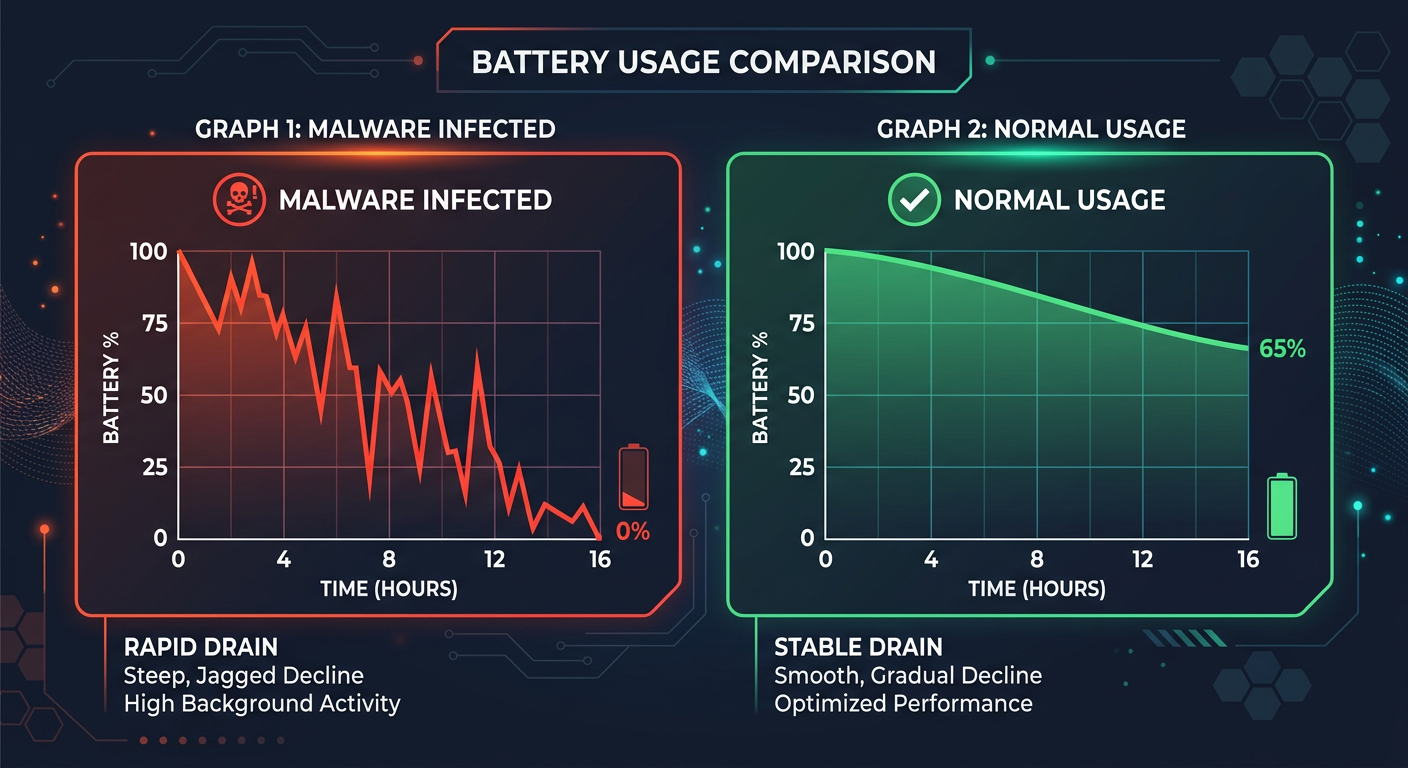
- Unexpected and Rapid Battery Drain: If your phone’s battery is depleting significantly faster than usual — even when you are barely using it — this is a major red flag. According to a 2026 mobile threat intelligence report by a leading cybersecurity research firm, malware-infected devices exhibit battery consumption rates up to 40% higher than clean devices, as background processes continuously transmit data or execute ad fraud scripts. This drain occurs because the malicious code never truly rests, even when your screen is off.
- Overheating, Crashes, and Sluggishness: A phone that becomes warm to the touch without intensive use, experiences frequent app crashes, or feels unusually slow to respond to inputs is likely running hidden processes. Malware often competes with legitimate apps for CPU and RAM, causing the system to strain under the combined load. If your device feels like it is working hard while sitting idle, treat it as a serious warning sign.
Unusual Data Usage and Network Activity
Mobile malware almost always requires a network connection to fulfill its purpose — whether that is sending stolen credentials to a remote server, loading fraudulent advertisements, or receiving commands from a command-and-control (C2) infrastructure. This network activity leaves a measurable footprint.
- Skyrocketing Data Usage: Check your monthly data bill or your phone’s built-in data usage monitor. A sudden, unexplained spike in data consumption — particularly from apps you do not actively use — is a strong indicator of background data theft or ad fraud activity. Some banking trojans have been documented transmitting hundreds of megabytes of intercepted data per day, resulting in charges that users only notice when their bill arrives.
- Strange Network Permissions: Navigate to your app permissions settings and look for unfamiliar apps or system processes requesting network access. A flashlight app or a simple calculator that requests permission to access the internet and your contacts simultaneously has no legitimate reason to do so. These anomalous permission requests are a hallmark of spyware and adware behavior.
Persistent Ads and Unauthorized Changes
While some malware is designed to be invisible, adware is often brazenly intrusive. Its goal is to generate revenue through advertising impressions, and it does so aggressively and without your consent.
- Pop-Up Ads Outside of Apps: Legitimate advertising is contained within apps. If you are seeing pop-up advertisements on your home screen, within your notification bar, or overlaying your lock screen, your device is almost certainly infected with adware. According to cybersecurity research on mobile adware behavior, these out-of-app ads are generated by background services that persist even after the originating app is closed, making them particularly difficult to trace back to their source manually.
- Unfamiliar Apps and Changed Settings: New apps appearing on your device that you never downloaded, or system settings changing without your input — such as your default browser being switched to an unfamiliar one, or your homepage being redirected — are definitive signs of unauthorized activity. Some sophisticated malware strains can install secondary payload apps silently, creating a persistent infection chain that survives simple removal attempts.
How Do Mobile Viruses Infect Your Phone and What Are the Risks?
Understanding the pathways through which malware reaches your device is just as important as knowing how to remove it. Every infection has a root cause, and identifying that cause is essential for preventing reinfection. Furthermore, understanding the full spectrum of risks — from mildly annoying adware to financially devastating ransomware — underscores why prompt and thorough remediation is non-negotiable.
Common Infection Pathways
Mobile malware does not materialize from thin air. It exploits specific behaviors, habits, and vulnerabilities to gain a foothold on your device. The three most prevalent infection vectors are as follows:
- Third-Party App Stores and Sideloaded APKs: The single most common source of mobile malware is the installation of apps from outside official app stores. Third-party stores and direct APK downloads bypass the security vetting processes of Google Play Protect and Apple’s App Store review system. Malicious actors frequently repackage popular apps — games, utilities, streaming tools — with embedded malware and distribute them through unofficial channels, targeting users seeking free versions of paid software.
- Phishing Links in SMS, Email, and Social Media: A carefully crafted text message claiming your bank account has been locked, or a social media direct message containing a “must-see” link, can lead you to a malicious website that either installs a drive-by download or tricks you into entering your credentials. These smishing (SMS phishing) and social engineering attacks are increasingly sophisticated, often mimicking the exact visual design of legitimate services.
- Unpatched Operating System Vulnerabilities: Every operating system contains security vulnerabilities. When manufacturers and developers release security patches, they are closing known holes that malware authors are actively trying to exploit. Running an outdated OS version is equivalent to leaving a known unlocked door in your home’s security system. A 2026 cybersecurity vulnerability report noted that over 60% of successful mobile exploits targeted devices running OS versions that were more than two patch cycles behind the current release.
The Spectrum of Threats: From Adware to Ransomware
Not all mobile malware is created equal. The threat landscape spans a wide spectrum of severity, from nuisances that degrade your experience to criminal tools that can cause serious financial and personal harm.
[Table: Comparison of Common Mobile Malware Types]
| Malware Type | Primary Behavior | Common Infection Method | Risk Level |
|---|---|---|---|
| Adware | Displays intrusive, unwanted advertisements outside of apps; generates fraudulent ad revenue | Bundled with free apps from third-party stores | Low–Medium (Privacy & Performance) |
| Spyware | Silently collects personal data: contacts, messages, location, browsing history, and transmits it to remote servers | Disguised as legitimate utility apps; phishing links | High (Privacy & Identity Theft) |
| Banking Trojan | Overlays fake login screens on banking apps; intercepts SMS-based 2FA codes; steals financial credentials | Malicious apps; smishing campaigns targeting bank customers | Critical (Direct Financial Loss) |
| Ransomware | Encrypts device files or locks the screen; demands cryptocurrency payment for restoration | Malicious APKs; exploit kits targeting unpatched OS vulnerabilities | Critical (Data Loss & Extortion) |
Step-by-Step Guide to Manually Remove a Virus from Your Phone
A systematic manual cleanup process, starting with the simplest interventions and escalating to more drastic measures only when necessary, can effectively neutralize many common infections. This section provides a structured escalation path — begin at the top and only proceed to the next level if the previous step does not resolve the issue.
Initial Investigation and Simple Removal
Before reaching for advanced tools, a careful manual audit of your device can often pinpoint and eliminate the source of infection, particularly for adware and less sophisticated malware strains.
- Audit Your Installed Apps Meticulously: Navigate to Settings > Apps (or Application Manager) and scroll through every installed application. Look for apps you do not recognize, apps with generic or suspicious names (e.g., “System Service,” “Phone Manager”), or any app installed around the time you first noticed symptoms. Cross-reference any unfamiliar app name with a quick web search to determine its legitimacy. Uninstall anything suspicious immediately. Also check for apps that cannot be easily uninstalled — this resistance is itself a warning sign of a more deeply embedded infection.
- Clear Browser Cache and App Data: Navigate to Settings > Apps, select your web browser, and tap Clear Cache and Clear Data. Do the same for any other apps that have been behaving strangely. Many adware infections persist through stored browser data, cached scripts, and cookies that re-execute malicious redirects each time the app is opened. Clearing this data eliminates the immediate trigger without affecting your core device functionality.
Advanced Cleanup Using Safe Mode
If the suspicious app refuses to uninstall normally, or if you cannot identify which app is causing the problem, Safe Mode is your most powerful manual diagnostic tool.
- Booting into Safe Mode: On most Android devices, press and hold the power button, then press and hold the “Power Off” option until you see a prompt to reboot into Safe Mode. Confirm and allow the device to restart. In Safe Mode, all third-party apps are disabled — only pre-installed system apps run. If your phone’s symptoms (pop-ups, slowness, overheating) disappear in Safe Mode, this confirms that a third-party app is the culprit. The process varies slightly by manufacturer; consult your device’s specific documentation if needed.
- Uninstall the Malicious App While in Safe Mode: With third-party apps disabled, the malicious app can no longer defend itself or interfere with the uninstallation process. Navigate to Settings > Apps while in Safe Mode, locate the suspicious application, and uninstall it. If the uninstall button is grayed out, the app may have been granted Device Administrator privileges. Go to Settings > Security > Device Administrators (the exact path varies by Android version), revoke the app’s administrator status, and then return to uninstall it. Once complete, restart your phone normally and verify that the symptoms are gone.
The Nuclear Option: Factory Reset
When all manual removal attempts have failed — particularly in cases of deeply embedded rootkits, persistent ransomware, or an infection that reinstalls itself — a factory reset is the definitive solution. However, it must be executed correctly to be effective and to avoid data loss.
- Back Up Clean Data First: Before resetting, back up only the data you are certain is clean — contacts, photos, documents. Do not back up your full app list or app data, as this could restore the malware alongside your legitimate files. Use a cloud service or a direct cable transfer to a trusted computer.
- Execute the Reset from System Settings: This is critical. Navigate to Settings > General Management > Reset > Factory Data Reset (path varies by device). Never initiate a factory reset from a pop-up prompt or a notification, as these are common social engineering tactics used by ransomware to trick users into fake resets that actually install more malware. The reset must come from your verified system settings menu.
- Expert Guidance on Timing: As mobile security professionals consistently advise, a factory reset should be treated as a last resort — not a first response. It is the correct choice when: the malware has been granted root-level access, when the infection reinstalls itself after manual removal, or when a banking trojan or ransomware has been confirmed. For simpler adware infections, the earlier steps in this guide are usually sufficient and far less disruptive.
Why and How to Use a Dedicated Mobile Security App for Protection
While manual removal methods are valuable skills, they are inherently reactive and limited in scope. A dedicated security application provides a proactive, automated, and far more comprehensive layer of defense — one that operates continuously without requiring you to manually audit your device every day. For users who want genuine peace of mind rather than periodic damage control, a dedicated security solution is not optional; it is essential.
The Advantages of a Dedicated Security Solution
The gap between what manual removal can achieve and what purpose-built security software provides is substantial. Understanding this gap is key to appreciating why security software is a worthwhile investment of both time and resources.
- Real-Time Scanning and Threat Blocking: A dedicated security app scans every new app installation in real time, analyzing its code and behavior against a continuously updated database of known threats. This means malware is blocked before it ever executes on your device — a capability that manual checks simply cannot replicate, since manual audits only occur after the fact.
- Automated Deep Scans: Sophisticated malware can hide within system processes, disguise itself as legitimate apps, or fragment its components across multiple locations to evade casual inspection. Automated deep scan engines are specifically designed to detect these obfuscation techniques, cross-referencing behavioral patterns and code signatures to root out threats that a manual review would completely miss.
- Comprehensive Extra Features: Modern security suites extend well beyond simple virus scanning. Privacy audits reveal which apps are accessing sensitive permissions unnecessarily. Wi-Fi security checks alert you when you connect to an unsecured or potentially malicious network. Anti-phishing modules scan URLs in real time before you follow a link, blocking malicious sites before they can deliver their payload.
How to Effectively Use a Security App Like 360 Total Security
Having the right tool is only half the equation — knowing how to use it effectively is equally important. Here is a practical workflow for getting the most out of a dedicated security application on your Android device.
- Installation and First Scan: Download 360 Total Security from the official Google Play Store. Installing from the official store ensures you receive a verified, untampered version of the application. Once installed, immediately run a full system scan. This initial scan will audit all existing apps, files, and processes on your device, establishing a clean baseline and identifying any threats that may already be present.
- Utilizing Core Features: After the initial scan, activate the real-time protection module to ensure continuous background monitoring. Explore the “Privacy Cleanup” feature to identify apps that are holding excessive permissions or retaining unnecessary personal data. Use the “Wi-Fi Security Check” tool whenever you connect to a new network, particularly in public spaces like cafes, airports, and hotels, to verify that the connection is not being used for a man-in-the-middle attack.
- Regular Maintenance Schedule: Security is not a one-time event — it is an ongoing discipline. Schedule periodic full scans (weekly is ideal for high-risk users; monthly is acceptable for average users). Keep the 360 Total Security app itself updated to ensure it has access to the latest virus definitions and threat intelligence. An outdated security app is significantly less effective against newly emerging malware strains, as threat actors continuously evolve their techniques to evade older detection signatures.
How to Keep Your Phone Virus-Free: Proactive Prevention Strategies
Removing a virus from your phone is a victory, but the true goal is ensuring you never have to fight that battle again. Post-cleaning, the most valuable thing you can do is adopt a set of proactive security habits that dramatically reduce your attack surface. Prevention is not only more effective than remediation — it is exponentially less stressful and less costly in terms of time, data, and potential financial loss.
Smart App Management and Download Practices
The vast majority of mobile malware infections are preventable through disciplined app management. Your app download habits are your first and most important line of defense.
- Official Stores Only, With Due Diligence: Commit to downloading apps exclusively from the Google Play Store or the Apple App Store. Even within official stores, exercise caution — check the developer’s name carefully (malicious actors frequently create names that closely mimic legitimate developers), read recent user reviews for reports of suspicious behavior, and scrutinize the permissions the app requests during installation. An app that asks for more permissions than its stated function requires should be treated with immediate suspicion.
- Regular App Audits: Set a recurring reminder to review your installed apps every month. Remove any apps you no longer use — dormant apps represent an unnecessary attack surface, particularly if they contain unpatched vulnerabilities. This habit also keeps your device running efficiently and reduces the number of apps that have access to your personal data.
System and Network Hygiene
Beyond app management, maintaining good system and network hygiene closes the technical vulnerabilities that malware authors actively exploit.
- Keep Everything Updated: Enable automatic updates for both your operating system and all installed apps. OS security patches are released specifically to close vulnerabilities that have been discovered and, in many cases, are already being actively exploited in the wild. Delaying these updates is a measurable security risk. According to a 2025 mobile security analysis, devices running the latest OS version were 3.5 times less likely to be successfully compromised than devices two or more patch versions behind.
- Be Cautious with Links and Public Wi-Fi: Develop a healthy skepticism toward unsolicited links, particularly in SMS messages and emails from unknown senders. Before clicking any link, verify the sender’s identity through an independent channel. When using public Wi-Fi networks, avoid accessing banking apps, entering passwords, or conducting any sensitive transactions unless you are protected by a reputable VPN. Public networks are a common hunting ground for man-in-the-middle attacks designed to intercept unencrypted data.
Monthly and Quarterly Phone Security Maintenance Checklist:
| Task | Frequency | Priority | Notes |
|---|---|---|---|
| Update operating system to latest version | As released / Monthly check | Critical | Enable auto-updates; never skip security patches |
| Update all installed apps | Weekly / As released | High | Outdated apps can contain exploitable vulnerabilities |
| Review and audit app permissions | Monthly | High | Revoke permissions that exceed an app’s stated function |
| Run a full security scan | Monthly (Weekly for high-risk users) | High | Use a dedicated tool like 360 Total Security for thoroughness |
| Uninstall unused apps | Monthly | Medium | Reduces attack surface and improves device performance |
| Check data usage for anomalies | Monthly | Medium | Unexplained spikes may indicate background malware activity |
| Review and update account passwords | Quarterly | High | Use a password manager; enable 2FA on all critical accounts |
| Back up device data to a secure location | Monthly | High | Ensures data recovery is possible in a ransomware scenario |
| Update security app virus definitions | Automatic / Weekly verification | Critical | An outdated security app provides significantly reduced protection |
Maintaining a consistently secure mobile device is an ongoing practice, not a one-time fix. By combining the manual skills outlined in this guide with the automated protection of a dedicated security tool like 360 Total Security and the disciplined habits described in this section, you build a layered defense that is genuinely resilient against the evolving mobile threat landscape. Visit the 360 Total Security official website to explore the full range of desktop and mobile security features available to protect your digital life.
Frequently Asked Questions
Can iPhones get viruses, or is it only an Android problem?
While iPhones are significantly more resistant to traditional viruses due to Apple’s strict App Store review process and iOS’s sandboxed app architecture, they are not completely immune. iPhones can be vulnerable to phishing attacks, malicious web content, and — in rare cases involving jailbroken devices — malware similar to what affects Android. Android devices face a broader threat landscape primarily because the platform allows sideloading from third-party sources, which is the most common malware infection vector.
Will a factory reset definitely remove all viruses from my phone?
A factory reset performed correctly from the system settings menu will remove the vast majority of malware, including persistent adware, spyware, banking trojans, and most ransomware. However, extremely sophisticated threats — such as firmware-level rootkits that embed themselves in the device’s bootloader — can theoretically survive a standard factory reset. These are rare and typically target high-value individuals. For the overwhelming majority of users, a factory reset is a definitive solution when other methods fail.
How can I tell the difference between a slow phone due to age and one infected with malware?
The key differentiator is the pattern of the slowdown. Age-related performance degradation is gradual and consistent — your phone gets slightly slower over months as the OS grows more complex relative to the hardware. Malware-induced slowness tends to be sudden, pronounced, and often accompanied by other symptoms such as battery drain, overheating, unexpected data usage, or pop-up ads. If your phone was performing normally last week and is dramatically slower this week without any OS update or major new app installation, malware is a strong candidate.
Is it safe to use my phone for banking while I am trying to remove a suspected virus?
No. If you suspect your phone is infected — particularly with a banking trojan or spyware — you should immediately cease all sensitive financial activity on that device until the infection has been fully resolved. Banking trojans are specifically designed to intercept credentials and transaction data in real time. Using your banking app on an infected device could result in immediate financial loss. Use a separate, trusted device for any banking needs until your phone has been confirmed clean.
Do free antivirus apps for phones actually work, or do I need a paid version?
Many reputable free security apps provide genuinely effective baseline protection, including real-time scanning, malware detection, and basic privacy audits. The difference between free and paid tiers typically lies in the depth of additional features — such as advanced VPN integration, identity theft monitoring, or priority customer support — rather than in the core malware detection capability. For most everyday users, a well-maintained free tier from a reputable provider offers substantial protection, provided it is kept updated and used consistently alongside the good security habits outlined in this guide.
About the Author: This article was researched and written by a Senior Technical Writer specializing in mobile cybersecurity, malware analysis, and consumer digital safety. With over a decade of experience translating complex security concepts into actionable guidance for everyday users, the author has contributed to cybersecurity publications, threat intelligence briefings, and consumer protection resources. Their work focuses on empowering users to make informed decisions about their digital security posture without requiring a background in computer science.
发表回复